Page 2 - Safety information; CAUTION
1 Getting Started Getting Started 2 Getting S tar ted 1 Safety information CAUTION RISK OF ELECTRIC SHOCK DO NOT OPEN CAUTION: TO REDUCE THE RISK OF ELECTRIC SHOCK DO NOT REMOVE COVER (OR BACK) NO USER-SERVICEABLE PARTS INSIDE REFER SERVICING TO QUALIFIED SERVICE PERSONNEL. This lightning flash with...
Page 4 - Notes on Copyrights
Getting Started 4 Getting S tar ted 1 Notes on Copyrights y Because AACS (Advanced Access Content System) is approved as content protection system for Blu-ray Disc format, similar to use of CSS (Content Scramble System) for DVD format, certain restrictions are imposed on playback, analog signal outp...
Page 5 - IMPORTANT SAFETY
Getting Started 5 Getting S tar ted 1 IMPORTANT SAFETY INSTRUCTIONS 1. Read these instructions. 2. Keep these instructions.3. Heed all warnings. 4. Follow all instructions. 5. Do not use this apparatus near water. 6. Clean only with dry cloth. 7. Do not block any ventilation openings. Install in acc...
Page 6 - Table of Contents; Getting Started
Table of Contents 6 Table of Contents 1 Getting Started 2 Safety information 8 Introduction8 – Playable discs and symbols used in this manual 9 – About the “ 7 ” symbol display 9 – Compatibility notes 10 – File requirement11 – AVCHD (Advanced Video Codec High Definition) 12 – Certain system requirem...
Page 7 - Troubleshooting
Table of Contents 7 1 2 3 4 5 6 5 Troubleshooting 37 Troubleshooting37 – General38 – Picture38 – Customer support38 – Open source software notice 6 Appendix 39 Controlling a TV with the supplied remote control 39 – Setting up the remote to control your TV 40 Area code list41 Language code list 42 Tr...
Page 8 - Introduction; Playable discs and symbols used in this manual
Getting Started 8 Getting S tar ted 1 Introduction Playable discs and symbols used in this manual Media/Term Logo Symbol Description Blu-ray e y Discs such as movies that can be purchased or rented. y BD-R/RE discs that are recorded in BDAV format. y u i y BD-R/RE discs that contain Video, Audio or ...
Page 9 - Note; About the “; Compatibility notes
Getting Started 9 Getting S tar ted 1 y Depending on the conditions of the recording equipment or the CD-R/RW (or DVD±R/RW ) disc itself, some CD-R/RW (or DVD±R/RW ) discs cannot be played on the unit. y Depending on the recording software & the finalization, some recorded discs (CD-R/RW, DVD±R/...
Page 10 - File requirement; Video files
Getting Started 10 Getting S tar ted 1 File requirement Video files File Location File Extension Codec Format Audio Format Subtitle Disc, USB “.avi”, “.mpg”, “.mpeg”, “.mkv”, “.mp4”, “.asf ”, “.m4v” (DRM free), “.vob”, “.3gp”, “.flv” XVID, MPEG1 SS, H.264/MPEG-4 AVC, MPEG2 PS, MPEG2 TS, VC-1 SM ( WM...
Page 11 - AVCHD (Advanced Video
Getting Started 11 Getting S tar ted 1 y The file name is limited to 180 characters. y Maximum files/Folder: Less than 2000 (total number of files and folders) y Depending on the size and number of the files, it may take several minutes to read the content on the media. y The file requirements on pa...
Page 12 - Certain system requirements; Regional code
Getting Started 12 Getting S tar ted 1 Certain system requirements For high definition video playback: y High definition display that has HDMI input jack. y BD-ROM disc with high definition content. y HDMI or HDCP capable DVI input on your display device is required for some content (as specified by...
Page 13 - Battery installation; Remote control
Getting Started 13 Getting S tar ted 1 Battery installation Remove the battery cover on the rear of the Remote Control, and insert the R03 (size AAA) battery with 4 and 5 matched correctly. • • • • • • a • • • • • • 1 (POWER): Switches the player ON or OFF. B (OPEN/CLOSE): Opens and closes the disc ...
Page 14 - Front panel; Rear panel
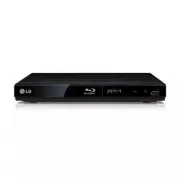
Getting Started 14 Getting S tar ted 1 Front panel a Disc Tray b Display Window c Remote Sensor d B (OPEN / CLOSE) e 1 (POWER) f USB Port Rear panel a DC IN 12V (AC adapter input) b HDMI OUT c DIGITAL AUDIO OUT (COAXIAL)
Page 15 - Connecting the AC; Caution; Connecting to your TV
2 Connecting Connecting 15 C onnecting 2 Connecting the AC adapter Connect the unit to the power supply with the supplied AC adapter. Rear of the unit Plug into a power source. y Contact an electrical parts distributor for assistance in selecting a suitable AC plug adapter or AC cord set. y This AC ...
Page 16 - Additional information for HDMI
16 C onnecting 2 Connecting Additional information for HDMI y When you connect a HDMI or DVI compatible device make sure of the following: - Try switching off the HDMI/DVI device and this player. Next, switch on the HDMI/DVI device and leave it for around 30 seconds, then switch on this player. - Th...
Page 17 - Resolution setting
Connecting 17 C onnecting 2 Resolution setting The player provides several output resolutions for HDMI OUT jack. You can change the resolution using [Setup] menu.1. Press HOME ( n ). 2. Use a/d to select the [Setup] and press ENTER ( b ). The [Setup] menu appears. 3. Use w/s to select [DISPLAY ] opt...
Page 18 - Connecting to an; About digital multi-channel sound; Connecting to an amplifier via
Connecting 18 C onnecting 2 Connecting to an amplifier Make one of the following connections, depending on the capabilities of your existing equipment. y HDMI audio connection (page 18) y Digital audio connection (page 19) Since many factors affect the type of audio output, see “Audio output specifi...
Page 20 - USB device connection; Playback content in the USB
Connecting 20 C onnecting 2 USB device connection This player can play video, audio and photo files contained in the USB device. Playback content in the USB device 1. Insert a USB device to the USB port until it fits into place. When you connect the USB device on the HOME menu, the player plays an a...
Page 21 - Settings; Initial setup
3 System Setting System Setting 21 S ys tem Se tting 3 Settings Initial setup When you turn on the unit for the first time, the initial setup wizard appears on the screen. Set the display language on the initial setup wizard.1. Press 1 (POWER). The initial setup wizard appears on the screen. 2. Use ...
Page 22 - TV Aspect Ratio
System Setting 22 S ys tem Se tting 3 [DISPLAY] menu TV Aspect Ratio Select a TV aspect ratio option according to your TV type. [4:3 Letter Box] Select when a standard 4:3 TV is connected. Displays theatrical images with masking bars above and below the picture. [4:3 Pan Scan] Select when a standard...
Page 23 - HDMI Color Setting
System Setting 23 S ys tem Se tting 3 HDMI Color Setting Select the type of output from the HDMI OUT jack. For this setting, please refer to the manuals of your display device. [YCbCr] Select when connecting to a HDMI display device. [RGB] Select when connecting to a DVI display device. Home Menu Gu...
Page 27 - General playback; Playing a disc; erto; Playing a file on disc/USB; yui
4 Operating Operating 27 Oper ating 4 General playback Using [HOME] menu The home menu appears when you press HOME ( n ). Use a/d to select a category and press ENTER ( b ). a [Movie] - Plays video contents. b [Photo] - Plays photo contents. c [Music] - Plays audio contents. d [Setup] - Adjusts the ...
Page 28 - Basic operations for video and; ero
Operating 28 Oper ating 4 Basic operations for video and audio content To stop playback Press Z (STOP) while playback. To pause playback Press M (PAUSE) while playback. Press z (PLAY ) to resume playback. To play frame-by-frame (Video) Press M (PAUSE) while movie playback. Press M (PAUSE) repeatedly...
Page 29 - Resume playback; eroyt; Last scene memory; er; Advanced playback; Repeat playback; erotu
Operating 29 Oper ating 4 Resume playback eroyt u The unit records the point where you pressed the Z (STOP) depending on the disc. If “ MZ (Resume Stop)” appears on the screen briefly, press z (PLAY ) to resume playback (from the scene point). If you press Z (STOP) twice or unload the disc, “ Z (Com...
Page 30 - Repeating a specific portion; eroty; Viewing content information; Changing content list view; Method 1
Operating 30 Oper ating 4 Repeating a specific portion eroty This player can repeat a portion you have selected.1. While playback, press REPEAT ( h ) to select [A-] at the beginning of the portion you wish to repeat. 2. Press ENTER ( b ) at the end of the portion. Your selected portion will be repea...
Page 31 - Selecting a subtitle file; Options while viewing a photo
Operating 31 Oper ating 4 Selecting a subtitle file y If the subtitle file name is different from the video file name, you need to select the subtitle file on the [Movie] menu before playing the movie.1. Use w/s/a/d to select the subtitle file you wish to play in the [Movie] menu. 2. Press ENTER ( b...
Page 32 - Listening to music while slide; eroy
Operating 32 Oper ating 4 Listening to music while slide show i You can display photo files while listening to audio files.1. While viewing a photo in full screen, press INFO/ MENU ( m ) to display the option menu. 2. Use w/s to select [Music Select] option, and press ENTER ( b ) to display the [Mus...
Page 33 - Playing from selected time; Selecting a subtitle language
Operating 33 Oper ating 4 2. Select an option using w/s . 3. Use a/d to adjust the selected option value. 4. Press BACK( 1 ) to exit the on-screen display. y If no button is pressed for a few seconds, the on-screen display disappears. y A title number cannot be selected on some discs. y Available it...
Page 34 - Hearing a different audio; Watching from a different; Changing the TV aspect ratio; eoy
Operating 34 Oper ating 4 Hearing a different audio eroy 1. During playback, press INFO/MENU ( m ) to display the on-screen display. 2. Use w/s to select the [Audio] option. 3. Use a/d to select desired audio language, audio track or audio channel. y Some discs allow you to change audio selections o...
Page 35 - Changing subtitle code page
Operating 35 Oper ating 4 Changing subtitle code page y If the subtitle is displayed in broken letter, you can change the subtitle code page to view the subtitle file properly.1. During playback, press INFO/MENU ( m ) to display the playback menu. 2. Use w/s to select the [Code Page] option. 3. Use ...
Page 36 - Audio CD recording
Operating 36 Oper ating 4 Audio CD recording You can record one desired track or all of the tracks in Audio CD to a USB storage device.1. Insert a USB storage device to the USB port on the front panel. 2. Press B (OPEN/CLOSE), and place an Audio CD on the disc tray.Press B (OPEN/CLOSE) to close the ...
Page 37 - Troubleshooting; General; Symptom
5 Troubleshooting Troubleshooting 37 Trouble shoo ting 5 Troubleshooting General Symptom Cause & Solution The Power does not turned on. y Plug the power cord into the wall outlet securely. The unit does not start playback. y Insert a playable disc. (Check the disc type, color system, and regiona...
Page 38 - Picture; Customer support
Troubleshooting 38 Trouble shoo ting 5 Troubleshooting Picture Symptom Cause & Solution There is no picture. y Select the appropriate video input mode on the TV so the picture from the unit appears on the TV screen. y Connect the video connection securely. y Check the [HDMI Color Setting] in the...
Page 39 - Controlling a TV with; Setting up the remote to
6 Appendix Appendix 39 Appendix 6 Controlling a TV with the supplied remote control You can control your TV using the buttons below. By pressing You can 1 ( TV POWER) Turn the TV on or off. PR/CH +/– Scan up or down through memorized channels. VOL +/– Adjust the volume of the TV AV/INPUT Switch the ...
Page 40 - Area code list
Appendix 40 Appendix 6 Area code list Choose an area code from this list. Area Code Area Code Area Code Area Code Afghanistan AF Argentina AR Australia AU Austria AT Belgium BE Bhutan BT Bolivia BO Brazil BR Cambodia KH Canada CA Chile CL China CN Colombia CO Congo CG Costa Rica CR Croatia HR Czech ...
Page 41 - Language code list
Appendix 41 Appendix 6 Language code list Use this list to input your desired language for the following initial settings: [Disc Audio], [Disc Subtitle] and [Disc Menu]. Language Code Language Code Language Code Language Code Afar 6565 Afrikaans 6570 Albanian 8381 Amharic 6577 Arabic 6582 Armenian 7...
Page 42 - Trademarks and
Appendix 42 Appendix 6 Trademarks and licenses Blu-ray Disc™, Blu-ray™, BONUSVIEW™ and the logos are trademarks of the Blu-ray Disc Association. “DVD Logo” is a trademark of DVD Format/Logo Licensing Corporation. Java is a trademark of Oracle and/or its affiliates. HDMI, the HDMI logo and High-Defin...
Page 43 - Cinavia Notice
Appendix 43 Appendix 6 Cinavia Notice This product uses Cinavia technology to limit the use of unauthorized copies of some commercially-produced film and videos and their soundtracks. When a prohibited use of an unauthorized copy is detected, a message will be displayed and playback or copying will ...
Page 44 - Audio output specifications
Appendix 44 Appendix 6 Audio output specifications Jack/Setting Source COAXIAL (DIGITAL AUDIO OUT) * 3 PCM Stereo DTS Re-encode * 4 BitStream Dolby Digital PCM 2ch DTS Dolby Digital Dolby Digital Plus PCM 2ch DTS Dolby Digital Dolby TrueHD PCM 2ch DTS Dolby Digital DTS PCM 2ch DTS DTS DTS-HD PCM 2ch...
Page 46 - Specifications
Appendix 46 Appendix 6 Specifications General Power requirements DC 12 V 0 1 A AC adapter WA-12M12Fx Dimensions ( W x H x D) Approx. 270 x 39 x 198 mm (10.6 x 1.5 x 7.8 inches) Net Weight (Approx.) 0.95 kg (2.0 lbs) Operating temperature 5 °C to 35 °C (41 °F to 95 °F) Operating humidity 5 % to 90 % ...
Page 47 - Maintenance; Handling the unit
Appendix 47 Appendix 6 Maintenance Handling the unit When shipping the unit Please save the original shipping carton and packing materials. If you need to ship the unit, for maximum protection, re-pack the unit as it was originally packed at the factory. Cleaning the unit To clean the player, use a ...