Page 2 - ENGLISH; Table of contents; Location and Function of Controls
ENGLISH 2 Table of contents 4 Location and Function of Controls 4 Parts and Button 4 Basic functions 5 LED Clock Connection 6 First Use Wizard 7 Basic Settings 7 - Language & Location 8 - Network Settings 9 - Portal Settings 10 - Voice Service Coverage 11 Data Cloning 11 Solution Settings 11 - L...
Page 3 - 4 External control device Setup
ENGLISH 3 57 - Content Manager 61 - Group Manager 2.0 63 IR Codes 64 External control device Setup 64 RS-232C Setup 64 Phone jack Type 64 Type of Connector : D-Sub 9-Pin Male 65 RS-232C Configurations 65 Communication Parameters 65 IR OUT Using Guide 65 - Suitable / Not Recommend remote-controller d...
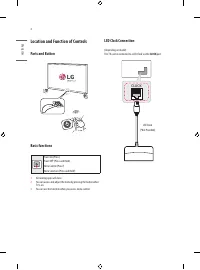
Page 4 - Parts and Button; Menu Selection (Press and Hold; LED Clock Connection; CLOCK; LED Clock
ENGLISH 4 Location and Function of Controls Parts and Button Basic functions Power On (Press)Power Off 1 (Press and Hold) Menu Control (Press 2 ) Menu Selection (Press and Hold 3 ) 1 All running apps will close. 2 You can access and adjust the menu by pressing the button when TV is on. 3 You can use...
Page 5 - First Use Wizard; There are four options -; Basic Settings; . Each menu can access by; START
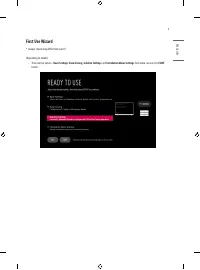
ENGLISH 5 First Use Wizard * Images shown may differ from your TV. (Depending on model) • There are four options - Basic Settings , Data Cloning , Solution Settings , and Installation Menu Settings . Each menu can access by START button.
Page 6 - Select the; Language; and; Country; . Some countries need to select the Time Zone.
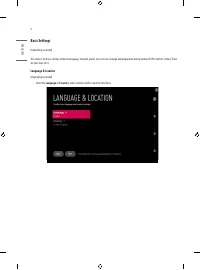
ENGLISH 6 Basic Settings (Depending on model) This menu is for basic settings related to language, network, portal, voice service coverage and programme tuning without SI (Pro:Centric) setting. There are four steps for it. Language & Location (Depending on model) • Select the Language and Countr...
Page 7 - Network Settings
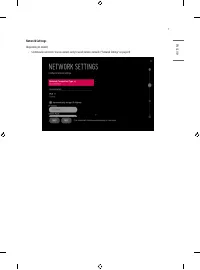
ENGLISH 7 Basic Settings (Depending on model) This menu is for basic settings related to language, network, portal, voice service coverage and programme tuning without SI (Pro:Centric) setting. There are four steps for it. Language & Location (Depending on model) • Select the Language and Countr...
Page 8 - Portal Settings; Set the Portal Mode and Portal Auto Start.; Portal Mode
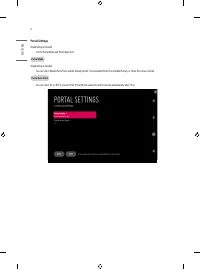
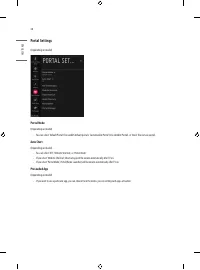
ENGLISH 8 Portal Settings (Depending on model) • Set the Portal Mode and Portal Auto Start. Portal Mode (Depending on model) • You can select ‘Default Portal’ (Use webOS default portal), ‘Customizable Portal’ (Use editable Portal), or ‘None’ (Do not use portal). Portal Auto Start • You can select ‘O...
Page 9 - Voice Service Coverage; Set the voice service coverage. You can set; LG Service Country; Service Area Postcode(Depending on model)
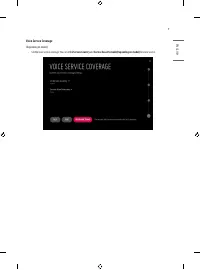
ENGLISH 9 Voice Service Coverage (Depending on model) • Set the voice service coverage. You can set LG Service Country and Service Area Postcode(Depending on model) for voice service.
Page 10 - Data Cloning; The frequencies of pre-defined programmes are below.; Language & Location selection; Please select the; . Some countries need to select the
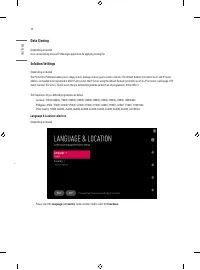
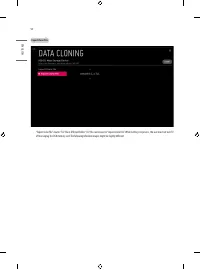
ENGLISH 10 Data Cloning (Depending on model)Access Data cloning menu of TV Manager application for applying cloning file. Solution Settings (Depending on model)The Pro:Centric Platform enables you to simply install, manage and use guest-centric solutions. The default Domain “procentric.local” and IP...
Page 11 - Automatically for Setup
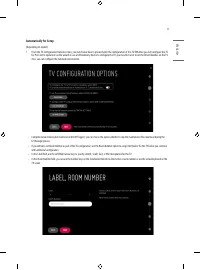
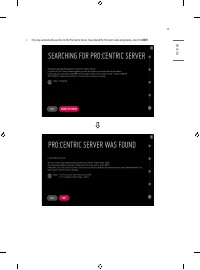
ENGLISH 11 Automatically for Setup (Depending on model) 1 From the TV Configuration Options screen, you can choose how to proceed with the configuration of this TV. Whether you will configure the TV for Pro:Centric operation via the wizard or use a USB memory device to configure the TV, you may firs...
Page 12 - NEXT
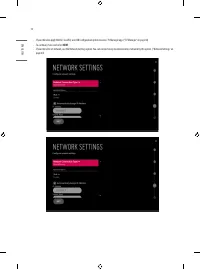
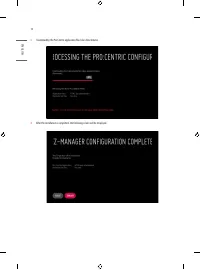
ENGLISH 12 • If you intend to apply the files via USB, use USB Configuration option to access TV Manager app. (“TV Manager” on page 46) • To continue, move and select NEXT . • If you intend to set network, use the Network Settings option. You can connect easily to wired/wireless network by this opti...
Page 15 - Manually for Setup
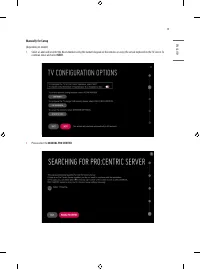
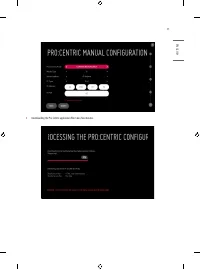
ENGLISH 15 Manually for Setup (Depending on model) 1 Select a Label and/or enter the Room Number using the numeric keypad on the remotes or using the virtual keyboard on the TV screen. To continue, move and select NEXT . 2 Please select the MANUAL PRO:CENTRIC .
Page 18 - Installation Menu Settings; Access Installation menu for commercial feature settings.
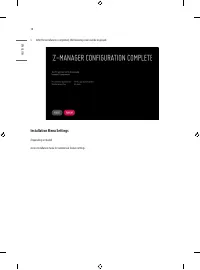
ENGLISH 18 5 After the installation is completed, the following screen will be displayed. Installation Menu Settings (Depending on model) Access Installation menu for commercial feature settings.
Page 19 - Installation Menu; Introduction; Enter a four digit password and press button.
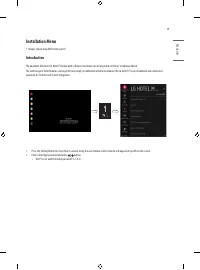
ENGLISH 19 Installation Menu * Images shown may differ from your TV. Introduction The abundant functions for Hotel TV linked with software installation can be projected on OSD as ‘Installation Menu’. The wide range of hotel features can be performed simply on additional window to enhance the LG hote...
Page 20 - LG Hotel Mode; Hotel Mode Operation; Decide to work all functions of ‘Hotel Mode Operation’ or not.; Power On Status; Decide to select working status of TV Set when turn on main power.
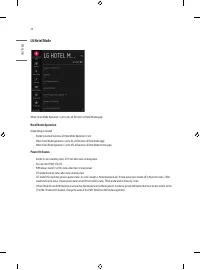
ENGLISH 20 LG Hotel Mode When ‘Hotel Mode Operation’ is set to On, all functions of Hotel Mode apply. Hotel Mode Operation (Depending on model) • Decide to work all functions of ‘Hotel Mode Operation’ or not. • When ‘Hotel Mode Operation’ is set to On, all functions of Hotel Mode apply. • When ‘Hote...
Page 21 - Volume; Start Volume; Timer Power On; Maximum Volume; Max; Minimum Volume; Key Management; IR Operation
ENGLISH 21 Volume • Decide to apply volume policy of ‘Start Volume’, ‘Maximum Volume’ and ‘Minimum Volume’ as On or Off. • (0 ≤ Min ≤ Start ≤ Max ≤ 100) Start Volume • This entry sets the start volume level when is power on. - The level is specified as a number between minimum volume to maximum valu...
Page 22 - Limited Mode; Setup Menu; DTV Programme Update
ENGLISH 22 Limited Mode • Configure TV function’s limitation. When selected to ‘On’, following sub-menus will be worked by below. Setup Menu • Permit to tune and manage programmes. Programme Change (Depending on model) • Decide to change programme or not by setting ‘Programme Change' as ‘On’(Change ...
Page 23 - Power On Default; Input; Aux Source Setting
ENGLISH 23 Power On Default • Set the programme to display and Volume Level, etc. when turn on power. • When set to Off, it is not applied to the subordinate Input, Programme, A/V Setting, Aspect Ratio menu. • When set to On, it can set by entering the subordinate menu. Input • Set whether it is tur...
Page 24 - Network; MAC Address; One-click network connection; Connects easily to a network.; To connect to a network through Set Expert; Select a network connection, either Wired or Wireless.; AP List; Connects to the network selected from the AP List.; Enter the SSID; Connects to the wireless AP typed in.; Advanced Wi-Fi Settings
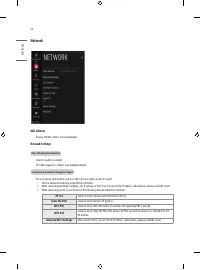
ENGLISH 24 Network MAC Address • Displays the MAC address (not customizable). Network Settings One-click network connection • Connects easily to a network. • This menu supports to connect to an available network. To connect to a network through Set Expert • For use in special circumstances such as i...
Page 25 - LG Connect; Audio PTS Offset; Wake On LAN; LAN ID
ENGLISH 25 LG Connect (Depending on model) • Sets the 'LG Connect' function to On or Off. - You can connect TV via 'LG TV Plus' app in smart device. - Default setting is 'On'. IP Stream Control (Depending on model) Audio PTS Offset • Controlling output stream timing of audio. • You can set the '-500...
Page 26 - Server Settings; Sets the information to connect to the external server.; CMS Server; Ping Test; Check your network status with the ping test.
ENGLISH 26 Server Settings (Depending on model) • Sets the information to connect to the external server. CMS Server • Sets the network information to connect to SuperSign CMS (or other compatible solutions) Control Server • Sets the network information to connect to SuperSign Control (or other comp...
Page 27 - Mode; Sets whether or not enable Pro:Centric and the service method.; WORF; You can set Label and Room Number using the Room Number Setting.; Media Type; Sets the media type to RF or IP.; RF; Sets the RF frequency at which the Pro:Centric data is received.; Data Channel Type
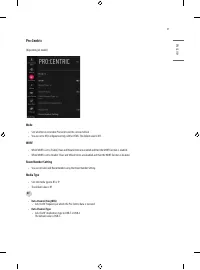
ENGLISH 27 Pro:Centric (Depending on model) Mode • Sets whether or not enable Pro:Centric and the service method. • You can set to Off, Configuration Only, GEM or HTML. The default value is Off. WORF • When WORF is set to ‘Enable’, Hour and Minute items are enabled and then the WORF function is enab...
Page 28 - IP; Receive Data
ENGLISH 28 IP • P:C IP Setting - Server Address is set to IP Address. - Can select IPv4 or IPv6 type using 'IP Type'. (Depending on model) (IP Address) Set IPv4 or IPv6 address. (Port Number) Sets the actual port or number where the Pro:Centric server is running. - Server Address is set to Domain Na...
Page 29 - General; Configuration Setup; Select RCU; Number of RCU value range 0. (When ‘Select RCU’ is set to ‘Disable’); RS232 DC Power Outlet; You can select; OFF; Interface box
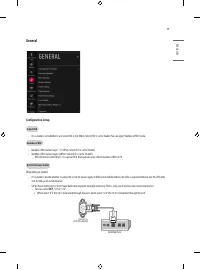
ENGLISH 29 General Configuration Setup Select RCU • It is a mode to set whether to use Select RCU or not. When ‘Select RCU’ is set to ‘Enable’, You can adjust ‘Number of RCU’ menu. Number of RCU • Number of RCU value range 1~9. (When ‘Select RCU’ is set to ‘Enable’) • Number of RCU value range 0. (W...
Page 30 - One Channel Map
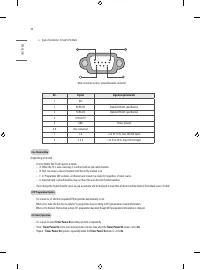
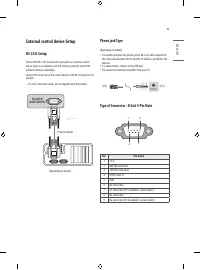
ENGLISH 30 » Type of Connector: D-Sub 9-Pin Male Male connector on box, viewed towards connector. No. Signal Signal requirements 1 VCC 2 RX RS232 Standard RS232 specification 3 TX RS232 Standard RS232 specification 4 IR from TV 5 GND Power ground 6, 8 Not connected 7 2 A +5 V DC 10 %, max 100 mV rip...
Page 31 - Radio Name Display; If it reaches the last file, it starts the first file again; Teletext; When set to ‘Enable’, TV will turn off if there is no signal in 15Min.; Auto Sensing
ENGLISH 31 Radio Name Display • Instead of “Audio Only”, the name of a radio programme is displayed on the screen when a radio broadcast is playing. • If the setting is “On”, the name of a radio programme is displayed for the radio programme. • If the setting is “Off”, the text “Audio Only” is displ...
Page 32 - InStant On; You can download the background image at TV Manager app.; No Signal Image; You can configure the DPM (Display Power Management) function.; Sustain Aspect Ratio
ENGLISH 32 InStant On (Depending on model) • Set to ‘Instant On Mute Mode’ or ‘Instant On Reboot mode’ to enable the Instant ON feature. The Instant ON feature allows the TV to turn ON when AC power is applied, but with video and audio muted (Muted ON). The TV retains its ON status while appearing t...
Page 33 - Healthcare Headphone Mode; Healthcare Headphone On; Mute is always applied to TV Speaker.; Healthcare Headphone Off; Sound Out Normal Scenario on Commercial Hotel TV.; Screen Saver; You can configure the Sound Out to be set after power on.; USB Power
ENGLISH 33 Healthcare Headphone Mode (Depending on model) • Healthcare Headphone On - Mute is always applied to TV Speaker. - Sound Out menu is displayed as Internal TV Speaker + Wired Headphone, and all Sound Out submenus are gray out (Disable). - Internal TV Speaker / Headphone Simultaneous output...
Page 34 - External Speaker; GENERAL; Power Saving
ENGLISH 34 External Speaker (Depending on model) Volume Control • Selects the volume control method of an external speaker. • You can select ‘Off’, ‘Int Variable’ Fixed. ‘Ext Variable’. (Depending on model) • Ext Variable uses the External Vol Up/Down Control Line to change the volume up to 2 Watts....
Page 35 - HCEC Setup; The default value is ‘All’.
ENGLISH 35 HCEC Setup (Depending on model) CEC Mode (Depending on model) • You will have 3 modes to choose [Default], [HCEC] and [TVLink-CEC]. • If [Default] is selected, you can use SIMPLINK which is provided in LG TV. Also you can enable and disable SIMPLINK through SIMPLINK MENU. • If [HCEC] is s...
Page 36 - Clock Setup; Clock Display; Password Change
ENGLISH 36 Clock Setup (Depending on model) Clock Display (Depending on model) • You can select ‘Enable’ or ‘Disable’. • After selecting ‘Enable’, you can see the LED Clock TV. Dimming Standby (Depending on model) • Standby Dimming value Range : 1~2 Dimming PowerOn (Depending on model) • PowerOn Dim...
Page 37 - Lock Mode; USB; If set to ‘Enable’, User Menu; Crestron; Operation; Developer Mode; This feature provides great convenience to the app developers.
ENGLISH 37 Lock Mode USB • If set to ‘Enable’, USB devices do not work in relative features. (Exclude S/W update) Factory Reset • If set to ‘Enable’, User Menu General Reset to Initial Settings is disabled. Crestron (Depending on model) • This function enables synchronization with applications provi...
Page 39 - Website Shortcut; Sets URL to connect when excute Website Shortcut app.; Input Shortcut; You can download the shortcut icon at TV Manager app.
ENGLISH 39 Website Shortcut (Depending on model) Shortcut • Sets Enable or Disable. When it is set to Enable, Website Shortcut app is displayed at launcher bar. Shortcut Name • You can set Website Shortcut app name (title). Shortcut URL • Sets URL to connect when excute Website Shortcut app. Shortcu...
Page 40 - Hotel Directory
ENGLISH 40 Hotel Directory (Depending on model) • Set the information to display at Hotel Directory app. Facility or Service Name • Set the facility or service name. Details or Extension • Set the detailed information. Related Photo • You can select None, downloaded images or Download (Go to TV Mana...
Page 42 - GROUP MANAGEMENT
ENGLISH 42 GROUP MANAGEMENT • Creating a New Group 1 Click Add New Group. 2 Enter a group name. 3 Click Add Device, select the devices you wish to add to the group, and add them. 4 Click Done, and you will see that a new group has been created. • Editing a Group 1 Click the group you wish to edit. 2...
Page 43 - Media Share; SmartShare; TV Name
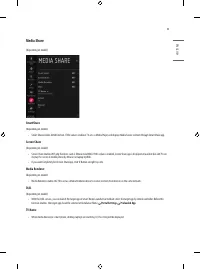
ENGLISH 43 Media Share (Depending on model) SmartShare (Depending on model) • Smart Share enables DLNA function. If this value is enabled, TV acts as Media Player and displays Media Server contents through Smart Share app. Screen Share (Depending on model) • Screen Share enables WiFi p2p functions s...
Page 44 - SoftAP
ENGLISH 44 SoftAP • SoftAP is similar to Access Point. When you enable this function, TV acts as an Access Point. • Regardless of the Instant On mode, the SoftAP setting stays unchanged after power off/on. (Depending on model) Use Default • If you want to use default password(this password was gener...
Page 45 - Beacon; The iBeacon/Eddystone Type Beacon features are supported.; iBeacon; URL: Enter the part of the URL that excludes the prefix and suffix.; OK; Some models do not support background screening services in iOS.
ENGLISH 45 Beacon (Depending on model) • This option enables BLE Beacon, one of Bluetooth 4.0's features. • Beacon Mode (On/Off Toggle): enables the Beacon feature. • The iBeacon/Eddystone Type Beacon features are supported. iBeacon • Beacon UUID (hex): Set the UUID. 1 Field1: 4byte hex value (8 dig...
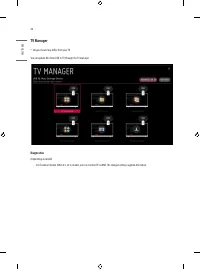
Page 46 - TV Manager; You can update files from USB to TV through the TV manager.; Diagnostics
ENGLISH 46 TV Manager * Images shown may differ from your TV. You can update files from USB to TV through the TV manager. Diagnostics (Depending on model) • Sets Enable or Disable. When it is set to Disable, user can’t control TV via RMS. The changed setting is applied after reboot.
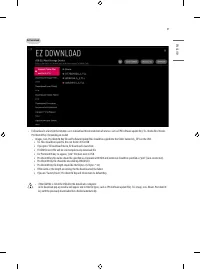
Page 47 - Ez Download; TLL files should be copied to the root folder of the USB.
ENGLISH 47 Ez Download • Ez Download is a function that enables users to download the desired items all at once, such as EPK (software update file), TLL, Media files, Micom, Pro:Idiom M Key. (Depending on model) - Images, Icon, Pro:Idiom M Key file and Software Update files should be copied into the...
Page 49 - Import Clone File
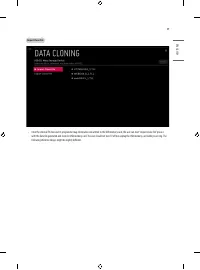
ENGLISH 49 Import Clone File • Once the internal TV data and its programme map information are written to the USB memory card, the user can start “Import Clone File” process with the data file generated and stored in USB memory card. The user should not turn TV off nor unplug the USB memory card whi...
Page 50 - Export Clone File
ENGLISH 50 Export Clone File • “Export Clone File” creates “TLL” file in USB root folder. “TLL” file can be used to “Import Clone File”. While writing is in process, the user must not turn TV off nor unplug the USB memory card. The following reference images might be slightly different.
Page 51 - USB Download Menu; USB Cloning; Overview USB Cloning Procedure
ENGLISH 51 USB Download Menu USB Cloning • An Installation can quickly set up and clone multiple TV sets at a property. These cloned TVs will all have the same Master TV Setup: Public Display Mode Installation Menu settings, User A/V settings and the programme Map. This newer procedure significantly...
Page 52 - Image Download; Boot Logo Image
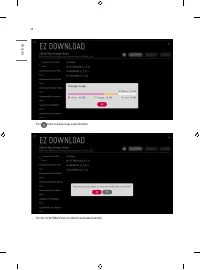
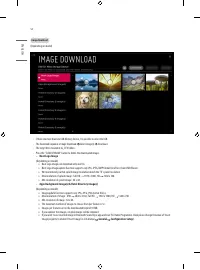
ENGLISH 52 Image Download (Depending on model) • If there are more than two USB Memory Device, It is possible to select the USB. • The download sequence is Image Download Select Image(s) Download. • The target file is located in LG_DTV folders. • Press the "CLEAR STORAGE" button to delete th...
Page 53 - Icon Download; If you updates the images, original images will be removed.
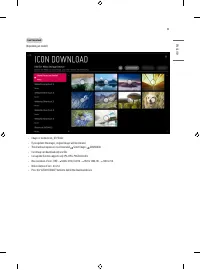
ENGLISH 53 Icon Download (Depending on model) • Images is located in LG_DTV folder. • If you updates the images, original images will be removed. • The download sequence is Icon Downalod Select Images DOWNLOAD. • Icon Image can download only one file. • Icon update function supports only JPG, JPEG, ...
Page 54 - Video Download; Media files can only download one file each.
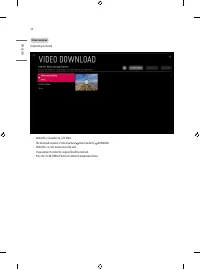
ENGLISH 54 Video Download (Depending on model) • Media files is located in LG_DTV folder. • The download sequence is Video Download Select media file DOWNLOAD. • Media files can only download one file each. • If you updates the video file, original file will be removed. • Press the “CLEAR STORAGE” b...
Page 55 - Software Update; Update TV Software; This feature updates TV software through the EPK file in USB.; Update Micom Software; This feature updates Micom software through the txt file in USB.
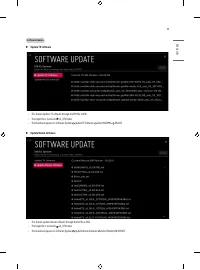
ENGLISH 55 Software Update ► Update TV Software • This feature updates TV software through the EPK file in USB. • The target file is located in LG_DTV folder. • The download sequence is Software Update Update TV Software Select file(EPK) UPDATE. ► Update Micom Software • This feature updates Micom s...
Page 56 - CONTENT MANAGER; Web Login; Player
ENGLISH 56 CONTENT MANAGER (Depending on model) Web Login • Different features are supported depending on the product. This Signage product comes with a feature that enables you to access it on your PC or mobile device. - Content Manager, Group Manager 2.0, Log Out, Change Password menus are provide...
Page 57 - Scheduler
ENGLISH 57 • Create Playlist When creating a playlist, you cannot include characters that cannot be used in file names on Windows — such as \, /,:, *,?, “, <,>, and | — in the names of the files in the playlist. In addition, if the playlist contains content files whose names include such chara...
Page 58 - Distribute; Editor; Save; Supported Photo & Video Files; * Supported video codecs
ENGLISH 58 • DISTRIBUTION 1 Click Distribute in the upper right-hand corner of the screen. 2 Go to the Group Manager app to distribute the created schedules. » If the schedule creation time overlaps, the previously created schedule is deleted. » Schedule does not work while Scheduling list app is ru...
Page 59 - * Supported Photo File Formats; JPEG; * Tips for using USB storage devices; Only USB storage devices are recognized.
ENGLISH 59 * Supported Photo File Formats File type Format Resolution .jpeg, .jpg, .jpe JPEG • Minimum: Min: 64 x 64 • Maximum: Normal Type: 15360 (W) x 8640 (H) Progressive Type: 1920 (W) x 1440 (H) .png PNG • Minimum: Min: 64 x 64 • Maximum: 5760 (W) x 5760 (H) .bmp BMP • Minimum: Min: 64 x 64 • M...
Page 61 - Setting Data Cloning; Clone; Content Distribution
ENGLISH 61 Setting Data Cloning 1 Select your desired group and click Clone . 2 Check that the data have been copied on the slave sets. Content Distribution 1 Select the type of content you wish to distribute (Schedules or Playlists). 2 Select the content you wish to distribute. 3 Select the group t...
Page 62 - IR Codes
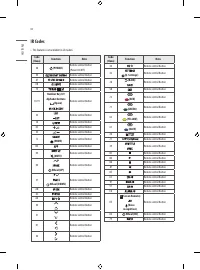
ENGLISH 62 IR Codes • This feature is not available for all models. Code (Hexa) Function Note 08 (POWER) Remote control Button(Power On/Off ) 95 Remote control Button AF Remote control Button 0B Remote control Button F0 Remote control Button 10-19 Number Key 0-9 Alphabet buttons (Space) Remote contr...
Page 63 - External control device Setup; Phone jack Type; Pin name
ENGLISH 63 External control device Setup RS-232C Setup Connect the RS-232C (serial port) input jack to an external control device (such as a computer or an A/V control system) to control the product’s functions externally.Connect the serial port of the control device to the RS-232C jack on the produ...
Page 64 - RS-232C Configurations; Suitable / Not Recommend remote-controller data format; μs
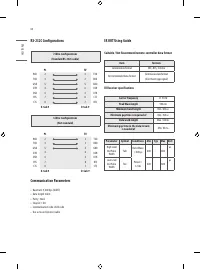
ENGLISH 64 RS-232C Configurations 7-Wire Configurations (Standard RS-232C cable) PC TV RXD 2 3 TXD TXD 3 2 RXD GND 5 5 GND DTR 4 6 DSR DSR 6 4 DTR RTS 7 8 CTS CTS 8 7 RTS D-Sub 9 D-Sub 9 3-Wire Configurations (Not standard) PC TV RXD 2 3 TXD TXD 3 2 RXD GND 5 5 GND DTR 4 6 DSR DSR 6 4 DTR RTS 7 8 RT...
Page 65 - Command Reference List
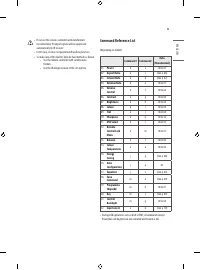
ENGLISH 65 • If not use the remote-controller with data formats recommended, IR output signals will be suppressed automatically by IR receiver. • In this case, LG does not guarantee IR working function. • To make sure of this matter, here are two methods as below. - Use the remote-controller with su...
Page 66 - Transmission / Receiving Protocol; Transmission; Power
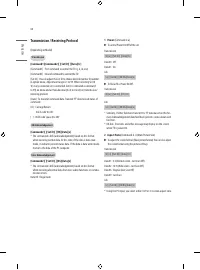
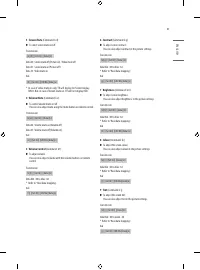
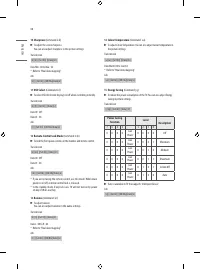
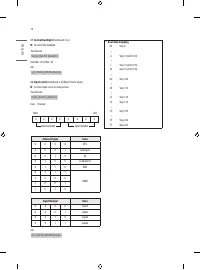
ENGLISH 66 Transmission / Receiving Protocol (Depending on Model) Transmission [Command1][Command2][ ][Set ID][ ][Data][Cr] [Command1] : First command to control the TV. (j, k, m or x)[Command2] : Second command to control the TV.[Set ID] : You can adjust the set ID to choose desired monitor ID numb...
Page 69 - 6 Auto Configuration
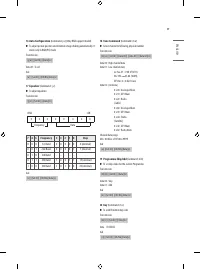
ENGLISH 69 16 Auto Configuration (Command: j u) (Only RGB support model) ► To adjust picture position and minimize image shaking automatically. It works only in RGB (PC) mode. Transmission [j][u][ ][Set ID][ ][Data][Cr] Data 01 : To setAck [u][ ][Set ID][ ][OK/NG][Data][x] 17 Equalizer (Command : j ...