Page 3 - FCC NOTICE; Class B digital device; CAUTION; NOTE TO CABLE/TV INSTALLER
1 WARNING / CAUTION WARNING / CAUTION To prevent fire or shock hazards, do not exposethis product to rain or moisture. FCC NOTICE Class B digital device This equipment has been tested and found to complywith the limits for a Class B digital device, pursuant toPart 15 of the FCC Rules. These limits a...
Page 4 - IMPORTANT SAFETY INSTRUCTIONS; SAFETY INSTRUCTIONS
2 IMPORTANT SAFETY INSTRUCTIONS SAFETY INSTRUCTIONS Important safety instructions shall be provided with each apparatus. This information shall be given in a separatebooklet or sheet, or be located before any operating instructions in an instruction for installation for use andsupplied with the appa...
Page 6 - CONTENTS
4 CONTENTS WARNING / CAUTION . . . . . . . . . . . . . . . . . . . . . . . . . . . . 1 SAFETY INSTRUCTIONS . . . . . . . . . . . . . . . . . . . . . . . . . . 2 INTRODUCTION Feature of this TV . . . . . . . . . . . . . . . . . . . . . . . . . . . . . . . . . . . . . . . . . . . . . 6 PREPARATION Acc...
Page 7 - TIME SETTING; PARENTAL CONTROL / RATINGS; APPENDIX
5 TIME SETTING Clock Setting - Auto Clock Setup . . . . . . . . . . . . . . . . . . . . . . . . . . . . . . . . . . . . 57 - Manual Clock Setup . . . . . . . . . . . . . . . . . . . . . . . . . . . . . . . . . 58 Auto On/Off Time Setting . . . . . . . . . . . . . . . . . . . . . . . . . . . . . . 59...
Page 8 - FEATURE OF THIS TV; INTRODUCTION; On Disposal
6 FEATURE OF THIS TV INTRODUCTION If the TV feels cold to the touch, there may be a small “flicker” when it is turned on. This is normal, there is noth-ing wrong with TV.Some minute dot defects may be visible on the screen, appearing as tiny red, green, or blue spots. However, theyhave no adverse ef...
Page 9 - PREPARATION; ACCESSORIES
PREP ARAT ION 7 PREPARATION ACCESSORIES Ensure that the following accessories are included with your product. If an accessory is missing, please contactthe dealer where you purchased the product. User must use shielded signal interface cables (D-sub 15 pin cable) with ferrite cores to maintain stand...
Page 10 - PREP; FRONT PANEL INFORMATION; NOTE
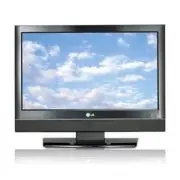
PREP ARATION 8 FRONT PANEL INFORMATION PREPARATION ■ Here shown may be somewhat different from your TV. Remote Control Sensor Power/Standby Indicator Illuminates red in standby mode.Illuminates green when the set is switched on. INPUT MENU VOL CH /I ENTER CHANNEL( E E , D D )Buttons VOLUME( F F , G ...
Page 11 - BACK PANEL INFORMATION
PREP ARAT ION 9 BACK PANEL INFORMATION ■ Here shown may be somewhat different from your TV. SERVICE ONLYRS-232C IN (SERVICE ONLY) PORT For service. HDMI/DVI IN Connect a HDMI signal to this jack.Or DVI (Video) signal to this jack with a HDMI toDVI cable. AV IN (Audio/Video) Connect audio/video outpu...
Page 12 - STAND INSTALLATION
PREP ARATION 10 STAND INSTALLATION PREPARATION ■ Here shown may be somewhat different from your TV. Insert the SS T T A A N N D D B B O O D D Y Y into the product until clicking sound. Carefully place the product screen side down on a cushioned surface that will protect product and screenfrom damage...
Page 13 - DETACHING STAND
PREP ARAT ION 11 DETACHING STAND Carefully place the product screen side down ona cushioned surface that will protect product andscreen from damage. Pull cover base backward while pressing buttonon stand body. Shake the base while pulling, it will separate fromstand body. Pull stand body to separate...
Page 14 - BACK COVER FOR WIRE ARRANGEMENT; How to remove the CABLE MANAGEMENT
PREP ARATION 12 BACK COVER FOR WIRE ARRANGEMENT PREPARATION Connect the cables as necessary.To connect an additional equipment, see the EEX XT TEER RN NA ALL EEQ QU UIIPPM MEEN NT T SS EE T T U U PP section. Install the C C A A B B LL EE M M A A N N A A G G EE M M EE N N T T as shown. First, press t...
Page 15 - POSITIONING YOUR DISPLAY
PREP ARAT ION 13 POSITIONING YOUR DISPLAY ■ Here shown may be somewhat different from your TV. ■ Adjust the position of the panel in various ways for maximum comfort. • Tilt range 12~10 3 0
Page 16 - VESA WALL MOUNTING; DESKTOP PEDESTAL INSTALLATION
PREP ARAT ION 14 VESA WALL MOUNTING PREPARATION For proper ventilation, allow a clearance of 4 inches on all four sides from the wall. G G Ensure adequate ventilation by following the clearance recommendations. CAUTION DESKTOP PEDESTAL INSTALLATION This product accepts a VESA-compliant mounting inte...
Page 17 - KENSINGTON SECURITY SYSTEM; WARNING
PREP ARAT ION 15 KENSINGTON SECURITY SYSTEM ATTACHING THE TV TO A DESK (Only 23 inches) - The TV is equipped with a Kensington Security System connector on the back panel. Connect the Kensington Security System cable as shown below. - For the detailed installation and use of the Kensington Security ...
Page 18 - ANTENNA OR CABLE CONNECTION; Antenna
PREP ARATION 16 ANTENNA OR CABLE CONNECTION PREPARATION 1. Antenna (Analog or Digital) Wall Antenna Socket or Outdoor Antenna without a Cable BoxConnections.For optimum picture quality, adjust antenna direction if needed. 2. Cable WallAntennaSocket OutdoorAntenna(VHF, UHF) Cable TVWall Jack Multi-fa...
Page 19 - HD RECEIVER SETUP; EXTERNAL EQUIPMENT SETUP; When connecting Component cable
EXTERNAL EQUIPMENT SETUP 17 HD RECEIVER SETUP EXTERNAL EQUIPMENT SETUP This TV can receive Digital Over-the-air/Cable signals without an external digital set-top box. However, if youdo receive digital signals from a digital set-top box or other digital external device, refer to the figure as shownbe...
Page 20 - When connecting HDMI cable
EXTERNAL EQUIPMENT SETUP 18 EXTERNAL EQUIPMENT SETUP When connecting HDMI cable Connect the digital set-top box to H H D D M M II // D D V V II II N N jack on the set. No separated audio connection is necessary.HDMI supports both audio and video. 1. How to connect 2. How to use ■ Turn on the digital...
Page 21 - When connecting HDMI to DVI cable
EXTERNAL EQUIPMENT SETUP 19 When connecting HDMI to DVI cable VIDEO AUDIO L(MONO) R S-VIDEO ANTENNA/ CABLE IN RS-232C IN (SERVICE ONLY) RGB (PC) IN AUDIO (RGB/DVI) IN SERVICE ONLY HDMI/DVI IN COMPONENT IN AV IN H/P VIDEO AUDIO L R DVI-DTV OUTPUT Connect the DVI output of the digital set-top box to t...
Page 22 - DVD SETUP; Component Input ports
EXTERNAL EQUIPMENT SETUP 20 DVD SETUP EXTERNAL EQUIPMENT SETUP When connecting Component cable VIDEO AUDIO L(MONO) R S-VIDEO ANTENNA/ CABLE IN RGB (PC) IN AUDIO (RGB/DVI) IN AV IN H/P COMPONENT IN VIDEO AUDIO Y L R P B P R Component Input ports To get better picture quality, connect a DVD player to ...
Page 23 - When connecting with an S-Video cable
EXTERNAL EQUIPMENT SETUP 21 When connecting with an S-Video cable VIDEO AUDIO L(MONO) R S-VIDEO ANTENNA/ CABLE IN 32C IN CE ONLY) RGB (PC) IN AU (RG VI IN COMPONENT IN AV IN H/P VIDEO AUDIO L R S-VIDEO AUDIO R 1 2 Connect the S-VIDEO output of the DVD to theSS -- V V II D D EE O O input on the set. ...
Page 24 - VCR SETUP; When connecting with an antenna; Wall Jack
EXTERNAL EQUIPMENT SETUP 22 VCR SETUP EXTERNAL EQUIPMENT SETUP When connecting with an antenna ■ To avoid picture noise (interference), leave an adequate distance between the VCR and TV. ■ If the 4:3 picture format is used; the fixed images on the sides of the screen may remain visible on thescreen....
Page 25 - When connecting with a RCA cable
EXTERNAL EQUIPMENT SETUP 23 When connecting with a RCA cable G G Do not connect to both Videoand S-Video at the same time. Inthe event that you connect bothVideo and the S-Video cables,only the S-Video will work. CAUTION G G The picture quality is improved: compared to normalcomposite (RCA cable) in...
Page 26 - HEADPHONE SETUP
EXTERNAL EQUIPMENT SETUP 24 HEADPHONE SETUP EXTERNAL EQUIPMENT SETUP You can listen to the sound through the headphone. Plug the headphone into the headphone socket. To adjust the headphone volume, press the V VO OLL + or - button. If you press the M M U U T T EE button, the sound from the headphone...
Page 27 - PC SETUP; When connecting D-sub 15pin cable
EXTERNAL EQUIPMENT SETUP 25 PC SETUP This TV provides Plug and Play capability, meaning that the PC adjusts automatically to the TV's settings. When connecting D-sub 15pin cable AUDIO L(MONO) R S-VIDEO RGB (PC) IN AUDIO (RGB/DVI) IN COMPONENT IN AV IN /P VIDEO AUDIO AUDIO RGB OUTPUT Connect the RGB ...
Page 28 - NOTES; Supported Display Specifications
EXTERNAL EQUIPMENT SETUP 26 EXTERNAL EQUIPMENT SETUP G G To get the the best picture quality, adjust the PCgraphics card to 1366x768. G G Depending on the graphics card, DOS mode maynot work if a HDMI to DVI Cable is in use. G G If the video doesn’t fit the screen, try pressing theADJUST button to a...
Page 29 - Screen Setup for PC mode; Overview
EXTERNAL EQUIPMENT SETUP 27 Screen Setup for PC mode Overview When the RGB input of the set is connected to a PC output, selectthe RGB-PC as the main input mode.After connecting RGB-PC to PC output and checking the screen qual-ity.When you change the resolution, select the proper resolution in pre-s...
Page 30 - REMOTE CONTROL FUNCTIONS; WATCHING TV / CHANNEL CONTROL
W ATCHING TV / CHANNEL CONTR OL 28 REMOTE CONTROL FUNCTIONS WATCHING TV / CHANNEL CONTROL When using the remote control, aim it at the remote control sensor on the TV. 1 2 3 4 5 6 7 8 0 - 9 VOL CH ENTER POWER BACK MUTE MENU ADJUST EXIT CC SAP FAV PICTURE SOUND TIMER TV INPUT SAP PICTURE SOUND TIMER ...
Page 31 - Installing Batteries
W ATCHING TV / CHANNEL CONTR OL 29 ■ Open the battery compartment cover on the backside and install the batteries matching correctpolarity (+ with +, - with -). ■ Install two 1.5V AAA batteries. Don’t mix old orused batteries with new ones. ■ Close cover. ■ Use a remote control up to 7 meters distan...
Page 32 - TURNING ON TV; VOLUME ADJUSTMENT
W ATCHING TV / CHANNEL CONTR OL 30 TURNING ON TV WATCHING TV / CHANNEL CONTROL NOTE ! G G If you intend to be away on vacation, disconnect the power plug from the wall power outlet. First, connect power cord correctly. At this moment, the TV switches to standby mode. ■ In standby mode to turn TV on,...
Page 33 - ON-SCREEN MENUS SELECTION
W ATCHING TV / CHANNEL CONTR OL 31 ON-SCREEN MENUS SELECTION Press the M MEEN NU U button and then use D D or E E button to select the each menu. Press the G G button and then use D D E E F F G G button to display the available menus. Your TV's OSD (On Screen Display) may differ slightly from what i...
Page 34 - CHANNEL SEARCH
W ATCHING TV / CHANNEL CONTR OL 32 CHANNEL SEARCH WATCHING TV / CHANNEL CONTROL Press the M M EE N N U U button and then use D D or E E button to select the SS EE T T U U PP menu. Press the G G button and then use D D or E E button to select A A uu tt o o T T uu nn ii nn gg. Press the EE N N T T EE ...
Page 36 - Channel Editing
W ATCHING TV / CHANNEL CONTR OL 34 WATCHING TV / CHANNEL CONTROL There are two different ways in order to add or deletescanned channels. One is "Custom List" and the other is"Favorite List" in the channel list. Both of them are availableafter Auto Tuning on the SETUP menu. A Custom L...
Page 37 - KEY LOCK
W ATCHING TV / CHANNEL CONTR OL 35 KEY LOCK ENTER BACK CC MENU EXIT The TV can be set up so that it can only be used with theremote control. This feature can be used to prevent unauthorized viewingby locking out the front panel controls.This TV is programmed to remember which option it waslast set t...
Page 38 - PICTURE CONTROL
PICTURE CONTR OL 36 PICTURE SIZE (ASPECT RATIO) CONTROL PICTURE CONTROL ENTER BACK CC MENU EXIT This feature allows an analog picture with a 4:3 aspect ratio is displayed on your TV.When you receive an analog picture with a 4:3 aspect ratio on your 16:9 TV, youneed to specify how the picture is to b...
Page 39 - Set by program
PICTURE CONTR OL 37 Set by program Selects the proper picture proportion to matchthe source’s image. 4:3 Choose 4:3 when you want to view a picturewith an original 4:3 aspect ratio. 16:9 Adjust the picture horizontally, in a linear pro-portion to fill the entire screen. Zoom Choose Zoom when you wan...
Page 40 - PRESET PICTURE SETTINGS; Picture Mode - Preset
PICTURE CONTR OL 38 PRESET PICTURE SETTINGS PICTURE CONTROL 1 2 3 4 5 6 7 8 0 - 9 VOL CH POWER MUTE ADJUST SAP FAV PICTURE SOUND TIMER TV INPUT Picture Mode - Preset Press the PP II C C T T U U R R EE button repeatedly to select the picture appearance setup option as below :D D yy nn aa m m ii cc, S...
Page 42 - MANUAL PICTURE ADJUSTMENT; Picture Mode - User Mode
PICTURE CONTR OL 40 MANUAL PICTURE ADJUSTMENT PICTURE CONTROL VOL CH ENTER BACK MUTE CC MENU EXIT Picture Mode - User Mode Adjust the picture appearance to suit your preference andviewing situations. Press the M M EE N N U U button and then use D D or E E button to select the PP II C C T T U U R R E...
Page 43 - Color Tone - User Mode
PICTURE CONTR OL 41 VOL CH ENTER BACK MUTE CC MENU EXIT You can also adjust the detailed settings (Red, Green, Blue)by selecting the C C o o ll o o rr T T ee m m p p ee rr aa tt uu rr ee -- U U ss ee rr menu. This feature operate only if the picture mode set U U ss ee rr . Color Tone - User Mode Pre...
Page 44 - XD - PICTURE IMPROVEMENT TECHNOLOGY
PICTURE CONTR OL 42 XD - PICTURE IMPROVEMENT TECHNOLOGY PICTURE CONTROL VOL CH ENTER BACK MUTE CC MENU EXIT Press the M M EE N N U U button and then use D D or E E button to select the PP II C C T T U U R R EE menu. Press the G G button and then use D D or E E button to select X X D D. Press the G G...
Page 46 - BACK LIGHT
PICTURE CONTR OL 44 BACK LIGHT PICTURE CONTROL VOL CH ENTER BACK MUTE CC MENU EXIT Press the M M EE N N U U button and then use D D or E E button to select the PP II C C T T U U R R EE menu. Press the G G button and then use D D or E E button to select B B aa cc kk LL ii gg hh tt. Press the G G butt...
Page 47 - LOW - POWER PICTURE MODE
PICTURE CONTR OL 45 LOW - POWER PICTURE MODE VOL CH ENTER BACK MUTE CC MENU EXIT Press the M M EE N N U U button and then use D D or E E button to select the O O PP T T II O O N N menu. Press the G G button and then use D D or E E button to select LL o o w w PP o o w w ee rr. Press the G G button an...
Page 48 - PICTURE RESET
PICTURE CONTR OL 46 PICTURE RESET PICTURE CONTROL VOL CH ENTER BACK MUTE CC MENU EXIT Press the M M EE N N U U button and then use D D or E E button to select the PP II C C T T U U R R EE menu. Press the G G button and then use D D or E E button to select PPiiccttuurree R Reesseett. Press the G G bu...
Page 49 - SOUND; SOUND & LANGUAGE CONTROL
1 2 3 4 5 6 7 8 0 - 9 VOL CH POWER MUTE ADJUST SAP FAV PICTURE SOUND TIMER TV INPUT SOUND & LANGU A GE CONTR OL 47 PRESET SOUND SETTINGS (SOUND MODE) SOUND & LANGUAGE CONTROL Sound Mode lets you enjoy the best sound without any specialadjustment because the TV sets the appropriate sound opti...
Page 50 - SOUND SETTING ADJUSTMENT - USER MODE
SOUND & LANGU A GE CONTR OL 48 SOUND & LANGUAGE CONTROL SOUND SETTING ADJUSTMENT - USER MODE VOL CH ENTER BACK MUTE CC MENU EXIT Press the M M EE N N U U button and then use D D or E E button to select the A A U U D D II O O menu. Press the G G button and then use D D or E E button to select...
Page 51 - BALANCE
SOUND & LANGU A GE CONTR OL 49 BALANCE VOL CH ENTER BACK MUTE CC MENU EXIT Press the M M EE N N U U button and then use D D or E E button to select the A A U U D D II O O menu. Press the G G button and then use D D or E E button to select B B aa ll aa nn cc ee. Press the G G button and then use ...
Page 52 - STEREO/SAP BROADCASTS SETUP
SOUND & LANGU A GE CONTR OL 50 STEREO/SAP BROADCASTS SETUP SOUND & LANGUAGE CONTROL 1 2 3 4 5 6 7 8 0 - 9 VOL CH POWER MUTE ADJUST SAP FAV PICTURE SOUND TIMER TV INPUT This TV can receive MTS stereo programs and any SAP(Secondary Audio Program) that accompanies the stereo programif the stati...
Page 53 - AUDIO LANGUAGE
SOUND & LANGU A GE CONTR OL 51 AUDIO LANGUAGE VOL CH ENTER BACK MUTE CC MENU EXIT Other languages may be available if a digital signal isprovided by the broadcasting station. This feature operates only in DTV/CADTV mode. Press the M M EE N N U U button and then use D D or E E button to select th...
Page 54 - ON-SCREEN MENUS LANGUAGE SELECTION
SOUND & LANGU A GE CONTR OL 52 ON-SCREEN MENUS LANGUAGE SELECTION SOUND & LANGUAGE CONTROL 2 3 4 VOL CH ENTER BACK MUTE CC MENU EXIT The menus can be shown on the screen in the selectedlanguage. First select your language. Press the M M EE N N U U button and then use D D or E E button to sel...
Page 55 - CAPTION MODE
SOUND & LANGU A GE CONTR OL 53 CAPTION MODE VOL CH ENTER BACK MUTE CC MENU EXIT Caption must be provided to help people with hearing losswatch TV. Language : English Key Lock : Off Caption : Off Low Power : Off Language Key Lock Caption G Low Power Mode On Analog Text1 Digital Service3 Digital O...
Page 56 - Analog Broadcasting System Captions
SOUND & LANGU A GE CONTR OL 54 SOUND & LANGUAGE CONTROL VOL CH ENTER BACK MUTE CC MENU EXIT Analog Broadcasting System Captions Select a caption mode for displaying captioning informationif provided on a program. Analog caption displays informa-tion at any position on the screen and is usual...
Page 57 - Digital Broadcasting System Captions
SOUND & LANGU A GE CONTR OL 55 VOL CH ENTER BACK MUTE CC MENU EXIT Press the M M EE N N U U button and then use D D or E E button to select the O O PP T T II O O N N menu. Press the G G button and then use D D or E E button to select C C aa p p tt ii o o nn. Press the G G button and then use F F...
Page 58 - Caption Option
SOUND & LANGU A GE CONTR OL 56 SOUND & LANGUAGE CONTROL VOL CH ENTER BACK MUTE CC MENU EXIT Caption Option Customize the DTV/CADTV captions that appear on yourscreen.This function in only available when Caption Mode is set On . Press the M M EE N N U U button and then use D D or E E button t...
Page 59 - TIME; CLOCK SETTING; Auto Clock Setup
VOL CH ENTER BACK MUTE CC MENU EXIT TIME SETTING 57 CLOCK SETTING TIME SETTING Auto Clock Setup The time is set automatically from a digital channel signal. The digital channel signal includes information for thecurrent time provided by the broadcasting station.Set the clock manually if the current ...
Page 60 - Manual Clock Setup
TIME SETTING 58 TIME SETTING VOL CH ENTER BACK MUTE CC MENU EXIT Manual Clock Setup Press the M M EE N N U U button and then use D D or E E button to select the T T II M M EE menu. Press the G G button and then use D D or E E button to select C C ll o o cc kk. Press the G G button and then use D D o...
Page 61 - AUTO ON/OFF TIME SETTING
TIME SETTING 59 AUTO ON/OFF TIME SETTING VOL CH ENTER BACK MUTE CC MENU EXIT Press the M M EE N N U U button and then use D D or E E button to select the T T II M M EE menu. Press the G G button and then use D D or E E button to select O O ff ff T T ii m m ee or O O nn T T ii m m ee. Press the G G b...
Page 62 - SLEEP TIME SETTING
TIME SETTING 60 TIME SETTING 1 2 3 4 5 6 7 8 0 - 9 VOL CH POWER MUTE ADJUST SAP FAV PICTURE SOUND TIMER TV INPUT SLEEP TIME SETTING Press the T T II M M EE R R button repeatedly to select the number of minutes. First the O O ff ff option appears on the screen, followed by the following sleep timer o...
Page 63 - AUTO SHUT-OFF SETTING
TIME SETTING 61 AUTO SHUT-OFF SETTING VOL CH ENTER BACK MUTE CC MENU EXIT If set to on and there is no input signal, the TV turns offautomatically after 10 minutes. Press the M M EE N N U U button and then use D D or E E button to select the T T II M M EE menu. Press the G G button and then use D D ...
Page 64 - V-Chip rating and categories; SET PASSWORD & LOCK SYSTEM; Setting up Your Password
PARENT AL CONTR OL / R ATING 62 PARENTAL CONTROL / RATINGS Parental Control can be used to block specific ratings. The Parental Control Function (V-Chip) is used to block program viewing based on the ratingssent by the broadcasting station. The default setting is to allow all programs to be viewed.V...
Page 66 - PARENTAL CONTROL /RATINGS; for USA only
PARENT AL CONTR OL / R ATING 64 PARENTAL CONTROL /RATINGS MOVIE & TV RATING Lock System Set Password Movie Rating G TV Rating-Children TV Rating-General Downloadable Rating Blocking off : Permits all programs GPGPG-13RNC-17 X Blocking Off 1 2 Lock System : Off Set Password Movie Rating TV Rating...
Page 67 - TV Rating Children; TV Rating General
PARENT AL CONTR OL / R ATING 65 TV Rating Children - for USA only After inputting the password, use the D D or E E button to choose T T V V R R aa tt ii nn gg -- C C hh ii ll d d rr ee nn. Press the G G button and then use the D D or E E button to select A A gg ee, or FF aa nn tt aa ss yy V V ii o o...
Page 68 - TV Rating English; TV Rating French; for CANADA only
PARENT AL CONTR OL / R ATING 66 TV Rating English - for CANADA only PARENTAL CONTROL /RATINGS After inputting the password, use the D D or E E button to choose T T V V R R aa tt ii nn gg -- EE nn gg ll ii ss hh. Press the G G button and then use the D D or E E button to select EE , C C , C C 8 8 + +...
Page 69 - TROUBLESHOOTING
APPENDIX 67 TROUBLESHOOTING APPENDIX T Thhee o op peerraattiio onn d do oeess nno ott w wo orrkk nno orrm maallllyy.. T Thhee vviid deeo o ffuunnccttiio onn d do oeess nno ott w wo orrkk.. No picture &No sound No or poor color or poor picture Poor reception on some channels Lines or streaks in p...
Page 71 - MAINTENANCE; Cleaning the Screen; Extended Absence
APPENDIX 69 MAINTENANCE Early malfunctions can be prevented. Careful and regular cleaning can extend the amount of time you canenjoy your new TV. Caution: Be sure to turn the power off and unplug the power cord before you begin any cleaning. Cleaning the Screen Here’s a great way to keep the dust of...
Page 72 - PRODUCT SPECIFICATIONS
APPENDIX 70 PRODUCT SPECIFICATIONS APPENDIX ■ The specifications shown above may be changed without prior notice for quality improvement. 20LS7D (20LS7D-UK) 20LS7DC (20LS7DC-UK) 23LS7D (23LS7D-UK) 23LS7DC (23LS7DC-UK) MODELS 19.7 x 15.8 x 6.9 inches 499.4 x 401.2 x 175.1 mm 19.7 x 14.0 x 2.9 inches ...