Page 5 - Contents
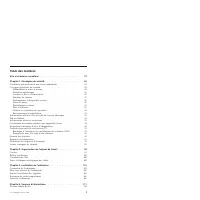
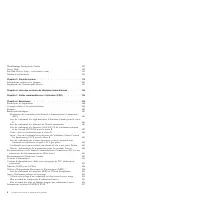
Contents Chapter 1. Important safety information . . . . . . . . . . . 7 Conditions that require immediate action . . . . . . . . . . . . 7 General safety guidelines . . . . . . . . . . . . . . . . . 8 Service and upgrades . . . . . . . . . . . . . . . . . 8 Static electricity prevention . . . . . ....
Page 9 - Inhoudsopgave
Inhoudsopgave Hoofdstuk 1. Belangrijke veiligheidsvoorschriften . . . . . . . . 159 Situaties waarin onmiddellijk handelen vereist is . . . . . . . . . 159 Algemene veiligheidsrichtlijnen . . . . . . . . . . . . . . . 160 Service en upgrades . . . . . . . . . . . . . . . . . . 160 Voorkoming van sta...
Page 11 - Conditions
Chapter 1. Important safety information Note: Be sure to read and understand the important safety information first. This information can help you safely use your desktop or notebook personal computer. Follow and retain all information included with your computer. The information in this document do...
Page 19 - Lithium; Do
v Connect all power cords to a properly wired and grounded electrical outlet. v Connect to properly wired outlets any equipment that will be attached to this product. v When possible, use one hand only to connect or disconnect signal cables. v Never turn on any equipment when there is evidence of fi...
Page 25 - Comfort
Chapter 2. Arranging your workspace To get the most from your computer, arrange both the equipment you use and your work area to suit your needs and the kind of work you do. Your comfort is of foremost importance, but light sources, air circulation, and the location of electrical outlets can also af...
Page 27 - Connecting
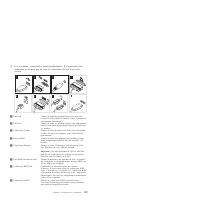
Chapter 3. Setting up your computer Before you begin, make sure you set up your computer in the best possible work area that suits your needs and the kind of work you do. For more information, see Chapter 2, “Arranging your workspace,” on page 21 or go to: http://www.lenovo.com/healthycomputing Note...
Page 34 - Important
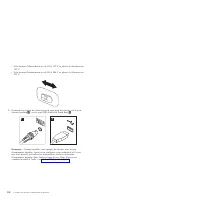
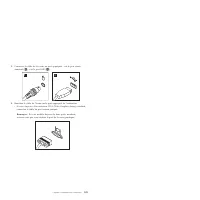
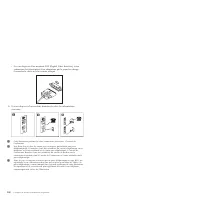
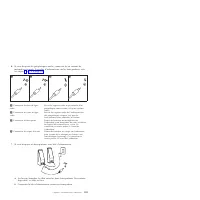
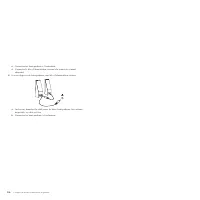
10. Connect the power cords to properly grounded electrical outlets. Note: For more information about connectors, refer to the Access Help online help system. See “Access Help” on page 34 for instructions on how to open the online help system. Turning on computer power Turn on the monitor and other ...

Page 37 - Online
Chapter 4. Information resources After you have set up your computer, you can use the information in this chapter to access useful resources relating to your computing needs. Online Books folder The Online Books folder provides publications to help you set up and use your computer. The Online Books ...
Page 59 - Suplemento
5. Product Exchange Service Under Product Exchange Service, Lenovo will ship a replacement product to your location. You are responsible for its installation and verification of its operation. The replacement product becomes your property in exchange for the failed product, which becomes the propert...
Page 61 - Country
Chapter 6. Worldwide telephone list The most up to date telephone list for Lenovo Support is always available on: www.lenovo.com/support Country or Region Telephone Number Africa Africa: +44 (0)1475-555-055 South Africa: +27-11-3028888 and 0800110756 Central Africa: Contact the nearest Lenovo Busine...
Page 80 - EU Only
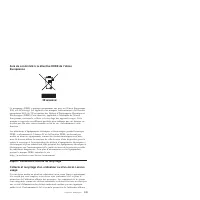
European Union (EU) WEEE statement EU Only The WEEE mark applies only to countries within the European Union (EU) and Norway. Appliances are labeled in accordance with European Directive 2002/96/EC concerning waste electrical and electronic equipment (WEEE). The Directive determines the framework fo...
Page 83 - France
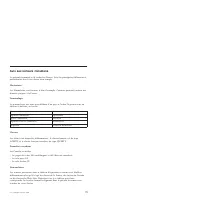
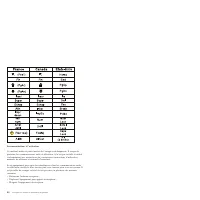
Avis aux lecteurs canadiens Le présent document a été traduit en France. Voici les principales différences et particularités dont vous devez tenir compte. Illustrations Les illustrations sont fournies à titre d’exemple. Certaines peuvent contenir des données propres à la France. Terminologie La term...
Page 97 - pas
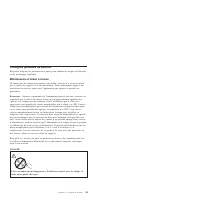
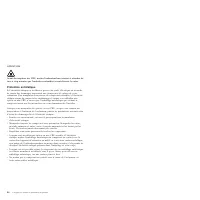
Connexion : 1. Mettez les unités hors tension. 2. Commencez par brancher tous les cordons sur les unités. 3. Branchez les câbles d’interface sur des connecteurs. 4. Branchez les cordons d’alimentation sur des prises. 5. Mettez les unités sous tension. Déconnexion : 1. Mettez les unités hors tension....
Page 103 - Confort
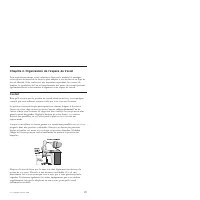
Chapitre 2. Organisation de l’espace de travail Pour exploiter au mieux votre ordinateur, disposez le matériel et arrangez votre espace de travail de la façon la plus adaptée à vos besoins et au type de travail effectué. Votre confort est très important cependant, les sources de lumière, la circulat...
Page 105 - Connexion; Remarque
Chapitre 3. Installation de l’ordinateur Avant toute chose, veillez à installer votre ordinateur dans un endroit correspondant au mieux à vos besoins et à vos habitudes de travail. Pour plus d’informations, consultez le Chapitre 2, «Organisation de l’espace de travail», à la page 99 ou accédez au si...
Page 113 - Exécution; Arrêter
Remarque : Sur certains modèles, une version multilingue du système d’exploitation Microsoft Windows est préinstallée. Le cas échéant, vous serez invité à choisir une langue pendant l’installation. Par la suite, vous pourrez changer de langue à partir du panneau de configuration de Windows. Exécutio...
Page 115 - Dossier
Chapitre 4. Sources d’informations Après avoir configuré votre ordinateur, vous pouvez utiliser les informations du présent chapitre pour accéder aux ressources utiles liées à vos besoins informatiques. Dossier Online Books Ce dossier contient des publications destinées à vous aider lors de la confi...
Page 124 - Informations
Espace économique européen (EEE) Les clients de l’EEE peuvent contacter Lenovo à l’adresse suivante : EMEA Service Organisation, Lenovo (International) B.V., Floor 2, Einsteinova 21, 851 01, Bratislava, Slovakia. Le service prévu par la présente garantie pour les produits matériels Lenovo achetés da...
Page 157 - AVERTISSEMENT
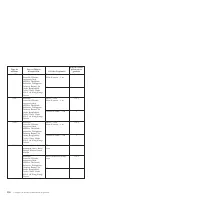
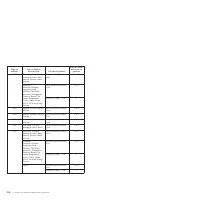
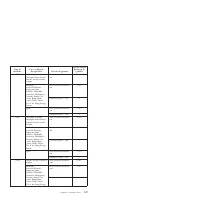
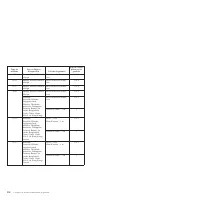
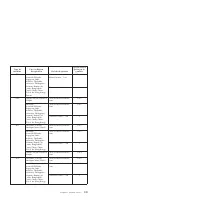
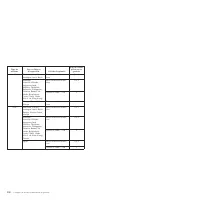
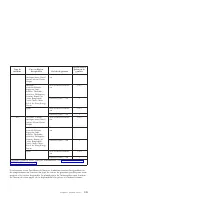
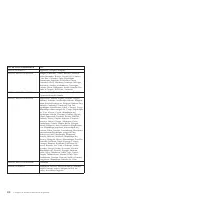
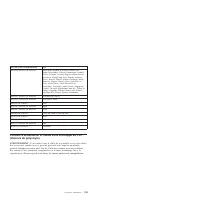
Réf. du cordon d’alimentation Pays 41R3224, 41R3225 ou 43N9036 Abu Dhabi, Bahreïn, Botswana, Brunei, Iles Anglo-Normandes, Chypre, Dominique, Gambie, Ghana, Grenade, Guyana, Région administrative spéciale de Hong Kong, Irak, Irlande, Jordanie, Kenya, Koweït, Libéria, Malawi, Malaisie, Malte, Birmani...
Page 167 - Voltageschakelaar
gingsmiddel. Vloeistoffen kunnen kortsluiting veroorzaken, met name als het netsnoer of de voedingsadapter slijtage vertoont ten gevolge van verkeerd gebruik. Bovendien kan vloeistof corrosie van de stekkers en/of aansluitpunten veroorzaken, hetgeen uiteindelijk kan leiden tot oververhitting. Sluit ...
Page 170 - Gebruiksomgeving
v Laad de batterij niet op en werk niet met de computer, voedingsadapter of toebehoren in de nabijheid van ontbrandbare materialen of in een omgeving met explosiegevaar. v Ventilatieopeningen, ventilatoren en koelribben maken deel uit van het pro- duct omwille van de veiligheid, het comfort en een b...
Page 172 - Kennisgeving; Houd; Veiligheidsvoorschriften
v Als u dit product of een aangesloten apparaat installeert, verplaatst of opent, houd u dan bij het aansluiten en loskoppelen van de kabels aan het volgende: Aansluiten: 1. Zet alles UIT. 2. Sluit eerst alle kabels aan op de appara- ten. 3. Sluit de signaalkabels aan. 4. Steek de stekker in het sto...
Page 183 - computer
Hoofdstuk 3. De computer installeren Controleer voordat u begint of u de computer wel installeert in de best moge- lijke werkruimte, een ruimte die voldoet aan uw wensen en geschikt is voor het soort werk dat u doet. Meer informatie vindt u in Hoofdstuk 2, “De werk- plek inrichten”, op pagina 17 5 o...
Page 190 - Belangrijk
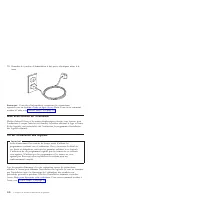
10. Steek de stekkers in deugdelijk geaarde stopcontacten. Opmerking: Meer informatie over aansluitingen vindt u in Access Help, het online Help-systeem. Instructies voor het openen van dit online Help-systeem vindt u in “Access Help” op pagina 190 . De computer aanzetten Zet eerst het beeldscherm e...
Page 191 - Afsluiten
Opmerking: Op sommige modellen kan vooraf een meertalige versie van Microsoft Windows geïnstalleerd zijn. Als op uw computer de meertalige ver- sie aanwezig is, wordt u tijdens de installatieprocedure gevraagd om de gewenste taal te selecteren. Na installatie kunt u de taalversie desgewenst wij- zig...
Page 193 - Map
Hoofdstuk 4. Informatiebronnen Nadat u uw computer hebt geïnstalleerd, kunt u via de informatie in dit hoofdstuk andere belangrijke informatiebronnen met betrekking tot uw compu- ter raadplegen. Map Online Boeken De map Online Boeken bevat publicaties die u helpen bij de installatie en het gebruik v...
Page 202 - Informatie
Europees Economisch Gebied (European Economic Area, EEA) Klanten in EEA-landen kunnen contact opnemen met Lenovo op het volgende adres: EMEA Service Organisation, Lenovo (International) B.V., Floor 2, Einsteinova 21, 851 01, Bratislava, Slowakije. Service onder deze garantie voor een Lenovo hardware...
Page 217 - Land
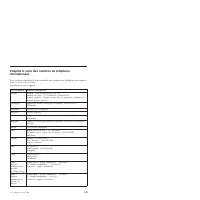
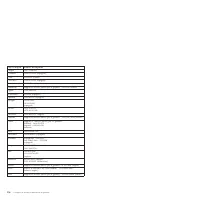
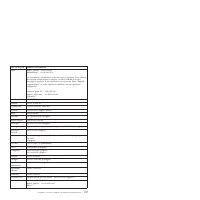
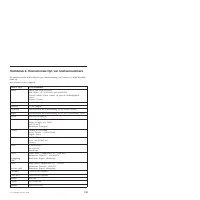
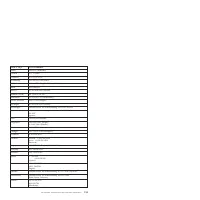
Hoofdstuk 6. Internationale lijst van telefoonnummers De meest recente telefoonlijst voor ondersteuning van Lenovo is altijd beschik- baar op: www.lenovo.com/support Land of regio Telefoonnummer Afrika Afrika: +44 (0)1475-555-055 Zuid-Afrika: +27-11-3028888 and 0800110756 Centraal Afrika: Neem conta...