Lenovo 40AY0090 - User Manual

Lenovo 40AY0090 Docking Station – User Manual, read for free online in PDF format. We hope this helps you resolve any issues you may have. If you have further questions, please contact us through the contact form.
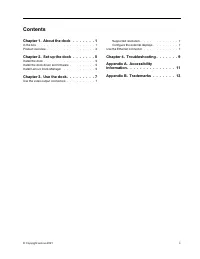

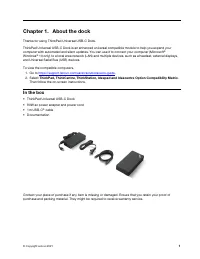
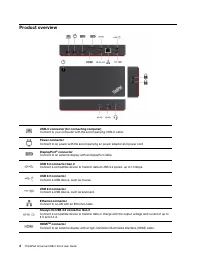
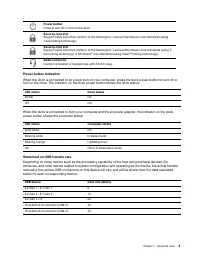

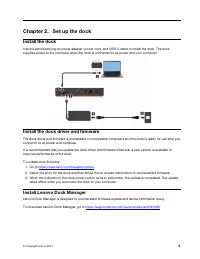

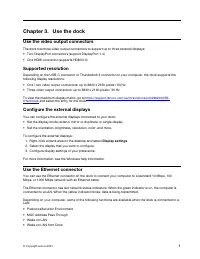
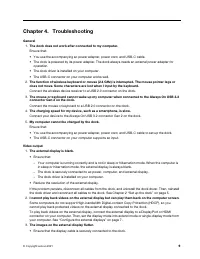
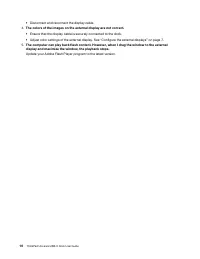
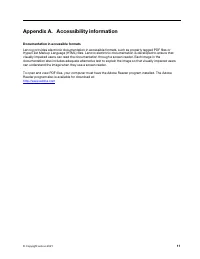



Table of Contents:
- Page 3 – Contents
- Page 4 – ii
- Page 5 – Chapter 1. About the dock; In the box
- Page 6 – Product overview
- Page 7 – Power button Indication
- Page 9 – Chapter 2. Set up the dock; Install the dock; Install Lenovo Dock Manager
- Page 11 – Chapter 3. Use the dock; Use the video output connectors; Display settings; Use the Ethernet connector
- Page 12 – Network function support – Option Compatibility Matrix
- Page 13 – Chapter 4. Troubleshooting
- Page 14 – The colors of the images on the external display are not correct.
- Page 15 – Appendix A. Accessibility information; Documentation in accessible formats
- Page 17 – Appendix B. Trademarks
ThinkPad Universal USB-C Dock
User Guide
"Loading the manual" means you need to wait until the file loads and becomes available for online reading. Some manuals are very large, and the time they take to appear depends on your internet speed.
Was this manual helpful?
About this manual
- Brand
- Lenovo
- Model
- 40AY0090
- Document type
- User Manual
- Category
- Docking Station
- Language(s)
- English
- Pages
- 20
- File size
- 1.6 MB
- Format
Summary
Contents Chapter 1. About the dock . . . . . . . 1 In the box . . . . . . . . . . . . . . . . . . 1Product overview . . . . . . . . . . . . . . . 2 Chapter 2. Set up the dock . . . . . . . 5 Install the dock . . . . . . . . . . . . . . . . 5Install the dock driver and firmware . . . . . . . . 5Insta...
Chapter 1. About the dock Thanks for using ThinkPad Universal USB-C Dock. ThinkPad Universal USB-C Dock is an enhanced universal compatible module to help you expand your computer with automated and silent updates. You can use it to connect your computer (Microsoft ® Windows ® 10 only) to a local ar...
Ask a question
Related manuals
Other Lenovo appliances
 Lenovo 0A33932 Manual
 Lenovo 0A33942 User Manual
 Lenovo 0B47190 User Manual
 Lenovo 04N7322 Manual
 Lenovo 9 Manual
 Lenovo 10 User Manual
 Lenovo 10AA Manual
 Lenovo 11 User Manual
 Lenovo 11S User Manual
- Lenovo 13 User Manual
 Lenovo 14 User Manual
 Lenovo 15 G2 User Manual
 Lenovo 41A1757 Manual
 Lenovo 50-30 User Manual
 Lenovo 65W Manual
 Lenovo 70A69000NA Manual
 Lenovo 83A100ECUS User Manual
 Lenovo 104 User Manual
 Lenovo 310 Manual
 Lenovo 390 Manual