Page 2 - Finding Information
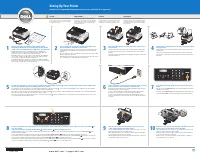
Finding Information What are you looking for ? Find it here How to set up my printer Setting Up Your Printer poster How to load printable media into my printerHow to printHow to scan and copy documents and photosHow to care for and maintain my printerHow to contact Dell™ NOTE: The Owner's Manual may...
Page 4 - Understanding the Software; Using the Dell Imaging Toolbox
Understanding the Software Using the Dell Imaging Toolbox Using Printing Preferences Dell Ink Management System Using the Dell Service Center Installing the Optional XPS Driver Removing and Reinstalling Software The printer software includes: Dell Imaging Toolbox – Allows you to perform various scan...
Page 6 - Using Printing Preferences
For more information, click the Help icon in the Dell Imaging Toolbox . Using Printing Preferences You can change your printer settings in Printing Preferences depending on the type of project you want to create. To access Printing Preferences when a document is open: 1. Click File ® Print . The Pri...
Page 7 - Dell Ink Management System
Dell Ink Management System Each time you print a job, a printing progress screen appears, which shows the progress of the print job as well as the amount of ink remaining and the approximate number of pages remaining in the cartridge. The page counter is hidden during the first 50 pages of cartridge...
Page 8 - Using the Dell Service Center; From an error message dialog box:
To adjust Complete -A -Print settings: 1. Click the Advanced tab. 2. Click More Options . 3. In the Complete -A -Print section, select either Use color cartridge for all black printing , or Use black cartridge to print in black and white to turn these features on or off. 4. Click OK . Using the Dell...
Page 9 - Installing the Optional XPS Driver
a . Click ® Programs . b. Click Dell Printers . c . Click Dell V105 . In Windows XP and Windows 2000: Click Start ® Programs or All Programs ® Dell Printers ® Dell V105 . 2. Click Dell Service Center . The Dell Service Center dialog box opens. Installing the Optional XPS Driver The XML Paper Specifi...
Page 10 - Removing and Reinstalling Software
e . From the Install From Disk dialog box, click OK . 7. Click Next on the following two dialog boxes. For more information on the XPS driver, see the XPS readme file on the Drivers and Utilities CD. The file is located in the xps folder with the setupxps batch file (D:\Drivers\xps\readme). Removing...
Page 11 - About Your Printer; Understanding the Printer Parts
About Your Printer Understanding the Printer Parts Understanding the Operator Panel You can use your printer to do a variety of things. A few important things to note: If the printer is connected to a computer, you can use either the printer operator panel or the printer software to produce quality ...
Page 14 - Maintenance; Replacing Ink Cartridges
Maintenance Replacing Ink Cartridges Aligning Ink Cartridges Cleaning the Ink Cartridge Nozzles Cleaning the Exterior of the Printer Dell™ ink cartridges are available only through Dell. You can order more ink online at www.dell.com/supplies or by phone. Replacing Ink Cartridges 1. Turn on your prin...
Page 16 - Aligning Ink Cartridges; Cleaning the Ink Cartridge Nozzles
Aligning Ink Cartridges Your printer automatically prompts you to align the ink cartridges when they are installed or replaced. You may also need to align the ink cartridges when the characters are not properly formed or are not aligned at the left margin, or when vertical or straight lines appear w...
Page 17 - Cleaning the Exterior of the Printer
Colors fade, do not print, or do not print correctly. Vertical lines appear jagged, or edges appear rough. To clean the nozzles: 1. Load plain paper. 2. In Windows Vista: a . Click ® Control Panel . b. Click Hardware and Sound . c . Click Printers . In Windows XP , click Start ® Control Panel ® Prin...
Page 18 - Loading Paper and Originals; Loading Paper; Print Media Guidelines
Loading Paper and Originals Loading Paper Loading Original Documents on the Scanner Glass Loading Paper 1. Fan the paper. 2. Center the paper on the paper support. 3. Adjust the paper guides so that they rest against the edges of the paper. NOTE: Do not pull on both paper guides simultaneously. When...
Page 20 - Loading Original Documents on the Scanner Glass
Loading Original Documents on the Scanner Glass 1. Open the top cover. 2. Place the document face down on the scanner glass. NOTE: Ensure that the upper left corner of the front of the item aligns with the arrow on the printer. 3. Close the top cover. The paper guides rest against the edges of the t...
Page 22 - Troubleshooting; Setup Problems; Computer Problems
Troubleshooting Setup Problems Copying Problems Error Codes and Flashing Lights on the Operator Panel Scanning Problems Clearing Paper Jams Paper Problems Avoiding Jams and Misfeeds Improving Print Quality Printing Problems General Guidelines for Selecting or Loading Print Media If the printer does ...
Page 24 - Printer Problems; Error Codes and Flashing Lights on the Operator Panel
2. Check for multiple objects for your printer. 3. Print a job to each of these print objects to see which printer is active. 4. Set that print object as the default printer: a . Right-click the Dell V105 icon. b. Click Set as Default Printer . 5. Delete the other copies of the print object by right...
Page 25 - Clearing Paper Jams; Paper jam in the paper path
Clearing Paper Jams Paper jam in the paper path 1. Pull the paper firmly to remove it. If you cannot reach the paper because it is too far into the printer, lift the scanner base unit to open the printer. 2. Pull the paper out. 3. Close the scanner base unit. 4. Resend your print job to print any mi...
Page 26 - Paper jam not visible; Avoiding Jams and Misfeeds; Printing Problems
Paper jam not visible 1. Turn off the printer. 2. Lift the scanner base unit. 3. Firmly grasp the paper, and gently pull it from the printer. 4. Close the scanner base unit. 5. Turn on the printer, and print the document again. Avoiding Jams and Misfeeds You can avoid most jams and misfeeds by follo...
Page 27 - Copying Problems
Envelopes Iron -on transfers Free up memory resources on your computer when print speed is slow. Close all applications not in use. Try minimizing the number and size of graphics and images in your document. Consider purchasing more Random Access Memory (RAM) for your computer. Remove fonts that you...
Page 28 - Scanning Problems
The Image Patterns dialog box opens. 7. Select Remove image patterns from magazine/newspaper (descreen) . 8. From the What patterns need to be removed ? drop down menu, select a pattern depending on your scanned item. 9. Click OK . Reduce background noise on scanned documents. 1. In Windows Vista: a...
Page 31 - Paper Problems
Reduce background noise on scanned documents. 1. In Windows Vista: a . Click ® Programs . b. Click Dell Printers . c . Click Dell V105 . In Windows XP or Windows 2000: Click Start ® Programs or All Programs ® Dell Printers ® Dell V105 . 2. Select Dell Imaging Toolbox . The Dell Imaging Toolbox dialo...
Page 32 - Improving Print Quality; General Guidelines for Selecting or Loading Print Media
Check for a paper jam. For more information, see Clearing Paper Jams . Improving Print Quality If you are not satisfied with the print quality of your documents, there are several different ways to improve the print quality. Use the appropriate paper. For example, use Dell™ Premium Photo Paper if yo...
Page 33 - Printing; Printing Documents; Printing Photos
Printing Printing Documents Printing Collated Copies of Your Document Printing Photos Printing a Booklet Printing Envelopes Assembling a Booklet Printing More Than One Page on a Sheet of Paper Duplexing a Print Job (Two-Sided Printing) Printing an Image as a Multi -Page Poster Canceling a Print Job ...
Page 34 - Printing Photos From the Computer
4. Click Preferences , Properties , Options , or Setup (depending on the program or operating system). The Printing Preferences dialog box opens. 5. On the Print Setup tab, select Photo , and then select the dpi settings for the photo from the drop-down menu. NOTE: To print borderless photos, click ...
Page 35 - Printing Borderless Photos; Creating Photo Greeting Cards
Printing Borderless Photos 1. Turn on your computer and printer, and ensure that they are connected. 2. Load the paper. For more information, see Loading Paper . 3. In Windows Vista: a . Click ® Programs . b. Click Dell Printers . c . Click Dell V105 . In Windows XP and Windows 2000: Click Start ® P...
Page 36 - Printing Envelopes
7. From the Style tab, click to select a style for your greeting card. 8. From the Photo tab, open the folder that contains your photos. 9. Select and drag a photo into the preview pane on the right side of the screen. 10 . Click the text area to add text to your photo greeting card. 11 . After edit...
Page 37 - Printing More Than One Page on a Sheet of Paper
6. On the Print Setup and Advanced tabs, make any necessary changes for your document. 7. When you finish customizing your settings, click OK . The Printing Preferences dialog box closes. 8. Click OK or Print . Printing More Than One Page on a Sheet of Paper 1. Turn on your computer and printer, and...
Page 38 - Printing an Image as a Multi-Page Poster; Printing a Banner; Printing Collated Copies of Your Document
10 . Click OK or Print . Printing an Image as a Multi-Page Poster 1. Turn on your computer and printer, and make sure they are connected. 2. Load the paper. For more information, see Loading Paper . 3. With your document open, click File ® Print . 4. Click Preferences , Properties , Options , or Set...
Page 39 - Printing a Booklet
2. Load the paper. For more information, see Loading Paper . 3. With your document open, click File ® Print . The Print dialog box opens. 4. Click Preferences , Properties , Options , or Setup (depending on the program or operating system). The Printing Preferences dialog box opens. 5. On the Print ...
Page 40 - Canceling a Print Job; From the Printers folder:
2. Take the first bundle from the stack, fold it in half, and then set it aside with the front page down. 3. Take the next bundle from the stack, fold it in half, and then stack it with the front page down on top of the first bundle. 4. Stack the rest of the bundles with the front page down, one on ...
Page 41 - From the Printing Status window:; Changing Printing Preferences Defaults
b. Click Hardware and Sound . c . Click Printers . In Windows XP , click Start ® Settings ® Control Panel ® Printers and Other Hardware ® Printers and Faxes . In Windows 2000 , click Start ® Settings ® Printers . 2. Right-click the Dell V105 icon. 3. Click Open . 4. Select the job you want to cancel...
Page 42 - From the Maintenance tab:
Make black and white printing and borderless printing the default setting. Change the default orientation. Change the default number of copies. From the Advanced tab, you can: Specify layouts that you want to set as default. From the Maintenance tab: There are no print settings to set as default fro...
Page 43 - Specifications; Overview; Temperature/Relative Humidity
Specifications Overview Environmental Specifications Power Consumption and Requirements Print and Scan Mode Capabilities Operating System Support Memory Specifications and Requirements Media Types and Sizes Cables Overview Environmental Specifications Power Consumption and Requirements Memory 8 MB S...
Page 45 - Cables
Cables Your printer uses a Universal Serial Bus (USB) cable (sold separately). A6: 105 x 148 mm Banner paper A4 BannerLetter Banner First sheet of the banner paper Envelopes 9 Envelopes: 3 7/8 x 8 7/8 inches10 Envelopes: 4 1/8 x 9 1/2 inches6 3/4 Envelopes: 3 1/4 x 6 1/2 inches7 3/4 Envelopes: 3 7/8...
Page 47 - Copying; Copying Documents; Using the Operator Panel
Copying Copying Documents Copying Photos Copying Documents Using the Operator Panel 1. Turn on the printer. 2. Load the paper. For more information, see Loading Paper . 3. Load your original document. For more information, see Loading Original Documents on the Scanner Glass . 4. If you want to print...
Page 48 - Copying Photos
The document appears in the right pane of the Copy dialog box. 10 . On the left pane of the Copy dialog box, select the copy settings that you want. 11 . Click Copy Now . Copying Photos Using the Operator Panel 1. Turn on the printer. 2. Load photo/glossy paper with the print side facing up. If you ...
Page 50 - Appendix; Dell Technical Support Policy
Appendix Dell Technical Support Policy Contacting Dell Warranty and Return Policy Dell Technical Support Policy Technician-assisted technical support requires the cooperation and participation of the customer in the troubleshooting process and provides for restoration of the Operating System, applic...
Page 51 - Warranty and Return Policy
[email protected] (Asian/Pacific countries only) [email protected] (Canada only) Warranty and Return Policy Dell Inc. (“Dell”) manufactures its hardware products from parts and components that are new or equivalent to new in accordance with industry -standard practices. For information about the Del...
Page 52 - Scanning; Scanning Single-Page Documents and Single Photos
Scanning Scanning Single -Page Documents and Single Photos Resizing Images or Documents Scanning Multiple Photos Into a Single File E-Mailing Documents or Photos Scanning Documents for Editing Creating a PDF Scanning Photos for Editing Customizing Scan Settings Saving Photos on Your Computer Changin...
Page 53 - Scanning Multiple Photos Into a Single File; Scanning Documents for Editing
application. 7. Click Start . Scanning Multiple Photos Into a Single File 1. Turn on your computer and printer, and ensure that they are connected. 2. Load your original photos on the scanner glass. For more information, see Loading Original Documents on the Scanner Glass . NOTE: For best results, l...
Page 54 - Scanning Photos for Editing; Saving Photos on Your Computer
Click Start ® Programs or All Programs ® Dell Printers ® Dell V105 . 4. Select Dell Imaging Toolbox . The Dell Imaging Toolbox opens. 5. From the Home screen, click Activities . 6. Click Convert Scanned Document to Text (OCR) . 7. Click Start . The scanned document is loaded into your default word-p...
Page 55 - Resizing Images or Documents
a . Click ® Programs . b. Click Dell Printers . c . Click Dell V105 . In Windows XP and Windows 2000: Click Start ® Programs or All Programs ® Dell Printers ® Dell V105 . 4. Select Dell Imaging Toolbox . The Dell Imaging Toolbox opens. 5. From the Home screen, click Scan . 6. Select the Photo or Sev...
Page 56 - E-Mailing Documents or Photos; Scanning Documents or Photos for E-Mailing
a . Click File ® New ® Scan New Image . b. Select from the Photo option. c . Click Start . The thumbnail of the scanned image appears in the right pane of the Library dialog box. d. Select the photo that you want to resize. If you are using a saved image: a . From the Folders pane in the Library dia...
Page 57 - Adding a File to an E-mail Message; Creating a PDF; From a Scanned Item
7. Click Start . The scanned image appears in the right pane of the Save or Edit dialog. 8. Adjust your scanned image using the settings on the left pane of the Save or Edit dialog box. 9. Save your scanned image. 10 . With your scanned item selected, click E -mail . 11 . From the Send Quality and S...
Page 58 - From a Saved Item
In Windows XP and Windows 2000: Click Start ® Programs or All Programs ® Dell Printers ® Dell V105 . 3. Select Dell Imaging Toolbox . The Dell Imaging Toolbox dialog box opens. 4. From the Home screen, click My Photo Album . 5. Click Add , and then click Add New Scan . 6. Select Photo , Several Phot...
Page 59 - Customizing Scan Settings
thumbnail. 5. Click Convert to PDF . 6. Click Add Another to scan an image or to add additional images from the Library. 7. To add or scan another image: a . Do one of the following: Select Add New Scan , and then select Photo , Several Photos , or Document . Click Start . Select Add Photo from Libr...
Page 60 - Changing the Scan Settings Preferences
Changing the Scan Settings Preferences 1. In Windows Vista: a . Click ® Programs . b. Click Dell Printers . c . Click Dell V105 . In Windows XP and Windows 2000: Click Start ® Programs or All Programs ® Dell Printers ® Dell V105 . 2. Select Dell Imaging Toolbox . The Dell Imaging Toolbox dialog box ...
Page 61 - Licensing Notice; BSD License and Warranty statements
Licensing Notice BSD License and Warranty statements GNU License The printer resident software contains: Software developed and copyrighted by Dell and/or third parties Dell modified software licensed under the provisions of the GNU General Public License version 2 and the GNU Lesser General Public ...