Page 3 - Contents; Index
Contents 3 Contents Finding Information . . . . . . . . . . . . . . . . . . . . . . . . . . . . . . . . 5 Setting Up Your Computer . . . . . . . . . . . . . . . . . . . . . . . . . . . . . 7 About Your Computer . . . . . . . . . . . . . . . . . . . . . . . . . . . . . . . . 9 Front View . . . . . . ...
Page 5 - Finding Information
Quick Reference Guide 5 Finding Information NOTE: Some features or media may be optional and may not ship with your computer. Some features or media may not be available in certain countries. NOTE: Additional information may ship with your computer. What Are You Looking For? Find It Here • A diagnos...
Page 7 - Setting Up Your Computer; Unpack the accessories box.
Quick Reference Guide 7 Setting Up Your Computer CAUTION: Before you begin any of the procedures in this section, follow the safety instructions in the Product Information Guide. 1 Unpack the accessories box. 2 Set aside the contents of the accessories box, which you will need to complete the setup ...
Page 9 - About Your Computer; Front View
Quick Reference Guide 9 About Your Computer Front View 1 display latch release 2 display latches (2) 3 display 4 power button 5 device status lights 6 touch pad 7 speakers (2) 8 touch pad buttons 9 keyboard 10 keyboard and wireless status lights 1 9 3 6 8 4 7 5 10 2
Page 10 - Left Side View
10 Quick Reference Guide Left Side View Right Side View Back View 1 air vent 2 security cable slot 3 optical drive bay 4 optical-drive-tray eject button 1 hard drive 2 ExpressCard slot 3 3-in-1 media memory card reader 4 audio connectors (2) 5 USB connectors (2) 1 AC adapter connector 2 network conn...
Page 11 - Bottom View; Using a Battery; Battery Performance
Quick Reference Guide 11 Bottom View Using a Battery Battery Performance NOTE: For information about the Dell warranty for your computer, see the Product Information Guide or separate paper warranty document that shipped with your computer. For optimal computer performance and to help preserve BIOS ...
Page 12 - Using optical drives; Checking the Battery Charge; Power Meter; Microsoft Windows Power Meter
12 Quick Reference Guide NOTE: Battery operating time (the time the battery can hold a charge) decreases over time. Depending on how often the battery is used and the conditions under which it is used, you may need to purchase a new battery during the life of your computer. NOTE: It is recommended t...
Page 13 - Charge Gauge; Battery charge (check by pressing and; Power Options Properties; Charging the Battery
Quick Reference Guide 13 Charge Gauge By either pressing once or pressing and holding the status button on the charge gauge on the battery, you can check: • Battery charge (check by pressing and releasing the status button) • Battery health (check by pressing and holding the status button) The batte...
Page 14 - The battery is too hot to start charging if the; Replacing the Battery; To remove the battery:
14 Quick Reference Guide The battery is too hot to start charging if the light flashes alternately green and orange. Disconnect the computer from the electrical outlet and allow the computer and the battery to cool to room temperature. Then connect the computer to an electrical outlet to continue ch...
Page 15 - Storing a Battery; Troubleshooting; Lockups and Software Problems; The computer does not start up; The computer stops responding; Click; A program is designed for an earlier Microsoft; The Program Compatibility Wizard configures a program
Quick Reference Guide 15 Storing a Battery Remove the battery when you store your computer for an extended period of time. A battery discharges during prolonged storage. After a long storage period, recharge the battery fully (see "Charging the Battery" on page 13) before you use it. Trouble...
Page 16 - A solid blue screen appears; Ensure that the program is installed and configured properly.; and search for the keyword; Dell Diagnostics; When to Use the Dell Diagnostics; Start the Dell Diagnostics from either your hard drive or from the
16 Quick Reference Guide A solid blue screen appears T U R N T H E C O M P U T E R O F F — If you are unable to get a response by pressing a key on your keyboard or moving your mouse, press and hold the power button for at least 8 to 10 seconds until the computer turns off. Then restart your compute...
Page 17 - Starting the Dell Diagnostics From Your Hard Drive; Connect the computer to an electrical outlet.; During the assessment, answer any questions that appear.; Starting the Dell Diagnostics From the Drivers and Utilities CD; Insert the
Quick Reference Guide 17 Starting the Dell Diagnostics From Your Hard Drive The Dell Diagnostics is located on a hidden diagnostic utility partition on your hard drive. NOTE: If your computer cannot display a screen image, contact Dell for technical assistance. 1 Turn on (or restart) your computer. ...
Page 18 - Dell Diagnostics Main Menu
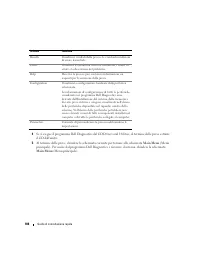
18 Quick Reference Guide 3 When the boot device list appears, highlight IDE CD-ROM DeviceCD/DVD/CD-RW Drive and press <Enter>. 4 Select the Boot from CD-ROM option from the menu that appears and press <Enter>. 5 Type 1 to start the CD menu and press <Enter> to proceed. 6 Select Run...
Page 19 - Drivers and Utilities
Quick Reference Guide 19 4 When the tests are completed, if you are running the Dell Diagnostics from the Drivers and Utilities CD , remove the CD. 5 When the tests are complete, close the test screen to return to the Main Menu screen. To exit the Dell Diagnostics and restart the computer, close the...
Page 23 - Snelle Referentiegids
w w w . d e l l . c o m | s u p p o r t . d e l l . c o m Dell™ Latitude™ 131L Snelle Referentiegids Model PP23LB
Page 24 - Opmerkingen, kennisgevingen en waarschuwingen; Windows
Opmerkingen, kennisgevingen en waarschuwingen OPMERKING: Een OPMERKING duidt belangrijke informatie aan voor een beter gebruik van de computer. KENNISGEVING: Een KENNISGEVING duidt mogelijke beschadiging van de hardware of gegevensverlies aan en geeft aan hoe u dergelijke problemen kunt voorkomen. L...
Page 25 - Inhoud; Register
Inhoud 25 Inhoud Informatie zoeken . . . . . . . . . . . . . . . . . . . . . . . . . . . . . . . . 27 De computer instellen . . . . . . . . . . . . . . . . . . . . . . . . . . . . . . 29 Over de computer . . . . . . . . . . . . . . . . . . . . . . . . . . . . . . . . 31 Vooraanzicht . . . . . . . . ...
Page 29 - De computer instellen; Haal de onderdelen uit de doos met accessories.
Snelle Referentiegids 29 De computer instellen LET OP: Voordat u met een van de procedures in dit gedeelte begint, moet u de veiligheidsinstructies in de productinformatiegids raadplegen. 1 Haal de onderdelen uit de doos met accessories. 2 Leg de onderdelen klaar, u hebt deze nodig om de computer te...
Page 31 - Over de computer; Vooraanzicht
Snelle Referentiegids 31 Over de computer Vooraanzicht 1 schermontgrendeling 2 schermvergrendelingen (2) 3 beeldscherm 4 aan/uit-knop 5 apparaatstatuslampjes 6 touchpad 7 luidsprekers (2) 8 touchpad-knoppen 9 toetsenbord 10 statuslampje toetsenbord en draadloze verbinding 1 9 3 6 8 4 7 5 10 2
Page 32 - Linkerzijaanzicht
32 Snelle referentiegids Linkerzijaanzicht Rechterzijaanzicht Achteraanzicht 1 ventilatieopeningen 2 sleuf voor beveiligingskabel 3 compartiment voor optisch station 4 ontgrendelknop voor schuif van optisch station 1 vaste schijf 2 ExpressCard-sleuf 3 3-in-1 media-geheugenkaartleesapparaat 4 audioin...
Page 33 - Onderkant; Batterijen gebruiken; Batterijprestatie
Snelle Referentiegids 33 Onderkant Batterijen gebruiken Batterijprestatie OPMERKING: Zie de productinformatigids of het afzonderlijke papieren garantiedocument dat bij de computer is geleverd voor informatie over de Dell-garantie voor uw computer. Voor een optimale computerprestatie en het behoud va...
Page 34 - Het gebruik van optische stations; De lading van de batterij controleren; Energiemeter; Microsoft Windows Energiemeter
34 Snelle referentiegids OPMERKING: De werkduur van de batterij (de tijd gedurende welke de batterij stroom kan bieden) wordt met de tijd minder. Afhankelijk van de frequentie waarmee de batterij wordt gebruikt en de gebruiksomstandigheden kan het zijn dat u tijdens de levensduur van de computer een...
Page 35 - Ladingmeter; Batterijlading (klik; Om de batterijstatus te raadplegen, drukt u; Als u het batterijvermogen wilt meten met de laadmeter,; Waarschuwing batterij bijna leeg; handleiding; De batterij opladen
Snelle Referentiegids 35 Ladingmeter Door de statusknop op de ladingmeter van de batterij ingedrukt te houden, kunt u het volgende controleren: • Batterijlading (klik kort op de statusknop) • Batterijvoortgang (houd de statusknop ingedrukt) De werkingsduur van de batterij wordt grotendeels bepaald d...
Page 36 - afwisselend groen en oranje; De batterij vervangen; De batterij verwijderen:
36 Snelle referentiegids Als de batterij verhit is geraakt door gebruik in de computer of omdat de omgevingstemperatuur te hoog is, is het mogelijk dat de batterij niet oplaadt als u de computer op een stopcontact aansluit.De batterij is te warm om te beginnen met opladen als het lampje afwisselend ...
Page 37 - Een batterij opslaan; Probleemwijzer; Vergrendelingen en softwareproblemen; De computer start niet op; Klik op; Een programma is ontwikkeld voor een eerdere versie van Windows; Met de wizard Programmacompatibiliteit
Snelle Referentiegids 37 Een batterij opslaan Verwijder de batterij als u de computer voor langere tijd opslaat. Een batterij verliest zijn lading als deze gedurende een lange periode niet wordt gebruikt. Na een lange opslagperiode moet u voor gebruik de batterij volledig opladen (zie "De batter...
Page 38 - Er verschijnt een blauw venster-; en zoek op het trefwoord; Wanneer het Dell-diagnoseprogramma te gebruiken
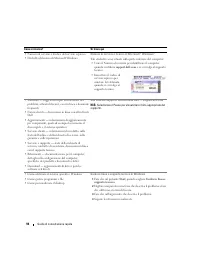
38 Snelle referentiegids Er verschijnt een blauw venster- Z E T D E C O M P U T E R U I T — Als de computer niet reageert zelfs als u een toets op het toetsenbord indrukt of de muis beweegt, dient u de aan/uit-knop in te drukken en deze minstens 8-10 seconden ingedrukt te houden tot de computer zich...
Page 39 - Dell Diagnostics (Dell-diagnostiek) starten vanaf de vaste schijf; Start of herstart de computer.; Booting Dell Diagnostic Utility Partition
Snelle Referentiegids 39 Dell Diagnostics (Dell-diagnostiek) starten vanaf de vaste schijf Het Dell-diagnoseprogramma bevindt zich op een verborgen partitie op de harde schijf. OPMERKING: Als de computer niet in staat is om een afbeelding op het scherm weer te geven, raden wij u aan om contact op te...
Page 40 - Hoofdmenu Dell Diagnostics; hoofdmenu
40 Snelle referentiegids Dell Diagnostics (Dell-diagnostiek) starten vanaf de cd Drivers and Utilities (Stuur- en hulpprogramma's) 1 Plaats de cd Drivers and Utilities (Stuur- en hulpprogramma's) in het cd-station. 2 Zet de computer uit en start deze opnieuw. Zodra het DELL-logo verschijnt, drukt u ...
Page 41 - Neem contact op met Dell, als u de fout niet kunt oplossen.
Snelle Referentiegids 41 2 Als er tijdens een test een probleem wordt opgespoord, wordt er een bericht weergegeven met de foutcode en een beschrijving van het probleem. Noteer de foutcode en de beschrijving van het probleem en volg de instructies op het scherm. Neem contact op met Dell, als u de fou...
Page 44 - Wizard
44 Register 44 Register P p ro b l e m e n blauw venster, 38computer crasht, 38computer reageert niet meer, 37 computer start niet op, 37Dell Diagnostics (Dell- diagnostiek), 38 programma crasht, 37programma reageert niet, 37programma's en Windows- compatibiliteit, 37 software, 37-38spyware, 38trage...
Page 45 - Guide de référence rapide
w w w . d e l l . c o m | s u p p o r t . d e l l . c o m Dell™ Latitude™ 131L Guide de référence rapide Modèle PP23LB
Page 46 - Remarques, avis et précautions
Remarques, avis et précautions REMARQUE : Une REMARQUE fournit des informations importantes qui vous aident à mieux utiliser votre ordinateur. AVIS : Un AVIS vous avertit d’un risque de dommage matériel ou de perte de données et vous indique comment éviter le problème. PRÉCAUTION : Une PRÉCAUTION in...
Page 47 - Table des matières
Table des matières 47 Table des matières Recherche d'informations . . . . . . . . . . . . . . . . . . . . . . . . . . . . 49 Configuration de votre ordinateur . . . . . . . . . . . . . . . . . . . . . . . . 51 À propos de votre ordinateur . . . . . . . . . . . . . . . . . . . . . . . . . . 53 Vue fr...
Page 49 - Recherche d'informations
Guide de référence rapide 49 Recherche d'informations REMARQUE : Certaines fonctionnalités ou supports peuvent être optionnels et ne pas accompagner votre ordinateur. Certaines fonctionnalités ou supports peuvent ne pas être disponibles dans certains pays. REMARQUE : Il est possible que des informat...
Page 51 - Configuration de votre ordinateur
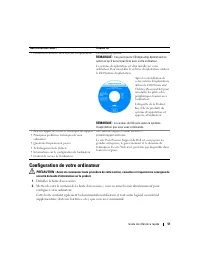
Guide de référence rapide 51 Configuration de votre ordinateur PRÉCAUTION : Avant de commencer toute procédure de cette section, consultez et respectez les consignes de sécurité du Guide d'information sur le produit. 1 Déballez la boîte d'accessoires. 2 Mettez de côté le contenu de la boîte d'access...
Page 53 - À propos de votre ordinateur; Vue frontale
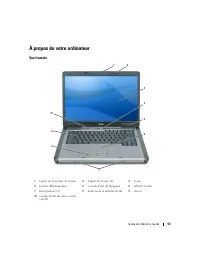
Guide de référence rapide 53 À propos de votre ordinateur Vue frontale 1 loquet de fermeture de l'écran 2 loquets de l'écran (2) 3 écran 4 bouton d'alimentation 5 voyants d'état de l'appareil 6 tablette tactile 7 haut-parleurs (2) 8 boutons de la tablette tactile 9 clavier 10 voyants d'état du clavi...
Page 54 - Vue du côté gauche
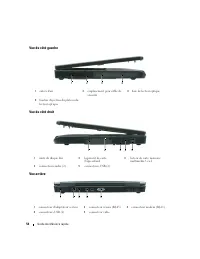
54 Guide de référence rapide Vue du côté gauche Vue du côté droit Vue arrière 1 entrée d'air 2 emplacement pour câble de sécurité 3 baie de lecteur optique 4 bouton d'éjection du plateau du lecteur optique 1 unité de disque dur 2 logement de carte ExpressCard 3 lecteur de carte mémoire multimédia 3 ...
Page 55 - Vue de dessous; Utilisation d'une batterie; Performances de la batterie
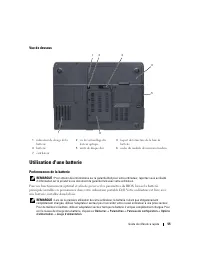
Guide de référence rapide 55 Vue de dessous Utilisation d'une batterie Performances de la batterie REMARQUE : Pour obtenir des informations sur la garantie Dell pour votre ordinateur, reportez-vous au Guide d'information sur le produit ou au document de garantie livré avec votre ordinateur. Pour un ...
Page 56 - Utilisation de lecteurs optiques; Vérification de la charge de la batterie; Jauge; Jauge d'alimentation Microsoft Windows
56 Guide de référence rapide REMARQUE : L'autonomie de la batterie (la période durant laquelle la batterie reste chargée) diminue avec le temps. Selon la fréquence d'utilisation et les conditions de fonctionnement de la batterie, vous devrez peut-être en acheter une autre au cours de la durée de vie...
Page 57 - Indicateur de charge; Le niveau de charge de la batterie (appuyez et; Alerte de batterie faible; Propriétés des Options d'alimentation; Chargement de la batterie
Guide de référence rapide 57 Indicateur de charge En appuyant une fois sur le bouton d'état de l'indicateur de charge de la batterie ou en appuyant et en maintenant enfoncé ce bouton, vous pouvez vérifier les éléments suivants : • Le niveau de charge de la batterie (appuyez et relâchez le bouton d'é...
Page 58 - clignote affichant; Remplacement de la batterie; Pour retirer la batterie :
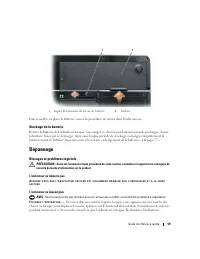
58 Guide de référence rapide Lorsque vous branchez l'ordinateur sur une prise secteur ou que vous installez une batterie pendant que l'ordinateur est branché sur une prise secteur, l'ordinateur vérifie le niveau de charge et la température de la batterie. Au besoin, l'adaptateur secteur charge alors...
Page 59 - Stockage de la batterie; Dépannage; Blocages et problèmes logiciels; L'ordinateur ne démarre pas
Guide de référence rapide 59 Pour remettre en place la batterie, suivez la procédure de retrait dans l'ordre inverse. Stockage de la batterie Retirez la batterie de l'ordinateur lorsque vous rangez ce dernier pendant une période prolongée. Sinon, la batterie finira par se décharger. Après une longue...
Page 60 - Un programme ne répond plus ou se bloque régulièrement; Cliquez sur; Un écran bleu uni apparaît
60 Guide de référence rapide Un programme ne répond plus ou se bloque régulièrement REMARQUE : La documentation de tout logiciel, la disquette ou le CD qui l'accompagne incluent généralement des instructions d'installation. F I N D U P R O G R A M M E — 1 Appuyez simultanément sur <Ctrl><Ma...
Page 61 - Si vous observez un ralentissement des; Quand utiliser Dell Diagnostics; Il est recommandé d'imprimer ces procédures avant de commencer.; Lancement de Dell Diagnostics à partir de votre disque dur; Connectez l'ordinateur à une prise électrique.
Guide de référence rapide 61 A N A L YS E Z L ' O R D I N A T E U R À L A R E C H E R C H E D E L O G I C I E L S E S P I O N S — Si vous observez un ralentissement des performances de votre ordinateur, si des fenêtres publicitaires s'affichent fréquemment sur votre écran ou si vous avez des problèm...
Page 62 - Pilotes et utilitaires
62 Guide de référence rapide REMARQUE : Si un message indique qu'aucune partition de diagnostic n'a été trouvée, exécutez Dell Diagnostics à partir du CD Drivers and Utilities . L'ordinateur lance l'évaluation du système de préamorçage avec une série de diagnostics intégrés qui effectue un test préa...
Page 63 - Menu principal de Dell Diagnostics; Une fois Dell Diagnostics chargé et lorsque l'écran
Guide de référence rapide 63 Menu principal de Dell Diagnostics 1 Une fois Dell Diagnostics chargé et lorsque l'écran Menu principal s'affiche, cliquez sur le bouton de l'option que vous souhaitez. 2 Si un problème survient pendant un test, un message indiquant le code d'erreur et une description du...
Page 67 - Schnellreferenzhandbuch
w w w . d e l l . c o m | s u p p o r t . d e l l . c o m Dell™ Latitude™ 131L Schnellreferenzhandbuch Modell PP23LB
Page 68 - Anmerkungen, Hinweise und Vorsichtshinweise
Anmerkungen, Hinweise und Vorsichtshinweise ANMERKUNG: Eine ANMERKUNG macht auf wichtige Informationen aufmerksam, die Ihnen die Arbeit mit dem Computer erleichtern. HINWEIS: Ein HINWEIS warnt vor möglichen Beschädigungen der Hardware oder vor Datenverlust und erläutert, wie das vermieden werden kan...
Page 69 - Inhalt; Stichwortverzeichnis
Inhalt 69 Inhalt Informationsquellen . . . . . . . . . . . . . . . . . . . . . . . . . . . . . . . 71 Einrichten des Computers . . . . . . . . . . . . . . . . . . . . . . . . . . . . 74 Informationen über den Computer . . . . . . . . . . . . . . . . . . . . . . . . 75 Vorderansicht . . . . . . . . ....
Page 71 - Informationsquellen
Schnellreferenzhandbuch 71 Informationsquellen ANMERKUNG: Einige Funktionen oder Datenträger sind möglicherweise optional und werden nicht mit Ihrem Computer geliefert. Einige Funktionen oder Datenträger sind möglicherweise in bestimmten Ländern nicht verfügbar. ANMERKUNG: Zusätzliche Informationen ...
Page 74 - Einrichten des Computers; Packen Sie das Zubehör aus.
74 Schnellreferenzhandbuch Einrichten des Computers VORSICHT: Bevor Sie Anweisungen an den in diesem Abschnitt beschriebenen Komponenten ausführen, lesen Sie erst die Sicherheitshinweise im Produktinformationshandbuch. 1 Packen Sie das Zubehör aus. 2 Legen Sie die für das Einrichten des Computers er...
Page 75 - Informationen über den Computer; Vorderansicht
Schnellreferenzhandbuch 75 Informationen über den Computer Vorderansicht 1 Bildschirmfreigabevorrichtung 2 Bildschirmverriegelungen (2) 3 Bildschirm 4 Netzschalter 5 Gerätestatusanzeigen 6 Touchpad 7 Lautsprecher (2) 8 Touchpad-Tasten 9 Tastatur 10 Tastatur und Wireless-Statusanzeigen 1 9 3 6 8 4 7 ...
Page 76 - Linke Seitenansicht
76 Schnellreferenzhandbuch Linke Seitenansicht Rechte Seitenansicht Rückansicht 1 Lüftungsschlitze 2 Sicherheitskabeleinschub 3 Schacht für das optische Laufwerk 4 Auswurftaste für optisches Laufwerk 1 Festplatte 2 ExpressCard-Steckplatz 3 3-fach-Media-Speicherkartenleser 4 Audioanschlüsse (2) 5 USB...
Page 77 - Unterseite; Verwenden eines Akkus; Akkuleistung
Schnellreferenzhandbuch 77 Unterseite Verwenden eines Akkus Akkuleistung ANMERKUNG: Informationen über die Dell-Garantie für Ihren Computer finden Sie in Ihrem Produktinformations- handbuch oder in der gedruckten Garantiebescheinigung, die im Lieferumfang Ihres Computers enthalten ist. Für eine opti...
Page 78 - Verwenden von optischen Laufwerken; Prüfen des Akkuladezustands; Energieanzeige
78 Schnellreferenzhandbuch ANMERKUNG: Da der Akku beim Kauf des Computers möglicherweise nicht vollständig geladen ist, verwenden Sie ein Netzteil, um Ihren neuen Computer vor der ersten Verwendung an eine Steckdose anzuschließen und den Akku zu laden. Sie erzielen die besten Ergebnisse, wenn Sie de...
Page 79 - Energieanzeige von Microsoft Windows; Akkuladung (Prüfung durch Drücken und; Warnung „Akku niedrig“; Eigenschaften von Energieoptionen
Schnellreferenzhandbuch 79 Energieanzeige von Microsoft Windows Die Energie- bzw. Akkuanzeige von Windows zeigt die verbleibende Akkuladung an. Um die Ladung zu überprüfen, doppelklicken Sie auf das Symbol in der Taskleiste. Wenn der Computer an eine Steckdose angeschlossen ist, wird das Symbol ange...
Page 80 - Aufladen des Akkus; Bei abwechselnd; Austauschen des Akkus; So entfernen Sie die Batterie:
80 Schnellreferenzhandbuch Aufladen des Akkus ANMERKUNG: Das Netzteil kann bei ausgeschaltetem Computer einen vollständig entleerten Akku in etwa einer Stunde auf 80 Prozent und in etwa zwei Stunden auf 100 Prozent Ladestand aufladen. Bei eingeschaltetem Com-puter verlängert sich die Ladezeit entspr...
Page 81 - Lagern eines Akkus; Beheben von Störungen; Probleme mit Absturz und Software; Der Computer startet nicht
Schnellreferenzhandbuch 81 Um den Akku wieder einzusetzen, gehen Sie in umgekehrter Reihenfolge wie beim Herausnehmen vor. Lagern eines Akkus Entfernen Sie den Akku, wenn Sie den Computer für längere Zeit lagern möchten. Akkus entladen sich während einer längeren Lagerzeit. Nach einer längeren Lager...
Page 82 - Ein Programm reagiert nicht mehr oder stürzt wiederholt ab; Klicken Sie auf; Ein Programm wurde für ein früheres Microsoft; Der „Programmkompatibilitäts-Assistent“; Ein blauer Bildschirm wird angezeigt
82 Schnellreferenzhandbuch Ein Programm reagiert nicht mehr; oder stürzt wiederholt ab ANMERKUNG: Anweisungen für die Installation von Software finden Sie im Allgemeinen in der jeweiligen Dokumentation oder auf einer mitgelieferten Diskette oder CD. P R O G R A M M B E E N D E N – 1 Drücken Sie die ...
Page 83 - Wenn die Leistung Ihres Computers gering ist, Ihr; Wann wird Dell Diagnostics eingesetzt?; Starten Sie Dell Diagnostics über die Festplatte oder über die; Starten von Dell Diagnostics von der Festplatte; Schalten Sie den Computer ein bzw. führen Sie einen Neustart durch.
Schnellreferenzhandbuch 83 S P E I C H E R N U N D S C H L I E S S E N S I E A L L E G E Ö F F N E T E N D A T E I E N U N D B E E N D E N S I E A L L E G E Ö F F N E T E N P R O G R A M M E U N D F A H R E N S I E D E N C O M P U T E R Ü B E R D A S M E N Ü S t a r t H E R U N T E R . D E N C O M P...
Page 84 - Starten von Dell Diagnostics von der Drivers and Utilities CD; Legen Sie die
84 Schnellreferenzhandbuch ANMERKUNG: Wenn Sie zu lange warten und das Betriebssystem-Logo eingeblendet wird, warten Sie noch, bis der Windows-Desktop angezeigt wird. Fahren Sie danach den Computer herunter und starten Sie ihn erneut. b Halten Sie die <Fn>-Taste gedrückt, während Sie den Compu...
Page 85 - Hauptmenü des Programms Dell Diagnostics
Schnellreferenzhandbuch 85 6 Wählen Sie Run Dell 32-bit Diagnostics (Dell 32-Bit-Diagnose ausführen) aus der nummerierten Liste aus. Wählen Sie die für Ihren Computer zutreffende Version aus, wenn mehrere Versionen aufgelistet werden. 7 Wenn das Hauptmenü des Programms „Dell Diagnostics“ erscheint, ...
Page 86 - Falls Sie Dell Diagnostics über die
86 Schnellreferenzhandbuch 4 Falls Sie Dell Diagnostics über die Drivers and Utilities- CD ausführen, entfernen Sie die CD nach Abschluss der Tests. 5 Wenn die Tests vollständig ausgeführt wurden, das Testfenster schließen, um zum Hauptmenü zurückzukehren. Schließen Sie zum Beenden von Dell Diagnost...
Page 87 - Produktinformationshandbuch,
Stichwortverzeichnis 87 Stichwortverzeichnis A A kk u Aufladen, 80Energieanzeige, 79Entfernen, 80Ladestandanzeige, 77, 79lagern, 81Leistung, 77Prüfen des Ladezustands, 78 Assistenten Programmkompatibilitäts- Assistent, 82 B Beheben von Störungen Dell Diagnostics, 83Hilfe- und Supportcenter, 73 Benut...
Page 89 - Guida di consultazione rapida
w w w . d e l l . c o m | s u p p o r t . d e l l . c o m Dell™ Latitude™ 131L Guida di consultazione rapida Modello PP23LB
Page 91 - Sommario; Indice analitico
Sommario 91 Sommario Ricerca di informazioni . . . . . . . . . . . . . . . . . . . . . . . . . . . . . 93 Installazione del computer . . . . . . . . . . . . . . . . . . . . . . . . . . . 95 Informazioni sul computer . . . . . . . . . . . . . . . . . . . . . . . . . . . . 97 Vista anteriore . . . . ....
Page 93 - Ricerca di informazioni
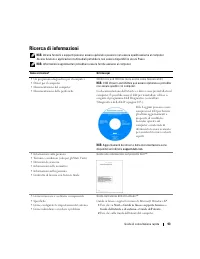
Guida di consultazione rapida 93 Ricerca di informazioni N.B. Alcune funzioni o supporti possono essere opzionali e possono non essere spediti assieme al computer. Alcune funzioni o applicazioni multimediali potrebbero non essere disponibili in alcuni Paesi. N.B. Informazioni supplementari potrebber...
Page 95 - Installazione del computer; Disimballare la scatola degli accessori.
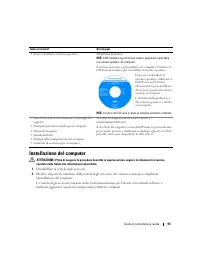
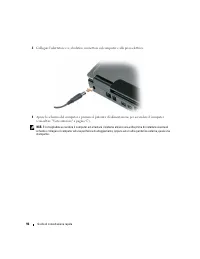
Guida di consultazione rapida 95 Installazione del computer ATTENZIONE: Prima di eseguire le procedure descritte in questa sezione, seguire le istruzioni di sicurezza riportate nella Guida alle informazioni sul prodotto. 1 Disimballare la scatola degli accessori. 2 Mettere da parte il contenuto dell...
Page 97 - Informazioni sul computer; Vista anteriore
Guida di consultazione rapida 97 Informazioni sul computer Vista anteriore 1 chiusura a scatto dello schermo 2 dispositivi di chiusura dello schermo (2) 3 schermo 4 pulsante di alimentazione 5 indicatori di stato della periferica 6 touchpad 7 altoparlanti (2) 8 pulsanti del touchpad 9 tastiera 10 in...
Page 98 - Vista laterale sinistra
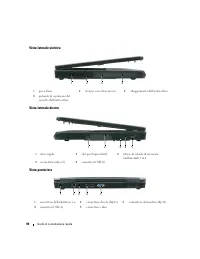
98 Guida di consultazione rapida Vista laterale sinistra Vista laterale destra Vista posteriore 1 presa d'aria 2 slot per cavo di sicurezza 3 alloggiamento dell'unità ottica 4 pulsante di espulsione del cassetto dell'unità ottica 1 disco rigido 2 slot per ExpressCard 3 lettore di schede di memoria m...
Page 99 - Vista inferiore; Uso della batteria; Rendimento della batteria
Guida di consultazione rapida 99 Vista inferiore Uso della batteria Rendimento della batteria N.B. Per informazioni sulla garanzia Dell per il computer, consultare la Guida alle informazioni sul prodotto o i vari documenti di garanzia separati forniti con il computer. Per ottenere prestazioni ottima...
Page 100 - Uso di unità ottiche; Controllo del livello di carica della batteria; La finestra e l'icona
100 Guida di consultazione rapida N.B. L'autonomia della batteria (il tempo in cui la batteria si mantiene carica) diminuisce con il passare del tempo. A seconda della frequenza di utilizzo della batteria e delle condizioni in cui viene utilizzata, può essere necessario acquistare una nuova batteria...
Page 101 - Misuratore alimentazione di Microsoft Windows; premendo e tenendo premuto; premere; tenere premuto; Avviso di batteria scarica; Proprietà - Opzioni risparmio
Guida di consultazione rapida 101 Misuratore alimentazione di Microsoft Windows Il Misuratore alimentazione di Windows indica il livello di carica residua della batteria. Per accedere al Misuratore alimentazione, fare doppio clic sull'icona sulla barra delle applicazioni. Se il computer è collegato ...
Page 102 - Ricarica della batteria; La batteria è troppo calda per essere caricata se l'indicatore; Sostituzione della batteria; Per rimuovere la batteria:
102 Guida di consultazione rapida Ricarica della batteria N.B. Quando il computer è spento, l'adattatore c.a. carica una batteria completamente scarica all'80 percento in circa 1 ora e al 100 percento in approssimativamente 2 ore. Il tempo di carica risulta più lungo se il computer è acceso. È possi...
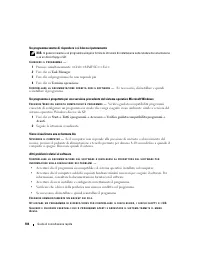
Page 103 - Conservazione di una batteria; Risoluzione dei problemi; Blocchi e problemi relativi al software; Il computer non si avvia
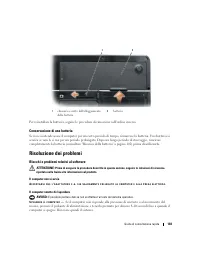
Guida di consultazione rapida 103 Per reinstallare la batteria, seguire le procedure di rimozione nell'ordine inverso. Conservazione di una batteria Se non si intende usare il computer per un certo periodo di tempo, rimuovere la batteria. Una batteria si scarica se non la si usa per un periodo prolu...
Page 104 - Un programma smette di rispondere o si blocca ripetutamente; Se necessario, disinstallare e quindi; Verifica guidata compatibilità programmi; Viene visualizzata una schermata blu
104 Guida di consultazione rapida Un programma smette di rispondere o si blocca ripetutamente N.B. In genere insieme a un programma vengono fornite le istruzioni di installazione nella relativa documentazione o su un disco floppy o CD. C H I U D E R E I L P R O G R A M M A — 1 Premere simultaneament...
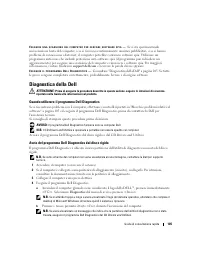
Page 105 - Se si sta sperimentando; Diagnostica della Dell; Quando utilizzare il programma Dell Diagnostics; Avviare il programma Dell Diagnostics dal disco rigido o dal CD; Avvio del programma Dell Diagnostics dal disco rigido; Collegare il computer a una presa elettrica.
Guida di consultazione rapida 105 E S E G U I R E U N A S C A N S I O N E D E L C O M P U T E R P E R C E R C A R E S O F T W A R E S P I A — Se si sta sperimentando un'esecuzione lenta del computer, o se si ricevono continuamente annunci pubblicitari, o se si hanno problemi di connessione a Interne...
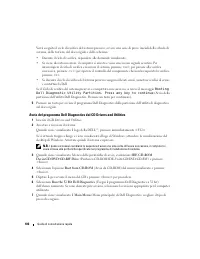
Page 106 - Booting
106 Guida di consultazione rapida Verrà eseguito il ciclo di verifica del sistema preavvio, ovvero una serie di prove iniziali della scheda di sistema, della tastiera, del disco rigido e dello schermo. • Durante il ciclo di verifica, rispondere alle domande visualizzate. • Se viene rilevato un error...
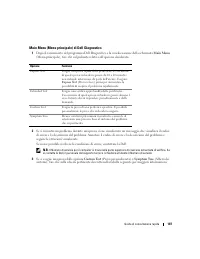
Page 107 - Main Menu (Menu principale) di Dell Diagnostics; Main
Guida di consultazione rapida 107 Main Menu (Menu principale) di Dell Diagnostics 1 Dopo il caricamento del programma Dell Diagnostics e la visualizzazione della schermata Main Menu (Menu principale), fare clic sul pulsante relativo all'opzione desiderata. 2 Se si riscontra un problema durante una p...
Page 108 - Se si esegue il programma Dell Diagnostics dal CD
108 Guida di consultazione rapida 4 Se si esegue il programma Dell Diagnostics dal CD Drivers and Utilities , al termine delle prove estrarre il CD dall'unità. 5 Al termine delle prove, chiudere la schermata corrente per tornare alla schermata Main Menu (Menu principale). Per uscire dal programma De...
Page 111 - Guía de referencia rápida
w w w . d e l l . c o m | s u p p o r t . d e l l . c o m Dell™ Latitude™ 131L Guía de referencia rápida Modelo PP23LB
Page 112 - Notas, avisos y precauciones
Notas, avisos y precauciones NOTA: Una NOTA proporciona información importante que le ayuda a utilizar su ordenador de la mejor manera posible. AVISO: Un AVISO indica la posibilidad de daños en el hardware o pérdida de datos y le explica cómo evitar el problema. PRECAUCIÓN: Una PRECAUCIÓN indica la ...
Page 113 - Contenido; Índice
Contenido 113 Contenido Búsqueda de información . . . . . . . . . . . . . . . . . . . . . . . . . . . 115 Configuración del ordenador . . . . . . . . . . . . . . . . . . . . . . . . . 117 Acerca de su ordenador . . . . . . . . . . . . . . . . . . . . . . . . . . . . 119 Vista anterior . . . . . . . ...
Page 115 - Búsqueda de información
Guía de referencia rápida 115 Búsqueda de información NOTA: Algunas funciones o medios son opcionales y pueden no incluirse en su ordenador. Es posible que algunas funciones o medios no estén disponibles en determinados países. NOTA: Su ordenador puede incluir información adicional. ¿Qué busca? Aquí...
Page 117 - Configuración del ordenador; Desempaquete la caja de accesorios.
Guía de referencia rápida 117 Configuración del ordenador PRECAUCIÓN: Antes de comenzar cualquiera de los procedimientos de esta sección, siga las instrucciones de seguridad que se encuentran en la Guía de información del producto. 1 Desempaquete la caja de accesorios. 2 Saque el contenido de la caj...
Page 119 - Acerca de su ordenador; Vista anterior
Guía de referencia rápida 119 Acerca de su ordenador Vista anterior 1 Liberación de los seguros de la pantalla 2 Seguros de la pantalla (2) 3 Pantalla 4 Botón de alimentación 5 Indicadores luminosos de estado del dispositivo 6 Superficie táctil 7 Altavoces (2) 8 Botones de la superficie táctil 9 Tec...
Page 120 - Vista lateral izquierda
120 Guía de referencia rápida Vista lateral izquierda Vista lateral derecha Vista posterior 1 Rejilla de ventilación 2 Ranura para cable de seguridad 3 Compartimiento para la unidad óptica 4 Botón de expulsión de la bandeja de la unidad óptica 1 Unidad de disco duro 2 Ranura para tarjeta ExpressCard...
Page 121 - Vista inferior; Uso de la batería; Rendimiento de la batería
Guía de referencia rápida 121 Vista inferior Uso de la batería Rendimiento de la batería NOTA: Para obtener información sobre la garantía de Dell aplicable a su ordenador, consulte la Guía de información del producto o el documento de garantía que se entrega por separado con el ordenador. Para el re...
Page 122 - Uso de unidades ópticas; Comprobación de la carga de la batería; Medidor de energía
122 Guía de referencia rápida NOTA: Debido a que la batería puede no estar totalmente cargada, use el adaptador de CA para conectar su nuevo ordenador a una toma de alimentación eléctrica la primera vez que utilice el ordenador. Para obtener mejores resultados, utilice el ordenador con el adaptador ...
Page 123 - Medidor de energía de Microsoft Windows; de la barra de tareas.; Medidor de carga de la batería; Al pulsar o; Para comprobar la carga de la batería,; Advertencia de batería baja; para obtener información sobre cómo tener acceso a la ventana
Guía de referencia rápida 123 Medidor de energía de Microsoft Windows El Medidor de energía de Windows indica la carga que le queda a la batería. Para consultar el medidor de energía, pulse dos veces en el icono de la barra de tareas. Si el ordenador está conectado a una toma de alimentación eléctri...
Page 124 - Carga de la batería; parpadea; Sustitución de la batería; Para extraer la batería:
124 Guía de referencia rápida Carga de la batería NOTA: Cuando el ordenador está apagado, el adaptador de CA carga una batería completamente descargada al 80% en alrededor de 1 hora y al 100% en aproximadamente 2 horas. El tiempo de carga aumenta con el ordenador encendido. Puede dejar la batería en...
Page 125 - Almacenamiento de una batería; Solución de problemas; Bloqueos y problemas con el software; El ordenador no se inicia; El ordenador no responde
Guía de referencia rápida 125 Para volver a colocar la batería, siga el procedimiento de extracción en orden inverso. Almacenamiento de una batería Extraiga la batería cuando vaya a guardar el ordenador durante un período largo. Las baterías se descargan durante los almacenamientos prolongados. Desp...
Page 126 - Un programa no respondeo se bloquea repetidamente; Haga clic en; Aparece una pantalla azul fija
126 Guía de referencia rápida Un programa no respondeo se bloquea repetidamente NOTA: Normalmente el software incluye instrucciones de instalación en su documentación o en un disquete o CD. F I N A L I C E E L P R O G R A M A : 1 Pulse <Ctrl><Mayús><Esc> simultáneamente. 2 Haga cli...
Page 127 - Si el ordenador tiene un bajo rendimiento, recibe; Cuándo utilizar los Dell Diagnostics (Diagnósticos Dell); Se recomienda imprimir estos procesos antes de empezar.; Inicio de los Dell Diagnostics desde la unidad de disco duro; Conecte el ordenador a una toma de alimentación eléctrica.
Guía de referencia rápida 127 C O M P R U E B E S I E L O R D E N A D O R T I E N E S O F T W A R E E S P Í A : Si el ordenador tiene un bajo rendimiento, recibe frecuentemente anuncios emergentes, o tiene problemas para conectarse a Internet, es posible que el ordenador esté infectado con software ...
Page 128 - Inicio de Dell Diagnostics desde el CD Drivers and Utilities
128 Guía de referencia rápida b Pulse y mantenga pulsada la tecla <Fn> mientras se está encendiendo el ordenador. NOTA: Si ve un mensaje que indica que no se ha encontrado ninguna partición de utilidad de diagnóstico, ejecute los Dell Diagnostics desde el CD Drivers and Utilities (Controladore...
Page 129 - Menú principal de Dell Diagnostics (Diagnósticos Dell)
Guía de referencia rápida 129 Menú principal de Dell Diagnostics (Diagnósticos Dell) 1 Una vez se hayan cargado los Dell Diagnostics y aparezca la pantalla Main Menu (Menú principal), haga clic en el botón de la opción que desea. 2 Si se produce un problema durante una prueba, aparecerá un mensaje c...