Page 2 - Foreword; General
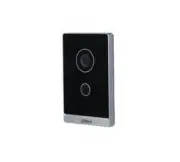
I Foreword General This Manual introduces the operation of the villa station (VTO) web interface. Safety Instructions The following categorized signal words with defined meaning might appear in the Manual. Signal Words Meaning CAUTION Indicates a potential risk which, if not avoided, could result in...
Page 3 - Important Safeguards and Warnings; Operating Requirement
II Important Safeguards and Warnings The following description is the correct application method of the device. Please read the manual carefully before use, in order to prevent danger and property loss. Strictly conform to the manual during application and keep it properly after reading. Operating R...
Page 4 - Table of Contents
III Table of Contents Foreword .................................................................................................................................................... I Important Safeguards and Warnings .......................................................................................
Page 5 - Initialization
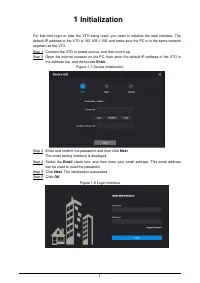
1 1 Initialization For first time login or after the VTO being reset, you need to initialize the web interface. The default IP address of the VTO is 192.168.1.108, and make sure the PC is in the same network segment as the VTO. Connect the VTO to power source, and then boot it up. Step 1 Open the in...
Page 6 - Login Interface; Resetting Password
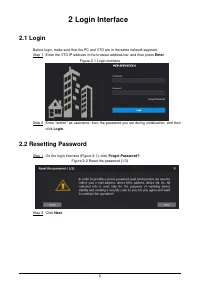
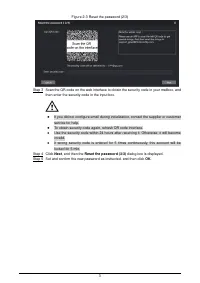
2 2 Login Interface Login 2.1 Before login, make sure that the PC and VTO are in the same network segment. Enter the VTO IP address in the browser address bar, and then press Enter . Step 1 Login interface Figure 2-1 Enter "admin" as username, then the password you set during initialization,...
Page 8 - Main Interface
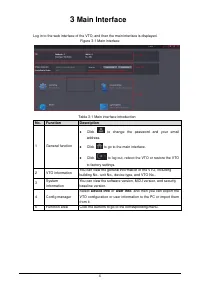
4 3 Main Interface Log in to the web interface of the VTO, and then the main interface is displayed. Main interface Figure 3-1 Table 3-1 Main interface introduction No. Function Description 1 General function Click to change the password and your email address. Click to go to the main interface. ...
Page 9 - Local Setting; Basic
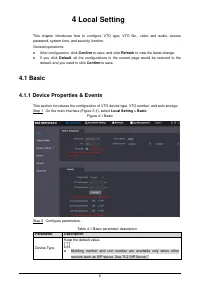
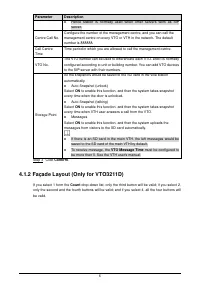
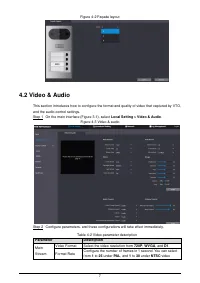
5 4 Local Setting This chapter introduces how to configure VTO type, VTO No., video and audio, access password, system time, and security function. General operations: After configuration, click Confirm to save, and click Refresh to view the latest change. If you click Default , all the configur...
Page 13 - Access Control
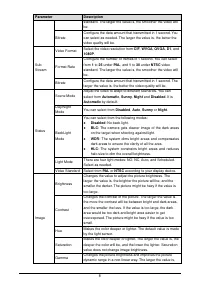
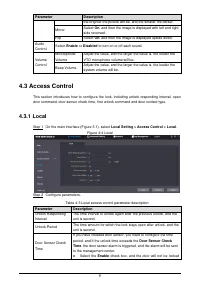
9 Parameter Description the brighter the picture will be, and the smaller the darker. Mirror Select On , and then the image is displayed with left and right side reversed. Flip Select On , and then the image is displayed upside down. Audio Control Select Enable or Disabled to turn on or off each sou...
Page 14 - System
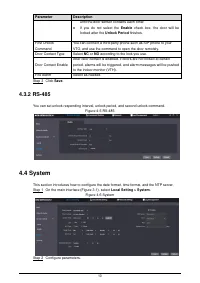
10 Parameter Description until the door sensor contacts each other. If you do not select the Enable check box, the door will be locked after the Unlock Period finishes. First Unlock Command You can connect a third-party phone such as SIP phone to your VTO, and use the command to open the door remo...
Page 15 - Security
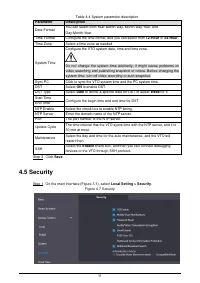
11 Table 4-4 System parameter description Parameter Description Date Format You can select from Year-Month-Day, Month-Day-Year, and Day-Month-Year. Time Format Configure the time format, and you can select from 12-Hour or 24-Hour . Time Zone Select a time zone as needed. System Time Configure the VT...
Page 16 - Onvif User
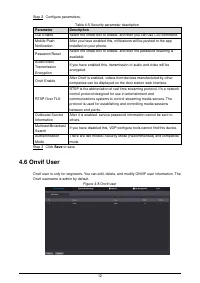
12 Configure parameters. Step 2 Table 4-5 Security parameter description Parameter Description CGI Enable Select the check box to enable, and then you can use CGI command. Mobile Push Notification After you have enabled this, nitifications will be pushed to the app installed on your phone. Password ...
Page 17 - Household Setting
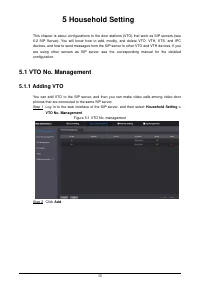
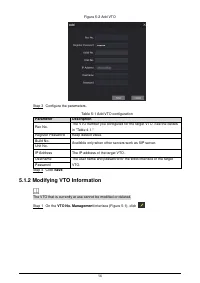
13 5 Household Setting This chapter is about configurations to the door stations (VTO) that work as SIP servers (see 6.2 SIP Server). You will know how to add, modify, and delete VTO, VTH, VTS, and IPC devices, and how to send messages from the SIP server to other VTO and VTH devices. If you are usi...
Page 19 - Room No. Management
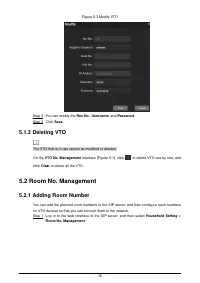
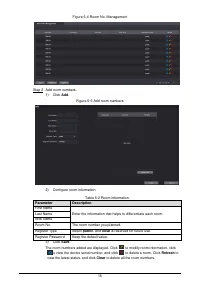
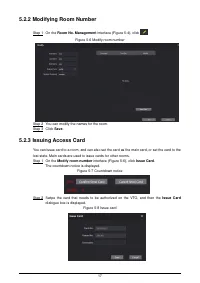
15 Modify VTO Figure 5-3 You can modify the Rec No. , Username , and Password . Step 2 Click Save . Step 3 5.1.3 Deleting VTO The VTO that is in use cannot be modified or deleted. On the VTO No. Management interface (Figure 5-1), click to delete VTO one by one; and click Clear to delete all the VTO....
Page 22 - VTS Management
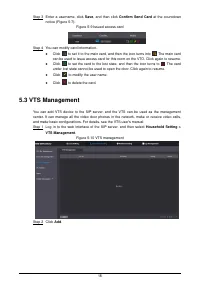
18 Enter a username, click Save , and then click Confirm Send Card at the countdown Step 3 notice (Figure 5-7). Issued access card Figure 5-9 You can modify card information. Step 4 Click to set it to the main card, and then the icon turns into . The main card can be used to issue access card for ...
Page 23 - Status
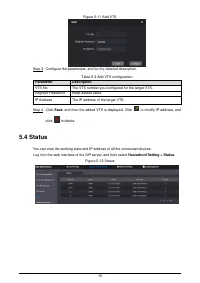
19 Add VTS Figure 5-11 Configure the parameters, and for the detailed description. Step 3 Table 5-3 Add VTS configuration Parameter Description VTS No. The VTS number you configured for the target VTS. Register Password Keep default value. IP Address The IP address of the target VTS. Click Save , an...
Page 24 - Network Setting
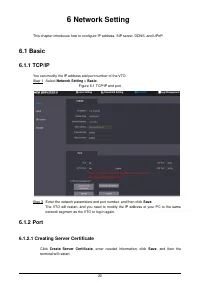
20 6 Network Setting This chapter introduces how to configure IP address, SIP server, DDNS, and UPnP. Basic 6.1 6.1.1 TCP/IP You can modify the IP address and port number of the VTO. Select Network Setting > Basic . Step 1 TCP/IP and port Figure 6-1 Enter the network parameters and port number, a...
Page 25 - SIP Server
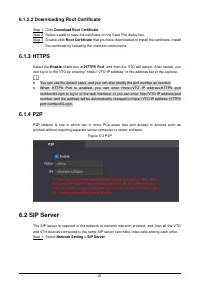
21 6.1.2.2 Downloading Root Certificate Click Download Root Certificate . Step 1 Select a path to save the certificate on the Save File dialog box. Step 2 Double-click Root Certificate that you have downloaded to install the certificate. Install Step 3 the certificate by following the onscreen instr...
Page 26 - Firewall
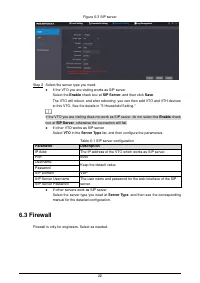
22 SIP server Figure 6-3 Select the server type you need. Step 2 If the VTO you are visiting works as SIP server Select the Enable check box at SIP Server , and then click Save . The VTO will reboot, and after rebooting, you can then add VTO and VTH devices to this VTO. See the details in "5 H...
Page 28 - Log Management; Alarm; Unlock
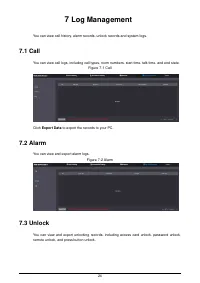
24 7 Log Management You can view call history, alarm records, unlock records and system logs. Call 7.1 You can view call logs, including call types, room numbers, start time, talk time, and end state. Call Figure 7-1 Click Export Data to export the records to your PC. Alarm 7.2 You can view and expo...
Page 29 - Log
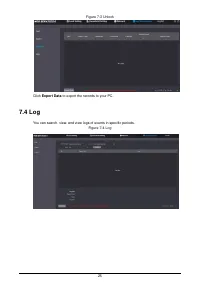
25 Unlock Figure 7-3 Click Export Data to export the records to your PC. Log 7.4 You can search, view, and view logs of events in specific periods. Log Figure 7-4