Page 2 - Content; Upgrade to Omada Cloud-Based Controller
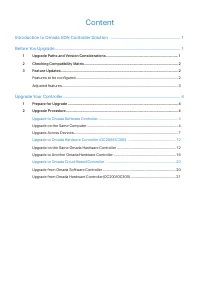
Content Introduction to Omada SDN Controller Solution ........................................................................ 1 Before You Upgrade ................................................................................................................................ 1 1 Upgrade Paths and V...
Page 3 - Omada Controller Upgrade Guide; Introduction to Omada SDN Controller Solution; Upgrade Paths and Version Considerations
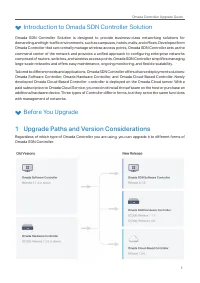
1 Omada Controller Upgrade Guide Introduction to Omada SDN Controller Solution Omada SDN Controller Solution is designed to provide business-class networking solutions for demanding and high-traffic environments, such as campuses, hotels, malls, and offices. Developed from Omada Controller that can ...
Page 4 - Checking Compatibility Matrix; Features to be configured
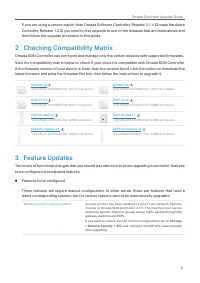
2 Omada Controller Upgrade Guide If you are using a version earlier than Omada Software Controller, Release 3.1.4 (Omada Hardware Controller, Release 1.2.0) you need to first upgrade to one of the releases that are listed above and then follow the upgrade procedure in this guide. 2 Checking Compatib...
Page 5 - Adjusted features
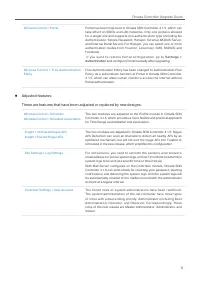
3 Omada Controller Upgrade Guide Wireless Control > Portal Portal has been improved in Omada SDN Controller 4.1.5, which can take effect on SSIDs and LAN networks. Only one portal is allowed for a single site and supports one authentication type (including No Authentication, Simple Password, Hots...
Page 6 - Upgrade Your Controller; Prepare for Upgrade; Upgrade on the Same Computer
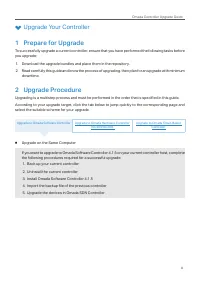
4 Omada Controller Upgrade Guide Upgrade Your Controller 1 Prepare for Upgrade To successfully upgrade a current controller, ensure that you have performed the following tasks before you upgrade: 1. Download the upgrade bundles and place them in the repository.2. Read carefully this guide and know t...
Page 7 - Back up your current controller.; Uninstall the current controller.
5 Omada Controller Upgrade Guide ▶ Back up your current controller. Step 1 Go to Controller Settings > Backup&Restore . Step 2 Select the length of time in days that data will be backed up in the Retained Data Backup drop- down list. For example, with 7 days selected, the data only in recent ...
Page 8 - Import the backup file of the previous controller.
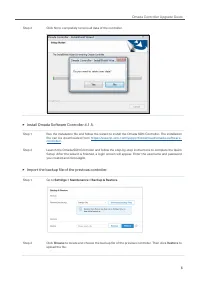
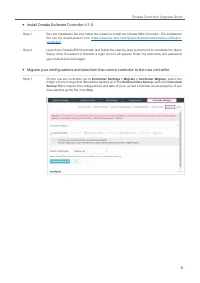
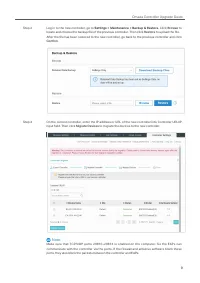
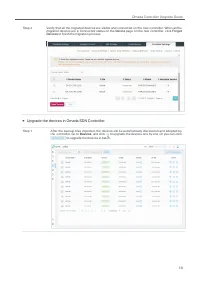
6 Omada Controller Upgrade Guide Step 2 Click No to completely remove all data of the controller. ▶ Install Omada Software Controller 4.1.5. Step 1 Run the installation file and follow the wizard to install the Omada SDN Controller. The installation file can be downloaded from https://www.tp-link.co...
Page 9 - Upgrade the devices in Omada SDN Controller.; Upgrade Across Devices
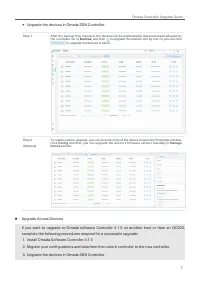
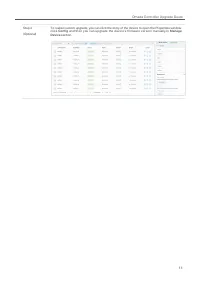
7 Omada Controller Upgrade Guide ▶ Upgrade the devices in Omada SDN Controller. Step 1 After the backup files imported, the devices will be automatically discovered and adopted by the controller. Go to Devices , and click to upgrade the devices one by one. Or you can click to upgrade the devices in ...
Page 14 - Upgrade on the Same Omada Hardware Controller
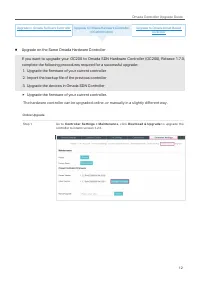
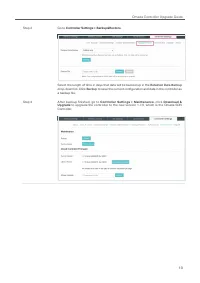
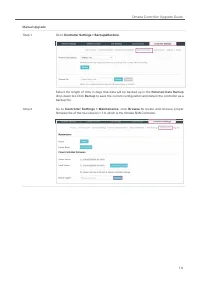
12 Omada Controller Upgrade Guide Upgrade to Omada Software Controller Upgrade to Omada Hardware Controller (OC200/OC300) Upgrade to Omada Cloud-Based Controller ■ Upgrade on the Same Omada Hardware Controller If you want to upgrade your OC200 to Omada SDN Hardware Controller (OC200), Release 1.7.0,...
Page 17 - Import the backup file of the previous controller
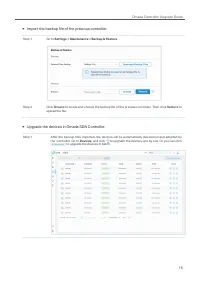
15 Omada Controller Upgrade Guide ▶ Import the backup file of the previous controller Step 1 Go to Settings > Maintenance > Backup & Restore . Step 2 Click Browse to locate and choose the backup file of the previous controller. Then click Restore to upload the file. ▶ Upgrade the devices i...
Page 18 - Upgrade to Another Omada Hardware Controller
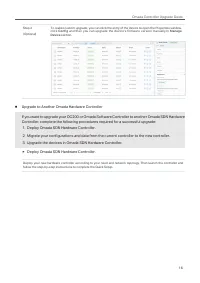
16 Omada Controller Upgrade Guide Step 2(Optional) To realize custom upgrade, you can click the entry of the device to open the Properties window, click Config and then you can upgrade the device’s firmware version manually in Manage Device section. ■ Upgrade to Another Omada Hardware Controller If ...
Page 21 - Upgrade the devices in Omada SDN Controller
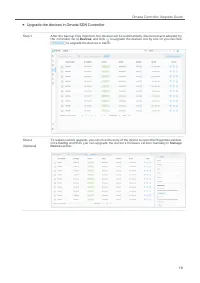
19 Omada Controller Upgrade Guide ▶ Upgrade the devices in Omada SDN Controller Step 1 After the backup files imported, the devices will be automatically discovered and adopted by the controller. Go to Devices , and click to upgrade the devices one by one. Or you can click to upgrade the devices in ...
Page 22 - Upgrade from Omada Software Controller
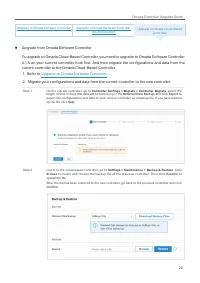
20 Omada Controller Upgrade Guide Upgrade to Omada Software Controller Upgrade to Omada Hardware Controller (OC200/OC300) Upgrade to Omada Cloud-Based Controller ■ Upgrade from Omada Software Controller To upgrade to Omada Cloud-Based Controller, you need to upgrade to Omada Software Controller 4.1....
Page 23 - Upgrade to Omada Hardware Controller
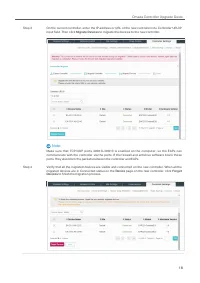
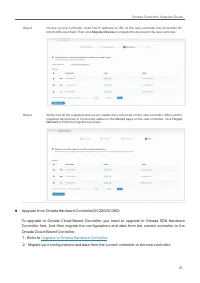
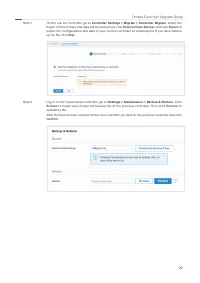
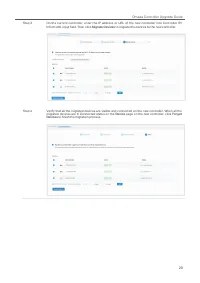
21 Omada Controller Upgrade Guide Step 3 On the current controller, enter the IP address or URL of the new controller into Controller IP/ Inform URL input field. Then click Migrate Devices to migrate the devices to the new controller. Step 4 Verify that all the migrated devices are visible and conne...
Page 26 - COPYRIGHT & TRADEMARKS; Specifications are subject to change without notice.
COPYRIGHT & TRADEMARKS Specifications are subject to change without notice. is a registered trademark of TP-Link Technologies Co., Ltd. Other brands and product names are trademarks or registered trademarks of their respective holders. No par t of the specifications may be reproduced in any form...