Page 2 - Contents
Contents About This Guide 1 Chapter 1 Get to Know About Your Extender 2 1. 1. Product Overview. . . . . . . . . . . . . . . . . . . . . . . . . . . . . . . . . . . . . . . . . . . . . . . . . . . . . . . . . . . . 31. 2. Appearance . . . . . . . . . . . . . . . . . . . . . . . . . . . . . . . . . . ...
Page 4 - About This Guide; Conventions; More Info; Speed/Coverage Disclaimer
1 About This Guide This guide is a complement to Quick Installation Guide. The Quick Installation Guide provides instructions for quick internet setup, while this guide contains details of each function and demonstrates how to configure them. Note: Features available in this range extender may vary ...
Page 5 - Chapter; Get to Know About Your
Chapter 1 Get to Know About Your Extender This chapter introduces what the extender can do and its appearance. It contains the following sections:• Product Overview • Appearance
Page 6 - 1 Product Overview; Bring Dead Zones Back to Life; 2 Appearance
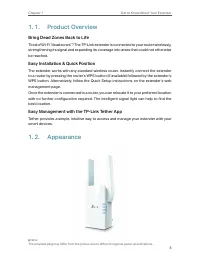
3 Chapter 1 Get to Know About Your Extender 1 1 Product Overview Bring Dead Zones Back to Life Tired of Wi-Fi “dead zones”? The TP-Link extender is connected to your router wirelessly, strengthening its signal and expanding its coverage into areas that could not otherwise be reached. Easy Installati...
Page 7 - 2 1 LED Explanation; 2 2 Button Description
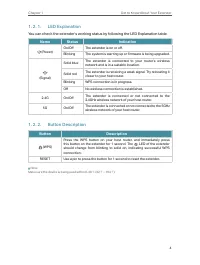
4 Chapter 1 Get to Know About Your Extender 1 2 1 LED Explanation You can check the extender’s working status by following the LED Explanation table. Name Status Indication (Power) On/Off The extender is on or off. Blinking The system is starting up or firmware is being upgraded. (Signal) Solid blue...
Page 8 - Set Up Internet Connection
Chapter 2 Set Up Internet Connection This chapter introduces how to boost your host wireless coverage. Please follow the step-by-step instructions to set up the internet connection.It contains the following sections:• Power On the Extender • Set Up the Extender
Page 9 - 1 Power On the Extender; 2 Set Up the Extender; 2 1 Method 1: Via the TP-Link Tether App; OR
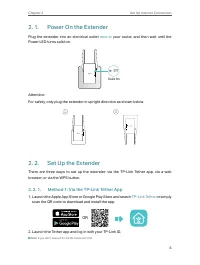
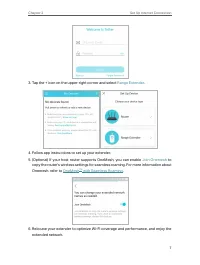
6 Chapter 2 Set Up Internet Connection 2 1 Power On the Extender Plug the extender into an electrical outlet next to your router, and then wait until the Power LED turns solid on. Solid On Attention:For safety, only plug the extender in upright direction as shown below. 2 2 Set Up the Extender There...
Page 11 - 2 2 Method 2: Via a Web Browser
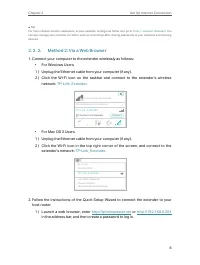
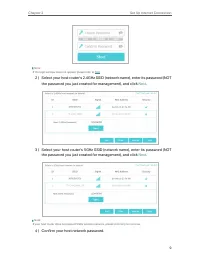
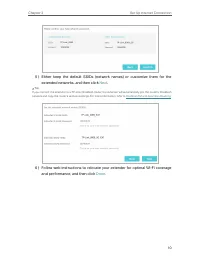
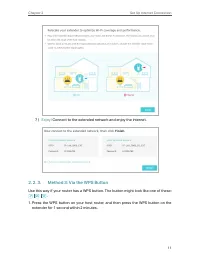
8 Chapter 2 Set Up Internet Connection Tip: For more intuitive location assistance, access extender settings via Tether and go to Tools > Location Assistant . You can also manage your extender via Tether, such as controlling LEDs, sharing passwords of your networks and blocking devices. 2 2 2 Met...
Page 14 - 2 3 Method 3: Via the WPS Button
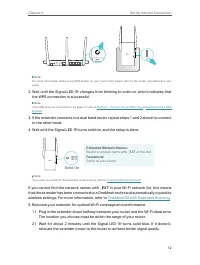
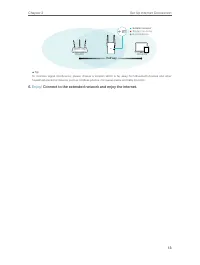
11 Chapter 2 Set Up Internet Connection 7 ) Enjoy! Connect to the extended network and enjoy the internet. 2 2 3 Method 3: Via the WPS Button Use this way if your router has a WPS button. The button might look like one of these: . 1. Press the WPS button on your host router, and then press the WPS b...
Page 17 - OneMesh; with Seamless
Chapter 3 OneMesh TM with Seamless Roaming This chapter introduces the TP-Link OneMesh TM feature. It contains the following sections:• What‘s a OneMesh TM Network • How to Set Up a OneMesh TM Network
Page 18 - 1 What‘s a OneMesh; Unified Wi-Fi Network; Unified OneMesh
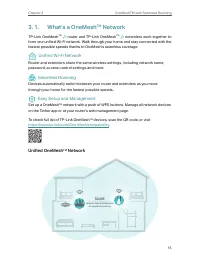
15 Chapter 3 OneMeshTM with Seamless Roaming 3 1 What‘s a OneMesh TM Network TP-Link OneMesh TM router and TP-Link OneMesh TM extenders work together to form one unified Wi-Fi network. Walk through your home and stay connected with the fastest possible speeds thanks to OneMesh’s seamless coverage. U...
Page 19 - 2 How to Set Up a OneMesh
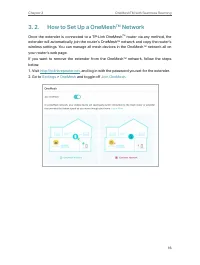
16 Chapter 3 OneMeshTM with Seamless Roaming 3 2 How to Set Up a OneMesh TM Network Once the extender is connected to a TP-Link OneMesh TM router via any method, the extender will automatically join the router’s OneMesh TM network and copy the router’s wireless settings. You can manage all mesh devi...
Page 20 - TP-Link Cloud Service
Chapter 4 TP-Link Cloud Service TP-Link Cloud service provides a better way to manage your cloud devices. Log in to your cloud device with a TP-Link ID, and you can easily monitor and manage your home network when you are out and about via the Tether app on your smartphone or tablet. To ensure that ...
Page 21 - 1 Register a TP-Link ID; 2 Change Your TP-Link ID Information
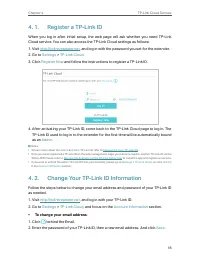
18 Chapter 4 TP-Link Cloud Service 4 1 Register a TP-Link ID When you log in after initial setup, the web page will ask whether you need TP-Link Cloud service. You can also access the TP-Link Cloud settings as follows:1. Visit http://tplinkrepeater.net , and log in with the password you set for the ...
Page 22 - 3 Manage the User TP-Link IDs
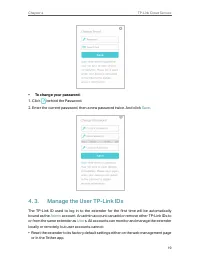
19 Chapter 4 TP-Link Cloud Service • To change your password: 1. Click behind the Password.2. Enter the current password, then a new password twice. And click Save . 4 3 Manage the User TP-Link IDs The TP-Link ID used to log in to the extender for the first time will be automatically bound as the Ad...
Page 23 - 3 1 Add TP-Link ID to Manage the Extender
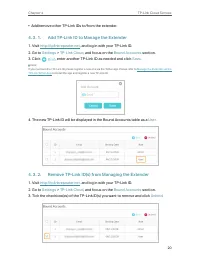
20 Chapter 4 TP-Link Cloud Service • Add/remove other TP-Link IDs to/from the extender. 4 3 1 Add TP-Link ID to Manage the Extender 1. Visit http://tplinkrepeater.net , and log in with your TP-Link ID. 2. Go to Settings > TP-Link Cloud , and focus on the Bound Accounts section. 3. Click , enter a...
Page 24 - 4 Manage the Extender via the TP-Link Tether App
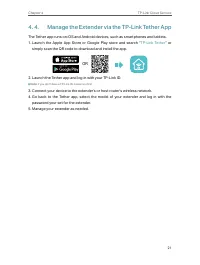
21 Chapter 4 TP-Link Cloud Service 4 4 Manage the Extender via the TP-Link Tether App The Tether app runs on iOS and Android devices, such as smartphones and tablets.1. Launch the Apple App Store or Google Play store and search “ TP-Link Tether ” or simply scan the QR code to download and install th...
Page 25 - Customize Your Network
Chapter 5 Customize Your Network This chapter guides you on how to configure network settings that are available for this extender. It contains the following sections:• Check Internet Status • Configure Wireless Network • Change LAN Settings • Adjust Wi-Fi Coverage • Set Access Control • Set High Sp...
Page 26 - 1 Check Internet Status
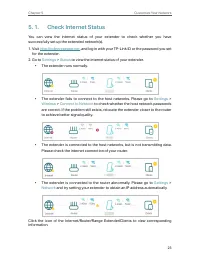
23 Chapter 5 Customize Your Network 5 1 Check Internet Status You can view the internet status of your extender to check whether you have successfully set up the extended network(s).1. Visit http://tplinkrepeater.net , and log in with your TP-Link ID or the password you set for the extender. 2. Go t...
Page 27 - 2 Configure Wireless Network
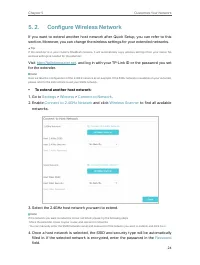
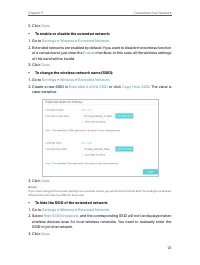
24 Chapter 5 Customize Your Network 5 2 Configure Wireless Network If you want to extend another host network after Quick Setup, you can refer to this section. Moreover, you can change the wireless settings for your extended networks. Tip: If the extender is in your router’s OneMesh network, it will...
Page 29 - 3 Change LAN Settings
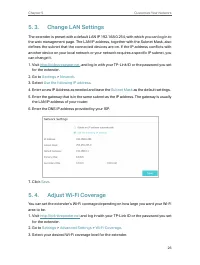
26 Chapter 5 Customize Your Network 5 3 Change LAN Settings The extender is preset with a default LAN IP 192.168.0.254, with which you can log in to the web management page. The LAN IP address, together with the Subnet Mask, also defines the subnet that the connected devices are on. If the IP addres...
Page 30 - 5 Set Access Control
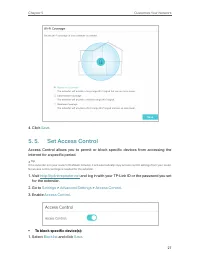
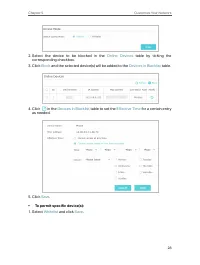
27 Chapter 5 Customize Your Network 4. Click Save . 5 5 Set Access Control Access Control allows you to permit or block specific devices from accessing the internet for a specific period. Tip: If the extender is in your router’s OneMesh network, it will automatically copy access control settings fro...
Page 32 - 6 Set High Speed Mode
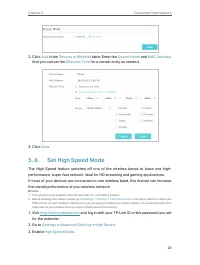
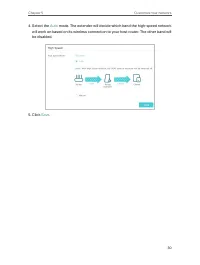
29 Chapter 5 Customize Your Network 2. Click Add in the Devices in Whitelist table. Enter the Device Name and MAC Address . And you can set the Effective Time for a certain entry as needed. 3. Click Save . 5 6 Set High Speed Mode The High Speed feature switches off one of the wireless bands to leave...
Page 34 - Manage Your Extender; This chapter presents how to manage and maintain your extender.
Chapter 6 Manage Your Extender This chapter presents how to manage and maintain your extender. It includes the following sections:• Set System Time • Control LEDs • Set Power Schedule • Upgrade the Firmware • Backup and Restore Configuration Settings • Change Login Password • Check System Log
Page 35 - 1 Set System Time; 2 Control LEDs
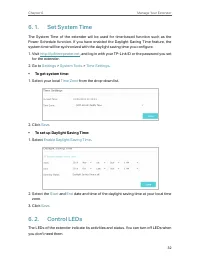
32 Chapter 6 Manage Your Extender 6 1 Set System Time The System Time of the extender will be used for time-based function such as the Power Schedule function. If you have enabled the Daylight Saving Time feature, the system time will be sychronized with the daylight saving time you configure.1. Vis...
Page 36 - 3 Set Power Schedule
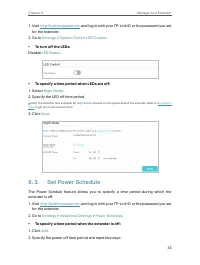
33 Chapter 6 Manage Your Extender 1. Visit http://tplinkrepeater.net , and log in with your TP-Link ID or the password you set for the extender. 2. Go to Settings > System Tools > LED Control . • To turn off the LEDs: Disable LED Status . • To specify a time period when LEDs are off: 1. Select...
Page 37 - 4 Upgrade the Firmware
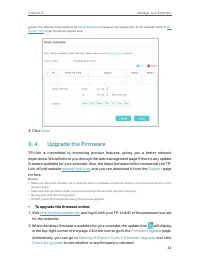
34 Chapter 6 Manage Your Extender Note: The effective time schedule for Power Schedule is based on the system time of the extender Refer to Set System Time to get the correct system time 3. Click Save . 6 4 Upgrade the Firmware TP-Link is committed to improving product features, giving you a better ...
Page 38 - 5 Backup and Restore Configuration Settings
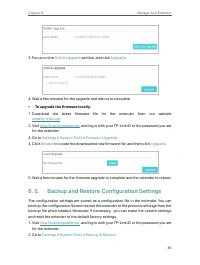
35 Chapter 6 Manage Your Extender 3. Focus on the Online Upgrade section, and click Upgrade . 4. Wait a few minutes for the upgrade and reboot to complete. • To upgrade the firmware locally: 1. Download the latest firmware file for the extender from our website www.tp-link.com . 2. Visit http://tpli...
Page 39 - 6 Change Login Password
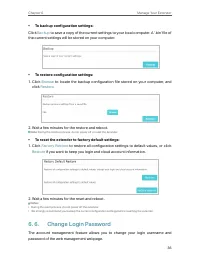
36 Chapter 6 Manage Your Extender • To backup configuration settings: Click Backup to save a copy of the current settings to your local computer. A ‘.bin’ file of the current settings will be stored on your computer. • To restore configuration settings: 1. Click Browse to locate the backup configura...
Page 40 - 7 Check System Log
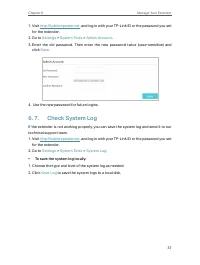
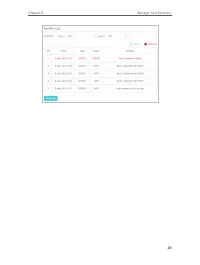
37 Chapter 6 Manage Your Extender 1. Visit http://tplinkrepeater.net , and log in with your TP-Link ID or the password you set for the extender. 2. Go to Settings > System Tools > Admin Account . 3. Enter the old password. Then enter the new password twice (case-sensitive) and click Save . 4. ...
Page 42 - More Features of Your
Chapter 7 More Features of Your Extender This chapter explains how to use the extender as a wireless adapter and as an access point.It contains the following sections:• Use Your Extender as a Wireless Adapter • Transform Your Existing Wired Network to a Wireless One
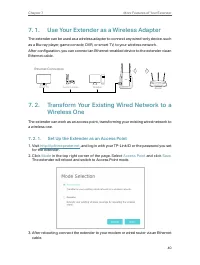
Page 43 - 1 Use Your Extender as a Wireless Adapter; 2 Transform Your Existing Wired Network to a; 2 1 Set Up the Extender as an Access Point
40 Chapter 7 More Features of Your Extender 7 1 Use Your Extender as a Wireless Adapter The extender can be used as a wireless adapter to connect any wired-only device, such as a Blu-ray player, game console, DVR, or smart TV, to your wireless network.After configuration, you can connect an Ethernet...
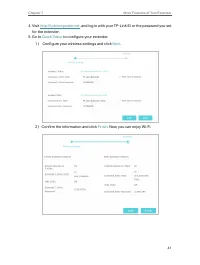
Page 45 - 2 2 Connect Your Wireless Devices to the Extender
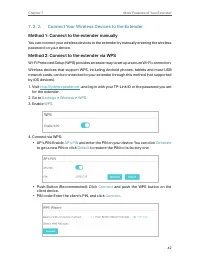
42 Chapter 7 More Features of Your Extender 7 2 2 Connect Your Wireless Devices to the Extender Method 1: Connect to the extender manually You can connect your wireless devices to the extender by manually entering the wireless password on your device. Method 2: Connect to the extender via WPS Wi-Fi ...
Page 46 - FAQ; Q1 How to reset the extender to its factory default settings?
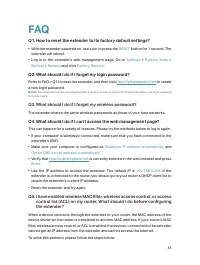
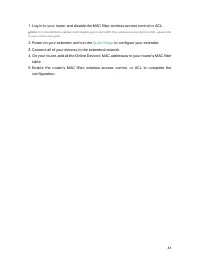
43 FAQ Q1 How to reset the extender to its factory default settings? • With the extender powered on, use a pin to press the RESET button for 1 second. The extender will reboot. • Log in to the extender’s web management page. Go to Settings > System Tools > Backup & Restore and click Factor...

 TP-Link EAP230 WALL AC1200
User Manual
TP-Link EAP230 WALL AC1200
User Manual
 TP-Link EAP610 OUTDOOR AX1800
User Manual
TP-Link EAP610 OUTDOOR AX1800
User Manual
 TP-Link EAP650 WALL AX3000
User Manual
TP-Link EAP650 WALL AX3000
User Manual
 TP-Link RE220 AC750 1xFE LAN
User Manual
TP-Link RE220 AC750 1xFE LAN
User Manual
 TP-Link RE315 AC1200
User Manual
TP-Link RE315 AC1200
User Manual