Page 2 - WARNING; CAUTION; Notes about the discs
2 WARNING To reduce the risk of fire or electric shock, do not expose this apparatus to rain or moisture.To avoid electrical shock, do not open the cabinet. Refer servicing to qualified personnel only.The mains lead must only be changed at a qualified service shop.Batteries or batteries installed ap...
Page 3 - Precautions
3 Precautions On safety Should any solid object or liquid fall into the cabinet, unplug the player and have it checked by qualified personnel before operating it any further. On power sources • The player is not disconnected from the AC power source (mains) as long as it is connected to the wall out...
Page 4 - Table of Contents; Adjusting the playback picture
4 Table of Contents WARNING . . . . . . . . . . . . . . . . . . . . . . . . . . . . . . . . . . . . . . . . . . . . . . . . . . . . 2Precautions . . . . . . . . . . . . . . . . . . . . . . . . . . . . . . . . . . . . . . . . . . . . . . . . . . . 3About This Manual . . . . . . . . . . . . . . . . . ...
Page 5 - About This Manual; • The meaning of the icons used in this manual is described below:
5 Additional Information . . . . . . . . . . . . . . . . . . . . . . . . . . . . . . . . 32 Troubleshooting . . . . . . . . . . . . . . . . . . . . . . . . . . . . . . . . . . . . . . . . . . . . . . . 32Self-diagnosis Function (When letters/numbers appear on the screen) . . . . 34Playable Discs . ....
Page 6 - Guide to Parts and Controls; For more information, see the pages indicated in parentheses.; Remote; TV; Turns the TV on or to standby mode.; Number buttons; Clears the entry field.
6 Guide to Parts and Controls For more information, see the pages indicated in parentheses. Remote VOL +, number 5, AUDIO, and N buttons have a tactile dot. Use the tactile dot as a reference when operating the player. A PICTURE NAVI (24) Divides the screen into 9 subscreens so you can choose the de...
Page 7 - Basic operations; When playing a DVD VIDEO; Changes the subtitles.; TOP MENU; Displays the DVD’s top menu.; PLAY; To
7 Basic operations * 1 For all DVDs except for DVD+RWs/DVD+Rs/DVD+R DLs. * 2 For DVDs only. * 3 These functions may not work with some scenes. * 4 For DVD VIDEOs and DVD-VR mode only. * 5 For DVDs and VIDEO CDs only. ◆ When playing a DVD VIDEO Example: Dolby Digital 5.1 ch SUBTITLE ( ) (25) Changes ...
Page 9 - ook; Hookups; Step 1: Connecting to Your TV; or; Audio/video input jacks; You will enjoy standard quality images.; Component video input jacks; When connecting to a standard 4:3 screen TV
9 H ook ups Hookups When unpacking, check the supplied accessories by referring to page 36. b • Plug cables securely to prevent unwanted noise.• Refer to the instructions supplied with the components to be connected.• Be sure to disconnect the mains lead of each component before connecting. Step 1: ...
Page 10 - To connect to your audio component; Use the following pattern.
10 To connect to your audio component Use the following pattern. z For correct speaker location, see the operating instructions supplied with the connected components. If your audio component has a Dolby* 1 Digital, DTS* 2 , or MPEG audio decoder and a digital input jack, use this connection. You ca...
Page 11 - To control other TVs with the remote; While holding down TV; Code numbers of controllable TVs; By pressing; Manufacturer
11 H ook ups Controlling your TV with the supplied remote You can control the sound level, input source, and power switch of your Sony TV with the supplied remote. You can control your TV using the buttons below. b Depending on the connected unit, you may not be able to control your TV using all or ...
Page 12 - Press; again on the remote. The player; Press ENTER without inserting a
12 Step 4: Quick Setup Follow the steps below to make the minimum number of basic adjustments for using the player.To skip an adjustment, press > . To return to the previous adjustment, press . . The on- screen displays differ depending on the player model. 1 Turn on the TV. 2 Press [ / 1 . The p...
Page 13 - standard TV with a wide-screen mode
13 H ook ups 6 Press ENTER. The Setup Display for selecting the aspect ratio of the TV to be connected appears. 7 Press X / x to select the setting that matches your TV type. ◆ If you have a wide-screen TV or a 4:3 standard TV with a wide-screen mode • 16:9 (page 27) ◆ If you have a 4:3 standard TV ...
Page 14 - Playback; Playing Discs; To stop playback; To pause playback
14 Playback Playing Discs Depending on the DVD or VIDEO CD, some operations may be different or restricted.Refer to the operating instructions supplied with your disc. 1 Press Z on the player, and place the disc on the disc tray. 2 Press N . The disc tray closes. The player starts playback (continuo...
Page 15 - To return to the menu; The player turns on and “
15 Pl aybac k To play VIDEO CDs With PBC Functions (PBC Playback) PBC (Playback Control) allows you to play VIDEO CDs interactively by following the menu on the TV screen. When you start playing a VIDEO CD with PBC functions, the menu for your selection appears. Select an item using the number butto...
Page 16 - to select the Control Menu item, then press ENTER.; Control Menu items
16 Control Menu display (DISPLAY) Use the Control Menu to select a function and to view related information. Press DISPLAY repeatedly to turn on or change the Control Menu display as follows: The Control Menu display 1 and 2 will show different items depending on the disc type. Example: Control Menu...
Page 17 - List of Control Menu items
17 Pl aybac k List of Control Menu items Item Item Name, Function TITLE/SCENE/TRACK CHAPTER/INDEX TRACK Selects the title, scene, track, chapter, or index to be played. 1 Press X / x to select the search method. “** (**)” is selected (** refers to a number). 2 Press ENTER. “** (**)” changes to “-- (...
Page 18 - Items for DATA discs
18 z The Control Menu icon indicator lights up in green when you select any item except “OFF” (“PROGRAM,” “SHUFFLE,” “REPEAT,” “A-B REPEAT,” “SHARPNESS,” “ZOOM,” “TVS” only). The “ORIGINAL/PLAY LIST” indicator lights up in green when you select “PLAY LIST” (default setting). The “ANGLE” indicator li...
Page 19 - Creating your own; After selecting; When playing a VIDEO CD or CD; to select “02” under “T,” then
19 Pl aybac k Various Play Mode Functions You can set the following play modes:• Programme Play (page 19)• Shuffle Play (page 20)• Repeat Play (page 20)• A-B Repeat Play (page 21) b The play mode is cancelled when:– you open the disc tray.– you press [ / 1 and the player enters standby mode. Creatin...
Page 20 - Playing in random order; • TRACK; When Programme Play is activated; selected in Programme Play.; Playing repeatedly
20 5 Press N . Programme Play begins.When the programme ends, you can restart the same programme again by pressing N . To return to normal play Press CLEAR, or select “OFF” in step 1. To play the same programme again, select “ON” in step 1 and press ENTER. To change or cancel a programme 1 Follow st...
Page 21 - • TITLE: repeats the current title on a; When Programme Play or Shuffle Play; • ON: repeats Programme Play or Shuffle; To return to normal play; Repeating a specific
21 Pl aybac k • TITLE: repeats the current title on a disc. • CHAPTER: repeats the current chapter.• TRACK: repeats the current track. • ALBUM: repeats the current album. ◆ When Programme Play or Shuffle Play is activated • ON: repeats Programme Play or Shuffle Play. 2 Press ENTER. Repeat Play start...
Page 23 - Set “LEVEL” to “OFF” in step 6.
23 Pl aybac k 4 Press X / x to select a geographic area as the playback limitation level, then press ENTER. The area is selected.When you select “OTHERS t ,” select and enter a standard code in the table on page 37 using the number buttons. 5 Press X / x to select “LEVEL,” then press ENTER. The sele...
Page 24 - Selecting a JPEG image file
24 3 Press N . Playback starts from the selected album.The JPEG images in the selected album start playing as a slide show. To select a specific MP3 audio track, press ENTER and press X / x to select a track, then press ENTER.To select a specific JPEG image file, see “Selecting a JPEG image file” (p...
Page 26 - Settings and Adjustments; Using the Setup Display; The Control Menu appears.; Switches the display language on the screen.
26 Settings and Adjustments Using the Setup Display By using the Setup Display, you can make various adjustments to items such as picture and sound. You can also set a language for the subtitles and the Setup Display, among other things. For details on each Setup Display item, see pages from 26 to 3...
Page 27 - SCREEN SETUP; TV TYPE; to turn off the screen; BACKGROUND
27 S e tti n gs a nd Adju st m e n ts SCREEN SETUP Choose settings according to the TV to be connected. Select “SCREEN SETUP” in the Setup Display. To use the display, see “Using the Setup Display” (page 26).The default settings are underlined and differ depending on the player model. ◆ TV TYPE Sele...
Page 28 - to turn off the player, and
28 ◆ BLACK LEVEL Selects the black level (setup level) for the video signals output from the jacks other than COMPONENT VIDEO OUT. You cannot select this when the player outputs PAL system signals. ◆ BLACK LEVEL (COMPONENT OUT) Selects the black level (setup level) for the video signals output from ...
Page 29 - CUSTOM SETUP; AUTO POWER OFF; Selects the picture in pause mode.
29 S e tti n gs a nd Adju st m e n ts CUSTOM SETUP Use this to set up playback related and other settings. Select “CUSTOM SETUP” in the Setup Display. To use the display, see “Using the Setup Display” (page 26).The default settings are underlined and differ depending on the player model. ◆ AUTO POWE...
Page 30 - AUDIO SETUP; DIGITAL OUT; Setting the digital output signal; Selects the type of Dolby Digital signal.
30 AUDIO SETUP “AUDIO SETUP” allows you to set the sound according to the playback and connection conditions. Select “AUDIO SETUP” in the Setup Display. To use the display, see “Using the Setup Display” (page 26).The default settings are underlined and differ depending on the player model. ◆ AUDIO D...
Page 31 - DTS; Selects whether or not to output DTS signals.
31 S e tti n gs a nd Adju st m e n ts ◆ MPEG (DVDs only) Selects the type of MPEG audio signal. ◆ DTS Selects whether or not to output DTS signals. • When you play a DVD VIDEO with DTS sound tracks, set “DTS” to “ON” in “AUDIO SETUP” (page 31). • If you connect the player to audio equipment without ...
Page 32 - Additional Information; Troubleshooting; Power; The power is not turned on.; Picture; There is no picture/picture noise appears.; Sound; The sound volume is low.; Operation; The remote does not function.
32 Additional Information Troubleshooting If you experience any of the following difficulties while using the player, use this troubleshooting guide to help remedy the problem before requesting repairs. Should any problem persist, consult your nearest Sony dealer. Power The power is not turned on. ,...
Page 33 - The player does not operate properly.
33 Addi tional I n fo rmat io n , The player cannot play a recorded disc that is not correctly finalized (page 35). The MP3 audio track cannot be played (page 34). , The player cannot play audio tracks in mp3PRO format. , “MODE (MP3, JPEG)” is set to “IMAGE (JPEG)” (page 18). The JPEG image file can...
Page 34 - tape or a sticker still left on it.; – JPEG image files with the extension; Format of discs
34 Self-diagnosis Function (When letters/numbers appear on the screen) When the self-diagnosis function is activated to prevent the player from malfunctioning, a five-character service number (e.g., C 13 50) with a combination of a letter and four digits appears on the screen. In this case, check th...
Page 35 - Commercial DVDs labelled
35 Addi tional I n fo rmat io n z • If you add numbers (01, 02, 03, etc.) to the front of the track/file names when you store the tracks (or files) in a disc, the tracks and files will be played in that order. • Since a disc with a complex hierarchy of folders takes longer to start playback, it is r...
Page 36 - Specifications; System; Semiconductor laser; Outputs; progressive or interlace*; General; incl. projecting parts; Operating temperature:; Supplied accessories; phono plug
36 Note on playback operations of DVDs and VIDEO CDs Some playback operations of DVDs and VIDEO CDs may be intentionally set by software producers. Since this player plays DVDs and VIDEO CDs according to the disc contents the software producers designed, some playback features may not be available. ...
Page 37 - Language Code List
37 Addi tional I n fo rmat io n Language Code List For details, see pages 6, 26.The language spellings conform to the ISO 639: 1988 (E/F) standard. Parental Control Area Code List For details, see page 22. Code Language Code Language Code Language Code Language 1027 Afar1028 Abkhazian1032 Afrikaans1...
Page 38 - Index; Numerics
38 Index Numerics 16:9 274:3 LETTER BOX 274:3 OUTPUT 284:3 PAN SCAN 2748kHz/96kHz PCM 315.1 Channel Surround 10 A A-B REPEAT 17, 21A-B Repeat Play 21ADVANCE 7ALBUM 18ANGLE 17AUDIO 26AUDIO DRC 30AUDIO SETUP 30AUTO PLAY 29AUTO POWER OFF 29 B BACKGROUND 27Batteries 10BLACK LEVEL 28BLACK LEVEL (COMPONEN...
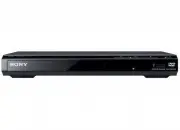


 Sony BDPBX370
User Manual
Sony BDPBX370
User Manual
 Sony BDP-S1100
Manual
Sony BDP-S1100
Manual
 Sony BDP-S1200
Manual
Sony BDP-S1200
Manual
 Sony BDPS1500
User Manual
Sony BDPS1500
User Manual
 Sony BDP-S185
Manual
Sony BDP-S185
Manual
 Sony BDP-S300
Manual
Sony BDP-S300
Manual
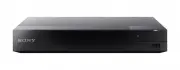 Sony BDP-S3500
User Manual
Sony BDP-S3500
User Manual
 Sony BDP-S360
Manual
Sony BDP-S360
Manual
 Sony BDP-S370
Manual
Sony BDP-S370
Manual
 Sony BDP-S380
Manual
Sony BDP-S380
Manual
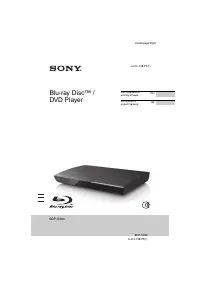 Sony BDP-S390
Manual
Sony BDP-S390
Manual
 Sony BDP-S470
Manual
Sony BDP-S470
Manual
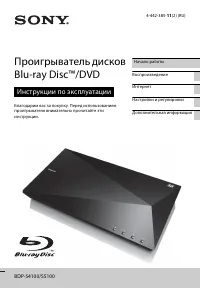 Sony BDP-S5100
Manual
Sony BDP-S5100
Manual
 Sony BDP-S580
Manual
Sony BDP-S580
Manual
 Sony BDPS6500
User Manual
Sony BDPS6500
User Manual
 Sony BDPS6700
User Manual
Sony BDPS6700
User Manual
 Sony BDP-S780
Manual
Sony BDP-S780
Manual