Page 2 - Confirming the operation method; Shooting; Shooting still images/movies
Battery life and the number of images that can be recorded/played back using a battery pack [10] Supplying power from a wall outlet (wall socket) [11] Removing the battery pack [12] Inserting a memory card (sold separately) Inserting a memory card [13] Removing the memory card [14] Setting the langu...
Page 3 - Using shooting functions; Using the zoom; Using the flash
Program Auto [26] iSweep Panorama (Face/Motion Detection) [27] Scene Selection [28] Shutter Priority [29] Aperture Priority [30] Manual Exposure [31] Memory recall [32] Movie [33] Using shooting functions Using the zoom Zoom [34] The zoom features available with this product [35] Zoom Setting [36] A...
Page 6 - Viewing
Red Eye Reduction [91] Auto Obj. Framing (still image) [92] Write Date (still image) [93] Grid Line [94] Auto Review [95] Release w/o Card [96] Viewing Viewing still images Playing back images [97] Playback zoom [98] Image Index [99] Switching the screen display (during playback) [100] Deleting imag...
Page 7 - Viewing images on a TV; Changing settings; Setup menu
Slide Show [108] Rotate [109] Protect [110] 4K Still Image PB [111] Beauty Effect [112] Viewing images on a TV Viewing images on an HD TV [113] Viewing images on a “BRAVIA” Sync-compatible TV [114] Changing settings Setup menu Monitor Brightness [115] Volume Settings [116] Audio signals [117] Upload...
Page 8 - Using Wi-Fi functions; Connecting this product and a Smartphone; Controlling this product using a Smartphone
Date/Time Setup [134] Area Setting [135] Format [136] File Number [137] Select REC Folder [138] New Folder [139] Folder Name [140] Recover Image DB [141] Display Media Info. [142] Version [143] Certification Logo (Overseas model only) [144] Setting Reset [145] Using Wi-Fi functions Connecting this p...
Page 9 - Adding applications to the product
Transferring images to a TV View on TV [155] Changing the settings of Wi-Fi functions Airplane Mode [156] WPS Push [157] Access Point Set. [158] Edit Device Name [159] Disp MAC Address [160] SSID/PW Reset [161] Reset Network Set. [162] Adding applications to the product PlayMemories Camera Apps Play...
Page 10 - Viewing on computers; Precautions/This product
Viewing on computers Recommended computer environment Recommended computer environment [172] Using the software PlayMemories Home [173] Installing PlayMemories Home [174] Software for Mac computers [175] Connecting this product and a computer Connecting the product to a computer [176] Importing imag...
Page 11 - Troubleshooting; If you have problems
On cleaning [188] Number of recordable still images and recordable time of movies Number of still images [189] Recordable time of movies [190] Using this product abroad Plug adaptor [191] On TV color systems [192] Other information ZEISS lens [193] AVCHD format [194] License [195] Trademarks Tradema...
Page 12 - Viewing images
You cannot turn on the product. [199] The power turns off suddenly. [200] The remaining battery level indicator shows an incorrect level. [201] The charge lamp on the product flashes when charging the battery pack. [202] The battery pack is not charged. [203] Shooting still images/movies You cannot ...
Page 13 - Computers
The image was deleted by mistake. [227] Wi-Fi You cannot find the wireless access point to be connected. [228] [WPS Push] does not work. [229] [Send to Computer] is canceled halfway. [230] You cannot send movies to a smartphone. [231] [Smart Remote Embedded] or [Send to Smartphone] is canceled halfw...
Page 14 - Messages; Situations this product has difficulty handling; Checking the camera and the supplied items
[246] Settings are reset even though resetting operation has not been performed. [247] The product does not work properly. [248] A sound is produced when the product is shaken. [249] “--E-” appears on the screen. [250] Messages Messages Self-diagnosis display [251] Warning messages [252] Situations ...
Page 15 - Identifying parts
AC -UB10C/UB10D AC Adaptor (1) Power cord (mains lead) (1)* (not supplied in the U.S.A. and Canada) *Multiple power cords may be supplied with your camera. Use the appropriate one that matches your country/region. Wrist Strap (1) Instruction Manual (1) Wi-Fi Connection/One-touch (NFC) Guide (1) [2] ...
Page 18 - List of icons on the screen; List of shooting mode icons
8. Speaker [3] How to Use Before Use Icons and indicators List of icons on the screen The displayed contents and their positions shown below are just a guideline, and may differ from the actual display. List of shooting mode icons List of viewing mode icons 1. P P* A S M Shooting mode Memory recall ...
Page 22 - Using the wrist strap
Shutter speed indicator Aperture indicator Histogram Picture Effect error 2015-1-1 10:37AM Date of recording 3/7 File number/Number of images in the view mode Copyright information exists for image [4] How to Use Before Use Using the strap Using the wrist strap Attach the wrist strap and place your ...
Page 23 - About the shooting advice
The [In-Camera Guide] displays descriptions of MENU items, Fn (Function) button, and settings, and if a function cannot be set, the reason why. 1. Press the MENU or Fn button. 2. Select the desired MENU item using up/down/left/right side on the control wheel. 3. Press the / (In-Camera Guide/Delete) ...
Page 25 - Charging by connecting to a computer
The charging time may differ depending on the remaining capacity of the battery pack or the charging conditions. The battery pack can be charged even when it is not fully depleted. The above charging time applies when charging a fully depleted battery pack (supplied) at a temperature of 25°C (77°F)....
Page 26 - Inserting the battery pack into the camera
Note Note the following points when charging via a computer: If the product is connected to a laptop computer that is not connected to a power source, the laptop battery level decreases. Do not leave the product connected to a laptop computer for an extended period of time. Do not turn on/off or res...
Page 28 - Supplying power from a wall outlet (wall socket)
charged. The battery life and number of images may decrease depending on the conditions of use. The battery life and number of images that can be recorded is for shooting under the following conditions: The battery pack is used at an ambient temperature of 25°C (77°F). Using Sony Memory Stick PRO Du...
Page 31 - Removing the memory card; Setting language, date and time
Removing the memory card How to remove the memory card 1. Open the memory card cover. 2. Make sure that the access lamp (A) is not lit. 3. Push in on the memory card once to remove it. 4. Close the memory card cover. [15] How to Use Preparing the camera Setting the language, date and time Setting la...
Page 32 - Using the control wheel
When you turn on the camera for the first time or after you have initialized the functions, the setting screen for language, date and time will appear. 1. Turn on the camera. The language setting screen will appear and then setting screen for date and time will appear. 2. Select your language, and t...
Page 33 - Using MENU items
You can select setting items by turning or pressing the top/bottom/right/left side of the control wheel. Your selection is determined when you press on the center of the control wheel. The DISP (Display Setting), (Exposure Comp. /Photo Creativity), / (Drive Mode ), (Flash Mode ) functions are assign...
Page 35 - Performing settings on the dedicated screen
2. Select a function to be registered by pressing the up/down/left/right side of the control wheel. 3. Set the desired setting by turning the control wheel. Performing settings on the dedicated screen Select the desired function in step 2, then press on the center of the control wheel. The dedicated...
Page 36 - Shooting still images
[19] How to Use Shooting Shooting still images/movies Shooting still images Shoots still images. 1. Set the shooting mode to (Intelligent Auto). 2. Adjust the monitor angle, and hold the camera. 3. Press the shutter button halfway down to focus. When the image is in focus, a beep sounds and the indi...
Page 37 - Focus indicator; Shooting movies
(T) (from the lens). 4. Press the shutter button fully down. Focus indicator lights: Image is in the focus. flashes: The focusing has failed. Hint When the product cannot focus automatically, the focus indicator flashes and the beep does not sound. Either recompose the shot or change the focus setti...
Page 38 - List of mode dial functions; Available functions
Hint You can assign the start/stop movie recording function to a preferred key. MENU → (Custom Settings) → [Custom Key Settings] → set the function to the preferred key. Note If you use a function such as zoom while shooting a movie, the noise of the lens operating will be recorded. The sound of the...
Page 39 - Intelligent Auto
(Shutter Priority ): Allows you to shoot fast-moving subjects etc., by manually adjusting the shutter speed. (Manual Exposure): Allows you to shoot still images with the desired exposure by adjusting the shutter speed and the aperture value. MR (Memory recall): Allows you to shoot an image after rec...
Page 40 - Superior Auto; About Scene Recognition
[23] How to Use Shooting Selecting a shooting mode Superior Auto The camera shoots with automatic scene recognition. This mode takes clear images of dark or backlit scenes. For low -lit or backlit scenes, if necessary the camera may shoot multiple images and create a composite image, etc., to record...
Page 41 - The advantages of automatic shooting
Scene Recognition: When the product recognizes certain scenes, the following icons and guides are displayed on the first line: (Portrait) (Infant ) (Night Portrait) (Night Scene) (Backlight Portrait) (Backlight) (Landscape) (Macro) (Spotlight ) (Low Light) When the product recognizes certain conditi...
Page 42 - Program Auto; Program Shift
P (Program Auto): Allows you to adjust various shooting settings such as white balance or ISO value, etc. Aperture value and shutter speed are automatically set by the camera. Hint In [Superior Auto] mode and when the (overlay icon) is displayed, be sure not to move the camera before the multiple sh...
Page 44 - Scene Selection
(B) Guidance bar Note If the entire angle of the panoramic shot is not achieved within the set time, a gray area occurs in the composite image. If this happens, move the product faster to record the full panoramic image. When [Wide] is selected for [Panorama: Size], the entire angle of the panoramic...
Page 45 - Menu item details
Allows you to shoot with preset settings according to the scene. 1. Set the mode dial to SCN (Scene Selection). 2. Turn the control wheel to select the desired setting. When [Mode Dial Guide] is set to [On] , you can select the desired settings after you have changed the position of the mode dial. M...
Page 48 - Shutter Priority
High Sensitivity : Allows you to shoot still images even in dark locations without using the flash, and reduces subject blur. Also allows you to shoot dark movie scenes more brightly. Note Under the following settings, the shutter speed is slower, so use of a tripod is recommended to prevent the ima...
Page 49 - Aperture Priority
speed, for example, at the instant of the movement with high speed shutter, or as a trailing image with low speed shutter. 1. Set the mode dial to S (Shutter Priority). 2. Select the desired value by turning the control wheel. 3. Adjust the focus and shoot the subject. The aperture is automatically ...
Page 50 - Manual Exposure
The shutter speed is automatically adjusted to obtain proper exposure. Note If proper exposure cannot be obtained after setup, the shutter speed on the shooting screen blinks. Although you can shoot as it is, resetting is recommended. The brightness of the image on the screen may differ from the act...
Page 51 - Memory recall; Movie
the Metered Manual indicator flashes. The SteadyShot warning indicator does not appear in manual exposure mode. The brightness of the image on the monitor may differ from the actual image being shot. [32] How to Use Shooting Selecting a shooting mode Memory recall Allows you to shoot an image after ...
Page 52 - Zoom
Menu item details Intelligent Auto: Allows you to shoot with the automatic settings. Portrait: Blurs the background and sharpens the subject. Accentuates the skin tones softly. Landscape: Allows you to shoot the entire range of a scenery in sharp focus with vivid colors. Night Scene : Allows you to ...
Page 53 - The zoom features available with this product; Zoom Setting
[35] How to Use Using shooting functions Using the zoom The zoom features available with this product The zoom feature of the product provides a higher magnification zoom by combining various zoom features. The icon displayed on the screen changes, according to the selected zoom feature. 1. Optical ...
Page 54 - About zoom scale
Optical zoom only: Optical zoom is activated. You can use the Smart Zoom function if you set [ Image Size] to [M], [S] or [VGA]. On:ClearImage Zoom: Even if the zoom range of the optical zoom is exceeded, the product magnifies images within the range in which image quality does not deteriorate signi...
Page 55 - Using flash; When you do not use the flash
Menu item details Normal : Sets the zoom speed of the zoom lever to normal. Fast: Sets the zoom speed of the zoom lever to fast. Hint The [Zoom Speed] settings are also used when you are zooming with a remote controller (sold separately) connected to the camera. Note Selecting [Fast] increases the l...
Page 58 - DISP Button
Histogram Some display modes are not available in the default settings. To change the display modes, press MENU → (Custom Settings ) → [DISP Button] and change the setting. Note Histogram is not displayed during panorama shooting. Hint To hide the grid lines displayed during still image shooting, se...
Page 62 - Focus Area
Down: Pan the camera from the top to the bottom. [49] How to Use Using shooting functions Adjusting the focus Focus Area Selects the focusing area. Use this function when it is difficult to get the proper focus in auto focus mode. 1. MENU → (Camera Settings ) → [Focus Area] → desired setting. Menu i...
Page 65 - Metering Mode
[53] How to Use Using shooting functions Adjusting the exposure Exposure Comp. Based on the exposure value set by auto exposure, you can make the entire image brighter or darker if you adjust [Exposure Comp.] to the plus side or minus side, respectively (exposure compensation). Normally, exposure is...
Page 66 - Zebra
Spot: Measures only the central area (Spot metering). This function is useful when the subject is backlit or when there is strong contrast between the subject and the background. Note The setting is fixed to [Multi] in the following shooting modes: [Intelligent Auto] [Superior Auto] [Scene Selection...
Page 67 - Drive Mode
Off: Does not display the guide. On: Displays the guide. [57] How to Use Using shooting functions Selecting a drive mode (Continuous shooting/Self-timer) Drive Mode You can set the drive mode, such as continuous or self-timer shooting. 1. MENU → (Camera Settings) → [Drive Mode] → desired setting. Yo...
Page 68 - Menu Item Details
shooting/Self-timer) Cont. Shooting Shoots maximum 10 images while you press the shutter button. 1. MENU → (Camera Settings) → [Drive Mode] → [Cont. Shooting]. 2. Select the desired mode using the right/left side of the control wheel. Menu Item Details Continuous Shooting: Hi: Continuous shooting sp...
Page 71 - ISO; Multi Frame NR
[62] How to Use Using shooting functions Selecting the ISO sensitivity ISO Sensitivity to light is expressed by the ISO number (recommended exposure index). The larger the number, the higher the sensitivity. 1. MENU → (Camera Settings) → [ISO] → desired setting. Menu item details Multi Frame NR : Co...
Page 72 - White Balance
1. MENU → (Camera Settings ) → [ISO] → [Multi Frame NR]. 2. Press the right side of the control wheel to display the setting screen, then select a desired value using the top/bottom side of the control wheel. Note The flash cannot be used. When [Picture Effect] is set to something other than [Off] ,...
Page 73 - Capturing a basic white color in [Custom Setup] mode
Fluor.: Daylight : The color temperature is adjusted for daylight fluorescent lighting. Flash: The color temperature is adjusted for flash light. Custom: Uses the white balance setting saved in [Custom Setup]. Custom Setup: Memorizes the basic white color under the light conditions for the shooting ...
Page 74 - Picture Effect
Picture Effect Select the desired effect filter to achieve more impressive and artistic images. 1. MENU → (Camera Settings ) → [Picture Effect] → desired setting. Menu item details Off : Disables the [Picture Effect] function. Toy Camera: Creates a soft image with shaded corners and reduced sharpnes...
Page 76 - Movie recording formats; XAVC S/AVCHD recording format
[67] How to Use Using shooting functions Recording movies Movie recording formats You can use the movie recording format "XAVC S" with this camera. For details on the "XAVC S" format, see the following description. What is XAVC S? Records high -definition movies by converting them to...
Page 78 - Menu items details
24p/25p: Movies are recorded at approximately 24 frames/sec (for 1080 60i-compatible devices) or 25 frames/sec (for 1080 50i-compatible devices), in progressive mode, with Dolby Digital audio, in AVCHD format. 60p/50p: Movies are recorded at approximately 60 frames/sec (for 1080 60i-compatible devic...
Page 81 - Micref Level
Hint You can display all the markers at the same time. Place the subject on the cross point of the [Guideframe] to make a balanced composition. [72] How to Use Using shooting functions Recording movies SteadyShot (movie) Sets [ SteadyShot] effect when shooting movies. 1. MENU → (Camera Settings) → [...
Page 83 - MOVIE Button; Memory; Items that can be registered
Does not use [ Auto Slow Shut.]. The recorded movie will be darker than when [On] is selected, but you can record movies with smoother motion and less object blur. [76] How to Use Using shooting functions Recording movies MOVIE Button Sets whether or not to activate the MOVIE button. 1. MENU → (Cust...
Page 84 - To change registered settings; Custom Key Settings
Set the mode dial to MR, then press the right/left side of the control wheel or turn the control wheel to select the desired memory number. To change registered settings Change the setting to the desired one and re -register the setting to the same mode number. Note Program Shift cannot be registere...
Page 85 - Function of the ? button; Function of the center button; Function of the left button
[80] How to Use Using shooting functions Customizing the shooting functions for convenient use Function of the ? button Once you assign a function to the (question mark) button, you can perform that function by simply pressing the (question mark) button when the shooting information screen is displa...
Page 86 - Function of the right button; Function of the down button; Photo Creativity
The functions that can be assigned are displayed on the setup item selection screen. [83] How to Use Using shooting functions Customizing the shooting functions for convenient use Function of the right button Once you assign a function to the right button, you can perform that function by simply pre...
Page 88 - Face Detection frame; Tips for capturing smiles more effectively
1. MENU → (Camera Settings ) → [Smile/Face Detect.] → desired setting. Menu item details Off : Does not use the Face Detection function. On (Regist. Faces): Detects the registered face with higher priority using [Face Registration]. On : Detects a face without giving higher priority to the registere...
Page 91 - Red Eye Reduction
[91] How to Use Using shooting functions Setting the other functions of this product Red Eye Reduction When using the flash, it is fired two or more times before shooting to reduce the red -eye phenomenon. 1. MENU → (Camera Settings ) → [Red Eye Reduction] → desired setting. Menu item details On : T...
Page 92 - Grid Line
Does not trim images. Auto: Automatically trims images into an appropriate composition. Note The trimmed image may not be the best possible composition, depending on the shooting conditions. [ Auto Obj. Framing] cannot be set when using zoom functions other than the optical zoom. [93] How to Use Usi...
Page 93 - Auto Review
1. MENU → (Custom Settings ) → [Grid Line] → desired setting. Menu item details Rule of 3rds Grid: Place main subjects close to one of the grid lines that divide the image into thirds for a well- balanced composition. Square Grid: Square grids make it easier to confirm the horizontal level of your c...
Page 94 - Playing back images
[96] How to Use Using shooting functions Setting the other functions of this product Release w/o Card Sets whether the shutter can be released when no memory card has been inserted. 1. MENU → (Custom Settings ) → [Release w/o Card] → desired setting. Menu item details Enable: Releases the shutter ev...
Page 95 - Playback zoom; Image Index; To return to single-image playback
Playback zoom Enlarges the image being played back. 1. Display the image you want to enlarge, and slide the W/T (zoom) lever to the T side. Slide the W/T (zoom) lever to the W side to adjust the zoom scale. 2. Select the portion you want to enlarge by pressing the top/bottom/right/left side of the c...
Page 96 - Switching the screen display (during playback); Deleting a displayed image
top/bottom side of the control wheel. While the bar is being selected, you can display the calendar screen or folder selection screen by pressing in the center. In addition, you can switch View Mode by selecting an icon. [100] How to Use Viewing Viewing still images Switching the screen display (dur...
Page 97 - Deleting multiple selected images; Playing back movies
[102] How to Use Viewing Deleting images Deleting multiple selected images You can delete multiple selected images. 1. MENU → (Playback ) → [Delete] → desired setting. Menu item details Multiple Img.: Deletes the selected images. (1) Select the images to be deleted, then press on the center of the c...
Page 98 - Available operations during movie playback; Motion Shot Video
Available operations during movie playback You can perform slow playback and sound volume adjustment, etc. by pressing the bottom side of the control wheel. : Playback : Pause : Fast -forward : Fast -rewind : Forward slow playback : Reverse slow playback : Next movie file : Previous movie file : Dis...
Page 99 - Playing back panoramic images; Specify Printing
You can also change the interval of the image tracking using MENU → (Playback) → [Motion Interval ADJ]. [105] How to Use Viewing Viewing panoramic images Playing back panoramic images The product automatically scrolls a panoramic image from end to end. 1. Press the (playback) button to switch to pla...
Page 100 - View Mode
1. MENU → (Playback ) → [Specify Printing] → desired setting. Menu item details Multiple Img.: Selects images to order printing. (1) Select an image and press on the center of the control wheel. The mark is displayed in the check box. To cancel the selection, press and delete the mark. (2) Repeat st...
Page 101 - Slide Show; Rotate
[108] How to Use Viewing Using viewing functions Slide Show Automatically plays back images continuously. 1. MENU → (Playback ) → [Slide Show] → desired setting. 2. Select [Enter] . Menu item details Repeat: Select [On] , in which images are played back in a continuous loop, or [Off] , in which the ...
Page 102 - Protect; K Still Image PB
You may not be able to rotate images shot using other products. When viewing rotated images on a computer, the images may be displayed in their original orientation depending on the software. [110] How to Use Viewing Using viewing functions Protect Protects recorded images against accidental erasure...
Page 103 - Beauty Effect
Outputs still images in 4K resolution to an HDMI-connected TV that supports 4K. 1. Turn off this product and the TV. 2. Connect the HDMI micro terminal of this product to the HDMI jack of the TV using an HDMI cable (sold separately). 3. Turn on the TV and switch the input. 4. Turn on this product. 5...
Page 104 - Viewing images on an HD TV
3. Select the desired effect and perform the retouching according to the operation method in each mode. (Skin Toning): Adjusts the skin color as you like. 1. Select the base skin color using / , then press . 2. Increase or decrease the color tone using / . (Skin Smoothing): Removes age spots and wri...
Page 106 - Viewing images on a “BRAVIA” Sync-compatible TV
[114] How to Use Viewing Viewing images on a TV Viewing images on a “BRAVIA” Sync-compatible TV By connecting this product to a TV that supports “BRAVIA” Sync using an HDMI cable (sold separately), you can operate this product's playback functions with the TV remote control. 1. Turn off both this pr...
Page 107 - Monitor Brightness; Volume Settings; Adjusting the volume during playback; Audio signals
Monitor Brightness You can adjust the brightness of the screen. 1. MENU → (Setup ) → [Monitor Brightness] → desired setting. Menu item details Manual : Adjusts the brightness within the range of –2 to +2. [116] How to Use Changing settings Setup menu Volume Settings Sets the sound volume. 1. MENU → ...
Page 109 - Tile Menu; Mode Dial Guide
the card. Eye-Fi cards are equipped with a wireless LAN function. Do not insert an Eye-Fi card into the product in locations in which their use is prohibited, such as on an airplane. When an Eye-Fi card is inserted into the product, set [Upload Settings] to [Off] . When the upload function is set to...
Page 110 - Display Quality
Menu item details On : Displays the Mode Dial Guide. Off : Does not display the Mode Dial Guide. [121] How to Use Changing settings Setup menu Delete confirm. You can set whether [Delete] or [Cancel] is selected as the default setting on the delete confirmation screen. 1. MENU → (Setup ) → [Delete c...
Page 111 - Pwr Save Start Time
[123] How to Use Changing settings Setup menu Pwr Save Start Time You can set the time by which the power goes off automatically. 1. MENU → (Setup) → [Pwr Save Start Time] → desired setting. Menu item details 30 Min/5 Min/2 Min/1 Min Note The power save function is not activated when power is being ...
Page 112 - Demo Mode; HDMI Resolution
[125] How to Use Changing settings Setup menu Demo Mode The [Demo Mode] function displays the movies recorded on the memory card automatically (demonstration), when the camera has not been operated for a certain time. Normally select [Off] . 1. MENU → (Setup ) → [Demo Mode] → desired setting. Menu i...
Page 113 - CTRL FOR HDMI
1080i : Outputs signals in HD picture quality (1080i). Note If the images are not displayed properly using the [Auto] setting, select either [1080i] or [1080p], based on which TV is to be connected. [127] How to Use Changing settings Setup menu 24p/60p Output (movie) (Only for 1080 60i compatiblemod...
Page 114 - USB Connection
You can operate this product with a TV’s remote control. Off: You cannot operate this product with a TV’s remote control. Note [CTRL FOR HDMI] is available only with a “BRAVIA” Sync-compatible TV. [129] How to Use Changing settings Setup menu HDMI Info. Display Selects whether to display the shootin...
Page 115 - USB LUN Setting; USB Power Supply
Establishes a Mass Storage connection between this product, a computer, and other USB devices. MTP: Establishes an MTP connection between this product, a computer, and other USB devices. Windows 7 or Windows 8 computers are connected in MTP, and their unique functions are enabled for use. Note It ma...
Page 116 - Language
Menu item details On : Power is supplied to the product via a micro USB cable when the product is connected to a computer, etc. Off : Power is not supplied to the product via a micro USB cable when the product is connected to a computer, etc. Note If you use an AC -UD10/AC-UD11 AC adaptor (sold sepa...
Page 117 - File Number
[135] How to Use Changing settings Setup menu Area Setting Sets the area where you are using the product. 1. MENU → (Setup ) → [Area Setting] → desired area. [136] How to Use Changing settings Setup menu Format Formats (initializes) the memory card. When you use a memory card with this product for t...
Page 118 - Select REC Folder; New Folder
The product resets numbers when a file is recorded in a new folder and assigns numbers to files starting with “0001.” (When the recording folder contains a file, a number one higher than the largest number is assigned.) [138] How to Use Changing settings Setup menu Select REC Folder You can change t...
Page 119 - Folder Name; Recover Image DB
Folder Name Still images are recorded in a folder that is automatically created inside the DCIM folder on the memory card. You can change the way folder names are assigned. 1. MENU → (Setup ) → [Folder Name] → desired setting. Menu item details Standard Form: The folder name form is as follows: fold...
Page 121 - PlayMemories Mobile
Initialize : Initializes all the settings to the default settings. Note Be sure not to eject the battery pack while resetting. When you perform [Initialize], downloaded applications on the product may be uninstalled. To use these applications again, re -install them. [146] How to Use Using Wi-Fi fun...
Page 122 - Connecting the product to an iPhone or iPad
The smartphone is connected to the product. [148] How to Use Using Wi-Fi functions Connecting this product and a Smartphone Connecting the product to an iPhone or iPad 1. Select the model name of this product (DIRECT-xxxx: xxxx) on the Wi-Fi setting screen of your iPhone or iPad. 2. Input the passwo...
Page 124 - Smart Remote Embedded
When the product is in playback mode, the registered application will not launch even if you touch the smartphone to the product. When you call up an application with one touch, even if that application does not work with a smartphone, PlayMemories Mobile on smartphone will launch. Exit PlayMemories...
Page 126 - Send to Smartphone
About “NFC” NFC is a technology that enables short-range wireless communication between various devices, such as mobile phones or IC tags, etc. NFC makes data communication simpler with just a touch on the designated touch -point. NFC (Near Field Communication) is an international standard of short-...
Page 127 - Sending images to an Android smartphone (NFC One-
Menu item details Select on This Device: Selects an image on the product to be transferred to the smartphone. (1) Select from among [This Image], [All Images on This Date] or [Multiple Images]. The options displayed may differ depending on the View Mode selected on the camera. (2) If you select [Mul...
Page 128 - About “NFC”
touch Sharing) With just one touch, you can connect this product and an NFC-enabled Android smartphone, and send an image displayed on the product screen directly to the smartphone. For movies, you can only transfer MP4 movies recorded with [ File Format] set to [MP4]. 1. Activate the NFC function o...
Page 129 - Send to Computer
Note You can select an image size to be sent to the smartphone from [Original] , [2M] , or [VGA]. To change the image size, refer to the following steps. For Android smartphone Start PlayMemories Mobile, and change the image size by [Settings] → [Copy Image Size] . If the Image Index is displayed on...
Page 130 - View on TV; Slideshow settings
When you save images to the MAC computer using Wi-Fi function, use "Wireless Auto Import." [155] How to Use Using Wi-Fi functions Transferring images to a TV View on TV You can view images on a network -enabled TV by transferring them from the product without connecting the product and TV wi...
Page 131 - Airplane Mode
Select from [HD] and [4K]. * The settings are effective only for BRAVIA TV which is compatible with the functions. Note You can use this function on a TV that supports DLNA renderer. You can view images on a Wi-Fi Direct-enabled TV or network -enabled TV (including wired network -enabled TVs). If yo...
Page 134 - Other setting items; Edit Device Name
Deletes the character preceding the cursor. 7. Switches the next character to a capital or small letter. 8. Enters a space. To cancel the input, select [Cancel]. Other setting items Depending on the status or the setting method of your access point, you may want to set more items. WPS PIN: Displays ...
Page 135 - Disp MAC Address; PlayMemories Camera Apps
[160] How to Use Using Wi-Fi functions Changing the settings of Wi-Fi functions Disp MAC Address Displays the MAC address of this product. 1. MENU → (Wireless ) → [Disp MAC Address] . [161] How to Use Using Wi-Fi functions Changing the settings of Wi-Fi functions SSID/PW Reset This product shares th...
Page 137 - Launching the downloaded application
2. Select the desired application and download the application to the product following the instructions on the screen. Connect the computer and the product using the micro USB cable (supplied), following the instructions on the screen. [167] How to Use Adding applications to the product Installing ...
Page 138 - How to launch the applications faster; Uninstalling applications
Launch an application that has been downloaded from the application download website PlayMemories Camera Apps. 1. MENU → (Application ) → [Application List] → desired application to launch. Hint How to launch the applications faster Assign [Download Appli.] and [Application List] to the custom key. ...
Page 140 - Installing PlayMemories Home
You can create a Blu -ray disc, AVCHD disc or DVD-Video disc from AVCHD movies imported to a computer. You cannot create discs from XAVC S format movies, although they can be imported to computers. You can upload images to a network service. (An internet connection is required.) For other details, p...
Page 141 - Software for Mac computers; Wireless Auto Import; Connecting the product to a computer
A: To the Multi/Micro USB Terminal B: To the USB jack of the computer Note Log on as Administrator. It may be necessary to restart your computer. When the restart confirmation message appears, restart the computer following the instructions on the screen. DirectX may be installed depending on your c...
Page 142 - Importing images to the computer
If you connect the product to your computer using the micro USB cable when [USB Power Supply] is set to [On] , power is supplied from your computer. (Default setting: [On] ) [177] How to Use Viewing on computers Connecting this product and a computer Importing images to the computer PlayMemories Hom...
Page 143 - Disconnecting the product from the computer; Disc type
Do not edit or otherwise process AVCHD movie files/folders from the connected computer. Movie files may be damaged or become unplayable. Do not delete or copy AVCHD movies on the memory card from the computer. Sony is not held liable for consequences resulting from such operations via the computer. ...
Page 144 - Selecting the disc creation method
High-definition image quality (HD) (AVCHD recording disc) High definition image quality (HD) movie can be recorded on DVD media, such as DVD-R discs, and a high definition image quality (HD) disc is created. You can play a high definition image quality (HD) disc on AVCHD format playback devices, suc...
Page 145 - Creating a disc with a device other than a computer
Creates a disc with high-definition image quality (HD) (AVCHD recording disc) Writable movie format: PS*, FX*, FH Player: AVCHD format playback devices (Sony Blu -ray Disc player, PlayStation®3, etc.) Creates a disc with standard definition image quality (STD) Writable movie format: PS*, FX*, FH* Pl...
Page 146 - Creating Blu-ray Discs; Precautions; Backing up memory cards
Record Setting] of [60p 28M(PS)]/[50p 28M(PS)], [60i 24M(FX)]/[50i 24M(FX)] or [24p 24M(FX)]/[25p 24M(FX)], the image quality is converted and it is not possible to create discs that have the original image quality. Converting the image quality takes time. To record movies with the original image qu...
Page 148 - On the functions available with the product; Notes for when on board an airplane; On the monitor and lens
On the functions available with the product This manual describes the functions of 1080 60i-compatible devices and 1080 50i- compatible devices. To check whether this product is a 1080 60i-compatible device or 1080 50i-compatible device, look for the following marks on the bottom of the product. 108...
Page 149 - On the internal rechargeable battery
The monitor is manufactured using extremely high -precision technology so over 99.99 % of the pixels are operational for effective use. However, there may be some tiny black points and/or bright points (white, red, blue or green in color) that constantly appear on the monitor. These points are norma...
Page 150 - Charging method of the internal rechargeable battery; Notes on the battery pack; Charging the battery pack
This camera has an internal rechargeable battery for maintaining the date and time and other settings regardless of whether the power is on or off, or whether the battery pack is charged or discharged. This rechargeable battery is continually charged as long as you are using the product. However, if...
Page 151 - Effective use of the battery pack; Remaining battery indicator; How to store the battery pack
The charging time is approximately 230 minutes using the AC adaptor (supplied). The above charging time applies when charging a fully depleted battery pack at a temperature of 25°C (77°F). Charging may take longer depending on conditions of use and circumstances. Effective use of the battery pack Ba...
Page 152 - On battery life; Charging the battery pack
camera and store the battery in a cool, dry place. To use the battery pack up, leave the product in slide show playback mode until the power goes off. To prevent staining the terminal, short-circuiting, etc., be sure to use a plastic bag to keep away from metal materials when carrying or storing the...
Page 153 - Memory card
Memory card Memory card Card Type Indications in Help Guide Memory Stick PRO Duo media (Memory Stick PRO Duo media/Memory Stick PRO-HG Duo media) Memory Stick Micro media (Memory Stick Micro (M2) media/Memory Stick Micro (Mark2) media) SD card (SD memory card/SDHC memory card/SDXC memory card) micro...
Page 154 - Notes on using the memory card adaptor (sold separately)
We recommend backing up important data, such as to a hard disk of a computer. Do not attach a label on the memory card itself nor on a memory card adaptor. Do not touch the terminal section of the memory card with your hand or a metal object. Do not strike, bend or drop the memory card. Do not disas...
Page 155 - Notes on using Memory Stick Micro media (sold separately); On cleaning; Cleaning the lens and flash
Memory Stick PRO Duo media: *1*2*3 Memory Stick PRO-HG Duo media: *1*2 Memory Stick Micro (M2) media: *1 Memory Stick Micro (Mark2) media: *1 *1 This Memory Stick is equipped with MagicGate function. MagicGate is copyright protection technology that uses encryption technology. Data recording/playbac...
Page 156 - Number of still images
Cleaning the product surface Clean the product surface with a soft cloth slightly moistened with water, then wipe the surface with a dry cloth. To prevent damage to the finish or casing: Do not expose the product to chemical products such as thinner, benzine, alcohol, disposable cloths, insect repel...
Page 157 - Recordable time of movies
* When the [ Aspect Ratio] is set to other than [4:3] , you can record more pictures than shown above. Note Even if the number of remaining shootable images is greater than 9,999, the “9999” indicator appears. When an image shot with other products is played back on this product, the image may not a...
Page 160 - Plug adaptor; On TV color systems
Plug adaptor You can use the AC Adaptor (supplied) in any country or region where the power supply is within 100 V to 240 V AC and 50 Hz/60 Hz. Note Do not use an electronic voltage transformer as doing so may cause a malfunction. [192] How to Use Precautions/This product Using this product abroad O...
Page 161 - Notes on the License
Germany. [194] How to Use Precautions/This product Other information AVCHD format The AVCHD format was developed for high -definition digital video cameras when recording an HD (High -Definition) signal using high -efficiency compression coding technology. The MPEG -4 AVC/H.264 format is used to com...
Page 162 - On GNU GPL/LGPL applied software; Trademarks
INFORMATION MAY BE OBTAINED FROM MPEG LA, L.L.C. SEE HTTP://WWW.MPEGLA.COM On GNU GPL/LGPL applied software The software that is eligible for the following GNU General Public License (hereinafter referred to as “GPL”) or GNU Lesser General Public License (hereinafter referred to as “LGPL”) are inclu...
Page 167 - The flash does not work.
During Self -portrait shooting. [209] Troubleshooting Troubleshooting Shooting still images/movies The flash does not work. Raise the flash. You cannot use a flash in the following situations: When the following modes are selected in [Scene Selection]. [Anti Motion Blur] [Night Scene] [Hand- held Tw...
Page 172 - You cannot send movies to a smartphone.
You cannot find the wireless access point to beconnected. Wireless access points may not be displayed on the product due to signal conditions. Place the product closer to the wireless access point. Wireless access points may not be displayed on the product depending on the access point settings. Ref...
Page 176 - The lens gets fogged.
manufacturer of the printer or the software. Using PlayMemories Home, you can print images with the date without recording the date. When you print images at a shop, images can be printed with the date if you ask them to do so. [242] Troubleshooting Troubleshooting Others The lens gets fogged. Moist...
Page 177 - The product does not work properly.
Set the date and time again. The internal rechargeable backup battery has discharged. Insert a charged battery, and set aside for 24 hours or more with the power left off. [246] Troubleshooting Troubleshooting Others The number of recordable images does not decrease, ordecreases two images at a time...
Page 179 - Warning messages
E:62:□□E:91:□□ A product malfunction has occurred. Initialize this product, then turn the power on again. E:94:□□ There is a malfunction when writing or deleting data. Repair is required. Contact your Sony dealer or local authorized Sony service facility. Be prepared to give all numbers in the error...


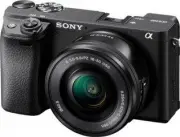 Sony A6400 + SEL-P1650 Black (ILCE-6400L/B)
User Manual
Sony A6400 + SEL-P1650 Black (ILCE-6400L/B)
User Manual
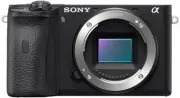 Sony A6600 Body Black (ILCE-6600/B)
User Manual
Sony A6600 Body Black (ILCE-6600/B)
User Manual
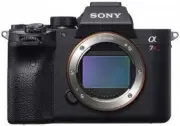 Sony A7R Mark IV Body (ILCE-7RM4)
User Manual
Sony A7R Mark IV Body (ILCE-7RM4)
User Manual
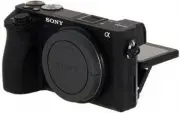 Sony Alpha 6500 (ILCE-6500)
User Manual
Sony Alpha 6500 (ILCE-6500)
User Manual
 Sony Alpha 6500 + 18-135mm (ILCE-6500M/B)
User Manual
Sony Alpha 6500 + 18-135mm (ILCE-6500M/B)
User Manual
 Sony Alpha 7 III
User Manual
Sony Alpha 7 III
User Manual
 Sony Alpha 7 IV
User Manual
Sony Alpha 7 IV
User Manual
 Sony Alpha 7C
User Manual
Sony Alpha 7C
User Manual
 Sony Alpha 7C Body Silver
User Manual
Sony Alpha 7C Body Silver
User Manual
 Sony Alpha a6400 + E 16-55 mm f/2.8 G (ILCE6400G.CEC)
User Manual
Sony Alpha a6400 + E 16-55 mm f/2.8 G (ILCE6400G.CEC)
User Manual
 Sony Alpha a6500 body (ILCE6500B.CEC)
User Manual
Sony Alpha a6500 body (ILCE6500B.CEC)
User Manual
 Sony Cyber-shot DSC-H55 Black
User Manual
Sony Cyber-shot DSC-H55 Black
User Manual
 Sony Cyber-shot DSC-HX10 Black
User Manual
Sony Cyber-shot DSC-HX10 Black
User Manual
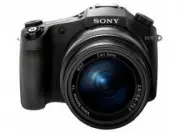 Sony Cyber-shot DSC-RX10
User Manual
Sony Cyber-shot DSC-RX10
User Manual
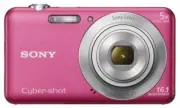 Sony Cyber-shot DSC-W710 Pink
User Manual
Sony Cyber-shot DSC-W710 Pink
User Manual
 Sony DCZV1/B
User Manual
Sony DCZV1/B
User Manual
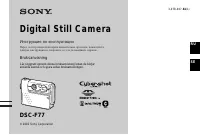 Sony DSC-F77
Manual
Sony DSC-F77
Manual