Page 2 - WARNING; CAUTION; • CLASS 1M VISIBLE AND INVISIBLE; Note
WARNING To reduce the risk of fi re or electric shock, do not expose this apparatus to rain or moisture. Do not install the appliance in a confi ned space, such as a bookcase or built-in cabinet. To reduce the risk of fi re, do not cover the ventilation of the apparatus with newspapers, tablecloths,...
Page 4 - Continued; Table of Contents; Getting Started; Setup; About this Manual; • Instructions in this manual describe how to
Continued Table of Contents About this Manual .......................................... 4 Precautions ....................................................... 6 About the Discs This Player can Play .... 9 DVD ......................................................................... 9 Video CD .......
Page 5 - About trademarks; are registered trademarks of Sony
Connection Watching on a TV ......................................... 47 Listening from an Audio Component .. 48 Using an audio cord .......................................... 48 Using an optical digital cord ......................... 48 Viewing Pictures Played on Other Components .....................
Page 6 - Precautions
On the rec • When the rechargeanormal liwith a nedealer. (Yyourself.) • CAUTION may presif mistreaabove 100another bexplosion • Dispose o regulation • Keep awa• Do not di the batter On chargin • The charg condition • Because o capacity osmaller thfi rst time this case,several timbe restore On the sp...
Page 7 - On the rechargeable battery; On charging; On adjusting the volume
On the rechargeable battery • When the battery life of a fully charged rechargeable battery becomes about half the normal life, the battery needs to be replaced with a new one. Consult your nearest Sony dealer. (You must not replace the battery by yourself.) • CAUTION : The battery used in this devi...
Page 8 - This playe; The logo ty; DVD; Format of d; Region cod; Casing; IMPORTANT NOTICE; Notes; For the customers in the United States
About Playe This playe The logo ty DVD Format of d DVD VIDE DVD-R * DVD-RW * DVD+R* DVD+RW* * Including MIncluding Vrecorded inplayer.) Region cod This playerbottom of tthat are labDVDs labeplayer.Dependingindication mprohibited On cleaning Casing Clean the cabinet, panel, and controls with a soft...
Page 9 - This player can play the following discs.; Format of discs; y from the
About the Discs This Player can Play This player can play the following discs. The logo types listed are trademarks. DVD Format of discs Label DVD VIDEO DVD-R * DVD-RW * DVD+R* DVD+RW* * Including MP3/JPEG fi lesIncluding VR mode (Some features on the discs recorded in VR mode may not be operated on...
Page 10 - JPEG; • This play; CD; Note on DualDiscs
JPEG The JPEG “.jpeg”, “.jp Notesdiscs • This play NTSC orin any othon this pl • Recordab RW/DVDmay not pthe equipcondition • Play fi nal necessaryon the DVfi nalized • Data CDs be record1/2 and J • Data DVD DVD-RWconformiFormat). Notes • If you reco disc, prohisoftware. • If you reco new CD-ROnce” ...
Page 11 - Copyrights
JPEG The JPEG fi les must have the extension “.jpeg”, “.jpg”, or “.jpe”. Notes on all types of discs • This player can play discs recorded in either NTSC or PAL color system. Discs recorded in any other color systems cannot be played on this player. • Recordable/rewritable discs (CD-R/CD- RW/DVD-R/D...
Page 12 - DVD structure
Playing or The playingon the meththe disc. Inplayed in o (Maxim Terms for discs DVD structure Disc Title Chapter Video CD/Audio CD structure Disc Track MP3/JPEG structure Disc Folder File • Title The longest section of a picture or music feature on a DVD, e.g., a movie for video software, or an albu...
Page 13 - Playing order of MP3/JPEG fi les; Notes on Discs
Playing order of MP3/JPEG fi les The playing order may differ depending on the method used to record the fi les on the disc. In the following example, fi les are played in order of to . Folder File (Maximum directory levels: 8) Notes on Discs • To keep the disc clean, do not touch the surface. H...
Page 15 - To connect your headphones to the player; To use the remote; Remove the insulation sheet.; For customers in the US
Getting Started Checking the Supplied Accessories • Speaker cradle (1) • AC power adaptor (1) • Remote control (Remote; battery installed) (1) • Stereo headphones (1) • Carrying pouch (1) • Operating instructions (1) To connect your headphones to the player Connect the plug of the supplied headphone...
Page 16 - lamp
To use the The supporplayer on aIf you handmay break.When you with your h Take outsupport. lamp The of the playe lamp Off Lights up in Slow fl ashin Fast fl ashing Lights up in Flashing in Lights up in Flashes altein red, greenorange Guide to Parts and Controls DVD/CD player (play/pause) button*...
Page 17 - To use the support
Speaker cradle DC IN 12V jack ( page 19) Player terminal ( page 19, 24) Speakers ( page 24) Remote A-B button ( page 32) P MODE (play mode) button ( page 31) TOP MENU button ( page 25) Arrow ( / / / ) buttons ( page 21, 40) ENTER button ( page 21, 40) RETU...
Page 18 - Conne; To replace the battery in the remote; While pushing the lock lever; page
Prepar ( Recha Charge the before usinwhen the bIf you keepto the speakbattery simspeaker cra Notes • Charging i • During cha may becom Charg speak 1 Conne the DCcradle AC p t To replace the battery in the remote Replace the battery with a new CR2025 lithium battery with correct polarity. 1 While pus...
Page 19 - Connect the AC power adaptor to; Charging time; Notes on the AC power adaptor; er
Preparing a Power Source ( Rechargeable Battery) Charge the built-in rechargeable battery before using the player for the fi rst time, or when the battery is depleted.If you keep the AC power adaptor connected to the speaker cradle, you can charge the battery simply by mounting the player on the spe...
Page 20 - Connect the; Battery life
When power Connect th“Charging page 19), o( page 2 If you start Note If you disconplayback, theoff, even if th remaining. Charging directly on the player 1 Connect the AC power adaptor to the player. Charging starts and the lamp fl ashes in orange fi rst, and then remains lit. to an AC outlet AC p...
Page 21 - Keep; ning
When using the AC power adaptor Connect the AC power adaptor as shown in “Charging through the speaker cradle” ( page 19), or “Charging directly on the player” ( page 20). If you start playback of a disc, charging stops. Note If you disconnect the AC power adaptor plug during playback, the playb...
Page 24 - Locking th; Slide t; Tip; To listen from the cradle speakers; Mount the player on the speaker cradle.; To remove the disc
Locking th You can prewhile carrycontrols. Thwhile if youfunction on 1 Slide t directi To unlock Slide the Hopposite to Tip Even if the Hyou can oper To Operation Pause Press . Press again to resume playback. Stop Press . If you press , playback resumes from where the playback stopped, unl...
Page 25 - Playing Movies; Playing DVD; Using the top menu; Press; rs
Locking the controls ( HOLD) You can prevent accidental button presses while carrying the player by locking the controls. The lamp fl ashes in red for a while if you press any button when the HOLD function on the player is activated. 1 Slide the HOLD switch in the direction of the arrow. To unlock t...
Page 26 - Using the DVD menu; Changing the subtitle language; Playing Video CD
Searcchapt You can selnumber, or playing tim 1 Press select Search item Title/ Chapter search Title time search Chapter time search Track search Track timesearch Disc time search Example: Fselect title in the title. 1 Press S to selec 2 Press nu You can• If you numb 3 Press nu The item Using the DVD...
Page 27 - Screen display
Searching for a title/chapter/track directly You can select a title, chapter, or track, by its number, or locate a scene by designating its playing time. 1 Press SEARCH on the remote to select the search item. Search item Screen display Disc/Format compatible Title/ Chapter search Title 00/00 Chapte...
Page 28 - Playing Music; Playing MP3 fi les; Tips; Press SEARCH on the remote to
Playing Music Read “Basic Playback Operations” ( page 23) beforehand. Playing MP3 fi les When the disc is read, a fi le list is displayed on the screen. Folder Contents in the folder Current fi le number/Total number of fi les Playback mode ID3 tag information (displayed during playback) Current p...
Page 29 - Viewing Still Images; Playing a slide show; To select the switching pattern; LIST on the remote repeatedly.; Image is switched
Viewing Still Images Read “Basic Playback Operations” ( page 23) beforehand. Playing a slide show When the disc is read, a fi le list is displayed on the screen. Current fi le number/Total number of fi les Folder Currently selected still image Playback mode Contents in the folder 1 Press / / ...
Page 30 - Variou; Playin; To display thumbnails; Thumbnails of still images appear.; To rotate a still image; : To rotate 90 degrees clockwise
Variou Playin ( Repea You can selrepeatedly. 1 Press repeatitem. Repeating item All of the chapters/traon a disc Selected titl Current cha Selected track/fi le Screen indication Image is switched Window V The image is wiped off by the succeeding image in a pattern of vertical stripes. Wipe From Edge...
Page 31 - Various Playback; Playing repeatedly; Press P MODE on the remote; To play a folder repeatedly; Select the folder on the fi le list.; To return to normal playback; ge; ant to; clockwise
Various Playback P MODE A-B PGM/P LIST B MARK / / / /ENTER CLEAR Playing repeatedly ( Repeat Playback) You can select an item to be played repeatedly. 1 Press P MODE on the remote repeatedly to select the repeating item. Repeating item Playback mode indication Disc/ format compatible All of ...
Page 32 - To play the; Playing in random order
Playinpoints While playwhere you to 12 bookm 1 During the rem The boo 2 Press then p The cur 3 To reg 2. • To tur press • To de the boCLEA To play the 1 Press B register 2 Press want toThe plapoint. Note When the dispower is turn erased. Playing a part of a chapter/track repeatedly ( A-B Repeat Pl...
Page 33 - To play the registered points; rder
Playing your favorite points ( Bookmark) While playing a disc, you can put bookmarks where you want to play later. You can put up to 12 bookmarks a disc. 1 During playback, press B MARK on the remote. The bookmark register screen appears. 2 Press / / / to select a vacant box, then press ENTE...
Page 35 - he; random
To create your own playlist ( Playlist Playback) You can play the contents of a disc in the order you want by arranging the order of the fi les on the disc to create your own playlist. A playlist can contain up to 100 fi les of MP3 and JPEG mixed. 1 Press PGM/P LIST on the remote to display the fi l...
Page 36 - You can sel; Using; control; • To ret; To turn off; Press DISP; Changing angles; appears at the scene.
Changoutpu You can sel 1 During repeataudio MONO Using control During playCD, you cathe item frodepending manual sup 1 Start p functio 2 Press the nu 3 Follow for inte • To ret TOP M Displainform You can disitem, elapseremaining, 1 During the rem To turn off Press DISP Convenient Operation Using the...
Page 37 - To turn off the display; DVD display; Video CD display
Changing the audio output You can select stereo or monaural. 1 During playback, press AUDIO repeatedly to select the desired audio output from [STEREO], [L-MONO], [R-MONO], or [MIX-MONO]. Using PBC (Playback control) function During playback of a PBC compatible Video CD, you can display the PBC menu...
Page 39 - Adjusting the Screen; Keep LCD MODE/BRT pressed until; Item
Setup Adjusting the Screen LCD MODE/BRT Arrow ( / ) Changing the aspect ratio 1 Press LCD MODE/BRT. Each time you press LCD MODE/BRT, the screen type changes 16:9 4:3 screen off. Tip When you listen to music, you can save the battery power by turning the screen off. Adjusting the picture q...
Page 40 - List o; Setup page; Using the Setup Menu
List o Setup page (LANGUAGSETUP) page 41 (SCREEN S page 42 (AUDIO SE page 43 (PARENTACONTROL page 45 (BASIC SE page 46 Using the Setup Menu You can customize the languages, audio features, and so on of the player using the Setup menu. Arrow ( / / / ) ENT* * The ENT button works t...
Page 41 - List of the setup items; Setting the Languages; Items; o the; he Setup
List of the setup items Setup page Setup items (LANGUAGE SETUP) page 41 OSDMENUAUDIOSUBTITLE (SCREEN SETUP) page 42 TV TYPECOLOR SYSTEM (AUDIO SETUP) page 43 DOWNMIXDIGITAL OUT SETUPAUDIO DRCEQUALIZERVIRTUAL SURROUND (PARENTAL CONTROL SETUP) page 45 CONTROLPASSWORDLEVEL (BASIC SETUP) page ...
Page 42 - Settin; Setting the Video Output
Settin Items DOWNMIX DIGITAL OUSETUP AUDIO DRC Setting the Video Output ( SCREEN SETUP) Items Options ( : Default settings) TV TYPE When you connect the player to a TV and watch the picture on TV screen, make this setting according to the type of the TV screen. 16:9 Select this when you connect ...
Page 43 - Setting the Audio Output
Setting the Audio Output ( AUDIO SETUP) Items Options ( : Default settings) DOWNMIX Use this function to create stereo (2-channel) signals from Dolby Digital sources recorded on DVDs. This setting affects the outputs of the AUDIO jack. Dolby Surround Select this when the connected audio componen...
Page 44 - CONTR; To select t
SettinContr CONTR Some DVDfunction recan be limilevel on theto change tperson whothe limitatiThe parentathe default To select t 1 Select [ 2 Select [ • To de functi 3 Input th buttonsSee “To To set the 1 Select [ 2 Press E 3 Input 25 You wilpasswo 4 Create y using th 5 Input th Tip To change th pa...
Page 45 - To set the limitation level; Parental control level; Level; To select the parental control mode
Note If you forgot your password, input 2580. This will clear your previous password. To set the limitation level 1 Select [ LEVEL], then press ENTER. 2 If the limitation level has been already set, input the password. 3 Select a parental control level, then press ENTER.The lower the value, the more...
Page 46 - Setting the Player
Setting the Player ( BASIC SETUP) Items Options ( : Default settings) ANGLE MARK If various angles (multi-angles) for a scene are recorded on the DVD and you have set this item to [ON], the mark appears at the scene. ON The mark will appear at the scene. OFF The mark will not appear at the scene...
Page 47 - Watching on a TV; Set the LINE SELECT switch to OUT.; To set the picture size to the TV screen; Connection
Connection Watching on a TV The pictures played on the player will be watched on a TV by connecting the player and the TV as shown below. You need a plug adaptor to connect the VIDEO jack. Refer to the operating manual supplied with the TV connected. 1 Connect the TV. Plug adaptor (PC-221HM or PC-22...
Page 48 - Using an audio cord
ViewiPlayeComp You can inpcomponentneed a plugjack. Referwith the co 1 Conne Plug adanot supp to VID 2 Set the Listening from an Audio Component By connecting an audio component having built-in Dolby Digital decoder or DTS decoder using an optical digital cord, you can enjoy the disc recorded in Dol...
Page 49 - Connect the video component.; Set the LINE SELECT switch to IN.; ital
Viewing Pictures Played on Other Components You can input pictures from other video components and view them on the player. You need a plug adaptor to connect the VIDEO jack. Refer to the operating manual supplied with the component connected. 1 Connect the video component. Plug adaptor (PC-221HM or...
Page 50 - Additional Information; Troubleshooting; Power
Additional Information Troubleshooting Should any problem persist after you have checked these symptoms, consult your nearest Sony dealer. Power Symptom Cause and/or corrective action The rechargeable battery cannot be charged. The disc is playing. Stop playback ( page 24). The player does not t...
Page 53 - Symptom; Error displays; Display
y soft 60 level nsion page k. on. yer. 18). Connection Symptom Cause and/or corrective action No picture appears on the TV connected. Set the LINE SELECT switch to OUT. Color system setting is not correct for the TV. Set [COLOR SYSTEM] according to the color system of the TV ( page 42). Chec...
Page 54 - Disposing of the Player; Remove the screw using a Phillips; Specifi cations; Speaker cr
Disposing of the Player This player has a built-in Lithium-Ion battery. Be sure to dispose of the battery properly. Certain countries may regulate disposal of the battery used to power this product.Please consult with your local authority. Notes • Never disassemble the player except when disposing o...
Page 55 - Speaker cradle; Optional Accessories
a distance rface on the rture.) 34 (V) dots EAK)* L OUT ned (1) k Ω ea code EU8 e model you ar code on s and sociation) Power requirements • Rechargeable battery (built-in) Lithium-ion• External power supply DC 12 V The AC power adaptor (supplied) should be used on AC 100 - 240 V. Power consumption ...
Page 56 - Language Code List; Code Language
Language Code List The language spellings conform to the ISO 639: 1988 (E/F) standard. Code Language 6565 Afar 6566 Abkhazian 6570 Afrikaans 6577 Amharic 6582 Arabic 6583 Assamese 6588 Aymara 6590 Azerbaijani 6665 Bashkir 6669 Byelorussian 6671 Bulgarian 6672 Bislama 6678 Bengali 6679 Tibetan 6682 B...
Page 57 - Index; Symbols
Index Symbols 16:9 39, 42 4:3 39 4:3 LETTER BOX 42 4:3 PAN SCAN 42 48kHz/96kHz PCM 43 A A-B Repeat Playback 32 AC power adaptor 19, 20 Angles 36 ANGLE MARK 46 AUDIO 41 AUDIO DRC 43 AUDIO SETUP 43 AVLS 46 B BASIC SETUP 46 Battery 18 Battery indicator ( ) 20 Battery life 20 Bookmark 33 BRIGHTNESS 39 C...
Page 60 - Sony Corporation
D-VE7000S.US.2-683-363-11(1) Sony Corporation Printed in China Printed on 100% recycled paper using VOC (Volatile Organic Compound)-free vegetable oil based ink.


 Sony BDPBX370
User Manual
Sony BDPBX370
User Manual
 Sony BDP-S1100
Manual
Sony BDP-S1100
Manual
 Sony BDP-S1200
Manual
Sony BDP-S1200
Manual
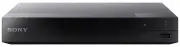 Sony BDPS1500
User Manual
Sony BDPS1500
User Manual
 Sony BDP-S185
Manual
Sony BDP-S185
Manual
 Sony BDP-S300
Manual
Sony BDP-S300
Manual
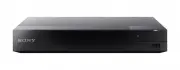 Sony BDP-S3500
User Manual
Sony BDP-S3500
User Manual
 Sony BDP-S360
Manual
Sony BDP-S360
Manual
 Sony BDP-S370
Manual
Sony BDP-S370
Manual
 Sony BDP-S380
Manual
Sony BDP-S380
Manual
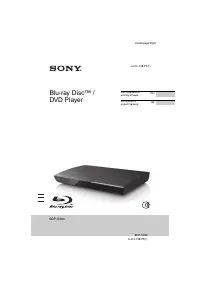 Sony BDP-S390
Manual
Sony BDP-S390
Manual
 Sony BDP-S470
Manual
Sony BDP-S470
Manual
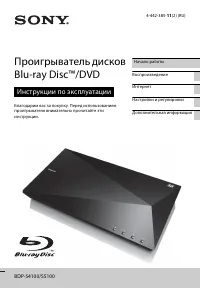 Sony BDP-S5100
Manual
Sony BDP-S5100
Manual
 Sony BDP-S580
Manual
Sony BDP-S580
Manual
 Sony BDPS6500
User Manual
Sony BDPS6500
User Manual
 Sony BDPS6700
User Manual
Sony BDPS6700
User Manual
 Sony BDP-S780
Manual
Sony BDP-S780
Manual