Page 2 - WARNING
2 WARNING To reduce the risk of fire or electric shock, do not expose this apparatus to rain or moisture. To avoid electrical shock, do not open the cabinet. Refer servicing to qualified personnel only. Batteries or batteries installed apparatus shall not be exposed to excessive heat such as sunshin...
Page 3 - Notes About the Discs; Precautions; On safety
3 Notes About the Discs • To keep the disc clean, handle the disc by its edge. Do not touch the surface. Dust, fingerprints, or scratches on the disc may cause it to malfunction. • Do not expose the disc to direct sunlight or heat sources such as hot air ducts, or leave it in a car parked in direct ...
Page 4 - IMPORTANT NOTICE
4 For the model supplied with the AC plug adaptor If the AC plug of your unit does not fit into the wall outlet, attach the supplied AC plug adaptor. On adjusting volume Do not turn up the volume while listening to a section with very low level inputs or no audio signals. If you do, the speakers may...
Page 5 - About this manual
5 11) Only use attachments/ accessories specified by the manufacturer. 12) Use only with the cart, stand, tripod, bracket, or table specified by the manufacturer, or sold with the apparatus. When a cart is used, use caution when moving the cart/apparatus combination to avoid injury from tip-over. 13...
Page 6 - Table of Contents; Hookups and Settings
6 Table of Contents WARNING . . . . . . . . . . . . . . . . . . . . . . . . . . . . . . . . . . . . . . . . . . . . . . . . . . . . 2Precautions . . . . . . . . . . . . . . . . . . . . . . . . . . . . . . . . . . . . . . . . . . . . . . . . . . . 3Guide to Parts and Controls . . . . . . . . . . . . ...
Page 7 - Additional Information
7 Additional Information Troubleshooting . . . . . . . . . . . . . . . . . . . . . . . . . . . . . . . . . . . . . . . . . . . . . . . 54Self-Diagnosis Function . . . . . . . . . . . . . . . . . . . . . . . . . . . . . . . . . . . . . . . . . 58Playable Discs . . . . . . . . . . . . . . . . . . . . ...
Page 8 - TV; ANGLE; Remote
8 Guide to Parts and Controls For more information, see the pages in parentheses. Number 5, AUDIO, VOL +, and N PLAY buttons have a tactile dot. Use the tactile dot as a reference when operating the player. A THEATER (page 16) Switches to the optimum video mode for watching movies automatically. Whe...
Page 9 - RETURN; PAUSE
9 C Color buttons (RED/GREEN/BLUE/YELLOW) Short cut keys for selecting items on some BD’s menus (can also be used for BD’s Java interactive operations). D TOP MENU (page 32) Opens or closes the BD’s or DVD’s Top Menu. POP UP/MENU (page 32) Opens or closes the BD-ROM’s Pop-up Menu, or the DVD’s menu....
Page 10 - Blu-ray Disc indicator; Front panel
10 The N button has a tactile dot. Use the tactile dot as a reference when operating the player. A [ / 1 (on/standby) (page 27) Turns on the player, or sets to standby mode. B Disc tray (page 30) C Blu-ray Disc indicator Lights up in white when the player is turned on.Lights up in blue when playing ...
Page 11 - Playback information; When playing a CD; Network connection indicator; Front panel display
11 A N , X Lights up during playback or pause. B HD (page 42) Lights up when outputting 720p/1080i/1080p video signals from the HDMI OUT jack or 720p/1080i video signals from the COMPONENT VIDEO OUT jacks. C HDMI (page 15) Lights up when an HDMI device is recognized. D EXT (page 23) Lights up when t...
Page 12 - Ventilation holes; Rear panel
12 A DIGITAL OUT (COAXIAL) jack (page 21) B LINE OUT (R-AUDIO-L) jacks (page 17, 18, 22) C LINE OUT (VIDEO) jack (page 18) D DIGITAL OUT (OPTICAL) jack (page 21) E Ventilation holes The ventilation fan is inside the player. F EXT slot (page 23) G AC IN terminal (page 25) H COMPONENT VIDEO OUT (Y, P ...
Page 13 - Hookups and
13 Hooku p s a nd Settings Hookups and Settings Hooking Up the Player Check that you have the following items.• Audio/video cable (phono plug ×3) (1)• AC power cord (1)• Remote commander (remote) (1)• Size AA (R6) batteries (2) Follow steps 1 through 7 to hook up and adjust the settings of the playe...
Page 14 - Step 1: Connecting to Your TV; About video/HDMI OUT jacks
14 Step 1: Connecting to Your TV About video/HDMI OUT jacks The player has the following video jacks. Connect the player to your TV according to the input jacks on your TV.When connecting the player to your TV using the HDMI cable, you can enjoy high quality digital pictures and sound through the HD...
Page 15 - Notes on connecting to the HDMI OUT jack; About indicators for HDMI connection; Connecting to an HDMI jack
15 Hooku p s a nd Settings Connect the player and your TV using an HDMI cable to enjoy high quality digital pictures and sound through the HDMI OUT jack.If you connect a Sony TV that is compatible with the “Control for HDMI” function (page 16), refer to the operating instructions supplied with the T...
Page 16 - To prepare for the BRAVIA Sync features
16 b • Not all high definition television sets are fully compatible with this product and may cause artifacts to be displayed in the picture. In the case of 480i/480p/720p/1080i/1080p scan picture problems, it is recommended that the user switch the connection to the LINE OUT VIDEO jack. If there ar...
Page 17 - Connecting to component video jacks (Y, P
17 Hooku p s a nd Settings Connect the COMPONENT VIDEO OUT jacks of the player and your TV using a component video cable (not supplied). You can enjoy high-quality pictures.Be sure to connect to the LINE OUT (R-AUDIO-L) jacks using the audio/video cable. b When you connect the player and TV using a ...
Page 18 - Connecting to audio/video jacks
18 Connect the LINE OUT (VIDEO, R-AUDIO-L) jacks of the player and your TV using the audio/video cable. You can enjoy standard quality pictures and sound. Connecting to audio/video jacks Audio/video cable (supplied) : Signal flow Match the color of the plug to that of the jack. Blu-ray Disc/DVD play...
Page 19 - About audio/HDMI OUT jacks
19 Hooku p s a nd Settings Step 2: Connecting to Your AV Amplifier (Receiver) About audio/HDMI OUT jacks The player has the following audio jacks. Connect the player to your AV amplifier (receiver) according to the input jacks on your AV amplifier (receiver). z For correct speaker location, refer to...
Page 22 - Connecting to audio L/R jacks
22 If your AV amplifier (receiver) only has L and R audio input jacks, use this connection. Connecting to audio L/R jacks AV amplifier (receiver) Audio/video cable (supplied) : Signal flow Blu-ray Disc/DVD player (white) (red) (white) (red) Match the color of the plug to that of the jack.
Page 23 - Insert the external memory in the
23 Hooku p s a nd Settings Step 3: Inserting the External Memory To enjoy additional content (such as BONUSVIEW/BD-LIVE) on certain Blu-ray Disc titles, you will need to use external memory (not supplied).Insert the external memory device (1 GB or larger USB flash memory, such as Sony USM2GL, USM4GL...
Page 24 - To enjoy the BD-LIVE function
24 Step 4: Connecting to the Network Connect the LAN (100) terminal of the player to your Internet source using a LAN cable to update the player’s software. You can also enjoy the BD-LIVE function (page 32). 1 Connect the LAN (100) terminal of the player to your Internet source. Methods to connect t...
Page 26 - Available buttons
26 Step 6: Preparing the Remote You can control the player using the supplied remote. Insert two Size AA (R6) batteries by matching the 3 and # ends on the batteries to the markings inside the battery compartment. When using the remote, point it at the remote sensor on the player (page 10). b • Use ...
Page 27 - Code numbers of controllable TVs; When turned on for the first time
27 Hooku p s a nd Settings 1 While holding down TV [ / 1 , enter the TV’s manufacturer code using the number buttons. For instance, to enter “09,” press “0” then “9.” Code numbers of controllable TVs If more than one code number is listed, try entering them one at a time until you find the one that ...
Page 28 - When you select “HDMI” in step 6
28 4 Select a language for the on-screen displays using M / m , and press ENTER. The initial settings message appears. 5 Select “Start,” and press ENTER. 6 Select the cable type used to connect the player and your TV, and press ENTER. b When connecting the HDMI OUT jack and other video output jacks ...
Page 29 - When you select “Video” in step 6
29 Hooku p s a nd Settings b If no picture appears, press RETURN to return to the previous screen, and change the resolution setting. 2 Select “Finish,” and press ENTER.The display asks for confirmation. 3 Select “OK” or “Cancel,” and press ENTER. When you select “Video” in step 6 Select an aspect r...
Page 30 - Playback
30 Playback Playing BDs/DVDs 1 Switch the input selector on your TV so that the signal from the player appears on your TV screen. 2 Press Z on the player, and place a disc on the disc tray. 3 Press Z on the player to close the disc tray. • When you insert a commercially available BD-ROM or DVD VIDEO...
Page 32 - Available OPTIONS; To display Top Menu; To display Pop-up Menus; Using the BD’s or DVD’s menu
32 Available OPTIONS 1 Press OPTIONS.The options menu appears. 2 Select an item using M / m , and press ENTER.The available items differ depending on the disc type or player situation. To display Top Menu When you play a BD or DVD, you can display the Top Menu. 1 Press TOP MENU during playback.The T...
Page 33 - To delete data in the external memory; Select a search method using; Searching for a Title/Chapter
33 P layback 7 Insert a BD-ROM with BONUSVIEW/BD-LIVE. The operation method differs depending on the disc. Refer to the instruction manual supplied with the disc. To delete data in the external memory You can delete unnecessary data. 1 If a disc is inserted, remove the disc from the player. 2 Press ...
Page 34 - To adjust the picture
34 You can check the title information, including the video transmission rate, etc. Press DISPLAY. The displayed information differs depending on the disc type and player status. Example: when playing a BD-ROM A The current selected angle B Title number or name C The currently selected audio or subt...
Page 35 - To adjust the audio characteristics
35 P layback To adjust the audio characteristics 1 Press OPTIONS during playback.The options menu appears. 2 Select “Audio Settings” using M / m , and press ENTER.The “Audio Settings” screen appears. 3 Select an item using M / m , and press ENTER.The default settings are underlined. 4 Select or adju...
Page 36 - Various music playback operations
36 Available OPTIONS 1 Press OPTIONS.The options menu appears. 2 Select an item using M / m , and press ENTER.The available items differ depending on the situation. Various music playback operations b • The point where you stopped playing (resume point) is cleared from memory when:– you open the dis...
Page 37 - Playing Photo Files
37 P layback Playing Photo Files *1 BD-REs/BD-Rs containing JPEG image files *2 DVD-ROMs and DVD+RWs/DVD+Rs/DVD-RWs/DVD-Rs containing JPEG image files *3 CD-ROMs and CD-RWs/CD-Rs containing JPEG image files 1 Press HOME. 2 Select (Photo) using < / , . 3 Select , and press ENTER. The file list or ...
Page 38 - To view best quality images
38 b • When you attempt to play the following photo files, the mark appears on the screen and they cannot be played.– photo files larger than 8,192 pixels (width or height) – photo files smaller than 15 pixels (width or height) – photo files exceeding 32 MB– photo files with extreme aspect ratios (g...
Page 39 - Settings and; Select
39 Settin g s and Adju st m ents Settings and Adjustments Using the Settings Displays Select (Setup) on the home menu when you need to change the settings of the player. 1 Press HOME. 2 Select (Setup) using < / , . 3 Select the setup category icon to change using M / m , and press ENTER. For deta...
Page 40 - Setting list; Network Update; Select “Network Update” using
40 Setting list You can setup the following options. Network Update You can update and improve the functions of the player.For information about update functions, refer to the following website;http://esupport.sony.com 1 Select “Network Update” using M / m , and press ENTER. The player connects to t...
Page 41 - Video Settings; TV Type
41 Settin g s and Adju st m ents To update the software using an update disc You can update and improve the functions of the player using an update disc provided by Sony dealer or local authorized Sony service facility. 1 Insert the update disc.The display asks for confirmation. 2 Select “OK,” and p...
Page 42 - TV Connection Method; DVD Aspect Ratio; Cinema Conversion Mode; Output Video Format
42 Selects the display configuration for playback of 16:9 screen pictures on a 4:3 screen TV (selectable when “TV Type” is set to “4:3” and “Screen Format” is set to “Fixed Aspect Ratio”). b Depending on the DVD, “Letter Box” may be selected automatically instead of “Pan & Scan” or vice versa. S...
Page 43 - HDMI Resolution/Component Resolution
43 Settin g s and Adju st m ents The HD indicator lights up when outputting 720p/1080i/1080p video signals. b When connecting the HDMI OUT jack and other video output jacks at the same time, video signals may not output from the jacks, other than from the HDMI OUT jack, when “Auto” or “1080p” is sel...
Page 44 - Audio Settings; HDMI Deep Color Output; Pause Mode
44 Sets the Deep Color (color depth) setting for video signals output from the HDMI OUT jack.The color depth is indicated by the number of bits, and more colors can be reproduced as the value increases. The player supports a color depth of up to 12 bits. Connecting the player and a TV that supports ...
Page 45 - BD Audio Setting; Dolby Digital
45 Settin g s and Adju st m ents Selects whether to mix or not mix interactive audio and secondary audio (commentary) when playing a BD that contains such audio. b PCM 96 kHz and PCM 192 kHz audio signals are output as PCM 48 kHz audio signals when “BD Audio Setting” is set to “Mix.” Lowers the audi...
Page 46 - Audio DRC; Downmix
46 Selects the dynamic range (compression level of the sound) setting when playing a BD or DVD that conforms to “Audio DRC.” b • “Audio DRC” is effective only when playing Dolby Digital, Dolby Digital Plus, and Dolby TrueHD audio signals. • When “Dolby Digital” is set to “Dolby Digital” in the “Audi...
Page 47 - Settings; Audio
47 Settin g s and Adju st m ents BD/DVD Viewing Settings The default settings are underlined. Selects the default menu language for BD-ROMs or DVD VIDEOs.When you select “Select Language Code,” the display for entering the language code appears. Enter the code for your language by referring to “Lang...
Page 48 - To change the password; DVD Parental Control
48 Playback of some DVD VIDEOs can be limited according to the age of the users. Scenes may be blocked or replaced with different scenes. 1 Select “DVD Parental Control” in “BD/DVD Viewing Settings,” and press ENTER. 2 Enter your four-digit password using the number buttons. 3 Select “OK,” and press...
Page 49 - Photo Settings; Hybrid Disc Playback Layer; BD Internet Connection; Slideshow Speed
49 Settin g s and Adju st m ents Selects the layer priority when playing a Hybrid Disc. To change the setting, turn the player off and on again. Sets whether to allow Internet connections from the contents of a BD (in BDMV mode) being played. Network connections and settings are required when using ...
Page 50 - System Settings
50 System Settings The default settings are underlined. Selects your language for the player on-screen displays. Adjusts the lighting of the front panel display. b When “Quick Start Mode” is set to “On,”– power consumption will be higher than when “Quick Start Mode” is set to “Off” and – the ventila...
Page 51 - Network Settings; Software Update Notification; System Information
51 Settin g s and Adju st m ents Informs you of newer software version information. Network connections and settings are required when using this function (page 51). Displays the player’s software version information and the MAC address. Network Settings These items are necessary when you connect to...
Page 53 - Easy Setup; Resetting; Select “Start” using
53 Settin g s and Adju st m ents Easy Setup Re-runs the Easy Setup to make the basic settings. 1 Select “Easy Setup,” and press ENTER. 2 Select “Start” using < / , , and press ENTER. 3 Follow the instructions for “Step 7: Easy Setup” (page 27) from step 4. Resetting You can reset the player setti...
Page 54 - The power does not turn on.; Power
54 Additional Information Troubleshooting If you experience any of the following difficulties while using the player, use this troubleshooting guide to help remedy the problem before requesting repairs. Should any problem persist, consult your nearest Sony dealer. The power does not turn on. , Check...
Page 55 - The picture is not output correctly.; The sound is not output correctly.; Sound
55 A d d iti o n a l I n fo rm a tio n , Check whether the connecting cables are damaged. , Check the connection to your TV (page 14) and switch the input selector on your TV so that the signal from the player appears on the TV screen. , When playing a double-layer BD/DVD, the video and audio may be...
Page 56 - The external memory is not recognized.
56 There is no picture or no sound when connected to the HDMI OUT jack. , Try the following: 1 Turn the player off and on again. 2 Turn the connected equipment off and on again. 3 Disconnect and then reconnect the HDMI cable. There is no picture or picture noise appears when connected to the HDMI OU...
Page 57 - The remote does not function.; Operation
57 A d d iti o n a l I n fo rm a tio n Bonus contents or other data that are contained in a BD-ROM cannot be played. , Try the following: 1 Remove the disc. 2 Turn the player off. 3 Remove and re- insert the external memory (page 23). 4 Turn the player on. 5 Check that the EXT indicator lights up in...
Page 58 - Self-Diagnosis Function; When just
58 Self-Diagnosis Function When the self-diagnosis function is activated to prevent the player from malfunctioning, an error code appears in the front panel display, or just appears without any messages on the entire screen.In these cases, check the following. When an error code appears in the front...
Page 59 - Playable Discs; Notes about BD-ROM compatibility
59 A d d iti o n a l I n fo rm a tio n Playable Discs * MP3 (MPEG-1 Audio Layer 3) is a standard format defined by ISO (International Organization for Standardization)/IEC (International Electrotechnical Commission) MPEG which compresses audio data.MPEG Layer-3 audio coding technology and patents li...
Page 60 - Discs that cannot be played; Note on playback operations of BDs/DVDs
60 Discs that cannot be played • BDs with cartridge• DVD-RAMs• HD DVDs• DVD Audio discs• PHOTO CDs• Data part of CD-Extras• VCDs/Super VCDs• HD layer on Super Audio CDs• Audio material side on DualDiscs• BD-ROMs/DVD VIDEOs with a different region code (page 60). • A disc recorded in a color system o...
Page 61 - What is the AVCHD format?
61 A d d iti o n a l I n fo rm a tio n About playback of discs recorded in AVCHD format This player can play AVCHD format discs. What is the AVCHD format? The AVCHD format is a high-definition digital video camera format used to record SD (standard definition) or HD (high definition) signals of eith...
Page 62 - Video Output Resolution; When “Output Video Format” is set to
62 Video Output Resolution Output resolution differs depending on the “Output Video Format” setting in the “Video Settings” setup (page 42). * Protected contents on DVDs are output at 480p resolution. When “Output Video Format” is set to “Video” 480i video signals are output from the LINE OUT VIDEO ...
Page 63 - Audio Output Signals and Player Settings; “Audio Settings” setup table
63 A d d iti o n a l I n fo rm a tio n Audio Output Signals and Player Settings The audio output signals differ, depending on the source, output jack, and the AV amplifier (receiver) you use. To enjoy the sound you want, check the support audio format of the AV amplifier (receiver), the connection t...
Page 64 - Specifications; System; Inputs and outputs; General; Supplied accessories
64 Specifications System Laser: Semiconductor laser Inputs and outputs ( Jack name: Jack type/Output level/Load impedance) LINE OUT R-AUDIO-L: Phono jack/2 Vrms/10 kilohms DIGITAL OUT (OPTICAL): Optical output jack/–18 dBm(wave length 660 nm) DIGITAL OUT (COAXIAL): Phono jack/0.5 Vp-p/75 ohms HDMI O...
Page 65 - Language Code List
65 A d d iti o n a l I n fo rm a tio n Language Code List For details, see page 47.The language spellings conform to the ISO 639: 1988 (E/F) standard. Parental Control/Area Code For details, see page 48. Code Language Code Language Code Language Code Language Number, Area (Code) 2044, Argentina (ar)...
Page 77 - Glossary; AACS
77 A d d iti o n a l I n fo rm a tio n Glossary AACS “Advanced Access Content System” is a specification for managing digital entertainment contents stored on the next generation of prerecorded and recorded optical media. The specification enables consumers to enjoy digital entertainment content, in...
Page 79 - Index; Numerics
79 Index Words in quotations appear in the on-screen displays. Numerics 24p True Cinema 78 A AACS 77 ANGLE 8 AUDIO 8 “Audio Output Priority” 44Audio output signals 63 “Audio Settings” 35 , 44 “Auto Power Off” 50 AVCHD 61 , 77 B Batteries 26 “BD Data” 33 “BD/DVD Viewing Settings” 47 BD-LIVE 23 , 32 B...


 Sony BDPBX370
User Manual
Sony BDPBX370
User Manual
 Sony BDP-S1100
Manual
Sony BDP-S1100
Manual
 Sony BDP-S1200
Manual
Sony BDP-S1200
Manual
 Sony BDPS1500
User Manual
Sony BDPS1500
User Manual
 Sony BDP-S185
Manual
Sony BDP-S185
Manual
 Sony BDP-S300
Manual
Sony BDP-S300
Manual
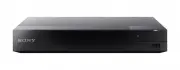 Sony BDP-S3500
User Manual
Sony BDP-S3500
User Manual
 Sony BDP-S370
Manual
Sony BDP-S370
Manual
 Sony BDP-S380
Manual
Sony BDP-S380
Manual
 Sony BDP-S390
Manual
Sony BDP-S390
Manual
 Sony BDP-S470
Manual
Sony BDP-S470
Manual
 Sony BDP-S5100
Manual
Sony BDP-S5100
Manual
 Sony BDP-S580
Manual
Sony BDP-S580
Manual
 Sony BDPS6500
User Manual
Sony BDPS6500
User Manual
 Sony BDPS6700
User Manual
Sony BDPS6700
User Manual
 Sony BDP-S780
Manual
Sony BDP-S780
Manual
 Sony BDP-SX1
Manual
Sony BDP-SX1
Manual