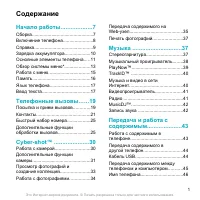
Page 2 - Contents
2 Contents Media player and music ... 45 Transferring content to and from a computer ..................................... 45Stereo portable handsfree .............. 46Music player .................................. 46PlayNow™ ...................................... 47TrackID™ ..........................
Page 5 - Instruction symbols; Note
5 Assets Control, and may be additionally subject to export or import regulations in other countries. The user and any possessor of the product agrees to comply strictly with all such regulations and acknowledges that it is their responsibility to obtain any required licenses to export, re-export, o...
Page 6 - Getting started; Assembly; To insert the SIM card
6 Getting started Getting started Assembly Before you start using your phone, you need to insert a SIM card and the battery. To insert the SIM card 1 Remove the battery cover by pressing and sliding it as shown in the picture. 2 Slide the SIM card into its holder with the gold-colored contacts facin...
Page 7 - Turning on the phone; To turn on the phone
7 Getting started Turning on the phone To turn on the phone 1 Press and hold down . 2 Enter your SIM card PIN, if requested and select OK . 3 Select a language. 4 Select Yes to use the setup wizard while settings are downloaded. SIM card The SIM (Subscriber Identity Module) card, which you get from ...
Page 8 - Help; Help in your phone; Charging the battery; To charge the battery
8 Getting started Help In addition to this User guide, Getting started guides and more information are available at www.sonyericsson.com/support . Help in your phone Help and information are available in your phone. See Navigation on page 13. To view tips and tricks 1 From standby select Menu > S...
Page 9 - Phone overview
9 Getting started Phone overview 8 10 9 12 13 11 1 2 3 4 7 5 6 1 Ear speaker 2 Screen 3 Selection keys 4 Call key 5 Memory card slot 6 Activity menu key 7 Microphone 8 End key 9 C key (Clear) 10 Navigation key 11 Silent key 12 On/off key 13 Connector for charger, handsfree and USB cable This is the ...
Page 11 - Menu overview
11 Getting started Menu overview PlayNow™* Internet* Entertainment Online services*RadioTrackID™GamesVideoDJ™PhotoDJ™MusicDJ™ Remote controlRecord soundDemo tour Camera Messaging Media Write newInboxEmailDraftsOutboxSent messagesSaved messagesMy friends*Call voicemailTemplatesManage messagesSettings...
Page 13 - Navigation
13 Getting started Navigation The main menus are shown as icons. Some submenus include tabs. To navigate the phone menus 1 From standby select Menu . 2 Use the navigation key to move through the menus. To select actions on the screen • Press the left or right selection key, or the center navigation ...
Page 15 - Phone language; From standby select; Entering text; to enter text. The T9 Text
15 Getting started To insert a memory card • Open the cover and insert the memory card with the gold-colored contacts facing up. To remove a memory card • Open the cover and press the edge of the memory card to release and remove it. To view memory card options 1 From standby select Menu > Organi...
Page 17 - Internet; Bookmarks; Key
17 Internet Internet To start browsing 1 From standby select Menu > Internet . 2 Select Options > Go to . 3 Select an option. To exit the browser • When you browse the Internet, select Options > Exit browser . Bookmarks You can create and edit bookmarks as quick links to your favorite Web p...
Page 19 - Web feeds; To add new feeds for a Web page
19 Internet Web feeds You can subscribe to and download frequently updated content, such as news, podcasts or photos, using Web feeds. To add new feeds for a Web page 1 When you browse a page on the Internet that has Web feeds, indicated by the icon, select Options > Web feeds . 2 For each feed y...
Page 20 - GPS; Using the GPS
20 GPS To access Web feeds from standby 1 From standby select Ticker . 2 To read more about a feed, press or to scroll to a headline and select Go to . Podcasts Podcasts are files, for example, radio programs or video content, that you can download and play. You subscribe to and download podcasts us...
Page 21 - Google MapsTM for mobile; To use Google Maps; Driving directions; To start Wayfinder Navigator; More GPS features; Save locations
21 GPS Assisted GPS With Assisted GPS (A-GPS) it takes less time to calculate a location. Google Maps™ for mobile Google Maps™ lets you view maps and satellite imagery, find locations and calculate routes. To use Google Maps • From standby select Menu > Location services > Google Maps . To vie...
Page 23 - Calling; Making and receiving calls; Yes
23 Calling Calling Making and receiving calls You need to turn on your phone and be within range of a network. To make a call 1 From standby enter a phone number (with international country code and area code, if applicable). 2 Press . To end a call • Press . To make international calls 1 From stand...
Page 24 - Contacts; Default contacts
24 Calling Networks Your phone switches automatically between GSM and 3G (UMTS) networks depending on availability. Some network operators allow you to switch networks manually. To switch networks manually 1 From standby select Menu > Settings > the Connectivity tab > Mobile networks > G...
Page 28 - Call list; To call a number from the call list; Speed dial; To speed dial; Voicemail; To enter your voicemail number
28 Calling 4 Enter a name for the group and select Continue . 5 Scroll to New and select Add . 6 For each contact phone number or email address you want to mark, scroll to it and select Mark . 7 Select Continue > Done . Call list You can view information about recent calls. To call a number from ...
Page 29 - Voice control; Voice dialing
29 Calling To call your voicemail service • From standby press and hold down . Voice control By creating voice commands you can: • Voice dial – call someone by saying their name • Answer and reject calls when you use a handsfree To record a voice command using voice dialing 1 From standby select Men...
Page 30 - More than one call; Call waiting
30 Calling 4 Follow the instructions that appear and select Cont. Wait for the tone and say “Busy”, or another word. 5 Select Yes to accept or No for a new recording. 6 Follow the instructions that appear and select Cont. 7 Select where your voice answering is to be activated. To answer a call using...
Page 32 - Restricted dialing; Restrict calls options
32 Calling To add numbers to the accepted callers list 1 From standby select Menu > Settings > the Calls tab > Manage calls > Accept calls > Only from list . 2 Scroll to New and select Add . 3 Select a contact or Groups . To accept all calls • From standby select Menu > Settings &g...
Page 33 - Call time and cost; Messaging; Receiving and saving messages
33 Messaging 3 Enter your PIN2 and select OK . 4 Select OK again to confirm. To save a fixed number 1 From standby select Menu > Contacts . 2 Scroll to New contact and select Options > Special numbers > Fixed dialing > Fixed numbers > New number . 3 Enter the information and select Sa...
Page 34 - Text messages; Before you use messaging
34 Messaging Text messages Text messages can contain simple pictures, sound effects, animations, and melodies. Before you use messaging You must have a service center number. The number is supplied by your service provider and is usually saved on the SIM card. If the number to your service center is...
Page 35 - Picture messages; Before you use picture messaging
35 Messaging Picture messages Picture messages can contain text, pictures, slides, sound recordings, video clips, signatures and attachments. You can send picture messages to a phone or an email address. Before you use picture messaging You must set an MMS profile and the address of your message ser...
Page 36 - Message options
36 Messaging Message options You can set standard options for all messages or choose specific settings each time you send a message. To set text message options 1 From standby select Menu > Messaging > Settings > Text message . 2 Scroll to an option and select Edit . To set picture message ...
Page 37 - Email; Before you use email
37 Messaging Email You can use standard email functions and your computer email address in your phone. Before you use email You can use the setup wizard to check if settings are available for your email account or you can enter them manually. You can also receive settings at www.sonyericsson.com/sup...
Page 38 - My friends; Before you use My friends
38 Messaging To view an attachment in an email message • When you view the message, select Options > Attachments > Use > View . To save an attachment in an email message • When you view the message, select Options > Attachments > Use > Save . Synchronizing email Email can be synchr...
Page 40 - Area and cell information; To turn area information on; Imaging; Camera and video recorder; Viewfinder and camera keys
40 Imaging Area and cell information Area and cell information are text messages, for example, local traffic reports that are sent to subscribers within a certain network area. To turn area information on 1 From standby select Menu > Messaging > Settings > Area info . 2 Scroll to Reception ...
Page 41 - Using the camera
41 Imaging Using the camera To activate the camera • From standby select Menu > Camera . To take a picture 1 Activate the camera and press or to scroll to . 2 Press the center navigation key to take a picture. 3 The picture is saved on the memory card, if a memory card is inserted. If not, the pi...
Page 42 - Camera icons and settings; To change settings; Transferring pictures; on page 52 and
42 Imaging Camera icons and settings Icons on the screen inform what the current setting is. More camera settings are available in Options . To change settings • Activate the camera and select Options . Information Additional information about settings is available when Info appears. To view informa...
Page 43 - Camera printing; To view pictures in a slide show
43 Imaging To send camera pictures to a blog 1 From standby select Menu > Media and scroll to Photo > Camera album . 2 Scroll to a month and a picture. Select View . 3 Select Options > Send > To blog . 4 Enter a title and text and select OK . 5 Select Publish . To send video clips to a b...
Page 45 - PhotoDJTM and VideoDJTM; To edit and save a picture; Media player and music; Sony Ericsson
45 Media player and music PhotoDJ™ and VideoDJ™ You can edit pictures and video clips. To edit and save a picture 1 From standby select Menu > Media and scroll to Photo > Camera album . 2 Scroll to a month and a picture. Select View . 3 Select Options > Edit in PhotoDJ™ . 4 Edit the picture...
Page 46 - Stereo portable handsfree; Browsing files
46 Media player and music 4 Computer: Wait until the phone appears in Media Manager. 5 Move files between your phone and the computer in Media Manager. Stereo portable handsfree To use a handsfree • Connect a portable handsfree. Music stops when you receive a call and resumes when the call has ended...
Page 47 - PlayNowTM
47 Media player and music To create a playlist 1 From standby select Menu > Media and scroll to Music > Playlists . 2 Scroll to New playlist and select Add . 3 Enter a name and select OK . 4 For each track you want to add, scroll to the track and select Mark . 5 Select Add to add the tracks to...
Page 48 - TrackIDTM; To search for song information; Online music and video clips; Settings
48 Media player and music Before you use PlayNow™ You must have the required Internet connection settings in your phone. See Settings on page 52. To use PlayNow™ 1 From standby select Menu > PlayNow™ . 2 Scroll the PlayNow™ Web site and follow the instructions to preview and purchase content. Tra...
Page 49 - Entertainment; Video player; Saving channels; Ringtones and melodies
49 Entertainment Entertainment Video player To play videos 1 From standby select Menu > Media and scroll to Video . 2 Scroll to a title and select Play . To stop playing videos • Press the center navigation key. Radio To listen to the radio 1 Connect a handsfree to the phone. 2 From standby selec...
Page 50 - MusicDJTM
50 Entertainment To turn the ringtone off • From standby press and hold down . To set the vibrating alert 1 From standby select Menu > Settings > the Sounds & alerts tab > Vibrating alert . 2 Select an option. MusicDJ™ You can compose and edit your own melodies to use as ringtones. A me...
Page 51 - Applications; Before you use JavaTM applications
51 Entertainment Applications You can download and run Java applications. You can also view information or set different permissions. Before you use Java™ applications If settings are not already entered in your phone, see Settings on page 52. To select a Java application 1 From standby select Menu ...
Page 52 - Connectivity; To enter a phone name
52 Connectivity Connectivity Settings Before you synchronize with an Internet service, use the Internet, PlayNow™, My friends, Java, picture messaging, email and picture blog you need to have settings in your phone. If settings are not already entered, you can download settings using the setup wizar...
Page 54 - Using a USB cable; Before you use a USB cable
54 Connectivity Power saving You can save battery power with the Power save function. You can only connect with a single Bluetooth device. You must turn this function off if you want to connect with more than one Bluetooth device at the same time. To turn powersave on • From standby select Menu >...
Page 55 - Synchronizing; Synchronizing using a computer
55 Connectivity To disconnect a USB cable safely 1 Right-click the removable disk icon in Windows Explorer . 2 Select Eject . 3 Disconnect the USB cable when the following message is shown in the phone: Mass storage session ended. It is now safe to remove the USB cable. Drag and drop content You can...
Page 58 - Update service; Before you use the Update service
58 Connectivity Update service You can update your phone with the latest software. You do not lose personal or phone information. There are two ways to update your phone: • Over the air using your phone • Using a provided USB cable and an Internet-connected computer Before you use the Update service...
Page 59 - More features; Flight mode; To activate the flight mode menu; Handling files
59 More features More features Flight mode In Flight mode the network and radio transceivers are turned off to prevent disturbance to sensitive equipment. When the flight mode menu is activated you are asked to select a mode the next time you turn on your phone: • Normal mode – full functionality • ...
Page 60 - Alarms
60 More features To move a file in the file manager 1 From standby select Menu > Organizer > File manager . 2 Find a file and select Options > Manage file > Move . 3 Select Memory card or Phone . 4 Open a folder. 5 Select Paste . To select more than one file in a folder 1 From standby se...
Page 61 - Calendar
61 More features The alarm in silent mode You can set the alarm not to sound when the phone is in silent mode. To set an alarm to sound or not in silent mode 1 From standby select Menu > Alarms . 2 Scroll to an alarm and select Edit . 3 Scroll to the tab. 4 Scroll to Silent mode: and select Edit ...
Page 62 - Notes
62 More features To view a calendar week 1 From standby select Menu > Organizer > Calendar . 2 Select a date. 3 Select Options > Change view to > Week . To set when reminders should sound 1 From standby select Menu > Organizer > Calendar . 2 Select a date. 3 Select Options > Adv...
Page 63 - Profiles
63 More features Profiles You can change settings such as the ring volume and vibrating alert to suit different locations. You can reset all profiles to the phone’s original settings. To select a profile 1 From standby select Menu > Settings > the General tab > Profiles . 2 Select a profile...
Page 64 - Locks; SIM card lock
64 More features Locks SIM card lock This lock only protects your subscription. Your phone will work with a new SIM card. If the lock is on, you have to enter a PIN (Personal Identity Number). If you enter your PIN incorrectly three times in a row, the SIM card is blocked and you need to enter your ...
Page 65 - Troubleshooting; Common questions; Master reset
65 Troubleshooting To unlock the phone • Enter your code and select OK . To change the phone lock code 1 From standby select Menu > Settings > the General tab > Security > Locks > Phone protection > Change code . 2 Enter the old code and select OK . 3 Enter the new code and select ...
Page 68 - Error messages; See
68 Troubleshooting Where can I find the regulatory information such as my IMEI number if I cannot turn on my phone? Error messages Insert SIM There is no SIM card in your phone or you may have inserted it incorrectly. See Charging the battery on page 8. The SIM card connectors need cleaning. If the ...
Page 69 - Important information; Sony Ericsson Consumer Web site; Service and support
69 Important information Your phone is not receiving any network signal, or the received signal is too weak. Contact your network operator and make sure that the network has coverage where you are. The SIM card is not working properly. Insert your SIM card in another phone. If this works, it is prob...
Page 72 - CHILDREN
72 Important information • Do not attempt to disassemble or modify your product. Only Sony Ericsson authorized personnel should perform service. • Do not close your product with an object inserted between keypad and display if you have a clamshell phone; this may damage your product. • Do not use yo...
Page 76 - End User License Agreement
76 Important information Protection of personal information To safeguard your privacy and prevent information being accessible to a third party, you should erase all personal data before selling or disposing of the product. To delete personal data, perform a master reset, remove the memory card or f...
Page 77 - Limited Warranty; Our warranty
77 Important information You are granted this license for a term of the useful life of this Device. You can terminate this license by transferring all your rights to the Device on which you have received the Software to a third party in writing. If you fail to comply with any of the terms and condit...
Page 79 - FCC Statement
79 Important information Some countries/states do not allow the exclusion or limitation of incidental or consequential damages, or limitation of the duration of implied warranties, so the preceding limitations or exclusions may not apply to you. The warranty provided does not affect the consumer’s s...
Page 81 - Index
81 Index Index A activity menu ........................................ 14adding notes ............................................ 62 alarms ................................................... 60answering service ................................ 28applications .........................................


 Sony Ericsson C510
Manual
Sony Ericsson C510
Manual
 Sony Ericsson C702
User Manual
Sony Ericsson C702
User Manual
 Sony Ericsson C902
Manual
Sony Ericsson C902
Manual
 Sony Ericsson C903
Manual
Sony Ericsson C903
Manual
 Sony Ericsson C905
Manual
Sony Ericsson C905
Manual
 Sony Ericsson F305
Manual
Sony Ericsson F305
Manual
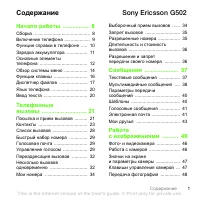 Sony Ericsson G502
User Manual
Sony Ericsson G502
User Manual
 Sony Ericsson G700
Manual
Sony Ericsson G700
Manual
 Sony Ericsson G900
Manual
Sony Ericsson G900
Manual
 Sony Ericsson J100i
Manual
Sony Ericsson J100i
Manual
 Sony Ericsson J108a(i)
User Manual
Sony Ericsson J108a(i)
User Manual
 Sony Ericsson J200i
Manual
Sony Ericsson J200i
Manual
 Sony Ericsson J210i
Manual
Sony Ericsson J210i
Manual
 Sony Ericsson J220i
Manual
Sony Ericsson J220i
Manual
 Sony Ericsson J300i
Manual
Sony Ericsson J300i
Manual
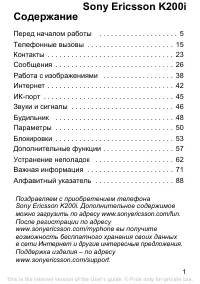 Sony Ericsson K200i
Manual
Sony Ericsson K200i
Manual
 Sony Ericsson K220i
Manual
Sony Ericsson K220i
Manual
 Sony Ericsson K300i
Manual
Sony Ericsson K300i
Manual