Page 3 - Preparing the phone
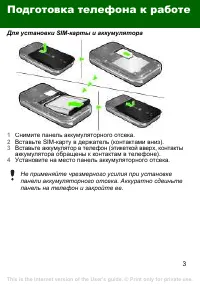
3 Preparing the phone To insert the SIM card and battery 1 Remove the battery cover. 2 Slide the SIM card into its holder with the contacts facing down. 3 Insert the battery with the label side up and the connectors facing each other. 4 Replace the battery cover. Do not force the battery cover into ...
Page 5 - Turning on the phone; Standby
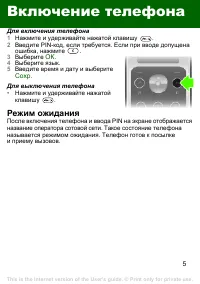
5 Turning on the phone To turn on the phone 1 Press and hold down . 2 Enter your PIN if requested. To correct mistakes, press . 3 Select OK . 4 Select a language. 5 Enter the time and date and select Save . To turn off the phone • Press and hold down . Standby After you have turned the phone on and ...
Page 6 - SIM and PIN; SIM card
6 SIM and PIN SIM card The SIM (Subscriber Identity Module) card, which you get from your network operator, contains information about your subscription. Always turn off your phone and detach the charger before you insert or remove the SIM card. PIN code You may need a PIN (Personal Identification N...
Page 7 - Phone overview
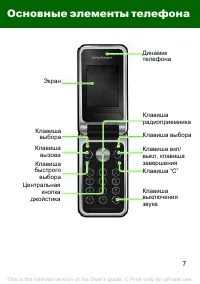
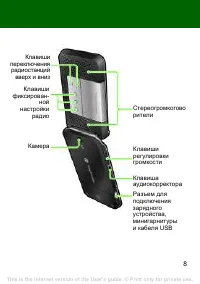
7 Phone overview Call key Selection key Selection key Shortcut key Centre navigation key Screen C key Ear speaker Radio shortcut key Silent key On/off key, End key This is the Internet version of the User's guide. © Print only for private use.
Page 9 - Menu overview
9 Menu overview Organizer File manager, Alarm, Calendar, Tasks, Notes, Timer, Stopwatch, Calculator Internet Entertainment Games, TrackID™, Record sound Camera Messaging Write new, Inbox, Drafts, Outbox, Sent messages, Saved msgs, Call voicemail, Templates, Settings Radio Calls * All Answered Dialle...
Page 10 - Screen icons
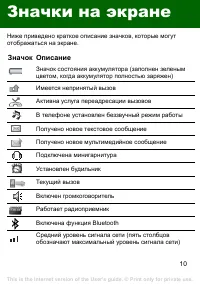
10 Screen icons These icons may appear on the screen. Icon Description Battery icon. A completely green icon means that the battery is fully charged You have missed a call Divert calls is activated The phone is set to silent You have received a new text message You have received a new picture messag...
Page 11 - Shortcuts
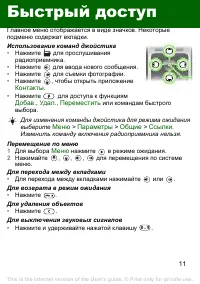
11 Shortcuts The main menus are shown as icons. Some submenus include tabs. To use navigation key shortcuts • Press to play the radio. • Press to write a new message. • Press to take a picture. • Press to open Contacts . • Press to Add , Delete , Move or use a shortcut. To navigate the menus 1 From ...
Page 12 - Calling
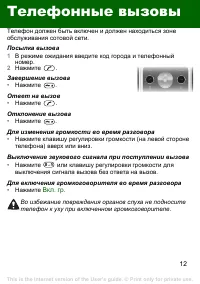
12 Calling You must turn on the phone and be within range of a network. To make a call 1 From standby enter the area code and phone number. 2 Press . To end a call • Press . To answer a call • Press . To reject a call • Press . To change the ear speaker volume during a call • On the left side of the...
Page 13 - Call list
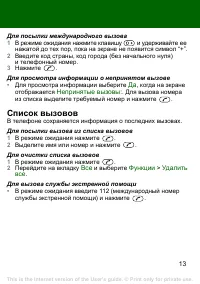
13 To make international calls 1 From standby press and hold down until a + sign appears on the screen. 2 Enter the country code, area code (without the first zero) and phone number. 3 Press . To view a missed call • When Missed calls: is displayed, select Yes to view. To call back, scroll to the nu...
Page 14 - Contacts
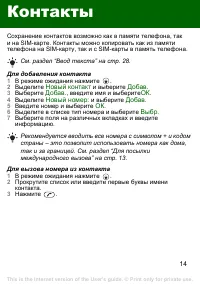
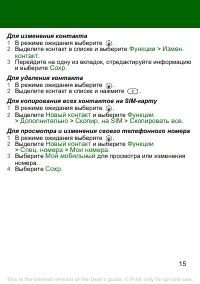
14 Contacts You can save contacts in the phone memory or on the SIM card. You can copy contacts from the phone memory to the SIM card or from the SIM card to the phone memory. To add a contact 1 From standby press . 2 Scroll to New contact and select Add . 3 Select Add to enter the name and select O...
Page 16 - Radio; Audio enhancer
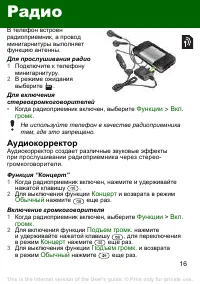
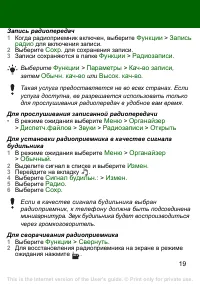
16 Radio Your phone has a radio and the handsfree works as an antenna. To listen to the radio 1 Connect the handsfree to the phone. 2 From standby select . To turn on the stereo speakers • When the radio is playing, select Options > Turn on spkr . Audio enhancer The audio enhancer produces sound ...
Page 20 - Messaging
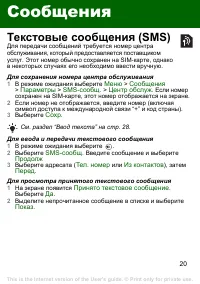
20 Messaging Text messages (SMS) You must have a service centre number, which is supplied by your service provider and saved on the SIM card. You may have to enter the number yourself. To set service centre number 1 From standby select Menu > Messaging > Settings > Text message > Service...
Page 22 - Camera
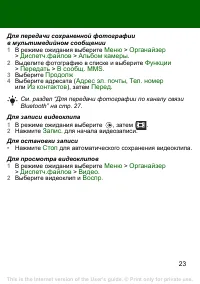
22 Camera You can take pictures and record video clip to view, save and send pictures. Pictures taken with the camera are saved in Menu > Organizer > File manager > Camera album . The format is JPEG. To start the camera and take a picture 1 From standby select . 2 Scroll to . 3 Select TakeP...
Page 24 - More functions; TrackIDTM
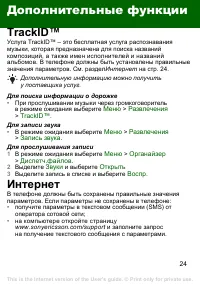
24 More functions TrackID™ TrackID™ is a free music recognition service. Search for song titles, artists and album names. You must have the required settings in your phone. See Internet on page 25. To search for song information • When you hear a song through a loudspeaker, from standby select Menu ...
Page 26 - File manager
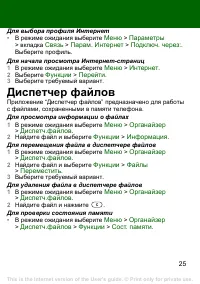
26 File manager You can use the file manager to handle files saved in the phone memory. To view information about files 1 From standby select Menu > Organizer > File manager . 2 Find a file and select Options > Information . To move a file in the file manager 1 From standby select Menu >...
Page 27 - BluetoothTM wireless technology
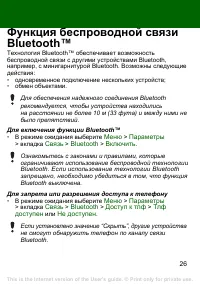
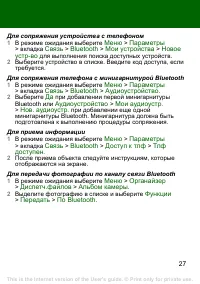
27 Bluetooth™ wireless technology Bluetooth™ wireless technology makes wireless connections to other Bluetooth devices, for example, a Bluetooth headset, possible. You can: • Connect to several devices at the same time. • Exchange items. To turn the Bluetooth function on • From standby select Menu &...
Page 29 - Entering text
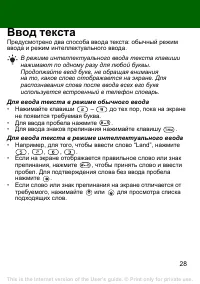
29 Entering text There are two methods you can use to enter text: multitap or predictive text input. To enter text using multitap • Press – until the letter appears. • Press to add a space. • Press to enter punctuation marks. To enter text using predictive text input • For example, if you want to wr...
Page 30 - Alarms
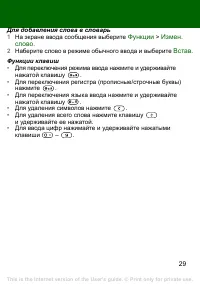
30 How to use the keys • To change the input method, press and hold down . • To shift between upper case and lower case letters, press . • To change the writing language, press and hold down. • To delete characters, press . • To delete a whole word, press and hold down . • Press and hold down – to e...
Page 31 - Emergency calls
31 To silence the alarm • When the alarm sounds, press any key. • To repeat the alarm, select Snooze . To turn off the alarm • When the alarm sounds, select Turn off . Emergency calls Your phone supports international emergency numbers, for example, 112 and 911. These numbers can normally be used to...
Page 32 - Ringtones and themes
32 Ringtones and themes Themes are used to change the appearance of the screen. To select a ringtone • From standby select Menu > Settings > the Sounds & alerts tab > Ringtone and select a ringtone. To set the vibrating alert • From standby select Menu > Settings > the Sounds &...
Page 33 - Locks; SIM card lock
33 Locks SIM card lock The SIM card lock protects your subscription, but not your phone itself, from unauthorized use. If you change SIM cards, the phone still works with the new SIM card. Most SIM cards are locked at the time of purchase. If the SIM card lock is on, you have to enter a PIN (Persona...
Page 34 - Phone lock
34 To edit your PIN 1 From standby select Menu > Settings > the General tab > Security > Locks > SIM protection > Change PIN . 2 Enter your PIN and select OK . 3 Enter a new PIN and select OK . 4 Re-enter the new PIN to confirm and select OK . To edit your PIN2 1 From standby selec...
Page 36 - Troubleshooting; Memory capacity and speed
36 Troubleshooting Some problems require that you call your service provider, but you can correct most problems yourself. Remove the SIM card before handing your phone in for repair. Memory capacity and speed If you have not restarted the phone for a while, you may experience problems with its memor...
Page 38 - Declaration of conformity for R306; FCC Statement
38 Declaration of conformity for R306 We, Sony Ericsson Mobile Communications AB of Nya VattentornetSE-221 88 Lund, Swedendeclare under our sole responsibility that our product Sony Ericsson type AAB-1022161-BV and in combination with our accessories, to which this declaration relates is in conformi...