Page 2 - Contents; Attaching the toroidal ferrite core to the
Contents GettinG StArted Accessories ................................................ 4 Top Panel .................................................... 5 Rear Panel .................................................. 6 Connecting the Power Cable (WAM750, WAM751 Only) .....................................
Page 3 - ConneCtinG MUltipleS
Connecting TV to the speaker ................... 40 Connecting to TV via Bluetooth (TV SoundConnect) ........................................... 40Connecting to TV via Wi-Fi ................................. 42Listening to music from other devices in network ............................................
Page 4 - Getting Started; Accessories; Confirm you have the supplied accessories shown below.
Getting Started A Accessories Confirm you have the supplied accessories shown below. • WAM750, WAM751 Power cord Cover-Stand Toroidal ferrite core User Manual Getting started • WAM550, WAM551 Power Adapter Stand User Manual Getting started • WAM350, WAM351 Power cord Stand User Manual 4 44
Page 5 - top panel; noteS; wer t y
A top panel • WAM750, WAM751, WAM550, WAM551 1 NFC Tag Connect your NFC compatible device via Bluetooth to the product using the simple NFC tagging procedure. (WAM750, WAM751, WAM550, WAM551 Only) - Android 2 Internet Radio Preset button Press this button to listen to an Internet radio station. Each...
Page 6 - rear panel; Press this button to add an M7 to your network.
A rear panel • WAM750, WAM751 1 SPK ADD button (Speaker Add) Press this button to add an M7 to your network. 2 WPS/Wi-Fi SETUP button Press this button to connect your M7 to your network using WPS or Wi-Fi setup. 3 AUX IN Lets you connect the M7 to the analog output of a smart device. 4 SERVICE For ...
Page 13 - Attaching the toroidal ferrite core to the power cord of the M7; Pull the fixing tab of the Toroidal ferrite core to open it.; looping the power cable around the toroidal ferrite core; note
A Attaching the toroidal ferrite core to the power cord of the M7 (WAM750, WAM751 only) Attaching the Toroidal ferrite core to the power cord of the M7 helps prevent RF interference from radio signals. 1 Pull the fixing tab of the Toroidal ferrite core to open it. 2 Make a loop around the core with ...
Page 14 - Connecting the Stand; Caution; installing on a Wall; Considerations for purchasing; For weight and hole size, refer to page 69.
A Connecting the Stand (WAM550, WAM551, WAM350, WAM351 only) • Insert the stand into slot A of the M5/M3. • Tighten a screw at B. • The M5/M3 can now be installed vertically. Caution 9 Do not place the M5/M3 on an unstable surface. noteS 9 Turn the speaker upright using the stand to set the speaker ...
Page 15 - Standby Mode; reset your product; internet radio preset
A Standby Mode ` in Wi-Fi / Bluetooth / tV SoundConnect mode - The product switches to Standby mode if there is no operation (music playing, button operation, app use) for 15 minutes. ` in AUx mode (WAM750, WAM751 only) - The M7 switches to the Standby mode if there is no button operation (either fr...
Page 16 - preparing connection; installing the Samsung Multiroom App; Accessing the Samsung Multiroom App; Connecting to the Wi-Fi network
A preparing connection 1 Requirements: Wireless Router, Smart Device 2 The wireless router should be connected to the Internet. 3 The smart device should be connected to the router via a Wi-Fi connection. ❚ installing the Samsung Multiroom App To use the product, you must download and then install t...
Page 27 - Adding a hUB; Spk Add; relocating the product
❚ Adding a hUB An product and a HUB may not pair successfully if the product and HUB are too far apart or are on different floors. In such cases, you can link two HUBs together by setting the second HUB to Repeater mode. The additional HUB amplifies the signal and lets you pair the product to the cl...
Page 29 - The additional new speaker is completely added.
7 The additional new speaker is completely added. 29 44 44
Page 30 - Connect with Bluetooth function; Connecting to Bluetooth devices; Plug the product into an electrical outlet, and then press the
Connect with Bluetooth function A Connecting to Bluetooth devices You can connect the product to a Bluetooth device to enjoy the music stored in your Bluetooth device. 1 Plug the product into an electrical outlet, and then press the Bluetooth button on its top panel. 2 Turn on the Bluetooth function...
Page 31 - Smart device
A Connecting with nFC function (WAM750, WAM751, WAM550, WAM551 only) - Android You can connect the M7(M5) to Bluetooth devices easily by gently touch the smart device to the mark on the top panel of the M7(M5). Connect your NFC compatible device to enjoy music with high quality stereo sound, all wit...
Page 33 - Using the Samsung Multiroom App; App at a glance
Using the Samsung Multiroom App A App at a glance 1 Check the full list of connected products to either change or setup. 2 Change sound source. 3 Either check the queue or edit the playlist. 4 Rotate while dragging the wheel to select a music from the queue. Release the wheel to play the music. - Yo...
Page 34 - playing Music; playing a music file stored in the smart device
A playing Music ❚ playing a music file stored in the smart device 1 Press Source . 2 Select the Songs on phone (files stored in the smart device). 3 Press , and then select your desired category. • Songs : Lists all the music files by name. • Albums : Lists all the music files by album. • Artists : ...
Page 35 - listen to the music through the phone speaker; Press in the home screen, and the select
❚ listen to the music through the phone speaker 1 Press in the home screen, and the select phone Speaker . Or 1 -1 Select phone Speaker from the list of All Speakers . 2 You can listen to the music stored in your mobile phone through the phone Speaker . noteS 9 If Wi-Fi connection is not established...
Page 36 - listening to streaming music; Source
❚ listening to streaming music You can select your desired contents service to listen to music. 1 Press Source . 2 Select More . The entire list of Music Services is displayed. 3 From the Music Services , select your desired service. 4 Drag to change the order of displayed music services. noteS 9 De...
Page 37 - listening to the internet radio; Press
A listening to the internet radio 1 Press Source . 2 Select tunein . 3 Select your desired category. • Following : Shows the list of stations added to the preset list or marked as you are following. By default, 3 radio stations are displayed in the preset list. • Browse : Lists all supported Interne...
Page 38 - Following a station; You can add a channel to the
❚ Following a station You can add a channel to the Following list. 1 Select the desired channel. 2 Press to display a popup menu, and then select + Following . 3 Press Save . • The channel you are currently listening to is added to the Following list. 38 44 44
Page 39 - Setting presets; Following
❚ Setting presets You can add the internet radio channel you are following into the preset list, or rearrange the displaying order in the list. 1 Press , and then press Following . 2 Press edit . 3 Drag the desired channel from the Following to the presets . 4 To finish editing, press done . 39 44 4...
Page 40 - Connecting tV to the speaker; Connecting to tV via Bluetooth (tV SoundConnect); Plug the product into an outlet, and then press the
A Connecting tV to the speaker ❚ Connecting to tV via Bluetooth (tV SoundConnect) TV SoundConnect function allows you to conveniently connect Samsung TV to external speaker(s) wirelessly and enjoy the TV sound. 1 Plug the product into an outlet, and then press the tV SoundConnect button on its top p...
Page 42 - Connecting to tV via Wi-Fi; listening to music from other devices in network
❚ Connecting to tV via Wi-Fi 1 Set the TV and speaker to the same Wi-Fi network. 2 Press Source at Home screen and select the TV to connect from other Music Sources list. 3 A message appears to ask if you want to perform network pairing process to TV. 4 Select Yes to connect TV to the speaker. 5 You...
Page 43 - From the; Using playback menu; When a popup menu appears, select your desired function.
2 From the nearby devices , select the desired device. 3 You can play music files stored in your selected device through the product. A Using playback menu 1 Press . 2 When a popup menu appears, select your desired function. • Shuffle : It randomly plays back music files from the standby list. • rep...
Page 44 - Adjusting equaliser and drC; This function is not available if speakers are grouped.
❚ Adjusting equaliser and drC You can select one of the presets provided by default in the Equaliser option or create your own settings by adjusting the frequencies manually. In addition, set drC to on to change volume smoothly. If the volume is turned down, you can listen to the quiet and gentle vo...
Page 45 - Managing a queue; Adding music to the queue; Press , and then select
❚ Managing a queue ` Adding music to the queue You can add new music to the current music list or edit the music list. 1 Press , and then select Songs . 2 Select of the music to add, and then select Add to Queue . (Select Select Multiple to save multiple music pieces in the Queue at the same time.) ...
Page 46 - editing the queue; Select the music title at Home screen, and then press
` editing the queue 1 Select the music title at Home screen, and then press edit . 2 Drag to change the order of music, select your desired music to delete, and then press done . 3 Press Yes . 46 44 44
Page 47 - Managing a playlist; Creating a playlist; You can create your own playlist to save or edit.
❚ Managing a playlist ` Creating a playlist You can create your own playlist to save or edit. 1 Press , and then select playlists . 2 Select Create playlist , and then enter a name for the playlist. Press done . 3 Select playlists , and then press the created playlist. 47 44 44
Page 49 - editing a playlist
` editing a playlist 1 Press , and then select playlists . 2 Select of playlists or the of the music to use additional menu. 49 44 44
Page 50 - Using the Settings menu; On your Smart device, select the; Add Speaker
A Using the Settings menu 1 On your Smart device, select the Samsung Multiroom app. 2 Press to view the list of all speakers. 3 Press . ❚ Add Speaker ` Add Speaker To add additional speaker(s) to an existing speaker connection, refer to "Adding additional speaker(s)" on pages 28~29. Click he...
Page 51 - Guide; tutorial; Select the; Services; Displays a list of available services.
❚ Guide ` tutorial Select the tutorial to learn how to use the app. ❚ Services Displays a list of available services. noteS 9 Depending on your region or manufacturer, supported content services may differ. 9 Some music services may require you to sign up for a membership or log in. 9 You may not su...
Page 52 - Speaker Mode; Bluetooth; device Settings; Front led
❚ Speaker Mode ` Bluetooth • off : Turns off the Bluetooth . • on : Turns on the Bluetooth . ❚ device Settings ` Front led • off : Turns off the product's Front led indicators. • on : Turns on the product's Front led indicators. 52 44 44
Page 54 - Mute; Update now; You can update your speaker's software manually using; Continuous play; product automatically, you can just enjoy the music seamlessly.
noteS 9 Auto update is available when your product is connected to a network and the Software Auto Update function is set to On . 9 It is strongly recommended that Software Auto Update settings on all the products used are set to On . Problems with networked functions may otherwise occur due to inco...
Page 55 - environments at home.; Clock; Alarm
` hub : Wireless Band You can change the wireless band of your HUB depending on the wireless communication environments at home. ❚ Clock ` Alarm 1 Press Alarm , and then press Add Alarm . 2 Select the alarm date, time, day of the week, alarm volume and duration. 55 44 44
Page 56 - Sleep timer
3 Press Music , select Sound or tunein to select your desired alarm sound. ` Sleep timer You can turn off the product by setting sleep time. 1 Press Sleep timer , and then press off . 2 Drag to on , set your desired time, and then select Start . 56 44 44
Page 57 - Support; device id; Contact Samsung; open Source licenses; information
❚ Support ` terms & Conditions Lets you check the terms & Conditions . ` device id Lets you check the device id . ` Contact Samsung Provides a link to the Samsung website. ` open Source licenses Lets you view the open Source licenses . ❚ information ` Samsung Multiroom Allows you to check th...
Page 58 - Setting Groups; Press to go to the list of all speakers.; editing group; Connecting multiples products
A Setting Groups You can group multiple speakers into one group that plays the same music. Grouping is available only when multiple speakers are connected to the same network. 1 Press to go to the list of all speakers. 2 Press Group . 3 Select other products to add into the group, and then press don...
Page 59 - Ungrouping
Page 60 - Setting the Surround Sound Mode; You can configure multiple products for surround sound effect.
A Setting the Surround Sound Mode You can configure multiple products for surround sound effect. 1 Press to go to the list of all products. 2 Press Surround . 3 Press and hold a product, and drag it to the desired place and then select next . note 9 If just 2 speakers are connected, press Surround t...
Page 62 - Using miscellaneous functions; playing Media Content Saved in a pC; Samsung link
Using miscellaneous functions A playing Media Content Saved in a pC ❚ Samsung link Install the Samsung link program for easier playback of music stored in your PC through speaker. Visit http://link.samsung.com and download the Samsung link application and finish installing it. 1 Visit http://link.sa...
Page 63 - Wireless Audio - Multiroom for desktop; Multiroom for desktop
❚ Wireless Audio - Multiroom for desktop To play iTunes system and shared PC music files through product, install the Wireless Audio - Multiroom for desktop program. Visit www.samsung.com to download the Wireless Audio - Multiroom for desktop program and install it. noteS 9 Note that the PC containi...
Page 65 - Appendix; troubleshooting; Before requesting service, please check the following.
Appendix A troubleshooting Before requesting service, please check the following. Symptom Check Remedy The unit will not turn on. • Is the power cord plugged into the outlet? (WAM750, WAM751, WAM350, WAM351 Only) • Is the power adapter plugged into the outlet? (WAM550, WAM551 Only) • Connect the pow...
Page 67 - open Source license notice
Symptom Check Remedy I cannot group products. • Is the product connected to the network via Wi-Fi? • If the product is connected to the network via Bluetooth, NFC tagging (WAM750, WAM751, WAM550, WAM551 Only - Android), TV SoundConnect, or AUX IN (WAM750, WAM751 Only), you cannot use the group produ...
Page 68 - Specifications; General
A Specifications • WAM750, WAM751 General Weight 3.9 Kg Dimensions 402 (W) X 194 (D) X 137 (H) mm Operating Temperature Range +5°C to +35°C Operating Humidity Range 10 % to 75 % Amplifier Input sensitivity / Impedance 450mV / KOHM (AUX) S/N ratio (analog input) 65dB Separation(1KHz) 65dB Network Eth...
Page 71 - regulatory Compliance Statements; CAUTION; Warning; Do not expose this apparatus to dripping or splashing.; CAUtion; CAUtion
A regulatory Compliance Statements CAUTION RISK OF ELECTRIC SHOCK DO NOT OPEN The lighting flash and arrowhead within the triangle is a warning sign alerting you to dangerous voltage inside the product. CAUTION : TO REDUCE THE RISK OF ELECTRIC SHOCK, DO NOT REMOVE THE COVER (OR BACK). NO USER SERVIC...
Page 72 - Wiring the Main power Supply plug (Uk only); iMportAnt notiCe; WArninG : do not ConneCt either Wire to the eArth terMinAl WhiCh iS; important Safety instructions
❚ Wiring the Main power Supply plug (Uk only) iMportAnt notiCe The mains lead on this equipment is supplied with a moulded plug incorporating a fuse. The value of the fuse is indicated on the pin face of the plug and if it requires replacing, a fuse approved to BS1362 of the same rating must be used...
Page 73 - Safety precautions; power Supply precautions
8 Do not install near any heat sources such as radiators, heat registers, stoves, or other apparatus (including AV receivers) that produce heat. 9 Do not defeat the safety purpose of the polarized or grounding-type plug. A polarized plug has two blades with one wider than the other. A grounding type...
Page 75 - Cleaning precautions; Additional information
• Do not drop the product. In case of a mechanical breakdown, disconnect the power cord and contact a Samsung service centre. - There is a risk of fire or electric shock. • Do not hold or pull the product by the power cord or the signal cable. - A damaged cable can cause the product to malfunction, ...
Page 76 - Copyright
❚ About the network Connection • Depending on the wireless router used, some network operations may perform differently. • For detailed information on networking with a wireless router or modem, refer to the router's or modem's documentation. • Select one wireless channel that is not used currently....
Page 78 - Contact SAMSUnG World Wide; SAMSUNG customer care centre.
Country Contact Centre Web Site North America U.S.A 1-800-SAMSUNG (726-7864) www.samsung.com/us/support CANADA 1-800-SAMSUNG (726-7864) www.samsung.com/ca/support (English) www.samsung.com/ca_fr/support (French) Latin America MEXICO 01-800-SAMSUNG (726-7864) www.samsung.com/mx/support BRAZIL 0800-...
Page 81 - Correct disposal of this product
Correct disposal of this product (Waste electrical & electronic equipment) (Applicable in the European Union and other European countries with separate collection systems)This marking on the product, accessories or literature indicates that the product and its electronic accessories (e.g. charge...


 Samsung MX-T40
User Manual
Samsung MX-T40
User Manual
 Samsung MX-T50
User Manual
Samsung MX-T50
User Manual
 Samsung MX-T70
User Manual
Samsung MX-T70
User Manual
 Samsung SWA-8000S
User Manual
Samsung SWA-8000S
User Manual
 Samsung SWA-8500S
User Manual
Samsung SWA-8500S
User Manual
 Samsung SWA-9000S
User Manual
Samsung SWA-9000S
User Manual
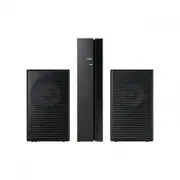 Samsung SWA-9100S
User Manual
Samsung SWA-9100S
User Manual
 Samsung SWA-9200S
User Manual
Samsung SWA-9200S
User Manual
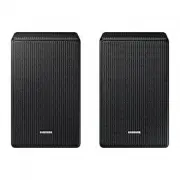 Samsung SWA-9500S
User Manual
Samsung SWA-9500S
User Manual
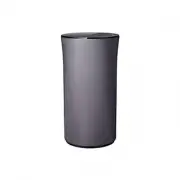 Samsung WAM1400
User Manual
Samsung WAM1400
User Manual
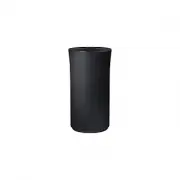 Samsung WAM1500
User Manual
Samsung WAM1500
User Manual
 Samsung WAM1501
User Manual
Samsung WAM1501
User Manual
 Samsung WAM3500
User Manual
Samsung WAM3500
User Manual