Page 2 - Warning! Important Safety Instructions
English - 2 Warning! Important Safety Instructions Please read the appropriate section that corresponds to the marking on your Samsung product before installing the product. CAUTION RISK OF ELECTRIC SHOCK DO NOT OPEN CAUTION: TO REDUCE THE RISK OF ELECTRIC SHOCK, DO NOT REMOVE COVER (OR BACK). THERE...
Page 3 - Tiding the cables with the Cable Holder; Standby mode
English English - 3 What's in the Box? Samsung Smart Control & Batteries (AA x 2) Regulatory Guide Remote Control & Batteries (AAA x 2) Power Cord User Manual Samsung 3D Active Glasses (40 inch model and above) Warranty Card (Not available in some locations) CI Card Adapter IR Extender Cable...
Page 5 - Storage and Maintenance
English English - 5 Standard dimensions for wall mount kits are shown in the table below. When using a third-party wall mount, note that the assembling screw length(C) is shown below. Product Family Inches VESA Spec.(A * B) C (mm) Standard Screw Quantity LED-TV 32 200 x 200 20 ~ 21 M8 4 40 20.2 ~ 21...
Page 6 - Securing the TV to the Wall; Preventing the TV from Falling; Providing Proper Ventilation for Your TV
English - 6 Securing the TV to the Wall Caution: If you pull, push, or climb on the wall, it may cause the TV to fall. More importantly, make sure that your children do not hang on to or destabilise the TV. This failure to do so may cause the TV to tip over and lead to serious personal injury or dea...
Page 7 - Connecting to a Network; Network Connection - Wireless; Turning on the TV
English English - 7 Connecting to a Network Connecting the TV to a network gives you access to online services, such as Smart Hub, as well as software updates. Network Connection - Wireless Connect the TV to the Internet using a standard router or modem. Wireless IP Router or Modem with a DHCP Serve...
Page 8 - Remote Control
English - 8 Remote Control - This remote control has Braille points on the Power , Channel and Volume buttons can be used by visually impaired persons. Inserting batteries (Battery size: AAA) Ensure that the polarities (+ and -) are correct. 1 3 2 - Use the remote control within a distance of 7 m fr...
Page 9 - Samsung Smart Control; Inserting batteries
English English - 9 Samsung Smart Control - Colours and shape may vary depending on the model. Inserting batteries 1. Pull on the battery cover's notch, and then remove the cover completely. 2. Insert 2 AA alkaline batteries. Ensure that the polarities (+ and -) are correct. 3. Insert the top part o...
Page 10 - Loading Pages using Keywords; Updating the e-Manual to the Latest Version
English - 10 Using the e-Manual MENU > Support > e-Manual The embedded e-Manual contains information about your TV's key features. - Alternatively, you can download a copy of the e-Manual from Samsung's website, and read it on your computer or print it out. - For information on additional func...
Page 11 - Troubleshooting
English English - 11 Troubleshooting If you have any questions about the TV, first refer to the Troubleshooting list below. If none of these troubleshooting tips apply, please visit “www.samsung.com” and click on Support, or contact the call centre listed on the back cover of this manual. Issues Sol...
Page 12 - TV Specifications
English - 12 TV Specifications Display Resolution 1920 x 1080 Environmental ConsiderationsOperating TemperatureOperating HumidityStorage TemperatureStorage Humidity 10°C to 40°C (50°F to 104°F) 10% to 80%, non-condensing -20°C to 45°C (-4°F to 113°F) 5% to 95%, non-condensing Stand Swivel (Left / Ri...
Page 13 - Licences; Still image warning; Recommendation - EU Only
English English - 13 Licences The terms HDMI and HDMI High-Definition Multimedia Interface, and the HDMI Logo are trademarks or registered trademarks of HDMI Licensing LLC in the United States and other countries. Still image warning Avoid displaying still images (such as jpeg picture files), still ...
Page 14 - Figyelmeztetés! Fontos biztonsági utasítások
Magyar - 2 Figyelmeztetés! Fontos biztonsági utasítások Mielőtt a készüléket megpróbálná üzembe helyezni, olvassa el a Samsung készüléken látható jelzésnek megfelelő részt. VIGYÁZAT! ÁRAMÜTÉSVESZÉLY! NE NYISSA KI! VIGYÁZAT! AZ ÁRAMÜTÉS KOCKÁZATÁNAK CSÖKKENTÉSE ÉRDEKÉBEN NE TÁVOLÍTSA EL A BURKOLATOT ...
Page 15 - A doboz tartalma; A kábelek elrendezése a kábeltartó segítségével; Készenléti üzemmód
Magyar - 3 Magyar A doboz tartalma Samsung Smart Control távvezérlő és elemek (2 db AA) Szabályozási útmutató Távvezérlő és elemek (2 db AAA) Tápkábel Használati útmutató Samsung 3D Active Glasses szemüveg (40" vagy annál nagyobb méretű modell) Jótállási jegy (egyes helyeken nem érhető el) CI-ká...
Page 16 - A fali rögzítőkészlet (opcionális) felszerelése; A fali konzolra vonatkozó szabvány (VESA)
Magyar - 4 A TV-készülék állványra szerelése Győződjön meg arról, hogy az ábrán látható minden tartozék a rendelkezésére áll, és az állványt az itt leírt módon szerelje össze. A TV-készülék falra szerelése [ A TV-készülék falra szerelésekor kövesse a gyártó által javasolt utasításokat. Ellenkező ese...
Page 17 - Tárolás és karbantartás
Magyar - 5 Magyar A fali konzol tartozékainak szabványos méretei az alábbi táblázatban olvashatók. Amikor más gyártmányú fali rögzítőelemet használ, vegye figyelembe az összeszereléshez használt csavar alább feltüntetett hosszát (C). Termékcsalád Hüvelyk VESA méret (A * B) C (mm) Szabványos csavar M...
Page 18 - A TV-készülék biztonságos rögzítése a falon; A TV-készülék leesésének megakadályozása; Megfelelő szellőzés biztosítása a TV-készülék számára
Magyar - 6 A TV-készülék biztonságos rögzítése a falon Vigyázat: A fali konzol húzása, nyomása esetén, illetve ha arra felmásznak, az a TV-készülék leesését okozhatja. Még fontosabb arra ügyelnie, hogy gyermekei ne borítsák fel a TV-készüléket. Ennek figyelmen kívül hagyása a TV-készülék felborulásá...
Page 19 - Csatlakozás egy hálózathoz; Vezeték nélküli hálózati kapcsolat; Vezetékes hálózati kapcsolat; A TV-készülék bekapcsolása
Magyar - 7 Magyar Csatlakozás egy hálózathoz A TV-készülék hálózatra történő csatlakoztatásával olyan online szolgáltatásokat vehet használatba, mint a Smart Hub, valamint szoftverfrissítéseket is végrehajthat. Vezeték nélküli hálózati kapcsolat Csatlakoztassa a TV-készüléket az internethez szabvány...
Page 20 - Távvezérlő
Magyar - 8 Távvezérlő - A távirányítón Braille-pontok találhatók a Power , a Channel és a Volume gombokon, így ezeket vakok és gyengénlátók is használhatják. Az elemek behelyezése (elemek mérete: AAA) Ügyeljen a helyes polaritásra (+ és -). 1 3 2 - A távvezérlőt a TV-készüléktől számított 7 méter tá...
Page 21 - Az elemek behelyezése
Magyar - 9 Magyar Samsung Smart Control - A színek és a forma típusonként eltérő lehet. Az elemek behelyezése 1. Húzza meg az elemtartó fedelén található fület, majd vegye le teljesen a fedelet. 2. Helyezzen be 2 db AA méretű alkáli elemet. Ügyeljen a helyes polaritásra (+ és -). 3. Illessze a fedél...
Page 22 - Az e-Manual használata; Oldalak betöltése kulcsszavakkal; Az e-Manual frissítése a legújabb verzióra
Magyar - 10 Az e-Manual használata MENU > Terméktámogatás > e-Manual A beépített e-Manual a TV-készülék legfőbb funkcióiról szóló információkat tartalmazza. - Az e-Manual letölthető a Samsung weboldaláról, majd elolvashatja a számítógépen és ki is nyomtathatja azt. - További információkat az e...
Page 23 - Hibaelhárítás
Magyar - 11 Magyar Hibaelhárítás Ha bármilyen kérdése van a TV-készülékkel kapcsolatban, először nézze át a lenti Hibaelhárítási listát. Ha ezek közül a hibaelhárítási ötletek közül egyik sem vezet eredményre, látogasson el a www.samsung.com webhelyre, majd kattintson a Támogatás pontra, vagy fordul...
Page 24 - A TV műszaki jellemzői; Használati útmutató
Magyar - 12 A TV műszaki jellemzői A SAMSUNG mindenkor termékei javítását, fejlesztését tartja szem elôtt, Ezért a műszaki adatok és a használati útmutató megváltoztatásának jogát fenntartja, 2/1984, (III, 10,) BkM–IpM számú együttes rendelet alapján tanúsítjuk, hogy a UE32H6410 / UE40H6410 / UE48H6...
Page 25 - Licencek; Állóképre vonatkozó figyelmeztetés; Javaslatok – Csak EU-országok esetén
Magyar - 13 Magyar Licencek The terms HDMI and HDMI High-Definition Multimedia Interface, and the HDMI Logo are trademarks or registered trademarks of HDMI Licensing LLC in the United States and other countries. Állóképre vonatkozó figyelmeztetés Kerülje el az állóképek (pl. jpeg képfájlok), állókép...
Page 26 - Ostrzeżenie! Ważne zasady bezpieczeństwa
Polski - 2 Ostrzeżenie! Ważne zasady bezpieczeństwa Przed rozpoczęciem instalacji należy zapoznać się z informacjami w sekcji odpowiadającej oznaczeniom na urządzeniu firmy Samsung. PRZESTROGA RYZYKO PORAŻENIA PRĄDEM ELEKTRYCZNYM — NIE OTWIERAĆ PRZESTROGA: ABY ZMNIEJSZYĆ RYZYKO PORAŻENIA PRĄDEM, NIE...
Page 27 - Zawartość opakowania; Prowadzenie kabli za pomocą uchwytu kabli; Tryb gotowości
Polski - 3 Polski Zawartość opakowania Pilot Samsung Smart Control z bateriami (AA x 2) Przewodnik po przepisach Pilot z bateriami (AAA x 2) Przewód zasilający Instrukcja obsługi Aktywne okulary 3D firmy Samsung (model 40-calowy i większe) Karta gwarancyjna (niedostępna w niektórych krajach) Adapter...
Page 28 - Instalowanie zestawu uchwytu ściennego (opcjonalne); Dane techniczne zestawu uchwytu ściennego (VESA)
Polski - 4 Mocowanie telewizora na podstawie Należy sprawdzić, czy w zestawie znajdują się wszystkie pokazane akcesoria, po czym zamocować telewizor na podstawie zgodnie z dołączoną instrukcją montażu. Montaż telewizora na ścianie [ Podczas montażu telewizora na ścianie należy przestrzegać instrukcj...
Page 29 - Przechowywanie i konserwacja
Polski - 5 Polski W poniższej tabeli przedstawiono standardowe wymiary zestawów uchwytu ściennego. W przypadku korzystania z uchwytu ściennego innej firmy należy zwrócić uwagę na podaną poniżej długość (C) wkrętu montażowego. Rodzina produktów Cale Spec. VESA (A * B) C (mm) Standardowy wkręt Ilość T...
Page 30 - Zabezpieczenie telewizora zamontowanego na ścianie; Zapobieganie upadkowi telewizora; Zapewnienie prawidłowej wentylacji telewizora
Polski - 6 Zabezpieczenie telewizora zamontowanego na ścianie Przestroga: W wyniku ciągnięcia, pchania lub wspinania się na telewizor urządzenie może spaść. W szczególności należy dopilnować, aby dzieci nie uwieszały się na telewizorze ani nie powodowały jego destabilizacji. Takie zachowania mogą sp...
Page 31 - Podłączanie do sieci; Połączenie sieciowe — bezprzewodowe; Włączanie telewizora
Polski - 7 Polski Podłączanie do sieci Podłączenie telewizora do sieci pozwala na dostęp do usług internetowych, takich jak Smart Hub, jak również na aktualizowanie oprogramowania. Połączenie sieciowe — bezprzewodowe Telewizor można połączyć z Internetem, używając standardowego routera lub modemu. B...
Page 32 - Pilot
Polski - 8 Pilot - Pilot jest przystosowany do obsługi przez osoby niedowidzące, ponieważ umieszczono na nim oznaczenia w alfabecie Braille'a (na przyciskach Power , Channel i Volume ). Wkładanie baterii (rozmiar: AAA) Upewnij się, że baterie włożone są zgodnie z oznaczeniami biegunów (+/–). 1 3 2 -...
Page 33 - Wkładanie baterii
Polski - 9 Polski Samsung Smart Control - Kształt i kolory mogą się różnić w zależności od modelu. Wkładanie baterii 1. Odciągnij nacięcie w pokrywie komory baterii i całkowicie ją zdejmij. 2. Włóż 2 baterie alkaliczne typu AA. Upewnij się, że baterie włożone są zgodnie z oznaczeniami biegunów (+/–)...
Page 34 - Korzystanie z instrukcji e-Manual; Wczytywanie stron z użyciem słów kluczowych; Aktualizacja instrukcji e-Manual do najnowszej wersji
Polski - 10 Korzystanie z instrukcji e-Manual MENU > Pomoc techniczna > e-Manual Zapisana na stałe w pamięci telewizora instrukcja e-Manual zawiera informacje o podstawowych funkcjach telewizora. - Egzemplarz instrukcji e-Manual można również pobrać ze strony internetowej firmy Samsung na swój...
Page 35 - Rozwiązywanie problemów
Polski - 11 Polski Rozwiązywanie problemów W przypadku jakichkolwiek pytań na temat telewizora należy zapoznać się z poniższą tabelą rozwiązywania problemów. Jeśli żadne z podanych rozwiązań nie dotyczy danego problemu, należy odwiedzić stronę „www.samsung.com” i kliknąć łącze Wsparcie lub skontakto...
Page 36 - Dane techniczne telewizora
Polski - 12 Dane techniczne telewizora Rozdzielczość ekranu 1920 x 1080 Uwagi dotyczące warunków pracyTemperatura roboczaWilgotność podczas pracyTemperatura podczas przechowywaniaWilgotność podczas przechowywania 10 °C – 40 °C (50°F – 104°F) 10 – 80%, lecsapódásmentes -20 °C – 45 °C (-4 °F – 113 °F)...
Page 37 - Licencje; Ostrzeżenie dotyczące nieruchomych obrazów
Polski - 13 Polski Licencje The terms HDMI and HDMI High-Definition Multimedia Interface, and the HDMI Logo are trademarks or registered trademarks of HDMI Licensing LLC in the United States and other countries. Ostrzeżenie dotyczące nieruchomych obrazów Należy unikać wyświetlania na ekranie nieruch...
Page 38 - Προειδοποίηση! Σημαντικές οδηγίες για την ασφάλεια
Ελληνικά - 2 Προειδοποίηση! Σημαντικές οδηγίες για την ασφάλεια Διαβάστε την κατάλληλη ενότητα που αντιστοιχεί στη σήμανση του προϊόντος Samsung προτού εγκαταστήσετε το προϊόν. ΠΡΟΣΟΧΗ ΚΙΝΔΥΝΟΣ ΗΛΕΚΤΡΟΠΛΗΞΙΑΣ - ΜΗΝ ΑΝΟΙΓΕΤΕ ΠΡΟΣΟΧΗ: ΓΙΑ ΝΑ ΜΕΙΩΘΕΙ Ο ΚΙΝΔΥΝΟΣ ΗΛΕΚΤΡΟΠΛΗΞΙΑΣ, ΜΗΝ ΑΦΑΙΡΕΙΤΕ ΤΟ ΚΑΛΥΜΜΑ ...
Page 39 - Τι περιέχει η συσκευασία; Τακτοποίηση των καλωδίων με το στήριγμα καλωδίων; Κατάσταση αναμονής
Ελληνικά - 3 Ελληνικά Τι περιέχει η συσκευασία; Samsung Smart Control και μπαταρίες (AA x 2) Οδηγός συμμόρφωσης με τους κανονισμούς Τηλεχειριστήριο και μπαταρίες (AAA x 2) Καλώδιο ρεύματος Εγχειρίδιο χρήσης Γυαλιά 3D Active της Samsung (μοντέλο 40 ιντσών και άνω) Κάρτα εγγύησης (Δεν διατίθεται σε ορ...
Page 40 - Εγκατάσταση του κιτ τοποθέτησης στον τοίχο (Προαιρετικό); Προδιαγραφές (VESA) κιτ τοποθέτησης στον τοίχο
Ελληνικά - 4 Προσάρτηση της τηλεόρασης στη βάση Βεβαιωθείτε ότι διαθέτετε όλα τα εξαρτήματα που φαίνονται στην εικόνα και φροντίστε να συναρμολογήσετε τη βάση ακολουθώντας τις παρεχόμενες οδηγίες συναρμολόγησης. Τοποθέτηση της τηλεόρασης στον τοίχο [ Όταν τοποθετείτε αυτή την τηλεόραση σε έναν τοίχο...
Page 41 - Φύλαξη και συντήρηση
Ελληνικά - 5 Ελληνικά Οι τυπικές διαστάσεις για τα κιτ τοποθέτησης στον τοίχο εμφανίζονται στον παρακάτω πίνακα. Όταν χρησιμοποιείτε ένα στήριγμα τοποθέτησης στον τοίχο τρίτου κατασκευαστή, έχετε υπόψη το μήκος βίδας συναρμολόγησης (C) που εμφανίζεται παρακάτω. Τύπος προϊόντος Ίντσες Προδιαγραφές VE...
Page 42 - Στερέωση της τηλεόρασης στον τοίχο; Αποτροπή πτώσης της τηλεόρασης; Παροχή σωστού εξαερισμού για την τηλεόρασή σας
Ελληνικά - 6 Στερέωση της τηλεόρασης στον τοίχο Προσοχή: Αν τραβήξετε, σπρώξετε ή σκαρφαλώσετε πάνω στην τηλεόραση όταν είναι τοποθετημένη στον τοίχο, ενδέχεται να προκαλέσετε την πτώση της τηλεόρασης. Πάνω από όλα, φροντίστε τα παιδιά σας να μην κρέμονται από την τηλεόραση και να μην την αποσταθερο...
Page 43 - Σύνδεση σε δίκτυο; Σύνδεση δικτύου - Ασύρματη; Ενεργοποίηση της τηλεόρασης
Ελληνικά - 7 Ελληνικά Σύνδεση σε δίκτυο Η σύνδεση της τηλεόρασης σε ένα δίκτυο σάς παρέχει πρόσβαση σε διαδικτυακές υπηρεσίες, όπως το Smart Hub, καθώς και ενημερώσεις λογισμικού. Σύνδεση δικτύου - Ασύρματη Συνδέστε την τηλεόραση στο Διαδίκτυο χρησιμοποιώντας έναν τυπικό δρομολογητή ή μόντεμ. Δρομολ...
Page 44 - Τηλεχειριστήριο
Ελληνικά - 8 Τηλεχειριστήριο - Αυτό το τηλεχειριστήριο διαθέτει κουκκίδες Braille στα κουμπιά Power , Channel και Volume , οπότε μπορεί να χρησιμοποιηθεί από άτομα με προβλήματα όρασης. Τοποθέτηση μπαταριών (Μέγεθος μπαταρίας: AAA) Διασφαλίστε ότι οι πολικότητες (+ και -) είναι σωστές. 1 3 2 - Χρησι...
Page 45 - Τοποθέτηση μπαταριών
Ελληνικά - 9 Ελληνικά Samsung Smart Control - Το χρώμα και το σχήμα ενδέχεται να διαφέρουν, ανάλογα με το μον τέλο. Τοποθέτηση μπαταριών 1. Τραβήξτε την εγκοπή του καλύμματος μπαταριών και, στη συνέχεια, αφαιρέστε εντελώς το κάλυμμα. 2. Τοποθετήστε 2 αλκαλικές μπαταρίες τύπου AA. Διασφαλίστε ότι οι ...
Page 46 - Φόρτωση σελίδων με χρήση λέξεων-κλειδιών; Φόρτωση σελίδων αναφοράς; Ενημέρωση του e-Manual στην τελευταία έκδοση
Ελληνικά - 10 Χρήση του e-Manual MENU > Υποστήριξη > e-Manual Το ενσωματωμένο e-Manual περιέχει πληροφορίες σχετικά με τις βασικές δυνατότητες της τηλεόρασής σας. - Εναλλακτικά, μπορείτε να πραγματοποιήσετε λήψη ενός αν τιγράφου του e-Manual από τη διαδικτυακή τοποθεσία της Samsung και να το δ...
Page 47 - Αντιμετώπιση προβλημάτων
Ελληνικά - 11 Ελληνικά Αντιμετώπιση προβλημάτων Αν έχετε ερωτήσεις σχετικά με την τηλεόραση, ανατρέξτε πρώτα στη λίστα "Αντιμετώπιση προβλημάτων" παρακάτω. Αν δεν έχει εφαρμογή καμία από αυτές τις συμβουλές αντιμετώπισης προβλημάτων, επισκεφτείτε τη διαδικτυακή τοποθεσία www.samsung.com και ...
Page 48 - Προδιαγραφές τηλεόρασης
Ελληνικά - 12 Προδιαγραφές τηλεόρασης Ανάλυση οθόνης 1920 x 1080 Περιβαλλοντικές συνθήκεςΘερμοκρασία λειτουργίαςΥγρασία λειτουργίαςΘερμοκρασία φύλαξηςΥγρασία φύλαξης 10°C έως 40°C (50°F έως 104°F) 10% έως 80%, χωρίς συμπύκνωση υδρατμών -20°C έως 45°C (-4°F έως 113°F) 5% έως 95%, χωρίς συμπύκνωση υδρ...
Page 49 - Άδειες; Προειδοποίηση σχετικά με τις στατικές εικόνες
Ελληνικά - 13 Ελληνικά Άδειες The terms HDMI and HDMI High-Definition Multimedia Interface, and the HDMI Logo are trademarks or registered trademarks of HDMI Licensing LLC in the United States and other countries. Προειδοποίηση σχετικά με τις στατικές εικόνες Αποφεύγετε να προβάλλετε στην οθόνη στατ...
Page 51 - Подреждане на кабелите с държача на кабели; Режим на готовност
Български - 3 Български Какво има в кутията? Samsung Smart Control и батерии (AA x 2) Нормативно ръководство Дистанционно управление батерии (AAA x 2) Захранващ кабел Ръководство за потребителя Очила 3D Active на Samsung (40-инчови модели и по-големи) Гаранционна карта (не се предлагат в някои регио...
Page 52 - Инсталиране на комплект за монтиране на стена (опция); Спецификации на комплекта за монтиране на стена (VESA)
Български - 4 Свързване на телевизора към стойката Уверете се, че разполагате с всички показани аксесоари и че сглобявате стойката, като следвате предоставените инструкции. Монтиране на телевизора на стена [ Когато монтирате телевизора на стена, трябва да следвате инструкциите, препоръчани от произв...
Page 53 - Съхранение и поддръжка
Български - 5 Български Стандартните размери на комплекта за монтиране на стена са показани в таблицата по-долу. Когато използвате стенна конзола на трета страна, отбележете, че дължината на сглобяващия винт (C) е показана по-долу. Продуктово семейство Инчове Спецификации VESA (A * B) C (мм) Стандар...
Page 54 - Обезопасяване на телевизора на стената; Предотвратяване на падане на телевизора
Български - 6 Обезопасяване на телевизора на стената Внимание: Дърпане, бутане или катерене върху телевизора може да го събори. Особено внимавайте децата да не се увисват на телевизора и да не го дестабилизират. Неспазването на това предупреждение може да причини преобръщане на телевизора, което да ...
Page 55 - Свързване към мрежа; Мрежова връзка - безжична; Включване на телевизора.
Български - 7 Български Свързване към мрежа Свързването на телевизора към мрежа ви дава достъп до онлайн услуги, например Smart Hub, както и до актуализации на софтуера. Мрежова връзка - безжична Свържете телевизора към интернет, като използвате стандартен рутер или модем. Безжичен IP рутер или моде...
Page 56 - Дистанционно управление
Български - 8 Дистанционно управление - Това дистанционно управление има точки от брайловата азбука върху бутоните Power , Channel и Volume и може да бъде използвано от хора с увредено зрение. Поставяне на батериите (размер на батериите: AAA) Уверете се, че поляритетите (+ и -) са правилни. 1 3 2 - ...
Page 57 - Поставяне на батериите
Български - 9 Български Samsung Smart Control - Цветовете и формата може да се различават за различните модели. Поставяне на батериите 1. Внимателно издърпайте палеца на капака на батериите, след което свалете изцяло капака. 2. Поставете 2 алкални батерии тип AA. Уверете се, че поляритетите (+ и -) ...
Page 58 - Използване на e-Manual; Зареждане на страници чрез ключови думи; Актуализиране на e-Manual до най-новата версия
Български - 10 Използване на e-Manual MENU > Поддръжка > e-Manual Вграденото e-Manual съдържа информация за ключовите функции на вашия телевизор. - Можете също да изтеглите копие от e-Manual от уеб сайта на Samsung и да го прочетете на вашия компютър или да го разпечатате. - За информация за д...
Page 59 - Отстраняване на неизправности
Български - 11 Български Отстраняване на неизправности Ако имате въпроси относно телевизора, първо проверете в този списък за отстраняване на неизправности по-долу. Ако нито един от съветите за отстраняване на неизправности, написани тук, не може да бъде приложен, посетете страницата на www.samsung....
Page 60 - Спецификации на телевизора
Български - 12 Спецификации на телевизора Разделителна способност на дисплея 1920 x 1080 Съображения за околната средаРаботна температураРаботна влажностТемпература на съхраняванеВлажност на съхраняване 10°C до 40°C (50°F до 104°F) 10% до 80%, без конденз -20°C до 45°C (-4°F до 113°F) 5% до 95%, без...
Page 61 - Лицензи; Предупреждение за неподвижен образ
Български - 13 Български Лицензи The terms HDMI and HDMI High-Definition Multimedia Interface, and the HDMI Logo are trademarks or registered trademarks of HDMI Licensing LLC in the United States and other countries. Предупреждение за неподвижен образ Избягвайте показването на екрана на неподвижни и...
Page 62 - Upozorenje! Važne sigurnosne upute
Hrvatski - 2 Upozorenje! Važne sigurnosne upute Pročitajte odjeljak koji odgovara oznakama na vašem uređaju tvrtke Samsung prije njegove instalacije. OPREZ OPASNOST OD STRUJNOG UDARA, NE OTVARAJTE OPREZ: KAKO BI SE SMANJILA OPASNOST OD STRUJNOG UDARA, NE SKIDAJTE POKLOPAC (NITI STRAŽNJU STRANICU). U...
Page 63 - Sadržaj pakiranja; Raspoređivanje kabela pomoću držača za kabele; Stanje pripravnosti
Hrvatski - 3 Hrvatski Sadržaj pakiranja Samsung Smart Control i baterije (AA x 2) Vodič kroz zakonske propise Daljinski upravljač i baterije (AAA x 2) Kabel za napajanje Korisnički priručnik 3D aktivne naočale tvrtke Samsung (modeli od 40 inča i više verzije) Jamstvena kartica (nije dostupna na neki...
Page 64 - Montiranje kompleta za postavljanje na zid (dodatno)
Hrvatski - 4 Pričvršćivanje televizora na postolje Provjerite imate li sve prikazane dodatke, a postolje trebate sastaviti slijedeći priložene upute za sastavljanje. Postavljanje televizora na zid [ Prilikom postavljanja televizora na zid slijedite upute proizvođača. Ako to ne učinite, televizor bi ...
Page 65 - Pohrana i održavanje
Hrvatski - 5 Hrvatski Standardne dimenzije zidnih nosača prikazane su u tablici u nastavku. Ako koristite zidni nosač nezavisnog proizvođača, pridržavajte se navedenih duljina vijaka (C) za montiranje u nastavku. Linija proizvoda Inči VESA specifikacije (A * B) C (mm) Standardni vijak Količina LED t...
Page 66 - Montiranje televizora na zid; Onemogućivanje pada televizora; Osiguravanje odgovarajućeg prozračivanja televizora
Hrvatski - 6 Montiranje televizora na zid Oprez: Potezanje, guranje ili penjanje na zid može uzrokovati pad televizora. Još važnije, pripazite da se djeca ne ljuljaju na televizoru i da ga ne destabiliziraju. U suprotnom bi televizor mogao pasti i dovesti do ozbiljnih fizičkih ozljeda ili, u najgore...
Page 67 - Povezivanje s mrežom; Povezivanje s mrežom – bežična mreža; Uključivanje televizora
Hrvatski - 7 Hrvatski Povezivanje s mrežom Povezivanje televizora s mrežom daje vam pristup mrežnim uslugama poput usluge Smart Hub, kao i ažuriranim verzijama softvera. Povezivanje s mrežom – bežična mreža Povežite televizor s Internetom koristeći standardni usmjernik ili modem. Bežični IP usmjerni...
Page 68 - Daljinski upravljač
Hrvatski - 8 Daljinski upravljač - Ovaj daljinski upravljač ima točke po Brailleovom pismu za gumbe Power , Channel i Volume , što znači da ga mogu koristiti slijepe i slabovidne osobe. Umetanje baterija (veličina baterija: AAA) Provjerite jesu li polovi (+ i -) pravilno okrenuti. 1 3 2 - Daljinski ...
Page 69 - Umetanje baterija
Hrvatski - 9 Hrvatski Samsung Smart Control - Boje i oblik mogu se razlikovati ovisno o modelu. Umetanje baterija 1. Povucite zasun poklopca baterije, a zatim skinite poklopac. 2. Umetnite 2 AA alkalne baterije. Provjerite jesu li polovi (+ i -) pravilno okrenuti. 3. Umetnite gornji dio poklopca u d...
Page 70 - Korištenje funkcije e-Manual; Učitavanje stranica pomoću ključnih riječi; Ažuriranje uputa e-Manual na najnoviju verziju
Hrvatski - 10 Korištenje funkcije e-Manual MENU > Podrška > e-Manual Ugrađene e-Manual sadrže informacije o glavnim značajkama televizora. - Primjerak uputa e-Manual možete preuzeti i s web-mjesta tvrtke Samsung i pročitati ga ili ispisati na svom računalu. - Informacije o dodatnim funkcijama ...
Page 71 - Rješavanje problema
Hrvatski - 11 Hrvatski Rješavanje problema Ako imate bilo kakva pitanja o televizoru, najprije pročitajte popis Rješavanje problema u nastavku. Ako se ne može primijeniti nijedan savjet za rješavanje problema, posjetite web-mjesto "www.samsung.com", a zatim pritisnite Podrška ili se obratite...
Page 72 - Specifikacije televizora
Hrvatski - 12 Specifikacije televizora Rezolucija zaslona 1920 x 1080 Uvjeti u okruženjuRadna temperaturaRadna vlažnostTemperatura pohraneVlažnost prilikom pohrane 10°C do 40°C (50°F do 104°F) od 10% do 80%, bez kondenzacije - 20°C do 45°C (- 4°F do 113°F) od 5% do 95%, bez kondenzacije Postolje s m...
Page 73 - Licence; Upozorenje o prikazivanju statičnih slika
Hrvatski - 13 Hrvatski Licence The terms HDMI and HDMI High-Definition Multimedia Interface, and the HDMI Logo are trademarks or registered trademarks of HDMI Licensing LLC in the United States and other countries. Upozorenje o prikazivanju statičnih slika Izbjegavajte prikazivanje statičnih slika n...
Page 74 - Varování! Důležité bezpečnostní pokyny
Čeština - 2 Varování! Důležité bezpečnostní pokyny Před zahájením instalace výrobku Samsung si přečtěte příslušný oddíl, který odpovídá na něm uvedenému označení. UPOZORNĚNÍ NEBEZPEČÍ ÚRAZU ELEKTŘINOU – NEOTVÍREJTE UPOZORNĚNÍ: ABY SE SNÍŽILO RIZIKO ÚRAZU ELEKTŘINOU, NESNÍMEJTE KRYT (ANI ZADNÍ PANEL)...
Page 75 - Obsah balení; Uspořádání kabelů pomocí držáku kabelu; Pohotovostní režim
Čeština - 3 Čeština Obsah balení Ovladač Samsung Smart Control & baterie (2x AA) Regulační příručka Dálkový ovladač & baterie (2x AAA) Napájecí kabel Uživatelská příručka Aktivní 3D brýle Samsung (modely s úhlopříčkou 40 palců a větší) Záruční list (v některých zemích není k dispozici) Adapt...
Page 76 - Instalace sady pro upevnění na zeď (volitelné); Specifikace sady pro upevnění na zeď (VESA)
Čeština - 4 Připevnění televizoru ke stojanu Zkontrolujte, zda máte všechno vyobrazené příslušenství, a stojan sestavte podle uvedených pokynů. Montáž televizoru na zeď [ Při montáži televizoru na stěnu se řiďte pokyny od výrobce. Pokud to neuděláte, může televizor sklouznout a spadnout, což může mí...
Page 77 - Skladování a údržba
Čeština - 5 Čeština Standardní rozměry sad pro upevnění na zeď jsou uvedeny v tabulce níže. Při použití sady pro montáž na zeď od jiného výrobce vezměte na vědomí délku montážního šroubu (C) uvedeného níže. Produktová řada Palce Specifikace VESA (A * B) C (mm) Standardní šroub Počet Televizor LED 32...
Page 78 - Připevnění televizoru na zeď; Zabránění pádu televizoru; Zajištění dostatečné ventilace televizoru
Čeština - 6 Připevnění televizoru na zeď Upozornění: Tahání, tlačení nebo lezení na televizor na zdi může způsobit jeho pád. Zejména pak dbejte na to, aby se na televizor nevěšely děti nebo jiným způsobem nenarušovaly jeho stabilitu. Jinak se může televizor převrátit a způsobit vážná zranění nebo v...
Page 79 - Připojení k síti; Připojení k síti – bezdrátové; Zapnutí televizoru
Čeština - 7 Čeština Připojení k síti Připojením televizoru k síti získáte přístup k online službám, jako je například Smart Hub, a také k aktualizacím softwaru. Připojení k síti – bezdrátové Připojte televizor k internetu pomocí běžného směrovače nebo modemu. Bezdrátový směrovač IP nebo modem vybave...
Page 80 - Dálkový ovladač
Čeština - 8 Dálkový ovladač - Tento dálkový ovladač má tlačítka Power , Channel a Volume označena Braillovým písmem a mohou jej tak používat zrakově postižené osoby. Vložení baterií (velikost baterií: AAA) Ujistěte se, že póly baterií (+ a −) jsou správně. 1 3 2 - Dálkový ovladač používejte ve vzdá...
Page 81 - Vkládání baterií
Čeština - 9 Čeština Samsung Smart Control - Barva a tvar se mohou lišit podle modelu. Vkládání baterií 1. Zatáhněte za zářez na krytu baterií a pak kryt zcela vyndejte. 2. Vložte 2 alkalické baterie typu AA. Ujistěte se, že póly baterií (+ a −) jsou správně. 3. Vložte horní část krytu do dálkového o...
Page 82 - Používání režimu e-Manual; Načítání stránek pomocí klíčových slov; Aktualizace příručky e-Manual na nejnovější verzi
Čeština - 10 Používání režimu e-Manual MENU > Podpora > e-Manual Integrovaná příručka e-Manual obsahuje informace o hlavních funkcích televizoru. - Kopii příručky e-Manual si také můžete stáhnout z webových stránek společnosti Samsung a přečíst si ji v počítači nebo vytisknout. - Informace o d...
Page 83 - Odstraňování potíží
Čeština - 11 Čeština Odstraňování potíží Pokud máte ohledně televizoru jakékoli dotazy, nejprve si vyhledejte informace v tomto seznamu. Pokud se žádný z těchto tipů pro odstraňování potíží netýká vaší situace, navštivte webové stránky www.samsung.com a klepněte na tlačítko Podpora. Případně můžete ...
Page 84 - Technické údaje televizoru
Čeština - 12 Technické údaje televizoru Rozlišení displeje 1920 x 1080 Provozní prostředíProvozní teplotaProvozní vlhkostSkladovací teplotaSkladovací vlhkost 10 °C až 40 °C (50°F až 104°F) 10% až 80%, bez kondenzace -20 °C až 45 °C (-4°F až 113°F) 5% až 95%, bez kondenzace Otáčení stojanu (doleva/do...
Page 85 - Upozornění týkající se statických obrazů; Doporučení – pouze EU
Čeština - 13 Čeština Licence The terms HDMI and HDMI High-Definition Multimedia Interface, and the HDMI Logo are trademarks or registered trademarks of HDMI Licensing LLC in the United States and other countries. Upozornění týkající se statických obrazů Nezobrazujte na obrazovce statické obrázky (na...
Page 86 - Upozornenie! Dôležité bezpečnostné pokyny
Slovenčina - 2 Upozornenie! Dôležité bezpečnostné pokyny Pred inštaláciou produktu si prečítajte príslušnú časť, ktorá zodpovedá označeniu na vašom produkte od spoločnosti Samsung. VÝSTRAHA RIZIKO ZÁSAHU ELEKTRICKÝM PRÚDOM, NEOTVÁRAŤ. VÝSTRAHA: NESKLADAJTE KRYT (ANI ZADNÚ ČASŤ) – ZNÍŽITE TAK NEBEZPE...
Page 87 - Obsah balenia; Uloženie káblov pomocou držiaka na káble; Pohotovostný režim
Slovenčina - 3 Slovenčina Obsah balenia Inteligentný ovládač Samsung Smart Control a batérie (AA x 2) Príručka s „Regulačnými informáciami“ Diaľkové ovládanie a batérie (AAA x 2) Napájací kábel Používateľská príručka Aktívne 3D okuliare značky Samsung (40-palcové a väčšie modely) Záručný list (v nie...
Page 88 - Montáž súpravy nástenného držiaka (voliteľné); Technické údaje súpravy nástenného držiaka (VESA)
Slovenčina - 4 Pripevnenie televízora k stojanu Uistite sa, že máte všetko zobrazené príslušenstvo a stojan zmontujte presne podľa poskytnutých montážnych pokynov. Upevnenie televízora na stenu [ Pri upevňovaní tohto televízora na stenu musíte postupovať podľa pokynov odporúčaných výrobcom. Nedodrža...
Page 89 - Skladovanie a údržba
Slovenčina - 5 Slovenčina Štandardné rozmery súpravy nástenného držiaka sú uvedené v nasledujúcej tabuľke. Ak používate nástenný držiak od iného výrobcu, upozorňujeme, že dĺžka montážnej skrutky (C) je uvedená nižšie. Produktový rad Palce Norma VESA (A * B) C (mm) Bežná skrutka Množstvo LED-TV 32 20...
Page 90 - Upevnenie televízora na stenu; Zabránenie pádu televízora; Zaistenie dostatočného vetrania televízora
Slovenčina - 6 Upevnenie televízora na stenu Výstraha: Ak budete ťahať za, tlačiť na nástenný držiak, prípadne naň liezť, môže to mať za následok pád televízora. Čo je ešte dôležitejšie, zaistite, aby sa deti nevešali na televízor a nenarušili jeho stabilitu. V opačnom prípade môže dôjsť k prevrát...
Page 91 - Pripojenie k sieti; Sieťové pripojenie – bezdrôtové; Zapnutie televízora
Slovenčina - 7 Slovenčina Pripojenie k sieti Pripojením televízora k sieti získate prístup k službám online, napríklad k službám Smart Hub, ako aj aktualizácie softvéru. Sieťové pripojenie – bezdrôtové Televízor pripojte k internetu pomocou štandardného smerovača alebo modemu. Bezdrôtový smerovač IP...
Page 92 - Diaľkový ovládač
Slovenčina - 8 Diaľkový ovládač - Tento diaľkový ovládač disponuje bodmi Braillovho písma na tlačidlách Power , Channel a Volume , ktoré môžu využiť osoby so zrakovým postihnutím. Vloženie batérií (veľkosť batérií: AAA) Skontrolujte, či je polarita (+ a –) správna. 1 3 2 - Diaľkový ovládač používajt...
Page 93 - Vkladanie batérií
Slovenčina - 9 Slovenčina Samsung Smart Control - Farby a tvar sa môžu líšiť v závislosti od modelu. Vkladanie batérií 1. Potiahnite západku na kryte batérie a potom kryt úplne zložte. 2. Vložte dve alkalické batérie AA. Skontrolujte, či je polarita (+ a –) správna. 3. Vrchnú časť krytu vložte do di...
Page 94 - Používanie návodu e-Manual; Načítavanie stránok pomocou kľúčových slov; Aktualizácia návodu e-Manual na najnovšiu verziu
Slovenčina - 10 Používanie návodu e-Manual MENU > Podpora > e-Manual Integrovaný návod e-Manual obsahuje informácie o hlavných funkciách televízora. - Prípadne si môžete na webovej lokalite spoločnosti Samsung prevziať kópiu návodu e-Manual a prečítať si ho v počítači alebo vytlačiť. - Informá...
Page 95 - Riešenie problémov
Slovenčina - 11 Slovenčina Riešenie problémov Ak máte akékoľvek otázky týkajúce sa televízora, najskôr si preštudujte nasledujúci zoznam riešení problémov. Ak žiadny z tipov na riešenie problémov nie je vhodný, navštívte lokalitu „www.samsung.com“, potom kliknite na položku Support (Podpora), prípad...
Page 96 - Technické údaje televízora
Slovenčina - 12 Technické údaje televízora Rozlíšenie displeja 1920 x 1080 Prevádzkové prostrediePrevádzková teplotaPrevádzková vlhkosťSkladovacia teplotaSkladovacia vlhkosť 10 °C až 40 °C (50 °F až 104 °F) 10% až 80%, bez kondenzácie -20 °C až 45 °C (-4 °F až 113 °F) 5 % až 95 %, bez kondenzácie Ot...
Page 97 - Licencie; Upozornenie v súvislosti so statickým obrazom; Odporúčanie – len pre EÚ
Slovenčina - 13 Slovenčina Licencie The terms HDMI and HDMI High-Definition Multimedia Interface, and the HDMI Logo are trademarks or registered trademarks of HDMI Licensing LLC in the United States and other countries. Upozornenie v súvislosti so statickým obrazom Na obrazovke nenechávajte zobrazen...
Page 98 - Avertisment! Instrucţiuni importante de siguranţă
Română - 2 Avertisment! Instrucţiuni importante de siguranţă Vă rugăm să citiţi secţiunea corespunzătoare marcajului de pe produsul dvs. Samsung înainte de a instala produsul. ATENŢIE PERICOL DE ELECTROCUTARE, NU DESCHIDEŢI ATENŢIE: PENTRU A REDUCE PERICOLUL DE ELECTROCUTARE, NU ÎNDEPĂRTAŢI CAPACUL ...
Page 99 - Care este conţinutul cutiei?; Modul de aşteptare
Română - 3 Română Care este conţinutul cutiei? Samsung Smart Control & baterii (AA x 2) Ghid de conformitate Telecomandă & baterii (AAA x 2) Cablu de alimentare Manual de utilizare Ochelari activi 3D Samsung (modelul de 40 de ţoli şi modelele superioare) Certificat de garanţie (Nu este dispo...
Page 100 - Instalarea kitului de montare pe perete (opţional); Specificaţiile kitului de montare pe perete (VESA)
Română - 4 Ataşarea televizorului pe suport Asiguraţi-vă că dispuneţi de toate accesoriile prezentate şi că asamblaţi suportul conform instrucţiunilor de montaj furnizate. Montarea televizorului pe perete [ Când montaţi acest televizor pe un perete, urmaţi instrucţiunile recomandate de producător. N...
Page 101 - Depozitarea şi întreţinerea
Română - 5 Română Dimensiunile standard pentru kiturile de montare pe perete sunt prezentate în tabelul de mai jos. Când folosiţi suporturi de perete de la terţi, reţineţi că lungimea şuruburilor de prindere (C) este indicată mai jos. Familie de produse Ţoli Spec. VESA (A * B) C (mm) Şurub standard ...
Page 102 - Fixarea televizorului pe perete; Prevenirea căderii televizorului; Asigurarea ventilării corespunzătoare a televizorului
Română - 6 Fixarea televizorului pe perete Atenţie: Tragerea, împingerea sau căţărarea pe perete poate cauza căderea televizorului. Mai important, nu permiteţi copiilor să se agaţe de televizor sau să îl destabilizeze. Nerespectarea acestei instrucţiuni poate cauza răsturnarea televizorului şi poate...
Page 103 - Conectarea la o reţea; Conectarea la reţea - Wireless; Pornirea televizorului
Română - 7 Română Conectarea la o reţea Conectarea televizorului la o reţea oferă acces la servicii online, cum ar fi Smart Hub, dar şi la actualizări de software. Conectarea la reţea - Wireless Conectaţi televizorul la Internet utilizând un router sau un modem standard. Router IP sau modem wireless...
Page 104 - Telecomandă
Română - 8 Telecomandă - Această telecomandă are puncte Braille pe butoanele Power , Channel şi Volume şi poate fi utilizată de persoane cu deficienţe de vedere. Instalarea bateriilor (Dimensiunea bateriei: AAA) Asiguraţi-vă că polarităţile (+ şi -) sunt corecte. 1 3 2 - Utilizaţi telecomanda la o d...
Page 105 - Introducerea bateriilor
Română - 9 Română Samsung Smart Control - Culorile şi forma pot varia în funcţie de model. Introducerea bateriilor 1. Trageţi crestătura capacului bateriei şi scoateţi complet capacul. 2. Introduceţi 2 baterii alcaline AA. Asiguraţi-vă că polarităţile (+ şi -) sunt corecte. 3. Introduceţi partea de ...
Page 106 - Încărcarea paginilor utilizând cuvinte cheie; Actualizarea e-Manual la ultima versiune
Română - 10 Utilizarea e-Manual MENU > Asistenţă > e-Manual Conţinutul manualului e-Manual integrat include informaţii despre caracteristicile cheie ale televizorului. - Alternativ, puteţi descărca o copie a e-Manual de pe site-ul web Samsung şi o puteţi citi pe computer sau o puteţi tipări. -...
Page 107 - Depanare
Română - 11 Română Depanare Dacă aveţi întrebări legate de televizor, consultaţi mai întâi lista de depanare de mai jos. Dacă niciunul dintre aceste sfaturi de depanare nu se aplică, vă rugăm să vizitaţi site-ul Web „www.samsung.com” şi să faceţi clic pe Support (Asistenţă) sau să contactaţi Centrul...
Page 108 - Specificaţii TV
Română - 12 Specificaţii TV Rezoluţie de afişare 1920 x 1080 Specificaţii legate de mediuTemperatură de funcţionareUmiditate de funcţionareTemperatură de depozitareUmiditate de depozitare 10°C ~ 40°C (50°F ~ 104°F) 10% ~ 80%, fără condens -20°C ~ 45°C (-4°F ~ 113°F) 5% ~ 95%, fără condens Pivotarea ...
Page 109 - Licenţe; Avertisment privind imaginile statice
Română - 13 Română Licenţe The terms HDMI and HDMI High-Definition Multimedia Interface, and the HDMI Logo are trademarks or registered trademarks of HDMI Licensing LLC in the United States and other countries. Avertisment privind imaginile statice Evitaţi afişarea pe ecran a imaginilor statice (cum...
Page 110 - Upozorenje! Važna bezbednosna uputstva
Srpski - 2 Upozorenje! Važna bezbednosna uputstva Pre postavljanja, pročitajte odgovarajući odeljak u skladu sa oznakama na vašem Samsung proizvodu. OPREZ NE OTVARATI, RIZIK OD STRUJNOG UDARA OPREZ: DA BISTE SMANJILI RIZIK OD STRUJNOG UDARA, NEMOJTE SKIDATI POKLOPAC (NITI POLEĐINU). U UNUTRAŠNJOSTI ...
Page 111 - Šta se nalazi u kutiji?; Režim mirovanja
Srpski Srpski - 3 Šta se nalazi u kutiji? Daljinski upravljač Samsung Smart Control i baterije (AA x 2) Regulatorni vodič Daljinski upravljač i baterije (AAA x 2) Kabl za napajanje Korisnički priručnik Samsung aktivne 3D naočare (modeli od 40 inča i više) Garantni list (nije dostupan na nekim lokaci...
Page 112 - Postavljanje kompleta za montažu na zid (opcionalan); Specifikacije kompleta za montažu na zid (VESA)
Srpski - 4 Montiranje televizora na postolje Proverite da li imate sav prikazani dodatni pribor i sklopite postolje prema priloženim uputstvima. Montiranje televizora na zid [ Prilikom montiranja ovog televizora na zid morate da primenjujete uputstva koja je naveo proizvođač. U suprotnom, televizor ...
Page 113 - Skladištenje i održavanje
Srpski Srpski - 5 Standardne dimenzije kompleta za montažu na zid prikazane su u tabeli u nastavku. Ako koristite zidni nosač drugog proizvođača, povedite računa o dužini zavrtnja (C), kao što je prikazano ispod. Porodica proizvoda Inči VESA spec. (A * B) C (mm) Standardni zavrtanj Količina LED tele...
Page 114 - Pričvršćivanje televizora na zid; Sprečavanje pada televizora; Obezbeđivanje odgovarajuće ventilacije televizora
Srpski - 6 Pričvršćivanje televizora na zid Oprez: Vučenje i guranje televizora i penjanje na isti mogu da dovedu do pada televizora. Posebno vodite računa da se deca ne kače za televizor i da ga ne pomeraju. U suprotnom, televizor može da se nagne i padne, što može da dovede do ozbiljne telesne pov...
Page 115 - Povezivanje na mrežu; Mrežna veza – bežična
Srpski Srpski - 7 Povezivanje na mrežu Ako povežete televizor na mrežu, moći ćete da pristupate Internet uslugama kao što je Smart Hub, kao i da preuzimate ažuriranja softvera. Mrežna veza – bežična Povežite televizor na Internet pomoću standardnog rutera ili modema. Bežični ruter ili modem sa DHCP ...
Page 118 - Kako se koristi e-Manual; Otvaranje stranica na osnovu ključnih reči; Kako se e-Manual ažurira na najnoviju verziju
Srpski - 10 Kako se koristi e-Manual MENU > Podrška > e-Manual Ugrađeni e-Manual sadrži informacije o ključnim funkcijama vašeg televizora. - e-Manual takođe možete preuzeti sa Web lokacije kompanije Samsung i čitati ga na računaru ili ga odštampati. - Pogledajte e-Manual da biste videli infor...
Page 119 - Rešavanje problema
Srpski Srpski - 11 Rešavanje problema Ako imate pitanja u vezi sa televizorom, najpre pogledajte listu za rešavanje problema u nastavku. Ako ne uspete da pronađete odgovor u ovim savetima za rešavanje problema, posetite Web lokaciju „www.samsung.com“ i izaberite opciju „Podrška“ ili se obratite pozi...
Page 121 - Upozorenje o statičnoj slici; Preporuka – samo za EU
Srpski Srpski - 13 Licence The terms HDMI and HDMI High-Definition Multimedia Interface, and the HDMI Logo are trademarks or registered trademarks of HDMI Licensing LLC in the United States and other countries. Upozorenje o statičnoj slici Izbegavajte da prikazujete statične slike (kao što su jpeg d...
Page 122 - Paralajmërim! Udhëzime të rëndësishme sigurie
Shqip - 2 Paralajmërim! Udhëzime të rëndësishme sigurie Lexoni seksionin përkatës me shenjën që ndodhet mbi produktin tuaj Samsung përpara se të instaloni produktin. KUJDES RREZIK GODITJEJE ELEKTRIKE - MOS E HAPNI KUJDES: PËR TË ULUR RREZIKUN E GODITJEVE ELEKTRIKE, MOS E HIQNI KAPAKUN (OSE PJESËN E ...
Page 123 - Sistemimi i kabllove me mbajtës kabllosh; Modaliteti në pritje
Shqip - 3 Shqip Çfarë përmban kutia? Samsung Smart Control dhe bateritë (AA x 2) Udhëzuesi rregullator Telekomanda dhe bateritë (AAA x 2) Kordoni elektrik Manuali i përdorimit Syzet 3D Active Samsung (modele 40 inç e sipër) Karta e garancisë (nuk jepet në disa vende) Përshtatësi i kartës CI Kabllon ...
Page 124 - Instalimi i bazamentit për mur (opsional)
Shqip - 4 Montimi i televizorit te mbajtësja Sigurohuni që t'i keni të gjithë aksesorët e treguar dhe që ta montoni mbajtësen duke ndjekur udhëzimet e dhëna për montimin. Montimi i televizorit në mur [ Kur e montoni këtë televizor në mur, duhet të ndiqni udhëzimet e rekomanduara nga prodhuesi. Mosnd...
Page 125 - Ruajtja dhe mirëmbajtja
Shqip - 5 Shqip Përmasat standarde të bazamentit për mur tregohen në tabelën e mëposhtme. Kur përdorni bazament për mur nga palë të treta, kini parasysh që gjatësia e vidës së montimit (C) tregohet më poshtë. Familja e produktit Inç Specifikimet VESA (A * B) C (mm) Vidë standarde Sasia Televizor LED...
Page 126 - Sigurimi i televizorit në mur; Parandalimi i rrëzimit të televizorit; Sigurimi i ajrimit të duhur për televizorin
Shqip - 6 Sigurimi i televizorit në mur Kujdes: Televizori mund të rrëzohet nëse e tërhiqni, e shtyni apo ngjiteni në mur. Sigurohuni sidomos që fëmijët të mos varen apo të mos e çekuilibrojnë televizorin. Përndryshe, televizori mund të rrëzohet duke shkaktuar lëndim të rëndë fizik ose dhe vdekje në...
Page 127 - Lidhja me rrjetin; Lidhja e rrjetit - Me valë; Ndezja e televizorit
Shqip - 7 Shqip Lidhja me rrjetin Lidhja e televizorit me rrjetin mundëson përdorimin e shërbimeve në internet, siSmart Hub si dhe përditësime të softuerit. Lidhja e rrjetit - Me valë Lidhni televizorin me internetin me anë të një rrugëzuesi ose modemi standard. Rrugëzuesi i IP-ve ose modemi me valë...
Page 128 - Telekomanda
Shqip - 8 Telekomanda - Kjo telekomandë ka pika Braille në tastet Power , Channel dhe Volume , dhe mund të përdoret nga personat me vështirësi në shikim. Futja e baterive (madhësia e baterisë: AAA) Sigurohuni që polet (+ dhe -) të jenë në drejtimin e duhur. 1 3 2 - Përdoreni telekomandën brenda një ...
Page 129 - Futja e baterive
Shqip - 9 Shqip Samsung Smart Control - Ngjyrat dhe forma mund të ndryshojnë në varësi të modelit. Futja e baterive 1. Tërhiqni kapësen e kapakut të folesë së baterive dhe pastaj hiqeni tërësisht kapakun. 2. Futni 2 bateri alkaline AA. Sigurohuni që polet (+ dhe -) të jenë në drejtimin e duhur. 3. V...
Page 130 - Përdorimi i e-Manual; Ngarkimi i faqeve me anë të fjalëve kyçe; Përditësimi i e-Manual në versionin më të ri
Shqip - 10 Përdorimi i e-Manual MENU > Mbështet > e-Manual e-Manual i integruar përmban informacion rreth veçorive kryesore të televizorit. - Përndryshe, mund të shkarkoni një kopje të e-Manual nga faqja e Samsung-ut në internet dhe ta lexoni në kompjuter ose ta printoni. - Për informacion mbi...
Page 131 - Zgjidhja e problemeve
Shqip - 11 Shqip Zgjidhja e problemeve Nëse keni ndonjë pyetje në lidhje me televizorin, fillimisht drejtojuni listës së zgjidhjes së problemeve si më poshtë. Nëse asnjëra nga këshillat e zgjidhjes së problemeve nuk zgjidh punë, vizitoni “www.samsung.com” dhe klikoni te Mbështetje ose kontaktoni num...
Page 132 - Specifikimet e televizorit
Shqip - 12 Specifikimet e televizorit Rezolucioni i pamjes 1920 x 1080 Kushtet mjedisoreTemperatura e përdorimitLagështia e përdorimitTemperatura e ruajtjesLagështia e ruajtjes 10°C deri në 40°C (50°F deri në 104°F) 10% deri në 80%, jokondensuese -20°C deri në 45°C (-4°F deri në 113°F) 5% deri në 95...
Page 133 - Licencat; Paralajmërim për figurat statike
Shqip - 13 Shqip Licencat The terms HDMI and HDMI High-Definition Multimedia Interface, and the HDMI Logo are trademarks or registered trademarks of HDMI Licensing LLC in the United States and other countries. Paralajmërim për figurat statike Evitoni shfaqjen e figurave statike (si p.sh. skedarë fot...
Page 134 - Предупредување! Важни безбедносни инструкции
Македонски - 2 Предупредување! Важни безбедносни инструкции Ве молиме прочитајте го соодветниот дел кој одговара на ознаките на вашиот производ од Samsung пред да започнете да го инсталирате производот. ВНИМАНИЕ РИЗИК ОД ЕЛЕКТРИЧЕН УДАР, НЕ ОТВОРАЈТЕ ВНИМАНИЕ: ЗА ДА ГО НАМАЛИТЕ РИЗИКОТ ОД ЕЛЕКТРИЧЕН...
Page 135 - Уредување на каблите со држачот за кабли; Режим на подготвеност
Македонски - 3 Македонски Што има во пакетот? Samsung Smart Control & батерии (AA x 2) Водич со регулативи Далечински управувач & батерии (AAA x 2) Кабел за напојување Прирачник за користење Активни очила за 3D од Samsung (модели од 40 инчи и поголеми) Картичка за гаранција (не е достапна во...
Page 136 - Монтирање на комплетот со ѕиден носач (изборно); Спецификации на комплетот со ѕиден носач (VESA)
Македонски - 4 Прикачување на телевизорот со држачот Проверете дали ја имате сета прикажана галантерија, а потоа составете го држачот следејќи ги понудените инструкции за составување. Монтирање на телевизорот на ѕид [ Кога го монтирате телевизорот на ѕид, треба да ги следите инструкциите кои ги преп...
Page 137 - Складирање и одржување
Македонски - 5 Македонски Стандардните димензии за ѕидните носачи се прикажани во табелата подолу. Ако користите комплет за монтирање на ѕид од трета страна, земете ја предвид должината(C) на завртките за составување која е прикажана подолу. Палета на производи Инчи VESA спец. (A * B) C (mm) Стандар...
Page 138 - Безбедносно прицврстување на телевизорот за ѕид; Мерки со кои ќе спречите паѓање на телевизорот
Македонски - 6 Безбедносно прицврстување на телевизорот за ѕид Внимание: Ако го влечете, туркате или се качувате на телевизорот на ѕидот, телевизорот може да падне. Уште поважно, внимавајте вашите деца да не се држат за телевизорот и да не го дестабилизираат. Ако не се придржувате до овие упатства, ...
Page 139 - Поврзување на мрежа; Мрежна врска - безжична; Вклучување на телевизорот
Македонски - 7 Македонски Поврзување на мрежа Со поврзување на телевизорот во мрежа добивате пристап до услуги на интернет, како што е Smart Hub, како и софтверски ажурирања. Мрежна врска - безжична Поврзете го телевизорот на интернет преку стандарден рутер или модем. Безжичен IP рутер или модем со ...
Page 140 - Далечински управувач
Македонски - 8 Далечински управувач - Овој далечински управувач располага со Braille точки на копчињата Power , Channel и Volume кои се наменети за лицата со оштетен вид. Вметнување на батериите (големина на батерија: AAA) Проверете дали поларитетите (+ и -) се точни. 1 3 2 - Користете го далечински...
Page 141 - Вметнување на батериите
Македонски - 9 Македонски Samsung Smart Control - Боите и обликот може да се разликуваат во зависност од моделот. Вметнување на батериите 1. Повлечете го јазичето од капакот на батеријата, а потоа целосно отстранете го капакот. 2. Вметнете 2 AA алкални батерии. Проверете дали поларитетите (+ и -) се...
Page 142 - Користење на функцијата e-Manual; Вчитување на страници со помош на клучни зборови; Ажурирање на e-Manual со најновата верзија
Македонски - 10 Користење на функцијата e-Manual MENU > Поддршка > e-Manual Вградениот e-Manual содржи податоци во врска со најважните функции на телевизорот. - Или, пак, можете да преземете копија од e-Manual од веб-страницата на Samsung за да ја прочитате на вашиот компјутер или да ја испеча...
Page 143 - Решавање на проблеми
Македонски - 11 Македонски Решавање на проблеми Доколку имате прашања за телевизорот, најпрво погледнете ја листата за решавање на проблеми подолу. Ако не можете да примените ниту еден од овие совети за решавање проблеми, посетете ја интернет страницата “www.samsung.com” и кликнете на Поддршка или о...
Page 144 - Спецификации на телевизорот
Македонски - 12 Спецификации на телевизорот Резолуција на екранот 1920 x 1080 Услови за заштита од опкружувањетоРаботна температураРаботна влажностТемпература на чувањеВлажност на чување 10°C до 40°C (50°F до 104°F) 10% до 80%, без кондензација -20°C до 45°C (-4°F до 113°F) 5% до 95%, без кондензаци...
Page 145 - Лиценци; Предупредување за неподвижна слика
Македонски - 13 Македонски Лиценци The terms HDMI and HDMI High-Definition Multimedia Interface, and the HDMI Logo are trademarks or registered trademarks of HDMI Licensing LLC in the United States and other countries. Предупредување за неподвижна слика Избегнувајте прикажување фотографии на екранот...
Page 146 - Opozorilo! Pomembna varnostna navodila
Slovenščina - 2 Opozorilo! Pomembna varnostna navodila Pred namestitvijo Samsungovega izdelka preberite razdelek, ki ustreza oznaki na njem. PREVIDNO NE ODPIRAJTE – NEVARNOST ELEKTRIČNEGA UDARA PREVIDNO: DA PREPREČITE NEVARNOST ELEKTRIČNEGA UDARA, NE ODSTRANJUJTE POKROVA (ALI HRBTNEGA DELA). V NOTRA...
Page 147 - Urejanje kablov z držalom za kable; Stanje pripravljenosti
Slovenščina - 3 Slovenščina Kaj je v škatli? Samsung Smart Control & Bateriji (2 x AA) Regulativna navodila Daljinski upravljalnik in bateriji (AAA x 2) Napajalni kabel Uporabniški priročnik Aktivna 3D-očala Samsung (40- in večpalčni modeli) Garancijska kartica (ponekod ni na voljo) Adapter za k...
Page 148 - Namestitev opreme za pritrditev na steno (izbirno); Specifikacije opreme za pritrditev na steno (VESA)
Slovenščina - 4 Namestitev televizorja na stojalo Prepričajte se, da imate vso prikazano dodatno opremo in da ste stojalo sestavili po priloženih navodilih za sestavljanje. Pritrjevanje televizorja na steno [ Pri pritrjevanju televizorja na steno sledite navodilom proizvajalca. V nasprotnem primeru ...
Page 149 - Shranjevanje in vzdrževanje
Slovenščina - 5 Slovenščina Standardne dimenzije opreme za pritrditev na steno so navedene v spodnji tabeli. Pri uporabi opreme za pritrditev na steno drugega proizvajalca upoštevajte spodaj navedeno dolžino (C) sestavnega vijaka. Družina izdelkov Palci Spec. VESA (A x B) C (mm) Standardni vijak Šte...
Page 150 - Pritrjevanje televizorja na steno; Preprečevanje padca televizorja
Slovenščina - 6 Pritrjevanje televizorja na steno Pozor: Če vlečete, potiskate ali se povzpenjate na steno, lahko televizor pade. Še pomembneje je, da zagotovite, da se na televizor ne nagibajo ali ga premikajo otroci. V nasprotnem primeru se lahko televizor prevrne, kar lahko povzroči hudo telesno ...
Page 151 - Povezava z omrežjem; Omrežna povezava – brezžična; Vklop televizorja
Slovenščina - 7 Slovenščina Povezava z omrežjem S povezavo televizorja v omrežje pridobite dostop do spletnih storitev, kot je Smart Hub, in posodobitev programske opreme. Omrežna povezava – brezžična Televizor povežite z internetom s standardnim usmerjevalnikom ali modemom. Brezžični usmerjevalnik ...
Page 152 - Daljinski upravljalnik
Slovenščina - 8 Daljinski upravljalnik - Ta daljinski upravljalnik lahko uporabljajo slabovidni, saj so gumbi Power , Channel in Volume opremljeni z Braillovo pisavo. Vstavljanje baterij (velikost baterije: AAA) Pola (+ in –) morata biti pravilno usmerjena. 1 3 2 - Daljinski upravljalnik uporabljajt...
Page 153 - Vstavljanje baterij
Slovenščina - 9 Slovenščina Samsung Smart Control - Barva in oblika sta odvisni od modela. Vstavljanje baterij 1. Povlecite zarezico pokrovčka baterije in nato odstranite pokrovček. 2. Vstavite 2 alkalni bateriji AA. Pola (+ in –) morata biti pravilno usmerjena. 3. Vstavite zgornji del pokrovčka v d...
Page 154 - Uporaba priročnika e-Manual; Nalaganje strani z uporabo tipkovnice; Posodobitev priročnika e-Manual na najnovejšo različico
Slovenščina - 10 Uporaba priročnika e-Manual MENU > Podpora > e-Manual V vdelanem priročniku e-Manual so informacije o glavnih funkcijah televizorja. - Kopijo priročnika e-Manual lahko tudi prenesete s Samsungovega spletnega mesta in jo preberete v računalniku ali natisnete. - Za informacije o...
Page 155 - Odpravljanje težav
Slovenščina - 11 Slovenščina Odpravljanje težav Če imate vprašanja glede televizorja, si najprej oglejte spodnji seznam odpravljanja težav. Če noben od nasvetov za odpravljanje težav ni ustrezen, obiščite spletno mesto "www.samsung.com" in nato kliknite možnost Support (Podpora) ali pa pokli...
Page 156 - Specifikacije televizorja
Slovenščina - 12 Specifikacije televizorja Ločljivost zaslona 1920 x 1080 Okoljski vidikiDelovna temperaturaDelovna vlažnostTemperatura shranjevanjaVlažnost pri shranjevanju 10°C – 40°C (50°F – 104°F) 10 % – 80 %, brez kondenzacije -20°C – 45°C (-4°F–113°F) 5 – 95 %, brez kondenzacije Vrtenje stojal...
Page 157 - Opozorilo o mirujočih slikah
Slovenščina - 13 Slovenščina Licence The terms HDMI and HDMI High-Definition Multimedia Interface, and the HDMI Logo are trademarks or registered trademarks of HDMI Licensing LLC in the United States and other countries. Opozorilo o mirujočih slikah Izogibajte se prikazovanju mirujočih slik (npr. sl...
Page 158 - Brīdinājums! Svarīgas drošības instrukcijas
Latviešu - 2 Brīdinājums! Svarīgas drošības instrukcijas Pirms izstrādājuma uzstādīšanas, lūdzu, izlasiet sadaļu, kas atbilst uz Samsung izstrādājuma redzamajam marķējumam. UZMANĪBU NEATVĒRT. ELEKTROŠOKA RISKS. UZMANĪBU: LAI IZVAIRĪTOS NO ELEKTROŠOKA RISKA, NENOŅEMIET VĀKU (VAI AIZMUGURI). IEKŠPUSĒ ...
Page 159 - Kas ir iekļauts komplektācijā?; Kabeļu sakārtošana, izmantojot kabeļu turētāju; Gaidstāves režīms
Latviešu - 3 Latviešu Kas ir iekļauts komplektācijā? Samsung Smart Control & Baterijas (AA x 2) Regulatīvā rokasgrāmata Tālvadības pults & baterijas (AAA x 2) Strāvas vads Lietošanas rokasgrāmata Samsung 3D Active Glasses aktīvās brilles (40 collu un lielākiem modeļiem) Garantijas karte (nav...
Page 160 - Sienas montāžas kronšteina komplekta uzstādīšana; Sienas montāžas kronšteinu komplektu specifikācijas (VESA)
Latviešu - 4 Televizora statīva pievienošana Pārliecinieties, ka jūsu rīcībā ir visi norādītie papildpiederumi un ka statīvs ir salikts atbilstoši nodrošinātajām montāžas instrukcijām. Televizora uzstādīšana pie sienas [ Uzstādot televizoru pie sienas, sekojiet ražotāja norādītajām instrukcijām. Pre...
Page 161 - Uzglabāšana un apkope
Latviešu - 5 Latviešu Sienas montāžas kronšteinu komplektu standarta izmēri norādīti tabulā tālāk. Izmantojot trešo pušu sienas montāžas kronšteinu, ņemiet vērā zemāk norādīto montāžas skrūvju garumu (C). Izstrādājumu grupa Collas VESA Spec.(A * B) C (mm) Standarta skrūve Daudzums LED TV 32 200 x 20...
Page 162 - Televizora nostiprināšana pie sienas; Televizora nodrošināšana pret nokrišanu; Atbilstošas televizora ventilācijas nodrošināšana
Latviešu - 6 Televizora nostiprināšana pie sienas Uzmanību: Ja stumsiet, grūdīsies vai kāpsiet pa sienu, pie kuras uzstādīts televizors, televizors var nokrist. Tāpat obligāti pievērsiet īpašu uzmanību, lai bērni nekarājas aiz televizora malas un nepadara to nestabilu. Pretējā gadījumā televizors va...
Page 163 - Savienojums ar tīklu; Tīkla savienojums – bezvadu; Televizora ieslēgšana
Latviešu - 7 Latviešu Savienojums ar tīklu Savienojot televizoru ar tīklu, tiek nodrošināta piekļuve tiešsaistes pakalpojumiem, piemēram, Smart Hub kā arī programmatūras jauninājumiem. Tīkla savienojums – bezvadu Pievienojiet televizoru internetam, izmantojot standarta maršrutētāju vai modemu. Bezva...
Page 164 - Tālvadības pults
Latviešu - 8 Tālvadības pults - Šo tālvadības pulti var izmantot vājredzīgi cilvēki, jo uz tās pogām Power , Channel un Volume atrodas Braila raksta punkti. Bateriju ievietošana (bateriju izmērs: AAA) Pārliecinieties, ka baterijas tiek ievietotas ar pareizo polaritāti (+ un -). 1 3 2 - Izmantojiet t...
Page 165 - Bateriju ievietošana
Latviešu - 9 Latviešu Samsung Smart Control - Ierīces krāsa un forma atkarībā no modeļa var būt atšķirīga. Bateriju ievietošana 1. Pavelciet aiz bateriju nodalījuma vāciņa iedobes un, kad tas kļūst vaļīgs, noņemiet to. 2. Ievietojiet 2 AA sārmu baterijas. Pārliecinieties, ka baterijas tiek ievietota...
Page 166 - e-Manual izmantošana; Lapu ielāde, izmantojot atslēgvārdus; e-Manual pamācības jaunākās versijas atjaunināšana
Latviešu - 10 e-Manual izmantošana MENU > Atbalsts > e-Manual Televizorā iegultā e-Manual pamācība satur informāciju par televizora galvenajām funkcijām. - Tāpat iespējams lejupielādēt e-Manual pamācības kopiju no Samsung tīmekļa vietnes un lasīt to datorā vai izdrukājot. - Informācijai par pa...
Page 167 - Traucējummeklēšana
Latviešu - 11 Latviešu Traucējummeklēšana Ja saistībā ar televizora darbību radušies kādi jautājumi, vispirms skatieties šajā zemāk redzamajā traucējummeklēšanas sarakstā. Ja neviens no šiem traucējummeklēšanas padomiem nepalīdz, lūdzu, apmeklējiet vietni „www.samsung.com”, un tad uzklikšķiniet uz „...
Page 168 - Televizora specifikācijas
Latviešu - 12 Televizora specifikācijas Displeja izšķirtspēja 1920 x 1080 Ar vidi saistīti apsvērumiDarbības temperatūraDarbības vides mitrumsUzglabāšanas temperatūraUzglabāšanas vides mitrums no 10°C līdz 40°C (no 50°F līdz 104°F) no 10% līdz 80%, nekondensējošs no -20°C līdz 45°C (no -4°F līdz 113...
Page 169 - Brīdinājums par nekustīgiem attēliem; Ieteikumi – tikai ES
Latviešu - 13 Latviešu Licences The terms HDMI and HDMI High-Definition Multimedia Interface, and the HDMI Logo are trademarks or registered trademarks of HDMI Licensing LLC in the United States and other countries. Brīdinājums par nekustīgiem attēliem Izvairieties no nekustīgu attēlu (piemēram, jpe...
Page 170 - Įspėjimas! Svarbūs saugos nurodymai
Lietuvių kalba - 2 Įspėjimas! Svarbūs saugos nurodymai Prieš mėgindami montuoti gaminį, skaitykite atitinkamą skyrių pagal „Samsung“ gaminio žymėjimą. ATSARGIAI ELEKTROS IŠKROVOS PAVOJUS – NEATIDARYKITE ATSARGIAI. KAD SUMAŽINTUMĖTE ELEKTROS IŠKROVOS PAVOJŲ, NENUIMKITE DANGČIO (ARBA UŽPAKALINĖS DALIE...
Page 171 - Dėžutės turinys; Laidų tvarkymas naudojant laidų laikiklį; Budėjimo režimas
Lietuvių kalba - 3 Lietuvių kalba Dėžutės turinys Samsung Smart Control & Baterijos (AA x 2) Reguliavimo vadovas Nuotolinio valdymo pultas & baterijos (AAA x 2) Maitinimo laidas Naudotojo vadovas „Samsung 3D Active“ akiniai (40 colių ir didesnės įstrižainės modeliuose) Garantinė kortelė (į k...
Page 172 - Sieninio laikiklio komplekto montavimas (pasirinktinai); Sieninio laikiklio komplekto specifikacijos (VESA)
Lietuvių kalba - 4 Televizoriaus tvirtinimas prie laikiklio Įsitikinkite, kad turite visus parodytus priedus ir kad surenkate laikiklį pagal pateikiamas surinkimo instrukcijas. Televizoriaus tvirtinimas ant sienos [ Televizorių tvirtinant ant sienos, būtina laikytis gamintojo nurodymų. Jei bus nesil...
Page 173 - Įspėjimas apie Ekonom. jutiklis ir ekrano ryškumą; Laikymas ir priežiūra
Lietuvių kalba - 5 Lietuvių kalba Toliau esančioje lentelėje pateikiami įprasti sieninių laikiklių matmenys. Jei naudosite kito gamintojo sieninį laikiklį, toliau nurodomas varžtų ilgis (C). Gaminių šeima Coliai VESA techniniai parametrai (A * B) C (mm) Standartinis varžtas Kiekis LED televizoriai 3...
Page 174 - Televizoriaus tvirtinimas prie sienos; Apsauga nuo televizoriaus kritimo; Tinkamo televizoriaus vėdinimo užtikrinimas
Lietuvių kalba - 6 Televizoriaus tvirtinimas prie sienos Perspėjimas. Jei trauksite, stumsite ar lipsite ant sienos, televizorius gali nukristi. Ypač pasirūpinkite, kad vaikai nepersisvertų ant televizoriaus arba neišjudintų jo iš vietos, nes televizorius gali apsiversti ir sukelti rimtų kūno sužalo...
Page 175 - Prijungimas prie tinklo; Belaidis tinklo ryšys; Laidinis tinklo ryšys; Televizoriaus įjungimas
Lietuvių kalba - 7 Lietuvių kalba Prijungimas prie tinklo Prijungus televizorių prie tinklo galima naudotis interneto paslaugomis, pvz., Smart Hub, taip pat galima atnaujinti programinę įrangą. Belaidis tinklo ryšys Galima prijungti televizorių prie interneto, naudojant standartinį kelvedį arba mode...
Page 176 - Nuotolinio valdymo pultas
Lietuvių kalba - 8 Nuotolinio valdymo pultas - Ant šio nuotolinio valdymo pulto mygtukų Power , Channel ir Volume yra Brailio rašto žymenys, taigi pultą gali naudoti regėjimo negalią turintys žmonės. Baterijų įdėjimas (baterijų dydis: AAA) Laikykitės poliškumo (+ ir -). 1 3 2 - Nuotolinio valdymo pu...
Page 177 - Baterijų įdėjimas
Lietuvių kalba - 9 Lietuvių kalba Samsung Smart Control - Spalvos ir forma priklauso nuo modelio. Baterijų įdėjimas 1. Patraukite už baterijų dangtelio griovelio ir nuimkite dangtelį. 2. Įdėkite 2 AA šarmines baterijas. Laikykitės poliškumo (+ ir -). 3. Įstatykite viršutinę dangtelio dalį į nuotolin...
Page 178 - Puslapių įkėlimas pagal raktinius žodžius; e-Manual versijos naujinimas
Lietuvių kalba - 10 e-Manual naudojimas MENU > Pagalba > e-Manual Integruotoje e-Manual pateikiama informacijos apie pagrindines jūsų televizoriaus funkcijas. - e-Manual kopiją taip pat galite atsisiųsti iš „Samsung“ svetainės ir skaityti ją savo kompiuterio ekrane arba išspausdinti. - Daugiau...
Page 179 - Trikčių šalinimas
Lietuvių kalba - 11 Lietuvių kalba Trikčių šalinimas Jei iškilo klausimų apie televizorių, pirmiausia peržiūrėkite šį trikčių šalinimo sąrašą. Jei netinka nė vienas trikčių šalinimo patarimas, apsilankykite svetainėje www.samsung.com, tada spustelėkite „Support“ (pagalba) arba susisiekite su vienu i...
Page 180 - Televizoriaus techniniai parametrai
Lietuvių kalba - 12 Televizoriaus techniniai parametrai Ekrano skyra 1920 x 1080 Aplinkos apsaugos gairėsVeikimo temperatūraVeikimo drėgnisLaikymo temperatūraLaikymo drėgnis 10 iki 40 °C (50°F iki 104°F) nuo 10 iki 80 %, be kondensacijos -20 iki 45 °C (-4°F iki 113°F) nuo 5 iki 95 %, be kondensacijo...
Page 181 - Licencijos; Įspėjimas dėl nejudančio vaizdo
Lietuvių kalba - 13 Lietuvių kalba Licencijos The terms HDMI and HDMI High-Definition Multimedia Interface, and the HDMI Logo are trademarks or registered trademarks of HDMI Licensing LLC in the United States and other countries. Įspėjimas dėl nejudančio vaizdo Venkite palikti rodyti nejudančius vai...
Page 182 - Hoiatus! Olulised ohutussuunised
Eesti - 2 Hoiatus! Olulised ohutussuunised Enne seadme paigaldamist lugege läbi teie Samsungi seadmel olevale märgistusele vastav jaotis. ETTEVAATUST! ELEKTRILÖÖGIOHT, AVAMINE KEELATUD! ETTEVAATUST! ELEKTRILÖÖGIOHU VÄHENDAMISEKS ÄRGE EEMALDAGE KATET (EGA TAGAOSA). SEADE EI SISALDA KASUTAJA HOOLDATAV...
Page 183 - Kaablite korrastamine kaablihoidiku abil; Ooterežiim
Eesti - 3 English Eesti Mis on karbis? Samsung Smart Control ja patareid (AA x 2) Normatiivne teave Kaugjuhtimispult ja patareid (AAA x 2) Toitejuhe Kasutusjuhend Samsungi 3D-aktiivprillid (40-tolline või suurem mudel) Garantiikaart (pole mõnes piirkonnas saadaval) CI CARD-i adapter Infrapuna pikend...
Page 184 - Seinakinnituskomplekti paigaldamine (valikuline); Seinakinnituskomplekti tehnilised andmed (VESA)
Eesti - 4 Teleri kinnitamine aluse külge Veenduge, et teil on olemas kõik näidatud tarvikud. Aluse paigaldamisel järgige kindlasti kaasasolevaid paigaldussuuniseid. Teleri paigaldamine seinale [ Teleri seinale paigaldamisel järgige tootja antud suuniseid. Vastasel korral võib teler libiseda ja maha ...
Page 185 - Hoiustamine ja hooldamine
Eesti - 5 English Eesti Seinakinnituskomplektide standardmõõtmed on toodud alljärgnevas tabelis. Kui kasutate muu tootja seinakinnitust, pöörake tähelepanu alltoodud paigalduskruvide pikkustele (C). Toote seeria Tollid VESA tehnilised andmed (A x B) C (mm) Standardkruvi Kogus LED-teler 32 200 x 200 ...
Page 186 - Teleri kinnitamine seinale; Teleri kukkumise vältimine; Telerile piisava ventilatsiooni tagamine
Eesti - 6 Teleri kinnitamine seinale Ettevaatust! Teleri tõmbamine, lükkamine või selle otsa ronimine võib põhjustada teleri kukkumise. Eriti oluline on tagada, et lapsed ei ripu teleri otsas ega destabiliseeri seda. Vastasel korral võib teler ümber kukkuda ning põhjustada tõsiseid kehavigastusi või...
Page 187 - Võrguga ühendamine; Võrguühendus – traadita; Võrguühendus – traadiga; Teleri sisselülitamine
Eesti - 7 English Eesti Võrguga ühendamine Teleri ühendamine võrguga võimaldab teil pääseda juurde võrguteenustele, nagu Smart Hub, aga ka tarkvaravärskendustele. Võrguühendus – traadita Ühendage teler internetiga standardse ruuteri või modemi abil. DHCP-serveriga traadita IP-ruuter või modem LAN-ka...
Page 188 - Kaugjuhtimispult
Eesti - 8 Kaugjuhtimispult - Kaugjuhtimispuldi nupud Power , Channel ja Volume on tähistatud ka Braille'i kirjas ning seda saavad kasutada ka nägemispuudega inimesed. Patareide paigaldamine (patareide suurus: AAA) Veenduge, et poolused (+ ja -) oleks õiged. 1 3 2 - Kasutage kaugjuhtimispulti teleris...
Page 189 - Patareide paigaldamine
Eesti - 9 English Eesti Samsung Smart Control - Värvid ja kuju võivad olenevalt mudelist erineda. Patareide paigaldamine 1. Tõmmake õrnalt patareipesa katte sälku ja eemaldage avanenud kate täielikult. 2. Paigaldage kaks AA-tüüpi leelispatareid. Veenduge, et poolused (+ ja -) oleks õiged. 3. Sisesta...
Page 190 - Kasutamine – e-Manual; Lehtede avamine märksõnade abil; e-Manuali värskendamine uusimale versioonile
Eesti - 10 Kasutamine – e-Manual MENU > Tugi > e-Manual Integreeritud e-Manual sisaldab teavet teie teleri põhifunktsioonide kohta. - Lisaks saate e-Manual i laadida alla ka Samsungi veebisaidilt ja seda arvutis lugeda või selle välja printida. - Teavet lisafunktsioonide kohta leiate e-Manual ...
Page 191 - Tõrkeotsing
Eesti - 11 English Eesti Tõrkeotsing Kui teil tekib teleriga seoses probleeme, vaadake esmalt allolevat tõrkeotsinguloendit. Kui ükski nendest tõrkeotsingunõuannetest teid ei aita, külastage veebisaiti www.samsung.com ja valige seal suvand Support (Tugi) või võtke ühendust kõnekeskusega, mille andme...
Page 192 - Teleri tehnilised andmed
Eesti - 12 Teleri tehnilised andmed Ekraani eraldusvõime 1920 x 1080 Keskkonnaga seotud andmedTöökeskkonna temperatuurTöökeskkonna niiskustaseHoiustamiskeskkonna temperatuurHoiustamiskeskkonna niiskustase 10 °C kuni 40 °C (50 °F kuni 104 °F) 10% kuni 80%, mittekondenseeruv -20 °C kuni 45° C (-4°F ku...
Page 193 - Litsentsid; Hoiatus liikumatute piltide kohta; Soovitus – ainult EL
Eesti - 13 English Eesti Litsentsid The terms HDMI and HDMI High-Definition Multimedia Interface, and the HDMI Logo are trademarks or registered trademarks of HDMI Licensing LLC in the United States and other countries. Hoiatus liikumatute piltide kohta Vältige liikumatute kujutiste (nt jpeg-vorming...


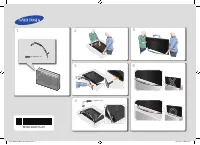 Samsung 105S9W (UE105S9WATXUA)
User Manual
Samsung 105S9W (UE105S9WATXUA)
User Manual
 Samsung 24N4500 (UE24N4500AUXUA)
User Manual
Samsung 24N4500 (UE24N4500AUXUA)
User Manual