Page 2 - Table of Contents; Getting started
2 Table of Contents Getting started 5 About the Galaxy Watch5 Pro / Galaxy Watch5 6 Device layout and functions 6 Watch11 Wireless charger 12 Charging the battery 12 Wireless charging13 Charging the battery using Wireless power sharing 14 Battery charging tips and precautions 16 Wearing the Watch 16...
Page 3 - 2 Samsung Health Monitor
Table of Contents 3 82 Reminder83 Calendar83 Bixby84 Weather85 Alarm85 World Clock86 Timer86 Stopwatch87 Gallery 87 Importing and exporting images87 Viewing images88 Deleting images 88 Find My Phone89 Find My Watch90 Sending an SOS 90 Introduction90 Registering the emergency contacts90 Requesting an...
Page 4 - Usage notices; accessories; Appendix
Table of Contents 4 111 Display111 Samsung Health111 Advanced features111 Battery111 Apps112 Manage content113 Mobile plans (SM-R905F, SM-R915F, SM-R925F) 113 General113 Accessibility113 Safety and emergency114 Accounts and backup116 Watch software update116 About watch 116 Find My Watch117 Tips and...
Page 5 - About the Galaxy Watch5 Pro / Galaxy Watch5
5 Getting started About the Galaxy Watch5 Pro / Galaxy Watch5 The Galaxy Watch5 Pro / Galaxy Watch5 (hereafter, Watch) is a smartwatch that can analyse your exercise pattern, manage your health and allows you to use a variety of convenient apps for making phone calls and playing music. You can easil...
Page 6 - Device layout and functions; Watch
Getting started 6 Device layout and functions Watch ► Galaxy Watch5 Pro : Home key (Power key) / Electrical biosensor Touchscreen Back key / Electrical biosensor Home key (Power key) / Electrical biosensor Back key / Electrical biosensor Microphone Touchscreen SM-R920: GPS antenna SM-R925F: LTE/GPS ...
Page 11 - Keys; Wireless charger
Getting started 11 Keys Key Function Home key • When the Watch is off, press and hold to turn it on. • When the screen is off, press to turn on the screen. • Press and hold to start a conversation with Bixby. Refer to Using Bixby for more information. • Press twice or press and hold to launch the ap...
Page 12 - Charging the battery
Getting started 12 Charging the battery Charge the battery before using it for the first time or when it has been unused for extended periods. Wireless charging 1 Connect the wireless charger to the USB power adaptor. 2 Place the Watch on the wireless charger aligning the centre of your Watch’s back...
Page 13 - Checking the charging status; Charging the battery using Wireless power sharing
Getting started 13 Checking the charging status You can check the charging status on the screen during wireless charging. If the charging status does not appear on the screen, on the Apps screen, tap ( Settings ) → Display and tap the Show charging info switch to activate it. If you charge the Watch...
Page 14 - Battery charging tips and precautions
Getting started 14 2 After fully charging, disconnect the Watch from the device that functions as a wireless charging pad. Do not use the earphones or Bluetooth headset while sharing power. Doing so may affect nearby devices. • You cannot charge your Watch with the wireless charging pad/device that ...
Page 16 - Wearing the Watch; Connecting the band
Getting started 16 Wearing the Watch Connecting the band Connect the band before using your Watch. You can detach the band from the Watch and replace it with a new one. Remove the band in the reverse order of how you connected it. Be careful not to hurt your fingernail when sliding the spring bar wh...
Page 17 - Putting on the Watch
Getting started 17 2 Slide the spring bar inwards and connect the band. 2 1 Putting on the Watch Do not bend the band excessively. Doing so may damage the Watch. • To measure your physical condition accurately, wear the Watch firmly around your lower arm above the wrist. Refer to How to wear the Wat...
Page 20 - Band tips and precautions
Getting started 20 Band tips and precautions • For accurate measurement, you have to wear the Watch so that it fits your wrist. After measuring, loosen the band to allow air to reach your skin. It is recommended to wear the Watch so that it is not too loose or tight, and that it feels comfortable in...
Page 21 - How to wear the Watch for accurate measurements
Getting started 21 How to wear the Watch for accurate measurements For accurate measurements, wear the Watch firmly around your lower arm above the wrist while leaving a finger’s worth of space as shown in the figure below. <Rear> Optical heart rate sensor Electrical biosensors Infrared temper...
Page 23 - Turning the Watch on and off; Turning the Watch on; Turning the Watch off; Forcing restart
Getting started 23 Turning the Watch on and off Follow all posted warnings and directions from authorised personnel in areas where the use of wireless devices is restricted, such as aeroplanes and hospitals. Home key Back key Turning the Watch on Press and hold the Home key for a few seconds to turn...
Page 24 - Connecting the Watch to a smartphone; Installing the Galaxy Wearable app
Getting started 24 Connecting the Watch to a smartphone Installing the Galaxy Wearable app To connect your Watch to a smartphone, install the Galaxy Wearable app on the smartphone.Depending on your smartphone, you can download the Galaxy Wearable app from the following places: • Samsung Android smar...
Page 25 - Connecting the Watch to a new smartphone
Getting started 25 • The initial setup screen may differ depending on your region. • Connection methods may vary depending on your region, model, smartphone, and software version. • The Watch is smaller than normal smartphones so the network quality may be lower, especially in areas with weak signal...
Page 26 - Remote connection; Controlling the screen; Bezel
Getting started 26 Remote connection Your Watch and smartphone are connected via Bluetooth. You can sync your smartphone to your Watch when both devices are remotely connected to each other, even though a Bluetooth connection is not available. The Remote connection uses your mobile network or Wi-Fi....
Page 27 - Touchscreen
Getting started 27 Touchscreen Tapping To open an app, to select a menu item, or to press an on-screen button, tap it with your finger. Tapping and holding Tap and hold the screen for two or more seconds to access the edit mode. Dragging Tap and hold an item and drag it to the target position. Doubl...
Page 28 - Screen composition; Using tiles
Getting started 28 Screen composition The Watch screen is the starting point of the Home screen, which is composed of several pages.You can view tiles or open the notification panel by swiping the screen to the left or right or by using the bezel. Notification panel Tiles Add tiles. Watch screen The...
Page 29 - Turning the screen on and off; Turning the screen on; Switching the screen; Switching between the Watch and Apps screen
Getting started 29 Turning the screen on and off Turning the screen on Use the following methods to turn the screen on. • Turn the screen on with the keys : Press the Home key or Back key. • Turn the screen on by raising your wrist : Raise your wrist where you wear the Watch. If the screen does not ...
Page 30 - Apps screen; Returning to the previous screen; Lock screen; Setting the screen lock
Getting started 30 Apps screen The Apps screen displays icons for all apps installed on the Watch. The available apps may vary depending on the software version. Opening apps On the Apps screen, tap an app icon to launch the app.To launch an app from the list of recent apps, on the Apps screen, tap ...
Page 31 - Customising a watch face with a picture
Getting started 31 Watch Watch screen You can check the current time or view other information. When you are not on the Watch screen, press the Home key to return to the Watch screen. Changing the watch face 1 Tap and hold the Watch screen and tap Add watch face . 2 Use the bezel or swipe left or ri...
Page 32 - Activating the Always On Display feature
Getting started 32 3 Tap Customise . 4 Tap the screen and tap Add photo . 5 Select a picture to apply as a watch face and tap OK → OK . To zoom in or out on the picture, double-tap the image quickly, or spread two fingers apart or pinch the picture. When the picture is zoomed in, swipe the screen to...
Page 33 - Notifications; Notification panel; Viewing incoming notifications
Getting started 33 Notifications Notification panel Check a notification such as a new message or a missed call on the notification panel. On the Watch screen, swipe the bezel anticlockwise. Alternatively, swipe right on the screen to open the notification panel.When there are new notifications, an ...
Page 34 - Deleting notifications; Selecting apps for receiving notifications; Quick panel
Getting started 34 Deleting notifications Swipe upwards on the screen while viewing a notification. Selecting apps for receiving notifications Select an app from your smartphone or Watch to receive notifications on your Watch. 1 Launch the Galaxy Wearable app on your smartphone and tap Watch setting...
Page 35 - Checking the indicator icons; Checking quick setting icons
Getting started 35 Checking the indicator icons Indicator icons appear at the top of the quick panel and let you know the Watch’s current status. The icons listed in the table below are most common. Icon Meaning Bluetooth connectedSignal strengthLTE network connectedWi-Fi connectedWatch and smartpho...
Page 37 - Entering text; Keyboard layout; Changing the input language
Getting started 37 Entering text Keyboard layout A keyboard appears when you enter text. Delete a preceding character. Enter a space. Enter uppercase. For all caps, tap it twice. • The text input screen may be different depending on the app you launch. • Text entry is not supported in some languages...
Page 38 - Additional keyboard functions
Getting started 38 Additional keyboard functions Drag the icon upwards to use additional keyboard functions. Change the keyboard settings. Enter numbers and symbols. Enter text via the keyboard. Enter text via handwriting. Enter emojis. Enter text via voice input. Discard entered text. Some features...
Page 39 - Apps and features; Installing and managing apps; Play Store; Uninstalling or disabling apps
39 Apps and features Installing and managing apps Play Store Purchase and download apps.Tap ( Play Store ) on the Apps screen. Browse apps by category or tap and search for apps by keyword. • Register the Google account on your Watch to use the Play Store app. Launch the Galaxy Wearable app on your ...
Page 40 - Setting app permissions; Viewing messages
Apps and features 40 Setting app permissions For some apps to operate properly, they may need permission to access or use information on your Watch.To view or change app permission settings by permission category, on the Apps screen, tap ( Settings ) → Privacy → Permission manager . Select an item a...
Page 41 - Sending messages; Recording and sending a voice message
Apps and features 41 Sending messages 1 Tap ( Messages ) on the Apps screen. Create a new message. Messages list 2 Tap . 3 Tap Recipient or tap to enter a message recipient or phone number. Or, tap and select a message recipient from the contacts list. 4 Tap the message input field and enter a messa...
Page 42 - Deleting messages; Introduction; Making calls
Apps and features 42 Deleting messages 1 Tap ( Messages ) on the Apps screen. 2 Scroll through the message list or use the bezel, and then select a contact to view your conversations. 3 Tap and hold a message, then tap Delete . To delete multiple messages, tap and hold a message, select messages you...
Page 44 - Options during calls; Making a phone call with a Bluetooth headset; Receiving calls; Answering a call
Apps and features 44 Options during calls The following actions are available: Turn off the microphone so that the other party cannot hear you. Adjust the volume. End the current call. Access additional options. The screen’s appearance may differ depending on the model. Making a phone call with a Bl...
Page 45 - Missed calls; Selecting the frequently used contacts on the tile
Apps and features 45 Missed calls If a call is missed, a missed call notification is displayed on the notification panel. On the notification panel, view missed call notifications. Alternatively, tap ( Phone ) on the Apps screen to view missed calls. Contacts You can make a call or send a message to...
Page 46 - Samsung Pay; Setting up Samsung Pay
Apps and features 46 Samsung Pay Register cards to Samsung Pay to make payments quickly and securely.You can view more information, such as cards that support this feature at www.samsung.com/samsung-pay . • To make payments with Samsung Pay, the device may be required a connection to a Wi-Fi or mobi...
Page 47 - Daily activity
Apps and features 47 Samsung Health Introduction Samsung Health records and manages your 24-hour activity and sleep pattern to cultivate a healthy habit. You can save and manage health-related data on the Samsung Health app of the connected smartphone.After continuously exercising for more than 10 m...
Page 48 - Setting the daily activity target; Steps; Measuring your step count
Apps and features 48 • Steps : Check the amount of steps you walk throughout the day. As you approach your step target, the graph will increase. • Active time : Check the total time you were physically active throughout the day. As you approach your active time target by doing light activities, such...
Page 49 - Setting the step target
Apps and features 49 • When you start to measure your step, the step tracker monitors your steps and displays your step count after a brief delay because your Watch accurately recognises your movement after you walk for a while. Also, for an accurate step count, you may experience a brief delay befo...
Page 50 - Exercise
Apps and features 50 Exercise Record your exercise information and check the results. • Before using this feature, pregnant women, the elderly, and young children, users suffering from conditions, such as chronic heart disease or high blood pressure, are recommended to seek the advice of a licensed ...
Page 51 - Starting exercises
Apps and features 51 Starting exercises 1 Tap ( Samsung Health ) on the Apps screen. 2 Tap Exercise → Choose workout . You can start exercising directly from the Multi-workouts tile after adding workouts to it. 3 Use the bezel or swipe left or right on the screen to select an exercise type you want ...
Page 53 - Doing multiple exercises
Apps and features 53 • When you select Swimming or Swimming (outdoor) , water lock mode will be automatically activated and the touchscreen will be disabled. • When you select Swimming or Swimming (outdoor) , the recorded value may not be accurate in following cases: – If you stop swimming before re...
Page 54 - Starting repetitive exercises
Apps and features 54 Starting repetitive exercises When you perform repetitive exercises such as squats or deadlifts, your Watch will count how many times you repeat the motion with beeping. 1 Tap ( Samsung Health ) on the Apps screen. 2 Tap Exercise → Choose workout . 3 Use the bezel or swipe left ...
Page 56 - Setting the exercise
Apps and features 56 Setting the exercise 1 Tap ( Samsung Health ) on the Apps screen. 2 Tap Exercise → Choose workout . 3 Tap under each exercise type and set the various exercise options. • Pool length : Set the pool length. • Target : Activate the exercise target feature and set it. • Track back ...
Page 57 - Auto detect workouts feature
Apps and features 57 Auto detect workouts feature Once you have engaged in an activity for more than 10 minutes (for running, 3 minutes) while wearing the Watch, it automatically recognises that you are exercising and records exercise information such as the exercise type, duration and calories burn...
Page 58 - Food; Recording the calories
Apps and features 58 Food Record the calories you eat in a day and compare with your target calories to get help to manage your weight. Recording the calories 1 Tap ( Samsung Health ) on the Apps screen. 2 Tap Food . 3 Tap Add , tap the meal type on the top of the screen, and then select an option. ...
Page 59 - Measuring your sleep
Apps and features 59 Sleep Analyse your sleep and record it by measuring your heart rate and your movement while you are sleeping. This feature is only for your general wellness and fitness. Therefore, do not use it for medical purposes, such as diagnosing the symptoms, treatment, or prevention of d...
Page 61 - Using the snore detection feature; Body composition
Apps and features 61 Using the snore detection feature 1 Tap ( Samsung Health ) on the Apps screen. 2 Tap Settings . 3 Tap Snore detection and activate the feature by following the on-screen instructions. Your snoring will be measured along with your other sleep records when you sleep while wearing ...
Page 63 - Measuring your body composition
Apps and features 63 Measuring your body composition 1 Tap ( Samsung Health ) on the Apps screen. 2 Tap Body composition . 3 Tap Measure . 4 Enter your weight and tap Confirm . • For accurate body composition measurements, you must enter your actual height, weight, and gender on the Samsung Health a...
Page 64 - Cycle tracking
Apps and features 64 Check measured body composition results on the screen. To view the additional information which is related to the body composition, use the bezel or swipe upwards or downwards on the screen. Cycle tracking Enter your menstrual period to begin tracking your cycle. When you are ma...
Page 65 - Heart rate
Apps and features 65 1 Tap ( Samsung Health ) on the Apps screen. 2 Tap Cycle tracking . 3 Tap Enter period . 4 Tap the input field, use the bezel or swipe upwards or downwards on the screen to set your period’s start date. 5 Tap Save . 6 Use the bezel or swipe upwards or downwards on the screen to ...
Page 66 - Measuring your heart rate manually
Apps and features 66 Measuring your heart rate manually 1 Tap ( Samsung Health ) on the Apps screen. 2 Tap Heart rate . 3 Tap Measure to begin measuring your heart rate. Check the measured heart rate on the screen. To view additional information which is related to the heart rate, use the bezel or s...
Page 67 - Stress; Measuring your stress level manually
Apps and features 67 3 Tap Heart rate and set the alert under Heart rate alert . • High HR : Set to receive an alert when your heart rate is consistently higher than the heart rate value you set. • Low HR : Set to receive an alert when your heart rate is consistently lower than the heart rate value ...
Page 68 - Alleviating stress with the breathing exercise; Blood oxygen; Measuring your blood oxygen level manually
Apps and features 68 Alleviating stress with the breathing exercise 1 Tap ( Samsung Health ) on the Apps screen. 2 Tap Stress and move to the breathe screen by using the bezel or swiping upwards on the screen. 3 Tap or to change the number to breathe. To change the breathe duration, tap Breathe dura...
Page 70 - Measuring your blood oxygen level while sleeping; Water; Recording water consumption
Apps and features 70 Measuring your blood oxygen level while sleeping Set to measure your blood oxygen level continuously while sleeping. 1 Tap ( Samsung Health ) on the Apps screen. 2 Tap Settings . 3 Tap the Blood oxygen during sleep switch to activate it. Your sleeping blood oxygen level will be ...
Page 71 - Together
Apps and features 71 Together Compare your step count records with your friends who also use the together feature of the Samsung Health app. When you start step challenges with your friends, you can view the challenge status on your Watch. 1 Tap ( Samsung Health ) on the Apps screen. 2 Tap Together ...
Page 72 - Precautions for measuring blood pressure and ECG
Apps and features 72 Samsung Health Monitor Introduction You can conveniently measure your blood pressure or ECG whenever you want to check them with the Samsung Health Monitor app of your Watch that includes both the optical heart rate sensor and electrical biosensor. You can check the measurement ...
Page 75 - Starting to measure the blood pressure; Presetting before measuring the blood pressure
Apps and features 75 • Do not use a Watch which has been calibrated for other people for measuring your blood pressure. • The measurable reading range of the Samsung Health Monitor app for blood pressure is as follows: If it has been calibrated, the systolic blood pressure range is 80 mmHg to 170 mm...
Page 76 - Measuring your blood pressure
Apps and features 76 1 Tap ( Samsung Health Monitor ) on the Apps screen. 2 Tap Blood pressure → Open phone app . The Samsung Health Monitor app will be launched on your smartphone. 3 Tap Accept . 4 Enter your profile information, such as your name, gender, and birthday, and tap Continue . 5 Tap Cal...
Page 77 - Checking the readings; Starting to measuring the ECG; Presetting before measuring the ECG
Apps and features 77 Checking the readings Check the readings on the Watch’s screen after measuring your blood pressure. You can view the previous readings and information on the connected smartphone’s Samsung Health Monitor app. Share, delete, and manage your results on the smartphone’s Samsung Hea...
Page 78 - Measuring the ECG
Apps and features 78 Measuring the ECG Manage your health by checking your heart status conveniently in advance through the ECG measurement results. 1 Tap ( Samsung Health Monitor ) on the Apps screen. 2 Tap ECG → OK and place a finger lightly on the electrical biosensor. Do not leave any space betw...
Page 79 - Checking the results
Apps and features 79 Checking the results Check the results and ECG wave on the Watch and the connected smartphone’s Samsung Health Monitor app screen after taking your ECG. The ECG wave shows heart rate rhythm and electric activities of your heart, and it is divided into several parts. Share the EC...
Page 80 - GPS
Apps and features 80 GPS The Watch has a GPS antenna so that you can check your real-time location information without connecting to a smartphone.On the Apps screen, tap ( Settings ) → Location and tap the switch to activate it. • When your Watch and smartphone are connected, this feature uses your ...
Page 81 - Media Controller
Apps and features 81 Media Controller Introduction Control the media app installed on your Watch or the connected smartphone to play or pause music and video. To launch this app automatically from your Watch when you play music or videos on the connected smartphone, on the Apps screen, tap ( Setting...
Page 82 - Reminder; Completing reminders; Restoring reminders; Deleting reminders
Apps and features 82 Reminder Register to-do items as reminders and receive notifications according to the condition you set. • To receive reminder notifications in a specific place, you have to connect your Watch to your smartphone via Bluetooth. However, the feature for setting you to receive remi...
Page 83 - Calendar; Bixby; Starting Bixby
Apps and features 83 Calendar You can check the 7-day schedules of events that you saved in your smartphone on your Watch.Tap ( Calendar ) on the Apps screen to check the schedules of events that you saved in your smartphone.To add your schedule, tap Show on phone and add it on the connected smartph...
Page 84 - Waking up Bixby using your voice
Apps and features 84 If Bixby asks you a question during a conversation, while pressing and holding the Home key, answer Bixby. Or, tap and answer Bixby. Tips for better voice recognition • Speak clearly. • Speak in quiet places. • Do not use offensive or slang words. • Avoid speaking in dialectal a...
Page 85 - Alarm; Setting alarms; World Clock
Apps and features 85 Alarm Set and manage the Watch’s alarms and the smartphone’s alarms individually. When your Watch is connected to your smartphone via Bluetooth, you can check all alarm lists on your smartphone from the Watch. Setting alarms 1 Tap ( Alarm ) on the Apps screen. 2 Tap Add on watch...
Page 86 - Timer; Setting a timer; Stopwatch
Apps and features 86 Timer Setting a timer 1 Tap ( Timer ) on the Apps screen. 2 Tap . 3 Tap the input field, use the bezel or swipe upwards or downwards on the screen to set the duration, and tap . If you select a preset, the timer will start right away. You can also view more presets by using the ...
Page 87 - Gallery; Importing and exporting images; Viewing images
Apps and features 87 Gallery Importing and exporting images Importing images from your smartphone 1 Launch the Galaxy Wearable app on your smartphone. 2 Tap Watch settings → Manage content . 3 Tap Add images . 4 Select a category, select files, and then tap Done . To sync images on your smartphone w...
Page 88 - Zooming in or out; Deleting images
Apps and features 88 Zooming in or out While viewing an image, double-tap the image quickly, spread your two fingers apart, or pinch on an image to zoom in or out.When an image is magnified, you can view the rest of the image by scrolling around the screen. Deleting images 1 Tap ( Gallery ) on the A...
Page 89 - Find My Watch; Finding with the Galaxy Wearable app; Controlling the Watch remotely; Finding with the SmartThings Find feature of the SmartThings app
Apps and features 89 Find My Watch If you misplace your Watch, the Galaxy Wearable app on your connected smartphone or the SmartThings Find feature of the SmartThings app installed on your connected smartphone can help you find it. The screen may be switched automatically to find your Watch with the...
Page 90 - Sending an SOS; Setting the SOS request
Apps and features 90 Sending an SOS Introduction In an emergency, you can send an SOS message that includes your location information to previously registered contacts, or you can set it up your Watch to send an SOS message automatically when you are hurt from a fall and your Watch recognises it. Al...
Page 91 - Sending an SOS request; Requesting an SOS when you are hurt from a fall; Setting the SOS request when you are hurt from a fall; Sending an SOS request when you are hurt from a fall
Apps and features 91 Sending an SOS request In an emergency, quickly press the Watch’s Home key several times.The SOS message will be sent and the emergency call will be made to the previously registered contacts.The icon will appear on the Watch screen while sending an SOS message and you can check...
Page 92 - Stopping SOS messages; Making voice recordings
Apps and features 92 Stopping SOS messages When the icon appears on the Watch screen, check your location information sharing status on the notification panel. To stop sharing your location information, tap the screen and tap Stop sharing → . If you do not stop sending SOS messages, additional messa...
Page 93 - Changing the recording mode; Compass
Apps and features 93 Changing the recording mode Tap ( Voice Recorder ) on the Apps screen. Select a mode you want. • : This is the normal recording mode. • : The Watch records your voice for up to 10 minutes, converts it to text, and then saves it. For best results, keep the Watch near your mouth a...
Page 94 - Camera Controller; Samsung Global Goals
Apps and features 94 Buds Controller You can check the battery status of the Galaxy Buds connected to the Watch and change their settings.Tap ( Buds Controller ) on the Apps screen. Camera Controller You can remotely control the cameras of the smartphone connected to the Watch and take pictures or r...
Page 95 - Google apps; Bluetooth
Apps and features 95 Google apps Google provides some apps for Watch. You may require a Google account to access some apps. • Maps : Find your location on the map and search the world map. • Messages : Send and receive messages on your Watch or smartphone. Some apps may not be available depending on...
Page 96 - Precautions for using Bluetooth; Making payments with the NFC feature
Apps and features 96 Precautions for using Bluetooth • Samsung is not responsible for the loss, interception, or misuse of data sent or received via Bluetooth. • Always ensure that you share and receive data with devices that are trusted and properly secured. If there are obstacles between the devic...
Page 97 - Disconnection alerts
Apps and features 97 2 Touch the NFC antenna area of the Watch to the NFC card reader. To set the default app, on the Settings screen, tap Connections → NFC → Payment and select an app. The payment services list may not include all available payment apps. NFC antenna Disconnection alerts Set to vibr...
Page 100 - Display
Apps and features 100 Display Change the screen settings.On the Settings screen, tap Display . • Brightness : Adjust the brightness for the screen. • Auto brightness : Set the Watch to automatically adjust the brightness depending on the ambient light conditions. • Always On Display : Set the Watch ...
Page 101 - Advanced features; Gestures; Battery
Apps and features 101 Advanced features Activate the advanced features.On the Settings screen, tap Advanced features . • Water lock : Activate water lock mode before entering the water. The touchscreen feature will be deactivated. • Sleep mode : Activate sleep mode to reduce eye strain before sleepi...
Page 102 - Apps
Apps and features 102 • Watch only : Only the watch displays on the screen and all other features will be deactivated to reduce the battery consumption. Press the Home key to view the watch. To deactivate watch only mode, press and hold the Home key for more than three seconds. Alternatively, place ...
Page 103 - Accessibility; Privacy
Apps and features 103 Accessibility Configure various settings to improve accessibility to the Watch.On the Settings screen, tap Accessibility . • Functions you’re using : Check the accessibility features you are using. This feature appears only when using the accessibility feature. • TalkBack : Act...
Page 104 - Location; Accounts and backup
Apps and features 104 Location Change settings for location information usage.On the Settings screen, tap Location . • Permissions : Set the permission of the feature to use location information. • Location services : View the location services your Watch is using. Safety and emergency Change the se...
Page 105 - Google
Apps and features 105 Google Change the settings for Google.On the Settings screen, tap Google . • Accounts : Check the Google account registered on your connected smartphone and copy it to your Watch. Software update Update your Watch’s software via the firmware over-the-air (FOTA) service. You can...
Page 106 - Galaxy Wearable app
106 Galaxy Wearable app Introduction To connect your Watch to a smartphone, you must install the Galaxy Wearable app on your smartphone. You can check the Watch’s remaining battery and configure the settings with the Galaxy Wearable app.Launch the Galaxy Wearable app on your smartphone. To search fo...
Page 107 - Watch faces; Making My style watch faces
Galaxy Wearable app 107 • Manage devices : Manage connected devices when more than two devices are paired with your smartphone. To disconnect a device from your smartphone, select a device and tap Remove . • Contact us : Samsung Members offers support services to customers, such as device problem di...
Page 108 - Making AR emoji watch faces
Galaxy Wearable app 108 6 Select a pattern type and tap Done . 7 Tap Save . The watch face will be changed into the My style one. Making AR emoji watch faces Change your watch face into your own AR emoji. This feature is only available on Samsung smartphones that support the AR emoji features. 1 On ...
Page 109 - Tiles; Adding or removing tiles; Adding or removing quick setting icons
Galaxy Wearable app 109 Tiles Customise the tiles on the Watch. You can also rearrange tiles.On the Galaxy Wearable screen of the smartphone, tap Tiles . Adding or removing tiles Tap of the tile to add under Add tiles or tap on the tiles you want to delete, and then tap Save . Rearranging tiles Tap ...
Page 112 - Manage content
Galaxy Wearable app 112 Manage content Transfer saved audio or image files from your smartphone to your Watch manually or automatically and delete audio or image files saved on your Watch on the smartphone.On the Galaxy Wearable screen of the smartphone, tap Watch settings → Manage content . • Music...
Page 113 - Safety and emergency
Galaxy Wearable app 113 Mobile plans (SM-R905F, SM-R915F, SM-R925F) Use various other services through the mobile network after activating it on the Watch.On the Galaxy Wearable screen of the smartphone, tap Watch settings → Mobile plans . General Customise your Watch’s general settings or reset the...
Page 114 - Samsung Cloud; Backing up data to Samsung Cloud
Galaxy Wearable app 114 Accounts and backup Sync your Watch’s data using Samsung Cloud, or back up or restore your Watch’s data with Samsung Cloud or Smart Switch. You can also register your Samsung or Google account on your connected smartphone and copy it to your Watch.On the Galaxy Wearable scree...
Page 115 - Restoring data from Samsung Cloud; Smart Switch; Backing up data to the connected smartphone
Galaxy Wearable app 115 Restoring data from Samsung Cloud You can restore your backup data from Samsung Cloud to your Watch. 1 On the Galaxy Wearable screen of the smartphone, tap Watch settings → Accounts and backup . 2 Tap Restore data under Samsung Cloud and select the Watch you want. 3 Tick item...
Page 116 - Watch software update
Galaxy Wearable app 116 3 Tick items you want to restore and tap Restore . 4 Tap Done . Watch software update Update your Watch’s software via the firmware over-the-air (FOTA) service. You can also change the update settings.On the Galaxy Wearable screen of the smartphone, tap Watch settings → Watch...
Page 117 - Store
Galaxy Wearable app 117 Tips and user manual View the Watch’s basic operations and user manual. You can also use various other services through the mobile network after activating it on the Watch.On the Galaxy Wearable screen of the smartphone, tap Tips and user manual . Store Download the apps and ...
Page 118 - Precautions for using the device
118 Usage notices Precautions for using the device Please read this manual when using the device to ensure safe and proper use. • Descriptions are based on the device’s default settings. • Some content may differ from your device depending on the region, service provider, model specifications, or de...
Page 120 - Instructional icons; Notes on package contents and accessories
Usage notices 120 Instructional icons Warning : situations that could cause injury to yourself or others Caution : situations that could cause damage to your device or other equipment Notice : notes, usage tips, or additional information Notes on package contents and accessories Refer to the quick s...
Page 121 - Maintaining the device’s water and dust
Usage notices 121 Maintaining the device’s water and dust resistance • This device is water and dust resistant, and meets the following international standards. – 5ATM water resistance classification certification: Was tested by submerging the device in 50 m of fresh water for 10 minutes, leaving it...
Page 123 - Precautions for overheating
Usage notices 123 Precautions for overheating If you feel discomfort due to overheating while using the device, stop using it immediately and remove it from your wrist.To avoid problems, such as device malfunction, skin discomfort or damage, and battery draining, a warning will appear on the device ...
Page 124 - Use caution if you are allergic to any materials
Usage notices 124 Use caution if you are allergic to any materials on the Watch • Samsung has tested the noxious materials found on the Watch through the internal and external certificate authorities, including the test for all materials which contact with skin, skin toxicity test, and the Watch-wea...
Page 125 - Troubleshooting; The quick panel displays network or service error messages
125 Appendix Troubleshooting Before contacting a Samsung Service Centre or an authorised service centre, please attempt the following solutions. Some situations may not apply to your Watch.You can also use Samsung Members to solve any problems you might encounter while using your device. The quick p...
Page 126 - Your Watch freezes or has errors; Restarting the Watch; Another Bluetooth device cannot locate your Watch
Appendix 126 Your Watch freezes or has errors Try the following solutions. If the problem is still not resolved, contact a Samsung Service Centre or an authorised service centre. Restarting the Watch If your Watch freezes or hangs, you may need to close apps or turn off the Watch and turn it on agai...
Page 127 - A Bluetooth connection is not established or your Watch and the; Calls are not connected
Appendix 127 A Bluetooth connection is not established or your Watch and the smartphone are disconnected • Ensure that the Bluetooth feature on both devices is activated. • Ensure there are no obstacles, such as walls or electrical equipment, between the devices. • Ensure that the latest version of ...
Page 129 - Your Watch cannot find your current location; Removing the battery
Appendix 129 Your Watch cannot find your current location The Watch uses your smartphone’s location information. GPS signals may be obstructed in some locations, such as indoors. Set to use Wi-Fi or a mobile network to find your current location. Data stored in the Watch has been lost Always make ba...


 Samsung Galaxy Watch 4G
User Manual
Samsung Galaxy Watch 4G
User Manual
 Samsung Galaxy Watch Active
User Manual
Samsung Galaxy Watch Active
User Manual
 Samsung Galaxy Watch Active2
User Manual
Samsung Galaxy Watch Active2
User Manual
 Samsung Galaxy Watch3
User Manual
Samsung Galaxy Watch3
User Manual
 Samsung Galaxy Watch4
User Manual
Samsung Galaxy Watch4
User Manual
 Samsung Galaxy Watch4 Classic
User Manual
Samsung Galaxy Watch4 Classic
User Manual
 Samsung Galaxy Watch5
User Manual
Samsung Galaxy Watch5
User Manual
 Samsung Galaxy Watch5 Pro
User Manual
Samsung Galaxy Watch5 Pro
User Manual
 Samsung Galaxy Watch6
User Manual
Samsung Galaxy Watch6
User Manual
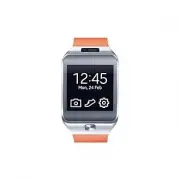 Samsung Gear 2
User Manual
Samsung Gear 2
User Manual
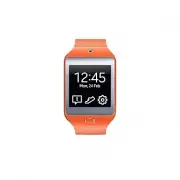 Samsung Gear 2 Neo
User Manual
Samsung Gear 2 Neo
User Manual
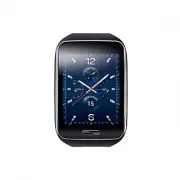 Samsung Gear S
User Manual
Samsung Gear S
User Manual
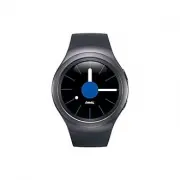 Samsung Gear S2
User Manual
Samsung Gear S2
User Manual
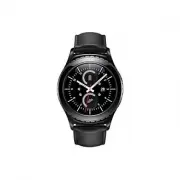 Samsung Gear S2 classic
User Manual
Samsung Gear S2 classic
User Manual
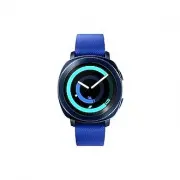 Samsung Gear Sport
User Manual
Samsung Gear Sport
User Manual
 Samsung SM-R380
User Manual
Samsung SM-R380
User Manual
 Samsung SM-R381
User Manual
Samsung SM-R381
User Manual
 Samsung SM-R382
User Manual
Samsung SM-R382
User Manual
 Samsung SM-R500
User Manual
Samsung SM-R500
User Manual
 Samsung SM-R600
User Manual
Samsung SM-R600
User Manual