Page 2 - Table of Contents; Getting Started
2 Table of Contents Getting Started 6 About the Galaxy Watch7 Read me first11 Device layout 11 Package contents12 Galaxy Watch15 Wireless charging dock 15 Battery 15 Charging the battery17 Battery charging tips and precautions 18 Power saving mode 19 Wearing the Galaxy Watch 19 Putting on the Galaxy...
Page 3 - Apps and features
Table of Contents 3 89 Music 89 Introduction89 Playing music89 Importing music90 Playing music with the Galaxy Watch 90 Playing music from your mobile device 91 Playing music without connecting to a mobile device 91 Reminder92 Calendar93 Bixby 93 Introduction93 Launching Bixby94 Using Bixby95 Settin...
Page 4 - Galaxy Wearable app
Table of Contents 4 Galaxy Wearable app 125 Introduction126 INFO127 WATCH FACES128 SETTINGS 128 Notifications129 Apps130 Widgets130 Sound and vibration131 Display131 Advanced132 Add content to your watch133 Send SOS requests133 Find My Watch134 Watch connection134 Galaxy Apps134 Samsung Health134 Sa...
Page 5 - Using the Galaxy Watch; 44 Using as a personal coach for your; Appendix
Table of Contents 5 Using the Galaxy Watch 138 Introduction138 Using as a planner 138 Checking out today’s information140 Managing my daily life142 Using dual clock when you are abroad 143 Using a convenient reminder 144 Using as a personal coach for your health 144 Managing stress and sleep quality...
Page 6 - About the Galaxy Watch
6 Getting Started About the Galaxy Watch The Galaxy Watch is a smartwatch that can analyse your exercise pattern, manage your health and allows you to use a variety of convenient apps for making phone calls and playing music. By rotating the bezel, you can access convenient features quickly and easi...
Page 7 - Read me first
Getting Started 7 Read me first Please read this manual before using this device to ensure safe and proper use. • Descriptions are based on the device’s default settings. • Some content may differ from your device depending on the region, service provider, model specifications, or device’s software....
Page 8 - Maintaining water and dust resistance
Getting Started 8 Maintaining water and dust resistance Your device supports water- and dust-resistance. Follow these tips carefully to maintain the water- and dust-resistance of your device. Failure to do so may result in damage to your device. • Do not expose the device to water moving with force ...
Page 9 - Precautions for overheating; Cleaning and managing the Galaxy Watch
Getting Started 9 Precautions for overheating If you feel discomfort due to overheating while using the device, stop using it immediately and remove it from your wrist.To avoid problems, such as device malfunction, skin discomfort or damage, and battery draining, a warning will appear on the device ...
Page 11 - Device layout; Package contents
Getting Started 11 Device layout Package contents Refer to the quick start guide for package contents. • The bands available may differ by model. Use the proper band which fits in each model’s size. • The items supplied with the Galaxy Watch and any available accessories may vary depending on the re...
Page 12 - Galaxy Watch
Getting Started 12 Galaxy Watch ► SM-R800, SM-R805F Bezel Back key Home key (Power key) Microphone Touchscreen NFC antenna Light sensor SM-R800: GPS antenna SM-R805F: LTE/GPS antenna Heart rate sensor Atmospheric pressure sensor Speaker Band Pressure vent
Page 14 - Keys
Getting Started 14 • Ensure that the band is kept clean. Contact with contaminants, such as dust and dye, can cause stains on the band that may not be fully removed. • Do not insert sharp objects into the atmospheric pressure sensor, the pressure vent, speaker, or the microphone. Inner components of...
Page 15 - Wireless charging dock; Battery; Charging the battery
Getting Started 15 Wireless charging dock LED indicator Wireless charging surface Charger port Do not expose the wireless charging dock to water because the wireless charging dock does not have same water- and dust- resistance certification as your Galaxy Watch. Battery Charging the battery Charge t...
Page 17 - Checking the charging status; Battery charging tips and precautions
Getting Started 17 Checking the charging status When you connect the Galaxy Watch and the wireless charging dock, the wireless charging dock’s LED indicator flashes certain colours to indicate the charging status. Colour Charging status Red Charging Green Fully charged Orange Connected to a low-powe...
Page 18 - Power saving mode
Getting Started 18 • If the Galaxy Watch receives an unstable power supply while charging, the touchscreen may not function. If this happens, disconnect the Galaxy Watch from the wireless charging dock. • While charging, the Galaxy Watch may heat up. This is normal and should not affect the Galaxy W...
Page 19 - Wearing the Galaxy Watch; Putting on the Galaxy Watch
Getting Started 19 Wearing the Galaxy Watch Putting on the Galaxy Watch Open the buckle and place the band around your wrist. Fit the band to your wrist, insert the pin into an adjustment hole, and then secure the buckle to close it. Do not bend the band excessively. Doing so may damage the Galaxy W...
Page 20 - Band tips and precautions; Replacing the band
Getting Started 20 Band tips and precautions • When you wear the Galaxy Watch for a long time or do a high-intensity exercise while wearing it, skin irritation may occur due to friction and pressure. If you wearing your Galaxy Watch for a long time, remove the Galaxy Watch from your wrist and do not...
Page 23 - Turning the Galaxy Watch on and off; Restarting the Galaxy Watch
Getting Started 23 Turning the Galaxy Watch on and off Press and hold the Home key (Power key) for a few seconds to turn on the Galaxy Watch.When you turn on the Galaxy Watch for the first time or reset it, on-screen instructions will appear to download and install the Galaxy Wearable app on your mo...
Page 24 - Installing the Galaxy Wearable app; Connecting the Galaxy Watch to a mobile device via Bluetooth
Getting Started 24 Connecting the Galaxy Watch to a mobile device Installing the Galaxy Wearable app You can use other various features after connecting your Galaxy Watch to a mobile device. To connect your Galaxy Watch to a mobile device, install the Galaxy Wearable app on the mobile device.Dependi...
Page 26 - Activating the Galaxy Watch’s mobile network
Getting Started 26 Activating the Galaxy Watch’s mobile network You can receive calls and messages on your Galaxy Watch without mobile device, and also use various other services through the mobile network after activating it.Begin by connecting your Galaxy Watch to the mobile device. For more infor...
Page 27 - Connecting the Galaxy Watch to a new mobile device; Remote connection
Getting Started 27 Connecting the Galaxy Watch to a new mobile device When you connect the Galaxy Watch to your new mobile device, on-screen instructions will ask you to reset the Galaxy Watch. Make sure you back up any important data stored in your Galaxy Watch before connecting your Galaxy Watch t...
Page 29 - Controlling the screen; Screen composition; Adding widgets; Removing widgets
Getting Started 29 Controlling the screen Screen composition The Watch screen is the starting point for accessing all of the Galaxy Watch’s many screens.You can view other screens by pressing the key, rotating the bezel, or swiping your finger on the screen. Notifications Watch Widgets Add widgets. ...
Page 30 - Turning the screen on and off; Switching the screen; Switching between the Watch and Apps screen; Apps screen
Getting Started 30 Turning the screen on and off To turn on the screen, rotate the bezel. Or, press the Home key or the Back key.If the screen does not turn on after you rotate the bezel, tap ( Settings ) on the Apps screen, tap Advanced → Bezel wake-up , and then tap the Bezel wake-up switch to act...
Page 31 - Opening apps; Returning to the previous screen
Getting Started 31 Opening apps On the Apps screen, tap an app icon to open the app.To open an app from the list of recently used apps, tap ( Recent apps ) on the Apps screen. You can launch apps directly when you add frequently used apps to the App shortcuts widget. Tap and add the app you want. If...
Page 32 - Using the bezel; Scrolling through screens
Getting Started 32 Using the bezel Rotate the bezel to easily control the Galaxy Watch’s various functions. • Make sure the bezel area is free from the foreign materials like dust or sand. • Do not use the bezel near magnetic fields as they may interfere with the bezel’s internal magnets and cause i...
Page 33 - Selecting an item
Getting Started 33 Selecting an item Rotate the bezel to move from item to item. When you rotate the bezel, the highlight indicator will move in same direction and an item will be highlighted. Adjusting the input value Rotate the bezel to adjust the volume or brightness. When adjusting the brightnes...
Page 34 - Using the phone or alarm feature; Touchscreen
Getting Started 34 Using the phone or alarm feature Rotate the bezel clockwise to receive an incoming call or to dismiss an alarm. Rotate the bezel anticlockwise to reject an incoming call or to activate the snooze feature for an alarm. Touchscreen • Do not allow the touchscreen to come into contact...
Page 35 - Tapping
Getting Started 35 Tapping To open an app, to select a menu item, or to press an on-screen button, tap it with your finger. Tapping and holding Tap and hold the screen for two or more seconds to access the Edit mode or to view available options.
Page 36 - Dragging
Getting Started 36 Dragging To move an item, tap and hold it and drag it to the target position. Double-tapping Double-tap on an image to zoom in. Double-tap again to return.
Page 37 - Swiping
Getting Started 37 Swiping Swipe to the left or right to view other panels. Quick panel This panel allows you to view the Galaxy Watch’s current status and configure settings.Swipe downwards from the top edge of the screen. Quick setting icons Indicator icons Galaxy Watch's connection status Battery...
Page 38 - Checking the indicator icons; Checking quick setting icons
Getting Started 38 Checking the indicator icons Indicator icons appear at the top of the quick panel and let you know the Galaxy Watch’s current status. The icons listed in the table below are most common. The indicator icons shown may vary depending on the region. Icon Meaning Bluetooth connectedBl...
Page 39 - Removing a quick setting icon
Getting Started 39 Icon Meaning Activate the watch always on featureAdjust the brightness / Connect the Wi-Fi network or connect the Wi-Fi network automaticallyOpen the settings screenActivate the NFC featureLaunch the Find My Phone app Connect the mobile networkOpen the battery management menuConne...
Page 40 - Adding a quick setting icon; Activating power saving mode; Activating the flight mode; Opening the volume menu
Getting Started 40 Adding a quick setting icon Tap and hold a quick setting icon and tap , then select a feature you want to add on the quick panel.The icon for the feature you select will be added on the quick panel. You can also edit the quick panel by tapping ( Settings ) → Advanced → Edit quick ...
Page 41 - Activating do not disturb mode; Activating the watch always on feature; Opening the Settings screen
Getting Started 41 Activating do not disturb mode When a notification, except an alarm, is received, you can set your Galaxy Watch not to vibrate and not to turn on the screen.On the quick panel, tap and set do not disturb mode.The icon will appear at the top of the Watch screen. Activating the watc...
Page 42 - Activating the NFC feature; Launching the Find My Phone app; Connecting to a mobile network; Opening the battery management menu
Getting Started 42 Activating the NFC feature Activate the NFC feature.On the quick panel, tap .The NFC feature can be used conveniently with the NFC antenna. For more information, refer to NFC . Launching the Find My Phone app Launch the Find My Phone app and find your mobile device when you mispla...
Page 43 - Connecting the Bluetooth headset; Activating water lock mode
Getting Started 43 Connecting the Bluetooth headset Connect the Bluetooth headset and you can listen music and have a phone conversations through it.On the quick panel, tap .The Bluetooth feature is activated and the available Bluetooth headsets list will be searched. If the previously used Bluetoot...
Page 44 - Playing or pausing music
Getting Started 44 Playing or pausing music Play or pause music.On the quick panel, tap or .Music is played or paused on the Galaxy Watch and the connected mobile device. You can listen to music after connecting the Bluetooth headset. Activating goodnight mode Activate goodnight mode for sleeping.On...
Page 45 - Lock screen; Setting the screen lock
Getting Started 45 Lock screen Use the screen lock feature to protect your personal information by preventing others from accessing your Galaxy Watch. After activating the screen lock feature, the Galaxy Watch will require an unlock code whenever unlocking it. Setting the screen lock On the Apps scr...
Page 46 - Watch screen
Getting Started 46 Watch Watch screen View the current time. When you are not on the Watch screen, press the Home key to return to the Watch screen. Changing the watch face Tap and hold the Watch screen and rotate the bezel, or swipe the screen to the left or right and then select a watch face. You ...
Page 47 - Customise a watch face with a photo; Using the Watch always on feature
Getting Started 47 You can also change the Galaxy Watch’s watch face from your mobile device. Launch Galaxy Wearable on your mobile device and tap WATCH FACES . To download more watch faces from Galaxy Apps , launch Galaxy Wearable and tap INFO → VIEW MORE of the TOP WATCH FACES card. Customise a wa...
Page 48 - Watch only mode; Notification panel
Getting Started 48 Watch only mode You can activate watch only mode. In watch only mode, only the watch will display and all other functions will be turned off.On the Apps screen, tap ( Settings ) → Battery → Watch only . Notifications Notification panel Check a notification such as a new message or...
Page 49 - Viewing incoming notifications; Deleting notifications
Getting Started 49 Viewing incoming notifications When you receive a notification, information about the notification, such as its type or the time you received it, will appear on the screen. If more than two notifications are received, rotate the bezel to view more notifications.Tap the notificatio...
Page 50 - Selecting apps for receiving notifications; Entering text; Introduction
Getting Started 50 Selecting apps for receiving notifications Select an app from your mobile device to receive notifications. 1 Launch Galaxy Wearable on your mobile device and tap SETTINGS → Notifications , and tap the switch. 2 Tap Manage notifications and tap the switch next to apps to receive no...
Page 51 - Using the voice input
Getting Started 51 Using the voice input Tap and speak to enter your message.To change the language recognised, tap → Input languages . Recognising voice input. Access additional options. • This feature is not supported in some languages. • Tips for better voice recognition – Speak clearly. – Speak ...
Page 52 - Using emoticons; Using handwriting input mode or the keyboard
Getting Started 52 Using emoticons Tap and select the category. The emoticon list of the selected category will appear.To draw a picture, tap Doodle at the top of the screen, and draw your message. Rotate the bezel anticlockwise to delete the input stroke by stroke. To recover a stroke, rotate the b...
Page 53 - Changing the input mode; Using the keyboard
Getting Started 53 Changing the input mode Rotate the bezel to change the input mode on the text input screen. You can switch between handwriting mode, character mode, number mode, punctuation mode, emoticon mode, and voice input mode. Changing the input language Drag the space key to the left or ri...
Page 54 - Viewing messages
54 Apps and features Messages View messages and reply to using the Galaxy Watch. Viewing messages You may incur additional charges for receiving messages while you are roaming. 1 Tap ( Messages ) on the Apps screen. Or, swipe to the right on the Watch screen or rotate the bezel anticlockwise when yo...
Page 55 - Sending messages
Apps and features 55 Sending messages You may incur additional charges for sending messages while you are roaming. 1 Tap ( Messages ) on the Apps screen. Create a new message. Messages list Contacts 2 Tap . Or, you can choose a message recipient by tapping on the contacts list. 3 Add a recipient and...
Page 56 - Phone; Answering a call
Apps and features 56 Phone Introduction On your Galaxy Watch, make or receive calls. You can have phone conversations via the internal microphone, speaker, or connected Bluetooth headset. You can make calls without being connected to a mobile device on the mobile network model. Receiving calls Answe...
Page 57 - Rejecting a call
Apps and features 57 Rejecting a call Reject an incoming call and send a rejection message to the caller.When a call comes in, rotate the bezel anticlockwise. Alternatively, drag outside the large circle. To send a message when rejecting an incoming call, swipe upwards from the bottom edge of the sc...
Page 58 - Making calls; Options during calls; Using the call screen
Apps and features 58 Making calls Tap ( Phone ) on the Apps screen. Keypad Contacts Log list Use one of the followings methods: • Tap , enter a number using the keypad, and then tap . • Tap , search or select a contact, and then tap . • Scroll through the log list, select a log entry, and then tap ....
Page 59 - Switching to a Bluetooth headset; Contacts
Apps and features 59 Switching to a Bluetooth headset Switch the Galaxy Watch to a Bluetooth headset to continue the call on a Bluetooth headset.When a Bluetooth headset is connected to the Galaxy Watch, tap on the call screen to make a phone call with the Bluetooth headset.If a Bluetooth headset is...
Page 60 - Adding contacts; Adding medical information to my profile
Apps and features 60 Adding contacts 1 Tap ( Contacts ) on the Apps screen. 2 Tap on the top of the contacts list and enter the contact information. 3 Tap SAVE . Selecting the frequently used contacts on the widget After adding the Contacts widget, add the frequently used contacts to contact them ea...
Page 61 - Samsung Pay; Making payments
Apps and features 61 Samsung Pay Register frequently used cards to Samsung Pay, a mobile payment service, to make payments quickly and securely. Samsung Pay supports near field communication (NFC) to allow payment through standard credit card readers.You can view more information, such as cards that...
Page 63 - Wearing the Galaxy Watch correctly
Apps and features 63 Wearing the Galaxy Watch correctly • When you activate the auto heart rate tracking feature, or when the Galaxy Watch recognises your exercise, the Galaxy Watch will automatically track your heart rate. When measuring your heart rate, wear the Galaxy Watch snugly on your arm abo...
Page 65 - Calories
Apps and features 65 Calories You can check your calories burned by day or week.Tap ( Samsung Health ) on the Apps screen and open the calories screen. Alternatively, rotate the bezel clockwise on the Watch screen, select the Health summary widget, and then tap the calories menu. To view records by ...
Page 66 - Steps; Measuring your step count and distance you walk
Apps and features 66 Steps The Galaxy Watch counts the number of steps you have taken and measures the distance travelled. Measuring your step count and distance you walk Tap ( Samsung Health ) on the Apps screen and rotate the bezel clockwise to open the steps tracker screen. Alternatively, rotate ...
Page 67 - Setting the step target; Floors; Measuring the floors you climb
Apps and features 67 Setting the step target 1 Tap → Settings . 2 Tap Step target . 3 Rotate the bezel to set the target and tap DONE . Setting the alarm To receive an alarm for reaching a target, tap → Settings and tap the Notifications switch to activate it. Floors Record and track how many floors...
Page 68 - Setting the target for climbing floors
Apps and features 68 To view weekly records with a graph, swipe upwards or downwards on the screen. To view records by day, tap View each date . • One floor is calculated as approximately 3 metres. The floors measured may not match the actual floors you climb. • The floors measured may not be accura...
Page 69 - Exercise; Starting the exercises
Apps and features 69 Exercise Record your exercise information and calories burned using Samsung Health’s exercise feature. • Before using this feature, pregnant women, the elderly, and young children, users suffering from conditions, such as chronic heart disease or high blood pressure, are recomme...
Page 72 - Doing multiple exercises; Starting repetitive exercises
Apps and features 72 10 To view your exercise information, swipe upwards or downwards on the screen after finishing the exercise. • Music will continue to play even if you finish exercising. To stop playing music, stop music before finishing exercising or launch ( Music ) to stop playing music. • If...
Page 74 - Customising the exercise information screen
Apps and features 74 Customising the exercise information screen Customise the exercise information screen that appears while exercising with the information that you want to preview. The exercise information screen cannot be changed during work-out. 1 Tap ( Samsung Health ) on the Apps screen. 2 Ro...
Page 75 - Sleep; Measuring your sleep pattern
Apps and features 75 Sleep Analyse your sleep pattern and record it by measuring your heart rate while you are sleeping. • The sleep pattern will have its four states (Awake, REM, Light, Deep) analysed by using your movement and changes in your heart rate while sleeping. However, Auto HR settings sh...
Page 76 - Setting the sleep report notification; Heart rate
Apps and features 76 Setting the sleep report notification 1 Tap → Notifications . 2 Tap the Sleep report notifications switch to activate it. The notification will appear after your sleep pattern has been analysed. Heart rate Measure and record your heart rate. • The Galaxy Watch’s heart rate track...
Page 77 - Measuring your heart rate
Apps and features 77 Measuring your heart rate 1 Tap ( Samsung Health ) on the Apps screen. 2 Rotate the bezel clockwise to open the heart rate tracker screen. 3 Tap MEASURE to begin measuring your heart rate. After a moment, your current heart rate will be displayed on the screen.The Galaxy Watch d...
Page 78 - Stress; Measuring your stress level
Apps and features 78 Tracking your heart rate The Galaxy Watch can automatically measure and record your heart rate at regular intervals in your daily life when you are not using exercise trackers.Tap on the heart rate tracker screen, rotate the bezel to select Auto HR settings , and then select the...
Page 80 - Alleviating the stress; Tracking your stress level; Food; Recording the calories
Apps and features 80 Alleviating the stress You can reduce stress with a deep and slow breathing by following the Galaxy Watch. 1 Tap BREATHE > after measuring the stress. 2 Tap Target , rotate bezel to set the target, and then tap SET . 3 Tap Inhale/Exhale to set how long will you inhale and exh...
Page 81 - Setting your target calories
Apps and features 81 3 Tap ADD , rotate the bezel to enter the calories, and then tap DONE . To change the meal type, tap the meal type on the top of the screen and select an option. To remove the record, tap on the food screen, rotate the bezel to select Delete today’s log , select the data, and th...
Page 82 - Water; Recording water consumption
Apps and features 82 Water Record and track how many glasses of water you drink. Recording water consumption 1 Tap ( Samsung Health ) on the Apps screen. 2 Rotate the bezel clockwise to open the water tracker screen. 3 Tap when you drink a glass of water.If you accidentally added an incorrect value,...
Page 83 - Caffeine; Recording your coffee consumption
Apps and features 83 Caffeine Record and track how many cups of coffee you drink. Recording your coffee consumption 1 Tap ( Samsung Health ) on the Apps screen. 2 Rotate the bezel clockwise to open the caffeine tracker screen. 3 Tap when you drink a cup of coffee.If you accidentally added an incorre...
Page 84 - Together
Apps and features 84 Together Compare your weekly step count records with other Samsung Health users. You can set a goal, compete with your friends, and view the challenge status. • Activate the together feature in the Samsung Health app on your mobile device to check information on your Galaxy Watc...
Page 85 - Additional information
Apps and features 85 Additional information • The purpose for such data collection is limited to providing the service that you have requested, including providing additional information to enhance your wellness, back up/sync data, data analysis and statistics or to develop and provide better servic...
Page 86 - GPS
Apps and features 86 GPS The Galaxy Watch has a GPS sensor so that you can check your real-time location information without connecting to a mobile device. When you are using your Galaxy Watch without connecting to a mobile device or using apps such as Alti-Barometer , the GPS sensor in your Galaxy ...
Page 87 - Measuring your current altitude; Manually calibrating the altitude
Apps and features 87 Measuring your current altitude Measure your current altitude and view a graph of changes over the last 6 hours.Tap ( Alti-Barometer ) on the Apps screen. Alternatively, rotate the bezel clockwise on the Watch screen and select the Alti-Barometer widget to launch it. • If you ha...
Page 88 - Measuring your current atmospheric pressure; Configuring the alti-barometer
Apps and features 88 Measuring your current atmospheric pressure Measure your current atmospheric pressure and view a graph of changes over the last 6 hours. You can anticipate any changes to the weather using the pressure prediction gauge. 1 Tap ( Alti-Barometer ) on the Apps screen. Alternatively,...
Page 89 - Music
Apps and features 89 Music Introduction Listen to music saved in the Galaxy Watch and in the mobile device. Playing music Tap ( Music ) on the Apps screen. Alternatively, rotate the bezel clockwise on the Watch screen and select the Music widget to launch it. When listening to music saved in the Gal...
Page 90 - Playing music with the Galaxy Watch; Playing music from your mobile device
Apps and features 90 To sync music in your mobile device with your Galaxy Watch, tap the Auto sync switch under MUSIC . The music in your mobile device will be synced automatically with your Galaxy Watch when it has more than 15 % of remaining battery power. Playing music with the Galaxy Watch Play ...
Page 91 - Playing music without connecting to a mobile device; Reminder; Creating a reminder
Apps and features 91 Playing music without connecting to a mobile device Listen to music or radio using the Galaxy Watch by itself. You must download music or a radio streaming app on the Galaxy Watch.On the Apps screen, tap ( Galaxy Apps ). Browse and download music or a radio streaming app in Gala...
Page 92 - Viewing the reminder alarm; Completing or deleting the reminder
Apps and features 92 Viewing the reminder alarm When an alarm appears, check the reminder details.You can also rotate the bezel anticlockwise on the Watch screen to open the notification panel and view reminders. • All reminders on your Galaxy Watch will be synced with the connected mobile device au...
Page 93 - Launching Bixby; Launching with the Home key; Launching by voice
Apps and features 93 Bixby Introduction Bixby is a voice service that helps you use the Galaxy Watch more conveniently. You can talk to Bixby to launch a function or provide you with information. • This app may not be available depending on the region. • Make sure the Galaxy Watch’s microphone is no...
Page 94 - Using Bixby
Apps and features 94 Using Bixby 1 Quickly press the Home key twice. Alternatively, say “Hi Bixby”. You can also launch Bixby by tapping ( Bixby ) on the Apps screen. The Galaxy Watch begins voice recognition. Bixby settings View examples of voice commands. 2 Say a voice command.If the Galaxy Watch ...
Page 95 - Setting the language; Weather; Setting alarms
Apps and features 95 Setting the language On the Apps screen, tap ( Bixby ) → , rotate the bezel, tap Language , and then select a language. The selected language is applied to Bixby only, not to the language displayed on the Galaxy Watch. Weather View weather information on the Galaxy Watch for loc...
Page 96 - Stopping alarms; World clock; Creating world clocks
Apps and features 96 4 Select the days for the alarm to repeat and tap SAVE . The saved alarm is added to the alarms list. On the alarms list, tap to activate the alarm or tap to deactivate the alarm. Stopping alarms Drag outside the large circle to stop an alarm. Alternatively, rotate the bezel clo...
Page 97 - Gallery; Importing and exporting images; Importing images from your mobile device
Apps and features 97 Gallery Importing and exporting images Importing images from your mobile device 1 Launch Galaxy Wearable on your mobile device. 2 Tap SETTINGS → Add content to your watch . 3 Tap Copy images . 4 Select files and tap DONE . To sync images on your mobile device with your Galaxy Wa...
Page 98 - Viewing images; Zooming in or out; Deleting images
Apps and features 98 Viewing images View and manage the images saved on your Galaxy Watch. 1 Tap ( Gallery ) on the Apps screen. 2 Rotate the bezel to scroll through the image list and select an image. Zooming in or out While viewing an image, double-tap the image to zoom in or out.When an image is ...
Page 99 - News Briefing; Selecting the region
Apps and features 99 News Briefing View the latest articles in various categories. You can catch up on news categories that interest you. 1 Tap ( News Briefing ) on the Apps screen. Alternatively, rotate the bezel clockwise on the Watch screen and select the News Briefing widget to launch it. 2 When...
Page 100 - Viewing the location of your mobile device; Find My Watch
Apps and features 100 Find My Phone If you misplace the mobile device, the Galaxy Watch can help you find it. This feature is not available when you use the Galaxy Watch without connecting to a mobile device. 1 Tap ( Find My Phone ) on the Apps screen. 2 Tap .The mobile device emits sounds and turns...
Page 101 - Controlling the Galaxy Watch remotely; SOS messages; Setting up SOS messages; Adding emergency contacts
Apps and features 101 Controlling the Galaxy Watch remotely If you cannot find your Galaxy Watch, tap GET LOCATION to check the current location of the Galaxy Watch.When your Galaxy Watch is lost or stolen, you can control it remotely. Launch Galaxy Wearable on your mobile device, tap SETTINGS → Fin...
Page 102 - Activating SOS calls; Sending SOS messages; Viewing my location
Apps and features 102 Activating SOS calls Set the Galaxy Watch to automatically call your emergency contact after sending an SOS message. You can only call one of your emergency contacts.Launch Galaxy Wearable on your mobile device and tap SETTINGS → Send SOS requests . Tap the Make SOS calls to sw...
Page 103 - Reading emails; PPT Controller
Apps and features 103 Email View emails received on the mobile device and reply to them. Reading emails 1 Tap ( Email ) on the Apps screen. 2 Select an email to open the email screen. To view an email on the mobile device, tap , rotate the bezel to select Show on phone . To reply an email, select an...
Page 104 - Connecting the Galaxy Watch to a new computer
Apps and features 104 3 Search for or select your Galaxy Watch from the Bluetooth list on your computer. 4 Follow the on-screen instructions to complete the connection. If your computer and Galaxy Watch do not connect, cancel the Bluetooth request on both devices and try again. Or, remove the Galaxy...
Page 105 - Setting the alarm functions; Setting the wrap up alert
Apps and features 105 Setting the alarm functions Setting the wrap up alert When you make a presentation using slides, set the finishing time on your Galaxy Watch in advance to receive an alarm. 1 Tap and rotate the bezel to select Wrap-up alert . 2 Tap the Wrap-up alert switch to activate it. 3 Tap...
Page 106 - Connecting devices via Bluetooth
Apps and features 106 Samsung Flow Introduction Unlock the Windows computer or tablet with the Galaxy Watch by using Samsung Flow. • This feature is available only when you use the Windows computer or tablet. • If the Samsung Flow has not been installed yet on your mobile device, Windows computer, o...
Page 107 - Unlocking the computer or tablet; Unlocking the computer or tablet normally
Apps and features 107 Computer or tablet 4 Search for or select your Galaxy Watch and mobile device from the Bluetooth list on your Windows computer or tablet. 5 Launch the Samsung Flow app and select START to register the Galaxy Watch and mobile device. 6 Follow the on-screen instructions to comple...
Page 109 - Sound and vibration
Apps and features 109 • Watch face order : Select how to arrange the watch faces. – Most recent first : Set the recently used watch face to appear first. – Custom : Arrange the watch face to your preference. • Hourly chime : Set the Galaxy Watch to notify you every hour with a sound or vibration. • ...
Page 110 - Display
Apps and features 110 Display Change the Galaxy Watch’s display settings and the Apps screen.On the Settings screen, tap Display . • Brightness : Adjust the brightness for the display. • Auto low brightness : Set the Galaxy Watch to automatically adjust the brightness depending on the ambient light ...
Page 112 - Bluetooth
Apps and features 112 Connections Bluetooth Connect to a mobile device via Bluetooth. You can also connect a Bluetooth headset to your Galaxy Watch and listen to music or have a phone conversation. • Samsung is not responsible for the loss, interception, or misuse of data sent or received via Blueto...
Page 113 - Mobile networks
Apps and features 113 Mobile networks Customise settings to control networks.On the Settings screen, tap Connections → Mobile networks . The Mobile networks options are not displayed on the Bluetooth model. • Mobile networks : – Auto on/off : Set the Galaxy Watch to automatically connect to or disco...
Page 115 - Using the NFC feature
Apps and features 115 4 Tap CONNECT . • Once the Galaxy Watch connects to a Wi-Fi network, the Galaxy Watch will reconnect to that network each time it is available without requiring a password. To prevent the Galaxy Watch connecting to the network automatically, select it from the list of networks ...
Page 116 - Alerts
Apps and features 116 To set the default app, open the Settings screen and tap Connections → NFC → Tap and pay , and then select an app. The services list may not include all available apps. NFC antenna Alerts Set the Galaxy Watch to vibrate when it is disconnected from your mobile device.On the Set...
Page 117 - Data usage; Apps; App order
Apps and features 117 Data usage Keep track of your data usage amount and customise the settings for the limitation.On the Settings screen, tap Connections → Data usage . The Data usage options are not displayed on the Bluetooth model. • Mobile data : Set the Galaxy Watch to use data connections on ...
Page 118 - Permissions
Apps and features 118 Permissions For some apps to operate properly, they may need permission to access or use information on your Galaxy Watch. View your app permission settings for each app and change the settings.On the Settings screen, tap Apps → Permissions . Call Change the call feature settin...
Page 119 - Security; Lock; Security update service
Apps and features 119 Security Lock Change the settings for securing the Galaxy Watch. When you use this feature, the Galaxy Watch may be locked automatically when it does not move for a period of time.On the Settings screen, tap Security → Lock . • Type : Select the Galaxy Watch lock method. • Use ...
Page 120 - Accessibility
Apps and features 120 Account and backup (Account) Login with your Samsung account and back up the data in your Galaxy Watch on the Samsung Cloud or restore the Galaxy Watch’s data saved on your Samsung account on your Galaxy Watch.On the Settings screen, tap Account and backup or Account . When usi...
Page 121 - General; Input
Apps and features 121 General Input Change the text input settings.On the Settings screen, tap General → Input . • Default keyboard : Check the default keyboard for entering the characters. • Keyboard settings : Configure the Samsung keyboard’s settings. Text-to-speech Change the settings for text-t...
Page 122 - Language
Apps and features 122 Language Select a language to use on your Galaxy Watch.On the Settings screen, tap General → Language . The Language option is displayed only when you use the Galaxy Watch without connecting to a mobile device. Reset Delete all data on your Galaxy Watch.On the Settings screen, ...
Page 126 - INFO; ABOUT WATCH
Galaxy Wearable app 126 Tap to use the following options: • Disconnect : Disconnect your Galaxy Watch from the currently connected mobile device. • Connect new device : Disconnect your device from the currently connected mobile device and connect a new device. Tap SCAN to find a new device. To recon...
Page 127 - PAYMENT; WATCH FACES
Galaxy Wearable app 127 PAYMENT You can conveniently make payments with the Samsung Pay app by using a mobile payment service.Tap OPEN SAMSUNG PAY . This option may not be available depending on your region or service provider. TOP WATCH FACES You can download popular watch faces from Galaxy Apps . ...
Page 128 - SETTINGS
Galaxy Wearable app 128 SETTINGS Notifications Change settings for the notification feature. Stay up to date with a variety of events, such as new messages received on the mobile device.Launch Galaxy Wearable on your mobile device, tap SETTINGS → Notifications , tap the switch to activate it, and th...
Page 129 - Uninstalling apps; Unhiding apps; Customising apps
Galaxy Wearable app 129 Apps Customise the Galaxy Watch’s Apps screen. You can also rearrange apps.Launch Galaxy Wearable on your mobile device and tap SETTINGS → Apps . Uninstalling apps Tap → Uninstall and tap next to the apps you want to remove from the Galaxy Watch. Reordering apps 1 Tap → Reord...
Page 130 - Widgets; Adding or removing widgets
Galaxy Wearable app 130 Widgets Customise the widgets on the Galaxy Watch. You can also rearrange widgets.Launch Galaxy Wearable on your mobile device and tap SETTINGS → Widgets . Adding or removing widgets Tap of the widget to remove it or tap of the widget to add it. Reordering widgets Tap next to...
Page 132 - Add content to your watch
Galaxy Wearable app 132 • Good night mode : Activate goodnight mode for sleeping. All sounds, except for the touch sounds and alarms, will be muted and the wake-up gesture feature and watch always on feature will be deactivated automatically. • Screen capture : Swipe right on the screen while pressi...
Page 133 - Send SOS requests
Galaxy Wearable app 133 Send SOS requests Set the device to send help messages by pressing the Galaxy Watch’s Home key three times. You can also set it to automatically call your emergency contacts.Launch Galaxy Wearable on your mobile device, tap SETTINGS → Send SOS requests , and tap the switch to...
Page 134 - Watch connection
Galaxy Wearable app 134 Watch connection Customise your Galaxy Watch’s wireless connection settings.Launch Galaxy Wearable on your mobile device, tap SETTINGS → Watch connection , and tap the switch to activate it. • Remote connection : Set the Galaxy Watch to remotely connect with the mobile networ...
Page 135 - SmartThings
Galaxy Wearable app 135 SmartThings Launch SmartThings on your mobile device to control and manage conveniently home appliances and Internet of Things (IoT) products.Launch Galaxy Wearable on your mobile device and tap SETTINGS → SmartThings . Mobile networks Use various other services through the m...
Page 136 - Updating software via the Galaxy Wearable app
Galaxy Wearable app 136 • Update watch software : Update the Galaxy Watch to the latest software. • Back up and restore : Back up the Galaxy Watch’s data on the Samsung Cloud or restore backup data. Refer to Backing up and restoring data for more information. • Legal information : View the legal inf...
Page 137 - About Galaxy Wearable
Galaxy Wearable app 137 Backing up and restoring data Keep the Galaxy Watch’s settings data and other app settings and restore them later.To back up data, launch Galaxy Wearable on your mobile device, tap SETTINGS → About watch → Back up and restore → Backup settings , tap the switch for the item to...
Page 138 - Checking out today’s information
138 Using the Galaxy Watch Introduction Use the helpful features of the Galaxy Watch to add convenience to your daily life and manage your health. Also, the customisation service of the Galaxy Watch analyses your usage patterns and status to provide services and information according to your locatio...
Page 140 - Managing my daily life; Being briefed twice a day
Using the Galaxy Watch 140 Managing my daily life The Galaxy Watch helps you enjoy your life comfortably. The customisation service of the Galaxy Watch identifies your lifestyle and taste and provides appropriate features according to your location or situation. Start and end your day with the Galax...
Page 141 - Launching recommended apps by location and time; Launching goodnight mode to sleep more comfortably
Using the Galaxy Watch 141 Launching recommended apps by location and time Launch your favourite apps conveniently with widgets. The Galaxy Watch analyses your usage patterns by time and place to automatically add your favourite apps that you have used at specific times or places to the App shortcut...
Page 142 - Using dual clock when you are abroad
Using the Galaxy Watch 142 Goodnight mode is automatically disabled after you wake up. If you do not activate goodnight mode through goodnight mode activation notification but activate it manually, goodnight mode is not deactivated automatically after waking up. Using dual clock when you are abroad ...
Page 143 - Using a convenient reminder; Registering reminders with your voice
Using the Galaxy Watch 143 Using a convenient reminder Register a reminder quickly with your voice and get briefed on today’s reminders. Registering reminders with your voice You can easily save what you need to remember with your voice.For example, say ‘Call my mom at 3 o’clock’ and make a reminder...
Page 144 - Using as a personal coach for your health; Managing stress and sleep quality
Using the Galaxy Watch 144 Using as a personal coach for your health Take care of your health with the Galaxy Watch. The heart rate sensor measures your heart rate from time to time and analyses your stress level and sleep pattern. You can also create a personal routine based on the profile data you...
Page 145 - Achieving your daily calorie target
Using the Galaxy Watch 145 When you wake up in the morning, the Galaxy Watch analyses up to four stages of your sleep pattern. Find out your sleep pattern through constant observation. The sleep pattern will have its four states (waking, light, deep, REM) analysed by using your movement and changes ...
Page 146 - Experiencing enhanced exercises
Using the Galaxy Watch 146 Experiencing enhanced exercises The Galaxy Watch supports about 40 indoor and outdoor exercises and activities. Exercise efficiently with the Galaxy Watch at home, outside, or at a fitness centre. The Galaxy Watch helps you achieve your set target by carefully checking you...
Page 147 - Using as a simple unlocking device; Unlocking your computer quickly and easily
Using the Galaxy Watch 147 Using as a simple unlocking device Unlocking your computer quickly and easily You can easily unlock your computer with the Bluetooth feature of the Galaxy Watch’s Samsung Flow without entering your password or biometric information on your computer. Take the Galaxy Watch c...
Page 148 - Troubleshooting; The quick panel displays network or service error messages
148 Appendix Troubleshooting Before contacting a Samsung Service Centre, please attempt the following solutions. Some situations may not apply to your Galaxy Watch. The quick panel displays network or service error messages • When you are in areas with weak signals or poor reception, you may lose re...
Page 149 - Your Galaxy Watch freezes or has errors; Another Bluetooth device cannot locate your Galaxy Watch
Appendix 149 Your Galaxy Watch freezes or has errors Try the following solutions. If the problem is still not resolved, contact a Samsung Service Centre. Restarting the Galaxy Watch If your Galaxy Watch freezes or hangs, you may need to close apps or turn off the Galaxy Watch and turn it on again. F...
Page 150 - the mobile device are disconnected; Calls are not connected
Appendix 150 A Bluetooth connection is not established or your Galaxy Watch and the mobile device are disconnected • Ensure that the Bluetooth feature on both devices is activated. • Ensure there are no obstacles, such as walls or electrical equipment, between the devices. • Ensure that the latest v...
Page 152 - Your Galaxy Watch is hot to the touch
Appendix 152 Your Galaxy Watch is hot to the touch When you use apps that require more power or use apps on your Galaxy Watch for an extended period of time, your Galaxy Watch may feel hot to the touch. This is normal and should not affect your Galaxy Watch’s lifespan or performance.If the Galaxy Wa...
Page 153 - A small gap appears around the outside of the Galaxy Watch case; Removing the battery
Appendix 153 A small gap appears around the outside of the Galaxy Watch case • This gap is a necessary manufacturing feature and some minor rocking or vibration of parts may occur. • Over time, friction between parts may cause this gap to expand slightly. There is not enough space in the Galaxy Watc...


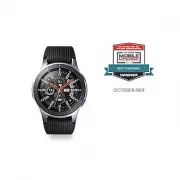 Samsung Galaxy Watch 4G
User Manual
Samsung Galaxy Watch 4G
User Manual
 Samsung Galaxy Watch Active
User Manual
Samsung Galaxy Watch Active
User Manual
 Samsung Galaxy Watch Active2
User Manual
Samsung Galaxy Watch Active2
User Manual
 Samsung Galaxy Watch3
User Manual
Samsung Galaxy Watch3
User Manual
 Samsung Galaxy Watch4
User Manual
Samsung Galaxy Watch4
User Manual
 Samsung Galaxy Watch4 Classic
User Manual
Samsung Galaxy Watch4 Classic
User Manual
 Samsung Galaxy Watch5
User Manual
Samsung Galaxy Watch5
User Manual
 Samsung Galaxy Watch5 Pro
User Manual
Samsung Galaxy Watch5 Pro
User Manual
 Samsung Galaxy Watch6
User Manual
Samsung Galaxy Watch6
User Manual
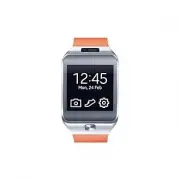 Samsung Gear 2
User Manual
Samsung Gear 2
User Manual
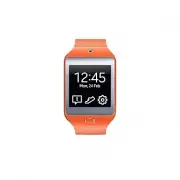 Samsung Gear 2 Neo
User Manual
Samsung Gear 2 Neo
User Manual
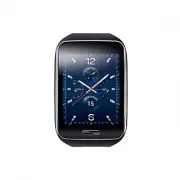 Samsung Gear S
User Manual
Samsung Gear S
User Manual
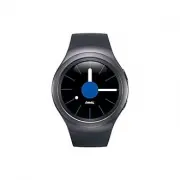 Samsung Gear S2
User Manual
Samsung Gear S2
User Manual
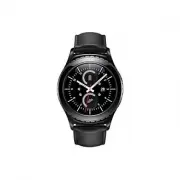 Samsung Gear S2 classic
User Manual
Samsung Gear S2 classic
User Manual
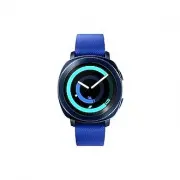 Samsung Gear Sport
User Manual
Samsung Gear Sport
User Manual
 Samsung SM-R500
User Manual
Samsung SM-R500
User Manual
 Samsung SM-R600
User Manual
Samsung SM-R600
User Manual
 Samsung SM-R750
User Manual
Samsung SM-R750
User Manual
 Samsung SM-R760
User Manual
Samsung SM-R760
User Manual