Page 2 - Table of Contents; Getting Started
2 Table of Contents Getting Started 5 About the Gear S36 Read me first7 Maintaining water and dust resistance 8 Device layout 8 Package contents 9 Gear11 Wireless charging dock 12 Battery 12 Charging the battery14 Battery charging tips and precautions 15 Power saving mode 16 Wearing the Gear 16 Putt...
Page 3 - 8 Music Player; 9 Entering text; Applications
Table of Contents 3 68 Music Player 68 Introduction68 Playing music68 Importing music69 Playing music on the Gear69 Playing music from your mobile device 69 Standalone music 70 Reminders71 Schedule71 S Voice 71 Introduction71 Setting a wake-up command72 Using S Voice73 Setting the language 73 Weathe...
Page 4 - Appendix
Table of Contents 4 Appendix 99 Troubleshooting103 Removing the battery 82 Messages82 Connections87 Security87 Accessibility87 Input87 Power saving88 Gear info88 Connect to new phone88 Connect to phone89 Updating the Gear Samsung Gear app 90 Introduction91 INFO92 SETTINGS 92 Watch faces92 Notificati...
Page 5 - About the Gear S3
5 Getting Started About the Gear S3 The Gear S3 is a smartwatch that works as a traditional watch and allows you to use a variety of convenient apps for making phone calls, playing music, and managing your health. By rotating the bezel, you can access convenient features quickly and easily. You can ...
Page 6 - Read me first
Getting Started 6 Read me first Please read this manual before using this device to ensure safe and proper use. • Descriptions are based on the device’s default settings. • Some content may differ from your device depending on the region, service provider, model specifications, or device’s software....
Page 7 - Instructional icons; Maintaining water and dust resistance
Getting Started 7 Instructional icons Warning : situations that could cause injury to yourself or others Caution : situations that could cause damage to your device or other equipment Notice : notes, usage tips, or additional information Maintaining water and dust resistance Your device supports wat...
Page 8 - Device layout; Package contents
Getting Started 8 • The touchscreen and other features may not work properly if the device is used in water . • Your device has been tested in a controlled environment and certified to be water-and dust-resistant in specific situations (meets requirements of classification IP68 as described by the i...
Page 9 - Gear
Getting Started 9 Gear ► SM-R760, SM-R765F Bezel Back key Home key (Power key) Microphone Touchscreen NFC antenna GPS antenna Light sensor Heart rate sensor Pressure relief vent (Atmospheric pressure sensor) Speaker Band
Page 11 - Keys; Wireless charging dock
Getting Started 11 Keys Key Function / Home/Power • Press and hold to turn the Gear on or off. • Press to turn on the screen. • Press and hold for more than 7 seconds to restart the Gear. • Press to open the Apps screen when you are on the Watch screen. • Press to open the Watch screen when you are ...
Page 12 - Battery; Charging the battery
Getting Started 12 Battery Charging the battery Charge the battery before using it for the first time or when it has been unused for extended periods. Use only Samsung-approved chargers, batteries, and cables. Unapproved chargers or cables can cause the battery to explode or damage the Gear. • Use t...
Page 13 - Checking the charging status
Getting Started 13 2 Place the Gear into the wireless charging dock. Checking the charging status When you connect the Gear and the wireless charging dock, the wireless charging dock’s LED indicator flashes certain colours to indicate the battery level. Colour Charging status Red Charging Green Full...
Page 14 - Reducing the battery consumption; Battery charging tips and precautions
Getting Started 14 Reducing the battery consumption Your Gear provides various options that help you conserve battery power. • When you are not using the Gear, turn off the screen by covering the screen with your palm. • Activate power saving mode. • Close unnecessary apps. • Deactivate the Bluetoot...
Page 15 - Power saving mode
Getting Started 15 • The Gear can be used while it is charging, but it may take longer to fully charge the battery. • If the Gear receives an unstable power supply while charging, the touchscreen may not function. If this happens, disconnect the Gear from the wireless charging dock. • While charging...
Page 16 - Wearing the Gear; Putting on the Gear; Band tips and precautions
Getting Started 16 Wearing the Gear Putting on the Gear Open the buckle and place the band around your wrist. Fit the band to your wrist, insert the pin into an adjustment hole, and then secure the buckle to close it. Do not bend the band excessively. Doing so may damage the Gear. To measure your he...
Page 17 - Replacing the band
Getting Started 17 • Keep in mind the followings to protect the leather band. – Avoid exposing the leather band to direct sunlight, water, and hot or humid environments. The leather band can become discoloured or deformed. – The leather is permeable so it can be contaminated by oil and cosmetics. Av...
Page 19 - Turning the Gear on and off
Getting Started 19 4 Slide the spring bar inwards and connect the band. 1 2 Turning the Gear on and off Press and hold the Home key (Power key) for a few seconds to turn on the Gear. When you turn on the Gear for the first time or reset it, a pop-up window will appear. Follow the on-screen instructi...
Page 20 - Restarting the Gear; Installing the Samsung Gear app
Getting Started 20 Restarting the Gear If your Gear is frozen and unresponsive, press and hold the Home key (Power key) for more than 7 seconds to restart it. Connecting the Gear to a mobile device Installing the Samsung Gear app To connect your Gear to a mobile device, install the Samsung Gear app ...
Page 22 - Connecting the Gear to a new mobile device; Remote connection
Getting Started 22 Connecting the Gear to a new mobile device When you connect the Gear to another mobile device, a pop-up window will ask you to reset the Gear. Make sure you back up any important data stored in your Gear. For more information about backing up your Gear, refer to Backing up and res...
Page 23 - Introduction
Getting Started 23 eSIM (SM-R765F) Introduction Your Gear includes an eSIM, which functions as a SIM card so that you do not need a SIM card to make calls, send messages, or use a mobile data connection with the Gear.Install a profile and activate the eSIM. For more information, contact your service...
Page 24 - Voucher card
Getting Started 24 Gear 6 Tap to activate the eSIM on your Gear. You can use the mobile data connection sorely on the Gear. Voucher card This QR code is an example. It is not for actual use.
Page 25 - Managing the eSIM; Using the Gear without a mobile device
Getting Started 25 Managing the eSIM To activate or deactivate the eSIM, open the Apps screen and tap ( Settings ) → Gear info → About device → Gear eSIM profile , and then tap . To delete the eSIM, open the Apps screen and tap ( Settings ) → Gear info → About device → Gear eSIM profile → Delete . T...
Page 26 - Basics; Controlling the screen; Screen composition; Adding widgets
26 Basics Controlling the screen Screen composition The Watch screen is the starting point for accessing all of the Gear’s many screens.You can view other screens by pressing the button, rotating the bezel, or swiping your finger on the screen. Notifications Watch Widgets Add widgets. Available widg...
Page 27 - Turning the screen on and off; Navigating the screen; Switching between the Watch and Apps screen; Apps screen
Basics 27 Turning the screen on and off To turn on the screen, rotate the bezel. Or, press the Home key or the Back key.To turn off the screen, cover it with your palm. Also, the screen will turn off if the Gear is not used for a specified period.You can also turn on the screen using a gesture. On t...
Page 28 - Opening apps; Closing apps; Returning to the previous screen
Basics 28 Opening apps On the Apps screen, tap an app icon to open the app.To open an app from the list of recently used apps, tap ( Recent apps ) on the Apps screen and select the recent app window. Closing apps 1 On the Apps screen, tap ( Recent apps ). 2 Rotate the bezel to highlight the app you ...
Page 29 - Using the bezel; Scrolling through screens
Basics 29 Using the bezel Rotate the bezel to easily control the Gear’s various functions. • Make sure the bezel area is free from the foreign materials. • Do not use the bezel near magnetic fields as they may interfere with the bezel’s internal magnets and cause it to malfunction. If the bezel does...
Page 30 - Selecting an item
Basics 30 Selecting an item Rotate the bezel to highlight the item you want to select and then tap the item. When you rotate the bezel, the highlight indicator will move in the same direction. Adjusting the input value Rotate the bezel to adjust the volume or brightness. When adjusting the brightnes...
Page 31 - Receiving or rejecting incoming calls; Touchscreen; Tapping
Basics 31 Receiving or rejecting incoming calls Rotate the bezel clockwise to receive an incoming call or to dismiss an alarm. Rotate the bezel anticlockwise to reject an incoming call or to activate the snooze feature for an alarm. Touchscreen • Do not allow the touchscreen to come into contact wit...
Page 32 - Tapping and holding
Basics 32 Tapping and holding Tap and hold the screen for two or more seconds to access the Edit mode or to view available options. Dragging To move an item, tap and hold it and drag it to the target position.
Page 33 - Swiping
Basics 33 Double-tapping Double-tap on an image or text to zoom in. Double-tap again to return. Swiping Swipe to the left or right to view other panels.
Page 34 - Status panel; Indicator icons
Basics 34 Status panel This panel allows you to view the current status and configure basic settings.On the Watch screen, swipe downwards from the top edge of the screen. Gear's connection status Indicator icons Volume Brightness Do not disturb Flight mode Music Player Indicator icons Indicator icon...
Page 36 - Watch; Watch screen
Basics 36 Watch Watch screen View the current time. When you are not on the Watch screen, press the Home key to return to the Watch screen. Changing the watch face Tap and hold the Watch screen, scroll through the list and select a watch face. You can also customise the watch by tapping STYLISE . To...
Page 37 - Using the Watch always on feature; Notification panel
Basics 37 Using the Watch always on feature You can set the Gear to display the time when the screen is turned off.On the Apps screen, tap ( Settings ) → Style and tap the Watch always on switch to activate it. Power-off watch mode When the Gear’s battery is too low, it will ask you to activate Powe...
Page 38 - Viewing incoming notifications; Deleting notifications
Basics 38 Viewing incoming notifications When you receive a notification, information about the notification, such as its type, will appear on the screen. Tap the notification to view details. Access additional options. To view notifications received from other apps, rotate the bezel anticlockwise. ...
Page 39 - Sending app notifications to the Gear; Entering text
Basics 39 Sending app notifications to the Gear Set your mobile device to send app notifications to the Gear. 1 Launch Samsung Gear on your mobile device and tap SETTINGS → Notifications , and tap the switch. 2 Tap Manage notifications and tap the switch next to apps to receive notifications from th...
Page 40 - Using the voice input; Using emoticons
Basics 40 Using the voice input Tap and speak to enter your message.To change the language recognised, tap → Input languages . • This feature is not supported in some languages. • Tips for better voice recognition – Speak clearly. – Speak in quiet places. – Do not use offensive or slang words. – Avo...
Page 41 - Using handwriting input mode or the keyboard; Changing the input mode
Basics 41 Using handwriting input mode or the keyboard Tap and open handwriting mode and write on the screen. This feature may not be available depending on the region or service provider. Changing the input mode Rotate the bezel to change the input mode. You can switch between handwriting mode, cha...
Page 42 - Using the keyboard; GPS
Basics 42 Using the keyboard Rotate the bezel to enter text using the keyboard. • Text entry is not supported in some languages. To enter text, you must change the input language to one of the supported languages. • The keyboard layout may differ depending on the region. Delete a preceding character...
Page 43 - SOS messages; Setting up SOS messages; Adding emergency contacts
Basics 43 SOS messages In an emergency situation, you can send an SOS message by quickly pressing the Gear’s Home key three times. You can also set the Gear to automatically call your emergency contacts. Setting up SOS messages 1 Launch Samsung Gear on your mobile device and tap SETTINGS → Send SOS ...
Page 44 - Sending SOS messages; Viewing my location; Finding my Gear
Basics 44 Sending SOS messages In an emergency situation, quickly press the Gear’s Home key three times.The Gear will send SOS messages to your emergency contacts. The messages will include your current location information and a link to track your real-time location information for 60 minutes.If th...
Page 45 - Viewing messages; Sending messages
45 Applications Messages View messages and reply to using the Gear. Viewing messages You may incur additional charges for receiving messages when you are roaming. 1 Tap ( Messages ) on the Apps screen. Or, swipe to the right on the Watch screen when you receive a new message notification. 2 Scroll t...
Page 46 - Phone
Applications 46 2 Tap .Or, you can choose a message recipient by tapping or selecting a contact from a contact on the messages list. 3 Add a recipient and tap NEXT . 4 Enter text using one of available methods and tap an icon to send the message.When you select a text template or an emoticon, the me...
Page 47 - Receiving calls; Answering a call
Applications 47 2 On the Settings screen, tap Call → Outgoing number → Gear or Mobile device . • If you set the Gear as the outgoing number for calls, the battery will drain more quickly than normal. • If a Bluetooth connection between the two devices is not available, outgoing calls will only be ma...
Page 48 - Rejecting a call; Missed calls
Applications 48 Rejecting a call Reject an incoming call and send a rejection message to the caller.When a call comes in, drag outside the large circle. Alternatively, rotate the bezel anticlockwise. To send a message when rejecting an incoming call, swipe upwards from the bottom edge of the screen....
Page 49 - Making calls; Options during calls
Applications 49 Making calls Tap ( Phone ) on the Apps screen. Keypad Contacts Log list Use one of the followings methods: • Tap , enter a number using the keypad, and then tap . • Tap , search or select a contact, and then tap . • Scroll through the log list, select a log entry, and then tap . Opti...
Page 50 - Switching to a Bluetooth headset; Transferring calls to the mobile device; Opening the keypad
Applications 50 Switching to a Bluetooth headset Switch the Gear to a Bluetooth headset to continue the call on a Bluetooth headset.Tap → Headset . Transferring calls to the mobile device You can continue calls on the mobile device.Tap → Phone . Opening the keypad Tap → Keypad . Forwarding calls to ...
Page 51 - Deactivating call forwarding
Applications 51 <An incoming call diverted to the Gear from the mobile device> 1 Tap ( Settings ) on the Apps screen. 2 Tap Call → Auto call forwarding . 3 Tap the Enable switch to activate the feature. 4 Enter your Gear’s phone number and tap . Deactivating call forwarding When the two device...
Page 52 - Adding medical information to my profile
Applications 52 Contacts View your mobile device’s contacts list. You can make a call or send a message to the contact.Tap ( Contacts ) on the Apps screen. • The favourites list contacts on the mobile device will display on the top of the contacts list. • You can add contacts when your Gear is not c...
Page 53 - Wearing the Gear correctly
Applications 53 S Health Introduction S Health encourages you to have a healthy life by tracking your activity 24 hours a day and letting you set goals.When you exercise for more than 10 minutes while wearing the Gear, it will display an encouraging message. When the Gear recognises inactivity for m...
Page 57 - Floors
Applications 57 Floors Record and track how many floors you climb. 1 Tap ( S Health ) on the Apps screen. 2 Rotate the bezel clockwise and open the floors tracker panel. Target Current floors total Tap the screen to view a graph of your climbing records. To view records by day, rotate the bezel. • O...
Page 58 - Exercise; Setting the exercise
Applications 58 Exercise Record your exercise information and calories burned using S Health’s exercise feature. • Before using this feature, pregnant women, the elderly, and young children, users suffering from conditions, such as chronic heart disease or high blood pressure, are recommended to see...
Page 59 - Exercising with the Gear; Automatic exercise recognition
Applications 59 Exercising with the Gear 1 Tap ( S Health ) on the Apps screen. 2 Rotate the bezel clockwise and open the exercise tracker screen. 3 Tap to start exercising. • Tap to allow this app to use your location information while exercising. Your location information sharing preference will b...
Page 60 - Heart rate
Applications 60 • Among the various exercise types, only walking, running, elliptical workouts, rowing, and cycling can be measured. • The automatic exercise recognition feature measures the distance travelled and calories burnt using the acceleration sensor. The measurements may not be accurate dep...
Page 61 - Measuring your heart rate; Tracking your heart rate
Applications 61 Measuring your heart rate 1 Tap ( S Health ) on the Apps screen. 2 Rotate the bezel clockwise and open the heart rate tracker screen. 3 Tap to begin measuring your heart rate.After a moment, your current heart rate will be displayed on the screen. Tap the screen to view a graph of yo...
Page 62 - Water; Caffeine
Applications 62 Water Record and track how many glasses of water you drink. 1 Tap ( S Health ) on the Apps screen. 2 Rotate the bezel clockwise and open the water tracker screen. 3 Tap when you drink a glass of water.If you accidentally added an incorrect value, you can fix it by tapping . Tap the s...
Page 63 - Together
Applications 63 3 Tap when you drink a cup of coffee.If you accidentally added an incorrect value, you can fix it by tapping . Tap the screen to view a graph of your records. To view records by day, rotate the bezel. Together Compare your step count records with other S Health users. You can set a g...
Page 64 - Additional information
Applications 64 Additional information • The purpose for such data collection is limited to providing the service that you have requested, including providing additional information to enhance your wellness, back up/sync data, data analysis and statistics or to develop and provide better services. (...
Page 65 - Measuring your altitude
Applications 65 Alti-Barometer Measure the altitude and atmospheric pressure of your current location using the internal atmospheric sensor.On the Apps screen, tap ( Alti-Barometer ). To view the barometer, swipe to the left. Altimeter Barometer Measuring your altitude Measure your current altitude ...
Page 66 - Manually calibrating the altitude; Measuring the atmospheric pressure
Applications 66 Manually calibrating the altitude You can manually calibrate the measured altitude. 1 Swipe to the left to open the settings screen. 2 Tap CHANGE > . 3 Tap Manual calibration and tap the Manual calibration switch to activate it. 4 Tap Altitude and set the reference value. The alti...
Page 67 - Manually calibrating the atmospheric pressure; Configuring the alti-barometer
Applications 67 Manually calibrating the atmospheric pressure You can manually calibrate the measured atmospheric pressure. 1 Swipe to the left to open the settings screen. 2 Tap CHANGE > . 3 Tap Manual calibration and tap the Manual calibration switch to activate it. 4 Tap Sea level pressure and...
Page 68 - Music Player
Applications 68 Music Player Introduction Listen to music saved in the Gear and in the mobile device. Playing music Tap ( Music Player ) on the Apps screen. To open the playlist, swipe upwards from the bottom edge of the screen. Skip to the next file. Tap and hold to move forwards quickly. Change th...
Page 69 - Playing music on the Gear; Playing music via a Bluetooth headset; Playing music from your mobile device
Applications 69 Playing music on the Gear Play music saved in your Gear via the internal speaker. You can also play music via a connected Bluetooth headset. 1 Tap ( Music Player ). 2 Tap to play the music saved in your Gear.The icon will be changed to . 3 Tap . Playing music via a Bluetooth headset ...
Page 70 - Reminders; Creating a reminder
Applications 70 Reminders Add reminders for events such as buying tickets, going to the laundromat, or taking medicine, without using your calendar app. You can set alarms to receive reminders at specified times. Creating a reminder 1 On the Apps screen, tap ( Reminders ). 2 Tap Create reminder . If...
Page 71 - Setting a wake-up command
Applications 71 Schedule View the events scheduled on the mobile device. 1 Tap ( Schedule ) on the Apps screen. 2 Tap anywhere on the monthly calendar.The current day’s events list will be shown. 3 To view upcoming events, rotate the bezel to clockwise. S Voice Introduction Perform various tasks sim...
Page 72 - Using S Voice; Tips for better voice recognition
Applications 72 Using S Voice 1 Say the preset wake-up command. Alternatively, tap S Voice on the Apps screen. When ( S Voice ) is launched, the Gear begins voice recognition. This app may not be available depending on the region or service provider. S Voice settings View examples of voice commands....
Page 73 - Setting the language; Weather; Setting alarms
Applications 73 Setting the language On the Apps screen, tap ( S Voice ) → , rotate the bezel, tap Language , and then select a language. The selected language is applied to S Voice only, not to the language displayed on the Gear. Weather View weather information on the Gear for locations set on the...
Page 74 - Stopping alarms; World Clock; Creating clocks
Applications 74 5 Select an alarm notification type and tap SAVE . The saved alarm is added to the alarms list. On the alarms list, tap to activate the alarm or tap to deactivate the alarm. Stopping alarms Drag outside the large circle to stop an alarm. Alternatively, rotate the bezel clockwise.If y...
Page 75 - Gallery; Importing and exporting images; Importing images from your mobile device
Applications 75 Gallery Importing and exporting images Importing images from your mobile device 1 Launch Samsung Gear on your mobile device. 2 Tap SETTINGS → Send content to Gear . 3 Tap Select photos . 4 Select files and tap DONE . To sync images in your mobile device with your Gear, tap the Auto s...
Page 76 - Viewing images; Zooming in or out; Deleting images
Applications 76 Viewing images 1 Tap ( Gallery ) on the Apps screen. 2 Rotate the bezel to scroll through the image list and select an image. Zooming in or out While viewing an image, double-tap the image to zoom in or out.When an image is magnified, you can view the rest of the image by scrolling a...
Page 77 - Find My Phone; Viewing the location of your mobile device
Applications 77 News Briefing View the latest articles in various categories. You can catch up on news categories that interest you. 1 Tap ( News Briefing ) on the Apps screen. 2 Rotate the bezel to select an article from a specific category.To edit categories, tap , rotate the bezel, tap Select top...
Page 78 - Reading emails; Get more apps
Applications 78 Email View emails received on the mobile device and reply to them. Reading emails 1 On the Apps screen, tap ( Email ). 2 Select an email to open the email screen. To view an email on the mobile device, tap , rotate the bezel, and tap Show on phone . To reply to a message, tap and ent...
Page 80 - Device
Applications 80 • Long buzz : Set the Gear to vibrate longer for incoming calls and notifications. • Ringtones : Change the ringtone. • Ringtone vibration : Select a vibration pattern for incoming calls. • Notification sound : Change the notification ringtone. • Notification vibration : Select a vib...
Page 81 - Display
Applications 81 • Touch sensitivity : Set the Gear to allow use of the touch screen with gloves on. • Do not disturb : Set the device to mute incoming calls and notification sounds. • Auto open apps : Set the Gear to automatically open an app when it is highlighted. • Date and time : Set the Gear’s ...
Page 82 - Bluetooth
Applications 82 • Voicemail : Access the voice mail service. • Block list : Reject calls from specified phone numbers. The Outgoing number option is available when the Gear is connected to a mobile device. Messages Change the message feature settings.On the Settings screen, tap Messages . • Send as ...
Page 83 - Mobile networks
Applications 83 Mobile networks Customise settings to control networks.On the Settings screen, tap Connections → Mobile networks . • Mobile networks : – Auto on/off : Set the Gear to automatically connect to or disconnect from the mobile network depending on the Gear’s connection to the mobile devic...
Page 84 - NFC
Applications 84 Wi-Fi Activate the Wi-Fi feature to connect to a Wi-Fi network.This feature is available when the Gear is not connected to the mobile device via Bluetooth. 1 On the Settings screen, tap Connections → Wi-Fi , and then tap Wi-Fi switch to activate it. 2 Select a network from the Wi-Fi ...
Page 85 - Making payments with the NFC feature
Applications 85 Making payments with the NFC feature Before you can use the NFC feature to make payments, you must register for the mobile payment service. To register or get more information about the service, contact your service provider. 1 On the Settings screen, tap Connections → NFC and then t...
Page 86 - Alerts; Location
Applications 86 Alerts Set the Gear to vibrate when it is disconnected from your mobile device.On the Settings screen, tap Connections → Alerts . Flight mode This disables all wireless functions on your device. You can use only non-network services.On the Settings screen, tap Connections → Flight mo...
Page 87 - Security; Input; Power saving
Applications 87 Security Change the settings for securing the Gear.On the Settings screen, tap Security . • Screen lock : Activate or deactivate the screen lock feature. When the screen lock feature is activated, the Gear prevents others from accessing the personal information saved in your Gear. Ac...
Page 88 - Gear info
Applications 88 Gear info View the Gear’s information.On the Settings screen, tap Gear info . • Update Gear software : Update your Gear to the latest software. • Auto update apps : Change the auto update settings for apps on your Gear. • About device : Access information about the Gear. • Report dia...
Page 89 - Updating the Gear; Updating via the Gear
Applications 89 Updating the Gear The Gear can be updated to the latest software. Updating via the Gear The Gear can be updated without connecting it to your mobile device.On your Gear, open the Apps screen, tap ( Settings ) → Gear info → Update Gear software . This feature is available when your Ge...
Page 90 - Samsung Gear app
90 Samsung Gear app Introduction To connect your Gear to a mobile device, you must install the Samsung Gear app on your mobile device. You can check the Gear’s status and download recommended watch faces and apps. You can also customise your Gear’s various settings, such as your notification setting...
Page 91 - INFO; About Gear
Samsung Gear app 91 Tap to use the following options: • Disconnect : Disconnect your Gear from the currently connected mobile device. • Connect new Gear : Disconnect your Gear from the currently connected mobile device and connect a new Gear. Tap SCAN to find a new Gear. To reconnect to a previously...
Page 92 - Suggested apps; SETTINGS; Watch faces
Samsung Gear app 92 Suggested apps You can download recommended apps from Galaxy Apps . Select a suggested app to download it. To view more apps, tap VIEW MORE APPS . Health View S Health’s saved data.Tap OPEN S HEALTH . SETTINGS Watch faces You can change the type of watch to be displayed on the Wa...
Page 93 - Apps; Uninstalling apps; Send content to Gear
Samsung Gear app 93 • Turn on screen : Set the Gear to turn on the screen when the notification is received. • Auto show details : Set the Gear to show details for notifications when they are received. • Notification indicator : Set the Gear to display a yellow dot on the Watch screen to alert you t...
Page 94 - Send SOS requests; Find My Gear
Samsung Gear app 94 • Auto sync : Set the device to sync audio files with the Gear while the Gear is charging. • Select photos : Select images and manually send them from the mobile device to the Gear. • Auto sync : Set the device to sync images with the Gear while the Gear is charging. • Albums to ...
Page 95 - Gear connection
Samsung Gear app 95 Gear connection Customise your Gear’s wireless connection settings.Launch Samsung Gear on your mobile device, tap SETTINGS → Gear connection , and tap the switch to activate it. • Remote connection : Set the Gear to remotely connect to the mobile device when a Bluetooth connectio...
Page 96 - Auto call forwarding
Samsung Gear app 96 Auto call forwarding Set to forward your mobile device’s incoming calls to the Gear on your mobile device. To use this feature, your Gear and your mobile device should be remotely connected using your Samsung account. 1 Launch Samsung Gear on your mobile device and tap SETTINGS →...
Page 97 - Samsung Galaxy Apps
Samsung Gear app 97 Samsung Galaxy Apps Purchase and download apps that are specialised for the Gear.Launch Samsung Gear on your mobile device and tap SETTINGS → Samsung Galaxy Apps . Browse by category and select an app to download. About Gear View your Gear’s status, back up or restore data, or up...
Page 98 - About Samsung Gear app
Samsung Gear app 98 Backing up and restoring data Keep the Gear’s settings data and other app settings and restore them later.To back up data, launch Samsung Gear on your mobile device and tap SETTINGS → About Gear → Back up and restore → Back up data . The data will be saved in Samsung Cloud. • Mus...
Page 99 - Troubleshooting; Your Gear does not turn on
99 Appendix Troubleshooting Before contacting a Samsung Service Centre, please attempt the following solutions. Some situations may not apply to your Gear. Your Gear does not turn on When the battery is completely discharged, your Gear will not turn on. Charge the battery completely before turning o...
Page 100 - Your Gear freezes or has fatal errors; Restarting the device; Another Bluetooth device cannot locate your Gear
Appendix 100 Your Gear freezes or has fatal errors Try the following solutions. If the problem is still not resolved, contact a Samsung Service Centre. Restarting the device If your Gear freezes or hangs, you may need to close apps or turn off the device and turn it on again. Forcing restart If your...
Page 101 - A Bluetooth connection is not established or your Gear and the; Calls are not connected; Others cannot hear you speaking on a call; Sound echoes during a call
Appendix 101 A Bluetooth connection is not established or your Gear and the mobile device are disconnected • Ensure that the Bluetooth feature on both devices is activated. • Ensure there are no obstacles, such as walls or electrical equipment, between the devices. • Ensure that the latest version o...
Page 103 - Your Gear cannot find your current location; Removing the battery
Appendix 103 Your Gear cannot find your current location The Gear uses your mobile device’s location information. GPS signals may be obstructed in some locations, such as indoors. Set the mobile device to use Wi-Fi or mobile network to find your current location. Data stored in the Gear has been los...


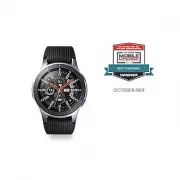 Samsung Galaxy Watch 4G
User Manual
Samsung Galaxy Watch 4G
User Manual
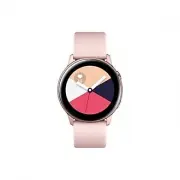 Samsung Galaxy Watch Active
User Manual
Samsung Galaxy Watch Active
User Manual
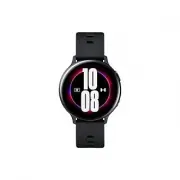 Samsung Galaxy Watch Active2
User Manual
Samsung Galaxy Watch Active2
User Manual
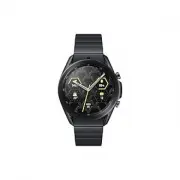 Samsung Galaxy Watch3
User Manual
Samsung Galaxy Watch3
User Manual
 Samsung Galaxy Watch4
User Manual
Samsung Galaxy Watch4
User Manual
 Samsung Galaxy Watch4 Classic
User Manual
Samsung Galaxy Watch4 Classic
User Manual
 Samsung Galaxy Watch5
User Manual
Samsung Galaxy Watch5
User Manual
 Samsung Galaxy Watch5 Pro
User Manual
Samsung Galaxy Watch5 Pro
User Manual
 Samsung Galaxy Watch6
User Manual
Samsung Galaxy Watch6
User Manual
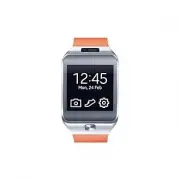 Samsung Gear 2
User Manual
Samsung Gear 2
User Manual
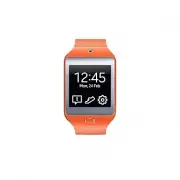 Samsung Gear 2 Neo
User Manual
Samsung Gear 2 Neo
User Manual
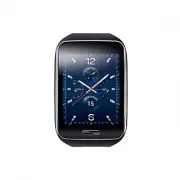 Samsung Gear S
User Manual
Samsung Gear S
User Manual
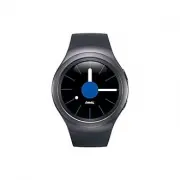 Samsung Gear S2
User Manual
Samsung Gear S2
User Manual
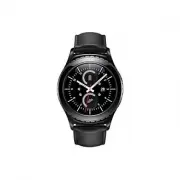 Samsung Gear S2 classic
User Manual
Samsung Gear S2 classic
User Manual
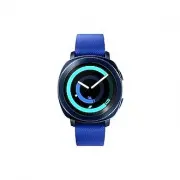 Samsung Gear Sport
User Manual
Samsung Gear Sport
User Manual
 Samsung SM-R500
User Manual
Samsung SM-R500
User Manual
 Samsung SM-R600
User Manual
Samsung SM-R600
User Manual
 Samsung SM-R750
User Manual
Samsung SM-R750
User Manual
 Samsung SM-R800
User Manual
Samsung SM-R800
User Manual