Page 2 - Table of Contents; Read me first
2 Table of Contents Read me first Getting started 7 About the Gear S 7 Package contents 8 Device layout 10 Using the SIM card15 Wearing the Gear16 Replacing the strap18 Turning the Gear on and off18 Connecting the Gear to a mobile device 21 Notices for using Bluetooth22 Turning on or off the screen2...
Page 3 - Appendix
Table of Contents 3 Appendix 90 Troubleshooting95 Removing the battery (non-removable type) Settings 71 An introduction71 Customising settings71 Style72 Call73 Sound73 Display74 Connections76 Notifications76 Messages76 Do not disturb76 Double press77 Privacy lock77 Motions77 Language & input79 P...
Page 5 - Instructional icons; Maintaining water and dust resistance
Read me first 5 Instructional icons Warning : situations that could cause injury to yourself or others Caution : situations that could cause damage to your device or other equipment Note : notes, usage tips, or additional information Maintaining water and dust resistance The device may be damaged if...
Page 6 - Overheat precautions
Read me first 6 • If the device has been immersed in water or the microphone or the speaker is wet , sound may not be heard clearly during a call. Ensure that the microphone or the speaker is clean and dry by wiping it with a dry cloth. • The touchscreen and other features may not work properly if t...
Page 7 - Getting started; About the Gear S
7 Getting started About the Gear S Connecting the Gear S (also referred to as Gear) to your mobile device allows you to check mobile device notifications, answer or make calls, view messages, and more. After connecting the Gear to the mobile device via Bluetooth for the first time, you can use the f...
Page 8 - Device layout; Gear
Getting started 8 Device layout Gear UV sensor Light sensor Power/Home key Charging terminals SIM card cover Speaker Heart rate sensor Microphone • Humidity and liquids may damage your Gear. Keep your Gear dry. • Ensure that the strap is kept clean. Contact with contaminants, such as dust and dye, c...
Page 9 - Charging dock with battery
Getting started 9 Charging dock with battery Multipurpose jack LED indicator Charging terminals • The charging dock also can be used as a supplementary battery. Charge the Gear by connecting it to the charging dock. • Charging the Gear using the charging dock without a charger charges the battery to...
Page 10 - Using the SIM card; Installing the SIM card
Getting started 10 Using the SIM card Installing the SIM card Insert the SIM card provided by the mobile telephone service provider. • Only nano-SIM cards work with the device. • The available features may differ depending on whether or not a SIM card is installed. 1 Remove the SIM card cover. SIM e...
Page 11 - Removing the SIM card
Getting started 11 3 Place the SIM card cover on the Gear and press the cover to close it. Ensure that the SIM card cover is closed tightly to prevent water and dust entering the device. Open or loose the cover may allow water and dust to enter the device and cause damage. After you install the SIM ...
Page 12 - Charging the battery
Getting started 12 Charging the battery Use the charger to charge the battery before using it for the first time. A computer can be also used to charge the Gear by connecting them via the USB cable. Use only Samsung-approved chargers, batteries, and cables. Unapproved chargers or cables can cause th...
Page 14 - Checking the charging dock’s battery level
Getting started 14 After fully charging, disconnect the Gear from the charging dock. Then, disconnect the charging dock from the USB cable and unplug the USB power adapter from the electric socket. To save energy, unplug the charger when not in use. The charger does not have a power switch, so you m...
Page 15 - About using battery; Wearing the Gear
Getting started 15 About using battery • Battery operating time is affected by device usage patterns and the condition of the battery. • The battery is a consumable item. Battery life can be reduced when multiple apps or features are running simultaneously. Also, even if the device is not being used...
Page 16 - Replacing the strap
Getting started 16 • Be careful not to damage your fingernails when you release the clasp. • Do not bend the strap excessively. Doing so may damage the Gear. 2 Open the clasp and place the strap around your wrist. Fit the strap to your wrist, secure it with the pin, and then press the buckle to clos...
Page 18 - Turning the Gear on and off; Connecting the Gear to a mobile device
Getting started 18 Turning the Gear on and off When you turn on the Gear for the first time, follow the on-screen instructions. The instructions describe how to connect the Gear to a mobile device and to set up the Gear.Press and hold the Home key for a few seconds to turn on the Gear. A pop-up wind...
Page 21 - Notices for using Bluetooth
Getting started 21 • Connection methods and screenshots may vary depending on the type of device and the device’s software version. • When connecting the Gear to another mobile device If you want to connect the Gear to a newly purchased mobile device or to another mobile device for the first time, r...
Page 22 - Turning on or off the screen; Adjusting the brightness of the display
Getting started 22 Turning on or off the screen Pressing the Home key on the Clock screen turns off the screen. Also, the screen turns off if the Gear is not used for a specified period.To turn on the screen, press the Home key. The Gear will display the Clock screen. If you want to view the last pa...
Page 23 - Adjusting the volume; Switching to silent mode
Getting started 23 Adjusting the volume On the Clock screen, drag upwards from the bottom edge of the screen, tap Settings → Sound → Volume . Then, select an item and adjust it and tap OK . Alternatively, open the Clock screen, drag downwards from the top of the screen, and drag the volume adjustmen...
Page 24 - Basics; Using the touchscreen; Tapping
24 Basics Using the touchscreen • Do not allow the touchscreen to come into contact with other electrical devices. Electrostatic discharges can cause the touchscreen to malfunction. • To avoid damaging the touchscreen, do not tap it with anything sharp or apply excessive pressure to it with your fin...
Page 25 - Tapping and holding
Basics 25 Tapping and holding Tap and hold the screen to access available options. Double-tapping Double-tap on an image to zoom in a part. Double-tap again to return.
Page 26 - Swiping
Basics 26 Swiping Swipe to the left or right to see other panel.Swipe upwards or downwards to scroll through a list of items, such as contacts. Dragging To move an item, tap and hold it and drag it to the target position.
Page 27 - Spreading and pinching; Basic controls; Viewing the Home screen panels
Basics 27 Spreading and pinching Spread two fingers apart on an image to zoom in a part. Pinch to zoom out. Basic controls Viewing the Home screen panels On the Home screen, swipe to the left or right to items, such as notifications and widgets.
Page 28 - Opening the All apps screen
Basics 28 Opening the All apps screen On the Clock screen, drag upwards from the bottom edge of the screen to open the All apps screen. Returning to the previous screen Drag downwards from the top edge of the screen while using an app to return to the previous page.You can also go to the Clock scree...
Page 29 - Home screen layout; Home screen
Basics 29 Home screen layout Home screen The Home screen can have multiple panels. Swipe to the left or right to view items on the Home screen, such as notifications and widgets. 1 2 3 4 5 6 7 Available widgets, notifications, and their arrangement may vary depending on the software version. Number ...
Page 30 - Using the Clock screen; Adding a widget
Basics 30 Using the Clock screen While using an app, press the Home key to open the Clock screen.To change the type of clock, tap and hold the clock, swipe to the left or right, and then select a type. You can also customise the clock by tapping . When you drag downwards from the top edge of the scr...
Page 31 - All apps screen; Opening apps; Closing apps; Rearranging apps
Basics 31 All apps screen The All apps screen displays icons for all apps.On the Clock screen, drag upwards from the bottom edge of the screen to open the All apps screen. Opening apps On the All apps screen, select an app icon to open it.To open the list of recently used apps, tap and hold the scre...
Page 32 - Installing apps; Indicator icons
Basics 32 Installing apps When the Gear and the mobile device are connected, you can download and install apps on the Gear via the mobile device.On the All apps screen, swipe upwards and tap Get more applications . You can only uninstall the downloaded apps on the Gear via the mobile device. Refer t...
Page 33 - Setting the privacy lock; Setting a PIN
Basics 33 Icon Meaning Flight mode activatedBattery power level Setting the privacy lock Setting a PIN Prevent others from using or accessing personal data and information stored in the Gear when it is disconnected from the mobile device. You can set a PIN to secure the Gear.On the All apps screen, ...
Page 34 - Using notifications; Viewing notifications
Basics 34 Using notifications Viewing notifications Stay up-to-date with a variety of events, such as missed calls or new messages, received on the mobile device and on the Gear.When the Gear is not connected to the mobile device via Bluetooth, you can still receive notifications from the mobile dev...
Page 35 - Blocking notifications; Entering text; Keyboard layout; Changing the input language
Basics 35 Blocking notifications You can set the Gear not to receive certain notifications.On the All apps screen of the mobile device, tap Samsung Gear → Notifications → Manage notifications and deselect the item you do not want to receive notification from. To block notifications that are received...
Page 36 - Changing the keyboard layout; Use additional keyboard functions
Basics 36 Changing the keyboard layout Tap and hold 123 at the lower-left corner of the keyboard, tap , select a language under Input languages , and then select a keyboard layout to use. On 3 x 4 keyboard , a key has three or four characters. To enter a character, tap the corresponding key repeated...
Page 37 - Motions
Basics 37 • : Enter text by using templates. • : Change the keyboard settings. • 123 : Enter numbers and punctuation marks. • Sym : Enter symbols. • : Insert emoticons. Motions Excessive shaking or impact on the Gear may result in unintended inputs. Control motions properly. Wake-up gesture On the A...
Page 38 - Power saving feature
Basics 38 Mute/pause On the All apps screen, tap Settings → Motions and tick Mute/pause . You can set this feature on the mobile device. Refer to Motions in the Samsung Gear app for more information.Cover the screen with your palm to mute incoming calls or alarms, or to pause media playback. Power s...
Page 39 - Transferring files between the Gear and a; Connecting as a media device
Basics 39 Transferring files between the Gear and a computer Move audio, images, or other types of file from a computer to the Gear, or vice versa.To view information about transferring files, refer to Music and Image for more information. Do not disconnect the Gear and the USB cable while transferr...
Page 40 - Upgrading the Gear; Upgrading with the Samsung Gear app; Upgrading with Samsung Kies
Basics 40 Upgrading the Gear The Gear can be upgraded to the latest software. Upgrading with the Samsung Gear app The Gear can be directly upgraded to the latest software by the firmware over-the-air (FOTA) service. 1 Tap Samsung Gear on the All apps screen of the mobile device. 2 Tap the Gear name....
Page 42 - Network & communication; Mobile data; Adding Wi-Fi networks
42 Network & communication Mobile data Connect the device to a mobile network to use the Internet or share media files with other devices.On the All apps screen, tap Settings → Connections → Mobile networks → Use mobile networks → Always on and tick Mobile data . Refer to Mobile networks for add...
Page 43 - An introduction
Network & communication 43 Remote connection Remotely connect the Gear to the mobile device when a Bluetooth connection between the devices is not available. When this feature is activated, you can receive notifications from the mobile device. 1 Sign in to your Samsung account on the mobile devi...
Page 44 - Making calls; Making calls from call logs or contacts list
Network & communication 44 Making calls Use one of the followings methods: • On the All apps screen, tap Phone → , enter a number using the keypad, and then tap . Delete a preceding character. View call and message logs. Preview the phone number. Enter the number using the keypad. • On the All a...
Page 45 - Receiving calls; Answering a call
Network & communication 45 Receiving calls Answering a call When a call comes in, drag outside the large circle.If the voice control feature is activated, say “Answer” to answer the call. Refer to Call for more information. <An incoming call to the Gear’s phone number> <An incoming call...
Page 46 - Rejecting a call; Missed calls; Forwarding calls to the Gear
Network & communication 46 Rejecting a call Reject an incoming call and send a rejection message to the caller.When a call comes in, drag outside the large circle. To send a message when rejecting an incoming call, select a message from the list of rejection messages.If the voice control feature...
Page 47 - Options during calls; Using the Call screen; Transferring calls to the mobile device
Network & communication 47 • You should wear the Gear on your wrist to automatically activate this feature. • A mobile device subscription may be required and you may incur additional charges to access this feature depending on the service provider. • When call forwarding is enabled, it will rem...
Page 48 - Switching to a Bluetooth headset; Muting the microphone
Network & communication 48 Switching to a Bluetooth headset Switch the Gear to a Bluetooth headset to continue the call on a Bluetooth headset.If the Gear is connected to a Bluetooth headset, tap or tap → and the call is directed to the Bluetooth headset.If the Gear is not connected to any Bluet...
Page 49 - Managing favourite contacts; Messages
Network & communication 49 Once a contact is selected, take one of the following actions: • : Make a voice call. • : Compose a message. • Emails : Compose an email. You may not be able to compose emails depending on the mobile device that you connect to the Gear. Managing favourite contacts When...
Page 50 - Sending messages; Viewing incoming messages
Network & communication 50 Sending messages If both devices have a SIM card installed, you can use the Gear to send messages from either device’s phone number. By default, the Gear sends messages using the mobile device’s SIM card. You may incur additional charges for sending or receiving messag...
Page 51 - Reading emails
Network & communication 51 Email An introduction View emails received on the mobile device and reply to them. Reading emails On the All apps screen, tap Email and select an email to open the email screen. To zoom in on the screen while viewing an email, double-tap the screen or spread your finge...
Page 52 - Useful apps; S Health
52 Useful apps S Health An introduction S Health helps you manage your wellness and fitness. Set fitness goals and regularly record and check your progress.When the Gear is synced with a compatible S Health app, you can use additional features. The additional features include checking your exercise ...
Page 54 - Starting S Health; Walking mate
Useful apps 54 Starting S Health When running this app for the first time or restart it after performing a data reset, follow the on-screen instructions to complete the setup. 1 Tap S Health on the All apps screen. 2 Select a feature and follow the on-screen instructions to complete the setup. Walki...
Page 55 - Exercise mate; Exercising with the Gear
Useful apps 55 Exercise mate Record your exercise information and burnt calories using S Health’s exercise feature. • The Gear’s GPS feature is used to check information, such as altitude and speed, when you are cycling or hiking. When the Gear and the mobile device are connected, the Gear uses the ...
Page 56 - Using the coaching feature while exercising in running mode
Useful apps 56 4 Tap to allow this app to use your current location while exercising. 5 Tap Start to start monitoring. Heart rate measurement starts. Start exercising when the measurement is completed. You can view exercise information, such as burnt calories and speed, when you swipe to the left or...
Page 58 - Measuring heart rate
Useful apps 58 6 When you finish running, tap the screen and tap Stop → OK to stop monitoring your exercise information. Measuring heart rate Measure and record your heart rate. • The Gear’s heart rate measurement feature is intended for fitness and informational purposes only and is not intended fo...
Page 59 - Measuring your heart rate; Viewing sleep information
Useful apps 59 Measuring your heart rate 1 On the All apps screen, tap S Health → Heart Rate . 2 When you use this feature for the first time, read the information about measuring your heart rate and tap OK . 3 Tap Start to begin measuring your heart rate. After a moment, your current heart rate wil...
Page 60 - Measuring the UV level
Useful apps 60 3 Tap Record sleep . The sleep duration appears on the screen when sleep recording starts. When the Gear is monitoring your sleep duration, do not disturb mode is activated. 4 Tap I’m awake → OK to stop recording. Measuring the UV level Measure UV levels in your current location and r...
Page 61 - Additional information
Useful apps 61 Measuring the UV level 1 On the All apps screen, tap S Health → UV . 2 When you use this feature for the first time, read the information about UV measurements and tap OK . 3 Tap Start and tap the screen. 4 Face the UV sensor on the Gear’s screen towards the sun. The UV level will app...
Page 62 - Using S Voice
Useful apps 62 • You assume full responsibility for the inappropriate use of data shared on social networks or transmitted to others. Use caution when sharing your personal data with others. • If the Gear is connected to a mobile device, verify the communication protocol to confirm proper operation....
Page 63 - Waking up S Voice in standby mode
Useful apps 63 2 When you launch this feature for the first time, tap Skip to use the default wake-up command or tap Set to change the wake-up command. When S Voice is launched, the Gear starts voice recognition and the colour and appearance of the microphone icon changes. • Once you activate S Voic...
Page 64 - Disabling voice feedback; Schedule
Useful apps 64 Disabling voice feedback Tap and deselect Voice prompt . The device stops providing voice feedback when you say commands. Schedule View the events scheduled on the mobile device.Tap Schedule on the All apps screen. Select an event from the list to view the details. Swipe to the left o...
Page 65 - Running; Starting Running
Useful apps 65 5 Mobile device Tap → or and select a route from the list. 6 Gear On the All apps screen, tap Navigator . 7 Gear Tap Agree to allow this app to use your current location and tap Jump in . 8 Gear Read the information about the navigator, swipe to right, and then tap . 9 Mobile device T...
Page 66 - Starting to exercise; Music Player
Useful apps 66 Starting to exercise 1 Gear On the All apps screen, tap Running and tap the screen. 2 Gear Tap BEGIN RUN . 3 Gear Tap to play music or tap not to play music during exercising. 4 Gear If you do not want to sync your account with social network sites, tap SKIP . Mobile device To sync yo...
Page 67 - Playing music; Controlling the mobile device’s music
Useful apps 67 Playing music On the All apps screen, tap Music Player , swipe to the left or right, and then select a song to play. Skip to the next file. Tap and hold to move forwards quickly. Adjust the volume. Open the playlist. Restart the currently playing file or skip to the previous file. Tap...
Page 68 - Weather; Alarm; Setting alarms
Useful apps 68 News Briefing View the latest articles in various categories. You can get briefed on news categories that interest you on the main pages of this feature. 1 Tap News Briefing on the All apps screen. 2 Swipe to the left or right to select a news category. To display more categories, tap...
Page 69 - Stopping alarms; Viewing photos
Useful apps 69 3 Tap Save . The saved alarm is added to the alarms list. 4 In the alarms list, tap to activate the alarm or tap to deactivate the alarm. Stopping alarms Drag outside the large circle to stop an alarm. If you have previously enabled the snooze option, drag outside the large circle to ...
Page 70 - Deleting photos; Deleting a file; Find My Device; Viewing the location of the mobile device
Useful apps 70 Deleting photos Tap Gallery on the All apps screen. Deleting a file Select an image and tap → Delete . Deleting multiple files 1 Tap and hold an image to delete. 2 Select more images. 3 Tap at the bottom of the screen. Find My Device If you misplace the mobile device, the Gear can hel...
Page 71 - Style; Clocks; Wallpapers
71 Settings An introduction Customise settings for a wide range of functions and apps. You can make the Gear more personalised by configuring various setting options. Customising settings Tap Settings on the All apps screen. Style Customise the Home or All apps screen by changing various items.On th...
Page 72 - Colour theme
Settings 72 Colour theme Change the colour of the All apps screen.On the Settings screen, tap Style → Colour theme . Font Change the font type and size.On the Settings screen, tap Style → Font . • Font style : Change the font type for display text. • Font size : Change the font size. Call Customise ...
Page 73 - Sound
Settings 73 Sound Change the settings for various sounds on the Gear.On the Settings screen, tap Sound . • Sound mode : Select Gear’s sound mode from sound, vibrate, and mute. • Volume : Adjust the volume level for various sounds, such as multimedia, ringtones, notifications, and system sounds. • Vi...
Page 74 - Connections; Bluetooth
Settings 74 Connections Customise settings to control connections with other devices or networks.On the Settings screen, tap Connections . Bluetooth Configure settings for the Bluetooth feature.On the Settings screen, tap Connections → Bluetooth . • Bluetooth : Turn the Bluetooth feature on or off. ...
Page 75 - Flight mode
Settings 75 • Mobile data : Set the Gear to use data connections on any mobile network. • Data roaming : Set the Gear to use data connections when you are roaming. • Network mode : Select a network type. • Network operators : Search for available networks and manually register a network. • Access Po...
Page 76 - Notifications; Do not disturb; Double press
Settings 76 Notifications Stay up-to-date with a variety of events, such as missed calls or new messages, received on the Gear and on the mobile device.On the Setting screen, tap Notifications . • Notifications : Set the Gear to receive notifications from the mobile device. • List view : Set the Gea...
Page 78 - Language
Settings 78 Language View the display language of the mobile device. If the Gear is not connected to the mobile device via Bluetooth, you can manually set the display language on the Gear.On the Settings screen, tap Language & input → Language . When the Gear is connected to a mobile device via ...
Page 79 - Power saving
Settings 79 • Keyboard swipe : – None : Set the Gear to deactivate the keyboard swipe feature. – Continuous input : Set the Gear to enter text by sweeping on the keyboard. – Cursor control : Enable the smart keyboard navigation feature to move the cursor by scrolling the keyboard. • Key-tap feedback...
Page 80 - Gear info
Settings 80 Gear info View the Gear’s information.On the Settings screen, tap Gear info . • About Gear : Access information about the Gear. • USB debugging : Activate or deactivate the USB debugging mode. You can use this mode when developing apps by connecting the Gear to a computer via a USB cable...
Page 81 - Samsung Gear app; Connecting a new Gear; Configuring the Gear settings
81 Samsung Gear app Samsung Gear An introduction This app allows you to connect to a mobile device and customise your Gear’s settings and apps. Also, you can use it to access the mobile device’s features.Tap Samsung Gear on the All apps screen of the mobile device. Some features may not be available...
Page 82 - Home screen styler; Clock; Auto send tracks to Gear
Samsung Gear app 82 Home screen styler Wallpapers Change the colour of the Gear’s Home screen. Or, set an image or photo stored in the mobile device as wallpaper.On the All apps screen of the mobile device, tap Samsung Gear → Home screen styler → Wallpapers and select a wallpaper for the Home screen...
Page 83 - Send tracks to Gear
Samsung Gear app 83 Send tracks to Gear Transfer music files saved in the mobile device to the Gear.On the All apps screen of the mobile device, tap Samsung Gear → Music → Send tracks to Gear → Tracks , tick music files, and then tap Send . Image Transfer image files saved in the mobile device to th...
Page 84 - Samsung Gear Apps; Viewing the location of the Gear
Samsung Gear app 84 Samsung Gear Apps You can download apps from Samsung Gear Apps . On the All apps screen of the mobile device, tap Samsung Gear → Samsung Gear Apps . Browse by category and select an app to download. Find My Gear If you misplace the Gear, the Samsung Gear app can help you find it....
Page 85 - Accessing additional features; Double pressing home key
Samsung Gear app 85 Accessing additional features When the Gear is connected to the mobile device via the remote connection feature, tap and use the following features: • Lock Gear : Remotely lock the Gear to prevent unauthorised access to it. To unlock the Gear, connect the Gear and the mobile devi...
Page 86 - Use Remote connection; Share location; Voice control; Auto call forwarding
Samsung Gear app 86 Use Remote connection Set the Gear to remotely connect to the mobile device when a Bluetooth connection between the devices is not available. Refer to Remote connection for more information. On the All apps screen of the mobile device, tap Samsung Gear → Settings and tick Use Rem...
Page 87 - Auto lock
Samsung Gear app 87 Auto lock Use the Gear to lock your mobile device when the mobile device is disconnected from your Gear. 1 On the All apps screen of the mobile device, tap Samsung Gear → Settings and tick Auto lock . 2 Tap Continue , draw a pattern by connecting four dots or more, and then tap C...
Page 88 - Manage applications; Safety assistance
Samsung Gear app 88 Manage applications You can manage app settings installed on the Gear.On the All apps screen of the mobile device, tap Samsung Gear → Settings → Manage applications , tap next to an app, and then configure the settings. Uninstall applications You can uninstall the downloaded apps...
Page 89 - Security; Open source license; User manual
Samsung Gear app 89 Security Change settings for securing the Gear.On the All apps screen of the mobile device, tap Samsung Gear → Settings → Security . • Unknown sources : Set the Gear to allow the installation of apps from unknown sources. • Security update : Set the Gear to check and download sec...
Page 90 - Troubleshooting; Your Gear does not turn on
90 Appendix Troubleshooting Before contacting a Samsung Service Centre, please attempt the following solutions. Some situations may not apply to your Gear. Your Gear does not turn on When the battery is completely discharged, your Gear will not turn on. Charge the battery completely before turning o...
Page 91 - Your Gear freezes or has fatal errors; Another Bluetooth device cannot locate your Gear; A Bluetooth connection is not established or your Gear and the
Appendix 91 Your Gear freezes or has fatal errors If your Gear freezes or hangs, you may need to close apps or turn off the Gear and turn it on again. If your Gear is frozen and unresponsive, press and hold the Home key for more than 7 seconds to reset.If this does not solve the problem, perform a f...
Page 93 - The battery does not charge properly (For Samsung-approved; The battery depletes faster than when first purchased; Your Gear is hot to the touch
Appendix 93 The battery does not charge properly (For Samsung-approved chargers) • Ensure that you connect the Gear to the charging dock and connect the dock to the charger properly. • Visit a Samsung Service Centre and have the battery replaced. The battery depletes faster than when first purchased...
Page 94 - A connection is not established when you connect the Gear to a; Your device cannot find your current location
Appendix 94 A connection is not established when you connect the Gear to a computer • Ensure that the USB cable you are using is compatible with your Gear. • Ensure that you have the proper driver installed and updated on your computer. • If you are a Windows XP user, ensure that you have Windows XP...


 Samsung Galaxy Watch 4G
User Manual
Samsung Galaxy Watch 4G
User Manual
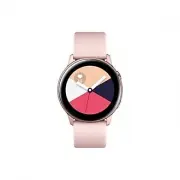 Samsung Galaxy Watch Active
User Manual
Samsung Galaxy Watch Active
User Manual
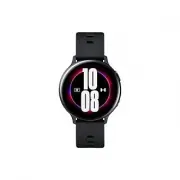 Samsung Galaxy Watch Active2
User Manual
Samsung Galaxy Watch Active2
User Manual
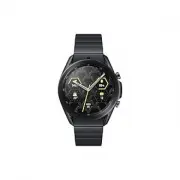 Samsung Galaxy Watch3
User Manual
Samsung Galaxy Watch3
User Manual
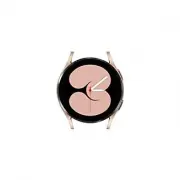 Samsung Galaxy Watch4
User Manual
Samsung Galaxy Watch4
User Manual
 Samsung Galaxy Watch4 Classic
User Manual
Samsung Galaxy Watch4 Classic
User Manual
 Samsung Galaxy Watch5
User Manual
Samsung Galaxy Watch5
User Manual
 Samsung Galaxy Watch5 Pro
User Manual
Samsung Galaxy Watch5 Pro
User Manual
 Samsung Galaxy Watch6
User Manual
Samsung Galaxy Watch6
User Manual
 Samsung Gear 2
User Manual
Samsung Gear 2
User Manual
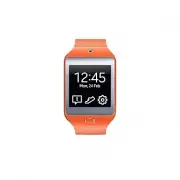 Samsung Gear 2 Neo
User Manual
Samsung Gear 2 Neo
User Manual
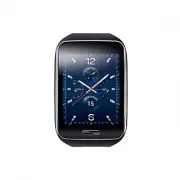 Samsung Gear S
User Manual
Samsung Gear S
User Manual
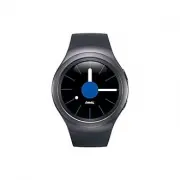 Samsung Gear S2
User Manual
Samsung Gear S2
User Manual
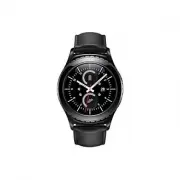 Samsung Gear S2 classic
User Manual
Samsung Gear S2 classic
User Manual
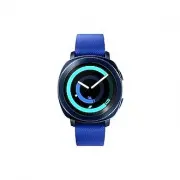 Samsung Gear Sport
User Manual
Samsung Gear Sport
User Manual
 Samsung SM-R500
User Manual
Samsung SM-R500
User Manual
 Samsung SM-R600
User Manual
Samsung SM-R600
User Manual
 Samsung SM-R760
User Manual
Samsung SM-R760
User Manual
 Samsung SM-R800
User Manual
Samsung SM-R800
User Manual