Page 2 - Table of Contents; Basics; Applications
2 Table of Contents Basics 4 Read me first 6 Package contents 7 Device layout 9 Battery12 Wearing the Gear13 Replacing the strap15 Turning the Gear on and off15 Connecting the Gear to a mobile device 17 Remote connection18 e-SIM20 Turning the screen on and off21 Using the bezel23 Touchscreen26 Navig...
Page 3 - Settings
Table of Contents 3 Settings 72 Introduction72 Display72 Sound73 Device74 Call74 Messages75 Connections80 Screen lock80 Accessibility80 Input82 Power saving82 Gear info Samsung Gear 83 Introduction84 Watch faces84 Notifications85 Apps layout85 Send content to Gear86 Settings89 Find My Gear90 Samsung...
Page 5 - Maintaining water and dust resistance
Basics 5 Maintaining water and dust resistance The device may be damaged if water or dust enters the device. Follow these tips carefully to prevent damage to the device and to maintain the water- and dust-resistant performance of the device. • Do not immerse the device in water deeper than 1.5 m and...
Page 6 - Instructional icons; Package contents
Basics 6 Instructional icons Warning : situations that could cause injury to yourself or others Caution : situations that could cause damage to your device or other equipment Notice : notes, usage tips, or additional information Package contents Check the product box for the following items: • Gear ...
Page 7 - Device layout; Gear; Keys
Basics 7 Device layout Gear Bezel Touchscreen Light sensor NFC antenna Back key Microphone Home key (Power key) Heart rate sensor Loud speaker Keys Key Function Home/Power • Press and hold to turn the Gear on or off. • Press to turn on the screen. • Press and hold for more than 7 seconds to restart ...
Page 8 - Wireless charger dock
Basics 8 Wireless charger dock USB charger port LED indicator Wireless charging surface • Do not expose the Gear or the wireless charger dock to water. The devices are not completely waterproof. • Ensure that the strap is kept clean. Contact with contaminants, such as dust and dye, can cause stains ...
Page 9 - Battery; Charging the battery
Basics 9 Battery Charging the battery Charge the battery before using it for the first time or when it has been unused for extended periods. Use only Samsung-approved chargers, batteries, and cables. Unapproved chargers or cables can cause the battery to explode or damage the Gear. 1 Connect the USB...
Page 10 - Checking the charging status
Basics 10 3 Place the Gear into the wireless charger dock. 4 After fully charging your Gear, disconnect it from the wireless charger dock. Unplug the charger from the wireless charger dock, and then unplug the charger from the electric socket. To save energy, unplug the charger when not in use. The ...
Page 11 - Reducing the battery consumption; Battery charging tips and precautions
Basics 11 Reducing the battery consumption Your Gear provides various options that help you conserve battery power. • When you are not using the Gear, switch to sleep mode by covering the screen with your palm. • Activate power saving mode. • Close unnecessary apps. • Deactivate the Bluetooth featur...
Page 12 - Wearing the Gear; Putting on the Gear
Basics 12 • The Gear can be used while it is charging, but it may take longer to fully charge the battery. • If the Gear receives an unstable power supply while charging, the touchscreen may not function. If this happens, disconnect the Gear from the wireless charger dock. • While charging, the Gear...
Page 13 - Strap tips and precautions; Replacing the strap
Basics 13 Strap tips and precautions • Be cautious when wearing the Gear. If you have sensitive skin or fasten the Gear too tightly, you may feel some discomfort. • Some people may experience discomfort when wearing the Gear for prolonged periods. • Skin irritation may occur if the strap is exposed ...
Page 15 - Turning the Gear on and off; Connecting the Gear to a mobile device
Basics 15 Turning the Gear on and off Press and hold the Power key for a few seconds to turn on the Gear. When you turn on the Gear for the first time or reset it, a pop-up window will appear. Follow the on-screen instructions to download and install the Samsung Gear app on your mobile device. Refer...
Page 17 - Connecting the Gear to a new mobile device; Remote connection
Basics 17 Connecting the Gear to a new mobile device When you connect the Gear to another mobile device, a pop-up window will ask you to reset the Gear. Make sure you back up any important data stored in your Gear. 1 Back up your Gear’s data on your mobile device.On your mobile device, open the Apps...
Page 18 - Introduction
Basics 18 e-SIM Introduction Your Gear includes an e-SIM, which functions as a SIM card so that you do not need a SIM card to make calls, send messages, or use a mobile data connection with the Gear.Install a profile and activate the e-SIM. For more information, contact your service provider. Activa...
Page 19 - Voucher card
Basics 19 Mobile device 4 Use your mobile device to scan the QR code on the e-SIM voucher.When the QR code is scanned, a profile is automatically downloaded on your device. 5 Tap REGISTER . Gear 6 Tap to activate the e-SIM on your Gear. You can use the mobile data connection sorely on the Gear. Vouc...
Page 20 - Turning the screen on and off
Basics 20 Managing the e-SIM To activate or deactivate the e-SIM, open the Apps screen and tap Settings → Gear info → About device → Gear eSIM profile , and then tap . To delete the e-SIM, open the Apps screen and tap Settings → Gear info → About device → Gear eSIM profile → Delete . The Gear will b...
Page 21 - Using the bezel; Scrolling through screens
Basics 21 Using the bezel Rotate the bezel to easily control the Gear’s various functions. • Make sure the bezel area is free from the foreign materials. • Do not use the bezel near magnetic fields as they may interfere with the bezel’s internal magnets and cause it to malfunction. If the bezel does...
Page 22 - Selecting an item
Basics 22 Selecting an item Rotate the bezel to highlight the item you want to select and then tap the item. When you rotate the bezel, the highlight indicator will move in the same direction. Adjusting the input value Rotate the bezel to adjust the volume or brightness. When adjusting the brightnes...
Page 23 - Touchscreen; Tapping
Basics 23 Touchscreen • Do not allow the touchscreen to come into contact with other electrical devices. Electrostatic discharges can cause the touchscreen to malfunction. • To avoid damaging the touchscreen, do not tap it with anything sharp or apply excessive pressure to it with your fingertips. T...
Page 24 - Tapping and holding
Basics 24 Tapping and holding Tap and hold the screen for two or more seconds to access the Edit mode or to view available options. Dragging To move an item, tap and hold it and drag it to the target position.
Page 25 - Swiping
Basics 25 Double-tapping Double-tap on an image or text to zoom in. Double-tap again to return. Swiping Swipe to the left or right to view other panels.
Page 26 - Navigating the screen; Switching between the Watch and Apps screen
Basics 26 Navigating the screen Switching between the Watch and Apps screen On the Watch screen, press the Home key to open the Apps screen.When you are not on the Watch screen, press the Home key to return to the Watch screen. Returning to the previous screen Press the Back key. You can also swipe ...
Page 27 - Home screen; Notifications panel
Basics 27 Home screen Introduction The Home screen can have multiple panels. The Watch screen is the starting point of the Home screen. Rotate the bezel to view items on the screen, such as notifications and widgets. Notifications Widgets Add widgets. Watch Available widgets, notifications, and thei...
Page 28 - Viewing incoming notifications; Viewing other notifications
Basics 28 Viewing incoming notifications Tap the notification screen. You can view the notification’s detail. Access additional options. If a message includes long text or attachments, check the message details on your mobile device. Viewing other notifications Tap the number at the bottom of the pa...
Page 29 - Deleting notifications
Basics 29 Deleting notifications Delete a notification by swiping upwards from the bottom edge of the screen while viewing a notification. Blocking notifications 1 Select a notification from the app you want to block. 2 Tap the notification to view the details. 3 Tap , rotate the bezel to Block app ...
Page 30 - Watch screen; Changing the watch face
Basics 30 Watch screen View the current time. You can also check the battery life, the date, your step count, and more. Press the Home key to open the Watch screen when you are not on the Watch screen.When there are unchecked notifications, an orange dot will be visible on the screen. Changing the w...
Page 31 - Widgets; Adding widgets
Basics 31 Widgets You can add widgets to the Home screen. Widgets are small apps that offer limited functionality to provide information and convenient access. You can use the following widgets by default. Weather Schedule Step tracker Heart rate tracker News Briefing World Clock Exercise tracker Mu...
Page 32 - Status panel; Indicator icons
Basics 32 Status panel This panel allows you to view the current status and configure basic settings.On the Watch screen, swipe downwards from the top edge of the screen. Gear's connection status Indicator icons Volume Brightness Do not disturb Flight mode Music Player Auto call forwarding Indicator...
Page 33 - Playing music
Basics 33 Icon Meaning HSDPA network connectedWi-Fi connectedFlight mode activatedBattery power level Playing music You can play music saved in the Gear or mobile device.On the status panel, tap . Call settings You can change the call feature settings.On the status panel, tap . Flight mode You can a...
Page 34 - Adjusting the volume; Adjusting the brightness; Apps screen; Opening apps
Basics 34 Adjusting the volume You can adjust the volume level for various sounds.On the status panel, tap and adjust the volume by rotating the bezel, or tap or . Adjusting the brightness You can adjust the Gear’s display brightness to suit the environment.On the status panel, tap and adjust the br...
Page 35 - Closing apps; Moving items; Installing apps
Basics 35 Closing apps 1 On the Apps screen, tap Recent apps . 2 Rotate the bezel to highlight the app you want to close. 3 Tap . To close all running apps, tap CLOSE ALL . Moving items On the Apps screen, tap and hold the screen, tap and hold an app and then drag it to the desired location.You can ...
Page 36 - Setting the screen lock; Setting a PIN; Unlocking the Gear; Entering text
Basics 36 Setting the screen lock Prevent others from accessing your Gear when you are not wearing it. If you have enabled the screen lock feature, it will activate when you take off the Gear. After activating this feature, the Gear requires an unlock code whenever you turn on the screen. Setting a ...
Page 37 - Using the voice input
Basics 37 Using the voice input Tap and speak the message you want to enter. When you are finished, tap .To change the language recognised, tap → Input languages . Start or pause entering text by voice. Send your message. Access additional options. • This feature is not supported in some languages. ...
Page 38 - Using keyboard; Changing the input mode
Basics 38 Using keyboard A key has three or four characters. To enter a character, tap the corresponding key repeatedly until the desired character appears. • Text entry is not supported in some languages. To enter text, you must change the input language to one of the supported languages. • The key...
Page 39 - Screen capture; Updating over the air
Basics 39 Screen capture Capture a screenshot while using the Gear.Press and hold the Home key and swipe your finger to the right across the screen.You can view captured images in Gallery . It is not possible to capture a screenshot while using some apps and features. Updating the Gear The Gear can ...
Page 40 - Viewing messages; Sending messages
40 Applications Messages Introduction View messages and reply to or call the sender using the Gear. Viewing messages You may incur additional charges for receiving messages when you are roaming. 1 Tap Messages on the Apps screen. 2 Scroll through the message list, and then select a contact to view y...
Page 42 - Phone; Receiving calls; Answering a call
Applications 42 Phone Introduction You can initiate calls or receive notifications for incoming calls. Setting an outgoing number Before making calls, you can select which device’s number to make calls from. By default, outgoing calls are made from the mobile device’s SIM card. 1 On the Apps screen,...
Page 43 - Rejecting a call
Applications 43 <An incoming call to the Gear’s phone number> <An incoming call to the mobile device’s phone number> You can activate the Gear’s mobile network by accessing Settings → Connections → Mobile networks → Mobile networks . When the option is set to Auto on/off , the Gear’s mob...
Page 44 - Missed calls; Making calls
Applications 44 Missed calls If a call is missed, a notification appears on the screen. On the Watch screen, rotate the bezel anticlockwise to view missed call notifications. Alternatively, tap Phone on the Apps screen to view missed calls. Making calls Tap Phone on the Apps screen. Keypad Log list ...
Page 45 - Forwarding calls to the Gear
Applications 45 Forwarding calls to the Gear When a Bluetooth connection between the two devices is not available, you cannot receive incoming calls to your mobile device’s number on your Gear. Set the call forwarding feature to answer the calls to the mobile device’s number on the Gear even when a ...
Page 46 - Deactivating call forwarding; Options during calls; Transferring calls to the mobile device
Applications 46 Deactivating call forwarding When the two devices are reconnected via Bluetooth, the call forwarding feature will be automatically deactivated.To manually deactivate the call forwarding feature, on the Apps screen, tap Settings → Call → Call forwarding ( Auto call forwarding ) → Enab...
Page 47 - Switching to a Bluetooth headset; Opening the keypad
Applications 47 Switching to a Bluetooth headset Switch the Gear to a Bluetooth headset to continue the call on a Bluetooth headset.Tap → Headset . Opening the keypad Tap → Keypad . Contacts Introduction View your mobile device’s contacts list. Only the contacts saved on your mobile device and SIM c...
Page 48 - Wearing the Gear correctly
Applications 48 S Health Introduction S Health helps you manage your wellness and fitness. Set fitness goals and regularly record and check your progress.When the Gear is synced with a compatible S Health app, you can use additional features. The additional features include checking your heart rate ...
Page 50 - 4-hour activity tracker
Applications 50 24-hour activity tracker Your Gear can monitor and record your activities during the day and encourage you to stay healthy.Tap S Health on the Apps screen. • Healthy activity : It indicates whether you are walking or running. If you have made more than 100 steps per minute for at lea...
Page 51 - Steps tracker
Applications 51 Steps tracker The Gear counts the number of steps you have taken and measures the distance travelled. 1 Tap S Health on the Apps screen. 2 Rotate the bezel clockwise and open the steps tracker panel. Current step total Target step number Tap the screen to view a graph of your step co...
Page 52 - Exercise tracker; Exercising with the Gear
Applications 52 Exercise tracker Record your exercise information and calories burned using S Health’s exercise feature. • When your Gear and mobile device are connected, this feature uses your mobile device’s location information. If the mobile device’s location feature is not activated, it is auto...
Page 54 - Heart rate tracker
Applications 54 Heart rate tracker Measure and record your heart rate. • The Gear’s heart rate tracker is intended for fitness and informational purposes only and is not intended for use in the diagnosis of disease or other conditions, or in the cure, mitigation, treatment, or prevention of disease....
Page 55 - Measuring your heart rate; Tracking your heart rate
Applications 55 Measuring your heart rate 1 Tap S Health on the Apps screen. 2 Rotate the bezel clockwise and open the heart rate tracker screen. 3 Tap to begin measuring your heart rate.After a moment, your current heart rate will be displayed on the screen. 4 Tap TAGS and select a status tag for y...
Page 56 - Water tracker; Caffeine tracker
Applications 56 Water tracker Record and track how many glasses of water you drink. 1 Tap S Health on the Apps screen. 2 Rotate the bezel clockwise and open the water tracker screen. 3 Tap when you drink a glass of water.If you accidentally added an incorrect value, you can fix it by tapping . Tap t...
Page 57 - Additional information
Applications 57 3 Tap when you drink a cup of coffee.If you accidentally added an incorrect value, you can fix it by tapping . Tap the screen to view a graph of your records. To view records by day, rotate the bezel. Additional information • The purpose for such data collection is limited to providi...
Page 58 - Running; Starting Running; Starting to exercise
Applications 58 Running Running records your exercising by tracking your distance, pace, and time. Check your monthly records and compare them with your friends. Starting Running You must download and install Running on the mobile device to use this app on the Gear. Gear 1 On the Apps screen, tap Ru...
Page 61 - Setting the language
Applications 61 2 Say a voice command.If the Gear recognises the command, the Gear will perform the corresponding action.To repeat a voice command or say a different command, tap . Tips for better voice recognition • Speak clearly. • Speak in quiet places. • Do not use offensive or slang words. • Av...
Page 62 - Alarm; Setting alarms; Timer
Applications 62 Alarm Setting alarms 1 Tap Alarm on the Apps screen. 2 Tap Add alarm . If you have a saved alarm, tap ADD on the alarms list. 3 Set the alarm time by rotating the bezel and tap NEXT . 4 Select the days for the alarm to repeat and tap SAVE . The saved alarm is added to the alarms list...
Page 63 - Stopwatch; Creating clocks
Applications 63 Stopwatch 1 Tap Stopwatch on the Apps screen. 2 Tap START to time an event. To record lap times while timing an event, tap LAP . 3 Tap STOP to stop timing. To restart the timing, tap RESUME . To clear lap times, tap RESET . To view the stopwatch log, swipe upwards from the bottom edg...
Page 64 - CNN
Applications 64 Bloomberg View the latest article summaries and stock indexes from Bloomberg.Tap Bloomberg on the Apps screen. This app may not be available depending on the region or service provider. Select a category and view the article summaries or stock indexes. To read the full article or vie...
Page 65 - Music Player
Applications 65 News Briefing View the latest articles in various categories. You can catch up on news categories that interest you. 1 Tap News Briefing on the Apps screen. 2 Rotate the bezel to select an article from a specific category.To edit categories, tap , rotate the bezel to Select topic , t...
Page 66 - Playing music on your mobile device
Applications 66 Playing music on your mobile device When you select a mobile device to play music from, you can control playback of the music with your Gear. The music will be played from your mobile device. 1 Tap Music Player . 2 Tap , rotate the bezel to Play music from , and then tap Play music f...
Page 67 - Zooming in or out; Deleting images
Applications 67 Gallery Introduction View and manage images stored in the Gear. Viewing images 1 Tap Gallery on the Apps screen. 2 Rotate the bezel to scroll through the image list and select an image. Zooming in or out While viewing an image, double-tap the image to zoom in or out.When the image is...
Page 68 - Importing and exporting images; Exporting images to your mobile device
Applications 68 Importing and exporting images Exporting images to your mobile device 1 Tap Gallery on the Apps screen. 2 Tap an image. 3 Tap and hold the image to export. 4 Rotate the bezel and select any images to export. 5 Tap , rotate the bezel to Send to phone , and then tap Send to phone . Imp...
Page 69 - Adding buddies; Email
Applications 69 Buddy Manage buddies on your Gear. You can select buddies from contacts saved in your mobile device. If you select a contact as a buddy, you can quickly initiate calls or send messages from the Gear.Tap Buddy on the Apps screen. Select a buddy and initiate a call or send a message. A...
Page 70 - Viewing the location of your mobile device; Maps; Voice Memo
Applications 70 Find My Phone If you misplace the mobile device, the Gear can help you find it. 1 Tap Find My Phone on the Apps screen. 2 Tap .The mobile device emits sounds and turns on the screen.Drag outside the large circle on the mobile device, or tap on the Gear. Viewing the location of your m...
Page 71 - Recording voice memos; Saving as a text memo
Applications 71 Recording voice memos 1 Tap Voice Memo on the Apps screen. 2 Tap to start recording. Speak into the microphone.Tap to pause recording. Access additional options. Start recording. 3 Tap to finish recording. The voice memo is saved in the Gear and the mobile device simultaneously.To sa...
Page 75 - Bluetooth
Settings 75 Connections Bluetooth Use Bluetooth to exchange data or media files with other Bluetooth-enabled devices. • Samsung is not responsible for the loss, interception, or misuse of data sent or received via Bluetooth. • Always ensure that you share and receive data with devices that are trust...
Page 76 - Mobile networks
Settings 76 Mobile networks Customise settings to control networks.On the Settings screen, tap Connections → Mobile networks . • Mobile networks : – Auto on/off : Set the Gear to automatically connect to or disconnect from the mobile network depending on the Gear’s connection to the mobile device vi...
Page 77 - Connecting to a Wi-Fi network
Settings 77 Wi-Fi Activate the Wi-Fi feature to connect to a Wi-Fi network.On the Settings screen, tap Connections → Wi-Fi , and then tap Wi-Fi switch to activate it. Turn off Wi-Fi to save the battery when not in use. Connecting to a Wi-Fi network This feature is available when the Gear is not conn...
Page 78 - NFC; Making payments with the NFC feature
Settings 78 NFC The Gear allows you to make payments and buy tickets for transportation or events after downloading the required apps.On the Settings screen, tap Connections → NFC . The Gear contains a built-in NFC antenna. Handle the Gear carefully to avoid damaging the NFC antenna. • NFC : Activat...
Page 79 - Alerts; Location
Settings 79 Alerts Set the Gear to vibrate when it is disconnected from your mobile device.On the Settings screen, tap Connections → Alerts . Flight mode This disables all wireless functions on your device. You can use only non-network services.On the Settings screen, tap Connections → Flight mode ....
Page 80 - Screen lock; Accessibility; Input; Default keyboard
Settings 80 Screen lock Set the Gear to use the screen lock feature when you are not wearing it.On the Settings screen, tap Screen lock . • Screen lock type : Activate or deactivate the screen lock feature. Refer to Setting the screen lock for more information. • Help : View help information for usi...
Page 81 - Keyboard settings
Settings 81 Keyboard settings Change the Samsung keyboard settings.On the Settings screen, tap Input → Keyboard settings → Samsung keyboard . • English (UK) : Select a default keyboard layout. • Select input languages : Select languages for text input. • Check for updates : Set the Gear to check for...
Page 82 - Power saving
Settings 82 Power saving Activate power saving mode to save battery power by limiting the Gear’s functions. • Displays colours on the screen as grey tones. • Deactivates features, excluding phone, messages, and notifications. • Deactivates the mobile data connection. • Deactivates the Wi-Fi feature....
Page 83 - Disconnecting the Gear
83 Samsung Gear Introduction To connect your Gear to a mobile device, you must install the Samsung Gear app on your mobile device. Using the Samsung Gear app, you can customise your Gear’s settings.Tap Samsung Gear on the Apps screen of the mobile device. If it is the first time connecting your Gear...
Page 84 - Using support services; Watch faces
Samsung Gear 84 Using support services Ask questions or view frequently asked questions.On the Apps screen of the mobile device, tap Samsung Gear → MORE → Help and then tap FAQ or Contact Us . Watch faces You can change the type of watch to be displayed on the Watch screen.On the Apps screen of the ...
Page 85 - Reordering apps; Send content to Gear
Samsung Gear 85 Apps layout Customise the Gear’s Apps screen. You can select and rearrange apps.On the Apps screen of the mobile device, tap Samsung Gear → Apps layout . Uninstalling apps Tap UNINSTALL and select apps to remove from the Gear. Reordering apps Tap next to an app and drag it up or down...
Page 86 - Quick messages
Samsung Gear 86 Settings Quick messages Edit or add templates used for replying to messages. 1 On the Apps screen of the mobile device, tap Samsung Gear → Settings → Quick messages . 2 Tap General messages or Call-reject messages . 3 Select a template to edit.To create additional templates, enter te...
Page 87 - Gear connection; Adding primary contacts
Samsung Gear 87 Gear connection Customise your Gear’s wireless connection settings.On the Apps screen of the mobile device, tap Samsung Gear → Settings → Gear connection , and then tap the switch to activate it. • Remote connection : Set the Gear to remotely connect to the mobile device when a Bluet...
Page 88 - Back up and restore; Social network sharing
Samsung Gear 88 Back up and restore Back up the stored data on the Gear or restore backup data.On the Apps screen of the mobile device, tap Samsung Gear → Settings → Back up and restore → Back up data or Restore data . Social network sharing Share your exercise achievements with your friends on soci...
Page 89 - About Gear; About Samsung Gear app; Find My Gear
Samsung Gear 89 About Gear Access information about the Gear.On the Apps screen of the mobile device, tap Samsung Gear → Settings → About Gear . • Update Gear software : Update the Gear to the latest software. • Battery usage : View the amount of battery power consumed by your Gear. • Gear storage :...
Page 90 - Finding your Gear; Samsung Galaxy Apps
Samsung Gear 90 Finding your Gear If you misplace the Gear, find it with this feature. 1 On the Apps screen of the mobile device, tap Samsung Gear → Find My Gear . 2 Tap .The Gear will make a sound and the screen will turn on. Drag to the right on the Gear, or tap on the mobile device. Samsung Galax...
Page 91 - Appendix; Troubleshooting; Your Gear does not turn on
91 Appendix Troubleshooting Before contacting a Samsung Service Centre, please attempt the following solutions. Some situations may not apply to your Gear. Your Gear does not turn on When the battery is completely discharged, your Gear will not turn on. Charge the battery completely before turning o...
Page 92 - Your Gear freezes or has fatal errors; Another Bluetooth device cannot locate your Gear; A Bluetooth connection is not established or your Gear and the
Appendix 92 Your Gear freezes or has fatal errors If your Gear freezes or hangs, you may need to close apps or turn off the Gear and turn it on again. If your Gear is frozen and unresponsive, press and hold the Home key for more than 7 seconds to reset.If this does not solve the problem, perform a f...
Page 94 - The battery does not charge properly (For Samsung-approved; The battery depletes faster than when first purchased; Your Gear is hot to the touch
Appendix 94 The battery does not charge properly (For Samsung-approved chargers) • Ensure that you connect the Gear to the wireless charger dock and connect the dock to the charger properly. • Visit a Samsung Service Centre and have the battery replaced. The battery depletes faster than when first p...
Page 95 - A small gap appears around the outside of the Gear case; Removing the battery
Appendix 95 A small gap appears around the outside of the Gear case • This gap is a necessary manufacturing feature and some minor rocking or vibration of parts may occur. • Over time, friction between parts may cause this gap to expand slightly. Removing the battery • To remove the battery, you mus...


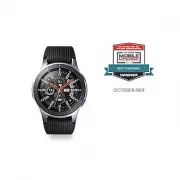 Samsung Galaxy Watch 4G
User Manual
Samsung Galaxy Watch 4G
User Manual
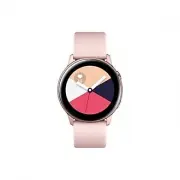 Samsung Galaxy Watch Active
User Manual
Samsung Galaxy Watch Active
User Manual
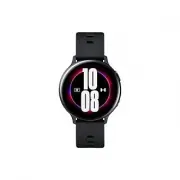 Samsung Galaxy Watch Active2
User Manual
Samsung Galaxy Watch Active2
User Manual
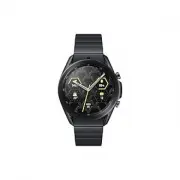 Samsung Galaxy Watch3
User Manual
Samsung Galaxy Watch3
User Manual
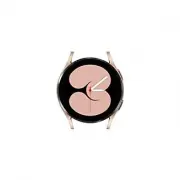 Samsung Galaxy Watch4
User Manual
Samsung Galaxy Watch4
User Manual
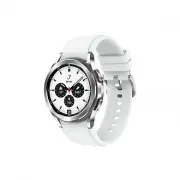 Samsung Galaxy Watch4 Classic
User Manual
Samsung Galaxy Watch4 Classic
User Manual
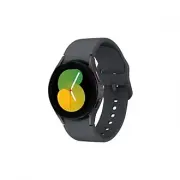 Samsung Galaxy Watch5
User Manual
Samsung Galaxy Watch5
User Manual
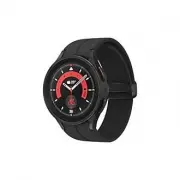 Samsung Galaxy Watch5 Pro
User Manual
Samsung Galaxy Watch5 Pro
User Manual
 Samsung Galaxy Watch6
User Manual
Samsung Galaxy Watch6
User Manual
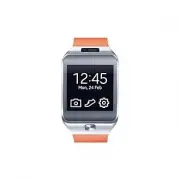 Samsung Gear 2
User Manual
Samsung Gear 2
User Manual
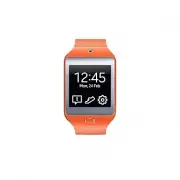 Samsung Gear 2 Neo
User Manual
Samsung Gear 2 Neo
User Manual
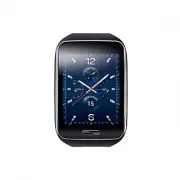 Samsung Gear S
User Manual
Samsung Gear S
User Manual
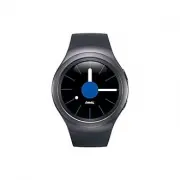 Samsung Gear S2
User Manual
Samsung Gear S2
User Manual
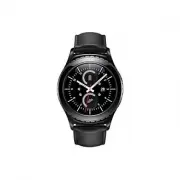 Samsung Gear S2 classic
User Manual
Samsung Gear S2 classic
User Manual
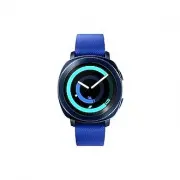 Samsung Gear Sport
User Manual
Samsung Gear Sport
User Manual
 Samsung SM-R380
User Manual
Samsung SM-R380
User Manual
 Samsung SM-R381
User Manual
Samsung SM-R381
User Manual
 Samsung SM-R382
User Manual
Samsung SM-R382
User Manual
 Samsung SM-R500
User Manual
Samsung SM-R500
User Manual
 Samsung SM-R600
User Manual
Samsung SM-R600
User Manual