Page 2 - About this manual
2 About this manual You can use the Gear Live as a companion device to Android ™ mobile devices with Android version 4.3 or higher. This user manual is specially designed to explain apps and features that are available when the Gear Live is connected to a mobile device. • Please read this manual bef...
Page 3 - Instructional icons; Copyright
About this manual 3 Instructional icons Warning : situations that could cause injury to yourself or others Caution : situations that could cause damage to your device or other equipment Note : notes, usage tips, or additional information Copyright Copyright © 2014 Samsung ElectronicsThis guide is pr...
Page 4 - Table of Contents
4 Table of Contents Getting started 6 About Gear Live 6 Package contents 7 Device layout 8 Button10 Charging the battery13 Wearing the Gear14 Replacing the strap17 Turning the Gear on and off18 Notices for using Bluetooth19 Connecting the Gear to a mobile device Basics 22 Using the touch screen24 Us...
Page 5 - Android Wear
Table of Contents 5 Android Wear 45 Launching Android Wear45 Disconnecting the Gear46 Connecting a new Gear46 Configuring the Gear settings46 Using additional options Troubleshooting
Page 6 - Getting started; Package contents
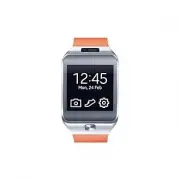
6 Getting started About Gear Live When you connect the Gear Live (also referred to as Gear) to your mobile device, you can use voice commands to access the Gear’s various features. Connect the Gear to your mobile device to monitor your health and use the Gear’s features more conveniently. You can al...
Page 7 - Device layout; Gear
Getting started 7 Device layout Gear Touch screen Charging terminals Power button Microphone Heart rate sensor • Humidity and liquids may damage your Gear. Keep your Gear dry. • Ensure that the strap is kept clean. Contact with contaminants, such as dust and dye, can cause stains on the strap that m...
Page 8 - Charging dock
Getting started 8 Charging dock Multipurpose jack Charging terminals Button Button Function Power • Press and hold to turn the Gear on. • Press to switch to standby mode while using the Gear. • Press to open the Home screen from standby mode. • Press and hold to launch Settings while using the Gear....
Page 9 - Maintaining water and dust resistance
Getting started 9 Maintaining water and dust resistance The device may be damaged if water or dust enters the device. Follow these tips carefully to prevent damage to the device and to maintain the water- and dust-resistant performance of the device. • Do not immerse the device in water deeper than ...
Page 10 - Charging the battery
Getting started 10 Charging the battery Charge the battery before using the Gear for the first time. A computer can be also used to charge the Gear by connecting them via the USB cable. Use only Samsung-approved chargers, batteries, and cables. Unapproved chargers or cables can cause the battery to ...
Page 13 - About using the battery; Wearing the Gear
Getting started 13 About using the battery • Battery operating time is affected by device usage patterns and the condition of the battery. • The battery is a consumable item. Battery life can be reduced when multiple apps or features are running simultaneously. Also, even if the device is not being ...
Page 14 - Replacing the strap
Getting started 14 2 Place the strap around your wrist, fit the strap to your wrist, and then fasten it with the pin. Pin To measure your heart rate more accurately with the Gear, wear the Gear firmly around your lower arm just above the wrist. Refer to Wearing the Gear for details. Replacing the st...
Page 17 - Turning the Gear on and off
Getting started 17 Turning the Gear on and off Press and hold the Power button for a few seconds to turn on the Gear. When the Gear turns on, select a language, and follow the on-screen instructions to download the Android Wear app. You can use the Gear only after the Android Wear app is installed o...
Page 18 - Notices for using Bluetooth
Getting started 18 Notices for using Bluetooth • To avoid problems when connecting your Gear to another mobile device, place the devices close to each other. • Ensure that your Gear and the other Bluetooth device are within the Bluetooth connection range (10 m). The distance may vary depending on th...
Page 22 - Basics; Using the touch screen; Finger gestures; Tapping
22 Basics Using the touch screen Use only fingers to use the touch screen. • Do not allow the touch screen to come into contact with other electrical devices. Electrostatic discharges can cause the touch screen to malfunction. • To avoid damaging the touch screen, do not tap it with anything sharp o...
Page 23 - Tapping and holding
Basics 23 Tapping and holding Tap and hold the Home screen for more than 2 seconds to change the clock type. Dragging Drag your finger inwards from the left edge of the screen to return to the Home or previous screen. Drag your finger downwards from the top edge of the Home screen to view the date a...
Page 24 - Using the Home screen; Using the dropdown panel
Basics 24 Using the Home screen View the Gear’s Home screen when you connect it to the mobile device. The Home screen displays the clock, date, remaining battery power, and peek cards. You can also use a voice command to launch the voice recognition feature. Using the dropdown panel View the date an...
Page 25 - Viewing peek cards; Returning to the Home screen
Basics 25 Viewing peek cards The Gear displays peek cards at the bottom of the Home screen that show the Google Now information, notifications, events, and more. When you activate the Google Now feature on the connected mobile device, various information is displayed on the Gear. The Google Now info...
Page 26 - Accessing menus; Tips for better voice recognition
Basics 26 Accessing menus Use one of the following methods to access the Gear’s menus: • Voice commands: On the Home screen, say “OK Google.” When the voice recognition screen appears, say a predefined voice command to access specific menus. • Screen tap: Tap the Home screen to launch the voice reco...
Page 27 - Viewing incoming calls
Basics 27 The following menus are available on the Gear: • Take a note : Create a note using the voice recognition feature. • Remind me : Set a reminder using the voice recognition feature. • Show me my steps : View a log of your daily steps. • Show me my heart rate : Measure and record your heart r...
Page 28 - Switching to standby mode; Standby mode screen settings; Adjusting the brightness of the display
Basics 28 Switching to standby mode Switch the Gear to standby mode when you are not using it. Pressing the Power button while using the Gear puts the Gear into standby mode and displays the dimmed clock screen. The Gear will automatically switch to standby mode if it is not used for a specified per...
Page 29 - Upgrading the Gear
Basics 29 Upgrading the Gear The Gear can be directly upgraded to the latest software by the firmware over-the-air (FOTA) service.Access Settings using a voice command on the voice recognition screen or use the screen tap method to open the Menu screen.On the Menu screen, tap Settings → About → Syst...
Page 30 - Useful features; Note; Messages; Viewing incoming messages; Replying to messages
30 Useful features Note Use this feature to create notes using the voice recognition feature. Notes are sent to the connected mobile device’s registered Google account via the Google Mail service.Access the note feature using a voice command on the voice recognition screen or use the screen tap meth...
Page 31 - Making calls via the connected mobile device; Sending messages; Email; Viewing messages
Useful features 31 Making calls via the connected mobile device To call the sender of a received message, open the message peek card, scroll left to Call , and then tap Call . You cannot directly call numbers using the Gear. Sending messages On the voice recognition screen, say a contact’s name and ...
Page 32 - Reminder
Useful features 32 Sending messages On the voice recognition screen, say a name of a contact saved on the connected mobile device and enter a message using the voice recognition feature.For example, say “Eve, you free on Friday?” Agenda Use this feature to view the events scheduled on the connected ...
Page 33 - Alarm; Timer
Useful features 33 Alarm Access the alarm feature using a voice command on the voice recognition screen or use the screen tap method to open the Menu screen.Tap Set an alarm on the Menu screen. Scroll up or down and set an alarm time. The Gear vibrates when the preset time is reached.To stop an alar...
Page 34 - Stopwatch
Useful features 34 Stopwatch Use this feature to measure the amount of elapsed time.Access the stopwatch feature using a voice command on the voice recognition screen or use the screen tap method to open the Menu screen.Tap Start stopwatch on the Menu screen. To time an event, tap Start . To record ...
Page 35 - Media controller
Useful features 35 Media controller Use this feature to control media files playing on the connected mobile device. When you start playback on the connected mobile device, a media playback peek card appears on the Gear’s Home screen. Control playback of media files from the Gear.To pause playback, t...
Page 36 - Health management features; Before You Start Exercising
36 Using health management features Health management features Use the pedometer and heart rate measuring features to monitor and manage your health and physical condition. The pedometer and heart rate measuring features are intended for leisure, well-being and fitness purposes only and are not inte...
Page 39 - Pedometer; Counting steps
Using health management features 39 Pedometer Use this feature to count the number of steps you have taken. You can also view your daily step log for the past week. The pedometer automatically starts counting your steps when the Gear is connected to a mobile device. Counting steps Access the pedomet...
Page 40 - Heart Rate; Measuring heart rate
Using health management features 40 Heart Rate Use this feature to measure and record your current heart rate. You can plan and adjust your exercise based on the recorded heart rate. • The device’s heart rate measuring feature should not be used for clinical or medical diagnosis. • For a more accura...
Page 42 - Adjust brightness; Airplane mode
42 Settings Adjust brightness Use this option to adjust the brightness of the display.Access Settings using a voice command on the voice recognition screen or use the screen tap method to open the Menu screen.On the Menu screen, tap Settings → Adjust brightness , and then select a brightness level. ...
Page 43 - Restart; Reset device
Settings 43 Power off Use this option to turn off the Gear.Access Settings using a voice command on the voice recognition screen or use the screen tap method to open the Menu screen.On the Menu screen, tap Settings → Power off . Then, tap when a confirmation message appears. Restart Use this option ...
Page 44 - Change watch face
Settings 44 Change watch face Use this option to change the type of clock that appears on the Home screen.Access Settings using a voice command on the voice recognition screen or use the screen tap method to open the Menu screen.On the Menu screen, tap Settings → Change watch face , and then select ...
Page 45 - Launching Android Wear; Disconnecting the Gear
45 Android Wear Launching Android Wear The Android Wear app allows you to connect to a mobile device and customise your Gear’s settings and features. You can also use it to access the connected mobile device’s features.On the connected mobile device’s Apps screen, tap Android Wear . Some features ma...
Page 46 - Connecting a new Gear
Android Wear 46 Connecting a new Gear On the Android Wear screen, tap → Pair with a new wearable . Select the model name of a new Gear. The mobile device connects to a new Gear. The previously-used Gear and the mobile device are automatically disconnected. Configuring the Gear settings On the Androi...
Page 47 - Troubleshooting; Your Gear does not turn on; Your Gear freezes or has fatal errors
47 Troubleshooting Before contacting a Samsung Service Centre, please attempt the following solutions. Some situations may not apply to your Gear. Your Gear does not turn on When the battery is completely discharged, your Gear will not turn on. Charge the battery completely before turning on the Gea...
Page 48 - Another Bluetooth device cannot locate your Gear; A Bluetooth connection is not established or your Gear and the; The battery icon is empty; The battery does not charge properly (For Samsung-approved
Troubleshooting 48 Another Bluetooth device cannot locate your Gear • Ensure that the Bluetooth wireless feature is activated on your Gear. • Reset your Gear and try again. • Ensure that your Gear and the other Bluetooth device are within the Bluetooth connection range (10 m). The distance may vary ...