Page 2 - Table of Contents; Basics
2 Table of Contents Basics 4 Read me first 6 Package contents 7 Device layout 9 Battery11 Wearing the Gear12 Turning the Gear on and off12 Connecting the Gear to a mobile device 14 Using the Gear without a mobile device 15 Remote connection15 Turning the screen on and off15 Touchscreen18 Navigating ...
Page 3 - Samsung Gear
Table of Contents 3 Samsung Gear 52 Introduction53 Watch faces53 Notifications53 Apps layout54 Send music to Gear54 Settings56 Find my Gear57 Samsung Galaxy Apps Appendix 58 Troubleshooting62 Removing the battery
Page 4 - Read me first
4 Basics Read me first Please read this manual before using this device to ensure safe and proper use. • Descriptions are based on the device’s default settings. • Some content may differ from your device depending on the region, model specifications, or device’s software. • Content (high quality co...
Page 5 - Maintaining water and dust resistance; Instructional icons
Basics 5 Maintaining water and dust resistance Your device supports water- and dust-resistance. Follow these tips carefully to maintain the water- and dust-resistance of your device. Failure to do so may result in damage to your device. • Do not immerse the device in water deeper than 1.5 m and keep...
Page 6 - Package contents
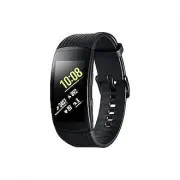
Basics 6 Package contents Check the product box for the following items: • Gear Fit2 • Charger dock • Quick start guide • The items supplied with the Gear and any available accessories may vary depending on the region or service provider. • The Gear Fit2 is referred to as the Gear in this manual. • ...
Page 7 - Device layout; Gear
Basics 7 Device layout Gear Back key Home key (Power key) Touchscreen Heart rate sensor Charging terminals • Ensure that the strap is kept clean. Contact with contaminants, such as dust and dye, can cause stains on the strap that may not be fully removed. • The colours on the curved screen may look ...
Page 8 - Keys; Charger dock
Basics 8 Keys Key Function Home/Power • Press and hold to turn the Gear on or off. • Press to turn on the screen. • Press and hold for more than 7 seconds to restart the Gear. • Press to open the Apps screen when you are on the Watch screen. • Press to open the Watch screen when you are on any other...
Page 9 - Battery; Charging the battery
Basics 9 Battery Charging the battery Charge the battery before using it for the first time or when it has been unused for extended periods. Use only Samsung-approved chargers, batteries, and cables. Unapproved chargers or cables can cause the battery to explode or damage the Gear. 1 Connect the cha...
Page 10 - Reducing the battery consumption; Battery charging tips and precautions
Basics 10 Reducing the battery consumption Your Gear provides various options that help you conserve battery power. • When you are not using the Gear, switch to sleep mode by covering the screen with your palm. • Activate power saving mode. • Deactivate the Bluetooth feature when not in use. • Deact...
Page 11 - Wearing the Gear; Putting on the Gear; Strap tips and precautions
Basics 11 Wearing the Gear Putting on the Gear Open the clasp and place the Gear around your wrist. Fit the strap to your wrist and then insert the pin into an adjustment hole. Do not bend the strap excessively. Doing so may damage the Gear. • To measure your heart rate more accurately with the Gear...
Page 12 - Turning the Gear on and off; Connecting the Gear to a mobile device; Installing the Samsung Gear app
Basics 12 Turning the Gear on and off Press and hold the Power key for a few seconds to turn on the Gear. When you turn on the Gear for the first time or reset it, a pop-up window will appear. Follow the on-screen instructions to download and install the Samsung Gear app on your mobile device. Refer...
Page 13 - Connecting via Bluetooth
Basics 13 Connecting via Bluetooth Gear 1 Turn on the Gear.It automatically enters Bluetooth pairing mode. Mobile device 2 On the Apps screen, tap Samsung Gear . If necessary, update the Samsung Gear app to the latest version. 3 Tap CONNECT TO GEAR . 4 Tap OK when the Bluetooth activation request wi...
Page 14 - Connecting the Gear to a new mobile device; Using the Gear without a mobile device
Basics 14 Connecting the Gear to a new mobile device When you connect the Gear to another mobile device, a pop-up window will ask you to reset the Gear. Make sure you back up any important data stored in your Gear. 1 Back up your Gear’s data on your connected mobile device.On your mobile device, ope...
Page 15 - Remote connection; Turning the screen on and off; Touchscreen
Basics 15 6 Create a PIN to use when backing up and restoring data. 7 Set the date and time. Refer to Connect to phone to connect the Gear to a mobile device while using the Gear without a mobile device. Remote connection You can remotely connect the Gear to your mobile device when a Bluetooth conne...
Page 16 - Tapping
Basics 16 Tapping To open an app, to select a menu item, or to press an on-screen button, tap it with your finger. Tapping and holding Tap and hold the screen for two or more seconds to access the Edit mode or to view available options.
Page 17 - Dragging; Swiping
Basics 17 Dragging To move an item, tap and hold it and drag it to the target position. Swiping Swipe to the left or right to view other panels. You can also swipe upwards or downwards on the screen to view the details of notifications.
Page 18 - Navigating the screen; Switching between the Watch and Apps screen
Basics 18 Navigating the screen Switching between the Watch and Apps screen On the Watch screen, press the Home key to open the Apps screen.When you are not on the Watch screen, press the Home key to return to the Watch screen. Returning to the previous screen Press the Back key.
Page 19 - Home screen; Introduction; Notifications panel
Basics 19 Home screen Introduction The Home screen can have multiple panels. The Watch screen is the starting point of the Home screen. Swipe to the left or right on the screen to view items, such as notifications or widgets. Notifications Watch Widgets Add widgets. Available widgets, notifications,...
Page 20 - Viewing incoming notifications; Viewing other notifications
Basics 20 Viewing incoming notifications When you receive a notification, information about the notification, such as its type, will appear on the screen. Tap the notification to view details. When there are unchecked notifications, an orange dot will be visible on the screen. Your Gear does not hav...
Page 21 - Blocking notifications; Watch screen; Changing the watch face
Basics 21 Blocking notifications 1 Select a notification from the app you want to block. 2 Tap the notification to view the details. 3 Swipe upwards on the screen and tap Block app . The Gear will no longer receive notifications from the app. You can block notifications from specific apps on the Gea...
Page 22 - Widgets; Adding widgets
Basics 22 Widgets You can add widgets to the Home screen. Widgets are small apps that offer limited functionality to provide information and convenient access. You can use the following widgets by default. 24-hour Log Steps Floors Heart rate Exercise Adding widgets You can add more widgets on the Ho...
Page 23 - Status panel; Indicator icons
Basics 23 Status panel This panel allows you to view the current status and configure basic settings. You can also check your current activity status.On the Watch screen, swipe downwards from the top edge of the screen. Do not disturb Indicator icons Music Player Brightness Current activity status I...
Page 24 - Playing music; Adjusting the brightness; Apps screen
Basics 24 Playing music You can play music saved in the Gear or mobile device.On the status panel, tap . Do not disturb mode You can set the Gear not to vibrate and turn on the screen when a notification is received. Alarms will still function normally.On the status panel, tap . The icon will appear...
Page 25 - Opening apps; Installing apps; Setting the screen lock; Setting a PIN
Basics 25 Opening apps On the Apps screen, tap an app icon to open the app. Moving items On the Apps screen, tap and hold the screen, tap and hold an app and then drag it to the desired location.You can also arrange the Gear’s apps on your mobile device. Refer to Apps layout in the Samsung Gear app ...
Page 26 - Unlocking the Gear; Answering calls; Answering a call; Missed calls
Basics 26 Unlocking the Gear Turn on the screen and enter the unlock code.To deactivate this feature, on the Apps screen, tap Settings → Screen lock → Screen lock type , enter your PIN, and then tap None . Answering calls You can initiate calls or receive notifications for incoming calls. Call conve...
Page 27 - Updating the Gear; Updating over the air
Basics 27 Updating the Gear The Gear can be updated to the latest software. Updating over the air The Gear can be directly updated to the latest software by the firmware over-the-air (FOTA) service. 1 Tap Samsung Gear on the Apps screen of the mobile device. 2 Tap Settings . 3 Tap About Gear → Updat...
Page 28 - Applications; Health management apps
28 Applications Health management apps Introduction Use the pedometer, exercise, and heart rate apps to monitor and manage your health and physical condition. Set fitness goals and regularly record and check your progress.When the Gear is synced with a compatible S Health app, you can use additional...
Page 30 - Additional information
Applications 30 Additional information • The purpose for such data collection is limited to providing the service that you have requested, including providing additional information to enhance your wellness, back up/sync data, data analysis and statistics or to develop and provide better services. (...
Page 31 - Playing music on your mobile device
Applications 31 Music Player Introduction Listen to music saved in the Gear and in the mobile device. Playing music Tap Music Player on the Apps screen. Skip to the next file. Adjust the volume. Access additional options. Pause and resume playback. Restart the currently playing file or skip to the p...
Page 32 - Importing music
Applications 32 Importing music Import music from your device to your Gear. 1 On the Apps screen of the mobile device, tap Samsung Gear . 2 Tap Send music to Gear . 3 Tap Select tracks . 4 Select files and tap DONE . To sync recently added music in your mobile device with your Gear, tap the Auto syn...
Page 33 - Exercise
Applications 33 24-hour Log Your Gear can monitor and record your activities during the day and encourage you to stay healthy.Tap 24-hour Log on the Apps screen. Your burnt calories data takes into account your basal metabolic rate (BMR), which is calculated using the information in your profile. Wh...
Page 34 - Exercising with the Gear
Applications 34 Exercising with the Gear 1 Tap Exercise on the Apps screen. 2 Tap Activity type and select the type of exercise you want to monitor. For some types of exercise, view the instructions on the screen, and then tap OK . 3 Tap Target and select a target type. Tap Basic workout to exercise...
Page 35 - Automatic exercise recognition
Applications 35 7 You can view exercise information, such as calories burned and current speed, when you swipe the screen to the left or right. When you do intense exercise, stop exercising for a short time so your heart rate can be measured more accurately. 8 To finish exercising, press the Back ke...
Page 36 - Setting your target steps
Applications 36 Steps The Gear counts the number of steps you have taken and measures the distance travelled.Tap Steps on the Apps screen. Target step number Current step total To view weekly records, swipe upwards or downwards on the screen. • You may experience a brief delay while the steps app mo...
Page 37 - Setting your target floors
Applications 37 Floors Record and track how many floors you climb.Tap Floors on the Apps screen. Target floors number Current floors total To view weekly records, swipe upwards or downwards on the screen. • One floor is calculated as approximately 3 metres. The floors measured may not match the actu...
Page 38 - Heart rate
Applications 38 Heart rate Measure and record your heart rate. • The Gear’s heart rate app is intended for fitness and informational purposes only and is not intended for use in the diagnosis of disease or other conditions, or in the cure, mitigation, treatment, or prevention of disease. • To measur...
Page 39 - Measuring your heart rate
Applications 39 Measuring your heart rate 1 Tap Heart rate on the Apps screen. 2 Tap Measure to begin measuring your heart rate. After a moment, your current heart rate will be displayed on the screen.The Gear displays information about your heart rate in relation to your selected tag. Select a stat...
Page 40 - Tracking your heart rate; Together
Applications 40 Tracking your heart rate The Gear can automatically measure and track your heart rate. Your Gear will measure your heart rate at regular intervals. This feature may not function properly while you are moving. Your heart rate is automatically measured when you are using the Exercise a...
Page 41 - Recording water consumption; Setting your target consumption
Applications 41 Water Record and track how many glasses of water you drink. Recording water consumption 1 Tap Water on the Apps screen. 2 Tap when you drink a glass of water.If you accidentally added an incorrect value, you can fix it by tapping . To view weekly records, swipe upwards or downwards o...
Page 42 - Recording your coffee consumption; Setting your caffeine consumption limit
Applications 42 Caffeine Record and track how many cups of coffee you drink. Recording your coffee consumption 1 Tap Caffeine on the Apps screen. 2 Tap when you drink a cup of coffee.If you accidentally added an incorrect value, you can fix it by tapping . To view weekly records, swipe upwards or do...
Page 43 - Viewing the location of your mobile device
Applications 43 Find My Phone If you misplace the mobile device, the Gear can help you find it. 1 Tap Find My Phone on the Apps screen. 2 Tap .The mobile device emits sounds and turns on the screen.Drag to the left or right on the mobile device, or tap on the Gear. Viewing the location of your mobil...
Page 44 - Timer
Applications 44 Timer 1 Tap Timer on the Apps screen. 2 Tap SET and open the settings screen. 3 Tap or to set the hour, minute, and second. 4 Tap OK to save the settings. 5 Tap Start . 6 Drag upwards when the timer goes off. Stopwatch 1 Tap Stopwatch on the Apps screen. 2 Tap Start to time an event....
Page 45 - Settings
45 Settings Introduction Customise settings for functions and apps. You can make your Gear more personalised by configuring various setting options.Tap Settings on the Apps screen. Display Change the display settings.On the Settings screen, tap Display . • Watch faces : Select a watch type. • Watch ...
Page 47 - Connections; Bluetooth
Settings 47 Connections Bluetooth Use Bluetooth to exchange data or media files with other Bluetooth-enabled devices. • Samsung is not responsible for the loss, interception, or misuse of data sent or received via Bluetooth. • Always ensure that you share and receive data with devices that are trust...
Page 48 - Alerts; Screen lock
Settings 48 3 Select a network from the Wi-Fi networks list.Networks that require a password appear with a lock icon. 4 Tap Connect . • Once the Gear connects to a Wi-Fi network, the Gear will reconnect to that network each time it is available without requiring a password. To prevent the Gear conne...
Page 50 - Profile
Settings 50 Profile Enter your profile information, such as your gender, height, and weight.On the Settings screen, tap Profile and configure your profile settings. Health nudges Allow the Gear to send you notifications when you reach your exercise targets or you stay active.On the Settings screen, ...
Page 51 - Connect to phone
Settings 51 • Reset Gear : – Light reset : Delete data except media files and personal data. – Factory reset : Reset settings to the factory default values and delete all data. • Debugging : Activate or deactivate USB debugging mode when developing apps for the Gear. ( : on) Connect to phone Connect...
Page 52 - Disconnecting or connecting the Gear
52 Samsung Gear Introduction To connect your Gear to a mobile device, you must install the Samsung Gear app on your mobile device. Using the Samsung Gear app, you can customise your Gear’s settings.Tap Samsung Gear on the Apps screen of the mobile device. If it is the first time connecting your Gear...
Page 53 - Watch faces
Samsung Gear 53 Watch faces You can change the type of watch to be displayed on the Watch screen.On the Apps screen of the mobile device, tap Samsung Gear → Watch faces and select a desired watch type. The watch face you selected will be applied on the Watch screen.Tap STYLISE to select background a...
Page 54 - Send music to Gear; Quick messages
Samsung Gear 54 Send music to Gear Transfer saved audio files from your mobile device to your Gear.On the Apps screen of the mobile device, tap Samsung Gear → Send music to Gear . When the Gear does not have enough available memory while the Auto sync feature is turned on, it deletes files that you ...
Page 55 - Double press Home key; Back up and restore
Samsung Gear 55 Double press Home key Set an action to be performed when you press the Gear’s Home key twice.On the Apps screen of the mobile device, tap Samsung Gear → Settings → Double press Home key , and then select an option. Gear connection Customise your Gear’s wireless connection settings.On...
Page 56 - About Gear; About Samsung Gear app; Find my Gear
Samsung Gear 56 About Gear Access information about the Gear.On the Apps screen of the mobile device, tap Samsung Gear → Settings → About Gear . • Update Gear software : Update the Gear to the latest software. • Gear storage : View your Gear’s memory information. The actual available capacity of the...
Page 57 - Finding your Gear
Samsung Gear 57 Finding your Gear If you misplace the Gear, find it with this feature. 1 On the Apps screen of the mobile device, tap Samsung Gear → Find my Gear . 2 Tap .The Gear will vibrate and the screen will turn on. Drag upwards on the Gear, or tap on the mobile device. Samsung Galaxy Apps You...
Page 58 - Appendix; Troubleshooting; Your Gear does not turn on
58 Appendix Troubleshooting Before contacting a Samsung Service Centre, please attempt the following solutions. Some situations may not apply to your Gear. Your Gear does not turn on When the battery is completely discharged, your Gear will not turn on. Charge the battery completely before turning o...
Page 59 - Your Gear freezes or has fatal errors; Restarting the Gear; Another Bluetooth device cannot locate your Gear
Appendix 59 Your Gear freezes or has fatal errors Try the following solutions. If the problem is still not resolved, contact a Samsung Service Centre. Restarting the Gear If the Gear freezes or hangs, you may need to turn off the Gear and turn it on again. Forcing restart If the Gear is frozen and u...
Page 60 - A Bluetooth connection is not established or your Gear and the; The battery icon is empty; The battery depletes faster than when first purchased
Appendix 60 A Bluetooth connection is not established or your Gear and the mobile device are disconnected • Ensure that the Bluetooth feature on both devices is activated. • Ensure there are no obstacles, such as walls or electrical equipment, between the devices. • Ensure that the latest version of...
Page 61 - Your Gear is hot to the touch
Appendix 61 Your Gear is hot to the touch When you use apps that require more power or use apps on your Gear for an extended period of time, your Gear may feel hot to the touch. This is normal and should not affect your Gear’s lifespan or performance.If the device overheats or feels hot for a prolon...
Page 62 - Removing the battery
Appendix 62 Removing the battery • To remove the battery, you must visit an authorised service centre with the provided instructions. • For your safety, you must not attempt to remove the battery. If the battery is not properly removed, it may lead to damage to the battery and device, cause personal...