Page 2 - Table of Contents; Basics
2 Table of Contents Basics 3 Read me first 4 About the Galaxy Buds+ 5 Device layout and functions 8 Preparing the earbuds for use 10 Battery16 Battery indicator lights identification Using the earbuds 18 Connecting the earbuds to a mobile device 24 Wearing the earbuds25 Using the touchpad28 Using Bi...
Page 3 - Read me first; Instructional icons
3 Basics Read me first Please read this manual before using this device to ensure safe and proper use. • Descriptions are based on the device’s default settings. • Some content may differ from your device depending on the region, model specifications, or device’s software. Images may differ in appea...
Page 4 - About the Galaxy Buds+
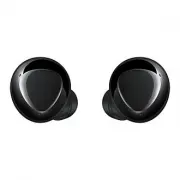
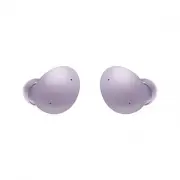
Basics 4 About the Galaxy Buds+ Galaxy Buds+ are wireless earbuds which allow you to listen to music or answer incoming calls after connecting them to your device even while doing other activities, such as working out. Do not wear the earbuds in high-traffic areas, such as roads or crosswalks. Doing...
Page 5 - Device layout and functions; Package contents; Device layout; Earbud
Basics 5 Device layout and functions Package contents Refer to the quick start guide for package contents. • The items supplied with the Galaxy Buds+, available accessories, and their images may vary depending on the region. • The supplied items are designed only for the Galaxy Buds+ and may not be ...
Page 6 - Wing tip
Basics 6 Wing tip Direction indicator Direction indicator M S Direction indicator L
Page 7 - Charging case
Basics 7 Charging case Charger port (USB Type-C) Charging contacts (right) Earbud battery indicator light Charging case battery indicator light Charging contacts (left) • If there is sweat or liquid on the charging contacts, corrosion may occur on the Galaxy Buds+. When there is sweat or liquid on t...
Page 8 - Preparing the earbuds for use; Attaching an ear tip to the earbud
Basics 8 Preparing the earbuds for use Attaching an ear tip to the earbud 1 Select the ear tip that fits your ear. 2 Cover the latch at the bottom of the earbud with the ear tip. • Do not put the earbuds in your ears without ear tips. Doing so may hurt your ears. • Do not pull the ear tip excessivel...
Page 9 - Attaching a wing tip to the earbud
Basics 9 Attaching a wing tip to the earbud 1 Select the wing tip that fits your ear. 2 Select the wing tip for the left or right ear. 3 Hook the wing tip’s groove to earbud’s fixation hook and cover the earbud with the wing tip. • Do not put the earbuds in your ears without wing tips. Doing so may ...
Page 10 - Battery; Charging the battery
Basics 10 Battery Charging the battery Fully charge the battery before using the earbuds for the first time or when they have been unused for extended periods. The earbuds will power on while charging. When you charge the battery for the first time or when the battery is completely discharged, it ne...
Page 12 - Reducing the battery consumption
Basics 12 3 Close the charging case. 4 Connect the USB cable to the charger and then plug the USB cable into the charger port. Connecting the USB cable improperly may cause serious damage to the charging case. Any damage caused by misuse is not covered by the warranty. 5 Plug the charger into an ele...
Page 13 - Wireless charging; Charging the battery with a wireless charger
Basics 13 • If you charge the Galaxy Buds+ while the charger port is wet, the Galaxy Buds+ may be damaged. Thoroughly dry the charger port before charging the Galaxy Buds+. • If the Galaxy Buds+ are not charging properly, take the Galaxy Buds+ and the charger to a Samsung Service Centre. • Avoid ben...
Page 14 - Charging the battery using Wireless PowerShare
Basics 14 5 After fully charging, disconnect the charging case from the wireless charger. Precautions for wireless charging Do not place the charging case on the wireless charger when conductive materials, such as metal objects and magnets, are placed between the charging case and the wireless charg...
Page 15 - Checking the battery level
Basics 15 5 After fully charging, disconnect the charging case from the device that functions as a wireless charger. • To charge properly, do not move or use either the device that functions as a wireless charger or the charging case while charging. • The power charged to the Galaxy Buds+ may be les...
Page 16 - Battery indicator lights identification
Basics 16 Battery indicator lights identification The battery indicator lights inform you of your earbuds and the charging case’s charging status.The earbud battery indicator light is located inside of the charging case and shows the charging status of the earbuds. The charging case battery indicato...
Page 17 - Charging case battery indicator light
Basics 17 Charging case battery indicator light Charging case battery indicator light Colour Status Continuously red • Charging Continuously green • Fully charged Flashes red (rapid pace) • Charging blocked due to abnormal temperatures Flashes red (flashes after closing the charging case) • Battery ...
Page 18 - Using the earbuds; Connecting the earbuds to a mobile device; Connecting the earbuds to a Samsung mobile device for the
18 Using the earbuds Connecting the earbuds to a mobile device Connecting the earbuds to a Samsung mobile device for the first time 1 Check the direction of each earbud and correctly insert them into their corresponding slots in the charging case.If the earbud battery indicator light does not flash,...
Page 21 - Connecting to a non-Samsung mobile device that also uses
Using the earbuds 21 Connecting to a non-Samsung mobile device that also uses the Android OS (or, the connection pop-up window does not appear) 1 On your mobile device, launch Galaxy Store or Play Store and download the Galaxy Wearable app. • You can download the Galaxy Wearable app only on mobile d...
Page 22 - Tips and precautions when connecting to the mobile device
Using the earbuds 22 5 On your mobile device, activate the Bluetooth feature to connect the earbuds to your mobile device, launch the Galaxy Wearable app, and then follow the on-screen instructions to complete the connection. Galaxy Buds + (XXXX) Galaxy Buds+ Tips and precautions when connecting to ...
Page 23 - Tips and precautions for using Bluetooth
Using the earbuds 23 Tips and precautions for using Bluetooth Bluetooth is a wireless technology standard that uses a 2.4 GHz frequency to connect to various devices over short distances. It can connect and exchange data with other Bluetooth enabled devices, such as mobile devices, without connectin...
Page 24 - Wearing the earbuds
Using the earbuds 24 Wearing the earbuds Insert the wing tips into your ears and adjust accordingly to fit your ears. • Your device contains magnets, which may affect medical devices, such as pacemakers or implantable cardioverter defibrillators. If you are using any of these medical devices, keep y...
Page 25 - Using the touchpad
Using the earbuds 25 1 Check the direction of each earbud and put them in your ears with the wing tip facing upwards until they sit conformably in your ears. 2 Adjust the earbuds by rotating them to the left or right to fit your ears.The touch-sensitive sensor will automatically detect that you are ...
Page 27 - Using the touchpad lock feature
Using the earbuds 27 Using the touchpad lock feature You can prevent unintended actions by using the touchpad lock feature. 1 Launch the Galaxy Wearable app on the mobile device. 2 Tap Touchpad . 3 Tap the Lock touchpad switch to activate it. Setting a preset tap-and-hold feature You can select a pr...
Page 28 - Tips for better voice recognition
Using the earbuds 28 Using Bixby Bixby is a user interface that helps you use your device more conveniently.You can talk to Bixby. Bixby will launch a function you request or show the information you want on the connected mobile device. • This feature is available only when a mobile device that supp...
Page 29 - Listening to music; Playing or pausing the track
Using the earbuds 29 Listening to music Listen to music saved in your mobile device by connecting the earbuds to the mobile device. You can stream music played from the connected mobile device.On your mobile device, launch a music player app and play music.You can listen to music through your earbud...
Page 30 - Using the equaliser
Using the earbuds 30 3 Tap and hold the right earbud’s touchpad and release your finger when you reach the desired volume to increase the volume.Tap and hold the left earbud’s touchpad and release your finger when you reach the desired volume to decrease the volume. • Adjust the volume via your conn...
Page 31 - Using call features; Answering or declining a call; Answering a second call
Using the earbuds 31 Using call features When the earbuds are connected to a mobile device, you can answer and control calls from the connected mobile device. Answering or declining a call When a call comes in while you are wearing the earbuds, they will emit a sound and a voice notification will in...
Page 32 - Using ambient sound mode; Activate ambient sound mode from your mobile device
Using the earbuds 32 Using ambient sound mode Hear your surroundings clearly while you are listening to music outdoors, so you can quickly detect any potentially dangerous situations. Activate ambient sound mode from your mobile device 1 Launch the Galaxy Wearable app on the mobile device and tap th...
Page 34 - Galaxy Wearable App; Introduction
34 Galaxy Wearable App Introduction To connect the earbuds to a mobile device, you must install the Galaxy Wearable app on your mobile device. Using the Galaxy Wearable app, you can view the Galaxy Buds+ status and customise its settings.Launch the Galaxy Wearable app on your connected mobile device...
Page 35 - Connecting and disconnecting the earbuds; Disconnecting mobile devices from the earbuds
Galaxy Wearable App 35 Connecting and disconnecting the earbuds Disconnecting mobile devices from the earbuds Insert the earbuds into the charging case and close it. The Bluetooth connection will end.To manually disconnect the earbuds from your mobile device, launch the Galaxy Wearable app on the mo...
Page 36 - Switch the devices connected with earbuds; Viewing Galaxy Buds+ status and customising; Ambient sound
Galaxy Wearable App 36 Switch the devices connected with earbuds When the earbuds are connected with two or more mobile devices, you can switch the mobile devices easily without disconnecting from the previous mobile device.On the mobile device that you want to switch to, tap Settings → Connections ...
Page 37 - Advanced
Galaxy Wearable App 37 Touchpad Change the touchpad usage settings.Launch the Galaxy Wearable app on the mobile device and tap Touchpad . • Lock touchpad : Lock the earbuds’ touchpads. To use the touchpad lock feature, tap the switch to activate it. Refer to Using the touchpad lock feature for more ...
Page 38 - Earbuds software update
Galaxy Wearable App 38 Earbuds software update Update your earbuds’ software via the firmware over-the-air (FOTA) service.Launch the Galaxy Wearable app on the mobile device and tap Earbuds software update . • Download and install : Check for and install updates manually. • Auto download over Wi-Fi ...
Page 39 - Appendix; Troubleshooting; Your earbuds do not work
39 Appendix Troubleshooting Before contacting a Samsung Service Centre, please attempt the following solutions. Some situations may not apply to your Galaxy Buds+. Your earbuds do not work • The battery may be completely discharged. Charge the battery completely before using the earbuds. • If an ear...
Page 42 - Updating the earbuds’ software with the Galaxy; Installing Galaxy Buds Manager
Appendix 42 Updating the earbuds’ software with the Galaxy Buds Manager on your computer You can update the earbuds’ software after installing the Galaxy Buds Manager program on your computer when you use the mobile device besides an Android one. • The Galaxy Buds Manager program can be downloaded o...
Page 43 - Managing the Galaxy Buds+; Basic maintenance
Appendix 43 Computer 1 Activate the Bluetooth feature. 2 Launch the Galaxy Buds Manager program and select Connect . The earbuds and the Galaxy Buds Manager will be connected. 3 Select Check for updates to check the current earbuds’ software version and whether they need to be updated, and then sele...
Page 44 - Cleaning the charging contacts; Cleaning the earbuds and charging case
Appendix 44 2 Remove any earwax or debris from the receiver with the brush or other tools. Do not use excessive force while removing earwax or debris. The receiver may be damaged. 3 Cover the earbud with the ear tip. Cleaning the charging contacts If the battery does not charge properly, wipe both g...
Page 45 - Restarting the earbuds
Appendix 45 Restarting the earbuds If the touchpad becomes unresponsive or the earbuds do not work properly, restart the earbuds.To restart the earbuds, insert the earbuds into their corresponding slots in the charging case and remove them after seven seconds or more. If the charging case has low ba...
Page 46 - Removing the battery
Appendix 46 Removing the battery • To remove the battery, contact an authorised service centre. To obtain battery removal instructions, please visit www.samsung.com/global/ecodesign_energy . • For your safety, you must not attempt to remove the battery. If the battery is not properly removed, it may...