Page 2 - Table of Contents; Basics
2 Table of Contents Basics 3 Read me first 4 About the Galaxy Buds 5 Package contents 6 Device layout 8 Preparing the earbuds for use 10 Battery16 Battery indicator lights identification Using the earbuds 18 Connecting the earbuds to a mobile device 24 Wearing the earbuds25 Using the touchpad28 Usin...
Page 3 - Read me first; Instructional icons
3 Basics Read me first Please read this manual before using this device to ensure safe and proper use. • Descriptions are based on the device’s default settings. • Some content may differ from your device depending on the region, service provider, model specifications, or device’s software. Images m...
Page 4 - About the Galaxy Buds
Basics 4 About the Galaxy Buds Galaxy Buds are wireless earbuds which allow you to listen to music or answer incoming calls after connecting them to your device even while doing other activities, such as working out. Do not wear the earbuds in high-traffic areas, such as roads or crosswalks. Doing s...
Page 5 - Package contents
Basics 5 Package contents Refer to the quick start guide for package contents. • The items supplied with the Galaxy Buds, available accessories, and their images may vary depending on the region or service provider. • The supplied items are designed only for the Galaxy Buds and may not be compatible...
Page 6 - Device layout; Earbud
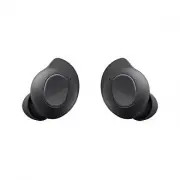
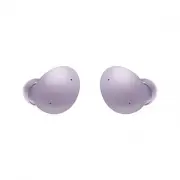
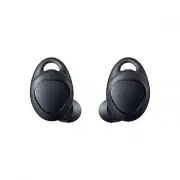
Basics 6 Device layout Earbud Ear tip Wing tip Charging contacts Touchpad Touch-sensitive sensor Microphone Charging contacts If you use the Galaxy Buds when they are broken, there may be a risk of injury. Use the Galaxy Buds only after they have been repaired at a Samsung Service Centre. Wing tip D...
Page 7 - Charging case
Basics 7 Charging case Charger port (USB Type-C) Charging contacts (right) Earbud battery indicator light Charging case battery indicator light Charging contacts (left) • If there is sweat or liquid on the charging contacts, corrosion may occur on the Galaxy Buds. When there is sweat or liquid on th...
Page 8 - Preparing the earbuds for use; Attaching an ear tip to the earbud
Basics 8 Preparing the earbuds for use Attaching an ear tip to the earbud 1 Select the ear tip that fits your ear. 2 Cover the latch at the bottom of the earbud with the ear tip. • Do not put the earbuds in your ears without ear tips. Doing so may hurt your ears. • Do not pull the ear tip excessivel...
Page 9 - Attaching a wing tip to the earbud
Basics 9 Attaching a wing tip to the earbud 1 Select the wing tip that fits your ear. 2 Select the wing tip for the left or right ear. 3 Hook the wing tip’s groove to earbud’s fixation hook and cover the earbud with the wing tip. • Do not put the earbuds in your ears without wing tips. Doing so may ...
Page 10 - Battery; Charging the battery
Basics 10 Battery Charging the battery Fully charge the battery before using the earbuds for the first time or when they have been unused for extended periods. The earbuds will power on while charging. When the battery is completely discharged, it needs at least 10 minutes to start to work.Check the...
Page 12 - Reducing the battery consumption; Battery charging tips and precautions
Basics 12 Reducing the battery consumption When you are not using the earbuds, store them in the charged charging case. The touch-sensitive sensor will continue to work while wearing the earbuds and reduce the usage time. Battery charging tips and precautions • If there is sweat or liquid on the cha...
Page 13 - Wireless charging; Charging the battery with a wireless charger
Basics 13 Wireless charging The charging case has a built-in wireless charging coil. You can charge the battery by using a wireless charger or another device that functions as a wireless charger. Charging the battery with a wireless charger 1 Open the charging case. 2 Check the direction of each ear...
Page 14 - Charging the battery using PowerShare
Basics 14 Charging the battery using PowerShare 1 Open the charging case. 2 Check the direction of each earbud and correctly insert them into their corresponding slots in the charging case. 3 Close the charging case. 4 Place the centre of the charging case’s back on the device that functions as a wi...
Page 15 - Checking the battery level
Basics 15 5 After fully charging, disconnect the charging case from the device. • To charge properly, do not move or use the device or charging case while charging. • If you charge the Galaxy Buds while charging the device that functions as a wireless charger, the charging speed may decrease or the ...
Page 16 - Battery indicator lights identification
Basics 16 Battery indicator lights identification The battery indicator lights inform you of your earbuds and the charging case’s charging status.The earbud battery indicator light is located inside of the charging case and shows the charging status of the earbuds. The charging case battery indicato...
Page 17 - Charging case battery indicator light
Basics 17 Charging case battery indicator light Charging case battery indicator light Colour Status Continuously red • Charging Continuously green • Fully charged Flashes red (rapid pace) • Charging blocked due to abnormal temperatures Flashes red (slow pace) • Low battery Red (stays on for five sec...
Page 18 - Using the earbuds; Connecting the earbuds to a mobile device; Connecting the earbuds to a Samsung mobile device for the
18 Using the earbuds Connecting the earbuds to a mobile device Connecting the earbuds to a Samsung mobile device for the first time 1 Check the direction of each earbud and correctly insert them into their corresponding slots in the charging case.If the earbud battery indicator light does not flash,...
Page 21 - Connecting to a non-Samsung mobile device that also uses
Using the earbuds 21 Connecting to a non-Samsung mobile device that also uses the Android OS (or, the connection pop-up window does not appear) 1 On your mobile device, launch Galaxy Store or Play Store and download the Galaxy Wearable app. • You can download the Galaxy Wearable app only on mobile d...
Page 22 - Tips and precautions when connecting to the mobile device
Using the earbuds 22 Tips and precautions when connecting to the mobile device • If the earbuds do not connect to a mobile device within three minutes, Bluetooth pairing mode will be deactivated. Close the charging case again and open it. The earbuds will enter Bluetooth pairing mode. • If you want ...
Page 23 - Notices for using Bluetooth
Using the earbuds 23 Notices for using Bluetooth Bluetooth is a wireless technology standard that uses a 2.4 GHz frequency to connect to various devices over short distances. It can connect and exchange data with other Bluetooth enabled devices, such as mobile devices, without connecting via cables....
Page 24 - Wearing the earbuds
Using the earbuds 24 Wearing the earbuds Insert the wing tips into your ears and adjust accordingly to fit your ears. The device and some accessories (sold separately) contain magnets. The American Heart Association (US) and the Medicines and Healthcare Products Regulatory Agency (UK) both warn that...
Page 25 - Using the touchpad
Using the earbuds 25 1 Check the direction of each earbud and put them in your ears with the wing tip facing upwards until they sit conformably in your ears. 2 Adjust the earbuds by rotating them to the left or right to fit your ears.The touch-sensitive sensor will automatically detect that you are ...
Page 27 - Using the touchpad lock feature
Using the earbuds 27 If the earbuds do not connect to a mobile device, the connection pop-up window does not appear, or your mobile device cannot find the earbuds, tap and hold both earbuds’ touchpads while wearing them to enter Bluetooth pairing mode manually. When Bluetooth pairing mode is entered...
Page 28 - Using intelligent voice assistance service
Using the earbuds 28 4 Select a feature that you want to use as a preset tap-and-hold feature. • Voice command : Start talking to the intelligent voice assistance service. • Quick ambient sound : Temporarily hear external sounds around you for up to one minute while decreasing the music volume. • Vo...
Page 29 - Tips for better voice recognition; Listening to music; Playing or pausing the track; Playing the next track
Using the earbuds 29 2 Say a voice command and release your finger from the touchpad.If the Galaxy Buds recognise the command, the Galaxy Buds will perform the corresponding action.To repeat a voice command or say different command, tap and hold the touchpad. Tips for better voice recognition • Spea...
Page 30 - Playing the previous track; Using the equaliser
Using the earbuds 30 Playing the previous track Tap the touchpad three times to play the previous track during playback. If you triple-tap three seconds after a track begins playing, it will start the track from beginning. Triple-tap the touchpad within three seconds of when a track begins playing t...
Page 31 - Using call features; Answering or declining a call; Answering a second call
Using the earbuds 31 Using call features When the earbuds are connected to a mobile device, you can answer and control calls from the connected mobile device. Answering or declining a call When a call comes in while you are wearing the earbuds, they will emit a sound and a voice notification will in...
Page 32 - Using ambient sound mode
Using the earbuds 32 Using ambient sound mode Hear your surroundings while you are listening to music outdoors, so you can quickly detect any potentially dangerous situations.Launch the Galaxy Wearable app on the mobile device, tap Ambient sound , and then tap the switch to activate the feature.The ...
Page 33 - Activating the quick ambient sound mode
Using the earbuds 33 Activating the quick ambient sound mode You can activate the quick ambient sound mode, for up to one minute with the touchpad after setting it as a preset tap-and-hold feature, even if you have not activated ambient sound mode from your mobile device. Refer to Setting a preset t...
Page 34 - Galaxy Wearable App; Introduction
34 Galaxy Wearable App Introduction To connect the earbuds to a mobile device, you must install the Galaxy Wearable app on your mobile device. Using the Galaxy Wearable app, you can customise your earbud settings.Launch the Galaxy Wearable app on the mobile device. If it is the first time connecting...
Page 35 - Connecting and disconnecting the earbuds; Disconnecting devices from the earbuds
Galaxy Wearable App 35 Connecting and disconnecting the earbuds Disconnecting devices from the earbuds Insert the earbuds into the charging case. The Bluetooth connection will end.To manually disconnect the earbuds from your mobile device, launch the Galaxy Wearable app on the mobile device and tap ...
Page 36 - Viewing earbud status and customising settings
Galaxy Wearable App 36 Viewing earbud status and customising settings View and customise the status and settings of the earbuds connected to your mobile device.Launch the Galaxy Wearable app on the mobile device. Earbuds View the connection status and the remaining battery level.To view how to contr...
Page 37 - Find My Earbuds
Galaxy Wearable App 37 Ambient sound Hear your surroundings while you are listening to music outdoors, so you can quickly detect any potentially dangerous situations. If you want to use this feature, tap the switch to activate it. You can temporarily activate the ambient sound mode with the touchpad...
Page 38 - About earbuds; Checking the user manual
Galaxy Wearable App 38 About earbuds View the information of the earbuds. • Update earbuds software : Update the earbuds to the latest software when they have more than 30 % of remaining battery power. • Legal information : View the legal information for the Galaxy Buds. • Device name : Check the na...
Page 39 - Appendix; Troubleshooting; Your earbuds do not work
39 Appendix Troubleshooting Before contacting a Samsung Service Centre, please attempt the following solutions. Some situations may not apply to your earbuds. Your earbuds do not work • The battery may be completely discharged. Charge the battery completely before using the earbuds. • If an earbud’s...
Page 42 - Updating the earbuds’ software with the Galaxy; Installing Galaxy Buds Manager
Appendix 42 Updating the earbuds’ software with the Galaxy Buds Manager You can update the earbuds’ software after installing the Galaxy Buds Manager program on your computer when you use the mobile device besides an Android one. • The Galaxy Buds Manager program can be downloaded on computers runni...
Page 43 - Managing the Galaxy Buds; Basic maintenance
Appendix 43 Computer 1 Activate the Bluetooth feature. 2 Launch the Galaxy Buds Manger program and select Connect . The earbuds and the Galaxy Buds Manger will be connected. 3 Select Check for updates to check the current earbuds’ software version and whether they need to be updated, and then select...
Page 44 - Cleaning the charging contacts; Cleaning the charging case
Appendix 44 2 Remove any earwax or debris from the receiver with the brush or other tools. Do not use excessive force while removing earwax or debris. The receiver may be damaged. 3 Cover the earbud with the ear tip. Cleaning the charging contacts If the battery does not charge properly, wipe both g...
Page 45 - Restarting the earbuds
Appendix 45 Restarting the earbuds If the touchpad becomes unresponsive or the earbuds do not work properly, restart the earbuds.To reset and restart the earbuds, insert the earbuds into their corresponding slots in the charging case and remove them after seven seconds or more. If the charging case ...