Page 2 - Table of Contents; Basics
2 Table of Contents Basics 3 Read me first 4 About the Gear IconX 6 Package contents 7 Device layout 8 Preparing the earbuds for use 10 Battery14 Indicator lights identification Using the earbuds 16 Activating the earbuds17 Wearing the earbuds correctly18 Connecting the earbuds to a mobile device 20...
Page 3 - Read me first; Instructional icons
3 Basics Read me first Please read this manual before using this device to ensure safe and proper use. • Images may differ in appearance from the actual product. Content is subject to change without prior notice. You can access the full user manual for more information. Visit www.samsung.com to view...
Page 4 - About the Gear IconX; Using the Gear IconX earbuds alone
Basics 4 About the Gear IconX Gear IconX wireless sports earbuds allow you to track your activity levels as well as play music. You can save music files to the Gear IconX earbuds and play them directly from the earbuds, or listen to music played from the connected mobile device. The Gear IconX earbu...
Page 5 - Using the Gear IconX earbuds with your mobile device
Basics 5 Using the Gear IconX earbuds with your mobile device You can listen to music saved in the connected mobile device and answer incoming calls. You can also view your recorded exercise information via the S Health app on your mobile device.
Page 6 - Package contents
Basics 6 Package contents Check the product box for the following items: • Earbud (L/R) • Charging case • Wingtip (3 sets, S/M/L) • Earbud tip (3 sets, S/M/L) • USB cable • USB connector • Quick start guide • The items supplied with the earbuds and any available accessories may vary depending on the...
Page 7 - Device layout; Earbud
Basics 7 Device layout Earbud Microphone Heart rate sensor Charging contacts Earbud tip Wingtip Microphone Touchpad Charging case Multipurpose jack Charging contacts (right) Charging case cover Charging case indicator light Cover open button Charging contacts (left) Earbud indicator light (right) Ea...
Page 8 - Preparing the earbuds for use; Attaching an earbud tip to the earbud
Basics 8 Preparing the earbuds for use Attaching an earbud tip to the earbud 1 Select the earbud tip that fits your ear. 2 Cover the latch at the bottom of the earbud with the earbud tip. • Do not put the earbuds in your ears without earbud tips. Doing so may hurt your ears. • Do not pull the earbud...
Page 9 - Attaching a wingtip to the earbud
Basics 9 Attaching a wingtip to the earbud 1 Select the wingtip that fits your ear. 2 Select the wingtip for the left or right ear. 3 Cover the earbud with the wingtip. Do not put the wingtips on the earbuds in the wrong direction. The earbuds will not fit in your ears properly. 4 Adjust the wingtip...
Page 10 - Battery; Charging the battery
Basics 10 Battery Charging the battery Fully charge the battery before using the earbuds for the first time or when they have been unused for extended periods. Then, the earbuds will power on while charging. When the battery is completely discharged, it needs at least 20 minutes to turn on.The charg...
Page 12 - Reducing the battery consumption; Battery charging tips and precautions
Basics 12 Reducing the battery consumption Your earbuds provide two options that help you conserve battery power. • When you are not using the earbuds, store them in the charging case. The heart rate sensor will continue to work while wearing the earbuds and will reduce the usage time. • After conne...
Page 13 - Checking the battery level; Checking via voice guide
Basics 13 Checking the battery level Checking via voice guide When the battery level drops below 10 %, a voice guide will inform you of the battery level. Save your exercise information to your mobile device in advance while you are working out before the battery discharges completely. Viewing the b...
Page 14 - Indicator lights identification; Earbud indicator lights
Basics 14 Indicator lights identification The indicator lights inform you of your earbuds and charging case’s charging status.Two earbud indicator lights are located on the left and right sides of the charging case’s open button and show the charging status of each earbud, respectively. The charging...
Page 15 - Charging case indicator light
Basics 15 Charging case indicator light Charging case indicator light Colour Status Continuously on red • Charging Continuously on green • Fully charged Flashes red (rapid pace) • Charging blocked due to abnormal temperatures Flashes red (slow pace) • Low battery • If power is lost, the indicator li...
Page 16 - Using the earbuds; Activating the earbuds
16 Using the earbuds Activating the earbuds Before using the earbuds for the first time, you need to activate them. • When the charging case indicator light slowly flashes red, it needs to be charged for at least 20 minutes. • To enter Bluetooth pairing mode, insert the earbuds into the charging cas...
Page 17 - Wearing the earbuds correctly
Using the earbuds 17 4 Remove the earbuds from the charging case.The earbuds will be activated. Wearing the earbuds correctly Before wearing the earbuds, make sure to attach the earbud tips and wingtips to the earbuds. 1 Check the direction of each earbud and put them in your ears with the wingtip f...
Page 18 - Connecting the earbuds to a mobile device; Installing the Samsung Gear app
Using the earbuds 18 2 Adjust the earbuds by rotating them to the left or right to fit your ears.The heart rate sensor will automatically detect that you are wearing the earbuds when you put them on. Then, the earbuds will automatically enters Bluetooth paring mode and emit a sound. • If the heart r...
Page 19 - Connecting to a mobile device via Bluetooth
Using the earbuds 19 Connecting to a mobile device via Bluetooth Earbuds 1 Insert the earbuds into the charging case, close it, and then take out the earbuds. 2 Put the earbuds in your ears to enter Bluetooth pairing mode. If the earbuds do not connect to a mobile device within three minutes, Blueto...
Page 20 - Notices for using Bluetooth; Using the earbuds without a mobile device
Using the earbuds 20 Notices for using Bluetooth Bluetooth is a wireless technology standard that uses a 2.4 GHz frequency to connect to various devices over short distances. It can connect and exchange data with other Bluetooth enabled devices, such as mobile devices, without connecting via cables....
Page 21 - Coupling the two earbuds; Setting the main earbud
Using the earbuds 21 Coupling the two earbuds When you put both earbuds in your ears, they will automatically couple and emit a sound in turn. Once coupled, they will be automatically connected in the future. • If the main earbud comes out of your ear, the earbuds and the mobile device will be disco...
Page 22 - Using the touchpad
Using the earbuds 22 • After you change the main earbud, the earbuds may not automatically reconnect to your mobile device. If this happens, on your mobile device’s Home screen, tap Apps → Settings → Bluetooth , and then search for the earbuds and connect the device manually. • If you change the mai...
Page 24 - Reading the menu options; Transferring music files to the earbuds; Transferring music files from your mobile device
Using the earbuds 24 Reading the menu options 1 Tap and hold the touchpad to read the menu options. 2 Release your finger to activate the feature when you hear the menu option you want to use.The readout menu option are different based on your current exercise status. • Before exercising: Start work...
Page 26 - Transferring music files from your computer
Using the earbuds 26 4 Tap SETTINGS → Music or tap INFO → MUSIC SETTINGS on Music on Gear IconX card, and tap Manage tracks . 5 Select the category, and tick music files to transfer and tap ADD . Music files are saved in the MUSIC folder of the earbuds. Do not change the folder name or create a new ...
Page 27 - Connecting the earbuds with the computer
Using the earbuds 27 Connecting the earbuds with the computer To connect the earbuds to your computer, you must install Gear IconX PC Manager on your computer. Refer to Installing Gear IconX PC Manager for more information. Transferring music files from your computer 1 Insert the earbuds into the ch...
Page 28 - Listening to music; Playing music files saved in the earbuds; Playing or pausing the track; Playing the next track; Playing the previous track
Using the earbuds 28 2 Connect the charging case and the computer via the USB cable. 3 On your computer’s desktop, click Gear IconX → More → Balance earbud data . The music files are automatically stored in both earbuds. Only the data in the main earbud can be synced. The data in the other earbud ca...
Page 29 - Adjusting the volume; Playing music files saved in your mobile device
Using the earbuds 29 Adjusting the volume Drag your finger upwards or downwards on the touchpad to adjust the volume during playback. If using the earbuds alone, the earbuds will emit a sound when the volume is near the maximum level. Reduce the volume, even if you can turn up the volume more, to pr...
Page 30 - Recording exercise information; Starting a workout
Using the earbuds 30 Recording exercise information Starting a workout Record and save exercise information, such as the activity duration, your heart rate, and the number of calories you burnt, without connecting the earbuds to your mobile device. 1 Put both earbuds in your ears.You will hear a sou...
Page 31 - Starting a workout with the earbuds connected to your mobile
Using the earbuds 31 Starting a workout with the earbuds connected to your mobile device When you work out with the earbuds connected to your mobile device’s exercise apps, you can check your heart rate in real time. You can also check the details and history of your exercise information on the S He...
Page 32 - Additional information
Using the earbuds 32 Additional information • S Health is intended for fitness and wellness purposes only and is not intended for use in the diagnosis of disease or other conditions, or in the cure, mitigation, treatment, or prevention of disease. • The available functions, features and addable appl...
Page 33 - Measuring your heart rate during a workout
Using the earbuds 33 Measuring your heart rate during a workout When you work out while wearing the earbuds, you can check and record your heart rate in real time while using S Health or other exercise apps. • This feature is intended for fitness and informational purposes only and is not intended f...
Page 34 - Using call features; Answering or declining a call
Using the earbuds 34 • Because the heart rate sensor uses light to approximate heart rate, its accuracy may vary due to physical factors that affect light absorption and reflection, such as blood circulation/blood pressure, skin condition and location and concentration of blood vessels. • If obstruc...
Page 35 - Answering a second call; Using ambient sound mode
Using the earbuds 35 Answering a second call When a second call comes in during a call, the earbuds will emit a sound.To end the current call and answer the second call, tap and hold the touchpad.To place the current call on hold and answer the second call, double-tap the touchpad.To switch between ...
Page 36 - Samsung Gear introduction
36 Samsung Gear and Gear IconX PC Manager Samsung Gear Samsung Gear introduction To connect the earbuds to a mobile device, you must install the Samsung Gear app on your mobile device. Using the Samsung Gear app, you can customise your earbud settings.Tap Samsung Gear on the Apps screen of the mobil...
Page 37 - Disconnecting devices from the earbuds; Reconnecting devices and the earbuds
Samsung Gear and Gear IconX PC Manager 37 Disconnecting devices from the earbuds Remove the earbuds from your ears to end the current connection. The Bluetooth connection will end after five seconds. If the earbuds are removed during a call, the Bluetooth connection will end immediately. If the earb...
Page 38 - Connecting with other devices; Viewing earbud status
Samsung Gear and Gear IconX PC Manager 38 Connecting with other devices On the Apps screen of your mobile device, tap Samsung Gear → MORE → Disconnect . Or, on the Setting screen of your mobile device, tap Bluetooth and unpair the earbuds and your mobile device.The Bluetooth connection between the e...
Page 39 - Customising settings; Music; Notifications
Samsung Gear and Gear IconX PC Manager 39 Customising settings View and customise the settings of the earbuds connected to your mobile device.On the Apps screen of the mobile device, tap Samsung Gear → SETTINGS . Music • Manage tracks : Transfer music files from your mobile device to the earbuds. Re...
Page 41 - Gear IconX PC Manager
Samsung Gear and Gear IconX PC Manager 41 Gear IconX PC Manager Installing Gear IconX PC Manager To connect the earbuds to a computer, you must install Gear IconX PC Manager on your computer. 1 Insert the earbuds into the charging case and close the charging case cover. 2 Connect the charging case w...
Page 42 - Gear IconX PC Manager introduction; Device settings
Samsung Gear and Gear IconX PC Manager 42 Gear IconX PC Manager introduction You can customise your earbud settings with Gear IconX PC Manager. If you replace a lost earbud, place the earbuds in the charging case and connect the case to your computer. Then, use Gear IconX PC Manager to pair the two ...
Page 43 - Appendix; Troubleshooting; Your earbuds do not work
43 Appendix Troubleshooting Before contacting a Samsung Service Centre, please attempt the following solutions. Some situations may not apply to your earbuds. Your earbuds do not work • The battery may be completely discharged. Charge the battery completely before using the earbuds. • If an earbud’s...
Page 46 - Turning off and restarting the earbuds
Appendix 46 Turning off and restarting the earbuds If you do not use the earbuds for an extended period, turn off the earbuds. If the touchpad becomes unresponsive or the earbuds do not work properly, turn off and restart the earbuds. 1 Remove the wingtip from an earbud. Then, use a paper clip to pr...
Page 47 - Removing the battery
Appendix 47 Removing the battery • To remove the battery, you must visit an authorised service centre with the provided instructions. • For your safety, you must not attempt to remove the battery. If the battery is not properly removed, it may lead to damage to the battery and device, cause personal...


 Samsung EO-IC500 Black (EO-IC500BBEGRU)
User Manual
Samsung EO-IC500 Black (EO-IC500BBEGRU)
User Manual
 Samsung EO-BG920
User Manual
Samsung EO-BG920
User Manual
 Samsung EO-BG950
User Manual
Samsung EO-BG950
User Manual
 Samsung EO-IC500
User Manual
Samsung EO-IC500
User Manual
 Samsung Galaxy Buds
User Manual
Samsung Galaxy Buds
User Manual
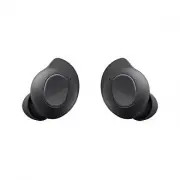 Samsung Galaxy Buds FE
User Manual
Samsung Galaxy Buds FE
User Manual
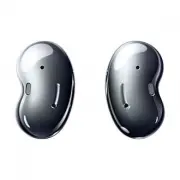 Samsung Galaxy Buds Live
User Manual
Samsung Galaxy Buds Live
User Manual
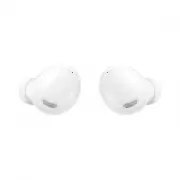 Samsung Galaxy Buds Pro
User Manual
Samsung Galaxy Buds Pro
User Manual
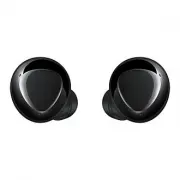 Samsung Galaxy Buds+
User Manual
Samsung Galaxy Buds+
User Manual
 Samsung Galaxy Buds2
User Manual
Samsung Galaxy Buds2
User Manual
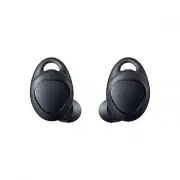 Samsung Gear IconX (2018)
User Manual
Samsung Gear IconX (2018)
User Manual
 Samsung SM-R130
User Manual
Samsung SM-R130
User Manual
 Samsung SM-R140
User Manual
Samsung SM-R140
User Manual
 Samsung SM-R170
User Manual
Samsung SM-R170
User Manual
 Samsung SM-R175
User Manual
Samsung SM-R175
User Manual
 Samsung SM-R177
User Manual
Samsung SM-R177
User Manual
 Samsung SM-R180
User Manual
Samsung SM-R180
User Manual
 Samsung SM-R190
User Manual
Samsung SM-R190
User Manual
 Samsung SM-R210
User Manual
Samsung SM-R210
User Manual
 Samsung SM-R400N
User Manual
Samsung SM-R400N
User Manual