Page 2 - Table of Contents
2 Table of Contents Read me first Getting started 4 About Gear Circle 5 Package contents 5 Device layout 7 Charging the battery 9 Turning the Circle on and off 10 Wearing the Circle12 Adjusting the volume Connecting via Bluetooth 13 Bluetooth14 Connecting to other devices16 Connecting to two devices...
Page 3 - Read me first; Instructional icons
3 Read me first Please read this manual before using the device to ensure safe and proper use. • Descriptions are based on the device’s default settings. • Images may differ in appearance from the actual product. Content is subject to change without prior notice. Instructional icons Warning : situat...
Page 4 - Getting started; About Gear Circle
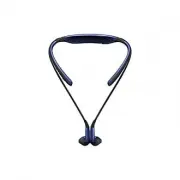
4 Getting started About Gear Circle With this Bluetooth headset (also referred to as Circle), you can connect with Bluetooth-enabled devices, such as smartphones and tablets. You can answer calls and play music from the connected devices.You can also use the following features: • The neckband vibrat...
Page 5 - Package contents; Device layout
Getting started 5 Package contents Check the product box for the following items: • Device • Earbud tips (3 pairs, S/M/L) • Neck guides (for outdoor activities, S/M/L) • Charger • Quick start guide • The items supplied with the device and any available accessories may vary depending on the region or...
Page 6 - Controls
Getting started 6 Charging indicator Left earphone Power switch Microphone Status indicator Right earphone Controls Name Function Power switch • Slide up or down to turn the Circle on or off. Play/Talk key • Press to answer or end a call. • Press to play music or pause playback. • Press to re-enter ...
Page 7 - Status indicator; Charging indicator; Charging the battery
Getting started 7 Status indicator Status Colour Bluetooth pairing mode • Blinking green, blue, and red Power on • Blinking blue 3 times Power off • Blinking red 3 times Incoming call • Blinking blue Charging indicator Status Colour Charging • Red Fully charged • Green Charging the battery Charge th...
Page 8 - Viewing the battery power level
Getting started 8 1 Open the charger port cover. 2 Plug the small end of the charger into the charger port of the Circle. Connecting the charger improperly may cause serious damage to the device. Any damage caused by misuse is not covered by the warranty. 3 Plug the large end of the charger into an ...
Page 9 - Turning the Circle on and off
Getting started 9 • When the battery power is low, the Circle beeps and the status indicator flashes red. • Calls on the Circle will automatically transfer to the connected device if the Circle is turned off. • The Circle can be used while it is charging, but it may take longer to fully charge the b...
Page 10 - Wearing the Circle
Getting started 10 Wearing the Circle 1 Select a set of the provided earbud tips that fit your ears. 2 Select the earbud tip for the left or right ear.Each earbud tip is marked with L for the left ear and R for the right ear. 3 Cover the latch at the bottom of the earphone with the earbud tip. 4 Hol...
Page 11 - Using the neck guide
Getting started 11 5 Turn the earphone upside down and check the covering. Cover the other earphone with an earbud tip. 6 Wear the Circle as shown in the image below. Using the neck guide Wearing the Circle using the neck guide (for outdoor activities) will prevent the neckband from falling off of y...
Page 12 - Adjusting the volume
Getting started 12 2 Wear the Circle as show in the image below. Adjusting the volume Swipe upwards on the Volume control touch pad to increase the sound while you are wearing the earphones.Swipe downwards on the Volume control touch pad to decrease the sound while you are wearing the earphones. • T...
Page 13 - Connecting via Bluetooth; Bluetooth; About Bluetooth
13 Connecting via Bluetooth Bluetooth About Bluetooth Bluetooth is a wireless technology standard that uses a 2.4 GHz frequency to connect to various devices over short distances. It can connect and exchange data with other Bluetooth enabled devices, such as mobile devices, computers, printers, and ...
Page 14 - Connecting to other devices; Connecting devices using the Samsung Gear app
Connecting via Bluetooth 14 Connecting to other devices To use the Circle, you must pair it with another device. After pairing with a device, the Circle will automatically connect to the device in the future.You can connect the Circle to other devices using the Samsung Gear app or via Bluetooth. Con...
Page 15 - Connecting devices via Bluetooth
Connecting via Bluetooth 15 6 Other device Read and agree to the terms and conditions, and then tap Finish . When the devices are connected properly, the Circle will beep and vibrate. Connecting devices via Bluetooth 1 Circle Turn on the Circle. When you turn on the Circle for the first time, the Ci...
Page 16 - Connecting to two devices
Connecting via Bluetooth 16 Connecting to two devices The Circle can connect to two Bluetooth-enabled devices at the same time.When you connect the Circle to two devices, the last device you connect is recognised as the primary device. The other device is recognised as the secondary device. If you c...
Page 17 - Reconnecting and disconnecting devices; Reconnecting the devices
Connecting via Bluetooth 17 Reconnecting and disconnecting devices Reconnecting the devices The connection between the Circle and the connected device may disconnect when using the devices over long distances. When the connection is ended, the Circle will beep and vibrate. Place the Circle near the ...
Page 18 - Using the Circle; Wearing status of the Circle
18 Using the Circle Wearing status of the Circle The earphones contain magnets so that they can be connected.The method for receiving calls differs depending on whether the earphones are connected or separated. The Gear Circle contains magnets in its earbuds. The American Heart Association (US) and ...
Page 19 - Calls; Answering and rejecting calls; Answering a call
Using the Circle 19 • Connecting the earphones: The earphones are connected to each other. Calls Answering and rejecting calls Answering a call When a call comes in while you are wearing the Circle, the Circle will beep and vibrate. Press the Play/Talk key to answer the call.When a call comes in whi...
Page 20 - Using options during a call
Using the Circle 20 Using options during a call Adjusting the volume During a call, swipe upwards or downwards on the Volume control touch pad. Switching sound output Use the related menu on the connected device to switch sound output between the Circle and the connected device.When the earphones ar...
Page 21 - Playing music; Launching S Voice
Using the Circle 21 Playing music Play music from the connected devices. When you answer a call while a file is playing, the file will pause and resume automatically when the call is ended. Playing music Press the Play/Talk key.The most recently-played music file will play automatically in the defau...
Page 22 - Using the Samsung Gear app; Launching the Samsung Gear app
22 Using the Samsung Gear app Launching the Samsung Gear app The Samsung Gear app allows wearable devices, such as the Gear, to connect to a smartphone. This app allows you to use additional features. If the Circle and the other device are connected using the Samsung Gear app, you can access the fea...
Page 23 - Connecting with a wearable device
Using the Samsung Gear app 23 Connecting with a wearable device On the Samsung Gear main screen, tap → Search for new devices . You can connect to another wearable device only after disconnecting the connected Circle. Gear SoundAlive Select a sound effect or adjust the sound effect manually.On the S...
Page 24 - Notifications; Blocking notifications; Settings; Connected earphones settings
Using the Samsung Gear app 24 Notifications Set the device to notify you of missed calls and new messages received on the connected device via voice notification to the Circle. You can skip to the next notification by pressing the Play/Talk key. To stop notifications, connect the earphones.On the Sa...
Page 25 - Using S Voice; User manual
Using the Samsung Gear app 25 Using S Voice Set the device to launch S Voice when you press and hold the Play/Talk key on the Circle for 1 second.Tap Voice control and tap the Voice control switch to activate it. To set the device to receive or reject calls using voice commands, tick Incoming calls ...
Page 26 - Appendix; Troubleshooting; Your Circle does not turn on; Another Bluetooth device cannot locate your Circle; Another Bluetooth device is not located
26 Appendix Troubleshooting Before contacting a Samsung Service Centre, please attempt the following solutions. Some situations may not apply to your Circle. Your Circle does not turn on When the battery is completely discharged, your Circle will not turn on. Charge the battery completely before tur...