Page 2 - Accessories; Features for the UHD Evolution Kit; holding and moving the Samsung Smart Control.
English-2 Accessories - Please make sure the following items are included with your UHD Evolution Kit. If any items are missing, contact your dealer. UHD Evolution Kit UHD Evolution Kit cable Samsung Smart Control Batteries (AA x 2) Scart Adapter COMPONENT IN/AV IN /AUDIO OUT Adapter User Manual Fea...
Page 3 - Limitations; Installing UHD Evolution Kit; Update to the latest software on your TV. Navigate to
English English-3 Limitations TV Panel and Design are not changed by Evolution Kit. Actual performance may vary and subject to model specifications and hardware limitations. Limitations of 2013 TVs Upgrading to a 2014 TV using the UHD Evolution Kit results in the following limitations: • The UHD Evo...
Page 4 - Availability depends on the specific model and area.; Connecting to an External Device; Front
English-4 4. Convert your recorded programmes following the directions on the screen. – Availability depends on the specific model and area. 5. After completing the backup and conversion, select Done . 6. Turn off the TV. 7. After removing the One Connect connection, connect the UHD Evolution Kit. –...
Page 5 - Side; Recovering a Previous State; - Availability depends on the specific model and area.
English English-5 Side Recovering a Previous State If you restore your TV to older settings, it will not play recorded programmes from a TV that was updated via the UHD Evolution Kit. - Availability depends on the specific model and area. 1. Turn off the TV and then disconnect the TV power plug. 2. ...
Page 6 - Inserting Batteries into the Samsung Smart Control; Connecting to the TV; Reconnecting the Samsung Smart Control
English-6 Inserting Batteries into the Samsung Smart Control To use Samsung Smart Control, first refer to the figure below and insert batteries into the unit. - We recommend using Samsung Smart Control at a distance of less than 6m. A usable distance may differ depending on the wireless environmenta...
Page 7 - Using the Samsung Smart Control; - Colours and shape may vary depending on the model.
English English-7 Using the Samsung Smart Control - Colours and shape may vary depending on the model. ¢ : Turns the sound on/off. AD : Press and hold this button to bring up the Accessibility Shortcuts panel. Select the options to turn them on or off. SEARCH : Press this button to use the search wi...
Page 8 - Viewing more TV features; The; Launching the e-Manual; The embedded e-Manual contains information.; You can scroll pages in one of the following ways.
English-8 Viewing more TV features The e-Manual contains more detailed information on the TV features. Refer to the embedded e-Manual ( Support > e-Manual ). Launching the e-Manual The embedded e-Manual contains information. - You can also download a copy of the e-Manual from Samsung’s website, a...
Page 9 - Specifications; WARRANTY
English English-9 Specifications Model Name SEK-2500U Dimensions (W x H x D) 364.0 x 32.0 x 112.5 mm Weight 1.28 kg Compatible models Models released in 2013: S9, LED 9000 series Environmental ConsiderationsOperating TemperatureOperating HumidityStorage TemperatureStorage Humidity 50°F to 104°F (10°...
Page 10 - Accessoires; Fonctionnalités de l’UHD Evolution Kit
Français-2 Accessoires - Vérifiez que les éléments suivants sont inclus avec votre UHD Evolution Kit. S’il manque des éléments, contactez votre revendeur. UHD Evolution Kit Câble de l’UHD Evolution Kit Samsung Smart Control Piles (AA x 2) Adaptateur péritel Adaptateur COMPONENT IN/AV IN /AUDIO OUT G...
Page 11 - Restrictions; Restrictions sur les téléviseurs commercialisés en 2013; Lisez les précautions avant de procéder aux connexions; Installation de l’UHD Evolution Kit
Français Français-3 Restrictions L’Evolution Kit ne modifie ni l’écran du téléviseur ni sa conception. Les performances réelles peuvent varier et être soumises auxlimitations matérielles et aux caractéristiques techniques du modèle. Restrictions sur les téléviseurs commercialisés en 2013 La mise à n...
Page 12 - Eteignez le téléviseur.; Connexion à un périphérique externe; Avant
Français-4 4. Procédez à la conversion de vos programmes enregistrés en suivant les instructions à l’écran. – La disponibilité dépend du modèle et de la région concernés. 5. Après avoir effectué sauvegarde et conversion, sélectionnez Terminé . 6. Eteignez le téléviseur. 7. Retirez le One Connect pui...
Page 13 - Côté; Retour à l’état précédent; - La disponibilité dépend du modèle et de la région concernés.
Français Français-5 Côté Retour à l’état précédent Si vous rétablissez les anciens paramètres de votre téléviseur, vous ne pourrez pas lire les programmes enregistrés sur un téléviseur mis à jour via l’UHD Evolution Kit. - La disponibilité dépend du modèle et de la région concernés. 1. Eteignez le t...
Page 14 - Insertion des piles dans le Samsung Smart Control; Connexion au téléviseur; Reconnexion du Samsung Smart Control
Français-6 Insertion des piles dans le Samsung Smart Control Pour utiliser le Samsung Smart Control, vous devez tout d'abord insérer les piles dans l'unité, comme illustré ci-dessous. - Nous recommandons d'utiliser le Samsung Smart Control à une distance inférieure à 6 m. La distance d'utilisation p...
Page 15 - Utilisation du mode Samsung Smart Control; - Les couleurs et la forme peuvent varier en fonction du modèle.
Français Français-7 Utilisation du mode Samsung Smart Control - Les couleurs et la forme peuvent varier en fonction du modèle. ¢ : Permet d'activer et de désactiver le son. AD : Maintenez cette touche enfoncée pour afficher le panneau Raccourcis d’accessibilité . Sélectionnez les options pour les ac...
Page 16 - Voir d'autres fonctions du téléviseur; Le; Lancement du e-Manual; Le e-Manual intégré contient diverses informations.; Sélectionnez
Français-8 Voir d'autres fonctions du téléviseur Le e-Manual contient des informations plus détaillées concernant les fonctions du téléviseur. Reportez-vous à l’ e-Manual intégré ( Assistance > e-Manual ). Lancement du e-Manual Le e-Manual intégré contient diverses informations. - Vous pouvez éga...
Page 17 - Spécifications; GARANTIE
Français Français-9 Spécifications Nom du modèle SEK-2500U Dimensions (L x H x P) 364,0 x 32,0 x 112,5 mm Poids 1,28 kg Modèles compatibles Modèles commercialisés en 2013 : S9, téléviseur LED série 9000 Conditions ambiantesTempérature de fonctionnementHumidité de fonctionnementTempérature de stockag...
Page 18 - Accesorios; Funciones del UHD Evolution Kit; televisor moviendo el Samsung Smart Control.
Español-2 Accesorios - Compruebe que los artículos siguientes vengan incluidos con su UHD Evolution Kit. Si falta alguno, póngase en contacto con su distribuidor. UHD Evolution Kit Cable del UHD Evolution Kit Samsung Smart Control 2 pilas AA Adaptador de SCART Adaptador COMPONENT IN/AV IN /AUDIO OUT...
Page 19 - Limitaciones; Restricciones de los televisores de 2013; Lea las precauciones antes de montarlo; Instalación del UHD Evolution Kit
Español Español-3 Limitaciones El Evolution Kit no modifica el panel ni el diseño del televisor. El rendimiento puede variar y está sujeto a las especificaciones del modelo y a las limitaciones del hardware. Restricciones de los televisores de 2013 La actualización a un televisor de 2014 con el UHD ...
Page 20 - Tras desconectar el One Connect, conecte el UHD Evolution Kit.; Conexión de un dispositivo externo; Vista frontal
Español-4 4. Convierta sus programas grabados siguiendo las indicaciones de la pantalla. – La disponibilidad depende del modelo específico y de la zona. 5. Tras completar la copia de seguridad y la conversión, seleccione Hecho . 6. Apague el televisor. 7. Tras desconectar el One Connect, conecte el ...
Page 21 - Vista lateral; Recuperación de un estado anterior; - La disponibilidad depende del modelo específico y de la zona.
Español Español-5 Vista lateral Recuperación de un estado anterior Si recupera la configuración antigua del televisor, no podrá reproducir los programas grabados en el televisor que se actualizó con el UHD Evolution Kit. - La disponibilidad depende del modelo específico y de la zona. 1. Apague el te...
Page 22 - Inserción de las pilas en el Samsung Smart Control; condiciones del entorno inalámbrico.; Conexión al televisor; Pulse el botón; Nueva conexión del Samsung Smart Control; Pulse los botones; al mismo tiempo durante más de 3 segundos.
Español-6 Inserción de las pilas en el Samsung Smart Control Para utilizar el Samsung Smart Control, consulte la siguiente ilustración e inserte las pilas en la unidad. - Recomendamos utilizar el Samsung Smart Control a una distancia inferior a 6 m. La distancia adecuada puede variar según las condi...
Page 23 - Uso de Samsung Smart Control; - Los colores y la forma pueden variar según el modelo.
Español Español-7 Uso de Samsung Smart Control - Los colores y la forma pueden variar según el modelo. ¢ : Enciende y apaga el sonido. AD : Mantenga pulsado este botón para acceder al panel Métodos abreviados de accesibilidad . Seleccione las opciones para activar o desactivar. SEARCH : Pulse este b...
Page 24 - Funciones adicionales del televisor; El; El e-Manual incorporado contiene información.; Seleccione
Español-8 Funciones adicionales del televisor El e-Manual incluye más información detallada de las funciones del televisor. Consulte e-Manual ( Asistencia técnica > e-Manual ). Inicio del e-Manual. El e-Manual incorporado contiene información. - También puede descargar una copia del e-Manual desd...
Page 25 - Especificaciones; GARANTÍA
Español Español-9 Especificaciones Nombre del modelo SEK-2500U Dimensiones (an. x al. x pr.) 364,0 x 32,0 x 112,5 mm Peso 1,28 kg Modelos compatibles Modelos de 2013: LED series S9, 9000 Consideraciones medioambientalesTemperatura de funcionamientoHumedad de funcionamientoTemperatura de almacenamien...
Page 26 - Acessórios; Funcionalidades do UHD Evolution Kit
Português-2 Acessórios - Verifique se os acessórios seguintes foram enviados com o seu UHD Evolution Kit. Se faltar algum acessório, contacte o seu revendedor. UHD Evolution Kit Cabo UHD Evolution Kit Samsung Smart Control Pilhas (2 pilhas AA) Adaptador Scart Adaptador COMPONENT IN/AV IN /AUDIO OUT ...
Page 27 - Limitações; Limitações dos televisores de 2013; Leia as precauções antes de ligar o produto; Instalação do UHD Evolution Kit
Português Português-3 Limitações O design e o painel do televisor não são alterados pelo Evolution Kit. O desempenho real pode variar e está sujeito às especificações do modelo e a limitações do hardware. Limitações dos televisores de 2013 A actualização para um televisor de 2014 utilizando o UHD Ev...
Page 28 - Desligue o televisor.; Ligação a um dispositivo externo; Parte da frente
Português-4 4. Converta os seus programas gravados seguindo as instruções no ecrã. – A disponibilidade depende do modelo específico e da área. 5. Depois de concluir a cópia de segurança e a conversão, seleccione Concluído . 6. Desligue o televisor. 7. Depois de remover a ligação ao One Connect, ligu...
Page 29 - Parte lateral; - A disponibilidade depende do modelo específico e da área.
Português Português-5 Parte lateral Recuperação de um estado anterior Se restaurar definições antigas no seu televisor, este não irá reproduzir programas gravados a partir de um televisor actualizado através do UHD Evolution Kit. - A disponibilidade depende do modelo específico e da área. 1. Desligu...
Page 30 - Introdução de pilhas no Samsung Smart Control; Ligação ao televisor; Voltar a estabelecer ligação com o Samsung Smart Control
Português-6 Introdução de pilhas no Samsung Smart Control Para utilizar o Samsung Smart Control, primeiro consulte a imagem abaixo e introduza pilhas na unidade. - Recomendamos que utilize o Samsung Smart Control a uma distância inferior a 6 m. A distância de utilização pode variar, dependendo das c...
Page 31 - Utilização do Samsung Smart Control; - A cor e a forma podem variar consoante o modelo.
Português Português-7 Utilização do Samsung Smart Control - A cor e a forma podem variar consoante o modelo. ¢ : Liga ou desliga o som. AD : Carregue sem soltar neste botão para abrir o painel Atalhos de Acessibilidade . Seleccione as opções para activá-las ou desactivá-las. SEARCH : Carregue neste ...
Page 32 - Visualização de mais funcionalidades do televisor; Início do e-Manual
Português-8 Visualização de mais funcionalidades do televisor O e-Manual contêm informações mais detalhadas sobre as funcionalidades do televisor. Consulte o e-Manual incorporado ( Assistência > e-Manual ). Início do e-Manual O e-Manual incorporado contém informação. - Pode igualmente transferir ...
Page 33 - Características técnicas; GARANTIA
Português Português-9 Características técnicas Nome do modelo SEK-2500U Dimensões (L x A x P) 364,0 x 32,0 x 112,5 mm Peso 1,28 kg Modelos compatíveis Modelos lançados em 2013: S9, LED da série 9000 Considerações ambientaisTemperatura de funcionamentoHumidade de funcionamentoTemperatura de armazenam...
Page 34 - Dodatna oprema; Značilnosti kompleta UHD Evolution Kit
Slovenščina-2 Dodatna oprema - Preverite, ali ste s kompletom UHD Evolution Kit dobili naslednje predmete. Če kateri predmet manjka, se obrnite na prodajalca. Komplet UHD Evolution Kit Kabel za komplet UHD Evolution Kit Samsung Smart Control Bateriji (2 x AA) Adapter za Scart Adapter za vrata COMPON...
Page 35 - Omejitve; Omejitve televizorjev iz leta 2013; Pred priključitvijo preberite o varnostnih ukrepih.; Nameščanje kompleta UHD Evolution Kit
Slovenščina Slovenščina-3 Omejitve Plošča in zasnova televizorja nista spremenjena v okviru paketa Evolution Kit. Dejanska zmogljivost se lahko razlikuje in je odvisna od specifikacij ter omejitev strojne opreme. Omejitve televizorjev iz leta 2013 Nadgradnja na televizor iz leta 2014 s kompletom UHD...
Page 36 - Razpoložljivost je odvisna od modela in območja.; Povezava zunanje naprave; Spredaj
Slovenščina-4 4. Posnete programe pretvorite v skladu z navodili na zaslonu. – Razpoložljivost je odvisna od modela in območja. 5. Po varnostnem kopiranju in pretvorbi izberite možnost Končano . 6. Izklopite televizor. 7. Po odstranitvi povezave naprave One Connect priključite komplet UHD Evolution ...
Page 37 - Ob strani; Obnovitev prejšnjega stanja; - Razpoložljivost je odvisna od modela in območja.
Slovenščina Slovenščina-5 Ob strani Obnovitev prejšnjega stanja Če televizor obnovite na starejše nastavitve, z njim ne bo mogoče predvajati posnetih programov iz televizorja, ki ste ga posodobili s kompletom UHD Evolution. - Razpoložljivost je odvisna od modela in območja. 1. Izklopite televizor in...
Page 38 - Vstavljanje baterij v upravljalnik Samsung Smart Control; značilnosti brezžičnega omrežja.; Povezava s televizorjem; Pritisnite gumb; Istočasno za več kot 3 sekunde pridržite gumba; in
Slovenščina-6 Vstavljanje baterij v upravljalnik Samsung Smart Control Pred uporabo enote Samsung Smart Control si najprej oglejte naslednjo sliko in šele nato vstavite baterije v enoto. - Priporočena razdalja za uporabo enote Samsung Smart Control je manj kot 6 m. Delovna razdalja se lahko razlikuj...
Page 39 - Uporaba funkcije Samsung Smart Control; - Barva in oblika sta odvisni od modela.
Slovenščina Slovenščina-7 Uporaba funkcije Samsung Smart Control - Barva in oblika sta odvisni od modela. ¢ : Vklop ali izklop glasu. AD : Ta gumb pridržite za prikaz plošče Bližnjice dostopnosti . Možnosti vklopite ali izklopite tako, da jih izberete. SEARCH : Pritisnite ta gumb za iskanje informac...
Page 40 - Ogled več funkcij televizorja; V vdelanem priročniku e-Manual so informacije.; Izberite možnost
Slovenščina-8 Ogled več funkcij televizorja V e-Manual so podrobnejše informacije o funkcijah televizorja. Oglejte si vgrajeni e-Manual ( Podpora > e-Manual ). Zagon e-Manual V vdelanem priročniku e-Manual so informacije. - S spletnega mesta družbe Samsung lahko tudi prenesete kopijo priročnika e...
Page 41 - Specifikacije; GARANCIJA
Slovenščina Slovenščina-9 Specifikacije Ime modela SEK-2500U Dimenzije (Š x V x G) 364,0 x 32,0 x 112,5 mm Teža 1,28 kg Združljivi modeli Modeli, ki so prišli na tržišče leta 2013: S9, serija LED 9000 Okoljski vidikiDelovna temperaturaDelovna vlažnostTemperatura shranjevanjaVlažnost pri shranjevanju...
Page 42 - Aksesuarlar; UHD Evolution Kit Özellikleri; etmenizi sağlayan bir hareket sensörüne ( jiro sensörü) sahiptir.
Türkçe-2 Aksesuarlar - UHD Evolution Kit ile aşağıdaki öğelerin verildiğinden emin olun. Öğelerden herhangi biri eksikse, bayinizle görüşün. UHD Evolution Kit UHD Evolution Kit kablosu Samsung Smart Control Piller (AA x 2) Scart Adaptörü COMPONENT IN/AV IN /AUDIO OUT Adaptörü Kullanıcı Kılavuzu UHD ...
Page 43 - Sınırlamalar; 013 TV’lerin Sınırlamaları; Takmadan önce önlemleri okuyun; UHD Evolution Kit‘i Yükleme
Türkçe Türkçe-3 Sınırlamalar TV Paneli ve Tasarımı Evolution Kit tarafından değiştirilmez. Model özelliklerine ve donanım sınırlamalarına bağlı olarak, gerçek performans değişiklik gösterebilir. 2013 TV’lerin Sınırlamaları UHD Evolution Kit‘i kullanarak bir 2014 TV’ye yükseltme şu sınırlamalarla son...
Page 44 - Kullanılabilirlik ilgili modele ve bölgeye bağlıdır.; Harici Cihaza Bağlanma; Ön
Türkçe-4 4. Ekrandaki yönergeleri izleyerek kayıtlı programlarınızı dönüştürün. – Kullanılabilirlik ilgili modele ve bölgeye bağlıdır. 5. Yedekleme ve dönüştürme işlemini tamamladıktan sonra, Bitti öğesini seçin. 6. TV’yi kapatın. 7. One Connect bağlantısını kaldırdıktan sonra UHD Evolution Kit‘i ba...
Page 45 - Yan; Önceki Durumuna Kurtarma; - Kullanılabilirlik ilgili modele ve bölgeye bağlıdır.; ) öğesine gidin ve sonra yazılımı güncelleyin.
Türkçe Türkçe-5 Yan Önceki Durumuna Kurtarma TV’nizi eski ayarlarına geri yüklerseniz, UHD gelişim kitiyle güncellenmiş bir TV’den, kayıtlı programları oynatmaz. - Kullanılabilirlik ilgili modele ve bölgeye bağlıdır. 1. TV’yi kapatın ve sonra TV elektrik fişinin bağlantısını kesin. 2. UHD Evolution ...
Page 46 - Samsung Smart Control'e Pil Takma; Samsung Smart Control 'deki; Yeniden Bağlama Samsung Smart Control’ü; Hem; düğmesine hem de; düğmesine 3 saniyeden fazla aynı anda basın.
Türkçe-6 Samsung Smart Control'e Pil Takma Samsung Smart Control kullanmak için, önce aşağıdaki şekle bakın ve üniteye pilleri takın. - Samsung Smart Control 'ü 6 m'den az bir mesafeden kullanmanızı öneririz. Kullanışlı bir mesafe kablosuz ortam koşullarına bağlı olarak değişebilir. 1 Yavaşça pil ka...
Page 47 - Samsung Smart Control'u Kullanma; - Renkler ve şekil, modele bağlı olarak farklılık gösterebilir.
Türkçe Türkçe-7 Samsung Smart Control'u Kullanma - Renkler ve şekil, modele bağlı olarak farklılık gösterebilir. ¢ : Sesi açar/kapatır. AD : Erişebilirlik Kısayolları panelini getirmek için bu düğmeye basın ve basılı tutun. Bunları açmak veya kapatmak için seçenekleri seçin. SEARCH : Arama penceresi...
Page 48 - Daha fazla TV özelliği görüntüleme; Aşağıdaki yollardan biriyle sayfaları kaydırabilirsiniz.
Türkçe-8 Daha fazla TV özelliği görüntüleme e-Manual TV özellikleri hakkında daha ayrıntılı bilgiler bulunur. Katıştırılmış e-Manual ( Destek > e-Manual ) öğesine bakın. e-Manual'u Başlatma Katıştırılmış e-Manual bilgi içerir. - Ayrıca e-Manual'un bir kopyasını Samsung'un web sitesinden indirip b...
Page 49 - Teknik Özellikler; GARANTİ
Türkçe Türkçe-9 Teknik Özellikler Model Adı SEK-2500U Boyutlar (G x Y x D) 364,0 x 32,0 x 112,5 mm Ağırlık 1,28 kg Uyumlu modeller 2013'te yayınlanan modeller: S9, LED 9000 serisi Çevre KoşullarıÇalışma SıcaklığıÇalışma NemiDepolama SıcaklığıDepolama Nemi 50°F ila 104°F (10°C ila 40°C)10% ila 80%, y...
Page 50 - Tartozékok; Az UHD Evolution Kit jellemzői
Magyar-2 Tartozékok - Győződjön meg arról, hogy az UHD Evolution Kit tartalmazza a következő tartozékokat. Ha bármelyik tartozék hiányzik, forduljon a márkakereskedőhöz. UHD Evolution Kit Az UHD Evolution Kit kábele Samsung Smart Control Elemek (2 db AA) SCART-csatlakozó COMPONENT IN/AV IN /AUDIO OU...
Page 51 - Korlátozások; A 2013. évi tv-készülékekre vonatkozó korlátozások; Olvassa el az óvintézkedéseket, mielőtt csatlakoztatná.; Az UHD Evolution Kit telepítése
Magyar Magyar-3 Korlátozások Az Evolution Kitnem módosítja az Adásinformációk panelt és a kivitelt. A tényleges teljesítmény a típus műszaki adatainak és a hardver korlátainak függvényében változhat. A 2013. évi tv-készülékekre vonatkozó korlátozások Ha az UHD Evolution Kit segítségével a 2014. évi ...
Page 52 - Evolution Kit készülékhez.; Csatlakoztatás külső eszközökhöz; Elölnézet
Magyar-4 4. Végezze el a rögzített műsorok konvertálását a képernyőn megjelenő utasításokat követve. – A funkció csak bizonyos modelleken és területeken érhető el. 5. A mentés és a konvertálás befejezése után válassza a Kész lehetőséget. 6. Kapcsolja ki a tv-készüléket. 7. A One Connect eszköz levál...
Page 53 - Oldalnézet; Az előző állapot visszaállítása; - A funkció csak bizonyos modelleken és területeken érhető el.; ellátott videókat lejátszani.
Magyar Magyar-5 Oldalnézet Az előző állapot visszaállítása Ha visszaállítja a tv-készülék régi beállításait, nem fogja tudni lejátszani azokat a műsorokat, amelyeket UHD Evolution Kit eszközzel frissített tv-készülékkel rögzített. - A funkció csak bizonyos modelleken és területeken érhető el. 1. Kap...
Page 54 - Elemek behelyezése a Samsung Smart Control távvezérlőbe; Kapcsolódás a TV-készülékhez; A távvezérlő újracsatlakoztatása Samsung Smart Control
Magyar-6 Elemek behelyezése a Samsung Smart Control távvezérlőbe A Samsung Smart Control távvezérlő használatához helyezzen elemeket a készülékbe az alábbi ábrán látható módon. - Javasoljuk, hogy a Samsung Smart Control távvezérlőt 6 m távolságon belül használja. A hatótávolság a vezeték nélküli kör...
Page 55 - A Samsung Smart Control használata; - A színek és a forma típusonként eltérő lehet.
Magyar Magyar-7 A Samsung Smart Control használata - A színek és a forma típusonként eltérő lehet. ¢ : A hang be- és kikapcsolása. AD : Nyomja meg és tartsa lenyomva ezt a gombot a Kisegítő lehetőségek parancsikonjai panel megjelenítéséhez. A lehetőségek be- és kikapcsolása a kiválasztásukkal történ...
Page 56 - További TV-funkciók megtekintése; Az e-Manual indítása
Magyar-8 További TV-funkciók megtekintése Az e-Manual részletes információkat tartalmaz a TV funkcióiról. Nézze át a beépített e-Manual ( Terméktámogatás > e-Manual ) menüpontot. Az e-Manual indítása A beépített e-Manual információkat tartalmaz. - Az e-Manualt a Samsung weboldaláról is letöltheti...
Page 57 - Műszaki leírás; JÓTÁLLÁS
Magyar Magyar-9 Műszaki leírás A modell neve SEK-2500U Méretek (Sz × Ma × Mé) 364,0 x 32,0 x 112,5 mm Tömeg 1,28 kg Kompatibilis modellek 2013-ban kiadott modellek: S9, LED 9000 sorozatú készülékek Környezeti feltételekÜzemi hőmérsékletÜzemi páratartalomTárolási hőmérsékletTárolási páratartalom 50°F...
Page 58 - Akcesoria; z elementów należy skontaktować się ze sprzedawcą.; Funkcje urządzenia UHD Evolution Kit
Polski-2 Akcesoria - Należy sprawdzić, czy poniższe elementy zostały dostarczone wraz z urządzeniem UHD Evolution Kit. W przypadku braku któregokolwiek z elementów należy skontaktować się ze sprzedawcą. UHD Evolution Kit Kabel urządzenia UHD Evolution Kit Samsung Smart Control Bateria (AA x 2) Adapt...
Page 59 - Ograniczenia; Ograniczenia dotyczące telewizorów z roku 2013; Instalacja urządzenia UHD Evolution Kit
Polski Polski-3 Ograniczenia Urządzenie Evolution Kit nie powoduje zmiany panelu telewizora ani konstrukcji. Rzeczywiste działanie może się różnić i jest zależne od specyfikacji modelu i ograniczeń sprzętowych. Ograniczenia dotyczące telewizorów z roku 2013 Zaktualizowanie telewizora do wersji z rok...
Page 60 - Dostępność zależy od określonego modelu i obszaru.; urządzenie nagrywające USB.; Podłączanie do urządzenia zewnętrznego; Panel przedni
Polski-4 4. Przeprowadź konwersję nagranych programów, postępując wg instrukcji wyświetlanych na ekranie. – Dostępność zależy od określonego modelu i obszaru. 5. Po wykonaniu kopii zapasowej danych i przeprowadzeniu konwersji wybierz przycisk Gotowe . 6. Wyłącz telewizor. 7. Po odłączeniu urządzenia...
Page 61 - Panel boczny; Przywracanie poprzedniego stanu; - Dostępność zależy od określonego modelu i obszaru.; zaktualizuj oprogramowanie.
Polski Polski-5 Panel boczny Przywracanie poprzedniego stanu Po przywróceniu w telewizorze poprzednich ustawień nie będzie można odtwarzać nagranych programów z telewizora, którego oprogramowanie zostało zaktualizowane za pośrednictwem urządzenia UHD Evolution Kit. - Dostępność zależy od określonego...
Page 62 - Wkładanie baterii do pilota Samsung Smart Control; Łączenie z telewizorem; Naciśnij przycisk; wyświetlanymi na ekranie, aby skonfigurować telewizor.; Ponowne łączenie pilota Samsung Smart Control; Naciśnij jednocześnie przyciski
Polski-6 Wkładanie baterii do pilota Samsung Smart Control Aby korzystać z pilota Samsung Smart Control, należy najpierw włożyć do niego baterie, jak pokazano na rysunku. - Zaleca się, aby z pilota Samsung Smart Control korzystać z odległości mniejszej niż 6 m. Odpowiednia odległość może różnić się ...
Page 63 - Korzystanie z funkcji Samsung Smart Control; - Kształt i kolory mogą się różnić w zależności od modelu.
Polski Polski-7 Korzystanie z funkcji Samsung Smart Control - Kształt i kolory mogą się różnić w zależności od modelu. ¢ : Włączanie i wyłączanie dźwięku. AD : Naciśnij i przytrzymaj ten przycisk, aby wyświetlić panel Skróty dostępności . Wybierz opcje, aby je włączyć lub wyłączyć. SEARCH : Naciśnij...
Page 64 - Poznawanie kolejnych funkcji telewizora; Instrukcja; Uruchamianie funkcji e-Manual; Wybierz opcję
Polski-8 Poznawanie kolejnych funkcji telewizora Instrukcja e-Manual zawiera więcej szczegółowych informacji o funkcjach telewizora. Patrz zapisana na stałe w pamięci telewizora instrukcja e-Manual ( Pomoc techniczna > e-Manual ). Uruchamianie funkcji e-Manual Zapisana na stałe w pamięci telewizo...
Page 65 - Dane techniczne; GWARANCJA
Polski Polski-9 Dane techniczne Nazwa modelu SEK-2500U Wymiary (szer. x wys. x gł.) 364,0 x 32,0 x 112,5 mm Waga 1,28 kg Zgodne modele Modele z roku 2013: seria S9, LED 9000 Uwagi dotyczące warunków pracyTemperatura roboczaWilgotność podczas pracyTemperatura podczas przechowywaniaWilgotność podczas ...
Page 66 - Πρόσθετα εξαρτήματα; με την τοπική αν τιπροσωπία.; Δυνατότητες της συσκευής UHD Evolution Kit
Ελληνικά -2 Πρόσθετα εξαρτήματα - Βεβαιωθείτε ότι τα παρακάτω είδη περιλαμβάνον ται σ τη συσκευασία της συσκευής UHD Evolution Kit. Αν λείπει οποιοδήποτε είδος, επικοινωνήσ τε με την τοπική αν τιπροσωπία. UHD Evolution Kit Καλώδιο συσκευής UHD Evolution Kit Samsung Smart Control Μπαταρίες (AA x 2) Π...
Page 67 - Περιορισμοί; Περιορισμοί μοντέλων τηλεόρασης έτους 2013; Διαβάσ τε τις προφυλάξεις πριν από την προσάρτηση; Εγκατάσταση της συσκευής UHD Evolution Kit
Ελληνικά Ελληνικά-3 Περιορισμοί Η οθόνη και η σχεδίαση της τηλεόρασης δεν αλλάζονται από το Evolution Kit. Η πραγματική απόδοση ενδέχεται να διαφέρει, ανάλογα με τις ππροδιαγραφές του μοντέλου και τους περιορισμούς του εξοπλισμού. Περιορισμοί μοντέλων τηλεόρασης έτους 2013 Η αναβάθμιση σε μοντέλο τη...
Page 68 - Απενεργοποιήστε την τηλεόραση.; Σύνδεση με εξωτερική συσκευή; Εμπρός
Ελληνικά -4 4. Μετατρέψτε τα εγγεγραμμένα προγράμματά σας ακολουθώντας τις οδηγίες στην οθόνη. – Η διαθεσιμότητα εξαρτάται από το συγκεκριμένο μον τέλο και την περιοχή. 5. Αφού ολοκληρώσετε τη δημιουργία αντιγράφων ασφαλείας και τη μετατροπή, επιλέξτε Τέλος . 6. Απενεργοποιήστε την τηλεόραση. 7. Αφο...
Page 69 - Πλάι; Ανάκτηση προηγούμενης κατάστασης; συσκευής UHD Evolution Kit.; ενημερώστε το λογισμικό.
Ελληνικά Ελληνικά-5 Πλάι Ανάκτηση προηγούμενης κατάστασης Αν επαναφέρετε την τηλεόραση σε παλαιότερες ρυθμίσεις, δεν θα αναπαράγει εγγεγραμμένα προγράμματα από μια τηλεόραση που ενημερώθηκε μέσω της συσκευής UHD Evolution Kit. - Η διαθεσιμότητα εξαρτάται από το συγκεκριμένο μον τέλο και την περιοχή....
Page 70 - Τοποθέτηση μπαταριών στο Samsung Smart Control; Σύνδεση με την τηλεόραση; Επανασύνδεση του Samsung Smart Control
Ελληνικά -6 Τοποθέτηση μπαταριών στο Samsung Smart Control Για να χρησιμοποιήσετε το Samsung Smart Control, ανατρέξτε πρώτα στην παρακάτω εικόνα και τοποθετήστε μπαταρίες στη μονάδα. - Συνισ τούμε να χρησιμοποιείτε το Samsung Smar t Control σε απόσ ταση μικρότερη από 6 μέτρα. Η απόσ ταση δυνατότητας...
Page 71 - Χρήση της λειτουργίας Samsung Smart Control; Το χρώμα και το σχήμα ενδέχεται να διαφέρουν, ανάλογα με το μον τέλο.
Ελληνικά Ελληνικά-7 Χρήση της λειτουργίας Samsung Smart Control - Το χρώμα και το σχήμα ενδέχεται να διαφέρουν, ανάλογα με το μον τέλο. ¢ : Ενεργοποίηση/απενεργοποίηση του ήχου. AD : Πατήστε παρατεταμένα αυτό το κουμπί για να εμφανίσετε τον πίνακα Συντομεύσεις προσβασιμότητας . Κάντε τις επιλογές γι...
Page 72 - Προβολή περισσότερων δυνατοτήτων της τηλεόρασης; Το; Εκκίνηση του e-Manual; Το ενσωματωμένο e-Manual περιέχει χρήσιμες πληροφορίες.; Επιλέξτε
Ελληνικά -8 Προβολή περισσότερων δυνατοτήτων της τηλεόρασης Το e-Manual περιέχει περισσότερες λεπτομερείς πληροφορίες σχετικά με τις δυνατότητες της τηλεόρασης. Ανατρέξτε στο ενσωματωμένο e-Manual ( Υποστήριξη > e-Manual ). Εκκίνηση του e-Manual Το ενσωματωμένο e-Manual περιέχει χρήσιμες πληροφορ...
Page 73 - Προδιαγραφές; ΕΓΓΥΗΣΗ
Ελληνικά Ελληνικά-9 Προδιαγραφές Όνομα μοντέλου SEK-2500U Διαστάσεις (Π x Υ x Β) 364,0 x 32,0 x 112,5 mm Βάρος 1,28 kg Συμβατά μοντέλα Μοντέλα που κυκλοφόρησαν το 2013: σειρές S9, LED 9000 Περιβαλλοντικές συνθήκεςΘερμοκρασία λειτουργίαςΥγρασία λειτουργίαςΘερμοκρασία φύλαξηςΥγρασία φύλαξης 50°F έως 1...
Page 74 - Принадлежности; Функции на UHD Evolution Kit
Български-2 Принадлежности - - Проверете-дали-към-вашия-UHD-Evolution-Kit-са-приложени-следните-части.-Ако-някоя-част-липсва,-се-обърнете-към-доставчика-си. UHD-Evolution-Kit Кабел-на-UHD-Evolution-Kit Samsung-Smart-Control Батерии-(AA-x-2-бр.) Адаптер-за-Scart Адаптер-за-COMPONENT-IN/AV-IN-/AUDIO-O...
Page 75 - Ограничения; Ограничения за моделите телевизори от 2013 г.; Инсталиране на UHD Evolution Kit
Български Български-3 Ограничения Панелът-и-дизайнът-на-телевизора-не-се-променят-от-Evolution-Kit.-Действителното-качество-на-работа-може-да-е-различно-и-зависи-от-спецификациите-и-хардуерните-ограничения-на-модела. Ограничения за моделите телевизори от 2013 г. Надстройката-до-телевизор-от-2014-г.-...
Page 76 - Свързване на външно устройство; Отпред
Български-4 4. Преобразувайте-своите-записани-програми,-като-следвате-инструкциите-на-екрана. - – Наличността-зависи-от-специфичния-модел-и-зоната. 5. След-като-завършите-архивирането-и-преобразуването,-изберете- Готово . 6. Изключете-телевизора. 7. -След-като-премахнете-връзката-към-One-Connect,-св...
Page 77 - Отстрани; Възстановяване на предишно състояние
Български Български-5 Отстрани Възстановяване на предишно състояние Ако-възстановите-телевизора-си-до-по-стари-настройки,-той-няма-да-изпълни-записани-програми-от-телевизор,-който-е-бил-актуализиран-чрез-UHD-Evolution-kit. - - Наличността-зависи-от-специфичния-модел-и-зоната. 1. Изключете-телевизора...
Page 78 - Поставяне на батерии в Samsung Smart Control; Свързване към телевизора; Повторно свързване на Samsung Smart Control
Български-6 Поставяне на батерии в Samsung Smart Control За-да-използвате-Samsung-Smart-Control,-първо-разгледайте-фигурата-по-долу-и-поставете-батериите-в-устройството. - - Препоръчваме-да-използвате-Samsung-Smart-Control-от-разстояние,-по-малко-от-6-м.-Подходящото-разстояние-може-да-е-различно,-в-...
Page 79 - Използване на Samsung Smart Control
Български Български-7 Използване на Samsung Smart Control - - Цветът-и-формата-може-да-се-различават-за-различните-модели. ¢ :-Включва/изключва-звука. AD :-Натиснете-и-задръжте-този-бутон,-за-да- покажете-панела- Преки пътища за достъпност .- Изберете-опциите,-за-да-ги-включите-или- изключите. SEARC...
Page 80 - Преглед на още функции на телевизора
Български-8 Преглед на още функции на телевизора e-Manual -съдържа-повече-информация-за-функциите-на-телевизора.-Направете-справка-във-вграденото- e-Manual -( Поддръжка ->- e-Manual ). Стартиране на e-Manual. --Вграденият-e-Manual-съдържа-информация. - - -Можете-също-да-изтеглите-копие-от-e-Manua...
Page 81 - Спецификации
Български Български-9 Спецификации Име-на-модел SEK-2500U Размери-(Ш-x-В-x-Д) 364,0-x-32,0-x-112,5-mm Тегло 1,28-kg Съвместими-модели Модели,-пуснати-на-пазара-през-2013г.:-серии-S9,-LED-9000 Съображения-за-околната-средаРаботна-температураРаботна-влажностТемпература-на-съхраняванеВлажност-на-съхран...
Page 82 - Značajke uređaja UHD Evolution Kit
Hrvatski-2 Dodatna oprema - Provjerite jesu li s uređajem UHD Evolution Kit isporučeni sljedeći dodaci. Ako neki predmeti nedostaju, obratite se distributeru. UHD Evolution Kit Kabel uređaja UHD Evolution Kit Samsung Smart Control Baterije (AA x 2) Scart adapter COMPONENT IN / AV IN / AUDIO OUT adap...
Page 83 - Ograničenja; Ograničenja televizora iz 2013. godine; Pročitajte mjere opreza prije pričvršćivanja; Instaliranje uređaja UHD Evolution Kit
Hrvatski Hrvatski -3 Ograničenja Priključivanjem uređaja Evolution Kit ne mijenja se zaslon i dizajn televizora. Radne značajke mogu se razlikovati ovisno o specifikacijama modela i hardverskim ograničenjima. Ograničenja televizora iz 2013. godine Nadogradnja televizora na verziju iz 2014. godine po...
Page 84 - Isključite televizor.; Povezivanje s vanjskim uređajem; S prednje strane
Hrvatski-4 4. Pretvorite snimljene programe slijedeći upute za zaslonu. – Dostupnost ovisi o određenom modelu i području. 5. Nakon izrade sigurnosne kopije i pretvorbe odaberite Dovršeno . 6. Isključite televizor. 7. Nakon prekida veze s uređajem One Connect povežite UHD Evolution Kit. – Prilikom pr...
Page 85 - Bočno; Vraćanje prethodnog stanja; - Dostupnost ovisi o određenom modelu i području.; zaštićene sustavom DRM.
Hrvatski Hrvatski -5 Bočno Vraćanje prethodnog stanja Ako vratite televizor na najstarije postavke, neće reproducirati snimljene programe s televizora koji je ažuriran putem uređaja UHD Evolution Kit. - Dostupnost ovisi o određenom modelu i području. 1. Isključite televizor i zatim isključite utikač...
Page 86 - Umetanje baterija u upravljač Samsung Smart Control; Povezivanje s televizorom; Za uključivanje televizora pritisnite gumb; Ponovno povezivanje Samsung Smart Control; Istodobno pritisnite gumbe; dulje od tri sekunde.
Hrvatski-6 Umetanje baterija u upravljač Samsung Smart Control Kako biste mogli koristiti upravljač Samsung Smart Control, prvo pogledajte sliku ispod i umetnite baterije u upravljač. - Preporučuje se koristiti upravljač Samsung Smart Control s udaljenosti manje od 6 m. Radni domet može se razlikova...
Page 87 - Korištenje funkcije Samsung Smart Control; - Boje i oblik mogu se razlikovati ovisno o modelu.
Hrvatski Hrvatski -7 Korištenje funkcije Samsung Smart Control - Boje i oblik mogu se razlikovati ovisno o modelu. ¢ : Uključivanje/isključivanje zvuka. AD : Pritisnite i držite ovaj gumb za otvaranje ploče Prečaci pristupačnosti . Odaberite opcije kako biste ih uključili ili isključili. SEARCH : Pr...
Page 88 - Pregled drugih značajki televizora; Pokretanje značajke e-Manual; Ugrađene upute e-Manual sadrže informacije.; Odaberite opciju
Hrvatski-8 Pregled drugih značajki televizora e-Manual sadrže podrobnije informacije o značajkama televizora. Pogledajte ugrađene e-Manual ( Podrška > e-Manual ). Pokretanje značajke e-Manual Ugrađene upute e-Manual sadrže informacije. - Primjerak uputa e-Manual možete preuzeti i s web-mjesta tvr...
Page 89 - JAMSTVO
Hrvatski Hrvatski -9 Specifikacije Naziv modela SEK-2500U Dimenzije (Š x V x D) 364,0 x 32,0 x 112,5 mm Težina 1,28 kg Kompatibilni modeli Modeli pušteni u prodaju 2013. godine: serija S9, LED 9000 Uvjeti u okruženjuRadna temperaturaRadna vlažnostTemperatura pohraneVlažnost prilikom pohrane 50°F do ...
Page 90 - Příslušenství; Funkce zařízení UHD Evolution Kit; obrazovce televizoru.
Čeština - 2 Příslušenství - Přesvědčte se, zda jste spolu se zařízením UHD Evolution Kit obdrželi všechny následující položky. Pokud některé položky chybí, obraťte se na prodejce. Zařízení UHD Evolution Kit Kabel zařízení UHD Evolution Kit Samsung Smart Control Baterie (2 x AA) Adaptér SCART Adaptér...
Page 91 - Omezení; Omezení televizorů z roku 2013; Přečtěte si upozornění, než budete zařízení připojovat; Instalace zařízení UHD Evolution Kit
Čeština Čeština - 3 Omezení Panel a design televizoru se po použití zařízení Evolution Kit nezmění. Skutečný výkon se může měnit a podléhá specifikacím a hardwarovým omezením modelu. Omezení televizorů z roku 2013 Pro upgrade na televizor s výbavou roku 2014 s použitím zařízení UHD Evolution Kit pla...
Page 92 - Dostupnost závisí na konkrétním modelu a oblasti.; Připojení externího zařízení; Zepředu
Čeština - 4 4. Převeďte své nahrané programy podle pokynů na obrazovce. – Dostupnost závisí na konkrétním modelu a oblasti. 5. Po dokončení zálohy a převodů vyberte možnost Hotovo . 6. Vypněte televizor. 7. Nejprve odpojte zařízení One Connect a pak připojte zařízení UHD Evolution Kit. – Při převádě...
Page 93 - Ze strany; Obnovení na předchozí stav; - Dostupnost závisí na konkrétním modelu a oblasti.
Čeština Čeština - 5 Ze strany Obnovení na předchozí stav Pokud obnovíte svůj televizor na starší nastavení, nebude možné přehrávat nahrané programy v televizoru, který byl aktualizován zařízením UHD Evolution Kit. - Dostupnost závisí na konkrétním modelu a oblasti. 1. Vypněte televizor a odpojte jeh...
Page 94 - Vkládání baterií do ovladače Samsung Smart Control; lišit v závislosti na okolních podmínkách.; Připojení k televizoru; Stisknutím tlačítka; Obnovení připojení ovladače Samsung Smart Control; Současně stiskněte tlačítka; a podržte je na dobu více než 3 sekund.
Čeština - 6 Vkládání baterií do ovladače Samsung Smart Control Pokud chcete používat ovladač Samsung Smart Control, nejprve do něho vložte baterie podle následujícího obrázku. - Doporučujeme používat ovladač Samsung Smart Control ze vzdálenosti menší než 6 m. Vzdálenost, na kterou ovladač funguje, s...
Page 95 - Používání režimu Samsung Smart Control; - Barva a tvar se mohou lišit podle modelu.
Čeština Čeština - 7 Používání režimu Samsung Smart Control - Barva a tvar se mohou lišit podle modelu. ¢ : Zapnutí a vypnutí zvuku. AD : Stisknutím a přidržením tohoto tlačítka zobrazíte panel Zástupci usnadnění . Výběrem možností je můžete zapnout nebo vypnout. SEARCH : Stisknutím tohoto tlačítka m...
Page 96 - Zobrazení dalších funkcí televizoru; Otevření příručky e-Manual
Čeština - 8 Zobrazení dalších funkcí televizoru V příručce e-Manual najdete podrobnější informace o funkcích televizoru. Viz integrovaná příručka e-Manual ( Podpora > e-Manual ). Otevření příručky e-Manual Integrovaná příručka e-Manual obsahuje informace. - Kopii příručky e-Manual si také můžete ...
Page 97 - Specifikace; ZÁRUKA
Čeština Čeština - 9 Specifikace Název modelu SEK-2500U Rozměry (Š × V × H) 364,0 x 32,0 x 112,5 mm Hmotnost 1,28 kg Kompatibilní modely Modely vydané v roce 2013: televizory S9 a LED řady 9000 Provozní prostředíProvozní teplotaProvozní vlhkostSkladovací teplotaSkladovací vlhkost 50°F až 104°F (10 °C...
Page 98 - Príslušenstvo; Funkcie zariadenia UHD Evolution Kit
Slovenčina-2 Príslušenstvo - Uistite sa, že vám boli spolu so zariadením UHD Evolution Kit dodané nasledujúce položky. Ak akákoľvek položka chýba, kontaktujte predajcu. Zariadenie UHD Evolution Kit Kábel k zariadeniu UHD Evolution Kit Samsung Smart Control Batérie (AA x 2) Adaptér Scart Adaptér COMP...
Page 99 - Obmedzenia; Obmedzenia televízorov z roku 2013; Pred pripojením zariadenia si najskôr prečítajte upozornenia; Inštalácia zariadenia UHD Evolution Kit
Slovenčina Slovenčina-3 Obmedzenia Nadstavbová súprava Evolution Kit nezmení panel televízora ani dizajn. Skutočná funkčnosť sa môže líšiť a môže závisieť od technických údajov a hardvérových obmedzení modelu. Obmedzenia televízorov z roku 2013 S inováciou na televízor z roku 2014 pomocou zariadenia...
Page 100 - Dostupnosť v závislosti od konkrétneho modelu a oblasti.; Pripojenie k externému zariadeniu; Pohľad spredu
Slovenčina-4 4. Nahraté programy konvertuje podľa pokynov na obrazovke. – Dostupnosť v závislosti od konkrétneho modelu a oblasti. 5. Po dokončení zálohovania a konverzie vyberte možnosť Dokončiť . 6. Vypnite televízor. 7. Po odpojení zariadenia One Connect pripojte zariadenie UHD Evolution Kit. – P...
Page 101 - Pohľad zboku; Obnova predchádzajúceho stavu; - Dostupnosť v závislosti od konkrétneho modelu a oblasti.; chránené technológiou DRM.
Slovenčina Slovenčina-5 Pohľad zboku Obnova predchádzajúceho stavu Ak obnovíte staršie nastavenia televízora, nebude prehrávať nahraté programy z televízora, ktorý bol aktualizovaný pomocou zariadenia UHD Evolution Kit. - Dostupnosť v závislosti od konkrétneho modelu a oblasti. 1. Vypnite televízor ...
Page 102 - Vloženie batérií do ovládača Samsung Smart Control; podmienok prostredia bezdrôtového pripojenia.; Pripojenie k televízoru; Stlačením tlačidla; Opätovné pripojenie ovládania Samsung Smart Control; Stlačte naraz tlačidlá; a podržte ich viac ako 3 sekundy.
Slovenčina-6 Vloženie batérií do ovládača Samsung Smart Control Ak chcete začať používať ovládač Samsung Smart Control, najskôr si naštudujte nižšie uvedený obrázok a vložte batérie do jednotky. - Ovládač Samsung Smart Control odporúčame používať zo vzdialenosti menej ako 6 m. Použiteľná vzdialenosť...
Page 103 - Používanie funkcie Samsung Smart Control; - Farby a tvar sa môžu líšiť v závislosti od modelu.
Slovenčina Slovenčina-7 Používanie funkcie Samsung Smart Control - Farby a tvar sa môžu líšiť v závislosti od modelu. ¢ : Zapína/vypína zvuk. AD : Stlačením a podržaním tohto tlačidla zobrazte panel Skratky prístupnosti . Výberom možností ich zapnete alebo vypnete. SEARCH : Ak chcete používať okno v...
Page 104 - Oboznámenie sa s ďalšími funkciami televízora; Príručka; Spustenie príručky e-Manual; Integrovaná príručka e-Manual obsahuje informácie.; Vyberte položku
Slovenčina-8 Oboznámenie sa s ďalšími funkciami televízora Príručka e-Manual obsahuje ďalšie podrobné informácie o funkciách televízora. Pozrite si vstavanú príručku e-Manual ( Podpora > e-Manual ). Spustenie príručky e-Manual Integrovaná príručka e-Manual obsahuje informácie. - Taktiež si môžete...
Page 105 - Technické údaje
Slovenčina Slovenčina-9 Technické údaje Názov modelu SEK-2500U Rozmery (Š x V x H) 364,0 x 32,0 x 112,5 mm Hmotnosť 1,28 kg Kompatibilné modely Modely uvedené na trh v roku 2013: série S9, LED 9000 Prevádzkové prostrediePrevádzková teplotaPrevádzková vlhkosťSkladovacia teplotaSkladovacia vlhkosť 50 ...
Page 106 - Accesorii; Funcţii pentru UHD Evolution Kit; televizorul ţinând în mână şi deplasând Samsung Smart Control.
Română-2 Accesorii - Vă rugăm să vă asiguraţi că următoarele articole sunt incluse în UHD Evolution Kit. Dacă vreunul dintre aceste articole lipseşte, contactaţi distribuitorul. UHD Evolution Kit Cablu UHD Evolution Kit Samsung Smart Control Baterii (AA x 2) Adaptor Scart Adaptor COMPONENT IN/AV IN ...
Page 107 - Limitări; Limitări ale televizoarelor produse în 2013; Citiţi precauţiile înainte de montare; Instalarea UHD Evolution Kit
Română Română-3 Limitări Panoul televizorului şi designul nu se modifică în funcţie de Evolution Kit. Performanţa reală poate să varieze şi depinde de specificaţiile modelului şi de limitările hardware-ului. Limitări ale televizoarelor produse în 2013 Upgrade-ul la un software de televizor din 2014 ...
Page 108 - Disponibilitatea depinde de modelul şi de zona respectivă.; Conectarea la un dispozitiv extern; Partea frontală
Română-4 4. Convertiţi-vă programele înregistrate urmărind instrucţiunile de pe ecran. – Disponibilitatea depinde de modelul şi de zona respectivă. 5. După finalizarea copiei de siguranţă şi a conversiei, selectaţi Efectuat . 6. Opriţi televizorul. 7. După eliminarea conexiunii One Connect, conectaţ...
Page 109 - Partea laterală; Recuperarea stării anterioare; - Disponibilitatea depinde de modelul şi de zona respectivă.; reda clipuri video protejate cu DRM.
Română Română-5 Partea laterală Recuperarea stării anterioare Dacă restabiliţi setările vechi pe televizorul dvs., acesta nu va reda programele înregistrate de pe un televizor care a fost actualizat cu UHD Evolution Kit. - Disponibilitatea depinde de modelul şi de zona respectivă. 1. Opriţi televizo...
Page 110 - Introducerea bateriilor în Samsung Smart Control; Conectarea la televizor; Reconectarea Samsung Smart Control
Română-6 Introducerea bateriilor în Samsung Smart Control Pentru a utiliza Samsung Smart Control, consultaţi mai întâi figura de mai jos şi introduceţi bateriile în unitate. - Se recomandă utilizarea Samsung Smart Control la o distanţă de sub 6 m. Distanţa de utilizare poate varia în funcţie de cond...
Page 111 - Utilizarea Samsung Smart Control; - Culorile şi forma pot varia în funcţie de model.
Română Română-7 Utilizarea Samsung Smart Control - Culorile şi forma pot varia în funcţie de model. ¢ : Porneşte/opreşte sunetul. AD : Apăsaţi şi menţineţi apăsat acest buton pentru a afişa panoul Comenzi rapide pentru accesibilitate . Selectaţi opţiunile pentru a le activa sau dezactiva. SEARCH : A...
Page 112 - Vizionarea mai multor caracteristici TV
Română-8 Vizionarea mai multor caracteristici TV Documentul e-Manual conţine mai multe informaţii detaliate privind caracteristicile televizorului. Consultaţi documentul e-Manual integrat ( Asistenţă > e-Manual ). Lansarea e-Manual e-Manual încorporat conţine informaţii. - De asemenea, puteţi des...
Page 113 - Specificaţii; GARANŢIE
Română Română-9 Specificaţii Nume model SEK-2500U Dimensiuni (l x H x A) 364,0 x 32,0 x 112,5 mm Greutate 1,28 kg Modele compatibile Modele lansate în 2013: seriile S9, LED 9000 Specificaţii legate de mediuTemperatură de funcţionareUmiditate de funcţionareTemperatură de depozitareUmiditate de depozi...
Page 114 - Dodatni pribor; Funkcije uređaja UHD Evolution Kit
Srpski-2 Dodatni pribor - Proverite da li su sledeći predmeti isporučeni sa uređajem UHD Evolution Kit. Ako nešto nedostaje, obratite se prodavcu. UHD Evolution Kit Kabl za UHD Evolution Kit Samsung Smart Control Baterije (AA x 2) Scart adapter Adapter za komponentni ulaz/AV ulaz/audio izlaz Korisni...
Page 115 - Pre povezivanja pročitajte mere opreza
Srpski Srpski-3 Ograničenja Evolution Kit ne menja izgled i dizajn televizora. Stvarne performanse mogu da variraju u zavisnosti od specifikacija i hardverskih ograničenja datog modela. Ograničenja televizora iz 2013. godine Nadogradnja na televizor iz 2014. godine pomoću uređaja UHD Evolution Kit p...
Page 116 - Dostupnost zavisi od modela i regiona.; Povezivanje sa spoljnim uređajima; Gledano spreda
Srpski-4 4. Sledite uputstva na ekranu da biste konvertovali snimljene programe. – Dostupnost zavisi od modela i regiona. 5. Po završetku pravljenja rezervnih kopija i konvertovanja pritisnite Završeno . 6. Isključite televizor. 7. Uklonite One Connect, pa povežite UHD Evolution Kit. – Pre konvertov...
Page 117 - Gledano sa strane; Vraćanje u prethodno stanje; - Dostupnost zavisi od modela i regiona.; zapise sa DRM zaštitom.
Srpski Srpski-5 Gledano sa strane Vraćanje u prethodno stanje Ako postavke televizora vratite na starije vrednosti, on neće moći da pušta snimljene programe sa televizora ažuriranog preko uređaja UHD Evolution Kit. - Dostupnost zavisi od modela i regiona. 1. Isključite televizor, pa izvucite kabl za...
Page 118 - Povezivanje sa televizorom; Televizor uključujete pritiskom na dugme; Istovremeno pritisnite dugmad; i držite duže od 3 sekunde.
Srpski-6 Stavljanje baterija u daljinski upravljač Samsung Smart Control Da biste mogli da koristite daljinski upravljač Samsung Smart Control, potrebno je da stavite baterije kao što je prikazano na slici ispod. - Preporučujemo da daljinski upravljač Samsung Smart Control koristite na udaljenosti m...
Page 119 - Kako se koristi funkcija Samsung Smart Control (Više ekrana); - Boja i oblik mogu da se razlikuju u zavisnosti od modela.
Srpski Srpski-7 Kako se koristi funkcija Samsung Smart Control (Više ekrana) - Boja i oblik mogu da se razlikuju u zavisnosti od modela. ¢ : Uključivanje/isključivanje zvuka. AD : Pritisnite i držite ovo dugme da biste otvorili tablu Prečice za dostupnost . Opcije uključujete i isključujete pritisko...
Page 120 - Prikaz dodatnih funkcija televizora; Pokretanje priručnika e-Manual; Pritisnite; Ako se sadržaj ne uklapa u dimenzije prozora...; Možete da prelistavate stranice na bilo koji od sledećih načina.
Srpski-8 Prikaz dodatnih funkcija televizora U e-Manual se nalaze detaljnije informacije o funkcijama televizora. Pogledajte ugrađeni e-Manual ( Podrška > e-Manual ). Pokretanje priručnika e-Manual Ugrađeni e-Manual sadrži informacije. - e-Manual možete da preuzmete i sa Web lokacije kompanije Sa...
Page 122 - Zubehör; sollten, setzen Sie sich bitte mit Ihrem Händler in Verbindung.; Funktionen des UHD Evolution Kits; anzeigen und wiedergeben.
Deutsch-2 Zubehör - Vergewissern Sie sich, dass im Lieferumfang des UHD Evolution Kits folgende Komponenten enthalten sind. Falls Komponenten fehlen sollten, setzen Sie sich bitte mit Ihrem Händler in Verbindung. UHD Evolution Kit Kabel des UHD Evolution Kits Samsung Smart Control 2 Batterien (Typ A...
Page 123 - Einschränkungen; Einschränkungen für Fernsehgeräte von 2013; Lesen Sie vor dem Anschließen die Sicherheitshinweise.; Installieren des UHD Evolution Kits
Deutsch Deutsch-3 Einschränkungen Das Evolution Kit hat keine Auswirkungen auf das Bedienfeld und das Aussehen des Fernsehgeräts. Die tatsächliche Leistung kann je nach Modelleigenschaften und Hardwarebeschränkungen variieren. Einschränkungen für Fernsehgeräte von 2013 Bei einem Upgrade auf ein Fern...
Page 124 - Schalten Sie das Fernsehgeräts aus.; Anschließen an ein externes Gerät; Vorderseite
Deutsch-4 4. Konvertieren Sie Ihre Aufnahmen, indem Sie die Anweisungen auf den Bildschirm befolgen. – Verfügbar je nach Modell und Region. 5. Wenn Sicherung und Konvertierung abgeschlossen sind, wählen Sie Fertig . 6. Schalten Sie das Fernsehgeräts aus. 7. Trennen Sie den One Connect-Hub vom Fernse...
Page 125 - Seite; Wiederherstellen eines vorherigen Zustands; UHD Evolution Kit aktualisierten Fernsehgerät stammen.; oder mit DRM geschützte Videos wiedergeben.
Deutsch Deutsch-5 Seite Wiederherstellen eines vorherigen Zustands Wenn Sie ältere Einstellungen auf Ihrem Fernsehgerät wiederherstellen, können keine Aufnahmen wiedergegeben werden, die von einem per UHD Evolution Kit aktualisierten Fernsehgerät stammen. - Verfügbar je nach Modell und Region. 1. Sc...
Page 126 - Einlegen der Batterien in die Samsung Smart Control; Herstellen einer Verbindung zum Fernsehgerät; Erneutes Verbinden der Samsung Smart Control
Deutsch-6 Einlegen der Batterien in die Samsung Smart Control Bevor Sie die Samsung Smart Control verwenden können, müssen Sie zunächst die Batterien wie unten abgebildet einsetzen. - Der empfohlene Einsatzbereich für die Samsung Smart Control beträgt maximal 6 m. Der Betriebsbereich ist abhängig vo...
Page 127 - Verwenden der Samsung Smart Control; - Form und Farbe können je nach Modell unterschiedlich sein.
Deutsch Deutsch-7 Verwenden der Samsung Smart Control - Form und Farbe können je nach Modell unterschiedlich sein. ¢ : Hiermit schalten Sie den Ton ein oder aus. AD : Halten Sie diese Taste gedrückt, um den Bereich Schnelltasten für Barrierefreiheit aufzurufen. Wählen Sie die gewünschten Optionen zu...
Page 128 - Anzeigen weiterer Fernsehfunktionen; Starten des e-Manual; Wenn der Bildschirm zu klein für die gesamte Beschreibung ist...
Deutsch-8 Anzeigen weiterer Fernsehfunktionen Dieses e-Manual enthält detailliertere Informationen zu den Funktionen des Fernsehgeräts. Schlagen Sie im integrierten e-Manual ( Unterstützung > e-Manual ) nach. Starten des e-Manual Das integrierte e-Manual enthält Informationen. - Sie können ein Ex...
Page 129 - Technische Daten
Deutsch Deutsch-9 Technische Daten Modellbezeichnung SEK-2500U Abmessungen (B × H × T) 364,0 x 32,0 x 112,5 mm Gewicht 1,28 kg Kompatible Modelle Modelle aus 2013: S9, LED-Fernsehgeräte der Serie 9000 UmgebungsbedingungenBetriebstemperaturLuftfeuchtigkeit (bei Betrieb)Temperatur (Lagerung)Luftfeucht...
Page 130 - Functies van de UHD Evolution Kit
Nederlands-2 Accessoires - Controleer of de volgende onderdelen bij uw UHD Evolution Kit zijn geleverd. Neem contact op met uw verkoper als er onderdelen ontbreken. UHD Evolution Kit UHD Evolution Kit-kabel Samsung Smart Control Batterijen (AA x 2) Scart-adapter COMPONENT IN/AV IN /AUDIO OUT-adapter...
Page 131 - Beperkingen; Beperkingen van tv’s uit 2013; UHD Evolution Kit installeren
Nederlands Nederlands-3 Beperkingen Het tv-paneel en de vormgeving worden niet gewijzigd met de Evolution Kit. De daadwerkelijke prestaties kunnen verschillen en zijn afhankelijk van de modelspecificaties en hardwarebeperkingen. Beperkingen van tv’s uit 2013 De upgrade naar een 2014-televisie met de...
Page 132 - Beschikbaarheid verschilt per model en regio.; Schakel de televisie uit.; Aansluiten op een extern apparaat; Voorkant
Nederlands-4 4. Converteer uw opgenomen programma’s door de aanwijzingen op het scherm te volgen. – Beschikbaarheid verschilt per model en regio. 5. Nadat de back-up is gemaakt en het converteren heeft plaatsgevonden, kunt u Gereed selecteren. 6. Schakel de televisie uit. 7. Nadat u de One Connect h...
Page 133 - Zijkant; Een eerdere toestand herstellen; - Beschikbaarheid verschilt per model en regio.
Nederlands Nederlands-5 Zijkant Een eerdere toestand herstellen Als u oudere instellingen van uw tv herstelt, kan de tv geen opgenomen programma’s afspelen van een tv die met de UHD Evolution Kit is opgewaardeerd. - Beschikbaarheid verschilt per model en regio. 1. Schakel de televisie uit en koppel ...
Page 134 - Batterijen in de Samsung Smart Control plaatsen; Verbinding maken met de tv; De Samsung Smart Control opnieuw verbinden
Nederlands-6 Batterijen in de Samsung Smart Control plaatsen Plaats voordat u de Samsung Smart Control gebruikt de batterijen in het apparaat, zoals aangegeven in de onderstaande figuur. - We raden aan de Samsung Smart Control te gebruiken op een afstand van minder dan 6 m. Een bruikbare afstand kan...
Page 135 - Werken met Samsung Smart Control; - De vorm en kleur kunnen afhankelijk van het model afwijken.
Nederlands Nederlands-7 Werken met Samsung Smart Control - De vorm en kleur kunnen afhankelijk van het model afwijken. ¢ : Hiermee kunt u het geluid in-/uitschakelen. AD : Houd deze toets ingedrukt om het paneel Toegankelijkheidssnelkoppelingen weer te geven. Selecteer welke opties u wilt in- of uit...
Page 136 - Meer tv-functies zien; Het; Selecteer
Nederlands-8 Meer tv-functies zien Het e-Manual bevat gedetailleerdere informatie over de functies van de televisie. Raadpleeg de ingebouwde e-Manual ( Ondersteuning > e-Manual ). Het e-Manual openen Het ingebouwde e-Manual bevat uitgebreide informatie over het gebruik van uw toestel. - U kunt oo...
Page 137 - Specificaties
Nederlands Nederlands-9 Specificaties Modelnaam SEK-2500U Afmetingen (B x H x D) 364,0 x 32,0 x 112,5 mm Gewicht 1,28 kg Compatibele modellen Modellen uitgegeven in 2013: S9, LED 9000-serie OmgevingsvereistenOmgevingstemperatuur bij gebruikLuchtvochtigheid bij gebruikOmgevingstemperatuur bij opslagL...
Page 138 - Tillbehör; Egenskaper för UHD Evolution Kit; och förflytta Samsung Smart Control.
Svenska-2 Tillbehör - Försäkra dig om att följande delar följer med ditt UHD Evolution Kit. Kontakta din återförsäljare om det saknas något. UHD Evolution Kit UHD Evolution Kit-kabel Samsung Smart Control Batterier (AA x 2) Scartadapter COMPONENT IN/AV IN /AUDIO OUT-adapter Användarhandbok Egenskape...
Page 139 - Begränsningar; Begränsningar för 2013 års TV-modeller; Läs försiktighetsanvisningarna innan du sätter dit det; Installera ditt UHD Evolution Kit
Svenska Svenska-3 Begränsningar TV:ns panel och design ändras inte av Evolution Kit. Faktisk prestanda kan variera beroende på modellspecifikationer och maskinvarubegränsningar. Begränsningar för 2013 års TV-modeller Om du uppgraderar till en 2014 års TV-modell med ditt UHD Evolution Kit resulterar ...
Page 140 - Tillgänglighet beror på specifik modell och område.; Ansluta till en extern enhet; Fram
Svenska-4 4. Konvertera dina inspelade program genom att följa anvisningarna på skärmen. – Tillgänglighet beror på specifik modell och område. 5. När du har slutfört säkerhetskopieringen och konverteringen väljer du Klart . 6. Stäng av TV:n. 7. När du har tagit bort One Connect-anslutningen ansluter...
Page 141 - Sidan; Återställa en tidigare status; - Tillgänglighet beror på specifik modell och område.
Svenska Svenska-5 Sidan Återställa en tidigare status Om du återställer TV:n till äldre inställningar kommer den inte att spela upp inspelade program från en TV som uppdaterades via UHD Evolution Kit. - Tillgänglighet beror på specifik modell och område. 1. Stäng av TV:n och dra ur TV:ns kontakt. 2....
Page 142 - Sätta i batterier i Samsung Smart Control; beroende på den trådlösa miljöns förhållanden.; Återansluta till Samsung Smart Control; Tryck på knapparna; och; samtidigt i mer än 3 sekunder.
Svenska-6 Sätta i batterier i Samsung Smart Control För att använda Samsung Smart Control ska du först se figuren nedan och sätta i batterierna i enheten. - Vi rekommenderar att Samsung Smart Control används på ett avstånd som är kortare än 6 m. Användningsavståndet kan variera beroende på den trådl...
Page 143 - Använda Samsung Smart Control; - Produktens färg och form kan variera beroende på modell.
Svenska Svenska-7 Använda Samsung Smart Control - Produktens färg och form kan variera beroende på modell. ¢ : Slår på/stänger av ljudet. AD : Håll den här knappen nedtryckt för att öppna Hjälpmedelsgenvägar -panelen. Välj alternativen för att slå på eller av. SEARCH : Tryck på den här knappen för a...
Page 144 - Visa fler TV-funktioner
Svenska-8 Visa fler TV-funktioner e-Manual innehåller mer detaljerad information om TV-funktionerna. Se inbyggd e-Manual ( Support > e-Manual ). Starta e-Manual Den integrerade e-Manual innehåller information. - Du kan även hämta en kopia av e-Manual från Samsungs webbsida och läsa den på datorn ...
Page 145 - Specifikationer; GARANTI
Svenska Svenska-9 Specifikationer Modellnamn SEK-2500U Mått (B x H x D) 364,0 x 32,0 x 112,5 mm Vikt 1,28 kg Kompatibla modeller Modeller som publiceras 2013: S9, LED 9000-serien MiljöfaktorerTemperatur vid driftLuftfuktighet vid driftTemperatur vid förvaringLuftfuktighet vid förvaring 50°F till 104...
Page 146 - Tilbehør; Funktioner i dit UHD Evolution Kit; tv’et ved at holde og bevæge din Samsung Smart Control.
Dansk-2 Tilbehør - Kontrollér, at følgende dele leveres sammen med dit UHD Evolution Kit. Kontakt forhandleren, hvis der mangler nogle dele. UHD Evolution Kit UHD Evolution Kit-kabel Samsung Smart Control Batterier (2 x AA) Scart-adapter COMPONENT IN/AV IN /AUDIO OUT-adapter Brugervejledning Funktio...
Page 147 - Begrænsninger; Begrænsninger for tv’er fra 2013; Læs forholdsreglerne inden montering; Installation af dit UHD Evolution Kit; Start med at slutte internettet til dit UHD Evolution Kit.
Dansk Dansk-3 Begrænsninger Tv-panel og design ændres ikke af Evolution Kit. Reel ydelse kan variere og afhænger af modelspecifikationer og hardwarebegrænsninger. Begrænsninger for tv’er fra 2013 Opgradering til et 2014-tv, der bruger et UHD Evolution Kit medfører følgende begrænsninger: • Dit UHD E...
Page 148 - Vælg; efter udførelse af sikkerhedskopiering og konvertering.; Tilslutning til en ekstern enhed
Dansk-4 4. Konverter dine optagede programmer ved at følge instruktionerne på skærmen. – Tilgængelighed afhænger af den specifikke model og det specifikke område. 5. Vælg Udført efter udførelse af sikkerhedskopiering og konvertering. 6. Sluk for tv’et. 7. Tilslut dit UHD Evolution Kit, når du har fj...
Page 149 - Gendannelse af en tidligere tilstand; Sluk for tv’et, og frakobl derefter tv’ets strømstik.
Dansk Dansk-5 Side Gendannelse af en tidligere tilstand Hvis du gendanner dit tv til ændre indstillinger, kan det ikke afspille optagede programmer fra et tv, der blev opdateret via UHD-evolutionsættet. - Tilgængelighed afhænger af den specifikke model og det specifikke område. 1. Sluk for tv’et, og...
Page 150 - Montering af batterier i din Samsung Smart Control; trådløse forbindelse.; Tilslutning til tv’et; Gentilslutning til din Samsung Smart Control; Tryk samtidigt på knapperne; og; i mere end 3 sekunder.
Dansk-6 Montering af batterier i din Samsung Smart Control For at bruge Samsung Smart Control skal du først se figuren herunder og sætte batterier i enheden. - Vi anbefaler at bruge din Samsung Smart Control på en afstand på højst 6 m. Brugsafstanden kan variere efter forholdene for den trådløse for...
Page 151 - Brug af Samsung Smart Control; - Farver og form kan variere fra model til model.
Dansk Dansk-7 Brug af Samsung Smart Control - Farver og form kan variere fra model til model. ¢ : Tænder/slukker for lyden. AD : Tryk og hold på denne knap for at vise panelet Tilgængelighedsgenveje . Vælg mulighederne for at aktivere eller deaktivere dem. SEARCH : Tryk på denne knap for at bruge sø...
Page 152 - Visning af flere tv-funktioner; Hvis en forklaring ikke kan være på et enkelt skærmbillede...
Dansk-8 Visning af flere tv-funktioner Din e-Manual indeholder flere detaljerede informationer om tv-funktionerne. Se den integrerede e-Manual ( Support > e-Manual ). Start af e-Manual. Den integrerede e-Manual indeholder informationer. - Du kan også downloade en kopi af denne e-Manual fra Samsun...
Page 154 - Funksjonene til UHD Evolution Kit; og flytte Samsung Smart Control.
Norsk-2 Tilbehør - Kontroller at følgende deler følger med UHD Evolution Kit. Kontakt forhandleren hvis det mangler noen deler. UHD Evolution Kit Kabel til UHD Evolution Kit Samsung Smart Control Batterier (AA x 2) Scart-adapter COMPONENT IN/AV IN /AUDIO OUT-adapter Brukerveiledning Funksjonene til ...
Page 155 - Begrensninger; Begrensninger for 2013 TV-er; Les varslene før montering; Installere UHD Evolution Kit; Først må du koble til Internett med UHD Evolution Kit.
Norsk Norsk-3 Begrensninger TV-panel og design blir ikke endret av Evolution Kit. Faktisk ytelse kan variere og avhenger av modellspesifikasjoner og maskinvarens begrensninger. Begrensninger for 2013 TV-er Oppgradering til en 2014 TV ved hjelp av UHD Evolution Kit gir følgende begrensninger: • UHD E...
Page 156 - Når sikkerhetskopiering og konvertering er fullført, velger du; Koble til en ekstern enhet; Forside
Norsk-4 4. Konverter programopptakene ved å følge instruksjonene på skjermen. – Tilgjengeligheten avhenger av den spesifikke modellen og området. 5. Når sikkerhetskopiering og konvertering er fullført, velger du Utført . 6. Slå av TV-en. 7. Når du har fjernet One Connect-forbindelsen, kobler du til ...
Page 157 - Gjenopprette en tidligere tilstand; Koble UHD Evolution Kit og UHD Evolution Kit-kabelen fra TV-en.
Norsk Norsk-5 Side Gjenopprette en tidligere tilstand Hvis du gjenoppretter TV-en til eldre innstillinger, vil den ikke spille av programopptak fra en TV som ble oppdatert via UHD Evolusjonssett. - Tilgjengeligheten avhenger av den spesifikke modellen og området. 1. Slå av TV-en, og koble deretter f...
Page 158 - Sette inn batterier i Samsung Smart Control; omgivelsesforholdene.; Koble til TV-apparatet; Trykk på; Koble til Samsung Smart Control på nytt; Trykk på både
Norsk-6 Sette inn batterier i Samsung Smart Control Når du skal bruke Samsung Smart Control, må du først se på figuren nedenfor og sette inn batterier i enheten. - Vi anbefaler bruk av Samsung Smart Control på avstander under 6 m. Bruksavstand kan variere i henhold til de trådløse omgivelsesforholde...
Page 159 - Bruke Samsung Smart Control; - Farget og utforming kan variere avhengig av modell.
Norsk Norsk-7 Bruke Samsung Smart Control - Farget og utforming kan variere avhengig av modell. ¢ : Slår lyden på/av. AD : Trykk på og hold inne denne knappen for å åpne panelet Tilgjengelighetssnarveier . Velg alternativene for å slå dem på eller av. SEARCH : Trykk på denne knappen for å bruke søke...
Page 160 - Vise flere TV-funksjoner
Norsk-8 Vise flere TV-funksjoner Du finner mer detaljert informasjon om TV-funksjonene i e-Manual . Se den innebygde e-Manual ( Kundesupport > e-Manual ). Bruke e-Manual Den innebygde e-Manual inneholder informasjon. - Du kan også laste ned en kopi av e-Manual fra Samsungs nettside og lese den på...
Page 161 - Spesifikasjoner
Norsk Norsk-9 Spesifikasjoner Modellnavn SEK-2500U Dimensjoner (B x H x D) 364,0 x 32,0 x 112,5 mm Vekt 1,28 kg Kompatible modeller Modeller utgitt i 2013: S9, LED 9000-serien MiljøhensynBrukstemperaturLuftfuktighet ved brukLagringstemperaturLuftfuktighet ved lagring 50°F til 104°F (10°C til 40°C) 1...
Page 162 - Lisätarvikkeet; UHD Evolution Kit -pakkauksen ominaisuudet
Suomi-2 Lisätarvikkeet - Varmista, että UHD Evolution Kit -pakkauksen mukana toimitetaan alla mainitut osat. Jos osia puuttuu, ota yhteyttä jälleenmyyjään. UHD Evolution Kit UHD Evolution Kit -johto Samsung Smart Control Paristot (AA x 2) SCART-sovitin COMPONENT IN / AV IN / AUDIO OUT -sovitin Käytt...
Page 163 - Rajoitukset; Vuonna 2013 julkaistujen televisioiden rajoituksia; Lue varotoimenpiteet ennen kiinnittämistä; UHD Evolution Kit -pakkauksen asentaminen
Suomi Suomi-3 Rajoitukset Evolution Kit ei muuta television paneelia tai muotoilua. Suorituskyky voi vaihdella ja se riippuu laitteen mallin teknisistä ominaisuuksista ja laitteiston asettamista rajoituksista. Vuonna 2013 julkaistujen televisioiden rajoituksia Seuraavat rajoitukset koskevat vuoden 2...
Page 164 - Kun One Connect on irrotettu, kytke UHD Evolution Kit televisioon.; Ulkoisen laitteen kytkeminen; Etuosa
Suomi-4 4. Muunna tallennetut ohjelmat noudattaen kuvaruudulla annettuja ohjeita. – Saatavilla vain joissakin malleissa ja alueilla. 5. Kun varmuuskopiointi ja muunto on tehty, valitse Valmis . 6. Sammuta televisio. 7. Kun One Connect on irrotettu, kytke UHD Evolution Kit televisioon. – Kun muunnat ...
Page 165 - Reuna; Aiemman tilan palauttaminen; - Saatavilla vain joissakin malleissa ja alueilla.
Suomi Suomi-5 Reuna Aiemman tilan palauttaminen Jos palautat television aiempiin asetuksiin, se ei toista UHD Evolution Kit -pakkauksella päivitetyllä televisiolla tallennettuja ohjelmia. - Saatavilla vain joissakin malleissa ja alueilla. 1. Sammuta televisio ja irrota television virtajohto pistoras...
Page 166 - Paristojen asettaminen Samsung Smart Controliin; langattoman ympäristön olosuhteiden mukaisesti.; Kytkeminen televisioon; Käynnistä televisio painamalla Samsung Smart Control -säätimen; annettujen ohjeiden mukaisesti.; Samsung Smart Control kytkeminen uudelleen; Paina; -painikkeita samanaikaisesti yli 3 sekuntia.
Suomi-6 Paristojen asettaminen Samsung Smart Controliin Katso ennen Samsung Smart Control -säätimen käyttöä alla olevaa kuvaa ja aseta sen jälkeen laitteeseen paristot. - Suosittelemme käyttämään Samsung Smart Control -säädintä alle 6 metrin etäisyydeltä. Käyttökelpoinen etäisyys voi vaihdella langa...
Page 167 - Samsung Smart Control -toiminnon käyttäminen; - Väri ja muoto voivat vaihdella eri malleissa.
Suomi Suomi-7 Samsung Smart Control -toiminnon käyttäminen - Väri ja muoto voivat vaihdella eri malleissa. ¢ : Kytkee äänen käyttöön tai pois käytöstä. AD : Tuo Helppokäyttötoimintojen pikanäppäimet -paneeli näkyviin pitämällä tätä painiketta painettuna. Ota toimintoja käyttöön tai pois käytöstä val...
Page 168 - Television ominaisuuksiin tutustuminen; Valitse
Suomi-8 Television ominaisuuksiin tutustuminen e-Manual on lisätietoja television ominaisuuksista. Saat lisätietoja sisäänrakennetusta e-Manual -käyttöoppaasta ( Tuki > e-Manual ). e-Manual-toiminnon käynnistäminen Laitteen sisäisessä e-Manual-oppaassa on sen käyttöä koskevia tietoja. - Voit myös...
Page 169 - TAKUU; Tekniset tiedot
Suomi Suomi-9 TAKUU Tällä Samsungin tuotteella on oheisen taulukon mukainen takuu (katso maakohtaista takuuaikataulukkoa) alkuperäisestä ostopäivästä lukien. Takuu kattaa virheelliset materiaalit ja valmistuksen. Mikäli tuotteessa ilmenee jokin takuun kattama vika, tuote tulee ensin palauttaa sen my...
Page 170 - Accessori; Funzioni dell’UHD Evolution Kit; semplicemente spostando il Samsung Smart Control.
Italiano-2 Accessori - Controllare che la confezione dell’UHD Evolution Kit contenga i seguenti componenti. In mancanza di uno o più componenti, contattare il rivenditore. UHD Evolution Kit Cavo UHD Evolution Kit Samsung Smart Control Batterie (2 tipo AA) Adattatore scart Adattatore COMPONENT IN/AV ...
Page 171 - Limitazioni; Installazione dell’UHD Evolution Kit
Italiano Italiano-3 Limitazioni Pannello TV e design non vengono modificati dall’Evolution Kit. Le prestazioni effettive possono variare in base alle specifiche del modello e alle limitazioni hardware. Limitazioni dei TV 2013 L’aggiornamento a un TV 2014 mediante l’UHD Evolution Kit comporta le segu...
Page 172 - Spegnere il televisore.; Collegamento a un dispositivo esterno; Pannello anteriore
Italiano-4 4. Convertire i programmi registrati seguendo le istruzioni a schermo. – La disponibilità dipende dal modello e dall’area. 5. Al termine delle procedure di backup e conversione selezionare Fatto . 6. Spegnere il televisore. 7. Scollegare One Connect quindi collegare il nuovo UHD Evolution...
Page 173 - Pannello laterale; Ripristinare uno stato precedente; - La disponibilità dipende dal modello e dall’area.; protetti con tecnologia DRM.
Italiano Italiano-5 Pannello laterale Ripristinare uno stato precedente Un televisore ripristinato in base a impostazioni precedenti non potrà riprodurre programmi registrati da un televisore aggiornato tramite l’UHD Evolution Kit. - La disponibilità dipende dal modello e dall’area. 1. Spegnere il t...
Page 174 - Inserimento delle batterie nello Samsung Smart Control; condizioni dell’ambiente wireless.; Collegamento al televisore; Premere il tasto; Riconnessione dello Samsung Smart Control; Premere contemporaneamente i tasti; per oltre 3 secondi.
Italiano-6 Inserimento delle batterie nello Samsung Smart Control Per utilizzare lo Samsung Smart Control, vedere la figura sottostante e inserire le batterie nell’unità come indicato.Si consiglia di utilizzare lo Samsung Smart Control a una distanza inferiore a 6 m. La distanza operativa può variar...
Page 175 - - La forma e il colore possono variare in base al modello.
Italiano Italiano-7 Uso della Samsung Smart Control (Schermata Multi-Link) - La forma e il colore possono variare in base al modello. ¢ : Attiva/Disattiva l'audio. AD : Tenere premuto questo tasto per visualizzare il pannello Collegamenti di accessibilità . Selezionare le opzioni per attivarle/disat...
Page 176 - Vista di altre funzioni TV; contiene ulteriori informazioni sulle funzioni TV. Vedere l'; Selezionare
Italiano-8 Vista di altre funzioni TV L' e-Manual contiene ulteriori informazioni sulle funzioni TV. Vedere l' e-Manual ( Supporto > e-Manual ). Avvio dell'e-Manual. L'e-Manual offre all'utente una serie di informazioni sul prodotto. - Dal sito web Samsung è possibile scaricare una copia dell'e-M...
Page 177 - Specifiche; GARANZIA
Italiano Italiano-9 Specifiche Modello SEK-2500U Dimensioni (L x A x P) 364,0 x 32,0 x 112,5 mm Peso 1,28 kg Modelli compatibili Modelli rilasciati nel 2013: S9, LED Serie 9000 Caratteristiche ambientaliTemperatura di esercizioUmidità di esercizioTemperatura di stoccaggioUmidità di stoccaggio 50°F a...
Page 178 - Papildpiederumi; UHD Evolution Kit ierīces funkcijas
Latviešu-2 Papildpiederumi - Lūdzu, pārliecinieties, vai UHD Evolution Kit ierīces komplektācijā ietilpst tālāk norādītie priekšmeti. Ja kāds no priekšmetiem nav pievienots, sazinieties ar izplatītāju. UHD Evolution Kit ierīce UHD Evolution Kit ierīces kabelis Samsung Smart Control Baterijas (AA x 2...
Page 179 - Ierobežojumi; programmaparatūras ierobežojumiem.; Ierobežojumi attiecībā uz 2013. gada izlaiduma televizoriem; Pirms pievienošanas izlasiet piesardzības pasākumus; UHD Evolution Kit ierīces uzstādīšana; neiegādājoties jaunu televizoru.
Latviešu Latviešu-3 Ierobežojumi Evolution Kit nemaina televizora paneļa vai dizaina izskatu. Faktiskā veiktspēja var atšķirties un būt atkarīga no modeļa specifikācijām un programmaparatūras ierobežojumiem. Ierobežojumi attiecībā uz 2013. gada izlaiduma televizoriem Veicot jaunināšanu līdz 2014. ga...
Page 180 - Izslēdziet televizoru.; Pievienošana ārējai ierīcei; Priekšpuse
Latviešu-4 4. Pārveidojiet ierakstītās programmas, izpildot ekrānā redzamās norādes. – Pieejamība ir atkarīga no konkrētā modeļa un reģiona. 5. Pēc rezerves kopiju izveidošanas un pārveidošanas atlasiet Gatavs . 6. Izslēdziet televizoru. 7. Pēc One Connect ierīces atvienošanas pievienojiet UHD Evolu...
Page 181 - Sānu skats; Iepriekšēja stāvokļa atjaunošana; Evolution Kit ierīci.; ) un tad atjauniniet
Latviešu Latviešu-5 Sānu skats Iepriekšēja stāvokļa atjaunošana Ja tiek atjaunoti televizora iepriekšējie iestatījumi, televizors neatskaņos ierakstītās programmas no televizora, kas tika atjaunināts, izmantojot UHD Evolution Kit ierīci. - Pieejamība ir atkarīga no konkrētā modeļa un reģiona. 1. Izs...
Page 182 - Bateriju ievietošana Samsung Smart Control tālvadības pultī; Pievienošana televizoram; Samsung Smart Control tālvadības pults atkārtota pievienošana
Latviešu-6 Bateriju ievietošana Samsung Smart Control tālvadības pultī Lai izmantotu Samsung Smart Control tālvadības pulti, vispirms aplūkojiet zemāk redzamo attēlu un ievietojiet tajā baterijas. - Mēs iesakām izmantot Samsung Smart Control tālvadības pulti no attāluma, kas nepārsniedz 6 m. Piemēro...
Page 183 - Samsung Smart Control izmantošana; - Ierīces krāsa un forma atkarībā no modeļa var būt atšķirīga.
Latviešu Latviešu-7 Samsung Smart Control izmantošana - Ierīces krāsa un forma atkarībā no modeļa var būt atšķirīga. ¢ : Ieslēdz/izslēdz skaņu. AD : Nospiediet un turiet nospiestu šo pogu, lai atvērtu paneli Pieejamības saīsnes. Atlasiet opciju, lai tos ieslēgtu vai izslēgtu. SEARCH : Nospiediet šo ...
Page 184 - Citu televizora funkciju aplūkošana; Iegultā e-Manual pamācība satur informāciju.; Atlasiet
Latviešu-8 Citu televizora funkciju aplūkošana e-Manual pamācība satur vēl detalizētāku informāciju par televizora funkcijām. Skatiet iegulto e-Manual ( Atbalsts > e-Manual ). e-Manual palaišana Iegultā e-Manual pamācība satur informāciju. - Tāpat varat lejupielādēt e-Manual pamācības kopiju Sams...
Page 185 - Specifikācijas; GARANTIJA
Latviešu Latviešu-9 Specifikācijas Modeļa nosaukums SEK-2500U Izmēri (P x A x D) 364,0 x 32,0 x 112,5 mm Svars 1,28 kg Saderīgi modeļi 2013. gada izlaiduma modeļi: S9, LED 9000 sērijas modeļi Ar vidi saistīti apsvērumiDarbības temperatūraDarbības vides mitrumsUzglabāšanas temperatūraUzglabāšanas vid...
Page 186 - Priedai; „UHD Evolution Kit“ ypatybės; judinant Samsung Smart Control.
Lietuvių kalba-2 Priedai - Įsitikinkite, kad toliau išvardyti elementai yra jūsų rinkinyje „UHD Evolution Kit“. Jeigu nors vieno jų trūksta, kreipkitės į platintoją. Prietaisas „UHD Evolution Kit“ „UHD Evolution Kit“ kabelis Samsung Smart Control Maitinimo elementai (AA x 2) „Scart“ adapteris COMPON...
Page 187 - Apribojimai; 013 m. televizorių apribojimai; Prieš jungiant prašome perskaityti įspėjimus; „UHD Evolution Kit“ diegimas
Lietuvių kalba Lietuvių kalba-3 Apribojimai Evolution Kit nepakeičia televizoriaus plokštės ir dizaino. Faktinės veikimo savybės gali skirtis – jos priklauso nuo modelio specifikacijos ir techninės įrangos apribojimų. 2013 m. televizorių apribojimai Atnaujinant televizoriaus programinę įrangą į 2014...
Page 188 - Jungimas prie išorinio įrenginio; Priekis
Lietuvių kalba-4 4. Konvertuokite įrašytas laidas pagal ekrane rodomus nurodymus. – Prieinamumas priklauso nuo konkretaus modelio ir regiono. 5. Sukūrę atsarginę kopiją ir atlikę konvertavimą pasirinkite Atlikta . 6. Išjunkite televizorių. 7. Atjungę „One Connect“, prijunkite „UHD Evolution Kit“. – ...
Page 189 - Šonas; Ankstesnės būsenos atkūrimas; - Prieinamumas priklauso nuo konkretaus modelio ir regiono.
Lietuvių kalba Lietuvių kalba-5 Šonas Ankstesnės būsenos atkūrimas Jei atkursite senesnes savo televizoriaus nuostatas, negalėsite žiūrėti laidų, įrašytų iš televizoriaus, kuris buvo atnaujintas per „UHD Evolution Kit“. - Prieinamumas priklauso nuo konkretaus modelio ir regiono. 1. Išjunkite televiz...
Page 190 - Akumuliatorių įdėjimas į „Samsung Smart Control “; Prijungimas prie televizoriaus; Paspauskite mygtuką; Pakartotinis „Samsung Smart Control“ prijungimas; Vienu metu paspauskite mygtuką; ir mygtuką; bei palaikykite juos nuspaudę daugiau kaip 3 sekundes.
Lietuvių kalba-6 Akumuliatorių įdėjimas į „Samsung Smart Control “ Prieš naudodami Samsung Smart Control, pasižiūrėkite, kaip į įrenginį įstatyti baterijas. - Patariame naudoti Samsung Smart Control mažesniu nei 6 m atstumu. Tinkamą naudojimo atstumą lemia belaidės aplinkos sąlygos. 1 Švelniai patra...
Page 191 - Funkcijos Samsung Smart Control naudojimas; - Spalvos ir forma priklauso nuo modelio.
Lietuvių kalba Lietuvių kalba-7 Funkcijos Samsung Smart Control naudojimas - Spalvos ir forma priklauso nuo modelio. ¢ : Įjungiamas / išjungiamas garsas. AD : Paspauskite ir palaikykite nuspaudę šį mygtuką, kad būtų parodytas skydelis Pritaikymo neįgaliesiems nuorodos . Pasirinkite parinktis, kad ga...
Page 192 - Kitų TV funkcijų žiūrėjimas; e-Manual paleidimas; Integruotoje „e-Manual“ pateikiama susijusi informacija.; Pasirinkite
Lietuvių kalba-8 Kitų TV funkcijų žiūrėjimas e-Manual pateikiama daugiau informacijos apie TV funkcijas. Pereikite į integruotą e-Manual ( Pagalba > e-Manual ). e-Manual paleidimas Integruotoje „e-Manual“ pateikiama susijusi informacija. - Taip pat galite atsisiųsti „e-Manual“ kopiją iš „Samsung“...
Page 193 - Techniniai parametrai
Lietuvių kalba Lietuvių kalba-9 Techniniai parametrai Modelio pavadinimas SEK-2500U Matmenys (plotis x aukštis x storis) 364,0 x 32,0 x 112,5 mm Svoris 1,28 kg Suderinami modeliai 2013 m. išleisti modeliai: S9, LED 9000 serijų modeliai Aplinkos apsaugos gairėsVeikimo temperatūraVeikimo drėgnisLaikym...
Page 194 - Lisatarvikud; UHD Evolution Kiti funktsioonid; juhtida, hoides ja liigutades Samsung Smart Controli.
Eesti-2 Lisatarvikud - Kontrollige, kas teie komplektiga UHD Evolution Kit on kaasas järgmised esemed. Kui mõni ese on puudu, võtke ühendust edasimüüjaga. UHD Evolution Kit UHD Evolution Kiti kaabel Samsung Smart Control Patareid (AA x 2) Scart-adapter COMPONENT IN / AV IN / AUDIO OUT adapter Kasutu...
Page 195 - Piirangud; aasta telerite piirangud; Enne kinnitamist lugege läbi ettevaatusabinõud; UHD Evolution Kiti installimine
Eesti Eesti-3 Piirangud Evolution Kit ei muuda teleri paneeli ega kujundust. Tegelik jõudlus võib varieeruda ning oleneb mudeli tehnilistest andmetest ja riistvara piirangutest. 2013. aasta telerite piirangud Kui värskendate oma teleri tarkvara UHD Evolution Kiti kasutades 2014. aasta versioonile, k...
Page 196 - Lülitage teler välja.; Ühendamine välisseadmega; Vaade eest
Eesti-4 4. Teisendage salvestatud saated, järgides ekraanil kuvatavaid suuniseid. – Saadavus oleneb konkreetsest mudelist ja piirkonnast. 5. Pärast varundamise ja teisendamise lõpetamist valige suvand Valmis . 6. Lülitage teler välja. 7. Ühendage UHD Evolution Kit pärast One Connectiga ühenduse katk...
Page 197 - Vaade küljelt; Eelneva oleku taastamine; - Saadavus oleneb konkreetsest mudelist ja piirkonnast.
Eesti Eesti-5 Vaade küljelt Eelneva oleku taastamine Kui taastate oma teleri varasemad seaded, ei esitata salvestatud saateid, kui telerit värskendati UHD Evolution Kiti abil. - Saadavus oleneb konkreetsest mudelist ja piirkonnast. 1. Lülitage teler välja ja eemaldage teleri toitepistik pistikupesas...
Page 198 - Patareide sisestamine Samsung Smart Controli; tingimustest erineda.; Teleriga ühendamine; Samsung Smart Control uuesti ühendamine; Vajutage korraga nuppe; ja; ning hoidke neid kauem kui kolm sekundit all.
Eesti-6 Patareide sisestamine Samsung Smart Controli Samsung Smart Control i kasutamiseks vaadake esmalt allolevat joonist ja sisestage seadmesse patareid. - Soovitame kasutada Samsung Smart Controli kuni 6 m kaugusel. Kasutuskaugus võib olenevalt traadita ühenduse keskkonna tingimustest erineda. 1 ...
Page 199 - Kasutamine – Samsung Smart Control; - Värvid ja kuju võivad olenevalt mudelist erineda.
Eesti Eesti-7 Kasutamine – Samsung Smart Control - Värvid ja kuju võivad olenevalt mudelist erineda. ¢ : Lülitab heli sisse/välja. AD : Paneeli Hõlbustuse otseteed avamiseks vajutage ja hoidke seda nuppu all. Otseteede sisse- või väljalülitamiseks tehke vastavad valikud. SEARCH : Vajutage seda nuppu...
Page 200 - Teleri täiendavate funktsioonide vaatamine
Eesti-8 Teleri täiendavate funktsioonide vaatamine Üksikasjalikumat teavet teleri funktsioonide kohta leiate e-Manual i. Vaadake integreeritud e-Manual i ( Tugi > e-Manual ). e-Manuali avamine Integreeritud e-Manual sisaldab teavet. - e-Manuali koopia saate alla laadida ka Samsungi veebisaidilt j...
Page 201 - Tehnilised andmed; GARANTII
Eesti Eesti-9 Tehnilised andmed Mudelinimi SEK-2500U Mõõtmed (L x K x S) 364,0 x 32,0 x 112,5 mm Kaal 1,28 kg Ühilduvad mudelid 2013 aastal müüki tulnud mudelid: S9, LED 9000-seeria Keskkonnaga seotud andmedTöökeskkonna temperatuurTöökeskkonna niiskustaseHoiustamiskeskkonna temperatuurHoiustamiskesk...
Page 202 - Aksesorët; Veçoritë e UHD Evolution Kit; televizorit duke mbajtur dhe lëvizur Samsung Smart Control.
Shqip-2 Aksesorët - Sigurohuni që elementet e mëposhtme vijnë me UHD Evolution Kit. Nëse mungon ndonjëri, kontaktoni me shitësin. UHD Evolution Kit Kablloja e UHD Evolution Kit Samsung Smart Control Bateritë (AA x 2) Përshtatësi Scart Përshtatësi COMPONENT IN/AV IN /AUDIO OUT Manuali i përdorimit Ve...
Page 203 - Kufizimet; Kufizimet e televizorëve të vitit 2013; Lexoni masat paraprake përpara lidhjes; Instalimi i UHD Evolution Kit
Shqip Shqip-3 Kufizimet Paneli dhe disenjimi i televizorit nuk ndryshohen nga Evolution Kit. Performanca aktuale mund të ndryshojë dhe varet nga specifikimet dhe kufizimet harduerike. Kufizimet e televizorëve të vitit 2013 Përmirësimi në televizor të 2014-s me anë të UHD Evolution Kit ka kufizimet e...
Page 204 - Pas heqjes së lidhjes One Connect, lidhni UHD Evolution Kit.; Lidhja me pajisje të jashtme; Përpara
Shqip-4 4. Konvertoni programet e regjistruara sipas udhëzimeve në ekran. – Disponueshmëria varet nga modeli dhe zona përkatëse. 5. Pas kryerjes së rezervimit dhe të konvertimit, zgjidhni Kryer . 6. Fikni televizorin. 7. Pas heqjes së lidhjes One Connect, lidhni UHD Evolution Kit. – Kur konvertoni p...
Page 205 - Anash; Rikuperimi i gjendjes së mëparshme; - Disponueshmëria varet nga modeli dhe zona përkatëse.
Shqip Shqip-5 Anash Rikuperimi i gjendjes së mëparshme Nëse e rivendosni televizorin në cilësime të vjetra, nuk do të luajë programe të regjistruara nga televizor i përditësuar me grupin UHD Evolution. - Disponueshmëria varet nga modeli dhe zona përkatëse. 1. Fikeni televizorin dhe shkëputeni nga pr...
Page 206 - Futja e baterive në Samsung Smart Control; Lidhja me televizorin; Rilidhja e Samsung Smart Control
Shqip-6 Futja e baterive në Samsung Smart Control Për të përdorur Samsung Smart Control, fillimisht drejtojuni figurës së mëposhtme dhe futni bateritë në njësi. - Rekomandojmë përdorimin e Samsung Smart Control në një distancë më të vogël se 6 m. Distanca e përdorimit mund të ndryshojë në varësi të ...
Page 207 - Përdorimi i Samsung Smart Control; - Ngjyrat dhe forma mund të ndryshojnë në varësi të modelit.
Shqip Shqip-7 Përdorimi i Samsung Smart Control - Ngjyrat dhe forma mund të ndryshojnë në varësi të modelit. ¢ : Ndez/fik zërin. AD : Shtypni dhe mbani këtë buton për të hapur panelin Shkurtoret e asistencës . Zgjidhni opsionet për t'i aktivizuar ose çaktivizuar. SEARCH : Shtypni këtë buton për të p...
Page 208 - Shikimi i veçorive të tjera të televizorit
Shqip-8 Shikimi i veçorive të tjera të televizorit e-Manual përmban informacione më të detajuara mbi veçoritë e televizorit. Drejtojuni e-Manual të integruar ( Mbështet > e-Manual ). Hapja e e-Manual e-Manual i përfshirë përmban informacione. - Mund të shkarkoni një kopje të e-Manual edhe nga faq...
Page 209 - GARANCIA; Specifikimet
Shqip Shqip-9 GARANCIA Ky produkt Samsung ka garanci ndaj materialeve defektoze ose fabrikimit për periudhën e vendosur në tabelë (drejtojuni tabelës së periudhës së garancisë sipas shtetit), duke nisur nga data fillestare e blerjes. Në rast se kërkohet shërbim garancie, fillimisht duhet ta ktheni p...
Page 210 - Дополнителна опрема; Карактеристики на UHD Evolution Kit
Македонски-2 Дополнителна опрема - - Ве-молиме-проверете-дали-следните-елементи-се-испорачани-со-вашиот-UHD-Evolution-Kit.-Доколку-некои-елементи-недостасуваат,-обратете-се-до-вашиот-продавач. UHD-Evolution-Kit Кабел-со-UHD-Evolution-Kit Samsung-Smart-Control Батерии-(AA-x-2) Адаптер-за-Scart Адапте...
Page 211 - Ограничувања; Ограничувања на телевизорите од 2013 година; Инсталирање на UHD Evolution Kit
Македонски Македонски-3 Ограничувања Панелот-на-телевизорот-и-дизајнот-не-се-менуваат-со-Evolution-Kit.-Реалните-перформанси-може-да-бидат-различни-и-подлежат-на-спецификациите-на-моделот-и-хардверските-ограничувања. Ограничувања на телевизорите од 2013 година Надградувањето-со-UHD-Evolution-Kit-на-...
Page 212 - Поврзување со надворешен уред; Предна страна
Македонски-4 4. Конвертирајте-ги-вашите-снимени-програми-следејќи-ги-инструкциите-на-екранот. - – Достапноста-зависи-од-специфичниот-модел-и-областа. 5. Откако-ќе-завршите-со-архивирањето-и-конвертирањето,-изберете- Готов . 6. Исклучете-го-телевизорот. 7. -Откако-ќе-го-отстраните-One-Connect-уредот,...
Page 213 - Странично; Враќање во претходна состојба
Македонски Македонски-5 Странично Враќање во претходна состојба Ако-ги-вратите-старите-поставувања-на-вашиот-телевизор,-тој-нема-да-ги-репродуцира-снимените-програми-од-телевизор-кој-бил-ажуриран-преку-UHD-evolution-kit. - - Достапноста-зависи-од-специфичниот-модел-и-областа. 1. Исклучете-го-телевиз...
Page 214 - Вметнување батерии во Samsung Smart Control; Поврзување со телевизорот; Повторно поврзување на Samsung Smart Control
Македонски-6 Вметнување батерии во Samsung Smart Control За-да-користите-Samsung-Smart-Control,-прво-погледнете-ја-сликата-подолу-и-вметнете-ги-батериите-во-уредот. - - Ви-препорачуваме-да-користите-Samsung-Smart-Control-на-растојание-помало-од-6m.-Растојанието-до-кое-може-да-се-користи-уредот-може-...
Page 215 - Користење на функцијата Samsung Smart Control
Македонски Македонски-7 Користење на функцијата Samsung Smart Control - - Боите-и-обликот-може-да-се-разликуваат-во-зависност-од-моделот. ¢ :-Вклучување/исклучување-на-звукот. AD :-Притиснете-го-и-задржете-го-ова-копче-за- да-го-отворите-панелот-на-функцијата- Кратенки за пристапност .-Изберете-ги-о...
Page 216 - Преглед на повеќе функции на телевизорот; Активирање на e-Manual
Македонски-8 Преглед на повеќе функции на телевизорот - e-Manual -содржи-подетални-информации-за-функциите-на-телевизорот.-Погледнете-го-вградениот- e-Manual -( Поддршка ->- e-Manual ). Активирање на e-Manual --Вградениот-e-Manual-содржи-податоци. - - -Исто-така,-можете-да-преземете-копија-од-e-M...
Page 226 - Contact SAMSUNG WORLD WIDE
Contact SAMSUNG WORLD WIDE If you have any questions or comments relating to Samsung products, please contact the SAMSUNG customer care centre. Country Customer Care Centre Web Site Warranty period AUSTRIA 0800 - SAMSUNG (0800 - 7267864) www.samsung.com/at/support 1 Year BELGIUM 02-201-24-18 www.sam...


 Samsung GT-B9150
User Manual
Samsung GT-B9150
User Manual
 Samsung GX-SM530SL
User Manual
Samsung GX-SM530SL
User Manual
 Samsung GX-SM540SH
User Manual
Samsung GX-SM540SH
User Manual
 Samsung GX-SM540SM
User Manual
Samsung GX-SM540SM
User Manual
 Samsung GX-SM650SJ
User Manual
Samsung GX-SM650SJ
User Manual
 Samsung GX-SM660SM
User Manual
Samsung GX-SM660SM
User Manual
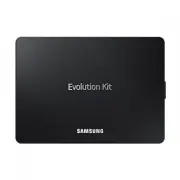 Samsung SEK-2000
User Manual
Samsung SEK-2000
User Manual
 Samsung SEK-3500U
User Manual
Samsung SEK-3500U
User Manual
 Samsung SEK-4500
User Manual
Samsung SEK-4500
User Manual