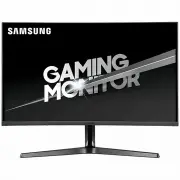
Page 2 - Table of contents; Before Using the Product; Connecting and Using a Source Device
Table of contents Before Using the Product 4 4 5 Safety Precautions Electricity and Safety Installation Operation 6 Cleaning 8 Correct posture to use the product 8 Preparations 9 9 11 11 12 1313 14 Control Panel 2 Menu Game 19 Picture 21 OnScreen Display 23 System 23 Installing the Software Easy Set...
Page 3 - Appendix; Troubleshooting Guide; Specifications
Table of contents 3 Appendix Responsibility for the Pay Service 3 5 (Cost to Customers) Not a product defect 3 5 A Product damage caused by customer's fault 3 5 Others 3 5 FreeSync (for AMD graphics card) 3 6 Troubleshooting Guide 27 2727 Requirements Before Contacting Samsung Customer Service Cent ...
Page 4 - Safety Precautions; Electricity and Safety; Warning
4 Safety Precautions Warning A serious or fatal injury may result if instructions are not followed. Caution Personal injury or damage to properties may result if instructions are not followed. CAUTION RISK OF ELECTRIC SHOCK. DO NOT OPEN. CAUTION: TO REDUCE THE RISK OF ELECTRIC SHOCK, DO NOT REMOVE C...
Page 5 - Installation
5 Warning • DO NOT PLACE CANDLES, INSECT REPELLANTS OR CIGARETTES ON TOP OF THE PRODUCT. DO NOT INSTALL THE PRODUCT NEAR HEAT SOURCES. • Do not install the product in poorly ventilated spaces such as a bookcase or closet. • Install the product at least 10cm away from the wall to allow ventilation. •...
Page 6 - Operation
6 Warning • There is a high voltage inside the product. Never disassemble, repair or modify the product yourself. ‒ Contact Samsung Customer Service Cent re for repairs. • To move the product, first disconnect all the cables from it, including the power cable. • If the product generates abnormal sou...
Page 7 - Caution
7 Caution • Leaving the screen fixed on a stationary image for an extended period of time may cause afterimage burn-in or defective pixels. ‒ Set the screen to power-saving mode or moving-picture screen saver when not using the product for an extended period of time. • Disconnect the power cord from...
Page 8 - Cleaning; Correct posture to use the product
8 Cleaning High-glossy models can develop white stains on the surface if an ultrasonic wave humidifier is used nearby. ― Contact your nearest Samsung Customer Service Cent re if you want to clean the inside of the product (Service fee will be charged.) Do not press the product screen with hands or o...
Page 9 - Preparations
9 Chapter 02 Preparations Installation Attaching the Stand ― Disassembly is the reverse order of assembly. 7 4 5 1 2 3 6 Put the stand base onto the stand neck as the direction shown in the figure. Check that the stand neck is firmly connected. Tightly fasten the connecting screw at the bottom of th...
Page 10 - Precautions for moving the product
10 Precautions for moving the product • Hold the lower corners or edges of the product when moving it. • Do not directly apply pressure on the screen. • Do not hold the screen when moving the product. • Do not hold the product upside down only by the stand. • Do not press down on the product. There ...
Page 11 - Checking the space around the product; Adjusting the Product Tilt and Height
11 Checking the space around the product Make sure to have enough space for ventilation when placing the product. An internal temperature rise may cause fire and damage the product. Maintain enough space around the product as shown in the diagram when installing the product. ― The exterior may diffe...
Page 12 - Rotating the Product
12 -15.0° (±2.0°) ~ 15.0°(±2.0°) -2.0° (±2.0°) ~ 92.0° (±2.0°) You can rotate your product as shown below. 4 5 6 1 2 3 • Be sure to fully extend the stand before rotating the product. • If you rotate the product without fully extending the stand, the corner of the product may hit the floor and get d...
Page 14 - Control Panel
14 PRESS(ENTER) LEFT RIGHT DOWN(FRONT) JOG Button UP(REAR) Return Function Key Guide Parts Description JOG Button Power LED System Power LED On Function Key Guide or Down Brightness Contrast Sharpness Volume Source Menu Eye Saver Mode Eye Saver Mode Power Off Return Control Panel ― The colo u r and ...
Page 15 - Read below before connecting the product.; Ports
15 Connecting and Using a Source Device Chapter 03 Read below before connecting the product. 1 Before connecting the product, check the shapes of both ports of the supplied signal cables and the shapes and locations of the ports on the product and external device. 2 Before connecting the product, ma...
Page 16 - Connecting and Using a PC; Connection Using the HDMI Cable; Connection Using an DP Cable; Connecting to headphones or earphones
16 Connecting and Using a PC Select a connection method suitable for your PC. Connection Using the HDMI Cable ― It is recommended to use the HDMI cable provided as components. If not provided, be sure to use authorized cable for HDMI cable connections. If you use a unauthorized HDMI cable, the image...
Page 17 - Connecting the Power; Tidying Up the Connected Cables
17 HDMI IN DP IN 1 Connect the power cable to the AC/DC adapter. Then, connect the AC/DC adapter to the DC14V/DC 19Vport on the back of the product. 2 Next, connect the power cable to the power outlet. 3 Press the JOG button at the bottom of the product to turn it on. ― The input voltage is switched...
Page 18 - Setting Optimum Resolution
18 Setting Optimum Resolution An information message about setting optimum resolution will appear if you power on the product for the first time after purchase.Select a language on information message and change the resolution on your PC to the optimum setting. ― If the optimum resolution is not sel...
Page 19 - Menu; Function Key Guide →; Game
Chapter 04 Menu Function Key Guide → ― The functions available may vary depending on the product model. The colo u r and shape of parts may differ from what is shown. Specifications are subject to change without notice to improve quality. Game 2nd 3rd Description 19 Refresh Rate Change the screen re...
Page 21 - Picture
Picture Mode This menu provides an optimum picture quality suitable for the environment where the product will be used. ― This menu is not available when Eye Saver Mode is enabled. In PC mode • Custom : Customize the screen settings. • FPS : Increase the brightness of darker areas of the FPS (First-...
Page 23 - OnScreen Display; System
OnScreen Display 2nd 3rd Description Language Set the menu language. ― A change to the language setting will only be applied to the onscreen menu display.― It will not be applied to other functions on your PC. Display Time The OSD menu will automatically disappear if the menu is not used for a speci...
Page 25 - Information
Software Update Update software using an update file on a USB device. 1 Save the update file (in .bin or .img format) that you downloaded from the Samsung website (http://www.samsung.com/sec) to a USB storage device. 2 Connect the USB device to the SERVICE , port on the monitor. Select → System → So...
Page 26 - Installing the Software; System Requirements; Driver Installation
Installing the Software Chapter 05 Easy Setting Box Easy Setting Box enables users to use the product by partitioning multiple sections. To install the latest version of Easy Setting Box , download it from the Samsung website (http://www. samsung.com). ― The software may not work properly if you do ...
Page 27 - Requirements Before Contacting Samsung; Checking the Resolution and Frequency
Chapter 06 Troubleshooting Guide Requirements Before Contacting Samsung Customer Service Centre ― Before calling Samsung Customer Service Cent re , test your product as follows. If the problem persists, contact Samsung Customer Service Cent re . Product diagnosis (Screen issue) If a problem occurs w...
Page 28 - Screen issue
28 Screen issue The power LED is off. The screen will not switch on. Check that the power cable is connected properly.If a problem occurs with the monitor screen, run Self Diagnosis to check that the monitor is working properly. The message Check the cable connection and the settings of the source d...
Page 29 - Sound issue; Source device issue
29 Sound issue There is no sound. Re-check the condition of the connected headphone or earphone and/or adjust the volume.Check the volume.Check whether the volume of the product or the source device is set to mute. The volume is too low. Adjust the volume.If the volume is still low after turning it ...
Page 33 - Standard Signal Mode Table
3 3 Standard Signal Mode Table Model Name S24AG32* / S27AG32* / S32AG32* Synchronization (PANEL Spec) Vertical Frequency 48 ~ 165 Hz Resolution Optimum resolution 1920 x 1080 @ 144 Hz (HDMI) 1920 x 1080 @ 165 Hz (DP) Maximum resolution If a signal that belongs to the following standard signal modes ...
Page 35 - Responsibility for the Pay Service (Cost to; A Product damage caused by customer's fault; Others
Appendix Chapter 08 Responsibility for the Pay Service (Cost to Customers) ― When the service is requested, in spite of in warranty, we may charge you for a visit from a service technician in the following cases. Not a product defect Cleaning of the product, Adjustment, Explanation, Re-installation ...
Page 36 - The models in the Graphics Cards list supports FreeSync
FreeSync (for AMD graphics card) FreeSync technology is solution that eliminates screen tearing without all the usual lag and latency.This feature will eliminate screen tearing and lag during game play. Improve your gaming experience.The displayed FreeSync menu items on the monitor may vary, dependi...
Page 37 - WEEE; Correct Disposal of This Product (Waste Electrical &
WEEE Correct Disposal of This Product (Waste Electrical & Electronic Equipment) (Applicable in countries with separate collection systems)This marking on the product, accessories or literature indicates that the product and its electronic accessories (e.g. charger, headset, USB cable) should not...