Page 2 - Table Of Contents; MAJOR SAFETY PRECAUTIONS
Table Of Contents MAJOR SAFETY PRECAUTIONS Before You Start . . . . . . . . . . . . . . . . . . . . . . . . . . . . . . . . . . . . . . . . . . . 1-1Custody and Maintenance . . . . . . . . . . . . . . . . . . . . . . . . . . . . . . . . . . . 1-2Cleaning the Monitor . . . . . . . . . . . . . . . . ....
Page 3 - MORE INFORMATION
Before Requesting Service . . . . . . . . . . . . . . . . . . . . . . . . . . . . . . . . . . 5-2FAQ . . . . . . . . . . . . . . . . . . . . . . . . . . . . . . . . . . . . . . . . . . . . . . . . . . . . . 5-3 MORE INFORMATION Specifications . . . . . . . . . . . . . . . . . . . . . . . . . . . . ....
Page 4 - Major Safety Precautions; Before You Start; Icons used in this manual
1-1 Major Safety Precautions 1 Major Safety Precautions 1-1 Before You Start Icons used in this manual Using this Manual • Make yourself fully aware of the safety precautions before using this product. • If a problem occurs, refer to the 'Troubleshooting' section. Copyright Notice The contents of th...
Page 5 - Custody and Maintenance
Major Safety Precautions 1-2 1-2 Custody and Maintenance External Surface and Screen Maintenance Securing the Installation Space • Keep the required distances between the product and other objects (e.g. walls) to ensure proper ventilation.Failing to do so may result in fire or a problem with the pro...
Page 7 - Safety Precautions; Icons used for safety precautions; Warning
Major Safety Precautions 1-4 1-4 Safety Precautions Icons used for safety precautions Meaning of Signs Power Related The product image used in the following pictures for your reference may look different from the actual product. Warning ICON NAME MEANING Warning Failing to follow the precautions mar...
Page 8 - Caution; Installation Related
1-4 Major Safety Precautions Caution Installation Related Warning Avoid unplugging the power plug while the product is operating. • Otherwise, it may damage the product due to electric shock. Make sure to use only the power cord supplied by our company. In addition, do not use the power cord of anot...
Page 9 - Usage Related
Major Safety Precautions 1-4 Caution Usage Related Warning Do not let the product drop while moving it. • This may result in a problem with the product or injury. Do not place the product face down on the floor. • This may damage the panel of the product. When installing the product on a console or ...
Page 11 - Maintaining the Correct Posture when Using this Product
Major Safety Precautions 1-4 Maintaining the Correct Posture when Using this Product Be careful that adaptor should not be in contact with water and therefore not be wet. • This may cause a malfunction, electric shock or fire. Do not use adaptor by the waterside or outside particularly when it rains...
Page 12 - Installing the Product; Package Contents
2-1 Installing the Product 2 Installing the Product 2-1 Package Contents • Unpack the product and check if all of the following contents have been included. • Store the packaging box in case you need to move the Product at a later stage. Monitor The cables provided may vary depending on the product ...
Page 13 - Installing the Stand
Installing the Product 2-2 2-2 Installing the Stand Before assembling the product, place the product down on a flat and stable surface so that the screen is facing downwards. Place a soft cloth over the table to protect the product and place the product onto the cloth so that the front of the produc...
Page 15 - Installing the Stand for the Wall Mount
Installing the Product 2-3 2-3 Installing the Stand for the Wall Mount This product provides a stand mount of 100 mm x 100 mm / 100 mm x 200 mm(3.9 x 3.9 inches / 3.9 x 7.9 inches) that complies with the VESA specifications. HAS stand 1. Turn the product off and unplug the power cord from the wall o...
Page 16 - Connecting with a PC
2-4 Installing the Product 2-4 Connecting with a PC The connecting part may differ depending on the product model. 1. Connect the product to a PC depending on the video output supported by the PC. • When the graphics card provides D-Sub (< Analog >) output • Connect the [RGB IN] port of the pr...
Page 18 - Fixing cables
2-5 Installing the Product 2-5 Fixing cables Cables can be fixed as shown.
Page 19 - Speaker
Installing the Product 2-6 2-6 Speaker You can hear sound by connecting the soundcard of your PC to the monitor. Applicable to the models that have speakers only.
Page 20 - Kensington Lock
2-7 Installing the Product 2-7 Kensington Lock A Kensington Lock is an anti-theft device that enables users to lock the product so that they can safely use it in public locations. Since the shape and usage of the locking device may differ depending on the model and the manufacturer, for more informa...
Page 21 - Connecting USB
Installing the Product 2-8 2-8 Connecting USB Applicable to the stand models that have USB ports only. You can use a USB device such as a mouse, keyboard, Memory Stick, or external hard disk drive by connecting them to the DOWN port of the monitor without connecting them to the PC. The USB port of t...
Page 23 - Using the product; Setting the Optimal Resolution
Using the product 3-1 3 Using the product 3-1 Setting the Optimal Resolution If you turn the power on after purchasing the product, a message regarding the optimal resolution setting appears on the screen. Select a language and the optimal resolution. • The message appears up to 3 times if the resol...
Page 24 - Standard Signal Mode Table
3-2 Using the product 3-2 Standard Signal Mode Table This product delivers the best picture quality when viewed under the optimal resolution setting. The optimal resolution is dependent on the screen size. Therefore, the visual quality will be degraded if the optimal resolution is not set for the pa...
Page 32 - -10 Standard Signal Mode Table
3-10 Using the product 3-10 Standard Signal Mode Table This product delivers the best picture quality when viewed under the optimal resolution setting. The optimal resolution is dependent on the screen size. Therefore, the visual quality will be degraded if the optimal resolution is not set for the ...
Page 33 - -11 Standard Signal Mode Table
Using the product 3-11 3-11 Standard Signal Mode Table This product delivers the best picture quality when viewed under the optimal resolution setting. The optimal resolution is dependent on the screen size. Therefore, the visual quality will be degraded if the optimal resolution is not set for the ...
Page 35 - -12 Standard Signal Mode Table
Using the product 3-12 3-12 Standard Signal Mode Table This product delivers the best picture quality when viewed under the optimal resolution setting. The optimal resolution is dependent on the screen size. Therefore, the visual quality will be degraded if the optimal resolution is not set for the ...
Page 37 - -13 Standard Signal Mode Table
Using the product 3-13 3-13 Standard Signal Mode Table This product delivers the best picture quality when viewed under the optimal resolution setting. The optimal resolution is dependent on the screen size. Therefore, the visual quality will be degraded if the optimal resolution is not set for the ...
Page 39 - -14 Standard Signal Mode Table
Using the product 3-14 3-14 Standard Signal Mode Table This product delivers the best picture quality when viewed under the optimal resolution setting. The optimal resolution is dependent on the screen size. Therefore, the visual quality will be degraded if the optimal resolution is not set for the ...
Page 41 - -15 Standard Signal Mode Table
Using the product 3-15 3-15 Standard Signal Mode Table This product delivers the best picture quality when viewed under the optimal resolution setting. The optimal resolution is dependent on the screen size. Therefore, the visual quality will be degraded if the optimal resolution is not set for the ...
Page 43 - -16 Standard Signal Mode Table
Using the product 3-16 3-16 Standard Signal Mode Table This product delivers the best picture quality when viewed under the optimal resolution setting. The optimal resolution is dependent on the screen size. Therefore, the visual quality will be degraded if the optimal resolution is not set for the ...
Page 45 - -17 Installing the Device Driver
Using the product 3-17 3-17 Installing the Device Driver If you install the device driver, you can set up the appropriate resolution and frequency for the product. The device driver is included on the CD-ROM supplied with the product. If the supplied drive file is corrupted, please visit a service c...
Page 46 - -18 Product Operating Buttons; Product Operating Buttons
3-18 Using the product 3-18 Product Operating Buttons Product Operating Buttons • Press one of the buttons on the monitor. OSD Guide will appear on the screen. • If you press a button on the front of the monitor, an OSD Guide will display showing the function of the button before the menu for the pr...
Page 48 - PICTURE
3-19 Using the product 3-19 Using the Screen Adjustment Menu (OSD: On Screen Display) The Screen Adjustment Menu (OSD: On Screen Display) Structure Monitor functions may vary according to models. Please refer to actual product. PICTURE Top Menus Sub Menus PICTURE Brightness Contrast Sharpness Bright...
Page 51 - COLOR
Using the product 3-19 COLOR (This is unavailable when < Bright> is set to <Dynamic Contrast> and <Cinema> mode.) Menu Description Color Expresses natural colors more clearly without changing the picture quality using proprietary digital picture quality improvement technology devel...
Page 54 - INFORMATION
3-19 Using the product INFORMATION Customized Key You can set the function of the Customized Key to one of the following. • < Angle> - < Bright> - <Eco Saving> - <Image Size> Auto Source • <Auto> - The monitor automatically selects an input signal. • <Manual> - Us...
Page 55 - Installing the Software; Natural Color; What is Natural Color ?
Installing the Software 4-1 4 Installing the Software 4-1 Natural Color What is Natural Color ? This software works only for Samsung products and enables adjusting the displayed colors on the product and matches the colors on the product with the colors of the printed pictures. For more information,...
Page 56 - MagicTune; Restrictions and Problems with the Installation (MagicTuneTM); System Requirements; Removing the Software
4-2 Installing the Software 4-2 MagicTune What is MagicTune? MagicTune is a software program that helps with monitor adjustments by providing comprehensive descriptions of monitor functions and easy-to-understand guidelines. Users can adjust the product with the mouse and the keyboard without using ...
Page 58 - MultiScreen; What is MultiScreen ?; Restrictions and Problems with the Installation (MultiScreen); Operating System
4-3 Installing the Software 4-3 MultiScreen What is MultiScreen ? MultiScreen enables users to use the monitor by partitioning multiple sections. Installing the Software 1. Insert the installation CD into the CD-ROM drive. 2. Select the MultiScreen setup program. If the pop-up screen for the softwar...
Page 59 - MagicRotation; What is; Restrictions and Problems with the Installation (MagicRotation); Limitation
Installing the Software 4-4 4-4 MagicRotation What is MagicRotation? The MagicRotation Software from Samsung Electronics, Inc. provides the user with a rotation feature (0, 90, 180, 270 orientation) that facilitates the optimum utilization of computer display screen, better viewing and improved user...
Page 61 - Troubleshooting; Monitor Self-Diagnosis
Troubleshooting 5-1 5 Troubleshooting 5-1 Monitor Self-Diagnosis • You can check if the product is working properly using the Self-Diagnosis function. • If a blank screen is displayed and the Power LED blinks even if the product and the PC are properly connected, perform the self-diagnosis function ...
Page 62 - Before Requesting Service
5-2 Troubleshooting 5-2 Before Requesting Service Please check the following before requesting After-Sales service. If the problem continues, please contact your nearest Samsung Electronics Service Center. A blank screen appears / I cannot turn the product on Is the power cord connected properly? Ch...
Page 64 - FAQ
5-3 Troubleshooting 5-3 FAQ FAQ! PLEASE TRY THE FOLLOWING! How can I change the frequency (refresh rate) of the video signal? You have to change the frequency of the graphics card. Windows XP : Change the frequency by selecting Control Panel → Appearance and Themes → Display → Settings → Advanced → ...
Page 65 - More Information; Specifications
More Information 6-1 6 More Information 6-1 Specifications Design and specifications are subject to change without prior notice. Class B (Information Communication equipment for residential use) This device is registered for EMC requirements for home use (Class B). It can be used in all areas. (Clas...
Page 66 - Power Saving Function
6-2 More Information 6-2 Power Saving Function This monitor has a built-in power management system called PowerSaver. This system saves energy by switching your monitor to low-power mode when it has not been used for a certain amount of time. The monitor automatically returns to normal operation whe...
Page 75 - -10 Power Saving Function
More Information 6-10 6-10 Power Saving Function This monitor has a built-in power management system called PowerSaver. This system saves energy by switching your monitor to low-power mode when it has not been used for a certain amount of time. The monitor automatically returns to normal operation w...
Page 78 - -12 Power Saving Function
6-12 More Information 6-12 Power Saving Function This monitor has a built-in power management system called PowerSaver. This system saves energy by switching your monitor to low-power mode when it has not been used for a certain amount of time. The monitor automatically returns to normal operation w...
Page 80 - -14 Power Saving Function
6-14 More Information 6-14 Power Saving Function This monitor has a built-in power management system called PowerSaver. This system saves energy by switching your monitor to low-power mode when it has not been used for a certain amount of time. The monitor automatically returns to normal operation w...
Page 82 - -16 Power Saving Function
6-16 More Information 6-16 Power Saving Function This monitor has a built-in power management system called PowerSaver. This system saves energy by switching your monitor to low-power mode when it has not been used for a certain amount of time. The monitor automatically returns to normal operation w...
Page 85 - -18 Power Saving Function
More Information 6-18 6-18 Power Saving Function This monitor has a built-in power management system called PowerSaver. This system saves energy by switching your monitor to low-power mode when it has not been used for a certain amount of time. The monitor automatically returns to normal operation w...
Page 87 - -20 Power Saving Function
More Information 6-20 6-20 Power Saving Function This monitor has a built-in power management system called PowerSaver. This system saves energy by switching your monitor to low-power mode when it has not been used for a certain amount of time. The monitor automatically returns to normal operation w...
Page 89 - -22 Power Saving Function
More Information 6-22 6-22 Power Saving Function This monitor has a built-in power management system called PowerSaver. This system saves energy by switching your monitor to low-power mode when it has not been used for a certain amount of time. The monitor automatically returns to normal operation w...
Page 91 - -24 Power Saving Function
More Information 6-24 6-24 Power Saving Function This monitor has a built-in power management system called PowerSaver. This system saves energy by switching your monitor to low-power mode when it has not been used for a certain amount of time. The monitor automatically returns to normal operation w...
Page 93 - -26 Power Saving Function
More Information 6-26 6-26 Power Saving Function This monitor has a built-in power management system called PowerSaver. This system saves energy by switching your monitor to low-power mode when it has not been used for a certain amount of time. The monitor automatically returns to normal operation w...
Page 96 - -28 Power Saving Function
6-28 More Information 6-28 Power Saving Function This monitor has a built-in power management system called PowerSaver. This system saves energy by switching your monitor to low-power mode when it has not been used for a certain amount of time. The monitor automatically returns to normal operation w...
Page 99 - -30 Power Saving Function
More Information 6-30 6-30 Power Saving Function This monitor has a built-in power management system called PowerSaver. This system saves energy by switching your monitor to low-power mode when it has not been used for a certain amount of time. The monitor automatically returns to normal operation w...
Page 100 - -31 Contact SAMSUNG WORLDWIDE
6-31 More Information 6-31 Contact SAMSUNG WORLDWIDE • If you have any questions or comments relating to Samsung products, please contact the SAMSUNG customer care center. NORTH AMERICA CANADA 1-800-SAMSUNG (726-7864) http://www.samsung.com MEXICO 01-800-SAMSUNG (726-7864) http://www.samsung.com U.S...
Page 104 - -32 Correct Disposal of This Product
6-32 More Information 6-32 Correct Disposal of This Product (Waste Electrical & Electronic Equipment) - Europe only (Applicable in the European Union and other European countries with separate collection systems) This marking on the product, accessories or literature indicates that the product...


 Samsung 2043NWX
User Manual
Samsung 2043NWX
User Manual
 Samsung 2043SN
User Manual
Samsung 2043SN
User Manual
 Samsung 2233NW
User Manual
Samsung 2233NW
User Manual
 Samsung 2443NW
User Manual
Samsung 2443NW
User Manual
 Samsung 933SN
User Manual
Samsung 933SN
User Manual
 Samsung 943 N (AKBB)
User Manual
Samsung 943 N (AKBB)
User Manual
 Samsung 943 NWX
User Manual
Samsung 943 NWX
User Manual
 Samsung 943NW
User Manual
Samsung 943NW
User Manual
 Samsung 943SN
User Manual
Samsung 943SN
User Manual
 Samsung B1930N LS19PUYKF/EN
User Manual
Samsung B1930N LS19PUYKF/EN
User Manual
 Samsung B2230HD
User Manual
Samsung B2230HD
User Manual
 Samsung B2230N
User Manual
Samsung B2230N
User Manual
 Samsung E1920N
User Manual
Samsung E1920N
User Manual
 Samsung E2220N
User Manual
Samsung E2220N
User Manual
 Samsung EX2220 LS22CLUSB/EN
User Manual
Samsung EX2220 LS22CLUSB/EN
User Manual
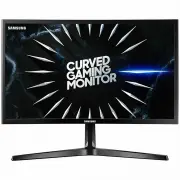 Samsung LC24RG50FQEXXY
User Manual
Samsung LC24RG50FQEXXY
User Manual
 Samsung LC27JG54QQEXXY
User Manual
Samsung LC27JG54QQEXXY
User Manual