Page 2 - Table of contents
2 Getting started 4 Device layout and functions10 Turning the computer on and off12 Unlocking the screen12 Windows Basics 13 Using the computer as a tablet14 Using the S Pen18 Touch screen24 Keyboard26 Touchpad29 Wireless LAN31 Bluetooth33 Fingerprint recognition36 Memory card slot 38 Thunderbolt™ 4...
Page 3 - Troubleshooting
3 Table of contents Troubleshooting 76 Samsung Recovery81 Windows recovery feature81 Q&A Usage notices 84 Precautions for using the device88 Ergonomic tips92 Safety precautions Appendix 102 Product specifications103 Important safety information106 Replacement parts and accessories109 Regulatory ...
Page 4 - Getting started; Device layout and functions
4 Getting started Device layout and functions Leaving the screen idle for extended periods may result in afterimages (screen burn-in) or ghosting. Turn off the screen, or turn on the screen saver or power saving mode when you are not using the computer. • Features or options may differ depending on ...
Page 5 - Front view
Getting started 5 Number/Name Description 1 Microphone • You can use the voice recording or video call features through the built-in microphone. 2 Ambient light sensor • Recognizes the brightness of the environment where you use the computer. • When the surroundings become dark, the keyboard backlig...
Page 6 - Right view
Getting started 6 Right view 1 3 2 Number/Name Description 1 Memory card slot • Insert a memory card into the slot. 2 USB 3.2 port • Connect various accessories, such as a mouse, camera, or keyboard. 3 Earpiece/ Headset jack • Connect an earpiece or a headset to the computer to listen to audio. Numb...
Page 7 - Left view
Getting started 7 Number/Name Description 1 HDMI port • Used to connect an HDMI cable to an external device. 2 Thunderbolt ™ 4 port • Connect the supplied adapter to charge the computer. • Connect and charge a USB Type-C device and Thunderbolt ™ device, or connect to an external display device. Some...
Page 8 - The charging feature of the Thunderbolt
Getting started 8 Charging a USB Type-C device or Thunderbolt ™ device Connect and charge your USB Type-C or Thunderbolt ™ device by connecting it to the Thunderbolt ™ 4 port. To charge another device when the computer is in hibernation mode or is turned off, the USB charging feature must be turned ...
Page 9 - Bottom view
Getting started 9 Number/Name Description 1 Fan vents • Sucks in outside air and discharges heat generated inside the computer through these holes. • If the vents are blocked the computer may overheat. Avoid blocking the vents as this may be dangerous. 2 Internal battery • Provides power to the comp...
Page 10 - Turning the computer on and off; Turning the computer on
Getting started 10 3 The computer turns on automatically when the display panel is opened.If the computer does not turn on automatically, press the Power button. Set the computer to not turn on automatically when the display panel is opened. 1. SelecttheStartbutton( ) → All apps → Samsung Settings ....
Page 11 - Turning the computer off; About Windows Activation
Getting started 11 Turning the computer off 1 Select the Start button ( ). 2 Select → Shut down . Save all data before turning off the computer. About Windows Activation When you turn the computer on for the first time, the Windows Activation screen appears.Follow the activation procedures according...
Page 12 - Windows; Configuring the Windows Settings; Unlocking the screen
Getting started 12 Windows Microsoft Windows is an operating system that is used to control a computer. • Images and available features may differ depending on the model and operating system. • This manual is designed for Windows 11 and content may differ depending on the OS version. • The image dis...
Page 13 - Basics; Using the computer as a tablet
13 Basics Using the computer as a tablet You can use the computer as a tablet by folding the display panel behind the keyboard.Open the display panel and rotate it away from the keyboard until it touches the bottom side of the computer. When storing the computer in a bag or carrying it, close the di...
Page 14 - Using the S Pen; S Pen
Basics 14 Using the S Pen S Pen S Pen button S Pen nib Name Functions S Pen nib • Use the S Pen to write, draw, or perform touch actions on the screen. S Pen button • Hover the S Pen over the screen and press the S Pen button to display the Air command features. Do not bend or apply excessive pressu...
Page 15 - Air command; Introduction
Basics 15 • Create note : Open the Samsung Notes app and create a new note. • View all notes : Open the Samsung Notes app and check all saved notes. • Smart select : Use the S Pen to select an area and perform actions, such as sharing or saving. • Screen write : Capture screenshots to write or draw ...
Page 18 - Double tapping; Touch screen; Touch screen gestures; Tapping
Basics 18 Double tapping Double tap the screen. Touching and holding (right-clicking) To use additional options of an item, touch and hold it on the screen. Touch screen Use your fingers on the touch screen to perform actions. Touch screen gestures Tapping Tap the screen.
Page 19 - Spreading and pinching; Dragging; Scrolling
Basics 19 Spreading and pinching To zoom in, spread two fingers apart on an image or text. Pinch to zoom out. Dragging Touch and hold an item and drag it to the target position. Scrolling To scroll up, down, left, or right, swipe on the screen.
Page 21 - Entering text; Changing the keyboard layout
Basics 21 1 23 45 8 4 10 9 12 11 6 7 Number Description 1 • Switch to a floating keyboard. 2 • Delete a preceding character. 3 • Move to the next line. 4 • Create an uppercase character. For all caps, tap it twice. 5 • Change the keyboard layout. 6 • Move the cursor. 7 • Turn on the dictation featur...
Page 23 - Copying and pasting
Basics 23 Copying and pasting 1 Touch and hold over text. 2 Drag or to select the desired text, or tap Select all text to select all text. 3 Tap Copy or Cut . The selected text is copied to the clipboard. 4 Touch and hold where the text is to be inserted and tap Paste . To paste text that you have p...
Page 24 - Using hot keys; Keyboard
Basics 24 Using hot keys To use keyboard hot keys, do one of the following: • Press and hold the Fn key and press a hot key. Keyboard Enter text or access computer functions with the keyboard. • Images and available features may differ depending on the model and operating system. • The keyboard layo...
Page 25 - Hot key functions
Basics 25 Hot key functions Key/Icon Description F1 • Samsung Settings : Open the Samsung Settings app. F2 • Screen brightness control : Adjust the brightness of the display. F3 F4 • Display/External monitor : Switch between the display and an external display device when an external display device ...
Page 26 - Touchpad; Basic touchpad functions; Moving
Basics 26 Touchpad Use the touchpad to move the cursor or select an item. The left and right buttons of the touchpad act the same as the left and right buttons of a mouse. • Use the touchpad only with fingers. The touchpad will not recognize actions of other objects. • Images and the touchpad layout...
Page 27 - Gesture functions; Swiping; Pinching
Basics 27 Right-clicking Press the touchpad with two fingers simultaneously or press the right touchpad button. or Tap Click Dragging To move an icon or an app to a desired location, press and hold it and then drag it to the target position with the left touchpad button pressed. Press and hold the l...
Page 28 - Touchpad lock; Configuring touchpad gestures
Basics 28 Touchpad lock Press and hold the Fn key and press the F5 key to lock the touchpad. Configuring touchpad gestures Configure touchpad gestures.Select the Start button ( ) → Settings → Bluetooth & devices → Touchpad and select the desired options. Some options in the touchpad settings may...
Page 29 - Connecting to a Wi-Fi network; Wireless LAN
Basics 29 Connecting to a Wi-Fi network 1 Select the status icons on the taskbar and select on the Wi-Fi option. 1 2 Wireless LAN Connect the computer to a wireless network to use the internet. These descriptions are for computer models with a Wireless LAN card or device. A Wireless LAN device is op...
Page 30 - Deactivating the Wi-Fi feature
Basics 30 2 Select a network from the list of detected wireless networks and select Connect automatically → Connect . 3 Enter a password, if necessary, and select Next . Once the computer has been connected to a wireless network, it will attempt to connect to it automatically when it is available. I...
Page 31 - Bluetooth; Pairing with other Bluetooth devices
Basics 31 Bluetooth Use Bluetooth to listen to music or exchange data or media files with other Bluetooth-enabled devices. • Samsung is not responsible for the loss, interception, or misuse of data sent or received through Bluetooth. • Always ensure that you share and receive data with devices that ...
Page 32 - Unpairing Bluetooth devices
Basics 32 Unpairing Bluetooth devices 1 Select the Start button ( ) → Settings → Bluetooth & devices . Your computer will display the paired devices. 2 On the device you want to unpair from your computer, select → Remove device . The connection to the Bluetooth device will be disconnected. 3 Sel...
Page 33 - Fingerprint recognition; Registering your fingerprint
Basics 33 1 2 2 Select Fingerprint recognition (Windows Hello) → Set up to start the fingerprint registration. 3 Select Get started on the Windows Hello setup window. 4 Enter the PIN number you set. Fingerprint recognition You can sign in to Windows, apps, and services by teaching Windows to recogni...
Page 34 - Removing a fingerprint; Unlocking the screen with a fingerprint
Basics 34 Removing a fingerprint 1 Select the Start button ( ) → Settings → Accounts → Sign-in options . 2 Select Fingerprint recognition (Windows Hello) → Remove . The fingerprint will be removed. Unlocking the screen with a fingerprint You can unlock the screen by resting your fingerprint on the f...
Page 35 - For better fingerprint recognition
Basics 35 For better fingerprint recognition • Prevent the fingerprint recognition sensor from being scratched or damaged by metal objects, such as coins, keys, and necklaces. • Ensure that the fingerprint recognition sensor and your fingers are clean and dry. • The fingerprint recognition sensor ma...
Page 36 - Inserting a memory card; Memory card slot
Basics 36 Inserting a memory card 1 Insert a memory card into the memory card slot in the indicated direction until it clicks into place. 2 If a pop-up message appears, choose an action. 3 Select Open folder to view files . 4 Save, move, or delete data on the memory card. Memory card slot Use a memo...
Page 37 - Removing a memory card
Basics 37 • To use a memory card to exchange data with a digital device, such as a digital camera, formatting the data with the digital device is recommended. • When trying to use a formatted memory card in another digital device, format the memory card again in the device. • Data protected by copyr...
Page 38 - Thunderbolt; Using Thunderbolt
Basics 38 4 On the main computer’s Desktop, select the icon for the connected computer to access the folder being shared. If the computer does not properly scan your Thunderbolt ™ device after connecting it After removing a Thunderbolt ™ device, you can connect a new Thunderbolt ™ device after a few...
Page 39 - External display; Connecting to a display
Basics 39 2 Connect the other end of the cable to the external display. <When using a Thunderbolt ™ display cable> Thunderbolt ™ 4 port Thunderbolt ™ port <When using an HDMI cable> HDMI port HDMI port External display Connecting the computer to an external display device can be useful f...
Page 41 - Apps and features; Using apps
41 Apps and features Using apps • Images and features may differ depending on the model and the app version. • Some apps may not be supported depending on the model. • Apps that are provided by Samsung can be installed from Samsung Update . • Third-party software related apps For descriptions about ...
Page 42 - Finding your ID and resetting your password; Samsung Account
Apps and features 42 Finding your ID and resetting your password If you forget your Samsung account ID or password, select Find ID or Forgot password? on the Samsung account sign-in screen. You can find your ID or reset your password after you enter the required information. Signing out of your Sams...
Page 44 - Deleting notes; Samsung Notes
Apps and features 44 2 When you are finished composing the note, select to save it.If you want to save the note in another file format, select → Save as file . Deleting notes Right-click the note you want to delete on the note list and select Delete . Samsung Notes Introduction Create notes by enter...
Page 45 - Using the eraser; Editing handwritten notes; Composing notes with handwriting
Apps and features 45 Using the eraser When you want to erase handwriting from a note, select and select an area to erase. Alternatively, select an area while pressing and holding the S Pen button. • Stroke eraser : Erase the line you select. • Area eraser : Erase only the area you select. You can ad...
Page 46 - Converting handwriting to text; Straightening content horizontally
Apps and features 46 Converting handwriting to text Select and write on the screen with the S Pen. The handwriting will be replaced with text right away.After writing on the screen, select . Options will appear in the preview window. If you drag or , you can select the handwriting you want. To repla...
Page 47 - Automatically fixing shapes; Recording voice to notes; Adding memos to PDF files; Changing styles
Apps and features 47 Automatically fixing shapes Select and draw a shape. The shape will be fixed. Recording voice to notes Make a recording of your voice while creating a note, and then the content will be synchronized with the recording.On the note composer screen, select → Voice recordings and cr...
Page 49 - Samsung Studio
Apps and features 49 Samsung Studio Create and edit videos using photos and videos in your computer. 1 Select the Start button ( ) → All apps → Samsung Studio . 2 Select New project . 3 Select Files , Folder , or Samsung Gallery to add files and select OK . 4 Edit the video by inserting music or tex...
Page 50 - Deleting images or videos; Syncing images and videos; Samsung Gallery; Viewing images and videos; Editing images or videos
Apps and features 50 Deleting images or videos 1 Select the Start button ( ) → All apps → Samsung Gallery . 2 Select the images and videos you want to delete and select . The deleted images and videos will move to the Windows Recycle Bin. Syncing images and videos 1 Select the Start button ( ) → All...
Page 52 - Restoring to an earlier restore point; Samsung Device Care; Creating a restore point
Apps and features 52 Restoring to an earlier restore point 1 Select the Start button ( ) → All apps → Samsung Device Care . 2 Select Backups and select the date that you backed up the system. 3 Select Restore . Managing the storage 1 Select the Start button ( ) → All apps → Samsung Device Care . 2 S...
Page 53 - Optimizing the memory; Using maintenance mode
Apps and features 53 Optimizing the memory 1 Select the Start button ( ) → All apps → Samsung Device Care . 2 Select Optimize memory . Check the memory usage and clean up the unused memory. Using maintenance mode 1 Select the Start button ( ) → All apps → Samsung Device Care . 2 Select Settings → Ma...
Page 54 - Samsung Pass
Apps and features 54 1 Select the Start button ( ) → All apps → Samsung Pass . 2 Select Sign in and follow the on-screen instructions to complete the setup. 3 On the sign-in page of the website or app, log in or enter the personal information with Samsung Pass. Samsung Pass On your computer, use the...
Page 55 - Waking up Bixby using your voice; Bixby; Starting Bixby
Apps and features 55 For example, say “Hi, Bixby” and say “How’s the weather today?” The weather information will appear on the screen.If Bixby asks you a question during a conversation, say “Hi, Bixby” and answer Bixby. Or select and answer Bixby. Waking up Bixby using your voice You can start a co...
Page 56 - Galaxy Book Smart Switch
Apps and features 56 5 On your computer, select Receive data . 6 On the previous computer, select Allow . 7 On your computer, select an item to bring and select Transfer . Transferring data increases the battery power consumption of your computer. Ensure that your computer is sufficiently charged be...
Page 59 - Screen Recorder
Apps and features 59 3 When you are finished recording the screen, select .You can check the file in Videos or Pictures . 4 Select to finish the screen recorder toolbar. • Select to expand or collapse the screen recorder toolbar. • If your computer enters sleep mode while recording the screen, the r...
Page 60 - Second Screen; Setting the video resolution
Apps and features 60 Second Screen Connect your computer and tablet to use the tablet as an additional display for the computer. • Only Samsung tablets can be connected using this feature. To check out models that support the Second Screen feature, visit the Samsung website. • This feature is only a...
Page 61 - SmartThings
Apps and features 61 • To use this feature, you must sign in to your Samsung account. • You can connect devices through the SmartThings app on your phone or tablet. • Connected devices’ own problems or defects are not covered by the Samsung warranty. When problems or defects occur on the connected d...
Page 62 - Quick Search
Apps and features 62 Quick Search Search for content on the computer quickly. 1 Select the Start button ( ) → All apps → Quick Search . 2 Read the on-screen instructions and select Start Quick Search . This step appears only when the app runs for the first time. 3 Select the search field to enter a ...
Page 63 - Display brightness; Controlling brightness using the keyboard; Controlling brightness using the taskbar
63 Settings & Upgrade Display brightness Adjust the display brightness to reduce eye strain and save power. Controlling brightness using the keyboard • To dim the display screen, press and hold the Fn key and press the F2 key. • To brighten the display screen, press and hold the Fn key and press...
Page 64 - Optimizing the full screen color balance; Changing display mode
Settings & Upgrade 64 Optimizing the full screen color balance Optimize the screen color by adjusting the color tones to your preference. 1 Select the Start button ( ) → All apps → Samsung Settings . 2 Select Display → Advanced color settings . 3 Drag the color adjustment bar to the desired colo...
Page 65 - Controlling volume using the taskbar; Volume; Controlling volume using the keyboard
Settings & Upgrade 65 Controlling volume using the taskbar 1 Select the status icons on the taskbar. 2 Drag the adjustment bar to the desired volume. Volume adjustment bar Volume Adjust the system volume or sound volume when playing music or video. Controlling volume using the keyboard • To turn...
Page 66 - Entering the BIOS screen; BIOS
Settings & Upgrade 66 Entering the BIOS screen 1 Turn on the computer. 2 Before the Samsung logo appears, press the F2 key several times. • If the computer is password-protected, press the F2 key several times before the password screen appears. • If the password screen or the Windows start scre...
Page 67 - The BIOS screen
Settings & Upgrade 67 Number Name 1 • Setup items 2 • Setup tools ‒ Help : Get help with the BIOS setup. ‒ Default : Return to the default settings. ‒ Restore : Cancel changes. ‒ Save : Save settings. ‒ Exit : Exit BIOS setup. 3 • Setup menu ‒ SysInfo : Check the computer’s specifications. ‒ Adv...
Page 68 - Setting a boot password; Boot password; Setting passwords
Settings & Upgrade 68 • HDD Password (high security level): This password is required to access the hard disk drive (HDD) from another computer. This password may not be supported, depending on the model or storage device. Setting a boot password 1 Turn on the computer. 2 Before the Samsung logo...
Page 69 - Changing the boot priority; Removing a password
Settings & Upgrade 69 7 Select Save → OK to save and restart. For some models, to cancel the password, select Cancel in the Setup Notice window. Changing the boot priority Change the boot priority from the BIOS setup. 1 Turn on the computer. 2 Before the Samsung logo appears, press the F2 key se...
Page 70 - Using the Battery Calibration feature
Settings & Upgrade 70 3 Select Advanced → Smart Battery Calibration . 4 The Battery Calibration feature is activated and the battery is forcefully discharged. To stop the operation, press the Esc key. This operation requires 3–5 hours depending on the battery capacity and the remaining battery c...
Page 71 - Using the Smart Battery Power Off feature
Settings & Upgrade 71 4 Select Yes . The computer will turn off automatically. 5 After connecting the adapter, turn on the computer again. Using the Smart Battery Power Off feature Storing your computer in a discharged state for an extended period of time can shorten battery life quickly. If you...
Page 72 - Battery
Settings & Upgrade 72 • To restore the battery power after cutting it, connect the adapter. • When you connect the adapter to a multiport adapter to charge the computer, the charging speed message may appear, but the computer will be charged normally. • If many devices are connected to the multi...
Page 73 - Charging the battery
Settings & Upgrade 73 3 When the battery is fully charged, the operating status LED turns green. Disconnect the adapter from the computer. Operating status LED Status • Red : Charging • Green : Fully charged • Blue : Turned on 4 Unplug the adapter from the electric socket. Do not allow the adapt...
Page 74 - Checking the current battery charge when the
Settings & Upgrade 74 Saving battery power Right-click the battery icon on the taskbar and select Power and sleep settings → Battery saver → Turn on now . Battery saver mode is activated. Battery saver mode is disabled when the adapter is connected. Extending battery life When charging your comp...
Page 75 - Battery usage time; Checking battery life instruction messages
Settings & Upgrade 75 When the battery has expired Batteries are consumable parts and the current battery cannot be used as the battery life has expired. Please replace it with a new battery (genuine) to prevent data loss and ensure safe usage. Whether or not batteries can be used is determined ...
Page 77 - Recovering to factory default
Troubleshooting 77 2 Select Computer factory reset → Start factory reset . Follow the on-screen instructions to complete the recovery to its initial status. Recovering to factory default You can restore the computer to its factory default settings. If necessary, back up important data to an external...
Page 78 - Backing up user data; Backing up the current system
Troubleshooting 78 2 Select a drive to save the backed up data and select Start backup . • When backing up to an external storage device, connect the device to the computer and then select the external drive. 3 Follow the on-screen instructions to complete the backup. Backing up user data You can ba...
Page 79 - Recovering after a backup
Troubleshooting 79 3 Select Backup and restore management . 4 Select Restore of the data you want to recover and select Start restore . 5 Follow the on-screen instructions to complete data recovery. Recovering after a backup Select a backup point saved on an alternate internal drive or an external s...
Page 81 - How can I uninstall an app?; Windows recovery feature
Troubleshooting 81 Q&A When experiencing problems with the computer, try these solutions. Windows How can I uninstall an app? 1 Select the Start button ( ) → Settings → Apps → Installed apps . 2 On the list, select next to the app you want to delete, and then select Uninstall . Windows recovery ...
Page 82 - Why is the capacity representation of the hard disk; What is a Recovery Area?
Troubleshooting 82 Why is the capacity representation of the hard disk drive (HDD) in Windows different from the product specifications? The capacity of the storage device (HDD or SSD) of the manufacturer is calculated assuming that 1 KB = 1,000 Bytes. However, the operating system (Windows) calcula...
Page 83 - Miscellaneous
Troubleshooting 83 Miscellaneous The camera and the microphone are not working. How do I turn them on again? When recording protect mode is activated, the camera and microphone will not work.Select the Start button ( ) → All apps → Samsung Settings → Security and privacy and select the Block camera ...
Page 84 - Usage notices; Precautions for using the device
84 Usage notices Precautions for using the device • This user manual is specially designed to detail the computer’s functions and features. • The user manual supplied with the computer may vary depending on the model. • Please read this manual when using the computer to ensure safe and proper use. •...
Page 85 - Copyright
Usage notices 85 Copyright Copyright © 2023 Samsung Electronics Co., Ltd.This manual is protected under international copyright laws.No part of this manual may be reproduced, distributed, translated, or transmitted in any form or by any means, electronic or mechanical, including photocopying, record...
Page 86 - Trademarks
Usage notices 86 • Manufactured under license from Dolby Laboratories. Dolby, Dolby Atmos, and the double-D symbol are trademarks of Dolby Laboratories. • All other trademarks and copyrights are the property of their respective owners. Energy Star (USA only) As an ENERGY STAR ® Partner, Samsung has ...
Page 87 - Product capacity representation; Storage capacity representation; Data precautions
Usage notices 87 Product capacity representation Storage capacity representation The capacity of the storage device (HDD, SSD) of the manufacturer is calculated assuming that 1 KB = 1,000 Bytes.However, the operating system (Windows) calculates the storage device capacity assuming that 1 KB = 1,024 ...
Page 88 - Ergonomic tips; Back and neck
Usage notices 88 • Use an adjustable chair with firm, comfortable support. • Adjust the height of your chair so that thighs are horizontal to the floor and feet are flat on the floor. • The back of the chair should support the lower back. Adjust the backrest to fit your body properly. • Sit back ful...
Page 89 - Arms and hands
Usage notices 89 Arms and hands • When using the keyboard and touchpad, the shoulders should be relaxed. The upper arm and forearm should form an angle that is slightly greater than a right angle, with the wrist and hand in almost a straight line. • Use a light touch when typing or using the touchpa...
Page 90 - Eye position and display illumination; Hearing and volume control
Usage notices 90 Eye position and display illumination 50 cm • Position the screen at least 50 cm away from your eyes. • Adjust the height of the screen so that its top edge is equal to or just below the level of your eyes. • Avoid setting the screen’s brightness settings excessively high. • Keep th...
Page 91 - Operating conditions
Usage notices 91 • If anyone related to you has experienced seizures or blackouts while using a similar product, consult a physician before using the computer. • If you feel discomfort, such as a muscle spasm, or disoriented, stop using the computer immediately and consult a physician. • To prevent ...
Page 92 - Power related; Safety precautions
Usage notices 92 Power related Handle the power cord with care. • Do not touch with wet hands. • Do not use a damaged power cord. • Do not overload a multi-outlet or an extension cord beyond the specified voltage/current capacity. • Correctly insert the plug into the outlet. • Do not unplug the powe...
Page 93 - Battery usage related
Usage notices 93 Battery usage related Use manufacturer-approved batteries, adapters, accessories, and supplies. • Using generic batteries or adapters may shorten the life of your product or cause the computer to malfunction. They may also cause a fire or cause the battery to explode. • Use only Sam...
Page 94 - Usage related
Usage notices 94 Usage related Do not use the computer on heated floors or electric pads, or on beds, blankets, or cushions that block the ventilation of the computer. A blocked vent causes the computer to overheat, resulting in an explosion, fire, burns, or computer malfunction. Do not use the comp...
Page 95 - Caution; Installation related
Usage notices 95 Caution Failure to follow instructions marked with this symbol may result in minor physical injury or damage to the computer. Installation related Do not block the ports (holes), vents, etc., of the product and do not insert objects. Damage to a component within the computer may cau...
Page 99 - Upgrade Related
Usage notices 99 Shut down the computer and disconnect all cables before disassembling the computer. For notebook computers that are supplied with an optional removable battery, disconnect the battery. Failure to do so may cause electric shock. Make sure to close the computer cover before connecting...
Page 100 - Cautions on preventing data loss (storage device
Usage notices 100 Cautions on preventing data loss (storage device (such as HDD, SSD, eMMC) management) Take care not to damage the data on a storage device (such as HDD, SSD, eMMC). • Subjecting the device to physical impacts may result in data loss. • Data may be lost when the computer is turned o...
Page 101 - Display bad pixels
Usage notices 101 Display bad pixels Samsung observes strict specifications regarding the quality and reliability of the display. However, there is a small chance that a few pixels may be bad. A large number of bad pixels can cause problems with the display, but a small number of bad pixels does not...
Page 102 - Appendix; Product specifications
102 Appendix Product specifications The system specifications may differ depending on the derived model. For detailed system specifications, refer to the product catalog. Item Specification Operating environment • Temperature: -5–40 °C for storage, 10–35 °C when operating • Humidity: 5–90 % for stor...
Page 103 - Setting up the system; Important safety information; Safety instructions
Appendix 103 Setting up the system • Read and follow all instructions marked on the product and in the documentation before operating the system. Retain all safety and operating instructions for future use. • Do not use this product near water or a heat source such as a radiator. • Set up the system...
Page 104 - Care during use
Appendix 104 Care during use • Do not walk on the power cord or allow anything to rest on it. • Do not spill anything on the computer or its components. The best way to avoid spills is to not eat or drink near the computer or its components. • Some products have a replaceable CMOS battery on the sys...
Page 105 - Operating instructions
Appendix 105 Operating instructions 1 When installing and operating devices please refer to safety requirements in the user manual. 2 Devices can be used only with the equipment specified in the technical specifications of the devices. 3 If any smell of burning or smoke is detected from the computer...
Page 106 - Battery disposal; Replacement parts and
Appendix 106 Battery disposal Do not put rechargeable batteries or products powered by non-removable rechargeable batteries in the garbage. Contact the Samsung Service Center for information on how to dispose of batteries that you cannot use or recharge any longer. Follow all local regulations when ...
Page 107 - Connecting and disconnecting the adapter; Laser safety
Appendix 107 • Laser Safety Note : Use of controls or adjustments or performance of procedures other than those specified in this manual may result in hazardous radiation exposure. To prevent exposure to laser beams, do not try to open the enclosure of a CD or DVD drive. • Class 1M laser radiation w...
Page 108 - General requirements; Power cord requirements; India only
Appendix 108 General requirements The requirements listed below are applicable to all countries: • All power cord sets must be approved by an acceptable accredited agency responsible for evaluation in the country where the power cord set will be used. • The power cord set must have a minimum current...
Page 109 - Regulatory compliance; Wireless guidance
Appendix 109 The RF field strength of the wireless device or devices that may be embedded in the notebook are well below all international RF exposure limits as known at this time. Because the wireless devices (which may be embedded into the notebook) emit less energy than is allowed in radio freque...
Page 110 - Explosive Device Proximity Warning
Appendix 110 • If the system came equipped with an internal embedded wireless device, do not operate the wireless device unless all covers and shields are in place and the system is fully assembled. • Wireless devices are not user serviceable. Do not modify them in any way. Modification to a wireles...
Page 111 - United States of America and Canada; USA and Canada Safety Requirements and Notices
Appendix 111 Explosive Device Proximity Warning Do not operate a portable transmitter (such as a wireless network device) near unshielded blasting caps or in an explosive environment unless the device has been modified to be qualified for such use. Use On Aircraft Caution FCC, FAA, and TCCA regulati...
Page 112 - FCC Part 15 Information and Notices
Appendix 112 This equipment has been tested and found to comply with the limits for a Class B digital device pursuant to Part 15 of the FCC Rules. These limits are designed to provide reasonable protection against harmful interference in a residential installation. This equipment generates, uses, an...
Page 113 - Health and safety information; Exposure to Radio Frequency (RF) Signals
Appendix 113 Health and safety information Exposure to Radio Frequency (RF) Signals Certification Information This product can contain an embedded radio transmitter and receiver. It is designed and manufactured not to exceed the exposure limits for radio frequency (RF) energy set by the Federal Comm...
Page 115 - RTC caution
Appendix 115 RTC caution CAUTION: Danger of explosion if battery is incorrectly replaced. Replace only with the same or equivalent type recommended by the manufacturer. Discard used batteries according to the Manufacturer’s instruction. Manufacturer information Samsung Electronics Co., Ltd. 129, Sam...
Page 116 - Innovation, Sciences et Développement; Canada; Innovation, Science and Economic Development
Appendix 116 Innovation, Sciences et Développement économique Canada L’émetteur/récepteur exempt de licence contenu dans le présent appareil est conforme aux CNR d’Innovation, Sciences et Développement économique Canada applicables aux appareils radio exempts de licence. L’exploitation est autorisée...
Page 117 - WEEE symbol information
Appendix 117 Household users should contact either the retailer where they purchased this product, or their local government office, for details of where and how they can take these items for environmentally safe recycling.Business users should contact their supplier and check the terms and conditio...
Page 119 - Samsung package Take-Back; USA only
Appendix 119 Samsung package Take-Back program (USA only) In partnering with select recyclers, Samsung offers packaging take-back at no cost to you.Simply call the following number for the locations nearest you.CRT Processing, LLC(877) 278-0799Kathy Severson – Logistics contactFor more recycling inf...


 Samsung Book2 Go
User Manual
Samsung Book2 Go
User Manual
 Samsung Chromebook 4
User Manual
Samsung Chromebook 4
User Manual
 Samsung Chromebook 4+
User Manual
Samsung Chromebook 4+
User Manual
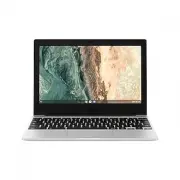 Samsung Chromebook Go
User Manual
Samsung Chromebook Go
User Manual
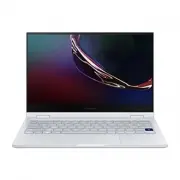 Samsung Galaxy Book Flex
User Manual
Samsung Galaxy Book Flex
User Manual
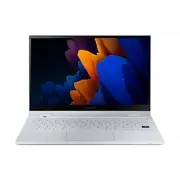 Samsung Galaxy Book Flex2
User Manual
Samsung Galaxy Book Flex2
User Manual
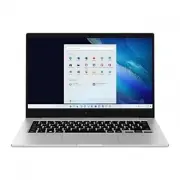 Samsung Galaxy Book Go
User Manual
Samsung Galaxy Book Go
User Manual
 Samsung Galaxy Book Go (NP345XLAA-EXP)
User Manual
Samsung Galaxy Book Go (NP345XLAA-EXP)
User Manual
 Samsung Galaxy Book Pro 360
User Manual
Samsung Galaxy Book Pro 360
User Manual
 Samsung Galaxy Book2 360
User Manual
Samsung Galaxy Book2 360
User Manual
 Samsung Galaxy Book2 Business (NP641BED)
User Manual
Samsung Galaxy Book2 Business (NP641BED)
User Manual
 Samsung Galaxy Book2 Pro 360
User Manual
Samsung Galaxy Book2 Pro 360
User Manual
 Samsung Galaxy Book3
User Manual
Samsung Galaxy Book3
User Manual
 Samsung Galaxy Book4
User Manual
Samsung Galaxy Book4
User Manual
 Samsung Galaxy Book4 Pro
User Manual
Samsung Galaxy Book4 Pro
User Manual
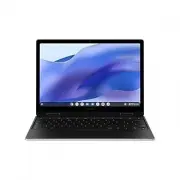 Samsung Galaxy Chromebook 2 360
User Manual
Samsung Galaxy Chromebook 2 360
User Manual
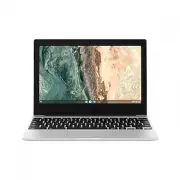 Samsung Galaxy Chromebook Go
User Manual
Samsung Galaxy Chromebook Go
User Manual
 Samsung KEYBOARD DOCK_PC
User Manual
Samsung KEYBOARD DOCK_PC
User Manual
 Samsung NP270E5E-EXP
User Manual
Samsung NP270E5E-EXP
User Manual