Page 2 - Contents; Chapter 1. Getting Started
1 Chapter 1. Getting Started Contents Chapter 1. Getting Started 3 Product Features 4 Tips 5 Before You Start 8 Safety Precautions 22 Proper Posture During Computer Use 25 Overview 30 Turning the Computer On and Off Chapter 2. Using the Computer 33 Keyboard 36 Touchpad 43 CD Drive (ODD, Optional) 44...
Page 4 - Product Features; This is an environmentally friendly system; Environmentally-Friendly Eco Design; With no complex confi guration necessary, you; Samsung’s Proprietary Software; The latest processor has been adopted for; Optimized Performance and Usability
3 Chapter 1. Getting Started Product Features This is an environmentally friendly system • designed in accordance with international environmental specifi cations regarding the use of environmentally friendly materials and the reduction of hazardous materials.The system ensures minimal noise by veri...
Page 5 - Tips; Tip
4 Chapter 1. Getting Started 4 Tips Tip Chapter 1. Getting Started The computer is not turning on or does not respond and displays a blank screen. Restore the computer using Samsung Recovery Solution . 1 . Turn the computer on and press the F4 key when the booting screen (SAMSUNG logo) appears. 2 . ...
Page 6 - Before You Start; Using the software; Samsung; Safety Precaution Notations
4 5 Chapter 1. Getting Started Before You Start Before reading the User Guide, fi rst check the following information. Optional items, some devices and software referred to in • the User Guide may not be provided and/or changed by upgrade.Note that the computer environment referred in the User Guide...
Page 7 - Copyright; About HDD Capacity Representation
6 Chapter 1. Getting Started Before You Start Copyright © 2011 Samsung Electronics Co., Ltd. Samsung Electronics Co., Ltd. owns the copyright of this manual.No part of this manual may be reproduced or transmitted in any form or by any means, electronic or mechanical, without the consent of Samsung E...
Page 8 - About Memory Capacity Representation
6 7 Chapter 1. Getting Started About Memory Capacity Representation The memory capacity reported in Windows is less than the actual capacity of memory.This is because BIOS or a video adapter uses a portion of memory or claims it for further use. (E.g. For 1GB(=1,024MB) memory installed, Windows may ...
Page 9 - Installation Related; There is a danger of suffocation.; Safety Precautions; Warning
8 Chapter 1. Getting Started Installation Related Do not install the product in places exposed to humidity such as a bathrooms. There is a danger of electric shock. Use the product within the operating conditions specified in the Manufacturers User Guide. Keep the plastic bags out of the reach of ch...
Page 10 - Failure to do so may cause fi re hazard.; Power Related; There is a danger of electric shock.
8 9 Chapter 1. Getting Started If the power cord or power outlet makes a noise, disconnect the power cord from the wall outlet and contact a service center. There is a danger of electric shock or fi re hazard. Do not use a damaged or loose main plug or power cord or power outlet. There is a danger o...
Page 11 - Failure to do so may result in electric shock.; AC Adapter Usage Precautions
10 Chapter 1. Getting Started Connect the power cord to an outlet or multiple power plug (extended cable) with a ground terminal. Failure to do so may result in electric shock. If water or a foreign substance enters the power jack, adapter or computer, immediately separate the power cord and battery...
Page 12 - Battery Usage Related; There is a danger of electric shock or choking.
10 11 Chapter 1. Getting Started Battery Usage Related Please charge the battery fully before using the computer for the first time. Keep the battery out of the reach of infants and pets, as they could put the battery into their mouths. There is a danger of electric shock or choking. Use an authoriz...
Page 13 - Cutting the power to the internal battery
12 Chapter 1. Getting Started Cutting the power to the internal battery (for corresponding models only.) For products with built-in batteries, customers cannot remove • the battery. In the case of flooding, lightning or explosions, you can cut • the battery power by inserting an object such as a pap...
Page 14 - This may result in harming or burning your skin.; Usage Related
12 13 Chapter 1. Getting Started If you drop or damage the computer, separate the power cord and battery and ask the service center to perform a safety check. Using a broken computer may cause electric shock or fire hazard. Avoid direct sunlight when the computer is in an air-tight location such as ...
Page 15 - Failure to do so, may cause electric shock.; Upgrade Related
14 Chapter 1. Getting Started Shut down the computer and disconnect all cables before disassembling the computer. If there is a modem, disconnect the phone line. If your notebook is external & removable battery type, remove the external battery. Failure to do so, may cause electric shock. Upgrad...
Page 17 - Do not place a heavy object over the product.; There is a danger of fire or explosion.; Use only a battery authorized by Samsung Electronics.; Failure to do so may cause an explosion.; Charge the battery according to the instructions in the manual.; There is a danger of explosion or fire.; Caution
16 Chapter 1. Getting Started Safety Precautions Installation Related Do not block the ports (holes), vents, etc. of the product and do not insert objects. Damage to a component within the computer may cause electric shock or fire. When using the computer with it lying on its side, place it so that ...
Page 18 - Use a wall outlet or multi-plug with a grounding part.
16 17 Chapter 1. Getting Started Usage Related Do not place a candle, light cigar, etc. over or on the product. There is a danger of fire. Use a wall outlet or multi-plug with a grounding part. Failure to do so may cause electric shock hazard. Make sure to have the product tested by a safety service...
Page 19 - Do not use a damaged or modified CD/Floppy Disk.
18 Chapter 1. Getting Started If the computer emits smoke, or there is a burning smell, disconnect the power plug from the wall outlet and contact a service center immediately. If your notebook is external & removable battery type, remove the external battery. There is a danger of fire. Do not u...
Page 20 - Take care when touching the product or parts.; Security and Movement Related
18 19 Chapter 1. Getting Started Upgrade Related Take care when touching the product or parts. The device may be damaged or you may be injured. Take care not to throw or drop a computer part or device. This may cause injury or damage to the product. Make sure to close the computer cover before conne...
Page 21 - Cautions on Preventing Data Loss; Take care not to damage the data on a hard disk drive.
20 Chapter 1. Getting Started Cautions on Preventing Data Loss (Hard Disk Management) Take care not to damage the data on a hard disk drive. A hard disk drive is so sensitive to external impact that an • external impact may cause loss of data on the surface of the disk. Take extra care, because movi...
Page 22 - Using the power supply in an airplane; When using the AC power plug; If the plug pins are not inserted into the center of the holes, the; When using the auto adapter
20 21 Chapter 1. Getting Started Safety Precautions Using the power supply in an airplane Since the power outlet type diff ers depending on the type of airplane, connect the power appropriately. When using the AC power plug Connect the power plug pins perpendicular into the center of the power outle...
Page 23 - Proper Posture During Computer Use; The instructions in this manual have been prepared so that; Proper Posture; Do not use the computer while you are lying down, but only
22 Chapter 1. Getting Started Proper Posture During Computer Use Maintaining a proper posture during computer use is very important to prevent physical harm.The following instructions are about maintaining a proper posture during computer use developed through human engineering. Please read and foll...
Page 24 - Eye Position; Keep your arm at a right angle as shown by the fi gure.
22 23 Chapter 1. Getting Started Proper Posture During Computer Use Eye Position Keep the monitor or LCD away from your eyes by at least 50cm. Adjust the height of the monitor and the LCD screen so that its • top height is equal to or lower than your eyes.Avoid setting the monitor and LCD excessivel...
Page 25 - Check your volume fi rst to listen to music.; Illumination
24 Chapter 1. Getting Started Proper Posture During Computer Use Volume Control (Headphones and Speakers) Check your volume fi rst to listen to music. Check your volume! Check if the volume is too loud before using headphones. • It is not recommended using headphones for long periods of • time.Any d...
Page 26 - Overview; Front View; The pictures used for the cover and the main body in the; LCD; The screen images are displayed here.; Using the camera, web cam
24 25 Chapter 1. Getting Started Overview Front View The pictures used for the cover and the main body in the • User Manual are those of the representative model of each series. Therefore the colors and appearance of the pictures may diff er from the actual appearance of the product depending on the...
Page 27 - Status Indicators; Wireless LAN
26 Chapter 1. Getting Started Overview Status Indicators 1 2 3 4 1 HDD/ODD This turns when either the HDD or ODD is being accessed. 2 Wireless LAN This turns on when the wireless LAN is operating. 3 Charge Status This shows the power source and the battery charge status. Green: When the battery is f...
Page 28 - Right View; USB Port
26 27 Chapter 1. Getting Started Overview Right View 1 2 3 1 CD Drive (ODD) (Optional) Plays CD or DVD titles.Since an ODD(Optical Disk Drive) is optional, the installed drive depends on the computer model. 2 USB Port (Optional) You can connect USB devices to the USB port such as a keyboard/mouse, d...
Page 29 - Left View; Connect the Ethernet cable to this port.
28 Chapter 1. Getting Started Overview Left View 2 1 4 5 3 6 7 8 1 DC Jack A jack to connect the AC adapter that supplies power to the computer. 2 Wired LAN Port Connect the Ethernet cable to this port. 3 Fan Vents The internal heat of the computer is emitted through these holes. If the vents are bl...
Page 30 - Back View; Battery
28 29 Chapter 1. Getting Started Overview Back View 2 1 3 1 Battery This is a Lithium-Ion rechargeable battery that supplies power to the computer. 2 Battery Latches The latch used to remove or install the battery. 3 Memory Compartment Cover The main memory is installed inside the cover.
Page 31 - Turning the Computer On and Off; battery; LED; About Windows Activation; Turning the computer on
30 Chapter 1. Getting Started Turning the Computer On and Off 1 Install the battery and connect the AC adapter . 2 Lift the LCD panel up. 3 Press the Power button to turn the computer on. 4 Power button LED is lit while the computer is turned on. LED About Windows Activation When you turn the comput...
Page 32 - Turning the computer off; Since the procedures to turn the computer off may diff er; Shut down; For Windows 7; For Windows XP; Start
30 31 Chapter 1. Getting Started Turning the computer off Since the procedures to turn the computer off may diff er • depending on the installed operating system, please turn the computer off according to the procedures for the purchased operating system.Save all your data before clicking on • Shut ...
Page 34 - Keyboard; The keyboard image may diff er from the actual keyboard.; Shortcut Keys; Fn
33 Chapter 2. Using the computer Keyboard Shortcut key functions and procedures are discussed in the following sections. The keyboard image may diff er from the actual keyboard. • The keyboard may diff er depending on your country. The following mainly describes the shortcut keys. • Shortcut Keys Yo...
Page 35 - The Samsung software control program, the; Samsung Control Center; Controls the screen brightness.
34 Chapter 2. Using the computer Keyboard Fn Name Function + Samsung Control Center The Samsung software control program, the Samsung Control Center , is launched. Screen Brightness Control Controls the screen brightness. CRT/LCD Switches the screen output to the LCD or external monitor when an exte...
Page 36 - If you press the; Num Lock; Fn Lock key; Other Function Keys; If the hot keys do not work properly, you have to install the
34 35 Chapter 2. Using the computer Keyboard Numeric Key (For 15.6 inch models) If you press the Num Lock key, you can use the numeric keys. Num Lock Fn Lock key If you press the Fn Lock key, you can use hot keys even without pressing the Fn key. Fn Lock Other Function Keys Performs the right-click ...
Page 37 - Touchpad; When you reinstall Windows or change the operating; Use the Touchpad with your fi ngers. Using a sharp object
36 Chapter 2. Using the computer Touchpad The touchpad provides the same function as a mouse and the left and right buttons of the touchpad plays the role of the left and right buttons of a mouse.To use the touchpad, the touchpad driver is required.A built-in Windows driver and a driver provided by ...
Page 38 - Touch Area; Use to move; Touchpad Left Button; You can select or run; Touchpad Right Button; Basic Touchpad Functions; Moving the cursor on the screen; Tap
36 37 Chapter 2. Using the computer Touch Area Use to move the cursor. Touchpad Left Button You can select or run a program using this button. Touchpad Right Button Plays the role of the right mouse button. Basic Touchpad Functions Moving the cursor on the screen Place your fi nger on the touchpad s...
Page 39 - Double-Click Function; or; Right Button Function
38 Chapter 2. Using the computer Double-Click Function Put your finger on the touchpad and quickly tap twice with your finger on an item you want.Alternatively, press the left touchpad button twice quickly. ClickClick TapTap or Right Button Function This corresponds to clicking the right mouse butto...
Page 40 - The Gesture Function of the Touchpad; The Touchpad Gesture function may not be provided and; Confi guring the Gesture Function; Click the
38 39 Chapter 2. Using the computer The Gesture Function of the Touchpad (Optional) The Touchpad Gesture function may not be provided and • the version of the function may diff er depending on the model. Some usage procedures may diff er depending on the version.For detailed usage procedures, refer ...
Page 41 - The Scroll Function; Zoom Functions; Page Move Function
40 Chapter 2. Using the computer The Scroll Function This function is the same as the scroll area of the Touchpad.If you place two fingers over the Touchpad and move them up, down, left or right, the screen is scrolled up, down, left or right accordingly. or Zoom Functions If you place two fingers o...
Page 42 - Setting the Touchpad Sensitivity; Adjusting the Touchpad Pointer Speed; Pointer Options; Adjusting the Touchpad Palm Detection Function; When using the Elan driver; When the touchpad pointer moves unintentionally (excessively):; Slide the bar appropriately in the direction of Maximum.; When the touchpad pointer does not move smoothly:; Slide the bar appropriately in the direction of Minimum.
40 41 Chapter 2. Using the computer Touchpad Setting the Touchpad Sensitivity If the touchpad reacts too sensitively or the pointer moves unintentionally, please adjust the touchpad pointer speed and sensitivity. Adjusting the Touchpad Pointer Speed Click Start > Control Panel > Hardware and S...
Page 43 - Touchpad On/Off Function; Locking with shortcut keys; To lock the touchpad function, press the; Auto-locking when connecting USB mouse; Disable When external USB mouse; option. This will turn the touchpad off when a USB; When using the Synaptics driver; Click; Disable internal pointing; in; This auto-locking function is not provided for some models.
42 Chapter 2. Using the computer Touchpad Touchpad On/Off Function Locking with shortcut keys If you want to use the mouse only without using the touchpad, you can turn the touchpad off . To lock the touchpad function, press the + keys. You can set the touchpad and touchpad button settings in the ta...
Page 44 - CD Drive; Inserting and Ejecting a CD; Eject
42 43 Chapter 2. Using the computer CD Drive (ODD, Optional) An optical disk drive is optional and may diff er depending on your computer model. For detailed specifi cations, refer to the catalogue. Do not insert a cracked or scratched CD. • Otherwise, the CD may break and damage the optical disk dr...
Page 45 - Multi Card Slot; Using the multi card slot, you can read and write data to cards.; Using the card; Insert the card into the multi card slot in the indicated
44 Chapter 2. Using the computer Multi Card Slot (Optional) Using the multi card slot, you can read and write data to cards. You can use a card as a removable disk and conveniently exchange data with digital devices such as a digital camera, digital camcorder, MP3, etc.. Supported Cards : SD Card, S...
Page 46 - The card drive appears. Click; Open folder and view fi les; If the window does not appear, click; If a window asking to scan and change appears, click; Continue Without Scanning; . This will proceed to Step 2; You can save, move and delete data by double-clicking the; Using a Mini SD and RS-MMC
44 45 Chapter 2. Using the computer Multi Card Slot (Optional) 2 The card drive appears. Click Open folder and view fi les . If the window does not appear, click Start > Computer . If a window asking to scan and change appears, click Continue Without Scanning . This will proceed to Step 2 above. ...
Page 47 - To remove a memory card; Take hold of the end of the card and remove the card.; To format a memory card; Format; To use a card to exchange data with a digital device such
46 Chapter 2. Using the computer Multi Card Slot (Optional) To remove a memory card Take hold of the end of the card and remove the card. To format a memory card When using the memory card for the first time, you must format the card before using it. Formatting a card deletes all data saved on the c...
Page 48 - Connecting an External Display Device; Before you start, check the port and cable of the external; About the connection cable; HDMI Cable
46 47 Chapter 2. Using the computer Connecting an External Display Device If you connect an external display device such as a monitor, TV, projector, etc., you can view the picture on the wider screen of the external device when you give a presentation or watch a video or movie.The computer provides...
Page 49 - Connecting to the monitor port
48 Chapter 2. Using the computer Connecting to the monitor port You can experience a wider screen by connecting the computer to a monitor, TV or projector with a monitor port.You can give better presentations by connecting the computer to a projector. 1 Connect the RGB port of the computer and the p...
Page 50 - Connecting through the HDMI port (Optional); DVI IN; HDMI
48 49 Chapter 2. Using the computer Connecting through the HDMI port (Optional) By connecting the computer to a TV with a HDMI port, you can enjoy both a high visual quality and a high sound quality.After connecting a TV through HDMI, you have to confi gure the screen and sound. 1 Connect the HDMI c...
Page 51 - You can view the graphics card type by selecting; Device; and then clicking the; For Intel graphics cards; Right-click over the Desktop and select; If a window appears where you can select the mode, select; Basic Mode
50 Chapter 2. Using the computer Setting up HDMI TV video (Optional) If the Desktop screen displayed on the TV does not fi t to the TV screen, confi gure it as follows depending on the graphics card. You can view the graphics card type by selecting • Device Manager > Display adapters and then cli...
Page 52 - For NVIDIA graphics cards; This function is not provided in the Optimus specifi cations.
50 51 Chapter 2. Using the computer Connecting an External Display Device ► For NVIDIA graphics cards This function is not provided in the Optimus specifi cations. 1 Right-click over the Desktop and select NVIDIA Control Panel . 2 In the Select a Task window in the left panel, select the Dispaly >...
Page 53 - For AMD graphics cards; Right-click on the Desktop and select; Graphics Properties >; Adjust the size to the edges of the TV screen using the resize; Apply
52 Chapter 2. Using the computer Connecting an External Display Device ► For AMD graphics cards 1 Right-click on the Desktop and select Graphics Properties > Desktops and Displays > My Digital Flat-Panels > Scaling Options (Digital Flat-Panel) . 2 Adjust the size to the edges of the TV scre...
Page 54 - Right-click over the
52 53 Chapter 2. Using the computer Setting up HDMI TV audio (Optional) You can confi gure the sound of the computer to be played through the HDMI TV. You have to confi gure the sound device in the Control Panel whenever you connect the HDMI TV in order to hear sound from the computer on the TV. The...
Page 55 - Using NVIDIA Graphics Eff ectively (optional); The NVIDIA Optimus model supports Windows 7 only.
54 Chapter 2. Using the computer Connecting an External Display Device Using NVIDIA Graphics Eff ectively (optional) NVIDIA Optimus is a function that enables automatic selection and usage of the internal or external graphics chipsets depending on the currently running software.For example, the inte...
Page 56 - Using AMD Graphics Eff ectively (optional); For Swichable Graphics; These descriptions are for Windows 7 and for supported; Switchable Graphics; Registering programs to be executed by the external; Confi gure Switchable
54 55 Chapter 2. Using the computer Connecting an External Display Device Using AMD Graphics Eff ectively (optional) For Swichable Graphics These descriptions are for Windows 7 and for supported • models only.This function is not supported for Windows 7 Starter. • If Windows XP is installed, you can...
Page 57 - Connecting an External Digital Device; Connecting and using a camera or camcorder; Connect the USB port of the notebook computer and the; Both the computer and the digital device must be turned; The; Auto run; window appears. Click; Open folder and view
56 Chapter 2. Using the computer Connecting an External Digital Device You can save a fi le stored on a device onto the computer by connecting a digital device such as a camera, camcorder or mobile phone to the computer and using the fi le management functions. Connecting and using a camera or camco...
Page 58 - Adjusting the Volume; Adjusting the Volume using the Keyboard; Adjusting the Volume using the Volume; Mute; Using the Sound Recorder; Volume
56 57 Chapter 2. Using the computer Adjusting the Volume You can adjust the volume using the keyboard and the volume control program. Adjusting the Volume using the Keyboard + Or + Alternatively, press the + key combination to turn the volume on or off . Adjusting the Volume using the Volume Adjustm...
Page 60 - Music; Select this mode to listen to music.; Movie; Select this mode to watch a movie.; Speech; Emphasizes voice over other sounds.; Silver; Advanced Mode
58 59 Chapter 2. Using the computer Using SoundAlive (optional) The SoundAlive function enables you to experience more stereophonic sound using stereo speakers. These descriptions are for Windows 7 and for supported • models only.The software programs provider may vary, depending on • your computer ...
Page 61 - Wired Network; Since these descriptions are written on the basis of the; Connecting to a Wired LAN through Windows; Connect a LAN cable to the computer’s LAN port.
60 Chapter 2. Using the computer Wired Network A wired network is a network environment used for a company network or broadband internet connection at home. Since these descriptions are written on the basis of the • latest operating system, Windows 7, some of the content and the fi gures of the desc...
Page 62 - Local Area Connection
60 61 Chapter 2. Using the computer 3 Select Local Area Connection and click the right button of the touch pad and select Properties . The LAN Device name may diff er depending on your computer’s Network Device. 4 ► For Windows 7 Select Internet Protocol Version 4(TCP/IPv4) from the list of Network ...
Page 63 - The Network Component name may diff er depending on
62 Chapter 2. Using the computer Wired Network ► For Windows XP Click General tab and select a LAN driver from Connect using :. Select Internet Protocol(TCP/IP) and click Properties . The Network Component name may diff er depending on • the Operating System Installed.To add a network component, cli...
Page 64 - For Win7, Wake On LAN is not supported by Ping.
62 63 Chapter 2. Using the computer Wired Network Using the WOL (Wake On LAN) function <Wake On LAN> is a function that activates the system from Sleep mode when a signal (such as a ping or magic packet command) arrives over the network (wired LAN). 1 ► For Windows 7 Click Start > Control P...
Page 65 - The screen image and terminology may change depending; On; Wireless Network
64 Chapter 2. Using the computer A wireless network (Wireless LAN) environment is a network environment that enables communicating between multiple computers at home or a small-size offi ce through wireless LAN devices. The screen image and terminology may change depending • on the model.Depending o...
Page 66 - Connecting to a Wireless LAN through Samsung; If this option is; ON; function; Connecting to a Wireless LAN through Windows; AP List
64 65 Chapter 2. Using the computer Wireless Network (Optional) Connecting to a Wireless LAN through Samsung Control Center (Optional) You can access a wireless LAN using Samsung Control Center. These descriptions are for Windows 7 and for supported models only. 1 Press the + key combination to run ...
Page 67 - For the network key, please ask your network administrator.; For a network key, contact the network administrator.
66 Chapter 2. Using the computer Wireless Network (Optional) 2 Click Connect . If a network key is set for the AP, enter the network key and then click Connect . For the network key, please ask your network administrator. 3 When Connected to the AP is displayed, click the Close button.You can access...
Page 68 - Normal Wireless LAN Status; When the wireless LAN is not connected
66 67 Chapter 2. Using the computer Wireless Network (Optional) Normal Wireless LAN Status If the wireless LAN icon is displayed in the system tray of the Taskbar, it indicates that the computer is connected to the Internet properly (see below). [Windows 7] [Windows XP] Abnormal Wireless LAN Status ...
Page 69 - Connect to an AP with a strong signal by clicking; An AP with a strong signal strength
68 Chapter 2. Using the computer Wireless Network (Optional) When APs are found but your computer is not connected to the Internet This is the case when an AP with a weak signal has been set to a high priority. Connect to an AP with a strong signal by clicking it. An AP with a strong signal strength...
Page 70 - Sharing Content in a Home Network; Easy Content Share; is a DLNA application that allows you to play; Confi guring the network settings for your computer and; Confi guring the network settings for your; Connect your computer and TV to an access point through; Obtain an IP address automatically
68 69 Chapter 2. Using the computer Sharing Content in a Home Network (Easy Content Share) (Optional) Easy Content Share is a DLNA application that allows you to play photos, videos and music fi les on your TV. These descriptions are for Windows 7 and for supported • models only. The Digital Living ...
Page 71 - Chapter 2. Using the; Adding shared content on your computer
70 Chapter 2. Using the computer For more information on how to confi gure the IP address • for your computer, refer to Chapter 2. Using the Computer > Network . For more information on how to confi gure the IP address • for your TV, refer to the user manual of your TV. 3 To check if the network ...
Page 72 - Playing content on your TV using your computer; Playlist; Play; does not support subtitles due to DLNA; item in the; Troubleshooting Guide
70 71 Chapter 2. Using the computer 3 The selected folder is added to the shared list. Playing content on your TV using your computer After you have set photos, videos and music fi les as shared items, you can play them on your TV using your computer. 1 In Easy Content Share , select the TV you want...
Page 73 - Adding a video, photo or music fi le to the playlist; Shared content list; Playing the content stored on a computer when; Easy; is installed and the TV is connected to.; For Windows Media Player 12
72 Chapter 2. Using the computer Adding a video, photo or music fi le to the playlist 1 Click Add Content in the Playlist screen. The shared content list is displayed. 2 In the shared content list, check the checkbox in front of the item you want to add to the playlist, and then click Add to playlis...
Page 74 - For Windows Media Player 11
72 73 Chapter 2. Using the computer 3 Run Windows Explorer . 4 Right-click the folder to share. From the menu displayed, point to Include in library.Click Videos, Photos or Music in the displayed sub menu, according to the type of content contained in the selected folder.If the selected folder conta...
Page 75 - A popup window is displayed. Click
74 Chapter 2. Using the computer A popup window is displayed. Click Yes . Then click OK in the Media Sharing- Default Settings window and in the Media Sharing window. After the registration has been fi nished, you can fi nd the added folder is listed in the shared content list of Easy Content Share ...
Page 77 - LCD Brightness Control; You can adjust the LCD brightness in 8 levels.; Controlling the Brightness Using the Keyboard; Adjust the LCD brightness by pressing the; To maintain the LCD brightness set by using the brightness
76 Chapter 3. Settings and Upgrade LCD Brightness Control You can adjust the LCD brightness in 8 levels. The screen brightness is automatically set to the brightest level (brightness level 8) when AC power is connected and the brightness is automatically set dimmer when the computer runs on battery ...
Page 78 - LCD bad pixels principle of computer; Therefore Samsung observes and manages the following; Instructions for Cleaning the LCD
76 77 Chapter 3. Settings and Upgrade LCD Brightness Control LCD bad pixels principle of computer • Samsung observes the specifi cations regarding strict quality and reliability of LCD. But in spite of that, it is inevitable that there might be a small number of bad pixels. A large number of bad pix...
Page 79 - This description is for models that support the function; Press the; You can confi gure a function by selecting an item in the; System Controller; Functions; You can select automatic or fi xed IP settings.
78 Chapter 3. Settings and Upgrade Samsung Control Center (Optional) Samsung Control Center is the integrated Samsung software control program that allows you to confi gure various settings. This description is for models that support the function • and are running on Windows 7.The screen fi gures a...
Page 80 - BIOS Setup; Use the BIOS setup to defi ne a boot password, change the; Entering the BIOS Setup; Turn the computer on.
78 79 Chapter 3. Settings and Upgrade BIOS Setup The BIOS Setup enables you to confi gure your computer hardware according to your needs. Use the BIOS setup to defi ne a boot password, change the • booting priority, or add a new device.Since incorrect settings may cause your system to • malfunction ...
Page 81 - The BIOS Setup Screen; Setup Menu; System Setup Keys; In the Setup, you have to use the keyboard.
80 Chapter 3. Settings and Upgrade The BIOS Setup Screen The BIOS Setup menus and items may diff er depending on your computer model. ( - x) Setup Menu Setup Items Help Help for the selected item appears automatically. Setup Menu Description SysInfo This is a description about the basic specifi cati...
Page 82 - Setting a Boot Password; Do not lose or forget your password.; Setting a Supervisor Password; Select the; Security; menu in the BIOS Setup.; Set Supervisor Password; The supervisor password has been set.; window, the settings are not complete
80 81 Chapter 3. Settings and Upgrade Setting a Boot Password When setting a password, you have to enter a password to use the computer or enter the BIOS Setup. By confi guring a password, you can restrict system access to authorized users only and protect data and fi les saved on the computer. Do n...
Page 83 - Setting a Boot Password; Setting a User Password; Changing the hard disk drive password
82 Chapter 3. Settings and Upgrade Setting a Boot Password Setting a User Password Users can start the system with a user password, but cannot enter the System Setup. By doing this, you can prevent other users from entering Setup.Before configuring a user password, a supervisor password must have be...
Page 84 - Deactivating the Password; > key is pressed in the; Setup Notice
82 83 Chapter 3. Settings and Upgrade Setting a Boot Password Deactivating the Password 1 Press < Enter > on the password to be deactivated. For example, to deactivate a supervisor password in the Set Supervisor Password item, press < Enter >. 2 In the Enter Current Password item, enter ...
Page 85 - Changing the Boot Priority; Boot; SATA HDD
84 Chapter 3. Settings and Upgrade Changing the Boot Priority By default, the highest boot priority device is set to the CD-ROM/DVD drive. As an example, the procedures to change the highest boot priority device to the hard disk drive are described below. The screen images and terms may diff er from...
Page 86 - Upgrading Memory; Replace or install new memory only after shutting the; Adding or Replacing Memory Modules; Remove the screw on the memory compartment cover at the; Insert a new memory module into the memory slot at an
84 85 Chapter 3. Settings and Upgrade Upgrading Memory One or more memory modules are installed on the computer.There are 2 memory slots and users can replace the installed memory or add new memory. Replace or install new memory only after shutting the • computer down completely. Do not replace or i...
Page 87 - Upgrading Memory; Push the memory module down so that it is completely fi xed.
86 Chapter 3. Settings and Upgrade Upgrading Memory 3 Push the memory module down so that it is completely fi xed. If the memory does not fi t easily, push the memory module down while pulling the memory module latches outward. 4 Close the memory compartment cover and fasten the screw. Removing a me...
Page 88 - Carefully read and follow the precautions printed on the; Precautions; Use only chargers specifi ed in the User Manual.; Installing/Removing the Battery; Shutdown the system, close the LCD panel and place the; outwards; To install the battery again, slide the battery into the system.; Check if the battery latch has been moved inwards.
86 87 Chapter 3. Settings and Upgrade Battery Please refer to the following instructions when running the computer on battery power without connecting the AC power. A Lithium-Ion smart battery is supplied with this computer. Carefully read and follow the precautions printed on the • battery before u...
Page 89 - Charging the Battery; Attach the battery and connect the AC adapter to the DC-in; AC adapter not; Off; Measuring the Remaining Battery Charge; Confi rming the battery charge in the Taskbar
88 Chapter 3. Settings and Upgrade Battery Charging the Battery 1 Attach the battery and connect the AC adapter to the DC-in jack of the computer.The battery will then start charging. 2 When charging is complete, the Charge LED turns green. Status Charge LED Charging Orange Charging complete Green A...
Page 90 - Extending the Battery Usage Time; Decreasing the LCD Brightness; Using diff erent power modes through the Samsung; In the; and select a; Power Options
88 89 Chapter 3. Settings and Upgrade Battery Extending the Battery Usage Time Decreasing the LCD Brightness Press the + keys on the keyboard to decrease the LCD brightness to extend the battery usage time. Using the power management program This program helps you use the battery more effi ciently a...
Page 91 - Samsung Battery Manager; Maximum; - If you change the power settings, the properties in; Power; window will also be changed.
90 Chapter 3. Settings and Upgrade Battery ► For Windows XP Click Samsung Battery Manager . Select Power Mode Power-saving Eff ect Maximum Battery Mode This mode is appropriate for the environment that requires maximum battery lifetime. The system performance may be degraded in this mode. What is th...
Page 92 - and set the; Battery Life Extender; to; OFF; Advanced; Then you can use the battery life cycle extension mode.
90 91 Chapter 3. Settings and Upgrade Battery Extending the Battery Life (Optional) In the Samsung Control Center program, click System Controller > General and set the Battery Life Extender to ON or OFF . OFF This mode maintains 100% of the battery charge when using the computer on AC power. In ...
Page 93 - Using the Battery Calibration Function
92 Chapter 3. Settings and Upgrade Battery Using the Battery Calibration Function When charging/discharging the battery repeatedly for a short time only, the battery usage time may be reduced by the diff erence between the actual battery charge and the remaining charge display.In this case, the actu...
Page 94 - Using the Security Slot
92 93 Chapter 3. Settings and Upgrade Using the Security Slot You can secure the computer by connecting a lock and cable to the Security Slot.To use this feature, you have to purchase the lock and cable additionally.To use the lock and cable, refer to the product manual.Tie the lock and cable to a f...
Page 96 - Samsung Recovery Solution; key in the booting screen.; Samsung Recovery Solution Functions; Backup/Restore Functions; Backup Function; Backs up drive C or required folders and fi les.; Complete Backup; Restore Function; Restores major Windows fi les, drive C, or; Basic Restore
95 Chapter 4. Backup / Restore Samsung Recovery Solution (Optional) Samsung Recovery Solution is a program that enables restoring or backing up the hard disk drive for when a problem occurs with the computer.If the computer fails to boot up, you can restore the computer by pressing the key in the bo...
Page 97 - System Software Functions; Partition Setup & Initial Status Backup; Partition Setup
96 Chapter 4. Backup / Restore System Software Functions Samsung Recovery Solution provides system software so that you can reinstall or copy the device drivers and system software necessary for normal operations onto a separate storage device. Restore Function Not only can you use Samsung Recovery ...
Page 98 - Restoring the computer; – When Windows is running:; Turn the computer on and press the; Restore; If you click; Select by Symptom; , the Select by Symptom
96 97 Chapter 4. Backup / Restore Restoring the computer Restore is a function that enables restoring the computer to a saved point when the computer was purchased or a user-saved point.The Restore function provides the Basic Restore and Complete Restore options. 1 – When Windows is running: Click S...
Page 100 - Complete Backup/Restore; Backup; Select the DVD drive.; Next; Performs the Complete Backup operation; System Software Backup:; This function backs up the
98 99 Chapter 4. Backup / Restore Complete Backup/Restore A Complete Backup saves the complete image of the C drive onto another drive or DVD. A Complete Restore restores the image fi le saved by the Complete Backup onto the C drive. Complete Backup If you perform the Complete Backup function onto a...
Page 102 - Complete Restore
100 101 Chapter 4. Backup / Restore Complete Restore 1 – When backing up onto DVD Turn the computer on and insert the backup DVD into the DVD drive.If there are multiple backup DVDs, insert the fi rst DVD. – When backing up to a removable storage device Connect the removable storage device. – When b...
Page 103 - Data Backup; SamsungRecovery\SamsungData; folder
102 Chapter 4. Backup / Restore Data Backup/Restore The Data Backup function enables you to backup specifi c fi les and folders to another drive, DVD or removable storage device. Data Restore enables you to restore data using the data saved by a Data Backup when data is lost. This guide describes th...
Page 104 - Data Restore
102 103 Chapter 4. Backup / Restore Data Restore 1 – When backing up onto DVD Turn the computer on and insert the backup DVD into the DVD drive. – When backing up to a removable storage device Connect the removable storage device. – When backing up to another drive Proceed to Step 2. 2 When the init...
Page 105 - System Software Function; The system software function is supported by; later; function may not be supported depending on the version.; Installing System Software; When the initial menu screen appears, click; System Software; When the; Samsung System Software; screen appears, check; Install Now; After the installation is complete, the computer will restart.
104 Chapter 4. Backup / Restore System Software Function The System Software function is a function that enables you to reinstall device drivers and System Software Programs or back up those programs. The system software function is supported by Samsung Recovery Solution version 4 or later . Therefo...
Page 106 - System Software Backup
104 105 Chapter 4. Backup / Restore Samsung Recovery Solution (Optional) System Software Backup 1 When the initial menu screen appears, click System Software > System Software Backup . 2 Specify the Save Path. If your computer has a DVD-Writer, you can specify the DVD drive as the Save Path. Sele...
Page 107 - Recovery Solution Representation (Optional); What is a Recovery Area?
106 Chapter 4. Backup / Restore Recovery Solution Representation (Optional) What is a Recovery Area? Samsung computers have an additional partition to recover • computers or save backup files. (Only for models with the Samsung Recovery Solution.) This partition is called a Recovery Area and it inclu...
Page 109 - Safety Instructions; Setting Up your System; Read and follow all instructions marked on the product and in; Important Safety Information
108 Chapter 5. Appendix Safety Instructions Your system is designed and tested to meet the latest standards for safety of information technology equipment. However, to ensure safe use of this product, it is important that the safety instructions marked on the product and in the documentation are fol...
Page 110 - Care During Use
108 109 Chapter 5. Appendix Care During Use Do not walk on the power cord or allow anything to rest on it. • Do not spill anything on the system. The best way to avoid • spills is to not eat or drink near your system.Some products have a replaceable CMOS battery on the • system board. There is a dan...
Page 111 - Replacement Parts and Accessories; Battery Disposal; Class 1M laser radiation when operating part is open.
110 Chapter 5. Appendix Replacement Parts and Accessories Use only replacement parts and accessories recommended by manufacturer. To reduce the risk of fi re, use only No. 26 AWG or larger telecommunications line cord. Do not use this product in areas classifi ed as hazardous. Such areas include pat...
Page 112 - Connecting and Disconnecting the AC adapter; Do not unplug the power cord by only pulling the cable.; Power Cord Requirements; General Requirements; The requirements listed below are applicable to all countries:; All power cord sets must be approved by an acceptable
110 111 Chapter 5. Appendix Replacement Parts and Accessories Connecting and Disconnecting the AC adapter The socket-outlet should be installed near the equipment and should be easily accessible. Do not unplug the power cord by only pulling the cable. Power Cord Requirements The power cord set (wall...
Page 113 - Regulatory Compliance Statements; Wireless Guidance; Radio frequency wireless communication can interfere
112 Chapter 5. Appendix Regulatory Compliance Statements Wireless Guidance (If fitted with 2.4G band or 5G band) Low power, Radio LAN type devices (radio frequency (RF) wireless communication devices), operating in the 2.4GHz/5GHz Band, may be present (embedded) in your notebook system. The followin...
Page 114 - Every country has different restrictions on the use of; United States of America; USA and Canada Safety Requirements and Notices; Use in specific environments:; Explosive Device Proximity Warning
112 113 Chapter 5. Appendix Regulatory Compliance Statements Every country has different restrictions on the use of • wireless devices. Since your system is equipped with a wireless device, when traveling between countries with your system, check with the local Radio Approval authorities prior to an...
Page 115 - Use On Aircraft Caution; Other Wireless Devices; Safety Notices for Other Devices in the Wireless Network:; Refer; Unintentional Emitter per FCC Part 15; Reorient or relocate the receiving antenna.
114 Chapter 5. Appendix Use On Aircraft Caution Regulations of the FCC and FAA prohibit airborne operation of radio-frequency wireless devices because their signals could interfere with critical aircraft instruments. Other Wireless Devices Safety Notices for Other Devices in the Wireless Network: Re...
Page 116 - Intentional emitter per FCC Part 15
114 115 Chapter 5. Appendix If necessary, the user should consult the dealer or an experienced radio/television technician for additional suggestions. The user may find the following booklet helpful: “Something About Interference.”This is available at FCC local regional offices. Our company is not r...
Page 117 - FCC Statement for Wireless LAN use:
116 Chapter 5. Appendix Wireless devices are not user serviceable. Do not modify them in any way.Modification to a wireless device will void the authorization to use it. Contact manufacturer for service. FCC Statement for Wireless LAN use: While installing and operating this transmitter and antenna ...
Page 119 - Canada; Unintentional Emitter per ICES-003
118 Chapter 5. Appendix Canada Unintentional Emitter per ICES-003 This digital apparatus does not exceed the Class B limits for radio noise emissions from digital apparatus as set out in the radio interference regulations of Industry Canada.Le présent appareil numérique n’émet pas de bruits radioéle...
Page 122 - Ringer Equivalence Number
120 121 Chapter 5. Appendix Telecommunications per DOC notice (for products fitted with an IC-compliant modem) The Industry Canada label identifies certified equipment. This certification means that the equipment meets certain telecommunications network protective, operation, and safety requirements...
Page 123 - Brazil; European Union CE Marking and Compliance Notices
122 Chapter 5. Appendix Brazil Este equipamento opera em caráter secundário, isto é, não tem direito a proteção contra interferência prejudicial, mesmo de estações do mesmo tipo, e não pode causar interferência a sistemas operando em caráter primário. European Union European Union CE Marking and Com...
Page 124 - EU R&TTE Compliance Statements; English
122 123 Chapter 5. Appendix European Radio Approval Information (for products fi tted with EU-approved radio devices) This Product is a Notebook computer; low power, Radio LAN type devices (radio frequency (RF) wireless communication devices), operating in the 2.4GHz/5GHz band, may be present (embed...
Page 126 - European Economic Area Restrictions
124 125 Chapter 5. Appendix Íslenska[Icelandic] Hér með lýsir Samsung yfi r því að Notebook PC er í samræmi við grunnkröfur og aðrar kröfur, sem gerðar eru í tilskipun 1999/5/EC. Norsk[Norwegian] Samsung erklærer herved at utstyret Notebook PC er i samsvar med de grunnleggende krav og øvrige relevan...
Page 127 - General
126 Chapter 5. Appendix Regulatory Compliance Statements The European variant is intended for use throughout the European Economic Area. However, authorization for use is further restricted in particular countries or regions within countries, as follows: General European standards dictate maximum ra...
Page 128 - Marking by the symbol
126 127 Chapter 5. Appendix Regulatory Compliance Statements European Telecommunication Information (for products fitted with EU-approved modems) Marking by the symbol indicates compliance of this equipment to the Radio and Telecom Terminal Equipment Directive 1999/5/EC. Such marking is indicative t...
Page 129 - WEEE Symbol Information; Correct disposal of batteries in this product; USA ONLY
128 Chapter 5. Appendix WEEE Symbol Information Correct disposal of this product (Waste Electrical & Electronic Equipment) (Applicable in the European Union and other European countries with separate collection systems) This marking on the product, accessories or literature indicates that the pr...
Page 130 - The system specifications may differ depending on the derived; Product Specifications
128 129 Chapter 5. Appendix The system specifications may differ depending on the derived models.For detailed system specifications, refer to the product catalogue. CPU (Optional) Intel® Celeron™ Processor Intel® Pentium™ Processor Intel® Dual-Core™ i3/i5 Processor Intel® Quad-Core™ i7 Processor AMD...
Page 131 - Registered Trademarks; ENERGY STAR® Partner
130 Chapter 5. Appendix Product Specifications Registered Trademarks Samsung is a registered trademark of Samsung Co., Ltd.Intel, Celeron/Pentium/Dual-Core/Quad-Core are registered trademarks of the Intel Corporation.AMD, Dual-Core/Quad-Core are registered trademarks of the AMD Corporation.Microsoft...
Page 132 - Glossary; (Double Data Rate Synchronous Dynamic Random Access Memory)
130 131 Chapter 5. Appendix Glossary The Glossary lists the terminologies used in this User Guide. For terminologies other than these, look in Windows Help. Backup A way to save the current data to restore it later if necessary. A backup is a way to restore computer data when the data or computer is...
Page 134 - ( Personal Computer Memory Card International
132 133 Chapter 5. Appendix MMC (MultiMedia Card) card This is an external-type flash memory used for mobile devices such as mobile phones or digital cameras. Network A group of computers and devices, such as printers and scanners, connected by a communications link. A network can be either small or...
Page 135 - This is the extension of the SD card that supports over 2GB bytes.
134 Chapter 5. Appendix SDHC (Secure Digital High Capacity) card This is the extension of the SD card that supports over 2GB bytes. Server In general, a server refers to a computer that provides shared resources for network users. Share This refers to setting a resource of a computer such as a folde...
Page 136 - Index
134 135 Chapter 5. Appendix Index A AP 64 B Battery 87 BIOS Setup 79 Booting Priority 84 C CD Drive 43 Charge 88 Click 37 D Double-Click 38 Drag 38 Dual View 48 L LCD Brightness 76 M Memory 85 Monitor Connection / Output 47 Multi Card Slot 44 O Overview 25 P Password 81 Product Specifications 129 R ...


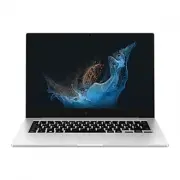 Samsung Book2 Go
User Manual
Samsung Book2 Go
User Manual
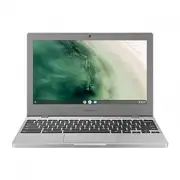 Samsung Chromebook 4
User Manual
Samsung Chromebook 4
User Manual
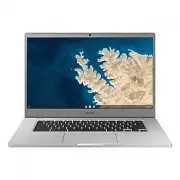 Samsung Chromebook 4+
User Manual
Samsung Chromebook 4+
User Manual
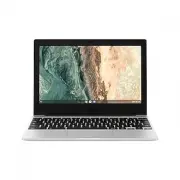 Samsung Chromebook Go
User Manual
Samsung Chromebook Go
User Manual
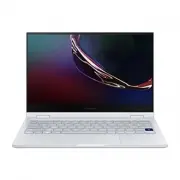 Samsung Galaxy Book Flex
User Manual
Samsung Galaxy Book Flex
User Manual
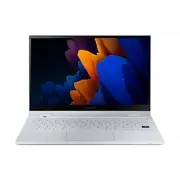 Samsung Galaxy Book Flex2
User Manual
Samsung Galaxy Book Flex2
User Manual
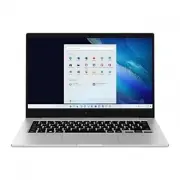 Samsung Galaxy Book Go
User Manual
Samsung Galaxy Book Go
User Manual
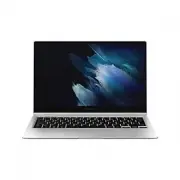 Samsung Galaxy Book Pro 360
User Manual
Samsung Galaxy Book Pro 360
User Manual
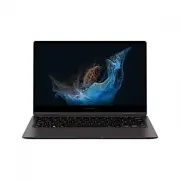 Samsung Galaxy Book2 360
User Manual
Samsung Galaxy Book2 360
User Manual
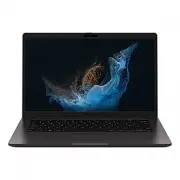 Samsung Galaxy Book2 Business (NP641BED)
User Manual
Samsung Galaxy Book2 Business (NP641BED)
User Manual
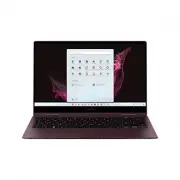 Samsung Galaxy Book2 Pro 360
User Manual
Samsung Galaxy Book2 Pro 360
User Manual
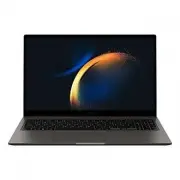 Samsung Galaxy Book3
User Manual
Samsung Galaxy Book3
User Manual
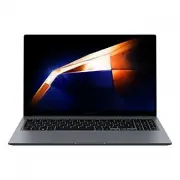 Samsung Galaxy Book4
User Manual
Samsung Galaxy Book4
User Manual
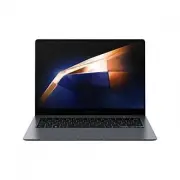 Samsung Galaxy Book4 Pro
User Manual
Samsung Galaxy Book4 Pro
User Manual
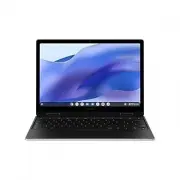 Samsung Galaxy Chromebook 2 360
User Manual
Samsung Galaxy Chromebook 2 360
User Manual
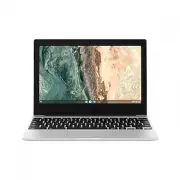 Samsung Galaxy Chromebook Go
User Manual
Samsung Galaxy Chromebook Go
User Manual
 Samsung NP270E5E-X01TR
User Manual
Samsung NP270E5E-X01TR
User Manual
 Samsung NP270E5E-X03DE
User Manual
Samsung NP270E5E-X03DE
User Manual