Page 2 - Getting Started
Chapter 1. Getting Started Product Features 2 Before You Start 3 Contents 6 Safety Precautions 7 Proper Posture During Computer Use 18 Important Safety Information 21 Replacement Parts and Accessories 23 Regulatory Compliance Statements 25 WEEE SYMBOL INFORMATION 35 Overview 36 Front View 36 Status ...
Page 3 - Note; Product Features
2 High Performance Notebook Computer ■ Intel Core™2 Duo Processor. DDR III Memory ■ Wireless LAN * , Bluetooth * ■ Intel Turbo Memory * Easy-to-Use AV ■ Play AVStation is provided to easily play various multimedia files. ■ Camera Module Installed * Sophisticated Design for Increased Usability ■ Vari...
Page 4 - Before You Start; User Guide Information; Installation Guide; Utilizing the User Guide; Be sure to read the
Before You Start Before reading the User Guide, first check the following information. User Guide Information This product is supplied with an Installation Guide , and a User Guide . You can even more easily and conveniently use the computer by using any of the guides depending on your needs. Instal...
Page 5 - Safety Precaution Notations; Text Notations; Icon Notation; Copyright
4 Safety Precaution Notations Icon Notation Description Warning Failing to follow instructions marked with this symbol, may cause personal injury and or fatality. Caution Failing to follow instructions marked with this symbol, may cause slight injury to yourself or damage your property. Text Notatio...
Page 6 - About the Product Capacity Representation Standard; About HDD Capacity Representation
About the Product Capacity Representation Standard About HDD Capacity Representation The capacity of the storage device (HDD, SSD) of the manufacturer is calculated assuming that 1KB=1,000 Bytes.However, the operating system (Windows) calculates the storage device capacity assuming that 1KB=1,024 By...
Page 7 - Contents; Chapter 4. Using the Network
Contents Chapter 1. Getting Started Product Features 2 Before You Start 3 Contents 6 Safety Precautions 7 Proper Posture During Computer Use 18 Important Safety Information 21 Replacement Parts and Accessories 23 Regulatory Compliance Statements 25 WEEE SYMBOL INFORMATION 35 Overview 36 Front View 3...
Page 8 - Installation Related; temperature of the computer and; Warning; Safety Precautions
7 Installation Related Do not install the product in places exposed to humidity such as a bathrooms. There is a danger of electric shock. Use the product within the operating conditions specified in the Manufacturers User Guide. Keep the plastic bags out of the reach of children. There is a danger o...
Page 9 - Power Related; Plug the power cord firmly into; Failing to do so may cause fire
Power Related Do not touch the main plug or power cord with wet hands. There is a danger of electric shock. Do not exceed the standard capacity (voltage/current) of a multiplug or power outlet extension when using it for the product. There is a danger of electric shock or fire hazard. If the power c...
Page 10 - Battery Usage Related
9 Do not bend the power cord excessively or do not place a heavy object over the power cord. It is especially important to keep the power cord out of reach of infants and pets. If the cord is damaged, it may cause electric shock or fire. If water or another substance enters the power input jack, AC ...
Page 11 - Usage Related; shock, fire or damage to the; Do not place any container filled; computer, this may cause fire or
10 Usage Related Disconnect all cables connected to the computer before cleaning it. If you are cleaning a notebook computer, remove the battery. There is a danger of electric shock or damage to the product. Do not connect a phone line connected to a digital phone to the modem. There is a danger of ...
Page 12 - Upgrade Related; There is a danger of electric shock.
11 Upgrade Related Never disassemble the power supply or AC adapter. There is a danger of electric shock. When removing the RTC (Real Time Clock) battery, keep it out of the reach of children as they could touch and/or swallow it. There is a danger of choking. If a child has swallowed it, contact a ...
Page 13 - Custody and Movement Related; Follow the instructions for the
12 Custody and Movement Related Follow the instructions for the relevant location (e.g. airplane, hospital, etc.) when using a wireless communication device (wireless LAN, Bluetooth, etc.). When carrying the notebook computer with other items, such as the adapter, mouse, books etc, take care not to ...
Page 14 - Caution; the computer to rise and the
13 Caution Failing to follow instructions marked with this symbol may cause slight injury or damage to the product. Installation Related Battery Usage Related Do not block the ports (holes), vents, etc. of the product and do not insert objects. Damage to a component within the computer may cause ele...
Page 16 - There is a danger of damaging the; Do not insert your fingers into
1 Do not use a damaged or modified CD/Floppy Disk. There is a danger of damaging the product or personal injury. Do not insert your fingers into the PC Card Slot. There is a danger of injury or electric shock. Use recommended computer cleansing solution when cleaning the product and only use the com...
Page 17 - There is a danger of damaging; connected cables first.
16 Never disassemble or repair the product by yourself. There is a danger of electric shock or file. To connect a device that is not manufactured or authorized by Samsung Electronics, enquire at your service center before connecting the device. There is a danger of damaging the product. Custody and ...
Page 18 - Cautions on Preventing Data Loss; of data on the surface of the
17 Cautions on Preventing Data Loss (Hard Disk Management) Take care not to damage the data on a hard disk drive. ■ A hard disk drive is so sensitive to external impact that an external impact may cause loss of data on the surface of the disk. ■ Take extra care, because moving the computer or an imp...
Page 19 - Proper Posture; Adjust the heights of desks and chairs appropriate to; Proper Posture During Computer Use
18 Proper Posture Adjust the heights of desks and chairs appropriate to your height. The heights are to be adjusted so that your arm forms a right angle when you place your hand over the keyboard while sitting down on a chair. Adjust the height of chair so that your heel is comfortably placed on the...
Page 20 - Eye Position; Keep the monitor or LCD away from your eyes by at; Hand Position; Keep your arm at a right angle as shown by the figure.
19 Eye Position Keep the monitor or LCD away from your eyes by at least 50cm. ■ Adjust the height of the monitor and the LCD screen so that its top height is equal to or lower than your eyes. ■ Avoid setting the monitor and LCD excessively bright.■ Keep the monitor and LCD screen clean.■ If you wear...
Page 21 - Volume Control; Check your volume first to listen to music.; Illumination; Check your
20 Volume Control (Headphones and Speakers) Check your volume first to listen to music. ■ Check if the volume is too loud before using headphones. ■ It is not recommended using headphones for long periods of time. ■ Any deviation from the equalizer default setting could cause hearing impairment. ■ T...
Page 22 - Setting Up your System; Important Safety Information; Safety Instructions
21 Your system is designed and tested to meet the latest standards for safety of information technology equipment. However, to ensure safe use of this product, it is important that the safety instructions marked on the product and in the documentation are followed. Caution Always follow these instru...
Page 23 - Care During Use; The Instruction On Safety Operation of
22 Care During Use ■ Do not walk on the power cord or allow anything to rest on it. ■ Do not spill anything on the system. The best way to avoid spills is to not eat or drink near your system. ■ Some products have a replaceable CMOS battery on the system board. There is a danger of explosion if the ...
Page 24 - Battery Disposal; Laser Safety; Replacement Parts and Accessories
23 Caution Do not put rechargeable batteries or products powered by non-removable rechargeable batteries in the garbage. Contact the Samsung Helpline for information on how to dispose of batteries that you cannot use or recharge any longer. Follow all local regulations when disposing of old batterie...
Page 25 - Do not unplug the power cord out by pulling the cable; Connect and Disconnect the AC; For more information on power cord set requirements,; Power Cord Requirements; General Requirements; The requirements listed below are applicable to all
24 The socket-outlet shall be installed near the equipment and shall be easily accessible. Do not unplug the power cord out by pulling the cable only. Connect and Disconnect the AC adapter The power cord set (wall plug, cable and AC adapter plug) you received with your computer meets the requirement...
Page 26 - Regulatory Compliance Statements; Wireless Guidance
2 Regulatory Compliance Statements Wireless Guidance Low power, Radio LAN type devices (radio frequency (RF) wireless communication devices), operating in the 2.4 GHz Band, may be present (embedded) in your notebook system. The following section is a general overview of considerations while operatin...
Page 28 - Use in specific environments:; Other Wireless Devices; Safety Notices for Other Devices in the Wireless; Unintentional Emitter per FCC Part 15; United States of America
27 USA and Canada Safety Requirements and Notices Do not touch or move antenna while the unit is transmitting or receiving.Do not hold any component containing the radio such that the antenna is very close or touching any exposed parts of the body, especially the face or eyes, while transmitting.Do ...
Page 29 - Intentional emitter per FCC Part 15
28 Caution This equipment has been tested and found to comply with the limits for a Class B digital device pursuant to Part 15 of the FCC Rules. These limits are designed to provide reasonable protection against harmful interference in a residential installation. This equipment generate uses and can...
Page 31 - Canada; Unintentional Emitter per ICES-003
30 This equipment cannot be used on public coin phone service provided by the telephone company. Connection to party line service is subject to state tariffs.The Telephone Consumer Protection Act of 1991 makes it unlawful for any person to use a computer or other electronic device, including fax mac...
Page 32 - Telecommunications per DOC notice; The; Ringer Equivalence Number
31 This transmitter must not be collocated or operate in conjunction with any other antenna or transmitter except the installed Bluetooth transmitter.Operation of this device is subject to the following two conditions: (1) This device may not cause harmful interference, and (2) this device must acce...
Page 33 - Radio and Telecom Terminal Equipment Directive; European Radio Approval Information (for; European Union
32 European Union CE Marking and Compliance Notices Products intended for sale within the European Union are marked with the Conformité Européene (CE) Marking, which indicates compliance with the applicable Directives and European standards and amendments identified below. This equipment also carrie...
Page 35 - European Telecommunication Information
34 General European standards dictate maximum radiated trans- mit power of 100 mW effective isotropic radiated power (EIRP) and the frequency range 2400 – 2483.5 MHz. Belgium The product may be used outdoors, but for outdoor trans- missions over a distance of 300m or more, a license from the BIPT is...
Page 36 - WEEE SYMBOL INFORMATION; Correct Disposal of This Product; ACCORDING TO LOCAL, STATE OR FEDERAL LAWS.; USA ONLY
3 WEEE SYMBOL INFORMATION Correct Disposal of This Product (Waste Electrical & Electronic Equipment) (Applicable in the European Union and other European countries with separate collection systems) This marking shown on the product or its literature, indicates that it should not be disposed with...
Page 37 - Overview; Front View
36 Overview Before You Start! ■ * The items marked with this symbol are optional items which may be changed or may not be provided depending on the computer model. ■ The actual color and appearance of the computer may differ from the pictures used in this guide. Front View 1 LCD The screen images ar...
Page 38 - Status Indicators
37 4 Charge Status This shows the power source and the battery charge status. Green: When the battery is fully charged or the battery is not installed. Red: When the battery is being charged. Off: When the computer is running on battery power without being connected to AC adapter. 3 Power This shows...
Page 39 - Right View; Security Lock Port
38 Right View 1 CD Drive(ODD) * Plays CD or DVD titles.Since an ODD(Optical Disk Drive) is optional, the installed drive depends on the computer model. p. 50 2 Security Lock Port You can connect a Kensington lock to the Security Lock Port to prevent the computer from being stolen.
Page 40 - Left View
39 Left View 3 Fan Vents The internal heat of the computer is emitted through these holes. Caution If the vents are blocked the computer may overheat. Avoid blocking the vents as this may be dangerous. 2 Monitor Port A port used to connect a monitor, TV or projector supporting a 15pin D-SUB interfac...
Page 41 - Wired LAN Port; Modem Port; Back View; Battery
40 4 Wired LAN Port * Connect the Ethernet cable to this port. p. 94 1 Modem Port * A port to which a telephone cable is connected to in order to dial up to the Internet. Back View 2 Battery This is a Lithium-Ion rechargeable battery that supplies power to the computer. p. 151 5 DC Jack A jack to co...
Page 42 - Bottom View; Battery Latches; Memory Compartment Cover; Hard Disk Drive Compartment Cover
41 Bottom View 1 Battery Latches The latch used to remove or install the battery. p. 151 3 Memory Compartment Cover The main memory is installed inside the cover. p. 149 2 Hard Disk Drive Compartment Cover The hard disk drive is installed inside the cover.
Page 43 - Turning the Computer On and Off; Turning the computer on; and connect the; Turning the computer off
42 Turning the Computer On and Off Turning the computer on 1 Install the battery and connect the AC adapter . (Refer to the Installation Guide .). 2 Lift the LCD panel up. 3 Press the Power button to turn the computer on. 4 Power button LED is lit while the computer is turned on. Note ■ If you press...
Page 44 - Using the computer
Chapter 2. Using the computer Keyboard 44 Touchpad 47 CD Drive (ODD, optional) 50 Inserting and Ejecting a CD 5 0 Burning a CD 5 1 Blu-Ray (Optional) 5 2 Multi Card Slot 54 ExpressCard Slot 57 Connecting a monitor / TV 58 Connecting a Monitor 5 8 Connecting a TV 5 9 Viewing Through a Monitor / TV 6 ...
Page 45 - Keyboard; Shortcut Keys
44 Keyboard Shortcut key functions and procedures are discussed in the following sections. ■ The keyboard is supplied according to the corresponding country. ■ The keyboard image may differ from the actual keyboard. Shortcut Keys You can use the following functions by pressing the keys below with th...
Page 48 - the left and right buttons of a mouse.; Touchpad; Scroll Area
47 Touchpad The touchpad provides the same function as a mouse and the left and right buttons of the touchpad plays the role of the left and right buttons of a mouse. Before You Start! ■ Use the Touchpad with your fingers. Using a sharp object may damage the Touchpad. ■ If you touch the Touchpad or ...
Page 49 - ClickClick; Tap
48 Moving the cursor on the screen Place your finger on the touchpad slightly and move your finger. The mouse cursor will move accordingly. Move your finger in the direction you wish to move the cursor. Click Function Place your finger on the touchpad and tap your finger once over an item you want. ...
Page 50 - Fn; Move
49 Drag Function Dragging refers to moving an item to another place after selecting it.Press and hold down the left touchpad button over an item you want to drag and move the item to the new location. Touchpad Scroll Function The touchpad scroll area provides the mouse wheel function (scroll functio...
Page 51 - Click the; Eject; button of the optical disk drive at the; Inserting and Ejecting a CD; Status Indicator
50 CD Drive (ODD, optional) An optical disk drive is optional and may differ depending on your computer model. For detailed specifications, refer to the catalogue. Before You Start! One of the following optical disk drives is installed on this computer or may not be provided depending on your comput...
Page 52 - Burning a CD
1 If your computer has a writable CD drive, you can write data onto a CD or DVD or burn an audio CD. CyberLink DVD Suite is supplied with the System Software Media (or an additional CD) so that you can burn a CD using the program. Install the provided software and use the software functions referrin...
Page 53 - Supported Disk Types; Blu-Ray supports the following disk types.; Type
2 Blu-Ray is a next generation storage media that can save approximately 5 to 10 times more data than the existing DVD format. You can record and play better quality HD movies than the existing SD-grade DVD format. Type Blu-Ray DVD CD Logo Storage Capacity 25 GB / 50 GB 4.7 GB / 8.5 GB 0.65 GB Data ...
Page 54 - Click; CyberLink; The user registration screen appears. Enter your first; Cyberlink Hi-Def Suite; main windows; Menu Icons
3 About Blu-Ray The Cyberlink Hi-Def Suite (BD-ROM) (optional) program is supplied so that users can easily use multimedia functions such as playing Blu-Ray/DVDs and burning data DVDs/CDs. For a more detailed description of the functions, refer to the help section of the corresponding program. 1 Cli...
Page 55 - Multi Card Slot; Supported Cards
4 Multi Card Slot Using the multi card slot, you can read and write data to a Memory Stick, Memory Stick Pro, SD card, SDHC card, MMC, MMC Plus and xD card. You can use a card as a removable disk and conveniently exchange data with digital devices such as a digital camera, digital camcorder, MP3, et...
Page 56 - To Insert and Use a Memory Card; Open folder and view; if it is not formatted, format the card referring to the
To Insert and Use a Memory Card 1 Insert a card into the slot according to the directions printed on the slot. 2 The card drive appears. Click Open folder and view files . If the window does not appear, click Start > Computer . Note If a window asking to scan and change appears, click Continue Wi...
Page 58 - To insert a card; To remove a card; Stop; If the; Stop a Hardware device; ExpressCard Slot
7 To insert a card 1 Insert a card into the slot on the side of the computer. 2 If you insert a card into the slot, Windows recognizes the card automatically or a message telling you to install a driver appears. If the card is not automatically recognized, install the device driver supplied with the...
Page 59 - Connecting a monitor / TV; Connecting to the Monitor port; Connect the monitor to the Monitor port.; Connecting a Monitor; Connecting to the HDMI port; You can connect to the HDMI port of a monitor using an HDMI cable.
8 Connecting a monitor / TV Using an external display device is useful when you are giving a presentation or watching a video or movie through your monitor. Before You Start! You have to buy a connection cable additionally. Connecting to the Monitor port Connect the monitor to the Monitor port. Conn...
Page 60 - Connecting a TV; Connect it to the HDMI port of the TV using an HDMI cable.
9 Since the port to connect to a TV differs depending on the port type used to connect the TV, connect as follows. Connecting to the Monitor port Connect the monitor and computer using the PC Input (RGB) port on the TV with the monitor cable (15pin). Connecting a TV Connecting to the HDMI port Conne...
Page 61 - Viewing Through a Monitor / TV; You can switch the display device using the shortcut key.; Switching the Display Device using the; Press the; screen appears in which you can
60 Viewing Through a Monitor / TV You can switch the display device using the shortcut key. Switching the Display Device using the Shortcut Key Press the Fn + ( ) key combination once. Then the Easy Display Manager screen appears in which you can select a display device.Whenever you press the ( ) ke...
Page 62 - Using Dual View; Selecting Dual View
61 Using Dual View Dual View enables users to expand their computer screen over two display devices. Dual View is convenient when a wide operating space is needed. In addition, since Dual View operates as if there are 2 graphic cards present even when there is only one, you can set the resolution an...
Page 63 - the; Using Window in Dual View
62 () 3 When notebook LCD is set as the main device, the 1 digit is displayed over it and the 2 digit is displayed over the auxiliary display device. Now you can expand the Desktop screen over 2 display devices. When using Dual View, it is recommended setting the LCD as the main device (number 1). I...
Page 64 - to start a; Adjusting the Volume
63 Adjusting the Volume using the Keyboard Press the Fn + ( ) key combination or Fn + ( ) key combination to adjust the volume.Press the Fn + ( ) key combination to turn the volume on or off. Adjusting the Volume using the Volume Adjustment Program Click the Volume icon ( ) on the taskbar and slide ...
Page 65 - Using EDS; in the
64 Using EDS The EDS function enables you to experience more stereophonic sound using stereo speakers. 1 Right-click over the Volume icon ( ) in the Taskbar and select Playback Devices (P) . 2 Select Speaker in the Play tab and click Properties . 3 Select the Samsung EDS tab in the Speaker Propertie...
Page 66 - and
6 Intel Turbo Memory Device (Optional) Intel Turbo Memory is a device that enhances program execution speed, minimizes power consumption and reduces the booting time by optimizing the hard disk drive access. To use the Intel Turbo Memory device, perform the setup as follows. Note ■ You can only use ...
Page 67 - Save configuration changes and exit
66 Check before installing another operating system such as Windows XP To remove Windows Vista, the default operating system of this computer, and to install a different operating system such as Windows XP, you need to change the SETUP settings first. Set the AHCI item in SETUP to Disabled before in...
Page 69 - depending on the Windows Vista version and model.; Using Microsoft; About Microsoft Windows Vista
Chapter 3. The screen shots used in this chapter may differ from actual screens depending on the Windows Vista version and model. Using Microsoft Windows Vista About Microsoft Windows Vista 69 Welcome Center 6 9 Help and Support 7 0 Windows Vista Screen Layout 71 Desktop 7 1 Start Menu 7 3 Sidebar /...
Page 70 - Welcome Center
69 In the Welcome Center, you can view brief descriptions of Windows Vista functions and run the functions directly. 1 Click Start > Welcome Center . 2 If you click on an item, information on the function is displayed in the description window. For example, if you click View computer details , yo...
Page 71 - Help and Support
70 Help and Support Windows Help and Support provides information on Windows basic functions and usages. Click Start > Help and Support . You can find help for frequently used basic functions using Find an Answer and you can search for help by entering a keyword in the Search box. Windows Basics ...
Page 72 - Windows Vista Screen Layout; Desktop; If you turn the computer on, the Desktop screen appears.
71 Windows Vista Screen Layout Desktop If you turn the computer on, the Desktop screen appears. The desktop is the working area on the computer. It consists of a large workspace and a taskbar at the bottom as shown in the figure below. Note The screen layout may differ depending on the computer mode...
Page 74 - Start Menu; The menu from which you can launch programs.; You can search for files,
73 Start Menu The menu from which you can launch programs. Click Start ( ). The Start menu appears. Alternatively, press the Windows key ( ) on the keyboard. Fixed Programs The program or search result is displayed. All Programs You can search for files, folders, etc. Username Search Computer Contro...
Page 76 - Sidebar / Gadget Structure; Sidebar
7 Sidebar / Gadget Sidebar is a vertical bar that appears at the side of the Desktop.A mini program called Gadget runs over the Sidebar which shows information such as stocks, schedule, weather, etc. and provides frequently used tools.You can download various Gadgets from the Internet other than the...
Page 77 - Adding a Gadget; You can find a gadget in the; Gadget Gallery; and add it to the Sidebar.
76 Adding a Gadget You can find a gadget in the Gadget Gallery and add it to the Sidebar. 1 If you click the + at the top of the Sidebar, the Gadget Gallery opens. 2 If you double-click on a gadget, the gadget is added to the Sidebar. Note ■ You can move a gadget to another location by dragging it w...
Page 78 - Exiting the Sidebar; Exit; to exit the Sidebar.
77 Exiting the Sidebar Right-click on the Sidebar icon ( ) in the System Tray with the clock on the taskbar and select Exit to exit the Sidebar. Note Closing the Sidebar ■ Even if you close the Sidebar, the Sidebar continues running in the System Tray in the clock area, though it is not displayed on...
Page 79 - Window; Window Layout
78 Window A window is the basic frame for a computer operation. As an example, let’s see the layout of a Pictures Window . Click Start > Pictures. Note The items and names may differ depending on your computer model and the Windows Vista version. Window Layout 1 Address Display Line 2 Move Button...
Page 81 - Window View Functions; Preview; If you move the mouse pointer over a window button on; Switching between Windows; This function arranges multiple windows in 3D so that
Window View Functions Note ■ If you have set up the Aero function, you can use the window view functions. ■ If you want to use the Aero function, click Start > Control Panel > Appearance and Personalization > Window Color and Appearance . Select Enable Transparency and Click OK . If Appeara...
Page 82 - Control Panel; Opening the Control Panel
Control Panel Tools for configuring Windows are located in the Control Panel. Opening the Control Panel Click Start > Control Panel . System and Maintenance Using this function, you can configure Windows performance options. Security Using this function, you can check the current security status ...
Page 84 - User Accounts; Adding User Accounts; Enter a new
User Accounts Using Windows Vista User Accounts, more than one user can easily share the same PC.The procedures to add and delete a user account and to switch users are described below. Adding User Accounts 1 Click Start > Control Panel> User Accounts and Family Safety . 2 Click User Accounts ...
Page 85 - Removing User Accounts; Delete files; Switching User Accounts
Removing User Accounts Note ■ If there is only one administrator account for the computer, you cannot delete the administrator account . ■ You can only delete another account when you are logged in as an administrator. 1 Click Start > Control Panel > User Accounts and Family Safety > User A...
Page 86 - Changing the screen resolution and the color; are displayed on the screen.; Personalization > Display Settings; The Display Settings screen appears.; OK
Changing the screen resolution and the color The resolution refers to the number of pixels displayed on the screen. When increasing the resolution, the items on the Desktop become smaller and more items can be displayed on the screen. The higher the color quality, the more colors are displayed on th...
Page 87 - Configuring the Start Menu Power Button; and then
Configuring the Start Menu Power Button The Power button on the Start menu ( ) performs various operations depending on the settings. 1 Click Start > Control Panel > Hardware and Sound > Power Options and then Change Battery Settings . 2 Click on Change Plan Settings in the currently select...
Page 89 - Phishing Filter Settings; Launch Internet Explorer.; Tools; from the menu and click; Phishing Filter > Phishing Filter Settings; Phishing Filter; Phishing website list, it displays a warning page instead.
Phishing Filter Settings 1 Launch Internet Explorer. 2 Select Tools from the menu and click Phishing Filter > Phishing Filter Settings . Phishing Filter Phishing is a method used by hackers to illegally collect personal information such as credit card numbers, passwords, other account numbers, et...
Page 91 - User control function; Configuring Parental Controls; User Controls
User control function Using this function, you can control the content your children can access. You can determine for how long they can use the computer and the content they can access. When you have finished the settings, click OK to finish. Configuring Parental Controls 1 Click Start > Control...
Page 92 - Using Activity Report; You can view and evaluate your children’s internet access
Using Activity Report You can view and evaluate your children’s internet access through the Activity Report. 1 Open the User Controls window referring to the descriptions of Parental Controls . 2 Set Activity Reporting to On . 3 To view the Activity Report, click on View Activity Report on the right...
Page 93 - Windows Mobile Center
Using Windows Mobile Center, you can easily configure computer settings such as the volume, the wireless network connection settings, the display settings, etc. all at the same time. Note Some functions may not be supported depending on the Windows Vista version. 1 Click Start > All Programs >...
Page 94 - Using the Network; Wired Network
Chapter 4. Using the Network Wired Network 94 Wireless Network 97 Connecting to a Wireless LAN 9 8 Using the Easy Network Manager (Optional) 99 Network Settings 9 9 Using in Another Location 10 1 Diagnosing the Network Status 10 2 Connecting with a Modem (Optional) 103 Bluetooth (Optional) 104 Bluet...
Page 97 - Using the; Alternate Configuration
96 Using both DHCP and a fixed IP simultaneously Using the Alternate Configuration providing by Windows Vista, you can set both automatic and fixed IP addresses and then you can select to use either of them to connect to the Internet. 1 Click Start > Control Panel > Network and Internet > N...
Page 98 - Wireless Network; Wireless LAN Connections; You can connect to the Internet or another computer; Wireless Ad-Hoc Network Type
97 Wireless Network A wireless network (Wireless LAN) environment is a network environment that enables communicating between multiple computers at home or a small-size office through wireless LAN devices. Before You Start! ■ The descriptions below are for computer models with a Wireless LAN card or...
Page 99 - Connecting to a Wireless LAN; Checking the network connection status
98 Connecting to a Wireless LAN If there is an AP, you can connect to the Internet via the AP using the Wireless LAN connection method provided by Windows Vista. 1 Right-click over the Network Connections ( ) icon on the taskbar and click Connect to the Network . 2 Select an AP to connect to and cli...
Page 100 - Using the Easy Network Manager (Optional); You can easily configure the network and printer settings.; Network Settings; Network Manager > Easy Network Manager; Add; Select a network location icon and enter the name of; Next
99 Using the Easy Network Manager (Optional) Easy Network Manager is a program that helps configure the network settings. Easy Network Manager provides the following features. You can easily configure the network and printer settings. p. 99~100 You can immediately use the network without having ...
Page 101 - you want to move to the newly added location; Select Device; Obtain an IP address automatically
100 5 Select Direct Connection and click the Next button. 6 Select the LAN device, setup the IP address and click the Next button. 7 Click Add Printer and set up a printer according to the wizard. When the printer has been added, click the Refresh button, select the newly added printer and then clic...
Page 102 - Using in Another Location; when; AP Setting
101 Available AP Icon PC Icon Using in Another Location By configuring the network settings (IP address, printer setting, etc.) for each location, you can immediately access the network in one click, without performing the network setting procedures regardless of your location. 1 Click Start > Al...
Page 103 - Diagnosing the Network Status; Select; Diagnosis; Start; description of the problem at the bottom of the
102 Diagnosing the Network Status You can diagnose the network state and find solutions for why you cannot connect to the network. 1 Launch Easy Network Manager. 2 Select Diagnosis from the menu. 3 The Network Connections window appears. Click Start to start the network diagnosis. 4 When the diagnos...
Page 105 - Bluetooth Function; without a cable connection.
104 File Transmission You can exchange files between two Bluetooth devices. You can exchange files with another Bluetooth device such as another computer, cell phone, PDA, etc. Network Access You can connect to another Bluetooth-installed computer in the same way as an Ad-Hoc mode in wireless LAN an...
Page 106 - Using Bluetooth; Using Bluetooth Devices (Connecting
10 Using Bluetooth The procedures to exchange files between computers supporting Bluetooth and to use other Bluetooth devices are described below. Using Bluetooth Devices (Connecting Headset supporting Bluetooth) As an example, the procedures to connect to a headset supporting Bluetooth will be desc...
Page 109 - Usage Instructions; use them in connection with a Samsung computer
108 Usage Instructions Bluetooth devices to be connected must be within a 3m (10 ft.) distance. For Bluetooth to operate smoothly, use the computer in an open environment with no walls or obstacles in the way. You can connect to only one Bluetooth device at a time for a phone connection, data ...
Page 110 - Using Applications; Introducing Programs
Chapter 5. Using Applications Introducing Programs 110 CyberLink DVD Suite (Optional) 113 Play AVStation (Optional) 116 Launching and Screen Layouts 11 6 Movie Station 11 7 Music Station 12 1 Photo Station 12 Play Camera (Optional) 129 Samsung Update Plus (Optional) 130 McAfee SecurityCenter (Option...
Page 111 - section of the corresponding software.
110 Introducing Programs Using the software supplied with the Samsung computer, you can easily use functions and troubleshoot problems. Try to use the software after learning about the basic use of the software. For detailed information, refer to the help section of the corresponding software. Befor...
Page 112 - Multi Media Functions; CyberLink DVD Suite (; Management Functions; Samsung Update Plus (; to easily configure the network settings.; Easy Battery Manager (
111 Multi Media Functions CyberLink DVD Suite ( ) (Optional) Using this program, you can use multimedia functions such as playing a DVD, burning a DVD/CD etc. The CyberLink DVD Suite program is provided via the system software media (or additional CD-ROM). p. 113 Play AVStation ( ) (Optional) Pl...
Page 113 - the changed setting on the screen when a setting is; Troubleshooting Functions; SAMSUNG Magic Doctor (
112 Easy Display Manager (Optional) Easy Display Manager is a program that displays the changed setting on the screen when a setting is changed by pressing the shortcut keys, and enables changing the display mode through the Display Settings window. Example) The icon that appears when pressing the...
Page 114 - Playing a DVD
113 Playing a DVD 1 Insert a DVD title into the DVD drive. 2 Select PowerDVD and click the OK button. After a moment, the DVD title will play. 3 If the DVD title is not automatically played, click Start > All Programs > CyberLink DVD Suite > Power DVD > CyberLink PowerDVD . 4 Then click ...
Page 116 - Using Additional Functions; The Cyberlink DVD Suite provides functions to record
11 Using Additional Functions The Cyberlink DVD Suite provides functions to record data, burn a DVD/CD title, edit videos/photos etc. 1 Click Start > All Programs > CyberLink DVD Suite > CyberLink DVD Suite . Alternatively, double-click the CyberLink DVD Suite ( ) icon on the Desktop. 2 The...
Page 117 - Launching and Screen Layouts
116 To launch the program, click Start > All Programs > Samsung > Play AVStation > Play AVStation . Alternatively, double-click the Play AVStation icon( )on the Desktop. Movie You can play a video (movie) file. Music You can play a music file or an audio CD. Photo You can view or edit a ...
Page 118 - Launch Play AVStation and click on; Movie Station
117 Note ● What is EDI (Enhanced Digital Image)? EDI (Enhanced Digital Image) is visual quality enhancement technology developed by Samsung Electronics. You can view clearer and sharper images by enabling the EDI function when watching TV or playing a movie on Play AVStation. To enable the EDI funct...
Page 119 - Playing a Movie File; Move to; in the left menu pane.
118 Playing a Movie File The procedures to play a movie file registered to the MOVIE Library are described below. For the procedures to register files to the Library, refer to p. 119. 1 Move to Movie Station and double-click All Video in the left menu pane. 2 Double-click a movie file. The file is p...
Page 120 - Adding Videos to the Library; Video Files; option; Target File Type
119 Adding Videos to the Library The Movie Library is a library with movie files to be used by Movie Station. The procedures to add movie files saved on the computer to the Library are described below. You can add files or folders. As an example, the procedures to add folders are described below. 1 ...
Page 121 - Highlight / Chapter Function; Make Highlight/Chapter; at; Highlight
120 Highlight / Chapter Function Using the Highlight function, you can watch a highlighted part of a movie such as a sports or news item, etc. Using the Chapter function, you can create chapters for a movie and play the movie from any of the chapters. Note The Highlight/Chapter function works on the...
Page 122 - Music Station; Launch Play AVStation and click
121 Music Station Launch Play AVStation and click Music on the Station Bar. Playlist Window Music Search Volume Control Music Library Music Type Repeat Setting Random Play Setting EQ EDS Play Control Buttons
Page 123 - Playing an Audio CD; The procedures to play an audio CD are described below.; Play audio
122 Playing an Audio CD The procedures to play an audio CD are described below. 1 Insert an audio CD into the CD drive. 2 If the AutoPlay window appears, select Play audio CD using Samsung PLAY AVStation . 3 The CD is played. Note If a CD is already inserted in the CD/DVD drive, select CD in the Aud...
Page 124 - Playing a Music File; and double-click on; All Music; The file is added to the playlist and played.
123 Playing a Music File If a music file is registered to the Music Library, you can easily play the music file. For the procedures to register tracks to the Library, refer to p. 124. 1 Move to Music Station and double-click on All Music . 2 Double-click a music file. The file is added to the playli...
Page 125 - Adding Music Files to the Library
124 Adding Music Files to the Library The Music Library is a library with music files used by Music Station. The procedures to add music files saved on the computer to the Library are described below.You can add files, folders. As an example, the procedures to add a folder are described below. 1 Sel...
Page 126 - Photo Station
12 Launch Play AVStation and click on Photo on the Station Bar. Photo Station Photo Library Photo List and Thumbnail Window Batch Edit Button SlideShow Button View and Edit Button
Page 127 - Viewing an Image; refer to
126 Viewing an Image The procedures to view images registered to the Photo Library individually and via a SlideShow are described below. For the procedures to register image files to the Library, refer to p. 128. 1 Move to Photo Station and double-click on All Images . 2 Double-click on an image. Th...
Page 128 - Editing an Image; You can change the shape of an image, edit an image
127 Editing an Image You can change the shape of an image, edit an image or apply special effects to an image. The image editing functions are described below. 1 Move to Photo Station and double-click on All Images . 2 Click on a folder which includes images, and the images in the folder are display...
Page 129 - Adding Images to the Library; the computer to the Library are described below.
128 Adding Images to the Library The Photo Library is a library with image files to be used by Photo Station. The procedures to add image files saved on the computer to the Library are described below. You can add files, add folders. As an example, the procedures to add folders are described below. ...
Page 131 - Samsung computer to the latest version.; To update the software and drivers; Update Plus > Samsung Update Plus; If you click on; Search for new updates; updates are searched for.
130 Samsung Update Plus (Optional) Samsung Update Plus is software that examines and updates the Samsung software and drivers installed on your Samsung computer to the latest version. Before You Start! ■ To search for updates and update your computer using Samsung Update Plus, your computer must be ...
Page 132 - Install Updates; to start the update.
131 3 If there are available software or driver updates for your computer, the available updates will be listed. Select the required updates from the list and click on Install Updates to start the update. Caution Updates that must be installed separately. If you select Install for an update item tha...
Page 133 - icon is located on the Desktop. In this case, you can install the; McAfee Security Center; ) is located on the Desktop, since the software is already; Install McAfee Web Essentials; Chain Installer; Chain Installer; Installing McAfee
132 McAfee SecurityCenter (Optional) McAfee SecurityCenter (a virus/spyware detection and protection software that includes a firewall function. Hereafter, referred to as “McAfee”) is software that protects your PC from various Internet threats as well as detecting and removing viruses. Before You S...
Page 134 - User Registration; Using McAfee
133 To use McAfee, user registration is required. If a user is not registered, even though virus inspection is supported, your PC will not be completely protected because the virus information will not be updated with the latest information. The procedures to inspect and heal viruses after the user ...
Page 135 - Inspecting and Healing Viruses; McAfeeSecurityCenter; Scan
134 Inspecting and Healing Viruses The procedures to check if the computer’s files or information have been infected by a virus and to heal viruses found by McAfee are described below. 1 Click Start > All Programs > McAfee > McAfeeSecurityCenter . 2 Click the Scan button on the left side of...
Page 136 - Configuring the McAfee Firewall; Select when to re-enable firewall
13 Configuring the McAfee Firewall The McAfee Firewall is configured for the product when purchasing the product in order to protect the computer from viruses. However, if the firewall is activated, you may not connect to the network or the Internet properly. In this case, you have to change the set...
Page 137 - Diagnosing the System; Magic Doctor > Samsung Magic Doctor; to start diagnosing; Cure
136 Using Samsung Magic Doctor (Optional) Magic Doctor is troubleshooting software provided by Samsung Computer. A user can diagnose system problems via one-click or by selecting diagnostic items. Before You Start! The screens used in this manual may differ from actual screens according to the progr...
Page 138 - Viewing My Computer Information
137 Viewing My Computer Information You can view detailed information about your computer in Samsung Magic Doctor. Click on the icon in the shape of a monitor at the bottom of the main program screen to view detailed information about the computer.
Page 139 - Reinstalling Software; Running the System Software Media; The System Diagnosis function enables users to diagnose; Install or Run Program; In the; User Account Control; System Software Media; Select an instillation option to start the installation.
138 Reinstalling Software You can reinstall software using the System Software Media, when a device driver or computer application is not working properly. Before You Start! When software is not working properly, it is recommended removing the software using the Add or Remove Programs of the Control...
Page 140 - Installing Software
139 Standard Installation If you select this option, programs not currently installed on the computer are listed. Minimum Installation If you select this option, programs are listed that need to be installed on the computer (drivers, Windows updates, etc.). You can conveniently use this option, ...
Page 141 - Settings and Upgrade
Chapter 6. Settings and Upgrade LCD Brightness Control 141 BIOS Setup 142 Entering the BIOS Setup 14 2 The BIOS Setup Screen 14 4 Setting a Boot Password 146 Changing the Boot Priority 148 Upgrading Memory 149 Battery 151 Installing/Removing the Battery 15 1 Charging the Battery 15 2 Measuring the R...
Page 142 - Controlling the Brightness Using the Keyboard; Adjust the LCD brightness by pressing the; LCD Brightness Control; You can adjust the LCD brightness in 8 levels.
141 Controlling the Brightness Using the Keyboard Adjust the LCD brightness by pressing the Fn + ( ) key or the Fn + ( ) key. The LCD brightness can change up to 8 levels and the brightness increases by 1 level when pressing the Fn + ( ) key once. Note ■ Maintaining the changed LCD brightness even a...
Page 143 - Turn the computer on.; Entering the BIOS Setup; BIOS Setup
142 1 Turn the computer on. 2 When the booting screen (SAMSUNG logo) appears, press the F2 key to enter the BIOS Setup. Entering the BIOS Setup BIOS Setup The BIOS Setup enables you to configure your computer hardware according to your needs. Before You Start! ■ Use the BIOS setup to define a boot p...
Page 144 - Setup Menu
143 3 After a moment, the BIOS setup screen appears. The items in the BIOS setup may differ depending on the product. Setup Menu Setup Items Help Help for the selected item appears automatically.
Page 145 - The BIOS Setup Screen
144 The BIOS Setup Screen Menu Description Main Used to change the basic system and environment settings. Advanced Used to configure advanced functions on your computer for devices and chipsets. Security Used to configure security functions, including passwords. Boot Used to set the boot priority an...
Page 146 - System Setup Keys; In the Setup, you have to use the keyboard.
145 System Setup Keys In the Setup, you have to use the keyboard. F1 Press to view the Setup Help. Up & Down Keys Press to move up and down. F5/F6 Press to change the item value. F9 Press to load the default Setup settings. ESC Press to return to a higher level menu or to move to the Exit menu. ...
Page 147 - Setting a Supervisor Password; Setting a Boot Password
146 Setting a Supervisor Password A Supervisor Password is required to turn the computer on or to start the System Setup. When setting a Supervisor Password, users other than a supervisor cannot use the computer. 1 Select the Security menu in the BIOS Setup. 2 In the Set Supervisor Password item, pr...
Page 148 - Setting a User Password; Setting up a Hard Disk Drive Password; Setting Up a Boot Password; Set the; Deactivating the Password; Confirm New Password
147 Setting a User Password Users can start the system with a user password, but cannot enter the System Setup. By doing this, you can prevent other users from entering Setup.Before configuring a user password, a supervisor password must have been configured. Deactivating the supervisor password als...
Page 149 - Select the; Boot; menu in the BIOS Setup.; Enter; itemand press the; Changing the Boot Priority
Boot Device Priority [Boot priority order] N/A 1. IDE CD : xxxxxxxxxxxxxxxxxxx 2. IDE HDD : xxxxxxx xxxxxxx 3 .USB KEY : N/A 4. USB CDROM : N/A 5. USB FDC : N/A 6. USB HDD : N/A 7. PCI BEV : N/A 8. - PCI SCSI : N/A - USB ZIP : N/A - USB LS120 : N/A [Excluded from boot order] Select system bootoption...
Page 150 - Upgrading Memory; One or more memory modules are installed on the computer.; Adding a Memory Module; Remove the screw on the memory compartment
149 Upgrading Memory One or more memory modules are installed on the computer. There are 2 memory slots and users can replace the installed memory or add new memory. Before You Start! ■ Replace or install new memory only after shutting the computer down completely. Do not replace or install memory w...
Page 152 - Installing/Removing the Battery; A Lithium-Ion smart battery is supplied with this computer.
11 1 Shutdown the system, close the LCD panel and place the computer upside down on a flat surface. 2 Pull the two battery latches outwards ( ), then remove the battery. 3 To install the battery again, slide the battery into the system. The battery latches move inwards and fix the battery automatica...
Page 153 - To view on the battery; PUSH; Battery Usage Time Information; Charging the Battery; Measuring the Remaining Battery Charge; To use the shortcut key to view
12 To view on the battery Separate the battery and press the PUSH button inside the battery. The remaining battery charge (%) will be displayed. Note Battery Warning ■ You will hear an alarm when the remaining battery charge reaches below 10%. In this case, connect the AC adapter or turn off the com...
Page 154 - Extending the Battery Usage Time; Decreasing the LCD Brightness; an optimized power mode according to your requirements.; Power; If the following screen appears, select one of the modes.; Multimedia
Extending the Battery Usage Time 13 Decreasing the LCD Brightness Press the Fn + ( ) keys on the keyboard to decrease the LCD brightness to extend the battery usage time. Using Easy Battery Manager (Optional) Easy Battery Manager is a power management program that enables using the battery power eff...
Page 155 - battery usage time may be reduced in this mode.
Samsung Optimized This mode is appropriate for normal conditions. It maximizes the system performance when the computer is running on AC power while maximizing the battery usage time when the computer is running on battery power. Multimedia This mode is appropriate for a multimedia environment that ...
Page 156 - Using the Battery Calibration Function; Boot > Smart Battery Calibration; item; Battery Calibration; operation, press the
1 Using the Battery Calibration Function When charging/discharging the battery repeatedly for a short time only, the battery usage time may be reduced by the difference between the actual battery charge and the remaining charge display. In this case, the actual battery charge and the remaining charg...
Page 157 - Using the Security Lock Port; have to use the computer in a public place.
156 Using the Security Lock Port You can connect a Kensington lock to the Security Lock port to prevent your computer from being stolen when you have to use the computer in a public place. To use this feature, you have to purchase the Kensington lock additionally. To use the Kensington lock, refer t...
Page 158 - Windows Media Center; Connecting Devices; Using Media Center; Start Screen Layout
Chapter 7. Windows Media Center About Package Contents and the Program Guide 158Connecting and Setting Up Media Center 159 Connecting Devices 15 9 Media Center Setup 16 0 Using Media Center 162 Start Screen Layout 16 2 Pictures + Videos 16 3 Music 16 7 TV + Movies 17 1 Windows Media Center is provid...
Page 159 - About Package Contents and the Program Guide; About the Package Contents
18 About Package Contents and the Program Guide About the Package Contents The package contents of your Samsung computer may differ depending on the computer model. A TV tuner card is not supplied with the product and is not essential for the Media Center. However, you can only use the TV function o...
Page 160 - Connecting and Setting Up Media Center; Connecting to the Internet; LAN port; of the; Connecting the TV antenna
19 Connecting and Setting Up Media Center The basic usage of Media Center for Microsoft Windows Vista Home Premium is described below. Before You Start! This manual will describe procedures assuming that you are using Media Center with a mouse. Connecting Devices ► Connecting to the Internet To view...
Page 161 - Start > Windows Media Center; Programs > Windows Media Center; Media Center Setup
160 Connect all necessary devices and setup Media Center. You have to complete the settings to use Media Center. 1 Turn the computer on. 2 Click Start > Windows Media Center or Start > All Programs > Windows Media Center . 3 If the following start screen appears, select the installation opt...
Page 162 - Now you can use the Media Center.
161 4 If you have selected Custom Setup, continue with the setup according to the Setup Wizard instructions.If there are no installed TV tuner cards, the TV related setup steps will appear during the Media Center setup. In addition, if the computer is not connected to the Internet, you cannot setup ...
Page 164 - You can watch and record TV programs; Registering to the Library; Video Library
163 Pictures + Videos: You can view pictures, images and video files. Music: You can listen to music files, audio CDs and the radio. TV + Movies : You can watch and record TV programs and play DVD titles. Online Media: You can access all kinds of multimedia content over the . Tasks: You can change t...
Page 165 - Viewing Pictures and Images; Picture Library
164 3 If the Library Setup screen appears, select Add Folder to Watch . 4 Specify the path for the folder according to the instructions on the screen. 5 If the following screen appears, click Finish . You can view the newly added folder in the Picture Library or Video Library. Viewing Pictures and I...
Page 166 - Viewing Videos
16 4 If you select a picture, the picture is displayed in full screen.You can view another picture by using the Play Control buttons or the direction buttons on the keyboard. 5 To view pictures in a SlideShow, click on Play SlideShow . Alternatively, select Pictures + Videos > Play All . Then the...
Page 167 - View Pictures; View Videos
166 Viewing Pictures and Videos Saved on Removable Media The procedures to view pictures, images and videos saved on removable media in Media Center are described below. 1 Launch Media Center. 2 Insert a removable media with picture, image or video files. Removable media refers to a CD, DVD, USB fla...
Page 168 - Copy CD; Music
167 In Music of Media Center, you can play music files or audio CDs. In addition, you can rip the tracks of an audio CD onto the computer and play them later individually or by using a playlist. Playing an Audio CD 1 Launch Media Center. 2 Press the Eject button of the CD-ROM drive to open the CD tr...
Page 169 - Playing Ripped Tracks; Music Library
168 4 If the Rip CD window appears, click Yes . 5 Ripping a CD begins by showing rotating CD icon on the right side that indicates ripping a CD is in progress. When ripping is complete, the ripping CD complete message appears. Note The ripped tracks are displayed in the Music > Music Library of M...
Page 170 - Using Playlists; Library
169 Using Playlists You can easily create, manage and play a playlist with ripped music albums and music files downloaded from the Internet. 1 Launch Media Center, and select Music > Music Library . 2 You can search for a music file by selecting the album, artist, genre or song at the top. If you...
Page 171 - Save As Playlist; , enter a playlist name and; Save; To play the saved playlist, select; Music Library > Playlist; , select a playlist and click; Play
170 6 Select Save As Playlist , enter a playlist name and select Save . If you have a remote control, you can enter a name using the numeric buttons on the remote control. 7 To play the saved playlist, select Media Center > Music Library > Playlist , select a playlist and click Play . Note ■ I...
Page 172 - You can watch; Guide (TV Broadcast Program
171 Before You Start! The TV function is only available when a TV tuner card is installed on your computer. TV + Movies Menus Live TV: You can watch live TV programs. Recorded TV: You can watch recorded TV programs. Guide (TV Broadcast Program Guide - EPG) You can view the TV program guide. You can ...
Page 173 - Watching TV; Recording a TV Program; Recording the current program
172 Watching TV 1 Launch Media Center and select TV + Movies . 2 Select Live TV or Guide from the menu. ■ When Live TV is selected A TV program is played immediately. Switch to the channel you want to start watching it. ■ When Guide is selected When the Guide List is displayed, select a program curr...
Page 174 - Guide; Watching a recorded program
173 ► Recording or reserving a recording in the Guide 1 Launch the Media Center and select TV + Movies . 2 Select Guide from the menu. 3 Move to a program to be recorded. Right-click over a program to be recorded and select Record . A red dot appears over the program list. Note ■ If the selected pro...
Page 175 - open; Play DVD
174 Playing a DVD The procedures to watch a DVD title are described below. 1 Launch Media Center. 2 Press the Eject button of the DVD drive to open the tray and insert a DVD title. Note If you insert a DVD title without starting Media Center, the Auto Play selection window appears. Select Play DVD V...
Page 176 - Online Media; You can access more online content through Online
17 Online Media You can access more online content through Online Media. Online Media is a service provided by content providers via the Media Center. You can enjoy all kinds of multimedia content such as movies, news, sports, etc. over the Internet. Note ■ To use Online Media, your computer must be...
Page 177 - Appendix; Reinstalling Windows Vista; Display Related
Chapter 8. Appendix Reinstalling Windows Vista 177 Q & A 181 Display Related 181 Modem Related 182 Wired Network (LAN) Related 184 Wireless Network (WLAN) Related 185 Game and Program Related 189 Bluetooth 190 Blu-Ray (Optional) 192 Other 193 Product Specifications 19 4 Glossary 204 Index 207
Page 178 - Reinstalling in Windows; Insert the; ► 3-1 If a window appears which allows you to
177 Reinstalling in Windows 1 Insert the System Recovery Media into the DVD drive. 2 When the AutoPlay window appears, select Run setup.exe and click Allow . 3 Since the installation step may differ depending on the Windows Vista version, continue the installation according to the following descript...
Page 179 - accept the license terms; , Steps to 12 are continued; Upgrade
178 ► 3-2 If the Select Windows Installation window appears (for Windows Vista SP1), click Install Now . When the Select Update window appears, click on the relevant item. Note If you select Go online to get the latest updates for installation in the Select Update window, the latest updates are inst...
Page 180 - message
179 5 When a window appears asking for the location to install the operating system to, select a disk drive partition and click the Next button. Caution Drive D includes an area to save the backup image used by Samsung Recovery Solution. Installing Windows to drive C is recommended. Note When previo...
Page 181 - ► 4-1 If a window appears which allows you to
180 Reinstalling when Windows does not start When Windows does not start, boot up with the System Recovery Media and from there you can reinstall Windows. 1 Insert the System Recovery Media into the DVD drive and restart the computer. 2 If the Press any key to boot from CD or DVD... message appears ...
Page 182 - press
181 Q & A This section provides information on possible problems, solutions and other references for using the system. Q The LCD screen is too dark or too bright. A Turn the LCD backlight on or adjust the LCD brightness. Press Fn + ( ) to turn the LCD backlight on or press Fn + ( ) or Fn + ( ) t...
Page 183 - I cannot configure the Image Sharpness in the; Modem Related
182 Q I have connected a monitor (or projector) to the computer, but the colors on the monitor are abnormally displayed. A Check if the monitor and computer are properly connected with the signal cable and reconnect the cable if necessary. Q I am trying to view the screen through a TV by connecting ...
Page 184 - Configuring the Model in the Control Panel
183 Q When you are unable to make a call when using a switchboard A In general, the dial tone of a switchboard or a digital phone switching system is not continuous unlike that of a PSTN line. Therefore, the modem may not make a phone call as it misreads the dial tone as a busy tone. In this case, p...
Page 185 - Configure; to use
184 Q How can I receive a FAX in Sleep mode (Standby Mode)? A To receive a FAX when the computer is in Sleep Mode (Standby Mode), the computer must be configured as follows. The FAX program must be configured so that it receives FAXES automatically referring to the FAX program manual. Click Start ...
Page 187 - the connection
186 Q The signal strength is excellent, but I cannot connect to the network. ► Even if the signal strength is excellent, the network connection may not operate properly if the TCP/IP properties are not properly configured, or the network key (encryption key) is incorrect. A Check that the TCP/IP pro...
Page 188 - ► Check the AP Settings
187 A2 Verify whether the same network key (encryption key) has been entered for both the AP and the computer. The network key is an encryption key for encrypting the data transmitted between the AP and the computer. It is recommended setting the network key manually. ► Check the AP Settings For the...
Page 190 - Game and Program Related; A 3D game does not work, or some functions are
189 Game and Program Related Windows Vista may not provide some functions properly when performing some applications especially games, or may cause a problem due to a device driver compatibility issue. For the latest device drivers and bug fixes, please refer to the respective company’s website. Q A...
Page 191 - Bluetooth; The picture on the screen is displayed as a
190 Bluetooth Q The picture on the screen is displayed as a broken image for some games. A A part of the picture on the screen may be broken when playing some games that require a high- specification graphics card. In this case, set the 3D function setting for the game to a lower value or set the ga...
Page 194 - Other; the program. However, if you do not have an
193 Other Q The User Controls window appears when installing or running a program in Windows Vista. A In this case, click Allow (or OK ) to install or run the program. However, if you do not have an administrator account, you have to enter the administrator password in the User Controls window and t...
Page 195 - the product catalogue.
194 Product Specifications The system specifications may differ depending on the derived models. For detailed system specifications, refer to the product catalogue. CPU * Intel Core™2 Duo processor, Intel® Pentium Dual Core Processor Cache Memory * 2MB / 3MB / 4MB / 6MB Main Memory * Memory type : D...
Page 197 - Radio Specifications; * The data rate may differ from the real data transmission rate.
196 Radio Specifications RF Band 2.4GHz, 5GHz Supported Channels Channels allowed per country. Device Transceiver Standard Output Power MAX 10mW Modulation Scheme 11a mode : OFDM 11b mode : DSSS 11g mode : OFDM Data Rate (Mbps)* 11a mode** : MAX 54Mbps 11b mode : MAX 11Mbps 11g mode*** : MAX 54Mbp...
Page 204 - Registered Trademarks; ENERGY STAR® Partner
203 Registered Trademarks Samsung is a registered trademark of Samsung Co., Ltd. SENS is a registered trademark of Samsung Electronics Co., Ltd. Intel, Pentium/Celeron are registered trademarks of the Intel Corporation. Microsoft, MS-DOS, and Windows are registered trademarks of the Microsoft Corpor...
Page 205 - Glossary; This refers to a computer that uses a shared network
204 Glossary The Glossary lists the terminologies used in this User Guide. For terminologies other than these, look in Windows Help. Backup A way to save the current data to restore it later if necessary. A backup is a way to restore computer data when the data or computer is damaged. Client This re...
Page 206 - Notification Area
20 Firewall A security system used to protect an internal network or intranet from external networksthrough an authentication procedure. Hibernation Mode A power mode that saves all data in memory to the hard disk and turns the CPU and hard disk off. When canceling Hibernation Mode, all application ...
Page 207 - This refers to setting a resource of a computer such as
206 Quick Launch This refers to a toolbar that can be configured so that you can launch a program such as Internet Explorer or display the Windows Desktop with one click. You can add any icon to the quick launch area of the Taskbar and launch frequently used program by clicking that icon. Server In ...
Page 208 - Index
207 Index B Battery 151 Battery Calibration 155 BIOS Setup 142 Bluetooth 104 Booting Priority 148 C CD Drive / Recording 50 Charge 152 Click 48 Connecting AP / AP 97 Connect / Output Monitor 58 Control Panel 81 CyberLink DVD Suite 113 D Dual View 61 Desktop / Change 71 E Easy Battery Manager 153 Eas...


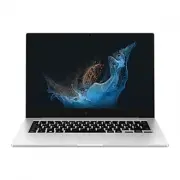 Samsung Book2 Go
User Manual
Samsung Book2 Go
User Manual
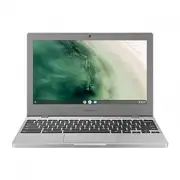 Samsung Chromebook 4
User Manual
Samsung Chromebook 4
User Manual
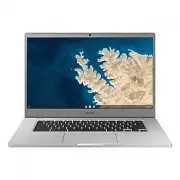 Samsung Chromebook 4+
User Manual
Samsung Chromebook 4+
User Manual
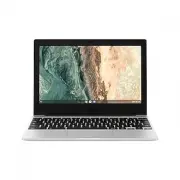 Samsung Chromebook Go
User Manual
Samsung Chromebook Go
User Manual
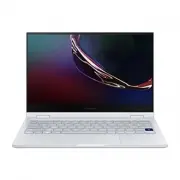 Samsung Galaxy Book Flex
User Manual
Samsung Galaxy Book Flex
User Manual
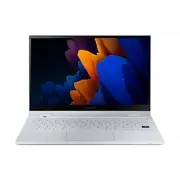 Samsung Galaxy Book Flex2
User Manual
Samsung Galaxy Book Flex2
User Manual
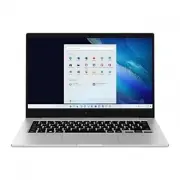 Samsung Galaxy Book Go
User Manual
Samsung Galaxy Book Go
User Manual
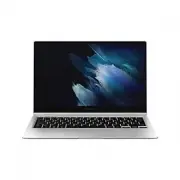 Samsung Galaxy Book Pro 360
User Manual
Samsung Galaxy Book Pro 360
User Manual
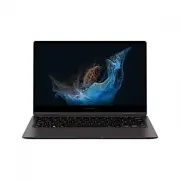 Samsung Galaxy Book2 360
User Manual
Samsung Galaxy Book2 360
User Manual
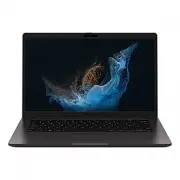 Samsung Galaxy Book2 Business (NP641BED)
User Manual
Samsung Galaxy Book2 Business (NP641BED)
User Manual
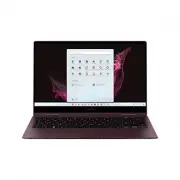 Samsung Galaxy Book2 Pro 360
User Manual
Samsung Galaxy Book2 Pro 360
User Manual
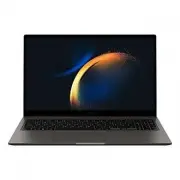 Samsung Galaxy Book3
User Manual
Samsung Galaxy Book3
User Manual
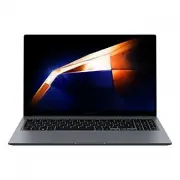 Samsung Galaxy Book4
User Manual
Samsung Galaxy Book4
User Manual
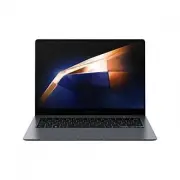 Samsung Galaxy Book4 Pro
User Manual
Samsung Galaxy Book4 Pro
User Manual
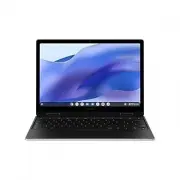 Samsung Galaxy Chromebook 2 360
User Manual
Samsung Galaxy Chromebook 2 360
User Manual
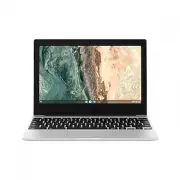 Samsung Galaxy Chromebook Go
User Manual
Samsung Galaxy Chromebook Go
User Manual
 Samsung NP270E5E-X01TR
User Manual
Samsung NP270E5E-X01TR
User Manual
 Samsung NP270E5E-X03DE
User Manual
Samsung NP270E5E-X03DE
User Manual