Page 2 - Getting Started
Chapter 1. Getting Started Product Features 2 Before You Start 3 Contents 7 Safety Precautions 8 Proper Posture During Computer Use 24 Important Safety Information 27 Replacement Parts and Accessories 30 Regulatory Compliance Statements 33 WEEE SYMBOL INFORMATION 48 Overview 50 Turning the Computer ...
Page 3 - Efficient Parts; Versatile and Convenient Use; Optional items may be changed or may not be; Product Features
PC in Hand Improved portability through its compact size and lightweight design Slim, Polished Design Small but Powerful PC An Intel “Atom” Processor with Low Power Consumption and Low Heat Extended Use Time through the use of Power- Efficient Parts Versatile and Convenient Use A Camera Mo...
Page 4 - Before You Start; same as your own environment.; Safety Precaution Notations; Icon; Caution; Failing to follow instructions marked with this symbol, may
Before You Start Before reading the User Guide, first check the following information. Optional items, some devices and software referred to in the User Guide may not be provided and/or changed by upgrade. Note that the computer environment referred in the User Guide may not be the same as your ow...
Page 5 - Text Notations; Content included in this section includes information required; Copyright; the performance of the product.; Precautions for Operating System Support
Text Notations Icon Notation Description Before You Start Content included in this section includes information required before using a function. Caution Content included in this section includes information required about the function. Note Content included in this section includes helpful informat...
Page 6 - About HDD Capacity Representation
Performance Restrictions z Online games and some games(D,D) may not be supported and Full HD video and some high bit rate HD video playback may be slow and stutter on this computer. x There is one memory slot provided on this computer. It supports GB memory max. To upgrade to GB memory, replace the ...
Page 7 - Recovery Solution Representation (Optional); comprises of the OS and application programs.; different from the product specifications.; different size of applied programs.
Recovery Solution Representation (Optional) Q. What is a Recovery Area? A. - Samsung computers have an additional partition to recover computers or save backup files. (Only for models with the Samsung Recovery Solution.) This partition is called a Recovery Area and it includes a recovery image that ...
Page 8 - Contents; Chapter 1. Getting Started; Product Specifications
7 Contents Chapter 1. Getting Started Product Features 2 Before You Start 3 Contents 7 Safety Precautions 8 Proper Posture During Computer Use 24 Important Safety Information 27 Replacement Parts and Accessories 30 Regulatory Compliance Statements 33 WEEE SYMBOL INFORMATION 48 Overview 50 Turning th...
Page 9 - Safety Precautions; Warning; Installation Related; electric shock. Use the
8 Safety Precautions For your security and to prevent damage, please read the following safety instructions carefully. Since these are commonly applied to Samsung Computers, some figures may differ from the actual product. Warning Failing to follow instructions marked with this symbol may cause pers...
Page 10 - If the vent is blocked,; The power plug and; Power Related
Warning Failing to follow instructions marked with this symbol may cause personal injury and even fatality. Avoid exposing any part of your body to the heat from the computer vent or AC adapter for a long time when the computer is on. Exposing a part of your body close to the heat from the vent or A...
Page 11 - firmly into the power; in electric shock or fire.
10 If the power cord or power outlet makes a noise, disconnect the power cord from the wall outlet and contact a service center. This may result in electric shock or fire. Do not use a damaged or loose main plug or power cord or power outlet. This may result in electric shock or fire. Plug the power...
Page 12 - to the AC adapter firmly.; danger of fire due to an; AC Adapter Usage Precautions; result in electric shock or
11 Connect the power cord to the AC adapter firmly. Otherwise, there is a danger of fire due to an incomplete contact. Use only the AC adapter supplied with the product. Using another adapter may cause the screen to flicker. Do not place heavy objects or step onto the power cord or AC adapter to avo...
Page 13 - an explosion or fire.; such as room with floor; Take care that the; Battery Usage Related
1 Keep the battery out of the reach of infants and pets, as they could put the battery into their mouths. There is a danger of electric shock or choking. Authorized Parts Use an authorized battery and AC adapter only. Please use an authorized battery and adapter approved by Samsung Electronics. Unau...
Page 14 - Power Off; danger of fire. Shut the; fire. Do not put or use the
1 Do not use the computer in a humid location such as a bathroom or sauna. Please use the computer within the recommended temperature and humidity range (10~ 5 ºC, 0~80% RH). Power Off Do not close the LCD panel and put the computer into your bag to move it when it is still turned on. If you put the...
Page 16 - container filled with water; Usage Related
1 Disconnect all cables connected to the computer before cleaning it. If you are cleaning a notebook computer, remove the battery. There is a danger of electric shock or damage to the product. Do not connect a phone line connected to a digital phone to the modem. There is a danger of a electric shoc...
Page 17 - Upgrade Related; choking. If a child has
1 Upgrade Related Never disassemble the power supply or AC adapter. There is a danger of electric shock. When removing the RTC (Real Time Clock) battery, keep it out of the reach of children as they could touch and/or swallow it. There is a danger of choking. If a child has swallowed it, contact a d...
Page 18 - Custody and Movement Related; magnetic fields include; against the notebook
17 Custody and Movement Related Follow the instructions for the relevant location (e.g. airplane, hospital, etc.) when using a wireless communication device (wireless LAN, Bluetooth, etc.). Avoid exposing a drive to magnetic fields. Security devices with magnetic fields include airport walk-through ...
Page 19 - cause electric shock or fire.
18 Caution Failing to follow instructions marked with this symbol may cause slight injury or damage to the product. Installation Related Battery Usage Related Do not block the ports (holes), vents, etc. of the product and do not insert objects. Damage to a component within the computer may cause ele...
Page 20 - There is a danger of fire.
1 Use only a battery authorized by Samsung Electronics. Failing to do so may cause an explosion. Avoid contact with metal objects such as car keys or clips when keeping or carrying a battery. Contact with a metal may cause excessive current and a high temperature and may damage the battery or cause ...
Page 22 - Do not insert your fingers; electric shock or fire.
1 Upgrade Related Do not use a damaged or modified CD/Floppy Disk. There is a danger of damaging the product or personal injury. Do not insert your fingers into the PC Card Slot. There is a danger of injury or electric shock. Use recommended computer cleansing solution when cleaning the product and ...
Page 23 - connected cables first.; traffic accident. Please
Use parts authorized by Samsung Electronics only. Failing to do so, may cause fire or damage the product. Never disassemble or repair the product by yourself. There is a danger of electric shock or fire. To connect a device that is not manufactured or authorized by Samsung Electronics, enquire at yo...
Page 24 - Cautions on Preventing Data Loss (Hard Disk Management); Take care not to damage the data on a
Cautions on Preventing Data Loss (Hard Disk Management) Take care not to damage the data on a hard disk drive. A hard disk drive is so sensitive to external impact that an external impact may cause loss of data on the surface of the disk. Take extra care, because moving the computer or an impact...
Page 25 - Proper Posture; Adjust the heights of desks and chairs; Proper Posture During Computer Use; the coverage of general users.
Proper Posture Adjust the heights of desks and chairs appropriate to your height. The heights are to be adjusted so that your arm forms a right angle when you place your hand over the keyboard while sitting down on a chair. Adjust the height of chair so that your heel is comfortably placed on the fl...
Page 26 - Eye Position; Keep the monitor or LCD away from; Hand Position; Keep your arm at a right angle as; keyboard while typing.
Eye Position Keep the monitor or LCD away from your eyes by at least 50cm. 0cm Adjust the height of the monitor and the LCD screen so that its top height is equal to or lower than your eyes. Avoid setting the monitor and LCD excessively bright. Keep the monitor and LCD screen clean. If you w...
Page 27 - Volume Control; Check your volume first to listen to; Check your; Illumination
Volume Control (Headphones and Speakers) Check your volume first to listen to music. Check your volume!! Check if the volume is too loud before using headphones. It is not recommended using headphones for long periods of time. Any deviation from the equalizer default setting could cause hearin...
Page 28 - Safety Instructions; Always follow these instructions to; Setting Up your System; Important Safety Information
7 Safety Instructions Your system is designed and tested to meet the latest standards for safety of information technology equipment. However, to ensure safe use of this product, it is important that the safety instructions marked on the product and in the documentation are followed. Always follow t...
Page 29 - Care During Use; Do not walk on the power cord or allow anything to rest on it.
8 Care During Use Do not walk on the power cord or allow anything to rest on it. Do not spill anything on the system. The best way to avoid spills is to not eat or drink near your system. Some products have a replaceable CMOS battery on the system board. There is a danger of explosion if the C...
Page 30 - The Instruction On Safety Operation of NotePC; specifications of the devices.
The Instruction On Safety Operation of NotePC z When installing and operating devices please refer to safety requirements in the user guide. x Devices can be used only with the equipment specified in the technical specifications of the devices. c If any smell of burning or smoke is detected from the...
Page 31 - Battery Disposal; rechargeable batteries in the garbage.; cannot use or recharge any longer.; THERE IS A RISK OF EXPLOSION IF BATTERY IS REPLACED BY AN; Replacement Parts and Accessories
0 Battery Disposal Do not put rechargeable batteries or products powered by non-removable rechargeable batteries in the garbage. Contact the Samsung Helpline for information on how to dispose of batteries that you cannot use or recharge any longer. Follow all local regulations when disposing of old ...
Page 32 - Laser Safety; an authorized service location.; Class 1M laser radiation when operating part is open.; Connect and Disconnect the AC adapter; Do not unplug the power cord out by pulling the cable only.
1 Laser Safety All systems equipped with CD or DVD drives comply with the appropriate safety standards, including IEC 60825-1. The laser devices in these components are classified as “Class 1 Laser Products” under a US Department of Health and Human Services (DHHS) Radiation Performance Standard. Sh...
Page 33 - Power Cord Requirements; contact your authorized dealer, reseller, or service provider.; General Requirements; The requirements listed below are applicable to all countries:
Power Cord Requirements The power cord set (wall plug, cable and AC adapter plug) you received with your computer meets the requirements for use in the country where you purchased your equipment. Power cord sets for use in other countries must meet the requirements of the country where you use the c...
Page 34 - Regulatory Compliance Statements; Wireless Guidance; operating a wireless device.
Regulatory Compliance Statements Wireless Guidance (If fitted with 2.4G band or 5G band) Low power, Radio LAN type devices (radio frequency (RF) wireless communication devices), operating in the .GHz/GHz Band, may be present (embedded) in your notebook system. The following section is a general over...
Page 36 - Use in specific environments:; Explosive Device Proximity; the device has been modified to be; Use On Aircraft Caution; Other Wireless Devices; Any changes or modification to said; United States of America
USA and Canada Safety Requirements and Notices Do not touch or move antenna while the unit is transmitting or receiving. Do not hold any component containing the radio such that the antenna is very close or touching any exposed parts of the body, especially the face or eyes, while transmitting. Do n...
Page 37 - Unintentional Emitter per FCC Part; The user may find the following booklet
Unintentional Emitter per FCC Part 15 This device complies with Part 1 of the FCC Rules. Operation is subject to the following two conditions:(1) this device may not cause harmful interference, and () this device must accept any interference received, including interference that may cause undesired ...
Page 38 - Intentional emitter per FCC Part 15; system are only qualified for use in the; Wireless devices are not user; of the FCC rules. On the back of this
7 Intentional emitter per FCC Part 15 (If fitted with 2.4G band or 5G band) Low power, Radio LAN type devices (radio frequency (RF) wireless communication devices), operating in the .GHz/GHz Band, may be present (embedded) in your notebook system. This section is only applicable if these devices are...
Page 40 - Unintentional Emitter per ICES-003; Canada; of 1991 makes it unlawful for any person
Unintentional Emitter per ICES-003 This digital apparatus does not exceed the Class B limits for radio noise emissions from digital apparatus as set out in the radio interference regulations of Industry Canada. Le présent appareil numérique n’émet pas de bruits radioélectriques dépassant les limites...
Page 41 - Intentional Emitter per RSS 210; system are only qualified for use in; any way. Modification to a wireless
0 Intentional Emitter per RSS 210 (If fitted with 2.4G band or 5G band) Low power, Radio LAN type devices (radio frequency (RF) wireless communication devices), operating in the .GHz/GHz Band, may be present (embedded) in your notebook system. This section is only applicable if these devices are pre...
Page 42 - To avoid electrical shock or; Ringer Equivalence Number; Brazil
1 Telecommunications per DOC notice (for products fitted with an IC-compliant modem) The Industry Canada label identifies certified equipment. This certification means that the equipment meets certain telecommunications network protective, operation, and safety requirements. The Department does not ...
Page 43 - European Union are marked with the; European Directives; Samsung Electronics Suzhou; European Union
European Union CE Marking and Compliance Notices Products intended for sale within the European Union are marked with the Conformité Européene (CE) Marking, which indicates compliance with the applicable Directives and European standards and amendments identified below. This equipment also carries t...
Page 44 - for specific countries or regions
European Radio Approval Information (for products fitted with EU-approved radio devices) This Product is a Notebook computer; low power, Radio LAN type devices (radio frequency (RF) wireless communication devices), operating in the .GHz/GHz band, may be present (embedded) in your notebook system whi...
Page 45 - EU R&TTE Compliance Statements; Česky; Übereinstimmung mit den grundlegenden Anforderungen und den; Ελληνική; conforme aux exigences essentielles et aux autres dispositions; Lietuvių
EU R&TTE Compliance Statements Česky [Czech] Samsung tímto prohlašuje, že tento Notebook PC je ve shodě se základními požadavky a dalšími příslušnými ustanoveními směrnice 1//ES. Dansk [Danish] Undertegnede Samsung erklærer herved, at følgende udstyr Notebook PC overholder de væsentlige krav og ...
Page 46 - requisitos essenciais e outras disposições da Directiva 1//CE.
Nederlands [Dutch] Hierbij verklaart Samsung dat het toestel Notebook PC in overeenstemming is met de essentiële eisen en de andere relevante bepalingen van richtlijn 1//EG. Malti [Maltese] Hawnhekk, Samsung, jiddikjara li dan Notebook PC jikkonforma mal- ħtiāijiet essenzjali u ma provvedimenti oħra...
Page 47 - designed for use only in specific; General
European Economic Area Restrictions Local Restriction of 802.11b/802.11g Radio Usage [Note to integrator: The following statements on local restrictions must be published in all end-user documentation provided with the system or product incorporating the wireless product.] Due to the fact that the f...
Page 48 - France; European Telecommunication; Marking by the symbol
7 France For Metropolitan departments: .00 - .8 GHz for indoor use. .00 - . GHz (channels 1 to 7) for outdoor use.For Guadeloupe, Martinique, St Pierre et Miquelon, Mayotte: .00 - .8 GHz for indoor and outdoor use.For Reunion, Guyane: .00 - .8 GHz for indoor use. .0 - .8 GHz for outdoor use (channel...
Page 49 - WEEE SYMBOL INFORMATION; Correct disposal of this product; sustainable reuse of material resources.
8 WEEE SYMBOL INFORMATION Correct disposal of this product (Waste Electrical & Electronic Equipment) (Applicable in the European Union and other European countries with separate collection systems.) This marking on the product, accessories or literature indicates that the product and its electro...
Page 50 - Correct disposal of batteries in this product; Pb; USA ONLY; cells in the product sold or distributed ONLY in California USA.
Correct disposal of batteries in this product Pb (Applicable in the European Union and other European countries with separate battery return systems.) This marking on the battery, manual or packaging indicates that the batteries in this product should not be disposed of with other household waste at...
Page 51 - Overview; Front View; Using this lens, you can take still pictures and record video.
0 Overview Front View 1 Camera Lens (Optional) Using this lens, you can take still pictures and record video. 2 Keyboard A device to enter data by pressing the keys. 3 Touchpad/Touchpad Buttons The touchpad and touchpad buttons provide functions similar to the mouse ball and buttons. 4 Power Switch ...
Page 52 - Status Indicators; Caps Lock; This turns on when the Caps Lock key is pressed allowing capital; Hard Disk Drive; Indicates that the hard disk drive is running.; Wireless LAN
1 Status Indicators 1 Caps Lock This turns on when the Caps Lock key is pressed allowing capital letters to be typed without holding the Shift button down. 2 Hard Disk Drive Indicates that the hard disk drive is running. 3 Wireless LAN This turns on when the wireless LAN is operating. 4 Charge Statu...
Page 53 - Right View; Wireless LAN Switch; In models with a wireless LAN function, first make sure that; USB Port; You can connect USB devices to the USB port such as a; Monitor Port; A port used to connect a monitor, TV or projector; Security Lock Port; You can connect a Kensington lock to the Security Lock
Right View 1 Wireless LAN Switch (Optional) In models with a wireless LAN function, first make sure that the wireless LAN function is turned off. 2 USB Port You can connect USB devices to the USB port such as a keyboard/mouse, digital camera, etc. 3 Monitor Port A port used to connect a monitor, TV ...
Page 54 - If the vents are blocked the computer may overheat.; Press the; Advanced > USB Charge In Sleep Mode; set it to; Enable; . Then you can use the Chargeable USB Port feature even in; A jack used to connect the microphone.; Left View
1 DC Jack A jack to connect the AC adapter that supplies power to the computer. 2 Wired LAN Port Connect the Ethernet cable to this port. 3 Fan Vents The internal heat of the computer is emitted through these holes. If the vents are blocked the computer may overheat. Avoid blocking the vents as this...
Page 55 - Back View; Battery; This is a Lithium-Ion rechargeable battery that supplies power to
Back View 1 Battery This is a Lithium-Ion rechargeable battery that supplies power to the computer. 1
Page 56 - Bottom View; Battery Latches; The latch used to remove or install the battery.; Memory Compartment Cover; The main memory is installed inside the cover.; Fan Vents; The internal heat of the computer is emitted through; Speaker; A device used to generate sound.
Bottom View 1 Battery Latches The latch used to remove or install the battery. 2 Sub-Woofer Speaker (Optional) A device used to produce mid and low frequency sound louder. 3 Memory Compartment Cover The main memory is installed inside the cover. 4 Fan Vents The internal heat of the computer is emitt...
Page 57 - Turning the Computer On and Off; Turning the computer on; Fn; key to increase; Turning the computer off; Click the; Save all your data before clicking on; Shut down
Turning the Computer On and Off Turning the computer on 1 Install the battery and connect the AC adapter . 2 Lift the LCD panel up. 3 Slide the Power Switch to turn the computer on. When running the computer on battery power, the LCD brightness is dimmed automatically to save battery power. Press ...
Page 58 - If the model supports HyperSpace; For Windows XP; Start; button on the; Turn Off Computer; Click; Turn Off; Shut
7 If the model supports HyperSpace (Optional) If you shutdown Windows when HyperSpace is running, HyperSpace is also terminated automatically when Windows is shutdown. ▶ For Windows XP 1 Click the Start button on the taskbar. 2 Click Turn Off Computer . 3 Click Turn Off . If the computer has not t...
Page 59 - Using the computer
Chapter 2. Using the computer Keyboard 59 Touchpad 62 Using the Touch Screen (only for touch screen models) 68 External-type CD drive (To be purchased) 77Multi Card Slot (Optional) 79 Connecting a monitor / TV 82 Adjusting the Volume 87 Wired Network 92 Wireless Network (Optional) 96 Using HyperSpac...
Page 60 - Keyboard; The keyboard is supplied according to the corresponding country.; Shortcut Keys; Switches to Sleep mode. To wake the computer up, press the
Keyboard Shortcut key functions and procedures are discussed in the following sections. The keyboard is supplied according to the corresponding country. The keyboard may differ depending on your country. The following mainly describes the shortcut keys. Shortcut Keys You can use the following fu...
Page 61 - in the BIOS Setup. The fan keeps turning; Turns on or off wireless network device in a model equipped
0 Fn+ Name Function Samsung Support Center System diagnosis, recovery and Internet consultation program, Samsung Support Center, will be launched. (Optional) For some models, Samsung Magic Doctor is launched. Easy SpeedUp Manager You can select operation mode when you need maximum system performance...
Page 62 - Name; Turns the numeric keyboard on or off.; Scroll Lock; If you turn the Scroll Lock on, you can scroll the screen up or
1 Screen Brightness Control To adjust the LCD brightness press the Fn + key combination or the Fn + key combination. The changed screen brightness is displayed at the center of the screen for a moment. Volume Control To control the volume, press the Fn + key combination or the Fn + key combination. ...
Page 63 - the touchpad plays the role of the left and right buttons of a mouse.; Windows boot time may be extended.; Touchpad; Basic Touchpad Functions; Moving the cursor on the screen; Place your finger on the touchpad slightly
Touchpad The touchpad provides the same function as a mouse and the left and right buttons of the touchpad plays the role of the left and right buttons of a mouse. Use the Touchpad with your fingers. Using a sharp object may damage the Touchpad. If you touch the Touchpad or press the Touchpad bu...
Page 64 - Click Function; Double-Click Function; or; Right Button Function
Click Function Place your finger on the touchpad and tap your finger once over an item you want. Alternatively, press the left touchpad button once. Tap Click or Double-Click Function Put your finger on the touchpad and quickly tap twice with your finger on an item you want. Alternatively, press the...
Page 65 - The Gesture Function of the Touchpad (Optional); differ from the actual appearance of your computer.; Touchpad Scroll Function; The touchpad scroll area provides the
64 The Gesture Function of the Touchpad (Optional) The Touchpad Gesture function may not be provided and the version of the function may differ depending on the model. Some usage procedures may differ depending on the version. For detailed usage procedures, refer to the description in the Touchp...
Page 66 - Configuring the Gesture Function; Click the Start > Control Panel; To cancel the Gesture function,; OK; The Scroll Function; If you place two fingers over the
65 Using the Touchpad, you can use the following additional Gesture functions. Scroll function Zoom functions Rotation function Move function Configuring the Gesture Function If the Gesture function is not activated, you can activate it according to the following procedures. 1 Click the Star...
Page 67 - Zoom Functions; Rotation Function; Place two fingers over the touchpad and; Move Function; surfing the Internet.
66 Zoom Functions If you place two fingers over the Touchpad together or apart, the current image or text is zoomed in or out. or Zoom-out Zoom-in Rotation Function Place two fingers over the touchpad and move the fingers as follows to rotate the photo or image. or Move Function You can move to the ...
Page 68 - Touchpad On/Off Function; If you want to use the mouse only without; You can set the touchpad and; Control Panel > Hardware and
7 Touchpad On/Off Function If you want to use the mouse only without using the touchpad, you can turn the touchpad off. To lock the touchpad function, press the Fn + keys. You can set the touchpad and touchpad button settings in the tabs that appear when clicking Start > Control Panel > Hardwa...
Page 69 - installed at the factory.; instead of the touch screen is recommended.; Using the Touch Screen
8 Using the Touch Screen (only for touch screen models) You can use the computer using the touch screen only, without using the keyboard and mouse. The touch screen function is only supported for models which have the function installed at the factory. The touch screen operating descriptions are of ...
Page 70 - Learning basic touch screen operations; Touch Operation; To select an item, tap over the item with your; Press and take off; Using the Gesture Function of the
69 Learning basic touch screen operations Touch Operation Function Single-tap (click) To select an item, tap over the item with your finger. This is the same as left-clicking once with a mouse. Double-tap (double-click) To run an item, quickly tap the item twice with your finger. This is the same as...
Page 71 - Predefined Actions; If a function is not in the Predefined
70 If the gesture function of the touch screen is not configured, you can configure it as follows. 1 Double-click the eGalaxGesture icon on the Taskbar. 2 Select Gesture Settings . 3 The Gesture Settings window appears. In the window, click the Gesture Mapping tab and select the operation to be regi...
Page 72 - Screen Calibration; When using the touch screen for the first; Touch > Configure Utility; Points Calibration; and click
71 Screen Calibration When using the touch screen for the first time or the precision of the touch screen has decreased, calibrate the screen using the eGalax Touch program. 1 Click Start > All Programs > eGalax Touch > Configure Utility . 2 Click 4 Points Calibration in the Tools tab. To f...
Page 73 - Touch screen use precautions; Using the touch program; Play Touch; The program name and the figures
7 Touch screen use precautions Use the touch screen with clean and dry hands. In a humid environment, remove the moisture from your hands and the touch screen surface before use. Since the touch screen works properly even if you press it lightly, do not press the screen excessively hard because ...
Page 74 - If you tap over the; icon; Play Touch Start Screen; screen with your fingers, refer to the Help
7 Running the touch program(Play Touch) 1 If you tap over the Play Touch icon on the Desktop twice, Play Touch is launched. ▶ Play Touch Start Screen Home Manager Minimize the program Space location indicator Exit the program Help Move to the previous or next space Loading Home Manager About Space. ...
Page 76 - Click on the required type of icon in Home Manager to create a; in; shortcut icon; by clicking on a required; shortcut
7 2 Click on the required type of icon in Home Manager to create a shortcut icon in the Space. If you create a my shortcut icon by clicking on a required shortcut icon , you can enjoy photos, music or videos more easily with just one touch. To exit the touch program (Play Touch), tap over the button...
Page 77 - Creating My Shortcuts; Click the Photo, Music or Video icon; default shortcut; select a file in Explorer and tap the file; Space; to the file. If you tap; the file specified as the; If you zoom into the; again
7 Creating My Shortcuts (photo, music, video) 1 Click the Photo, Music or Video icon in Home Manager to create a shortcut icon in the Space. 2 Tap over the default shortcut twice, select a file in Explorer and tap the file twice, and the screen is expanded to full screen. 3 Tap over the button at th...
Page 78 - External-type CD drive; Do not insert a cracked or scratched CD.; Connecting the CD Drive; Connect the CD drive to the; USB port
77 External-type CD drive (To be purchased) This computer supports an external USB CD-ROM drive (can be additionally purchased). Check if the interface type of the external CD-ROM drive is a USB type. For detailed specifications, refer to the catalog. Do not insert a cracked or scratched CD. Other...
Page 79 - Inserting and Ejecting a CD; Eject; button of the CD; does not work or the computer is
78 Inserting and Ejecting a CD 1 Press the Eject button of the CD drive. Status Indicator Eject Button Emergency Hole 2 When the CD tray opens, insert a CD or DVD and push the tray in until it clicks. 3 Push the CD tray inward until it clicks. The CD drive status indicator is turned on. A CD drive...
Page 80 - Multi Card Slot; depending on your requirements.; To Insert and Use a Memory Card; Insert the card into the multi card slot
7 Multi Card Slot (Optional) Using the multi card slot, you can read and write data from and to an SD card, SDHC card, MMC. You can use a card as a removable disk and conveniently exchange data with digital devices such as a digital camera, digital camcorder, MP, etc. You have to additionally purc...
Page 81 - The card drive appears. Click; Open; If the window does not appear, click; Computer; You can save, move and delete data; Using a Mini SD and RS-MMC; Samsung recommends checking the
80 2 The card drive appears. Click Open folder and view files . If the window does not appear, click Start > Computer . (For Windows XP, click Start > My Computer .) 3 You can save, move and delete data by double-clicking the corresponding drive. The device name of the card drive may differ de...
Page 82 - To remove a memory card; Take hold of the end of the card and; To format a memory card; When using the memory card for the first; includes data, backup the data; Right-click over a card drive with the; Format; is in the Lock position.
81 To remove a memory card Take hold of the end of the card and remove the card. To format a memory card When using the memory card for the first time, you must format the card before using it. Formatting a card deletes all data saved on the card. If the card includes data, backup the data before fo...
Page 83 - Connecting a monitor / TV; watching a video or movie through your monitor.; You have to buy a connection cable additionally.; Connecting to the Monitor / TV; Connecting to the Monitor port
8 Connecting a monitor / TV Using an external display device is useful when you are giving a presentation or watching a video or movie through your monitor. You have to buy a connection cable additionally. Due to restrictions of the operating system the DualView function is not supported for Win...
Page 84 - key combination; Easy Display Manager; screen appears in which you can select a; Dual View; LCD; Viewing Through a Monitor / TV; You can switch the display device using the shortcut key.
8 Switching the Display Device using the Shortcut Key Press the Fn + key combination once. Then the Easy Display Manager screen appears in which you can select a display device.Whenever you press the key while holding down the Fn key, the selected option is changed. Example) Selecting LCD+CRT Dual V...
Page 85 - Using Dual View to View Extended Screen; Selecting Dual View
8 Using Dual View to View Extended Screen Dual View is a function that enables you to view a computer screen over two display devices. This is convenient when needing a wide screen for work. In Dual View mode, you can select the screen resolution and color quality for each display device, as if ther...
Page 86 - If the resolution of the auxiliary; Appearance and Personalization
8 Adjusting the resolution of the auxiliary display device (Monitor Number 2) If the resolution of the auxiliary display device is output, you can adjust the resolution and color quality by clicking Start > Control Panel > Appearance and Personalization > Adjust screen resolution > Monit...
Page 87 - If the screen of the secondary; Using Window in Dual View; the auxiliary display device (monitor; Canceling Dual View; select
8 Adjusting the resolution of the auxiliary display device (Monitor Number 2) If the screen of the secondary display device is displayed, change the settings to the desired screen resolution and color quality in the [Display Properties] dialog box. Using Window in Dual View Click on the window title...
Page 88 - Mute; Adjusting the Volume
87 Adjusting the Volume using the Keyboard Press the Fn + key combination or Fn + key combination to adjust the volume. Press the Fn + key combination to turn the volume on or off. Adjusting the Volume using the Volume Adjustment Program Click the Volume icon on the taskbar and slide the volume cont...
Page 89 - Using SRS; This function is available for specific; Right-click over the
88 Using SRS The SRS function enables you to experience more stereophonic sound by expanding the space-perception through the stereo speaker. This function is available for specific models only. ▶ For Windows 7 1 Right-click over the Volume icon in the Taskbar and select Play Device (P). 2 Select Sp...
Page 91 - Using Recorders
0 ▶ For Windows 7 1 Connect a microphone to the microphone jack. You can also use the internal MIC. 2 Right-click over the Volume icon on the taskbar and select Recording Device . 3 Check if the microphone is set as the default recording device.If this is the case, it is already set as the default d...
Page 92 - The default recording duration of
1 4 Select Realtek HD Audio input from the mixer device to select Recording from Adjust Volume for. 5 Select Mic Volume from Show the following volume controls and click OK . 6 When Recording Control window appears, check the Select checkbox. Increase the recording volume to increase the recording s...
Page 93 - Wired Network; internet connection at home.
1 Connect a LAN cable to the computer’s LAN port. 2 ▶ For Windows 7 Click Start > control Panel > Network and Internet > Network and Sharing Center and click Change adapter settings in the left menu pane. ▶ For Windows XP Click Start > Control Panel > Network and Internet Connections ...
Page 94 - click the right button of the touch pad; The LAN Device name may differ; tab and click; The displayed LAN driver may; Install; to add a network
3 Select Local Area Connection and click the right button of the touch pad and select Properties . The LAN Device name may differ depending on your computer’s Network Device. 4 ▶ For Windows 7 Select Internet Protocol Version 4 (TCP/IPv4) from the Networking tab and click Properties . ▶ For Windows ...
Page 95 - Using both DHCP and a fixed IP; Alternate Configuration
5 Configure IP settings. Select Obtain an IP address automatically when using DHCP. If you use a static IP, select Use the following IP address and enter the values. If the IP of your computer is not automatically assigned, contact the network administrator. 6 If all settings are made, click OK . No...
Page 96 - corresponding fields and click the
3 For Windows 7, select Internet Protocol Version 4 (TCP/IPv4) from the Networking tab and select Properties . For Windows XP, select Internet Protocol (TCP/IP) and click Properties . 4 Select the Alternate Configuration tab, select User configured , fill in the corresponding fields and click the OK...
Page 97 - Wireless Network; without using LAN cables between them.; To use wireless LAN, you have to turn the wireless LAN device on.; Connecting to Wireless LAN; provided images may differ from the actual screen images.
Wireless Network (Optional) A wireless network allows computers to share resources or an internet connection without using LAN cables between them. This description is applied only to the models equipped with wireless LAN cards or devices. Some of the pictures shown in this description may vary ...
Page 98 - For the network key, please ask your; When
7 ▶ For Windows 7 1 If you click the Network Connections icon in the system tray, a list of available APs appears. If you select an AP to connect to, the Connect button appears. AP List 2 Click Connect . If a network key is set for the AP, enter the network key and then click Connect . For the netwo...
Page 99 - To check the network connections
8 ▶ For Windows XP 1 Click the Wireless Network Connection icon from the Taskbar using the right button of the touch pad. Then, click View Available Wireless Networks . 2 Select an AP to be connected and click Connect . If a network key is set in the AP, the network key input window will appear. Ent...
Page 100 - Using HyperSpace; HyperSpace; appears when clicking; Starting Hyperspace; You can start HyperSpace as follows; running it for the first time, you; When the computer is turned off,; Turn the computer on. When the; key until the HyperSpace screen; After a moment, the HyperSpace
Using HyperSpace (Optional) HyperSpace is a space that enables you to enjoy multimedia content such as the Internet, news, music, videos, and social networking sites through fast Linux-based booting. For more information about the HyperSpace functions, refer to the online help that appears when clic...
Page 101 - Exiting Hyperspace; Click the power icon; Sleep Mode; Windows, Windows is shutdown first and then
100 ▶ When Windows is running: 1 Double-click the Switch to HyperSpace icon on the Desktop and click Boot HyperSpace Now > Restart Now . 2 When the computer is restarted, the HyperSpace screen appears. Exiting Hyperspace 1 Click the power icon > Shutdown at the top left of the screen. 1 Sleep ...
Page 102 - Switching to Windows; To switch to Windows from HyperSpace, click the Windows icon; Screen Layout; HyperSpace Desktop Screen
101 Switching to Windows To switch to Windows from HyperSpace, click the Windows icon . If Windows is not currently running, it will take longer to boot up Windows. Screen Layout HyperSpace Desktop Screen The HyperSpace Desktop screen is the computer’s workspace and has the following layout. 1 6 2 5...
Page 103 - Notification; : Select to bookmark the current screen.
10 1 Start Menu : Select to switch to the main screen. : Select to show the power options. : Select to switch to Windows. 2 Notification Area : Select to bookmark the current screen. : Select to setup the power settings. : Select to setup the volume settings. : Select to setup the wired/wireless net...
Page 104 - Window; The items and names may differ depending on the model.; Find folders and files
10 Window Click Apps > Files to launch the browser. You can view the folders and files of the HDD drives and external devices recognized by Windows. The items and names may differ depending on the model. Find folders and files Notification Area Close the window Minimize the window Icon View Setti...
Page 105 - Network Setting; Setting Up the Wired Network; Connect the LAN cable to the wired; Advanced; When DHCP is not supported, ask
10 Network Setting Some of the procedures may differ depending on the version of the operating system. In addition, the figures of the screens may differ from the actual screens. Setting Up the Wired Network 1 Connect the LAN cable to the wired LAN port. 2 Click the network icon . 3 When the Network...
Page 106 - Setting Up the Wireless Network; Ask your network administrator for; Using Applications; Playing Music and Video Files; File; For more information on how to use
10 Setting Up the Wireless Network If there is an AP nearby, you can access the Internet simply by setting up the wireless LAN. 1 Click the network icon . 2 When the Network Setup Wizard appears, click Advanced . If you select the Wireless tab, available APs are listed. Click over an AP to connect a...
Page 107 - Using the Internet/Chatting; After connecting to the network, click; Skype; The web browser may fail to open; Changing the Language Setting; Restart Now; The language of HyperSpace is changed
10 Using the Internet/Chatting After connecting to the network, click Apps > Web to access the Internet. In addition, you can use the video or text chatting function by clicking Apps > Skype . The web browser may fail to open some web sites that use ActiveX. In this case, open the web site in ...
Page 108 - HDD Protection Function; The HDD protection function is activated.
107 HDD Protection Function (Optional) This function is to protect the HDD from external shocks while it is operating, by using the -axis sensor. This function is only provided for models that are shipped from the factory with this function. Through the icon colors, the HDD protection status can be ...
Page 109 - guaranteed for all circumstances.
108 If external movement (e.g. if a user moves or the vehicle carrying the computer moves) is detected while the HDD is in operation such as watching a video or copying data, the current operation and the HDD are stopped accordingly. If the external movement stops, the paused operation resumes aft...
Page 110 - Settings and Upgrade
Chapter 3. Settings and Upgrade LCD Brightness Control 110 BIOS Setup 112 Setting a Boot Password 115 Changing the Boot Priority 118 Upgrading Memory 119 Battery 121 Using the Security Lock Port 126
Page 111 - LCD Brightness Control; You can adjust the LCD brightness in 8 levels.; Controlling the Brightness Using the Keyboard; Adjust the LCD brightness by pressing the; key or the; when pressing the; key when the SAMSUNG logo appears
110 LCD Brightness Control You can adjust the LCD brightness in 8 levels. Controlling the Brightness Using the Keyboard Adjust the LCD brightness by pressing the Fn + key or the Fn + key. The LCD brightness can change up to 8 levels and the brightness increases by 1 level when pressing the Fn + key ...
Page 112 - Instructions for Cleaning the LCD; detergent moving in one direction.
111 Instructions for Cleaning the LCD Clean the LCD panel with a soft cloth lightly moistened with computer cleansing detergent moving in one direction. Cleaning the LCD panel with excessive force can damage the LCD.
Page 113 - BIOS Setup; when configuring the BIOS.; Entering the BIOS Setup; Turn the computer on.; After a moment, the BIOS setup
11 BIOS Setup The BIOS Setup enables you to configure your computer hardware according to your needs. Use the BIOS setup to define a boot password, change the booting priority, or add a new device. Since incorrect settings may cause your system to malfunction or crash, take care when configuring t...
Page 114 - The BIOS Setup Screen; Used to configure security functions, including passwords.
11 The BIOS Setup Screen System Time [10:21:53] System Date [07/30/200X] SATA Port 1 XXXXXXXX CPU Vendor CPU Type XXXXXXXX CPU Speed X.XX GHz Total Memory XXX MB BIOS Version XXXXXXXX MICOM Version XXXXXXXX XXXXXXXX Setup Menu Setup Items Help Help for the selected item appears automatically. Setup ...
Page 115 - System Setup Keys; In the Setup, you have to use the keyboard.; The keyboard image and color may differ from the actual keyboard.
11 System Setup Keys In the Setup, you have to use the keyboard. F1 Press to view the Setup Help. Up & Down Keys Press to move up and down. F5/F6 Press to change the item value. F9 Press to load the default Setup settings. ESC Press to return to a higher level menu or to move to the Exit menu. L...
Page 116 - Setting a Supervisor Password; Security; Setting a Boot Password; protect data and files saved on the computer.; Do not lose or forget your password.
11 Setting a Supervisor Password A Supervisor Password is required to turn the computer on or to start the System Setup. When setting a Supervisor Password, users other than supervisors cannot use the computer. 1 Select the Security menu in the BIOS Setup. 2 In the Set Supervisor Password item, pres...
Page 118 - Setting up a Hard Disk Drive; If you set a password for a hard disk; The hard disk drive password setting; Deactivating the Password; item, enter the currently configured; Confirm New Password
117 Setting up a Hard Disk Drive Password (Optional) A supervisor password must be set using the Set Supervisor Password menu. If you set a password for a hard disk drive, it cannot be accessed from another computer. Press < Enter > in the Set HDD Password item and define a password as describ...
Page 119 - IDE HDD; key; key to save the settings; Changing the Boot Priority; the hard disk drive first.
118 1 Select the Boot menu in the BIOS Setup. 2 Press < Enter > on the Boot Device Priority item. XXXXXXXX 3 Press the down key (↓) to move to the IDE HDD item and press the F6 key to move the item to the top. [Boot priority order] 1. USB CD : N/A 2. IDE HDD : XXXXXXXX 3. PCI BEV : N/A 4. USB ...
Page 120 - Upgrading Memory; replace memory when the computer is in Sleep mode.; Replacing the Memory; Fixing Screw
11 Upgrading Memory A memory is installed in the memory slot at the bottom of this computer. The procedures to replace the memory are described below. Replace new memory only after shutting the computer down completely. Do not replace memory when the computer is in Sleep mode. Disconnect main po...
Page 122 - without connecting the AC power.; Precautions; Use only chargers specified in the User Manual.; Installing/Removing the Battery
11 Battery Please refer to the following instructions when running the computer on battery power without connecting the AC power. A Lithium-Ion smart battery is supplied with this computer. Carefully read and follow the precautions printed on the battery before using the battery. Precautions Use o...
Page 123 - Pull the two battery latches; outwards; To install the battery again, slide the; Check if the battery latch has been; Charging the Battery; Attach the battery and connect the; Amber
1 2 Pull the two battery latches outwards , then remove the battery. x z z 3 To install the battery again, slide the battery into the system.The battery latches move inwards and fix the battery automatically. Check if the battery latch has been moved inwards. Charging the Battery 1 Attach the batter...
Page 124 - Measuring the Remaining Battery Charge; To use the shortcut key to view; keys on the; Battery Warning; If the battery residual amount is; Confirming the battery charge in; system tray of the Taskbar to confirm the; Battery Lifetime Information
1 Measuring the Remaining Battery Charge You can view the battery charge status by completing the following procedures. To use the shortcut key to view Press the Fn + keys on the keyboard. The remaining battery charge (%) will displayed for a moment. You can only view the charge status in this way w...
Page 125 - Extending the Battery Usage Time; Decreasing the LCD Brightness; keys on the keyboard; Disabling Unused Devices; Click Device Manager from; Right-click the devices that you are; Disable; Using the Battery Calibration
1 Extending the Battery Usage Time Decreasing the LCD Brightness Press the Fn + keys on the keyboard to decrease the LCD brightness to extend the battery usage time. Disabling Unused Devices (Only for Windows XP) If you turn off unused devices, battery usage time will improve. 1 Click Device Manager...
Page 126 - Calibration Confirmation
1 3 Move to the Boot > Smart Battery Calibration item using the direction keys and press < Enter >. XXXXXXXX 4 Highlight Yes in the Battery Calibration Confirmation window and press < Enter >. The Battery Calibration function is activated and the battery is forcefully discharged. To s...
Page 127 - Using the Security Lock Port; Kensington lock, refer to the product manual.
1 Using the Security Lock Port You can connect a Kensington lock to the Security Lock port to prevent your computer from being stolen when you need to use the computer in a public place. To use this feature, you must purchase a Kensington lock additionally. To use the Kensington lock, refer to the p...
Page 128 - Troubleshooting; Using Samsung Recovery Solution
Chapter 4. Troubleshooting Using Samsung Recovery Solution (Optional) 128 Reinstalling Windows 7 (For Windows 7. For supported models only) 143 Reinstalling Windows XP (For Windows XP, For supported models only) 148 Questions and Answers 152 Windows Related 1 Display Related 1 Sound Related 17 Wired...
Page 129 - is a program that can; backup; your hard disk and; restores; software programs needed for your system to function properly.; Samsung Recovery Solution; may not be provided or the version may differ
18 Using Samsung Recovery Solution (Optional) Samsung Recovery Solution is a program that can backup your hard disk and restores it later when a problem occurs with your computer. It also provides a System Software function that enables you to install or backup device drivers and system software pro...
Page 130 - Samsung Recovery Solution Functions; A function that backs up the data; The system software function is; Samsung Recovery; function may not be supported depending
1 Samsung Recovery Solution Functions Restore: A function that restores the computer to a previous state after a problem occurs Backup : A function that backs up the data on the computer System Software: A function that reinstalls or backs up device drivers and application programs needed for the sy...
Page 131 - Restore Function; This function quickly; Backup Function; You can backup the entire C drive or all your data to another; hard disk drive; DVD
10 Restore Function Using this function, you can easily restore your computer to a previous, stable state when your computer no longer works properly or you are unable to boot up your computer due to some problem. If you have backed up data, you can restore the backup data. Basic Restore Complete ...
Page 132 - System Software function; This function installs the system
11 Backup Functions This function backs up the initial status of the computer. Initial Status Backup This function backs up specific folders or files. Data Backup This function backs up the entire drive C. Complete Backup System Software function You can back up the System Software saved on the ha...
Page 133 - Partition Setup & Initial Status; Partition Setup; The Partition Setup function is only; Initial Status Backup
1 Restore Function Not only can you use Samsung Recovery Solution when Windows is running, but also when you are unable to boot up into Windows. Let’s learn how to use Samsung Recovery Solution. Some models provide a backup image of the initial state and do not provide partitioning. Partition Setup ...
Page 134 - Restoring the computer; For computers supporting the touch; click; If you click; Select by Symptom; the Select by Symptom menu; Windows files only while maintaining
1 Restoring the computer Restore is a function that enables restoring the computer to a saved point when the computer was purchased or a user-saved point. The Restore function provides the Basic Restore and Complete Restore options. 1 – When Windows is running: Click Start > All Programs > Sam...
Page 136 - Make sure that the power cord is; Complete Backup/Restore; image file saved by the Complete Backup; If you run Complete Backup using a
1 5 The computer boots up into restoration mode and the restoration progress message appears. If you click OK , the restoration begins. The restoration may take some time, please wait for a moment. 6 When the ‘Restart the System’ message appears after the restoration is complete, click OK to restart...
Page 137 - Next; as the Save Path, the “Insert a blank
1 4 Enter a description for the backup regarding the current computer status in the Description field so that you can easily recognize it later, and specify the Save Path. If your computer has a DVD-Writer, you can specify the DVD drive as the Save Path. Select Drive D. Select the DVD drive. 5 If yo...
Page 140 - Select the DVD drive.; If you have specified a hard disk; SamsungData; folder is created on
1 4 Enter a description for the backup in the Description field so that you can easily recognize it later and specify the Save Path . If your computer has a DVD-Writer, you can specify the DVD drive as the Save Path. Select Drive D. Select the DVD drive. If you have specified a hard disk drive or a ...
Page 141 - System Software Function; Using System Software; Therefore, the function may not be
10 3 When the initial menu screen appears, click Restore and then click Data Restore . 4 Select a backup item to be restored in the backup list and click the Next button. 5 Select a folder for the restoration and click the Next button. Data Restore begins. 6 When Data Restore is completed, check if ...
Page 143 - SamsungSoftware; have selected the DVD drive as the; SystemSoftwar
1 If you have specified a hard disk drive or a removable disk as the Save Path, the SamsungSoftware folder is created on the corresponding drive (e.g. D:\) and the system software programs are saved to that folder. Take care to not delete the folder. 4 If you click the Next button, the Software Back...
Page 144 - Reinstalling in Windows; SYSTEM RECOVERY; Allow; Reinstalling Windows 7; SYSTEM RECOVERY MEDIA
1 Reinstalling in Windows 1 Insert the SYSTEM RECOVERY MEDIA into the DVD drive. 2 When the AutoPlay window appears, select Run setup.exe and click Allow . This screen may not appear depending on the security level. Reinstalling Windows 7 (For Windows 7. For supported models only) You can reinstall ...
Page 145 - window appears, click; Go online to get the; For Windows 7, the screen asking; and then click
1 3 If the Select Windows Installation window appears, click Install Now . When the Select Update window appears, click on the relevant item. Windows 7 installation selection window If you select Go online to get the latest updates for installation in the Select Update window, the latest updates a...
Page 146 - Windows Desktop screen appears.
1 Custom Select this option to Reinstall Windows . You have to reinstall all necessary device drivers and programs after the Custom installation. In addition, unnecessary folders and files may remain on the hard disk drives after the installation (e.g. C:\ Windows.old, etc.). Upgrade Select this...
Page 147 - For Windows 7, the screen asking for; backup image used by Samsung
1 Reinstalling when Windows does not start When Windows does not start, boot up with the SYSTEM RECOVERY MEDIA and from there you can reinstall Windows. 1 Insert the SYSTEM RECOVERY MEDIA into the DVD drive and restart the computer. 2 If the Press any key to boot from CD or DVD... message appears wh...
Page 148 - A If you click; Drive Options; partition. Click on a function; The subsequent steps are the same
17 A If you click Drive Options (Advanced) , you can delete, format, create or expand a partition. Click on a function and proceed according to the instructions on the screen. When previous Windows installation files are in the selected partition, a message appears informing you that the files a...
Page 149 - Reinstalling Windows XP; using the Samsung Recovery Solution.; model, and some models are printed as System Recovery CD.; Running SYSTEM RECOVERY; Insert the SYSTEM RECOVERY MEDIA
18 Reinstalling Windows XP (For Windows XP, For supported models only) You can reinstall Windows using the SYSTEM RECOVERY MEDIA when Windows does not work properly. (For models supplied with a SYSTEM RECOVERY MEDIA.) For models supplied with the Samsung Recovery Solution, you can reinstall Windows ...
Page 150 - delete the data on the hard disk drive; Quick Installation; data and the system configuration; Standard Installation; In the initial screen, click; Standard; Installation appears. Click; Yes; When Quick Installation is selected,
1 Standard Installation You can change the settings for partitioning, the installation folder, etc. during the Windows installation. However, reinstalling Windows may delete the data on the hard disk drive such as files, programs, etc. In order to minimize damage from data loss, please remember to...
Page 151 - What is partition configuration?; Partition configuration is a function; ESC; a risk of dual booting.
10 3 After the system has restarted, the message ’Press any key to boot from CD’ appears. Do not press any key at this time. After a while the partition configuration screen appears. To not change the partition, press Enter . What is partition configuration? Partition configuration is a function t...
Page 152 - Reinstalling when Windows does not start
11 1 Insert the SYSTEM RECOVERY MEDIA into the CD-ROM drive and start the computer. 2 If the following message appears on the screen, press any key from the keyboard. Press any key to boot from CD..... 3 Do not press any key at this time. After a while the partition screen appears. To not change the...
Page 153 - Questions and Answers; descriptions for reference.; When unwanted confirmation; confirmation window that appears; Windows Related
1 Questions and Answers This section provides information on possible problems, solutions and other references for system use. These descriptions are written based on Windows 7, the latest operating system. Therefore, some descriptions and figures may differ from your operating system. But as the ...
Page 155 - change the wallpaper of the Desktop; For more information, refer to the
1 Q What are the restrictions of Windows 7 Starter? A z The DualView function is not supported when an external display device is connected. x The Aero function of Windows 7 is not supported. c The Set as Background function to change the wallpaper of the Desktop is not supported. v Functions that a...
Page 156 - video file operation.; Display Related
1 Q The LCD screen is too dark or too bright. A Turn on the LCD backlight or adjust the screen brightness. Press Fn + to turn on the LCD backlight or press Fn + , Fn + to adjust the screen brightness. Q The screen saver disturbs screen viewing during Media Player or video file operation. A ► For Win...
Page 158 - Sound Related
17 Q How can I configure the sound for video or audio chatting? A1 Configuring the Realtek HD Audio Manager z Select Control Panel > Realtek HD Audio Manager . x Select the Mic tab. c Select the Suppress noise and the Remove sound echo items and click the OK button. ► For Windows 7 When using the...
Page 160 - For Windows 7, Wake On LAN is not; Wired LAN Related
1 Q The <Wake On LAN> function A <Wake On LAN> is a function that activates the system from Sleep mode when a signal (such as a ping or magic packet command) arrives over the network (wired LAN). Using the <Wake On LAN> Function z ► For Windows 7 Click Start > Control Panel &g...
Page 162 - Wireless LAN Related
11 Q I cannot find an AP. A Verify whether the Wireless LAN LED is on. If it is turned off, turn it on by pressing the Wireless LAN On/Off button ( Fn + ). Q The Wireless LAN device is operating properly, but I cannot connect to the Internet or to another computer. This is due to an incorrect config...
Page 164 - I have set the same IP address; to Do Not Use in the Network
1 A6 Check the AP settings as follows. (The following is recommended for a standard environment and thus may differ according to the specific wireless network environment.) When several APs are present simultaneously, check the channel settings for each AP. When different APs are using nearby chan...
Page 166 - Games and Programs Related
1 Q 3D game is not executed, or some functions are not working. A Change the graphic setting of the game to “D” or “Software Renderer,” then execute the program again. Q Game play is not displayed smoothly on the screen. A For D games, the texture data for the D screen display is saved to the system...
Page 169 - ► For Windows XP; key to view the; I cannot find or connect the; Bluetooth
18 Q How to view the Bluetooth help information. A ► For Windows 7 Press the Windows + F1 key combination to launch Windows Help and search for Bluetooth related items in the Help section. ► For Windows XP Double-click the My Bluetooth Environment shortcut icon on the Desktop to launch the program, ...
Page 170 - Usage Instructions; full capacity or there are insufficient
1 Usage Instructions Generally, Bluetooth devices deliever stable performance while connected within a m(10 ft.) distance. For Bluetooth to operate smoothly, use the computer in an open environment with no walls or obstacles in the way and having low radio interference. You can connect to only...
Page 171 - Appendix
Chapter 5. Appendix Product Specifications 17 1 Glossary 174 Index 179
Page 172 - system specifications, refer to the product catalog.; Intel ATOMTM Processor
171 Product Specifications The system specifications may differ depending on the derived models. For detailed system specifications, refer to the product catalog. CPU Intel ATOM™ Processor Main Memory (Optional) Memory type: DDR SODIMM Main Chipset Intel NM10 Express Hard Disk Drive (Optional) .mmH ...
Page 173 - Registered Trademarks
17 Registered Trademarks Samsung is a registered trademark of Samsung Co., Ltd. Intel, ATOM/ Pentium/Celeron are registered trademarks of the Intel Corporation. Microsoft, MS-DOS, and Windows are registered trademarks of the Microsoft Corporation. is a trademark of SRS Labs, Inc. TruSurround XT tech...
Page 174 - HyperSpace Software License; ENERGY STAR® Partner
17 HyperSpace Software License The software included in this product contains copyrighted software that is licensed under the GPL/LGPL. You may obtain the complete Corresponding Source code from us for a period of three years after our last shipment of this product by sending email as follows. 1. Re...
Page 175 - Glossary; For terminologies other than these, look in Windows Help.
17 Glossary The Glossary lists the terminologies used in this User Guide. For terminologies other than these, look in Windows Help. Backup A way to save the current data to restore it later if necessary. A backup is a way to restore computer data when the data or computer is damaged. Chargeable USB ...
Page 177 - Notification Area
17 LCD (Liquid Crystal Display) There are Passive Matrix and Active Matrix LCD types. This computer uses the Active Matrix type LCD called a TFT LCD. Since an LCD is implemented by transistors instead of a cathode-ray tube unlike a CRT, its size can be slim. And because it does not blink, it reduces...
Page 179 - manage media files, and copy files to a
178 Virtual XP Mode This is a virtual operating system that enables running Windows XP programs on the Windows 7 operating system. Using this mode, you can run programs that do not run on Windows 7. Windows Media Player A multimedia program included with Windows. Using this program, you can play a m...
Page 180 - Index
17 Index PCXX_N / KSXX_N BN1XX_N / LN1XX_N B Battery 11 Battery Calibration 1 BIOS Setup 11 Booting Priority 118 C CD Drive / Recording 77 Charge 1 Click Connect / Output Monitor 8 D Dual View 8 L LCD Brightness 110 M Memory 11 Multi Card Slot 7 P Password 11 Product Specifications 171 R Recorder 0 ...


 Samsung Book2 Go
User Manual
Samsung Book2 Go
User Manual
 Samsung Chromebook 4
User Manual
Samsung Chromebook 4
User Manual
 Samsung Chromebook 4+
User Manual
Samsung Chromebook 4+
User Manual
 Samsung Chromebook Go
User Manual
Samsung Chromebook Go
User Manual
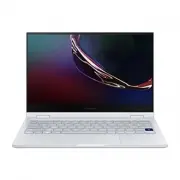 Samsung Galaxy Book Flex
User Manual
Samsung Galaxy Book Flex
User Manual
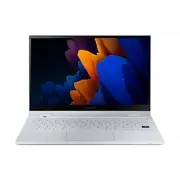 Samsung Galaxy Book Flex2
User Manual
Samsung Galaxy Book Flex2
User Manual
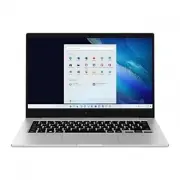 Samsung Galaxy Book Go
User Manual
Samsung Galaxy Book Go
User Manual
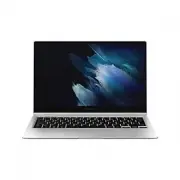 Samsung Galaxy Book Pro 360
User Manual
Samsung Galaxy Book Pro 360
User Manual
 Samsung Galaxy Book2 360
User Manual
Samsung Galaxy Book2 360
User Manual
 Samsung Galaxy Book2 Business (NP641BED)
User Manual
Samsung Galaxy Book2 Business (NP641BED)
User Manual
 Samsung Galaxy Book2 Pro 360
User Manual
Samsung Galaxy Book2 Pro 360
User Manual
 Samsung Galaxy Book3
User Manual
Samsung Galaxy Book3
User Manual
 Samsung Galaxy Book4
User Manual
Samsung Galaxy Book4
User Manual
 Samsung Galaxy Book4 Pro
User Manual
Samsung Galaxy Book4 Pro
User Manual
 Samsung Galaxy Chromebook 2 360
User Manual
Samsung Galaxy Chromebook 2 360
User Manual
 Samsung Galaxy Chromebook Go
User Manual
Samsung Galaxy Chromebook Go
User Manual
 Samsung NP270E5E-X01TR
User Manual
Samsung NP270E5E-X01TR
User Manual
 Samsung NP270E5E-X03DE
User Manual
Samsung NP270E5E-X03DE
User Manual