Page 2 - Before Reading This Install Guide; Operational Modes; This TV has two modes:; Still image warning; Avoid displaying the same TV channel for long periods.
Before Reading This Install Guide This TV B2B (Business to Business) model is designed for hotels or the other hospitality businesses, supports a variety of special functions, and lets you limit some user (guest) controls. Figures and illustrations in this Install Guide are provided for reference on...
Page 3 - Warning! Important Safety Instructions; Please read the Safety Instructions before using your TV.; ventilation is provided.
Warning! Important Safety Instructions Please read the Safety Instructions before using your TV. CAUTION Class II product: This symbol indicates that a safety connection to electrical earth (ground) is not required. RISK OF ELECTRIC SHOCK. DO NOT OPEN. CAUTION: TO REDUCE THE RISK OF ELECTRIC SHOCK, ...
Page 5 - Contents; TV Installation; Installing the LED TV Stand; The Remote Control; slot with the CI CARD Adapter
Contents Before Reading This Install Guide ---------------------------------------------------------------------------- 2 Warning! Important Safety Instructions ---------------------------------------------------------------------------- 3 01 What's in the Box? 02 TV Installation Assembling the swiv...
Page 7 - The items’ colours and shapes may vary depending on the models.
01 What's in the Box? Make sure the following items are included with your TV. If any items are missing, contact your dealer. Remote Control Batteries (AAA x 2) Power Cord Data Cable (depending on the model) Warranty Card / Quick Setup Guide / Regulatory Guide Hotel Mount Kit Cable Guide CI Card Ada...
Page 9 - 2 TV Installation; Assembling the swivel; WARNING
02 TV Installation Assembling the swivel WARNING : If you configure the TV to swivel, you must attach it securely to the floor, a desk, a dresser top, etc. as described in the installation instructions. The LED TVs have swivel stands. You can configure these stands so that the TVs swivel 20 degrees ...
Page 10 - Assembling the Stand and Components; When installing the stand, use the provided components and parts.
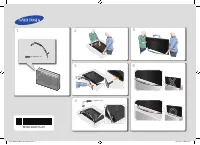
Installing the LED TV Stand Assembling the Stand and Components When installing the stand, use the provided components and parts. A B C D BN96-32380B x 4 (M4 x L14) BN96-36261A x 4 (M4 x L14) Stand Guide Stand Screws 1 2 x 4 (M4 x L14) • Place a soft cloth over the table to protect the TV, and then ...
Page 11 - Assembling the Hotel Mount Kit
Assembling the Hotel Mount Kit A B C D Short Bolt x 2 Long Bolt x 2 Washer x 2 Nut x 2 A B C D or [ Affix the stand to a flat surface such as a dresser top, desk top, or entertainment centre as shown. WARNING : To prevent injury, you must attach this TV securely to the floor, a table, a dresser top,...
Page 12 - Installing the wall mount kit; The Product shape may differ depending on the model.; Securing the TV to the Wall; Caution; To Prevent the TV from Falling; – We strongly recommend you drive the screws into a stud.
Installing the wall mount kit You can mount the TV on the wall using a wall mount kit (sold separately). TV TV Wall mount bracket Wall mount bracket C C Wall mount Adapter Wall mount Adapter • The Product shape may differ depending on the model. The wall mount kit (sold separately) allows you to mou...
Page 13 - TV size in inches
Wall Mount Kit Specifications (VESA) Install your wall mount on a solid wall perpendicular to the floor. If you are attaching the wall mount to building materials other than plaster board, contact your nearest dealer. If installed on a ceiling or slanted wall, the TV may fall and cause severe person...
Page 14 - Providing proper ventilation for your TV; Installation with a stand
Providing proper ventilation for your TV When you install your TV, maintain a distance of at least 4 inches (10 cm) between the TV and other objects (walls, cabinet sides, etc.) to ensure proper ventilation. Failing to maintain proper ventilation may result in a fire or a problem with the product ca...
Page 15 - 3 The Remote Control; About the Buttons on the Remote Control; The remote control has Braille points on the
03 The Remote Control About the Buttons on the Remote Control • The images, buttons, and functions of the remote control may differ depending on the model. • The remote control has Braille points on the Power , Channel , Volume , and Select buttons and can be used by visually impaired persons. Displ...
Page 16 - Installing batteries into the remote control; Use the remote control within 7 m of the TV.
Installing batteries into the remote control Match the polarity of the batteries to the symbols in the battery compartment. • Use the remote control within 7 m of the TV. • Bright light may affect the performance of the remote control. Avoid using near bright fluorescent lights or neon signs. • The ...
Page 17 - 4 Initial Setup; If you select
04 Initial Setup When you turn on your TV for the first time, it immediately starts the Initial Setup. Follow the instructions displayed on the screen and configure the TV's basic settings to suit your viewing environment.If you already completed the Initial Setup, run the Initial Setup again using ...
Page 18 - Using the TV Controller; You can turn on the TV with the
6 Next Scan Channels Scanning for channels... Digital- TV - Radio - Data/Other Analogue Stop 2 3 Previous Scanning Channel • After channel sanning is completed, select Next or press the right directional button on the remote control. • When the RF cable is not connected, this step is skipped. 7 Next...
Page 19 - 5 The Connection Panel; – Connector for software upgrades and Media Play, etc.; HDMI IN 1; Connects to the HDMI jack of a device with an HDMI output.
05 The Connection Panel ➀ ➁ ➂ ➃ ➄ ➅ BACK OF TELEVISION • Whenever you connect an external device to your TV, make sure that power on the TV and the device is turned off. • When connecting an external device, match the colour of the connection terminal to the cable. ① USB (5V 0.5A), USB (HDD 5V 1A) –...
Page 21 - 6 Connections; Connecting the TV to an SBB or STB; ETH MODEM; Connect the DATA jack of the TV to the; Compatible Data Cables Supplied with the TV
06 Connections Connecting the TV to an SBB or STB ETH MODEM TV Rear Panel STB (SBB) Data Cable Connect the DATA jack of the TV to the ETH MODEM jack of the STB (SBB) with the Data cable. • The ETH MODEM jack name that you connect the Data Cable to may differ depending on the SBB or STB type. • The r...
Page 22 - The rear panel may differ depending on the model.
Connecting the RJP (Remote Jack Pack) Connect the input jacks on the TV to the RJP. The RJP lets guests connect audio and video sources to the TV. USB HDMI S-VIDEO RCA AUDIO/PC RS/232 TV Rear Panel RJP Rear 2 RS-232 Data Cable 1 HDMI cable • The rear panel may differ depending on the model. 1 Connec...
Page 24 - Connecting the “CI or CI+ Card” via COMMON INTERFACE slot with the CI; Attaching the CI CARD Adapter via COMMON INTERFACE slot; To attach the CI CARD Adapter to the TV, follow these steps:; Insert the CI CARD Adapter into the two holes on the back of TV.; – Please locate the two holes at the back of the TV next to the; Connect the CI CARD Adapter to the; Connecting the “CI or CI+ Card”
07 Using a TV Viewing Card (“CI or CI+ Card”) Watches paid channels by inserting your TV viewing card into the COMMON INTERFACE slot. – The 2 CI card slots may not be supported depending on the model. – Turn the TV off to connect or disconnect a “CI or CI+ Card”. – The TV Viewing Card (“CI or CI+ Ca...
Page 25 - Using the “CI or CI+ Card”; To watch paid channels, the “CI or CI+ CARD” must be inserted.
Using the “CI or CI+ Card” To watch paid channels, the “CI or CI+ CARD” must be inserted. • Samsung TV follow up CI+ 1.4 standard. When TV product display the pop-up message, it may happen due to CI+ 1.4 Version inconsistency. If you have a problem, please contact Samsung Call Centre. – Your Samsung...
Page 26 - 8 Setting the Hotel Option Menus; Highlight the
08 Setting the Hotel Option Menus To access the Hotel Option menus, press MUTE > 1 > 1 > 9 > Select E buttons on your remote control. To control the TV functions in the Hotel Option menu, the TV has two modes, the Standalone mode and the Interactive mode. The menu items that differ betwe...
Page 27 - Hotel Option menu items; To enter this menu, press the; Hotel Option menu Item
Hotel Option menu items To enter this menu, press the MUTE > 1 > 1 > 9 > Select E buttons on the remote control in order. To exit from this menu, turn off (or turn off and unplug the power cable if you have changed SI vendor) the TV, and then turn on again. Any changes you made are saved...
Page 33 - contents
Hotel Option menu Item Description REACH Solution REACH RF Mode Turn on or off the REACH RF Mode . When set to on, the TV can operate with the REACH Server (Modulator) through the RF cable. REACH Channel This is a DTV cable channel PTC number for receiving REACH data when the REACH RF Mode set to on...
Page 34 - Welcome Message; • You can make the; Hotel Logo; Hospitality Logo
Welcome Message Hotel Option ( MUTE > 1 > 1 > 9 > Select E ) > Logo/Message > Welcome Message Welcome Message function displays a custom message on the TV every time it is turned on. • Set Welcome Message to on to display the message when the TV is powered on. • You can make the we...
Page 35 - Logo Download; • Logo file format; USB Cloning
Logo Download Hotel Option ( MUTE > 1 > 1 > 9 > Select E ) > Logo/Message > Hospitality Logo DL This option lets you download the logo image to the TV’s memory from a USB device. • The wait message appears while the image is being copied to the TV. • The completed message appears w...
Page 36 - To clone data to the TV using the Hotel menu, follow these steps:
Cloning USB to TV: Copies menu settings and channel data in a USB device to a TV Shortcut : Turn the TV off, insert the USB device, turn the TV on, and then press the Select E button on the remote control for 5 seconds. To clone data to the TV using the Hotel menu, follow these steps: 1. Turn the TV...
Page 37 - Settings Cloned in the Hotel Menu; The menu items may not be supported depending on the models.
Settings Cloned in the Hotel Menu • The menu items may not be supported depending on the models. Menu Item Sub Item Cloned or not Hospitality Mode Standalone / Interactive Yes SI Vendor Interactive mode : Samsung / 2M / Locatel / VDA / VDA-S / Acentic / Sustinere / Quadriga / ETV / IBahn / Magilink ...
Page 40 - Setting Auto Initialise; function
Setting Auto Initialise Hotel Option ( MUTE > 1 > 1 > 9 > Select E ) > Cloning > Setting Auto Initialize When you clone settings from one TV to another, you clone both the guest side menu and hotel side menu settings: Picture , Sound , Channel , and Hotel Option menu. This lets you...
Page 43 - Updating the TV’s Software; For more information about the USB cloning function, refer to page; Updating through a USB device; Run
Updating the TV’s Software DO NOT turn off the TV’s power until the update is complete. The TV will turn off and on automatically after completing the software update. Video and audio settings will be reset to their defaults after a software update. We recommend you clone the TV's settings so that y...
Page 44 - 9 Using a Multi Code Remocon; • You can set the ID code to any digit from
09 Using a Multi Code Remocon A Multi Code Remocon is a special remote which is designed to control multiple TVs. This function is useful where there is more than one TV in a location. You can control up to 10 TVs with a different ID code of each remote with no conflicts between the TVs. ID numbers ...
Page 45 - 0 Setting the Soundbar; Samsung Soundbar (AirTrack) and Hospitality TVs in 2018; Setting the Soundbar (AirTrack) to Hotel Mode; detects the TV, and then automatically switches to Hotel Mode.; Soundbar (AirTrack) features in Hotel mode; • HDMI-CEC defaults set to on
10 Setting the Soundbar Samsung Soundbar (AirTrack) and Hospitality TVs in 2018 • Samsung Soundbar (AirTrack) and hospitality TVs support the HDMI ARC feature If you connect a compatible Samsung Soundbar (AirTrack) to a compatible Samsung hospitality TV using a single HDMI cable, guests can listen t...
Page 46 - 1 Editing Channels; Setting the Channel Bank Editor under Standalone Mode
11 Editing Channels Channel Bank Editor (Smoovie TV Only) Channel Bank Editor in conjunction with the SMOOVIE remote lets you control the channels guests have access to. Channel Bank Editor provides three Banks of channels and lets you select which channels will be available from each bank. SMOOVIE ...
Page 47 - Smoovie Set Up Sequence; Using Channel Editor; General Steps for Using the Channel Editor in Standalone Mode
Smoovie Set Up Sequence 1. Complete the Initial Setup. 2. The TV displays the Hotel Option menu. – If the Initial Setup is already done, enter the Hotel Option menu. ( MUTE > 1 > 1 > 9 > Select E ) 3. Select the channel type. ( Power On > Power On Channel Type ) – ATV or ADTV for Aeri...
Page 49 - Assigning the Channel Number to the external device; menu as shown below.
Assigning the Channel Number to the external device The external device source of the TV are displayed in the last page of the Channel Editor menu as shown below. > 1. Select a external device source on the Channel Edit screen. 2. Use the directional buttons on the remote control, move the focus ...
Page 50 - 2 Anti-theft Kensington Lock; The Kensington Lock is not supplied by Samsung.
12 Anti-theft Kensington Lock The Kensington Lock is a device you can use to physically fix a TV to a location when you use it in a public place. The appearance and locking method may differ from the illustration at right, depending on the manufacturer. Refer to the manual provided with the Kensingt...
Page 51 - 3 Specifications and Other Information; Specifications; mm; mm
13 Specifications and Other Information Specifications Model Name HG43EJ670U HG49EJ670U Display Resolution 3840 x 2160 3840 x 2160 Screen Size (Diagonal) 43 inches (108 cm) 49 inches (123 cm) Sound (Output) 20 W 20 W Stand Swivel (Left / Right) 20° / 60° / 90° 20° / 60° / 90° Dimensions (W x H x D)B...
Page 52 - Environmental Considerations; Notes; Decreasing power consumption
Environmental Considerations Operating TemperatureOperating HumidityStorage TemperatureStorage Humidity 10°C to 40°C (50°F to 104°F) 10% to 80%, non-condensing -20°C to 45°C (-4°F to 113°F) 5% to 95%, non-condensing Notes • The design and specifications are subject to change without prior notice. • ...
Page 53 - Supported Resolutions for UHD Input Signals; An HDMI connection with; If HDMI UHD Color is set to Off; If HDMI UHD Color is set to On; RGB; Display Resolution
Supported Resolutions for UHD Input Signals • Resolution: 3840 x 2160p, 4096 x 2160p – An HDMI connection with HDMI UHD Color set to Off supports up to UHD 50P/60P 4:2:0 input signals, while an HDMI connection with HDMI UHD Color set to On supports up to UHD 50P/60P 4:4:4 and 4:2:2 input signals. – ...
Page 54 - The interlaced mode is not supported.
Mode Resolution Display format Horizontal frequency (KHz) Vertical frequency (Hz) Clock frequency (MHz) Polarity (horizontal / vertical) CEA-861 720(1440) x 576i 720(1440) x 480i 720 x 576 720 x 480 1280 x 7201280 x 720 1920 x 1080i1920 x 1080i 1920 x 10801920 x 10801920 x 10801920 x 10801920 x 1080...
Page 55 - Dimensions; Front view / Side view; The displayed image may differ from your TV, depending on the model.
Dimensions Front view / Side view The displayed image may differ from your TV, depending on the model. • 43˝ (Unit: mm) 943.2 970.2 58.8 226.5 531.4 556.5 563.2 618.1 • 49˝ (Unit: mm) 1075.8 1102.8 59.7 226.5 606.0 556.5 637.8 691.8 English - 55
Page 56 - Jack panel detail / Rear view
• 55˝ (Unit: mm) 1211.6 1238.6 59.2 226.5 682.4 556.5 714.2 768.4 Jack panel detail / Rear view Detailed dimensions can be checked at Displaysolutions.samsung.com. English - 56
Page 57 - Base Stand detail
Base Stand detail The displayed image may differ from your TV, depending on the model. • 43˝ (Unit: mm) 70.0 152.0 556.5 199.1 226.5 R3.75 R9.5 135.0 • 49˝-55˝ (Unit: mm) 70.0 152.0 556.5 218.4 226.5 R3.75 R9.5 135.0 • NOTE : All drawings are not necessarily to scale. Some dimensions are subject to ...
Page 58 - Licences; Open Source License Notice
Licences Manufactured under license from Dolby Laboratories. Dolby, Dolby Audio, Pro Logic, and the double-D symbol are trademarks of Dolby Laboratories. THIS PRODUCT IS SOLD WITH A LIMITED LICENCE AND IS AUTHORISED TO BE USED ONLY IN CONNECTION WITH HEVC CONTENT THAT MEETS EACH OF THE THREE FOLLOWI...


 Samsung 105S9W (UE105S9WATXUA)
User Manual
Samsung 105S9W (UE105S9WATXUA)
User Manual
 Samsung 24N4500 (UE24N4500AUXUA)
User Manual
Samsung 24N4500 (UE24N4500AUXUA)
User Manual