Page 2 - 简体中文; תירבע
2 Table of Contents Getting started 6 About the Galaxy Watch6 / Galaxy Watch6 Classic 7 Device layout and functions 7 Watch13 Wireless charger 13 Charging the battery 13 Wireless charging14 Charging the battery using Wireless power sharing 15 Battery charging tips and precautions 17 Using power savi...
Page 3 - Safety information; Warning; Failure to comply with safety warnings and regulations can cause; Unsecured connections can cause electric shock or fire.
Table of Contents 3 82 Samsung Health Monitor 82 Introduction82 Precautions for measuring blood pressure and ECG 86 Starting to measure the blood pressure 88 Starting to measure the ECG 90 GPS91 Music 91 Introduction91 Using Music91 Managing audio files saved on your Watch 92 Media Controller 92 Int...
Page 6 - Caution; Failure to comply with safety cautions and regulations can cause
6 Getting started About the Galaxy Watch6 / Galaxy Watch6 Classic The Galaxy Watch6 / Galaxy Watch6 Classic (hereafter, Watch) is a smartwatch that can analyse your exercise pattern, manage your health, and provide you with a variety of convenient apps for making phone calls and playing music. You c...
Page 7 - Broken glass or acrylic could cause injury to your hands and face.; operating a vehicle; others, use your common sense and remember the following tips:
Getting started 7 Device layout and functions Watch ▶ Galaxy Watch6 : Home button (Power button) / Electrical biosensor Back button / Electrical biosensor Touch screen Home button (Power button) / Electrical biosensor Back button / Electrical biosensor Microphone Touch screen SM-R930, SM-R940: GPS a...
Page 8 - Care and use your device properly
Getting started 8 Optical heart rate sensor Infrared temperature sensor Electrical biosensors Band Optical heart rate sensor Speaker Pressure vent Band Infrared temperature sensor Electrical biosensors
Page 12 - Malware and viruses
Getting started 12 • Connectivity problems and battery drain may occur in the following situations: ‒ If you attach metallic stickers on the antenna area of the Watch ‒ If you use a metallic band ‒ If you cover the Watch’s antenna area with your hands or other objects while using certain features, s...
Page 13 - English; Specific Absorption Rate (SAR) certification information; For more information, visit; Correct disposal of this product; reference levels in EC Directive 2006/66.
Getting started 13 Wireless charger Wireless charging surface Do not expose the wireless charger to water because the wireless charger does not have same water-resistance certification as your Watch. Charging the battery Charge the battery before using your Watch for the first time or when it has be...
Page 14 - FCC Information
Getting started 14 Checking the charging status You can check the charging status on the screen during wireless charging. If the charging status does not appear on the screen, on the Apps screen, tap ( Settings ) → Display and tap the Show charging info switch to turn it on. If you charge the Watch ...
Page 15 - Disclaimer; FOR A PARTICULAR PURPOSE. SAMSUNG DOES NOT GUARANTEE THE ACCURACY,
Getting started 15 2 After fully charging, disconnect the Watch from the device that works as a wireless charging pad. Do not use the headphones or Bluetooth headset while sharing power. Doing so may affect nearby devices. • The location of the wireless charging coil may vary by device model. Adjust...
Page 16 - Shqip; Informacione sigurie; Paralajmërim; shkaktojë lëndime serioze ose vdekje; pajisjes mjekësore; Mos e tërhiqni kabllin e energjisë fort kur e shkëputni; Nëse veproni kështu mund të shkaktoni goditje elektrike.
Getting started 16 • To save energy, unplug the charger when not in use. The charger does not have a power switch, so you must unplug the charger from the electric socket when not in use to avoid wasting power. The charger should remain close to the electric socket and easily accessible while chargi...
Page 18 - me presion
Getting started 18 1 Attach the band to your Watch while pressing the band’s button firmly. 2 1 2 Gently pull on both sides of the band to make sure it is tightly connected and not detached from your Watch. Remove the band while pressing the band’s button.
Page 19 - Kujdes; Mosrespektimi i lajmërimeve dhe rregullave të sigurisë mund të; interferohen nga frekuencat e radios; në anën e trupit tuaj që është në të kundërt me peismeikërin.; Mos e ekspozoni pajisjen në tymra ose avuj të rëndë; të ndikohet nga frekuencat e radios të nxjerra nga pajisja juaj.; sistemet e zërit dhe kullat e radios
Getting started 19 Putting on the Watch Open the buckle and place your Watch around your wrist. Fit the band to your wrist, insert the pin into an adjustment hole, and then secure the buckle to close it. If the band is too tight, use the next hole. Do not bend the band excessively. Doing so may dama...
Page 20 - Fikeni pajisjen në mjedise ku ekziston mundësia e shpërthimit; njëjtin vend me pajisjen, pjesët ose aksesorët e saj.; shërbimi të Samsung ose në një qendër shërbimi të autorizuar; Xhami i thyer ose akriliku mund të dëmtojë duart ose fytyrën tuaj.; përdorimit të pajisjeve celulare gjatë drejtimit të mjetit; akulli dhe trafiku i rënduar shfaqin rrezikshmëri.
Getting started 20 How to wear the Watch for accurate measurements For accurate measurements, wear the Watch firmly around your lower arm above the wrist while leaving a finger’s worth of space as shown in the figure. <Rear> Optical heart rate sensor Electrical biosensors Infrared temperature ...
Page 21 - Kujdesuni dhe përdoreni mirë pajisjen; Mbajeni pajisjen të thatë
Getting started 21 • Use the HR feature only for measuring your heart rate. The accuracy of the optical heart rate sensor may be diminished depending on the surroundings, measurement conditions, and user’s physiological state. • As cold ambient temperatures may affect your measurement, keep yourself...
Page 22 - Përdorni kujdes kur ekspozoheni ndaj dritave vezulluese
Getting started 22 Turning the Watch on and off Follow all posted warnings and directions from authorised personnel in areas where the use of wireless devices is restricted, such as aeroplanes and hospitals. Home button Back button Turning the Watch on Press and hold the Home button for a few second...
Page 23 - Bëni kujdes kur vini pajisjen
Getting started 23 Emergency call You can make an emergency call. 1 Press and hold the Home button and the Back button simultaneously. Alternatively, open the quick panel by dragging downwards from the top edge of the screen and tap . 2 Tap Emergency call . To manage your medical information and eme...
Page 24 - Mos e çmontoni, mos e ndryshoni apo riparoni pajisjen tuaj
Getting started 24 5 Open the Galaxy Wearable app on your phone. If the Galaxy Wearable app is not the latest version, update the Galaxy Wearable app to the latest version. 6 Tap Continue . 7 Select your Watch on the screen.If you cannot find your Watch, tap Having trouble connecting? . 8 Follow the...
Page 25 - informacioneve sensitive; mënyrë që të mbroni informatat tuaja personale.; Të mos shpërndahet materiali i mbrojtur me të drejtë të autorit; materialit me të drejtë të autorit.; Maluerët dhe viruset; mos mbulohen nga shërbimi i garancisë; Mos shkarkoni aplikacione të panjohura.
Getting started 25 Remote connection Your Watch and phone are connected through Bluetooth. You can sync your phone to your Watch when both devices are remotely connected to each other, even though a Bluetooth connection is not available. The Remote connection uses your mobile network or Wi-Fi.If thi...
Page 26 - Për më shumë informacion, vizitoni; Hedhja e këtij produkti sipas rregullave; mund të përzihen me mbeturina të tjera komerciale.; Flakja korrekte e baterive të këtij produkti
Getting started 26 Controlling the screen Bezel Your Watch has a touch bezel or a rotatable bezel. Rotate or swipe the bezel clockwise or anticlockwise to control various Watch functions. Rotatable bezel (Galaxy Watch6 Classic) Touch bezel (Galaxy Watch6) • Scrolling through screens : Rotate or swip...
Page 27 - Deklarim për mosmbajtje përgjegjësie
Getting started 27 Touch screen Tapping Tap the screen. Touching and holding Touch and hold the screen for approximately 2 seconds. Dragging Touch and hold an item and drag it to the target position. Double tapping Double tap the screen. Swiping Swipe upwards, downwards, to the left, or to the right...
Page 28 - اةيبرعلا; ناملأااتامولعم; .زاهجلابافلتاعوقوابنجتلو; ريذحت; بيطلاازاهجلل
Getting started 28 Screen composition The Watch screen is the starting point of the Home screen, which is composed of several pages.You can check tiles or open the notification panel by swiping the screen to the left or right or by using the bezel. Notification panel Tiles Add tiles. Watch screen Th...
Page 29 - ةيدعرلاافصاوعلااللاخاجراخلاباكزاهجامدختستالا
Getting started 29 Turning the screen on and off Turning the screen on Use the following methods to turn the screen on. • Turn the screen on with the buttons : Press the Home button or Back button. • Turn the screen on by raising your wrist : Raise your wrist where you wear the Watch. If the screen ...
Page 30 - لياعلا
Getting started 30 Switching the screen Switching between the Watch and Apps screen On the Watch screen, swipe upwards to open the Apps screen.To return to the Watch screen, swipe downwards from the top of the Apps screen. Alternatively, press the Home button or Back button. Watch screen Apps screen...
Page 31 - هيبنت; ىرخلأااةينوتركللإااةزهجلأاانمابرقلابازاهجلاامدختستالا
Getting started 31 Editing the Apps screen Moving items Drag an item to a new location. Creating folders Drag an app over another app.A new folder containing the selected apps will be created. Tap Folder name and enter a folder name. • Adding more apps Tap on the folder. Tick the apps to add and tap...
Page 32 - ةلمتحماةروصباةيراجفنلاااتائيبلاافيازاهجلااقلاغإ
Getting started 32 Lock screen Use the screen lock feature to protect your data, such as your personal information saved on your Watch. When turning on this feature, the Watch will require you to unlock it whenever you use it. However, if you unlock it once while wearing the Watch, it will remain un...
Page 33 - حيحصالكشباكزاهجامدختساوارذحلااخوت
Getting started 33 3 Tap Customise to customise the watch face. Swipe left or right on the screen to move to an item you want to customise, and then select the desired colour and other things by using the bezel or swiping upwards or downwards on the screen. To set the complications, tap each complic...
Page 34 - ةضماولااحيباصمللاضرعتلاادنعارذحلااغلاباىخوت; كرحتلااوأاشيلمااءانثأازاهجلاامادختساادنعاًارذحانك
Getting started 34 5 Tap the screen, select a picture to use as a watch face, and then tap OK . To zoom in or out on the picture, double tap the picture, or spread two fingers apart or pinch the picture. When the picture is zoomed in, swipe the screen to make a part of the picture appear on the scre...
Page 35 - زاهجلااءادتراادنعااًرذحانك
Getting started 35 Notifications Notification panel Check a notification such as a new message or a missed call on the notification panel. On the Watch screen, rotate or swipe the bezel anticlockwise. Alternatively, swipe right on the screen to open the notification panel.When there are new notifica...
Page 37 - شرنلااقوقحاينناوقباةيمحماداوماعيزوتبامقتالا; تاسويرفلاواةراضلااجمابرلا
Getting started 37 Quick panel Check the Watch’s current status and configure settings from the quick panel.To open the quick panel, drag downwards from the top edge of the screen. To close the quick panel, swipe upwards on the screen.Use the bezel or swipe left or right on the screen to move to the...
Page 38 - (اددحلمااصاصتملااالدعمادامتعااتامولعم; جتنلماااذهافياةدوجولمااتايراطبلاانماميلسلااصلختلا
Getting started 38 • Some status indicator icons that show certain situations, such as when you use some modes or charge the Watch, also appear at the top of the Watch screen. To hide the status indicator icons on the Watch screen, tap ( Settings ) on the Apps screen, tap Advanced features → Status ...
Page 39 - ةيلوؤسلمااءلاخإ
Getting started 39 Icon Meaning Open the Find My Phone app Turn on the GPS featureConnect the mobile network (SM-R935F, SM-R945F, SM-R955F, SM-R965F)Turn on the NFC featureTurn on the touch sensitivity featureConnect to Bluetooth (SM-R935F, SM-R945F, SM-R955F, SM-R965F) • The quick setting icon may ...
Page 40 - বাংলা; নিরাপত্া তথ্য; সতক্কতা
Getting started 40 Entering text Keyboard layout A keyboard appears when you enter text. Delete a preceding character. Enter a space. Enter uppercase. For all caps, tap it twice. • The text input screen may be different depending on the app you open. • Text entry is not supported in some languages. ...
Page 43 - ত্তি; র ক্য়ক্নত হরত পারর
Apps and features 43 Setting app permissions For some apps to operate properly, they may need permission to access or use information on your Watch.To check or change app permission settings by permission category, on the Apps screen, tap ( Settings ) → Apps → Permission manager . Select an item and...
Page 45 - আপিার নিভাইসটির যত্ন নিি এবং সঠিকভারব ব্যবহার করুি
Apps and features 45 Deleting messages 1 Tap ( Messages ) on the Apps screen. 2 Scroll through the message list or use the bezel, and then select a contact to check your conversations. 3 Touch and hold a message, then tap Delete . The message will be deleted both from the Watch and the connected pho...
Page 49 - ম্যালওয়্যার এবং ভাইরাস
Apps and features 49 Samsung Wallet Use various convenient features in Samsung Wallet. You can make a payment, check tickets or boarding passes, and more.Tap ( Samsung Wallet ) on the Apps screen and select a feature you want. • This app may not be available depending on the region, carrier, model, ...
Page 50 - দস্পনসনফক অ্যাবসপ্করি দরট (SAR) সাটি্কনফরকরি নিরয় তথ্য; এই দপ্রািাক্টটি সঠিকভারব দফলা
Apps and features 50 Samsung Pay Introduction Register cards to Samsung Pay to make payments.You can check out more information, such as cards that support this feature at www.samsung.com/samsung-pay . • To make payments with Samsung Pay, the device may be required a connection to a Wi-Fi or mobile ...
Page 51 - অস্বীকৃনতজ্াপি
Apps and features 51 4 Place your Watch close to the card reader.When the card reader recognises the card information, the payment will be processed. • Payments may not be processed depending on your network connection. • The verification method for payments may vary depending on the card readers. S...
Page 52 - Български; Информация за безопасност; Предупреждение; причини сериозни наранявания или смърт
Apps and features 52 Daily activity Check your current daily status, such as steps, active times, activity calories, and their targets, and related information. Checking your daily activity Tap ( Samsung Health ) on the Apps screen and tap Daily activity . Target achievement graph • Steps : Check th...
Page 55 - Внимание; или имуществени вреди
Apps and features 55 Starting exercises 1 Tap ( Samsung Health ) on the Apps screen. 2 Tap Work out . You can start exercising directly from the Multi-workouts tile after adding workouts to it. 3 Use the bezel or swipe left or right on the screen to select an exercise type you want.When there is no ...
Page 57 - Използвайте и се грижете за своето устройство правилно
Apps and features 57 • When you select Swimming or Swimming (outdoor) , water lock mode will be automatically turned on and the touch screen will be unresponsive. Water lock mode is a feature that prevents unintentional screen touches and inputs when exercising in the water. When water lock mode is ...
Page 61 - Злонамерен софтуер и вируси
Apps and features 61 3 Use the bezel or swipe upwards or downwards on the screen to check all your exercise history.
Page 62 - живот
Apps and features 62 Working out after adding your own exercise In addition to the default exercise types provided by your Watch, you can add your own exercises, and measure the duration and calories burned, and then check your exercise results. 1 Tap ( Samsung Health ) on the Apps screen. 2 Tap Wor...
Page 63 - Отказ от права
Apps and features 63 Setting the exercise 1 Tap ( Samsung Health ) on the Apps screen. 2 Tap Work out . 3 Tap under each exercise type and set the various exercise options. • Pool length : Set the pool length. • Target : Turn on the exercise target feature and set it. • Workout screen : Set the scre...
Page 64 - 安全資訊; 警告; 不遵照安全警告和規定會導致嚴重傷害或死亡; 請勿使用損壞的電源線或插頭或者鬆動的電源插座
Apps and features 64 Auto detect workouts feature Once you have engaged in an activity for more than 10 minutes (for running, 3 minutes) while wearing the Watch, it automatically recognises that you are exercising and records exercise information such as the exercise type, duration, and calories bur...
Page 67 - 注意; 不遵照安全注意事項和規定會導致人身傷害或財產損失; 不要在其他電子裝置附近使用裝置
Apps and features 67 4 Use the bezel or swipe upwards or downwards on the screen to check all information related to your measured sleep.
Page 69 - 妥善保管和使用您的裝置; 保持裝置乾燥
Apps and features 69 3 Tap the Skin temperature during sleep switch to turn it on. Your skin temperature will be measured along with your other sleep records when you sleep while wearing the Watch. • If your skin temperature is measured continuously while sleeping, the battery will drain more quickl...
Page 73 - 惡意軟件和病毒
Apps and features 73 Body composition Measure your body composition, such as your skeletal muscle mass or fat mass. • This feature is only for your general wellness and fitness. Therefore, do not use it for medical purposes, such as diagnosing the symptoms, treatment, or prevention of disease. • Do ...
Page 74 - 如需詳細資料,請瀏覽; 免責聲明
Apps and features 74 • The Watch uses the Bioelectrical Impedance Analysis (BIA) method when measuring body composition, which has more than 98% correlation compared to the Dual-energy X-ray absorptiometry (DXA) method, which is regarded as the golden standard. Be aware of following conditions befor...
Page 75 - 安全信息; 不遵守安全警告和规定会导致严重伤害或死亡; cm
Apps and features 75 Measuring your body composition 1 Tap ( Samsung Health ) on the Apps screen. 2 Tap Body composition . 3 Tap Measure . You can learn about how to measure your body composition in detail on the screen by tapping How to measure . 4 Enter your weight and tap Confirm . 5 Place your t...
Page 78 - 不遵守安全注意事项和规定会导致人身伤害或财产损失; 请勿在其他电子设备附近使用设备
Apps and features 78 Blood oxygen Measure your blood’s oxygen level to check whether your blood is properly delivering oxygen to the different parts of your body. This feature is only for your general wellness and fitness. Therefore, do not use it for medical purposes, such as diagnosing the symptom...
Page 80 - 妥善保养和使用设备
Apps and features 80 Measuring your blood oxygen level while sleeping Set to measure your blood oxygen level continuously while sleeping. 1 Tap ( Samsung Health ) on the Apps screen. 2 Tap Settings . 3 Tap the Blood oxygen during sleep switch to turn it on. Your sleeping blood oxygen level will be m...
Page 84 - 恶意软件和病毒
Apps and features 84 Precautions for measuring the blood pressure • Avoid consuming alcohol, food that includes caffeine, smoking, exercising, and taking a bath 30 minutes before measuring your blood pressure. • Make sure your wrist is dry when measuring your blood pressure and do not measure it whe...
Page 85 - 免责声明
Apps and features 85 • The Samsung Health Monitor app calibrates and measures blood pressure based on the readings from the arm that is wearing the blood pressure manometer. You must consult your physician if there is a large difference between the blood pressure in both of your arms (more than 10 m...
Page 89 - 小心; 不要在其他電子設備附近使用裝置
Apps and features 89 The measurement will start and the ECG wave will appear on the screen. Check the measured ECG results on the screen. 3 Tap Add , select additional physical symptoms that you are currently experiencing, and then tap Save . 4 Tap Done . Checking the results Check the results and E...
Page 95 - 惡意軟體和病毒
Apps and features 95 Calendar You can check the 7-day schedules of events that you saved on your phone on your Watch.Tap ( Calendar ) on the Apps screen to check the schedules of events that you saved on your phone.To add your schedule, tap Show on phone and add it on the connected phone. Bixby Bixb...
Page 96 - SAR 認證資訊; 正確棄置
Apps and features 96 Waking up Bixby using your voice You can start a conversation with Bixby by saying “Hi, Bixby” or “Bixby”. 1 Tap ( Bixby ) on the Apps screen. Alternatively, press and hold the Home button. 2 Tap → Voice wake-up . 3 Tap the Wake with “Hi, Bixby” switch to turn it on. 4 Tap Wake-...
Page 97 - Hrvatski; Sigurnosne informacije; biste spriječili nastajanje štete na svojem uređaju.; Upozorenje; ozbiljnih ozljeda ili smrti; uređaj na udaljenosti većoj od; Neosigurani spojevi mogu izazvati strujni udar ili požar.; drugim mokrim dijelom tijela; Nemojte savijati ili oštetiti kabel za napajanje; To može izazvati strujni udar ili požar.; Ne upotrebljavajte uređaj s mokrim rukama dok se uređaj puni; To može izazvati strujni udar.
Apps and features 97 4 Set other alarm options, such as the date when to go off and whether to repeat the alarm, and tap Save . The saved alarm is added to the alarms list. To turn on or off alarms, tap the switch next to the alarm in the alarms list. Turning off alarms Drag outside the large circle...
Page 98 - Ne koristite uređaj na otvorenom za vrijeme oluja; ili pribora koje tvrtka Samsung nije odobrila.; Nemojte nositi uređaj u stražnjim džepovima ili oko struka; Mogli biste se ozlijediti ako se udarite ili padnete.; Zaštitite uređaj, bateriju i punjač od oštećenja
Apps and features 98 Dismissing a timer Drag outside the large circle when your timer goes off. Alternatively, rotate or swipe the bezel clockwise.To restart the timer, drag outside the large circle. Alternatively, rotate or swipe the bezel anticlockwise. Stopwatch 1 Tap ( Stopwatch ) on the Apps sc...
Page 99 - spremnika pod visokim tlakom
Apps and features 99 3 Select Images on watch . The pictures saved on your Watch will appear sorted by category. • To send pictures from your phone to your Watch, tap , select pictures, and then tap Add to watch . • To delete pictures saved on your Watch, touch and hold a picture you want to delete,...
Page 100 - Oprez; ozbiljnih ozljeda ili štete na imovini; uređaja putem radiofrekvencije; je nasuprot pejsmejkeru.; Uređaj ne izlažite jakom dimu ili parama
Apps and features 100 Zooming in or out While checking an image, double tap the image, spread your two fingers apart, or pinch on an image to zoom in or out.When an image is magnified, you can view the rest of the image by scrolling around the screen. Customising a watch face You can view pictures o...
Page 101 - Isključite uređaj u potencijalno eksplozivnim okružjima; kemikalija ili na područjima miniranja.; centru ili odobrenom servisnom centru.; Slomljeno staklo ili akril može uzrokovati ozljede ruku ili lica.; odnose na uporabu mobilnog uređaja
Apps and features 101 Find My Watch If you misplace your Watch, the Galaxy Wearable app on your connected phone or the SmartThings Find feature of the SmartThings app installed on your connected phone can help you find it. • SmartThings Find feature support may vary depending on the software version...
Page 102 - Vodite računa o svom uređaju i ispravno ga koristite; poništiti jamstvo proizvođača.
Apps and features 102 Sending an SOS Introduction In an emergency, including when you are hurt from a fall, make an emergency call and send an SOS message that includes your location information to previously registered contacts. Also, you can set up your Watch to display your medical information on...
Page 103 - Budite oprezni pri izlaganju treperavim svjetlima; prestanite koristiti uređaj.; Smanjite opasnost od ozljeda uslijed ponovljenog kretanja; dulje vrijeme. Održavajte slušalice čistima i suhima.
Apps and features 103 Sharing emergency information When sharing an emergency, a message that includes your location information and a low battery alert warning will be sent to your emergency contacts. Also, the SOS screen will appear on your Watch, which will provide medical information to anyone w...
Page 104 - Budite pažljivi kada nosite uređaj; osjetljiva ili imate alergiju na bilo koje materijale.; Nemojte bojiti niti stavljati naljepnice na uređaj; zračni jastuci brzo napušu.; Pazite da ne ispustite ili na drugi način udarite uređaj; Vaš uređaj se može biti oštećen ili pokvaren.; Osigurajte maksimalan vijek trajanja baterije i punjača; Isključite punjač iz izvora napajanja kada nije u uporabi.
Apps and features 104 Sending an SOS request 1 In an emergency, press the Watch’s Home button five times. 2 When vibrating, drag outside the large circle. Alternatively, rotate or swipe the bezel anticlockwise.A call is automatically placed to your emergency contact. 3 When the call is completed and...
Page 105 - Nemojte rastavljati ili ponovno koristiti bateriju.
Apps and features 105 Sending an SOS request when you are hurt from a fall When a big impact occurs, the Watch will detect the hurt from a fall through your arm’s movement and it will display the alert while vibrating and emitting sound.If you do not respond within 60 seconds, the emergency call wil...
Page 106 - odgovoran za gubitak bilo kojih podataka.; Ne distribuirati autorskim pravima zaštićeni materijal; Ne preuzimajte nepoznate aplikacije.
Apps and features 106 Voice Recorder Record or play voice recordings. Making voice recordings 1 Tap ( Voice Recorder ) on the Apps screen. 2 Tap to start recording. Speak into the Watch’s microphone.To pause recording, tap . Change the recording mode. Start recording. Check your saved recordings. 3 ...
Page 107 - Certifikat o specifičnoj razini apsorpcije (SAR); Za više informacija, posjetite; Ispravno odlaganje proizvoda; bilo sigurno za okoliš.; Ispravno odlaganje baterija iz ovog proizvoda
Apps and features 107 Calculator You can perform calculations.Tap ( Calculator ) on the Apps screen. Tap and check the calculation history. To clear the history, tap Clear history . Drag the icon upwards to calculate a tip or use the unit conversion tool. Compass You can use your Watch as a compass....
Page 108 - Izjava o odricanju odgovornosti; upućena izravno odgovarajućem davatelju sadržaja ili usluge.
Apps and features 108 Camera Controller You can remotely control the cameras of the phone connected to the Watch and take pictures or record videos from a distance. 1 Tap ( Camera Controller ) on the Apps screen. The Camera app will be opened on the connected phone. 2 Check the preview screen, and t...
Page 109 - Čeština; Bezpečnostní informace; Výstraha; s lékařem nebo výrobcem zdravotnického prostředku; Při odpojování netahejte za napájecí kabel nadměrnou silou.; Mohlo by dojít k zásahu elektrickým proudem nebo požáru.; Mohlo by dojít k zásahu elektrickým proudem nebo požáru.; Nepoužívejte zařízení s mokrýma rukama, když se zařízení nabíjí.; Mohlo by dojít k zásahu elektrickým proudem.
Apps and features 109 SmartThings You can control smart appliances and Internet of Things (IoT) products that are connected to your phone with your Watch. 1 Tap ( SmartThings ) on the Apps screen. 2 Select a device or scene to control. To add the scenes or devices, tap Show on phone and add them on ...
Page 111 - Nekousejte ani neolizujte zařízení ani baterii.
Apps and features 111 Wi-Fi Turn on the Wi-Fi feature to connect to a Wi-Fi network. 1 On the Settings screen, tap Connections → Wi-Fi , and tap the switch to turn it on. 2 Select a network from the Wi-Fi network list.Networks that require a password appear with a lock icon. 3 Tap Connect . • If you...
Page 112 - Upozornění; Nedodržení bezpečnostních upozornění a předpisů může způsobit; být rušeno radiovou frekvencí.
Apps and features 112 2 Touch the NFC antenna area of the Watch to the NFC card reader. To set the default app, on the Settings screen, tap Connections → NFC and contactless payments → Payment and select an app. The payment services list may not include all available payment apps. NFC antenna Flight...
Page 113 - Ve výbušném prostředí zařízení vypínejte.; jako zařízení, jeho díly či příslušenství.; centru Samsung nebo v autorizovaném servisním centru.; následek explozi baterie nebo požár.; při řízení motorového vozidla.; používejte zdravý rozum a pamatujte na následující doporučení:
Apps and features 113 Mobile networks (SM-R935F, SM-R945F, SM-R955F, SM-R965F) Customise the settings to control mobile networks.On the Settings screen, tap Connections → Mobile networks and select a mobile network connection option. • Auto : Set to automatically use the Watch’s mobile network when ...
Page 114 - Buď te opatrní a používejte vaše zařízení správně.; do
Apps and features 114 Modes Turn modes that sync with your connected phone based on your current activity or location on or off.On the Settings screen, tap Modes . 1 Select the mode you want. 2 Tap Turn on . For modes that run automatically, it will be turned on when the conditions added on the conn...
Page 115 - Varování při vystavení se zábleskům.
Apps and features 115 If mode sync is not working between your connected phone and Watch, tap the Sync modes with phone switch to turn it on. Any new modes added or mode settings changed on the connected phone are synchronised with the Watch, as is the running status of the modes. Only some modes ar...
Page 116 - Zařízení noste opatrně; Vaše zařízení by se mohlo poškodit nebo selhat.; Zajištění maximální životnosti baterie a nabíječky.; Baterii používejte pouze k účelům, ke kterým byla zamýšlena.
Apps and features 116 Display Change the screen settings.On the Settings screen, tap Display . • Brightness : Adjust the brightness of the screen. • Adaptive brightness : Set the Watch to keep track of your brightness adjustments and apply them automatically in similar lighting conditions. • Always ...
Page 118 - Nešiřte materiál chráněný autorským právem.; Malware a viry
Apps and features 118 Safety and emergency Manage your medical information and emergency contacts. You can also set to request an SOS automatically or manually when you are in an emergency situations. Refer to Sending an SOS for more information. On the Settings screen, tap Safety and emergency . • ...
Page 119 - Informace o certifikaci SAR (Specific Absorption Rate); Další informace získáte tak, že na stránkách; Správná likvidace výrobku
Apps and features 119 Google Change the settings for Google.On the Settings screen, tap Google . • Accounts : Check the Google Account registered on your connected phone and add it to your Watch. Advanced features Turn on the advanced features.On the Settings screen, tap Advanced features . • Discon...
Page 120 - Prohlášení; na příslušné poskytovatele obsahu a služeb.
Apps and features 120 • Quick launch : Set to launch the selected feature by bending the wrist you are wearing your Watch on up and down twice within five seconds after turning on the screen while closing your fist. Tap Select an option and set the feature to be turned on with this method. Battery a...
Page 121 - Dansk; Sikkerhedsinformationer; Advarsel; alvorlige skader eller dødsfald; Usikrede forbindelser kan medføre elektrisk stød eller brand.; andre våde kropsdele; Træk ikke hårdt i netledningen, når du frakobler den; Det kan medføre elektrisk stød eller brand.; Det kan medføre elektrisk stød eller brand.; Brug ikke enheden med våde hænder, mens enheden oplader; Det kan medføre elektrisk stød.
Apps and features 121 Memory On the Settings screen, tap Battery and device care → Memory . To speed up your Watch by stopping apps running in the background, tick apps from the apps list, and tap Clean now . Apps Configure the settings for the Watch’s app.On the Settings screen, tap Apps . • Choose...
Page 123 - Din enhed kan blive overophedet og forårsage brand.; partikler; medføre eksplosion eller brand.; oplader; Børn eller dyr kan blive kvalt i smådelene.
Apps and features 123 About watch Access the Watch’s additional information.On the Settings screen, tap About watch . • Status information : Check out the information, such as the Wi-Fi MAC address, Bluetooth address, and serial number. • Legal information : Access legal information related to the W...
Page 124 - Forsigtig; medføre alvorlige skader eller beskadigelse på ejendom; Anvend ikke din enhed i nærheden af andre elektroniske enheder
124 Galaxy Wearable app Introduction To connect your Watch to a phone, you must install the Galaxy Wearable app on your phone. You can check the Watch’s remaining battery and configure the settings with the Galaxy Wearable app.Open the Galaxy Wearable app on your phone. To search for settings by ent...
Page 125 - Sluk enheden i miljøer med eksplosionsfare; transporteres i samme rum som enheden, dens dele eller tilbehør.; Samsung Servicecenter eller et autoriseret servicecenter; fjerne din opmærksomhed fra vejen.
Galaxy Wearable app 125 • Manage devices : Manage connected devices when more than two devices are connected with your phone. To disconnect a device from your phone, select a device and tap Remove . Some features may not be available depending on the region, carrier, or model. Watch faces You can ch...
Page 126 - Vedligehold og brug din enhed korrekt; Hold enheden tør
Galaxy Wearable app 126 Making AR emoji watch faces Change your watch face into your own AR emoji. This feature is only available on Samsung phones that support the AR emoji features. 1 On the Galaxy Wearable screen of the phone, tap Watch faces . 2 Select AR Emoji under Graphical . 3 Tap Customise ...
Page 127 - Pas på i forbindelse med udsættelse for blinkende lys; bruge enheden, hvis du føler nogen form for ubehag.; Nedsæt risikoen for skader på grund af ensformige bevægelser; være årsag til ulykker.; Vær forsigtig, hvis du bruger enheden, når du går eller bevæger dig
Galaxy Wearable app 127 Tiles Customise the tiles on the Watch. You can also rearrange tiles.On the Galaxy Wearable screen of the phone, tap Tiles . Adding or removing tiles Tap the tiles you want to add under Add tiles or tap on the tiles you want to remove, and then tap Save . Rearranging tiles To...
Page 128 - Vær forsigtig, når du bærer enheden
Galaxy Wearable app 128 Watch settings Introduction Check your Watch’s status and configure your Watch settings.On the Galaxy Wearable screen of the phone, tap Watch settings . Samsung account Register the Samsung account on your connected phone or check the previously registered Samsung account.On ...
Page 129 - Du må ikke modificere, reparere eller skille din enhed ad
Galaxy Wearable app 129 • Sync Do not disturb with phone : Set to sync the do not disturb settings of your Watch and phone. • Advanced notification settings : Configure advanced settings for notifications. Sounds and vibration Change the sound and vibration settings.On the Galaxy Wearable screen of ...
Page 130 - Ophavsretsbeskyttet materiale må ikke distribueres; Skadelig software og virus
Galaxy Wearable app 130 Accounts and backup You can use various features of the Watch after registering your Samsung or Google account on your connected phone and add them on your Watch. You can also regularly back up your Watch’s data and files automatically with Smart Switch on your connected phon...
Page 131 - Besøg; Korrekt affaldsbortskaffelse af dette produkt; andet erhvervsaffald.; Korrekt bortskaffelse af batterierne i dette produkt; at batteriet i dette produkt ikke må bortskaffes sammen med andet
Galaxy Wearable app 131 Battery and device care The device care feature provides an overview of the status of your Watch’s battery, storage, and memory. You can also test your Watch.On the Galaxy Wearable screen of the phone, tap Watch settings → Battery and device care . Refer to Battery and device...
Page 132 - Ansvarsfraskrivelse; respektive indhold eller de respektive tjenester.
Galaxy Wearable app 132 • Gallery ‒ Images on watch : Check and manage the pictures on your Watch by category. Refer to Managing pictures saved on your Watch for more information. ‒ Auto sync albums : Set the phone to automatically sync images added to the albums selected as Albums to sync with the ...
Page 133 - Nederlands; Veiligheidsinformatie; Waarschuwing; leiden tot ernstig letsel of de dood
Galaxy Wearable app 133 Watch software update Update your Watch’s software through the firmware over-the-air (FOTA) service. You can also change the update settings.On the Galaxy Wearable screen of the phone, tap Watch settings → Watch software update . Refer to Software update for more information....
Page 136 - Let op; tot letsel of schade aan het apparaat
Usage notices 136 Instructional icons Warning : situations that could cause injury to yourself or others Caution : situations that could cause damage to your device or other equipment Notice : notes, usage tips, or additional information Notes on package contents and accessories Refer to the quick s...
Page 138 - Zorg voor correct onderhoud en gebruik van uw apparaat
Usage notices 138 ‒ Do not stay submerged underwater, go snorkelling, diving or scuba diving, or play water sports like water-skiing or surfing, and do not swim in fast-moving water, such as a river, while wearing your device. Also, do not expose it to high-pressure cleaning machines or similar thin...
Page 142 - Malware en virussen
Appendix 142 Your Watch freezes or encounters a problem Try the following solutions. If the problem is still not resolved, contact a Samsung Service Centre or an authorised service centre. Restarting the Watch If your Watch freezes or hangs, you may need to close apps or turn off the Watch and turn ...
Page 143 - Informatie over het SAR-certificaat (Specific Absorption Rate); Correcte verwijdering van dit product
Appendix 143 A Bluetooth connection is not established or your Watch and the phone are disconnected • Ensure that the Bluetooth feature on both devices is turned on. • Ensure there are no obstacles, such as walls or electrical equipment, between the devices. • Ensure that the latest version of the G...
Page 144 - Vrijwaring
Appendix 144 Sound echoes during a call Adjust the volume or move to another area. A cellular network or the internet is often disconnected or audio quality is poor • Ensure that you are not blocking the Watch’s internal antenna. • When you are in areas with weak signals or poor reception, you may l...
Page 145 - Eesti; Ohutusalane teave; Hoiatus; See võib põhjustada elektrilööki.
Appendix 145 Your Watch cannot find your current location The Watch uses your phone’s location information. GPS signals may be obstructed in some locations, such as indoors. Set to use Wi-Fi or a mobile network to find your current location. A small gap appears around the outside of the Watch case •...
Page 146 - Ärge kasutage seadet äikesetormi ajal õues
Copyright Copyright © 2023 Samsung Electronics Co., Ltd.This manual is protected under international copyright laws.No part of this manual may be reproduced, distributed, translated, or transmitted in any form or by any means, electronic or mechanical, including photocopying, recording, or storing i...


 Samsung Galaxy Watch 4G
User Manual
Samsung Galaxy Watch 4G
User Manual
 Samsung Galaxy Watch Active
User Manual
Samsung Galaxy Watch Active
User Manual
 Samsung Galaxy Watch Active2
User Manual
Samsung Galaxy Watch Active2
User Manual
 Samsung Galaxy Watch3
User Manual
Samsung Galaxy Watch3
User Manual
 Samsung Galaxy Watch4
User Manual
Samsung Galaxy Watch4
User Manual
 Samsung Galaxy Watch4 Classic
User Manual
Samsung Galaxy Watch4 Classic
User Manual
 Samsung Galaxy Watch5
User Manual
Samsung Galaxy Watch5
User Manual
 Samsung Galaxy Watch5 Pro
User Manual
Samsung Galaxy Watch5 Pro
User Manual
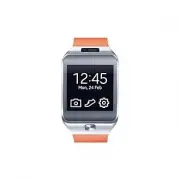 Samsung Gear 2
User Manual
Samsung Gear 2
User Manual
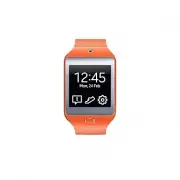 Samsung Gear 2 Neo
User Manual
Samsung Gear 2 Neo
User Manual
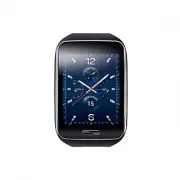 Samsung Gear S
User Manual
Samsung Gear S
User Manual
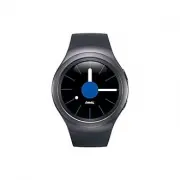 Samsung Gear S2
User Manual
Samsung Gear S2
User Manual
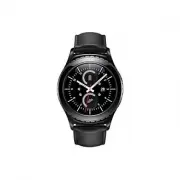 Samsung Gear S2 classic
User Manual
Samsung Gear S2 classic
User Manual
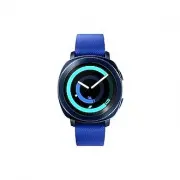 Samsung Gear Sport
User Manual
Samsung Gear Sport
User Manual
 Samsung SM-R500
User Manual
Samsung SM-R500
User Manual
 Samsung SM-R600
User Manual
Samsung SM-R600
User Manual
 Samsung SM-R750
User Manual
Samsung SM-R750
User Manual
 Samsung SM-R760
User Manual
Samsung SM-R760
User Manual
 Samsung SM-R800
User Manual
Samsung SM-R800
User Manual