Page 2 - Table of Contents; Getting started
2 Table of Contents Getting started 6 About the Galaxy Watch4 / Galaxy Watch4 Classic / Galaxy Watch5 / Galaxy Watch5 Pro 7 Device layout and functions 7 Watch17 Wireless charger 18 Charging the battery 18 Wireless charging19 Charging the battery using Wireless power sharing 20 Battery charging tips...
Page 3 - 8 Samsung Health Monitor; Apps and features; 9 Installing and managing apps
Table of Contents 3 88 Samsung Health Monitor 88 Introduction89 Precautions for measuring blood pressure and ECG 92 Starting to measure the blood pressure 94 Starting to measure the ECG 96 GPS97 Music 97 Introduction97 Using music97 Managing audio files saved on your Watch 98 Media Controller 98 Int...
Page 4 - Galaxy Wearable app
Table of Contents 4 125 Battery and device care126 Apps126 General127 Accessibility127 Software update128 About watch Galaxy Wearable app 129 Introduction130 Watch faces131 Apps screen132 Tiles132 Quick panel133 Watch settings 133 Introduction133 Samsung account133 Modes133 Notifications134 Sounds a...
Page 5 - Usage notices
Table of Contents 5 138 Find My Watch138 Store Usage notices 139 Precautions for using the device141 Notes on package contents and accessories 142 Maintaining the device’s water and dust resistance 144 Precautions for overheating144 Cleaning and managing the Watch 145 Use caution if you are allergic...
Page 6 - About the Galaxy Watch4 / Galaxy Watch4
6 Getting started About the Galaxy Watch4 / Galaxy Watch4 Classic / Galaxy Watch5 / Galaxy Watch5 Pro The Galaxy Watch4 / Galaxy Watch4 Classic / Galaxy Watch5 / Galaxy Watch5 Pro (hereafter, Watch) is a smartwatch that can analyse your exercise pattern, manage your health, and provide you with a va...
Page 7 - Device layout and functions; Watch
Getting started 7 Device layout and functions Watch ▶ Galaxy Watch4 : Home button (Power button) / Electrical biosensor Back button / Electrical biosensor Touch screen Home button (Power button) / Electrical biosensor Back button / Electrical biosensor Touch screen SM-R860, SM-R870: GPS antenna SM-R...
Page 17 - Buttons; Wireless charger
Getting started 17 Buttons Button Function Home button • When the Watch is off, press and hold to turn it on. • When the screen is off, press to turn on the screen. • Press and hold to start a conversation with Bixby. Refer to Using Bixby for more information. • Press twice or press and hold to open...
Page 18 - Charging the battery
Getting started 18 Charging the battery Charge the battery before using your Watch for the first time or when it has been unused for extended periods. Wireless charging 1 Connect the wireless charger to the USB power adapter. 2 Place the Watch on the wireless charger aligning the centre of your Watc...
Page 19 - Checking the charging status; Charging the battery using Wireless power sharing
Getting started 19 Checking the charging status You can check the charging status on the screen during wireless charging. If the charging status does not appear on the screen, on the Apps screen, tap ( Settings ) → Display and tap the Show charging info switch to turn it on. If you charge the Watch ...
Page 20 - Battery charging tips and precautions
Getting started 20 2 After fully charging, disconnect the Watch from the device that works as a wireless charging pad. Do not use the headphones or Bluetooth headset while sharing power. Doing so may affect nearby devices. • You cannot charge your Watch with the wireless charging pad/device that fun...
Page 22 - Using power saving mode; Wearing the Watch; Attaching and removing the band
Getting started 22 • If the Watch is not charging properly, take the Watch and the wireless charger to a Samsung Service Centre or an authorised service centre. • Avoid using a bent or damaged wireless charger cable. If the wireless charger cable is damaged, stop using it. Using power saving mode Tu...
Page 24 - Putting on the Watch
Getting started 24 Putting on the Watch Do not bend the band excessively. Doing so may damage the Watch. • To measure your physical condition accurately, wear the Watch firmly around your lower arm above the wrist. Refer to How to wear the Watch for accurate measurements for more information. • When...
Page 26 - Band tips and precautions
Getting started 26 3 Place your Watch around your wrist and secure the buckle. ▶ When connecting other bands : Open the buckle and place your Watch around your wrist. Fit the band to your wrist, insert the pin into an adjustment hole, and then secure the buckle to close it. If the band is too tight,...
Page 27 - How to wear the Watch for accurate measurements
Getting started 27 • Make sure your skin is dry before wearing your Watch. If you wear a wet Watch for a long time, your skin may be affected. • If you use your Watch in the water, remove foreign materials from your skin and Watch and dry them thoroughly to prevent the skin irritation. • Do not use ...
Page 30 - Turning the Watch on and off; Turning the Watch on; Turning the Watch off; Forcing restart
Getting started 30 Turning the Watch on and off Follow all posted warnings and directions from authorised personnel in areas where the use of wireless devices is restricted, such as aeroplanes and hospitals. Home button Back button Turning the Watch on Press and hold the Home button for a few second...
Page 31 - Emergency call; Connecting the Watch to a phone; Installing the Galaxy Wearable app
Getting started 31 Emergency call You can make an emergency call. 1 Press and hold the Home button and the Back button simultaneously. Alternatively, open the quick panel by dragging downwards from the top edge of the screen and tap . 2 Tap Emergency call . To manage your medical information and eme...
Page 32 - Connecting your Watch to a new phone
Getting started 32 5 Open the Galaxy Wearable app on your phone. If the Galaxy Wearable app is not the latest version, update the Galaxy Wearable app to the latest version. 6 Tap Continue . 7 Select your Watch on the screen.If you cannot find your Watch, tap Having trouble connecting? . 8 Follow the...
Page 33 - Remote connection; Adding the accounts to your Watch; Registering a Samsung account on your Watch
Getting started 33 Remote connection Your Watch and phone are connected through Bluetooth. You can sync your phone to your Watch when both devices are remotely connected to each other, even though a Bluetooth connection is not available. The Remote connection uses your mobile network or Wi-Fi.If thi...
Page 34 - Controlling the screen; Bezel
Getting started 34 Controlling the screen Bezel Your Watch has a touch bezel or a rotatable bezel. Rotate or swipe the bezel clockwise or anticlockwise to control various Watch functions. Rotatable bezel (Galaxy Watch4 Classic) Touch bezel (Galaxy Watch4 / Galaxy Watch5 / Galaxy Watch5 Pro) • Scroll...
Page 35 - Touch screen
Getting started 35 Touch screen Tapping Tap the screen. Touching and holding Touch and hold the screen for approximately 2 seconds. Dragging Touch and hold an item and drag it to the target position. Double tapping Double tap the screen. Swiping Swipe upwards, downwards, to the left, or to the right...
Page 36 - Screen composition; Using tiles
Getting started 36 Screen composition The Watch screen is the starting point of the Home screen, which is composed of several pages.You can check tiles or open the notification panel by swiping the screen to the left or right or by using the bezel. Notification panel Tiles Add tiles. Watch screen Th...
Page 37 - Turning the screen on and off; Turning the screen on; Turning the screen off
Getting started 37 Turning the screen on and off Turning the screen on Use the following methods to turn the screen on. • Turn the screen on with the buttons : Press the Home button or Back button. • Turn the screen on by raising your wrist : Raise your wrist where you wear the Watch. If the screen ...
Page 38 - Switching the screen; Switching between the Watch and Apps screen; Returning to the previous screen; Apps screen; Opening apps; Closing apps
Getting started 38 Switching the screen Switching between the Watch and Apps screen On the Watch screen, swipe upwards to open the Apps screen.To return to the Watch screen, swipe downwards from the top of the Apps screen. Alternatively, press the Home button or Back button. Watch screen Apps screen...
Page 39 - Editing the Apps screen; Moving items
Getting started 39 Editing the Apps screen Moving items Drag an item to a new location. Creating folders Drag an app over another app.A new folder containing the selected apps will be created. Tap Folder name and enter a folder name. • Adding more apps Tap on the folder. Tick the apps to add and tap...
Page 40 - Lock screen; Setting the screen lock
Getting started 40 Lock screen Use the screen lock feature to protect your data, such as your personal information saved on your Watch. When turning on this feature, the Watch will require you to unlock it whenever you use it. However, if you unlock it once while wearing the Watch, it will remain un...
Page 41 - Turning on the Always On Display feature
Getting started 41 3 Tap Customise to customise the watch face. Swipe left or right on the screen to move to an item you want to customise, and then select the desired colour and other things by using the bezel or swiping upwards or downwards on the screen. To set the complications, tap each complic...
Page 42 - Notifications; Notification panel
Getting started 42 Notifications Notification panel Check a notification such as a new message or a missed call on the notification panel. On the Watch screen, rotate or swipe the bezel anticlockwise. Alternatively, swipe right on the screen to open the notification panel.When there are new notifica...
Page 43 - Checking incoming notifications; Deleting notifications; Selecting apps for receiving notifications
Getting started 43 Checking incoming notifications When you receive a notification, information about the notification, such as its type or the time you received it, will appear on the screen. If more than two notifications are received, use the bezel or swipe left or right on the screen to check mo...
Page 44 - Quick panel; Checking the status indicator icons
Getting started 44 Quick panel Check the Watch’s current status and configure settings from the quick panel.To open the quick panel, drag downwards from the top edge of the screen. To close the quick panel, swipe upwards on the screen.Use the bezel or swipe left or right on the screen to move to the...
Page 45 - Checking quick settings icons
Getting started 45 • Some status indicator icons that show certain situations, such as when you use some modes or charge the Watch, also appear at the top of the Watch screen. To hide the status indicator icons on the Watch screen, tap ( Settings ) on the Apps screen, tap Advanced features → Status ...
Page 47 - Entering text; Keyboard layout; Changing the input language
Getting started 47 Entering text Keyboard layout A keyboard appears when you enter text. Delete a preceding character. Enter a space. Enter uppercase. For all caps, tap it twice. • The text input screen may be different depending on the app you open. • Text entry is not supported in some languages. ...
Page 48 - Additional keyboard functions
Getting started 48 Additional keyboard functions Drag the icon upwards on the keyboard screen to use additional keyboard functions. Change the keyboard settings. Enter numbers and symbols. Enter text using the keyboard. Enter text by handwriting. Enter emojis. Enter text by voice input. Discard ente...
Page 49 - Installing and managing apps; Play Store; Managing apps; Uninstalling or disabling apps
49 Apps and features Installing and managing apps Play Store Purchase and download apps.Tap ( Play Store ) on the Apps screen. Browse apps by category or tap and search for a keyword. • Register the Google Account on your Watch to use the Play Store app. Refer to Adding a Google Account to your Watc...
Page 50 - Setting app permissions; Checking messages
Apps and features 50 Setting app permissions For some apps to operate properly, they may need permission to access or use information on your Watch.To check or change app permission settings by permission category, on the Apps screen, tap ( Settings ) → Apps → Permission manager . Select an item and...
Page 51 - Sending messages; Recording and sending a voice message
Apps and features 51 Sending messages 1 Tap ( Messages ) on the Apps screen. Create a new message. Messages list 2 Tap . 3 Tap Recipient or tap to enter a message recipient or phone number. Or, tap and select a message recipient from the contacts list. 4 Tap the message input field and enter a messa...
Page 52 - Deleting messages; Introduction; Making calls
Apps and features 52 Deleting messages 1 Tap ( Messages ) on the Apps screen. 2 Scroll through the message list or use the bezel, and then select a contact to check your conversations. 3 Touch and hold a message, then tap Delete . The message will be deleted both from the Watch and the connected pho...
Page 54 - Options during calls; Making a phone call with a Bluetooth headset; Receiving calls; Answering a call; Declining a call
Apps and features 54 Options during calls The following actions are available: Turn off the microphone so that the other party cannot hear you. Adjust the volume. End the current call. Access additional options. The screen’s appearance may differ depending on the model. Making a phone call with a Bl...
Page 55 - Missed calls; Selecting the frequently used contacts on the tile
Apps and features 55 Missed calls If a call is missed, a missed call notification appears on the notification panel. On the notification panel, check missed call notifications. Alternatively, tap ( Phone ) on the Apps screen to check missed calls. Contacts You can make a call or send a message to a ...
Page 56 - Samsung Pay; Making payments
Apps and features 56 Samsung Pay Introduction Register cards to Samsung Pay to make payments.You can check out more information, such as cards that support this feature at www.samsung.com/samsung-pay . • To make payments with Samsung Pay, the device may be required a connection to a Wi-Fi or mobile ...
Page 57 - Samsung Health
Apps and features 57 4 Place your Watch close to the card reader.When the card reader recognises the card information, the payment will be processed. • Payments may not be processed depending on your network connection. • The verification method for payments may vary depending on the card readers. S...
Page 58 - Daily activity; Checking your daily activity; Setting the daily activity target
Apps and features 58 Daily activity Check your current daily status, such as steps, active times, activity calories, and their targets, and related information. Checking your daily activity Tap ( Samsung Health ) on the Apps screen and tap Daily activity . Target achievement graph • Steps : Check th...
Page 59 - Steps; Measuring your step count
Apps and features 59 Steps The Watch counts the number of steps you have taken. Measuring your step count Tap ( Samsung Health ) on the Apps screen and tap Steps . Target Target achievement graph Current step total To check additional information which is related to the steps, use the bezel or swipe...
Page 60 - Setting the step target; Exercise
Apps and features 60 Setting the step target 1 Tap ( Samsung Health ) on the Apps screen. 2 Tap Steps and tap Set target . 3 Use the bezel or swipe upwards or downwards on the screen to set the target. 4 Tap Done . Exercise Record your exercise information and check the results. • Before using this ...
Page 61 - Starting exercises
Apps and features 61 Starting exercises 1 Tap ( Samsung Health ) on the Apps screen. 2 Tap Work out . You can start exercising directly from the Multi-workouts tile after adding workouts to it. 3 Use the bezel or swipe left or right on the screen to select an exercise type you want.When there is no ...
Page 64 - Doing multiple exercises; Starting repetitive exercises
Apps and features 64 Doing multiple exercises You can log various exercises and go straight through an entire routine by starting another exercise right after finishing the current exercise.Swipe right on the screen while working out, tap New , and then select the next exercise type to begin. To fin...
Page 66 - Checking the exercise history
Apps and features 66 6 Take a rest after completing a set. Or, tap Skip if you want to skip to the next set without resting.The exercise will begin after you get into the proper position to start it by following the pose on the screen. 7 Swipe right on the screen and tap Finish . To pause or restart...
Page 68 - Working out after adding your own exercise
Apps and features 68 Working out after adding your own exercise In addition to the default exercise types provided by your Watch, you can add your own exercises, and measure the duration and calories burned, and then check your exercise results. 1 Tap ( Samsung Health ) on the Apps screen. 2 Tap Wor...
Page 69 - Setting the exercise
Apps and features 69 Setting the exercise 1 Tap ( Samsung Health ) on the Apps screen. 2 Tap Work out . 3 Tap under each exercise type and set the various exercise options. • Lane : Choose your lane when running on a track. • Pool length : Set the pool length. • Target : Turn on the exercise target ...
Page 71 - Food; Recording the calories
Apps and features 71 Food Record the calories you eat in a day and compare with your target calories to get help to manage your weight. Recording the calories 1 Tap ( Samsung Health ) on the Apps screen. 2 Tap Food . 3 Tap Enter , tap the meal type on the top of the screen, and then select an option...
Page 72 - Measuring your sleep
Apps and features 72 Sleep Analyse your sleep and record it by measuring your heart rate and your movement while you are sleeping. This feature is only for your general wellness and fitness. Therefore, do not use it for medical purposes, such as diagnosing the symptoms, treatment, or prevention of d...
Page 74 - Using the snore detection feature
Apps and features 74 Using the snore detection feature 1 Tap ( Samsung Health ) on the Apps screen. 2 Tap Settings . 3 Tap Snore detection . The Samsung Health app will open on your phone. 4 Tap the switch to turn it on. 5 Select Always under Detect snoring to measure your snoring whenever you are s...
Page 75 - Heart rate
Apps and features 75 3 Tap the Skin temperature during sleep switch to turn it on. Your skin temperature will be measured along with your other sleep records when you sleep while wearing the Watch. • If your skin temperature is measured continuously while sleeping, the battery will drain more quickl...
Page 76 - Measuring your heart rate manually
Apps and features 76 • Heart rate measurements may vary depending on the measurement method and the environment they are taken in. • If the sensor is not working, check the Watch’s position on your wrist and make sure nothing is obstructing the sensor. If the sensor continues to have the same proble...
Page 77 - Setting the heart rate alert; Stress; Measuring your stress level manually
Apps and features 77 Setting the heart rate alert You can receive an alert when your heart rate is higher or lower than the resting heart rate value you set and it lasts more than 10 minutes. 1 Tap ( Samsung Health ) on the Apps screen. 2 Tap Heart rate . 3 Tap Settings and set the alert under Heart...
Page 78 - Alleviating stress with the breathing exercise
Apps and features 78 3 Tap Measure to begin measuring your stress level. Check the measured stress level on the screen. Alleviating stress with the breathing exercise 1 Tap ( Samsung Health ) on the Apps screen. 2 Tap Stress . 3 Tap or under Breathe to change the time and the number for the breath e...
Page 79 - Body composition
Apps and features 79 Body composition Measure your body composition, such as your skeletal muscle mass or fat mass. • This feature is only for your general wellness and fitness. Therefore, do not use it for medical purposes, such as diagnosing the symptoms, treatment, or prevention of disease. • Do ...
Page 81 - Measuring your body composition
Apps and features 81 Measuring your body composition 1 Tap ( Samsung Health ) on the Apps screen. 2 Tap Body composition . 3 Tap Measure . You can learn about how to measure your body composition in detail on the screen by tapping How to measure . 4 Enter your weight and tap Confirm . 5 Place your t...
Page 82 - Cycle tracking
Apps and features 82 Check measured body composition results on the screen. To check the additional information which is related to the body composition, use the bezel or swipe upwards or downwards on the screen. Cycle tracking Enter your menstrual period to begin tracking your cycle. When you are m...
Page 83 - Water; Recording water consumption
Apps and features 83 3 Tap Enter period . 4 Tap the input field, use the bezel or swipe upwards or downwards on the screen to set your period’s start date. 5 Tap Save . To check additional information which is related to your cycle tracking, use the bezel or swipe upwards or downwards on the screen....
Page 84 - Measuring your blood oxygen level manually
Apps and features 84 Blood oxygen Measure your blood’s oxygen level to check whether your blood is properly delivering oxygen to the different parts of your body. This feature is only for your general wellness and fitness. Therefore, do not use it for medical purposes, such as diagnosing the symptom...
Page 86 - Measuring your blood oxygen level while sleeping; Together
Apps and features 86 Measuring your blood oxygen level while sleeping Set to measure your blood oxygen level continuously while sleeping. 1 Tap ( Samsung Health ) on the Apps screen. 2 Tap Settings . 3 Tap the Blood oxygen during sleep switch to turn it on. Your sleeping blood oxygen level will be m...
Page 89 - Precautions for measuring blood pressure and ECG
Apps and features 89 Precautions for measuring blood pressure and ECG Common precautions • The Samsung Health Monitor app cannot be used for medical purposes, such as diagnosing hypertension, cardiac disorders, and other heart conditions. Do not use this app for purpose of replacing a physician’s me...
Page 92 - Starting to measure the blood pressure; Presetting before measuring the blood pressure
Apps and features 92 Starting to measure the blood pressure Presetting before measuring the blood pressure Enter your profile on the Samsung Health Monitor app and calibrate your Watch before measuring your blood pressure. If you do not enter a profile, you cannot measure your blood pressure, and if...
Page 93 - Measuring your blood pressure; Checking the readings
Apps and features 93 Measuring your blood pressure You can measure your blood pressure by using your Watch’s optical heart rate sensor without using any other medical devices, such as the cuff-typed blood pressure manometer, after calibration. You have to wear your Watch on the same wrist used for c...
Page 94 - Starting to measure the ECG; Presetting before measuring the ECG
Apps and features 94 Starting to measure the ECG Presetting before measuring the ECG Enter your profile on the Samsung Health Monitor app before measuring your ECG. If you do not enter a profile, you cannot measure your ECG. 1 Tap ( Samsung Health Monitor ) on the Apps screen. 2 Tap ECG → Open phone...
Page 95 - Checking the results
Apps and features 95 The measurement will start and the ECG wave will appear on the screen. Check the measured ECG results on the screen. 3 Tap Add , select additional physical symptoms that you are currently experiencing, and then tap Save . 4 Tap Done . Checking the results Check the results and E...
Page 96 - GPS
Apps and features 96 • Poor recording : It appears when the signals used for analysing the ECG measurement result are not measured properly. If this case, take the measurement again. Contact your physician or a nearby hospital immediately if Inconclusive or Poor recording appears continuously and yo...
Page 97 - Managing audio files saved on your Watch
Apps and features 97 Music Introduction Listen to music saved on your Watch. Using music Tap ( Music ) on the Apps screen. Drag the icon upwards and tap Library to open the Library screen. On the Library screen, you can check the playlist and arrange music by tracks, albums, and artists. Skip to the...
Page 98 - Media Controller
Apps and features 98 3 Select Tracks on watch . The audio files saved on your Watch will appear, sorted by category. • To send audio files from your phone to your Watch, tap , select audio files, and then tap Add to watch . • To delete audio files saved on your Watch, touch and hold a file you want ...
Page 99 - Controlling the video player
Apps and features 99 2 Select Phone or Watch . When you select Phone , music will play from the connected phone’s music app and you can control the music player with your Watch.When you select Watch , music will play from your Watch’s music app and you can listen to music with your Watch’s speaker o...
Page 100 - Reminder; Completing reminders
Apps and features 100 Reminder Register to-do items as reminders and receive notifications according to the condition you set. • To receive reminder notifications in a specific place, you have to connect your Watch to your phone through Bluetooth. However, the feature for setting you to receive remi...
Page 101 - Calendar; Starting Bixby
Apps and features 101 Calendar You can check the 7-day schedules of events that you saved on your phone on your Watch.Tap ( Calendar ) on the Apps screen to check the schedules of events that you saved on your phone.To add your schedule, tap Show on phone and add it on the connected phone. Bixby Bix...
Page 102 - Waking up Bixby using your voice; Weather; Setting alarms
Apps and features 102 Waking up Bixby using your voice You can start a conversation with Bixby by saying “Hi, Bixby” or “Bixby”. 1 Tap ( Bixby ) on the Apps screen. Alternatively, press and hold the Home button. 2 Tap → Voice wake-up . 3 Tap the Wake with “Hi, Bixby” switch to turn it on. 4 Tap Wake...
Page 103 - Turning off alarms; Deleting alarms; World Clock; Timer; Setting a timer
Apps and features 103 4 Set other alarm options, such as the date when to go off and whether to repeat the alarm, and tap Save . The saved alarm is added to the alarms list. To turn on or off alarms, tap the switch next to the alarm in the alarms list. Turning off alarms Drag outside the large circl...
Page 104 - Dismissing a timer; Stopwatch
Apps and features 104 Dismissing a timer Drag outside the large circle when your timer goes off. Alternatively, rotate or swipe the bezel clockwise.To restart the timer, drag outside the large circle. Alternatively, rotate or swipe the bezel anticlockwise. Stopwatch 1 Tap ( Stopwatch ) on the Apps s...
Page 105 - Using Gallery; Viewing images; Zooming in or out
Apps and features 105 3 Select Add images . 4 Select a picture to transfer to your Watch and tap Done . To sync images on your phone with your Watch, tap the Auto sync albums switch under Gallery to turn it on. Then, tap Albums to sync , select albums to import to your Watch, and then tap Done . The...
Page 106 - Deleting images; Find My Watch
Apps and features 106 Deleting images 1 Tap ( Gallery ) on the Apps screen. 2 Touch and hold the image to delete it. 3 Use the bezel or swipe left or right on the screen and select any images to delete more.To select all images, tap All . 4 Tap . Find My Phone If you misplace the phone, the Watch ca...
Page 107 - Finding with the Galaxy Wearable app; Controlling the Watch remotely; Sending an SOS
Apps and features 107 Finding with the Galaxy Wearable app 1 Open the Galaxy Wearable app on your phone and tap Find My Watch . 2 Tap Start . The Watch will make a sound and vibrate, and its screen will turn on. To stop making sound and vibrating, drag outside the large circle on the Watch. Alternat...
Page 108 - Entering medical information; Registering emergency contacts
Apps and features 108 Entering medical information Enter your medical information, such as your name and blood type. This information can be accessed directly on your Watch during an emergency. 1 Open the Galaxy Wearable app on your phone and tap Watch settings → Safety and emergency . 2 Tap Medical...
Page 109 - Requesting an SOS; Setting the SOS request; Sending an SOS request
Apps and features 109 Requesting an SOS Setting the SOS request 1 Open the Galaxy Wearable app on your phone and tap Watch settings → Safety and emergency . 2 Tap Emergency SOS . • To select a contact to make an emergency call, tap Emergency number to call and select a contact or enter one manually....
Page 110 - Requesting an SOS when you are hurt from a fall; Setting the SOS request when you are hurt from a fall; Sending an SOS request when you are hurt from a fall
Apps and features 110 Requesting an SOS when you are hurt from a fall Setting the SOS request when you are hurt from a fall 1 Open the Galaxy Wearable app on your phone and tap Watch settings → Safety and emergency . 2 Tap Hard fall detection and tap the switch to turn it on. 3 Tap When to detect fa...
Page 111 - Stop sharing the location information; Making voice recordings
Apps and features 111 Stop sharing the location information While sharing your location information, the icon appears on the Watch screen, and you can check the sharing status on the notification panel.To stop sharing your location information, tap the notification panel and tap Stop sharing → . If ...
Page 112 - Changing the recording mode; Compass
Apps and features 112 Changing the recording mode Tap ( Voice Recorder ) on the Apps screen. Select a mode you want. • : This is the normal recording mode. • : The Watch records your voice for up to 10 minutes, converts it to text, and then saves it. For best results, keep the Watch near your mouth ...
Page 113 - Camera Controller
Apps and features 113 • The presence of magnetic substances, such as the wireless charger, may affect your Watch’s internal compass sensor and lower its accuracy. Also, the metallic band, which contains magnetic substances, may affect your Watch’s internal compass sensor by magnetic flux, depending ...
Page 114 - Samsung Global Goals; Google apps
Apps and features 114 Samsung Global Goals The Global Goals, which were established by the United Nations General Assembly in 2015, consist of goals that aim to create a sustainable society. These goals have the power to end poverty, fight inequality, and stop climate change.With Samsung Global Goal...
Page 115 - Connections; Precautions for using Bluetooth
Apps and features 115 Settings Introduction Customise settings for functions and apps. Set your Watch depending on your usage pattern by configuring the various settings.Tap ( Settings ) on the Apps screen. Some features in Settings may not be available depending on the region, carrier, or model. Sa...
Page 116 - NFC and contactless payments; Making payments with the NFC feature
Apps and features 116 Wi-Fi Turn on the Wi-Fi feature to connect to a Wi-Fi network. 1 On the Settings screen, tap Connections → Wi-Fi , and tap the switch to turn it on. 2 Select a network from the Wi-Fi network list.Networks that require a password appear with a lock icon. 3 Tap Connect . • If you...
Page 117 - Flight mode
Apps and features 117 2 Touch the NFC antenna area of the Watch to the NFC card reader. To set the default app, on the Settings screen, tap Connections → NFC and contactless payments → Payment and select an app. The payment services list may not include all available payment apps. NFC antenna Flight...
Page 121 - Display
Apps and features 121 Display Change the screen settings.On the Settings screen, tap Display . • Brightness : Adjust the brightness of the screen. • Adaptive brightness : Set the Watch to keep track of your brightness adjustments and apply them automatically in similar lighting conditions. • Always ...
Page 122 - Health; Location
Apps and features 122 Health Configure the various settings related to exercise and fitness.On the Settings screen, tap Health . • Measurement : Set how to measure your heart rate and stress, and turn the additional features that can be measured during sleep on or off. • Labs : Use new features of t...
Page 123 - Safety and emergency; Accounts and backup; Google
Apps and features 123 Safety and emergency Manage your medical information and emergency contacts. You can also set to request an SOS automatically or manually when you are in an emergency situations. Refer to Sending an SOS for more information. On the Settings screen, tap Safety and emergency . • ...
Page 124 - Advanced features; Gestures
Apps and features 124 Advanced features Turn on the advanced features.On the Settings screen, tap Advanced features . • Disconnection alerts : Set to receive alerts when your Watch loses its Bluetooth connection to your phone while wearing it. • Water lock : Turn on water lock mode before entering t...
Page 125 - Battery and device care; Battery; Storage; Memory
Apps and features 125 Battery and device care The device care feature provides an overview of the status of your Watch’s battery, storage, and memory. Battery Check the remaining battery power and time to use the Watch. If the battery is low, turn on power saving mode to reduce battery consumption.O...
Page 126 - Apps
Apps and features 126 Apps Configure the settings for the Watch’s app.On the Settings screen, tap Apps . • Choose default apps : Choose default apps for similar features. • Health Platform : Set your profile to be used for managing your health data and set to share information with other connected h...
Page 127 - Accessibility
Apps and features 127 Accessibility Configure various settings to improve accessibility to the Watch.On the Settings screen, tap Accessibility . • Functions you’re using : Check the accessibility features you are using. This feature appears only when using the accessibility feature. • TalkBack : Tur...
Page 130 - Watch faces; Making My style watch faces
Galaxy Wearable app 130 • Manage devices : Manage connected devices when more than two devices are connected with your phone. To disconnect a device from your phone, select a device and tap Remove . Some features may not be available depending on the region, carrier, or model. Watch faces You can ch...
Page 131 - Making AR emoji watch faces
Galaxy Wearable app 131 Making AR emoji watch faces Change your watch face into your own AR emoji. This feature is only available on Samsung phones that support the AR emoji features. 1 On the Galaxy Wearable screen of the phone, tap Watch faces . 2 Select AR Emoji under Graphical . 3 Tap Customise ...
Page 132 - Tiles; Adding or removing tiles; Adding or removing quick settings icons
Galaxy Wearable app 132 Tiles Customise the tiles on the Watch. You can also rearrange tiles.On the Galaxy Wearable screen of the phone, tap Tiles . Adding or removing tiles Tap the tiles you want to add under Add tiles or tap on the tiles you want to remove, and then tap Save . Rearranging tiles To...
Page 138 - Watch software update; Store
Galaxy Wearable app 138 Watch software update Update your Watch’s software through the firmware over-the-air (FOTA) service. You can also change the update settings.On the Galaxy Wearable screen of the phone, tap Watch settings → Watch software update . Refer to Software update for more information....
Page 139 - Precautions for using the device
139 Usage notices Precautions for using the device Please read this manual when using the device to ensure safe and proper use. • Descriptions are based on the device’s default settings. • Some content may differ from your device depending on the region, service provider, model specifications, or de...
Page 141 - Instructional icons; Notes on package contents and accessories
Usage notices 141 Instructional icons Warning : situations that could cause injury to yourself or others Caution : situations that could cause damage to your device or other equipment Notice : notes, usage tips, or additional information Notes on package contents and accessories Refer to the quick s...
Page 142 - Maintaining the device’s water and dust
Usage notices 142 Maintaining the device’s water and dust resistance • This device is water and dust resistant, and meets the following international standards. ‒ 5ATM water resistance classification certification: Was tested by submerging the device in 50 m of fresh water for 10 minutes, leaving it...
Page 144 - Precautions for overheating; Cleaning and managing the Watch
Usage notices 144 Precautions for overheating If you feel discomfort because of overheating while using the device, stop using it immediately and remove it from your wrist. • To avoid problems, such as device malfunction, skin discomfort or damage, and battery draining, a warning will appear on the ...
Page 145 - Use caution if you are allergic to any materials
Usage notices 145 • When you remove sunblock, lotion, or oil, use a soap-free detergent, then rinse and dry your Watch thoroughly. • The hybrid band is not water-resistant. Do not swim or take a shower while using the hybrid band. • The hybrid band may make squeaking sound where it connects with the...
Page 146 - Appendix; Troubleshooting; The Watch displays network or service error messages
146 Appendix Troubleshooting Before contacting a Samsung Service Centre or an authorised service centre, please attempt the following solutions. Some situations may not apply to your Watch.You can also use Samsung Members to solve any problems you might encounter while using your device. The Watch d...
Page 147 - Your Watch freezes or encounters a problem; Restarting the Watch; Another Bluetooth device cannot locate your Watch
Appendix 147 Your Watch freezes or encounters a problem Try the following solutions. If the problem is still not resolved, contact a Samsung Service Centre or an authorised service centre. Restarting the Watch If your Watch freezes or hangs, you may need to close apps or turn off the Watch and turn ...
Page 148 - A Bluetooth connection is not established or your Watch and the; Calls are not connected
Appendix 148 A Bluetooth connection is not established or your Watch and the phone are disconnected • Ensure that the Bluetooth feature on both devices is turned on. • Ensure there are no obstacles, such as walls or electrical equipment, between the devices. • Ensure that the latest version of the G...
Page 150 - Your Watch cannot find your current location; Removing the battery
Appendix 150 Your Watch cannot find your current location The Watch uses your phone’s location information. GPS signals may be obstructed in some locations, such as indoors. Set to use Wi-Fi or a mobile network to find your current location. A small gap appears around the outside of the Watch case •...
Page 151 - Copyright; Trademarks
Copyright Copyright © 2023 Samsung Electronics Co., Ltd.This manual is protected under international copyright laws.No part of this manual may be reproduced, distributed, translated, or transmitted in any form or by any means, electronic or mechanical, including photocopying, recording, or storing i...


 Samsung Galaxy Watch 4G
User Manual
Samsung Galaxy Watch 4G
User Manual
 Samsung Galaxy Watch Active
User Manual
Samsung Galaxy Watch Active
User Manual
 Samsung Galaxy Watch Active2
User Manual
Samsung Galaxy Watch Active2
User Manual
 Samsung Galaxy Watch3
User Manual
Samsung Galaxy Watch3
User Manual
 Samsung Galaxy Watch4 Classic
User Manual
Samsung Galaxy Watch4 Classic
User Manual
 Samsung Galaxy Watch5
User Manual
Samsung Galaxy Watch5
User Manual
 Samsung Galaxy Watch5 Pro
User Manual
Samsung Galaxy Watch5 Pro
User Manual
 Samsung Galaxy Watch6
User Manual
Samsung Galaxy Watch6
User Manual
 Samsung Gear 2
User Manual
Samsung Gear 2
User Manual
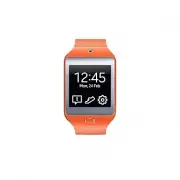 Samsung Gear 2 Neo
User Manual
Samsung Gear 2 Neo
User Manual
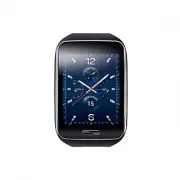 Samsung Gear S
User Manual
Samsung Gear S
User Manual
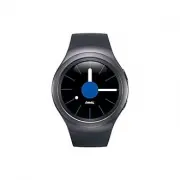 Samsung Gear S2
User Manual
Samsung Gear S2
User Manual
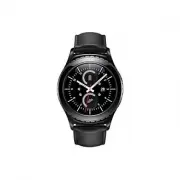 Samsung Gear S2 classic
User Manual
Samsung Gear S2 classic
User Manual
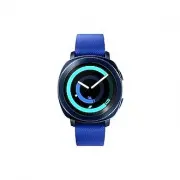 Samsung Gear Sport
User Manual
Samsung Gear Sport
User Manual
 Samsung SM-R500
User Manual
Samsung SM-R500
User Manual
 Samsung SM-R600
User Manual
Samsung SM-R600
User Manual
 Samsung SM-R750
User Manual
Samsung SM-R750
User Manual
 Samsung SM-R760
User Manual
Samsung SM-R760
User Manual
 Samsung SM-R800
User Manual
Samsung SM-R800
User Manual