Page 2 - Table of Contents; Getting Started
2 Table of Contents Getting Started 5 About the Galaxy Watch Active25 Read me first10 Device layout 10 Package contents11 Galaxy Watch Active213 Wireless charger 14 Battery 14 Charging the battery16 Wireless charging17 Charging the battery using Wireless PowerShare 19 Power saving mode 19 Wearing th...
Page 3 - Apps and features
Table of Contents 3 88 Playing music without connecting to a mobile device 89 Reminder90 Calendar91 Bixby 91 Introduction91 Starting Bixby92 Using Bixby 93 Weather93 Alarm94 World clock95 Timer95 Stopwatch96 Gallery 96 Importing and exporting images97 Viewing images97 Deleting images 98 Find My Phon...
Page 4 - Using the Galaxy Watch; health; Appendix
Table of Contents 4 Using the Galaxy Watch Active2 134 Introduction134 Using as a personal coach for your health 134 Achieving your daily activity target135 Managing stress and sleep quality135 Experiencing enhanced exercises 136 Using as an intelligent planner 136 Checking out today’s information13...
Page 5 - About the Galaxy Watch Active2
5 Getting Started About the Galaxy Watch Active2 The Galaxy Watch Active2 is a smartwatch that can analyse your exercise pattern, manage your health and allows you to use a variety of convenient apps for making phone calls and playing music. You can easily browse the various features by swiping the ...
Page 7 - Maintaining water and dust resistance
Getting Started 7 • Depending on the region, you can view the regulatory information on the Galaxy Watch Active2. To view the information, tap ( Settings ) on the Galaxy Watch Active2’s Apps screen and tap About watch → Regulatory info . Maintaining water and dust resistance Your device supports wat...
Page 8 - Precautions for overheating
Getting Started 8 Precautions for overheating If you feel discomfort due to overheating while using the device, stop using it immediately and remove it from your wrist.To avoid problems, such as device malfunction, skin discomfort or damage, and battery draining, a warning will appear on the device ...
Page 9 - Active2
Getting Started 9 • Clean your wrist and band after exercising or sweating. Clean the rubber band with freshwater, wipe it with a little rubbing alcohol and dry it thoroughly. • If the rubber band gets stained or contains any materials, wipe it with a moistened soft bristle toothbrush. • The leather...
Page 10 - Instructional icons; Device layout; Package contents
Getting Started 10 Instructional icons Warning : situations that could cause injury to yourself or others Caution : situations that could cause damage to your device or other equipment Notice : notes, usage tips, or additional information Device layout Package contents Refer to the quick start guide...
Page 11 - Galaxy Watch Active2
Getting Started 11 Galaxy Watch Active2 Back key Home key (Power key) Microphone Touchscreen SM-R820, SM-R830: GPS antenna SM-R825F, SM-R835F: LTE/GPS antenna Atmospheric pressure sensor NFC antenna Light sensor Heart rate sensor Speaker Pressure vent Band
Page 13 - Keys; Wireless charger
Getting Started 13 Keys Key Function Home/Power • Press and hold to turn the Galaxy Watch Active2 on or off. • Press to turn on the screen. • Press and hold for more than 7 seconds to restart the Galaxy Watch Active2. • Press to open the Apps screen when you are on the Watch screen. • Press to open ...
Page 14 - Battery; Charging the battery
Getting Started 14 Battery Charging the battery Charge the battery before using it for the first time or when it has been unused for extended periods. Use only Samsung-approved battery, charger, and cable. Incompatible battery, charger, and cable can cause serious injuries or damage to your Galaxy W...
Page 15 - Checking the charging status
Getting Started 15 3 After fully charging, disconnect the Galaxy Watch Active2 from the wireless charger. First, disconnect the wireless charger from the charger and then unplug the charger from the electric socket. Checking the charging status Press any of the Galaxy Watch Active2’s keys to turn on...
Page 16 - Charging the battery with a wireless charging pad
Getting Started 16 • If the Galaxy Watch Active2 receives an unstable power supply while charging, the touchscreen may not function. If this happens, disconnect the Galaxy Watch Active2 from the wireless charger. • While charging, the Galaxy Watch Active2 may heat up. This is normal and should not a...
Page 17 - Charging the battery using Wireless PowerShare
Getting Started 17 2 After fully charging, disconnect the Galaxy Watch Active2 from the wireless charging pad. Precautions for wireless charging Do not place the Galaxy Watch Active2 on the wireless charging pad when conductive materials, such as metal objects and magnets, are placed between the Gal...
Page 19 - Power saving mode; Wearing the Galaxy Watch Active2; Putting on the Galaxy Watch Active2
Getting Started 19 Power saving mode Activate power saving mode to extend the battery’s usage time. • Displays colours on the screen as grey tones. • Deactivates the mobile network and Wi-Fi feature. • Limits all functions except for call, message, and notification features. • Limits the performance...
Page 20 - Band tips and precautions
Getting Started 20 Do not bend the band excessively. Doing so may damage the Galaxy Watch Active2. • To measure your heart rate more accurately with the Galaxy Watch Active2, wear the Galaxy Watch Active2 firmly around your lower arm just above the wrist. Refer to Wearing the Galaxy Watch Active2 co...
Page 21 - Connecting or replacing the band; Connecting the band
Getting Started 21 Connecting or replacing the band Connect the band before using your Galaxy Watch Active2. You can detach the band from the Galaxy Watch Active2 and replace it with a new one. • The supplied band may vary depending on the region or model. • The supplied band’s size may vary dependi...
Page 22 - Replacing the band
Getting Started 22 Replacing the band 1 Slide the band’s spring bar inwards. 2 Pull the band away from the Galaxy Watch Active2’s body. 3 Connect the new band to your Galaxy Watch Active2.
Page 23 - Turning the Galaxy Watch Active2 on and off; Restarting the Galaxy Watch Active2
Getting Started 23 Turning the Galaxy Watch Active2 on and off Press and hold the Home key (Power key) for a few seconds to turn on the Galaxy Watch Active2.When you turn on the Galaxy Watch Active2 for the first time or reset it, on-screen instructions will appear to download and install the Galaxy...
Page 24 - Connecting the Galaxy Watch Active2 to a; Installing the Galaxy Wearable app; Connecting the Galaxy Watch Active2 to a mobile device via
Getting Started 24 Connecting the Galaxy Watch Active2 to a mobile device Installing the Galaxy Wearable app You can use other various features after connecting your Galaxy Watch Active2 to a mobile device. To connect your Galaxy Watch Active2 to a mobile device, install the Galaxy Wearable app on t...
Page 26 - Connecting the Galaxy Watch Active2 to a new mobile device; Remote connection
Getting Started 26 Connecting the Galaxy Watch Active2 to a new mobile device When you connect the Galaxy Watch Active2 to a new mobile device, the Galaxy Watch Active2 will be reset. When the prompt appears before connecting your Galaxy Watch Active2 to a new mobile device, tap Back up data to secu...
Page 27 - Using the Galaxy Watch Active2 without a
Getting Started 27 Using the Galaxy Watch Active2 without a mobile device You can use the Galaxy Watch Active2 without connecting it to a mobile device. Use your Galaxy Watch Active2 conveniently without connecting to a mobile device while doing outdoor activities such as climbing a mountain or exer...
Page 28 - Controlling the screen; Bezel
Getting Started 28 10 Set a time zone, date, and time. This step does not appear when you use the LTE model. 11 Set a PIN for restoring or backing up data. On the Apps screen, tap ( Settings ) → Connect to phone → and enter the PIN to connect the Galaxy Watch Active2 to a mobile device while using t...
Page 29 - Scrolling through screens
Getting Started 29 Scrolling through screens Swipe the bezel to view other screens. On the Watch screen, swipe the bezel anticlockwise to view notifications. Selecting an item Swipe the bezel to move from item to item. When you swipe the bezel, the highlight indicator will move in same direction and...
Page 30 - Touchscreen; Tapping
Getting Started 30 Touchscreen • Do not allow the touchscreen to come into contact with other electrical devices. Electrostatic discharges can cause the touchscreen to malfunction. • To avoid damaging the touchscreen, do not tap it with anything sharp or apply excessive pressure to it with your fing...
Page 31 - Tapping and holding
Getting Started 31 Tapping and holding Tap and hold the screen for two or more seconds to access the edit mode or to view available options. Dragging To move an item, tap and hold it and drag it to the target position.
Page 32 - Spreading and pinching; Swiping
Getting Started 32 Double-tapping Double-tap on an image to zoom in or out. Spreading and pinching Spread two fingers apart or pinch on an image to zoom in or out. Swiping Swipe to the left or right to view other panels.
Page 33 - Screen composition; Adding widgets; Removing widgets
Getting Started 33 Screen composition The Watch screen is the starting point for accessing all of the Galaxy Watch Active2’s many screens.You can view widgets or open the notification panel by swiping on the screen or bezel. Notifications Watch Widgets Add widgets. Available widgets, notifications, ...
Page 34 - Turning the screen on and off; Switching the screen; Switching between the Watch and Apps screen; Apps screen
Getting Started 34 Turning the screen on and off To turn on the screen, press the Home key or the Back key.You can also turn on the screen by tapping it. If the screen does not turn on after you tap the screen, tap ( Settings ) on the Apps screen, tap Advanced → Touch wake-up , and then tap the swit...
Page 35 - Opening apps; Returning to the previous screen
Getting Started 35 Opening apps On the Apps screen, tap an app icon to launch the app.To launch an app from the list of recently used apps, tap ( Recent apps ) on the Apps screen.Alternatively, swipe the bezel clockwise or swipe on the screen to the left on the Watch screen and select the recently l...
Page 36 - Lock screen; Setting the screen lock; Watch; Watch screen
Getting Started 36 Lock screen Use the screen lock feature to protect your personal information by preventing others from accessing your Galaxy Watch Active2. After activating the screen lock feature, the Galaxy Watch Active2 will require an unlock code whenever unlocking it. Setting the screen lock...
Page 37 - Changing the watch face
Getting Started 37 Changing the watch face Tap and hold the Watch screen and swipe the bezel or swipe on the screen to the left or right, and then select a watch face.To customise the watch face, tap Customise , swipe the bezel or swipe the screen to the left or right to move to desired option, and ...
Page 38 - Customise a watch face with a photo; Activating the watch always on feature
Getting Started 38 Customise a watch face with a photo Apply a photo as your watch face after importing a photo from your mobile device. Refer to Importing images from your mobile device for more information about importing photos from a mobile device. 1 Tap and hold the Watch screen and swipe the b...
Page 39 - Notification panel
Getting Started 39 Notifications Notification panel Check a notification such as a new message or a missed call on the notification panel. On the Watch screen, swipe the bezel anticlockwise or swipe to the right on the screen to open the notification panel. When there are unchecked notifications, an...
Page 40 - Viewing incoming notifications; Deleting notifications
Getting Started 40 Viewing incoming notifications When you receive a notification, information about the notification, such as its type or the time you received it, will appear on the screen. If more than two notifications are received, swipe the bezel or swipe to the left or right on the screen to ...
Page 41 - Selecting apps for receiving notifications
Getting Started 41 Selecting apps for receiving notifications Select an app from your mobile device to receive notifications on your Galaxy Watch Active2. 1 Launch the Galaxy Wearable app on your mobile device and tap Home → Notifications , and tap the switch. 2 Tap Apps to get notifications from an...
Page 42 - Checking the indicator icons; Checking quick setting icons
Getting Started 42 Checking the indicator icons Indicator icons appear at the top of the quick panel and let you know the Galaxy Watch Active2’s current status. The icons listed in the table below are most common. The indicator icons may appear differently depending on the region, service provider, ...
Page 43 - Adding a quick setting icon
Getting Started 43 Icon Meaning Activate the flash feature Activate power saving mode Activate flight mode Activate water lock mode / Connect the Wi-Fi network or connect the Wi-Fi network automaticallyConnect the Bluetooth headset Activate the location information feature Open the battery managemen...
Page 44 - Activating goodnight mode
Getting Started 44 Activating goodnight mode Activate goodnight mode for sleeping.On the quick panel, tap .Incoming calls will be muted and the screen will not turn on when receiving incoming calls. Also, all notifications will be muted, except for alarms, and the screen will not turn on when notifi...
Page 45 - Activating theatre mode
Getting Started 45 Activating the watch always on feature Set the screen to always display the time when the screen is turned off while you are wearing your Galaxy Watch Active2.On the quick panel, tap .If you activate this feature, the battery will drain more quickly than normal. Launching the Sett...
Page 46 - Activating the flight mode; Activating water lock mode
Getting Started 46 Activating the flight mode Activate the flight mode when you board an aeroplane. Activating this feature will restrict apps that require an network connection, but allow you to use other features as normal.On the quick panel, tap .The icon will appear at the top of the Watch scree...
Page 47 - Opening the battery management menu; Activating sound, vibrate, or silent mode; Activating the NFC feature
Getting Started 47 Opening the battery management menu Open the battery management menu to manage the battery consumption easily.On the quick panel, tap .The battery management menu will be appear. Launching the Find My Phone app Launch the Find My Phone app and find your mobile device when you misp...
Page 48 - Playing or pausing music; Entering text; Introduction
Getting Started 48 Playing or pausing music Play or pause music.On the quick panel, tap or .Music is played or paused on the Galaxy Watch Active2 or the connected mobile device. You can also listen to music after connecting the Bluetooth headset. Activating the touch sensitivity feature Activate the...
Page 49 - Using the voice input
Getting Started 49 Using the voice input Tap and speak to enter your message.To change the language recognised, tap → Input languages . Recognising voice input. Access additional options. • This feature is not supported in some languages. • Tips for better voice recognition – Speak clearly. – Speak ...
Page 50 - Using emoticons; Using handwriting input mode or the keyboard; Using handwriting input mode
Getting Started 50 Using emoticons Tap and select the category. The emoticon list of the selected category will appear.To draw a picture, tap Doodle at the top of the screen, and draw your message. Swipe the bezel anticlockwise bezel, or tap while the touch bezel feature is deactivated to delete you...
Page 51 - Using the keyboard; Changing the input language; Changing the input mode
Getting Started 51 Using the keyboard Tap to open the keyboard. If handwriting input mode appears, swipe on the screen to the right from the left edge of the text input screen and select . The keyboard will appear. • Text entry is not supported in some languages. To enter text, you must change the i...
Page 52 - Viewing messages; Sending messages
52 Apps and features Messages View messages and reply to using the Galaxy Watch Active2. Viewing messages You may incur additional charges for receiving messages while you are roaming. 1 Tap ( Messages ) on the Apps screen. Or, swipe the bezel anticlockwise or swipe the screen to the right on the Wa...
Page 53 - Deleting messages
Apps and features 53 1 Tap ( Messages ) on the Apps screen. Create a new message. Messages list Contacts 2 Tap . Or, you can choose a message recipient by tapping on the contacts list. 3 Add a recipient and tap Next . 4 Select an input mode, and enter your message, and then tap Send . When you selec...
Page 54 - Phone; Answering a call
Apps and features 54 Phone Introduction You can make calls and check incoming calls and receive them. You can have phone conversations via the internal microphone, speaker, or connected Bluetooth headset. The sound may not be heard clearly during a call and only brief calls are available in areas wi...
Page 55 - Rejecting a call
Apps and features 55 Rejecting a call You can reject incoming calls and send a rejection message to the caller.When a call comes in, drag outside the large circle. To send a message when rejecting an incoming call, swipe upwards from the bottom edge of the screen and select the message you want. Mis...
Page 56 - Making calls; Options during calls; Using the call screen
Apps and features 56 Making calls Tap ( Phone ) on the Apps screen. Keypad Contacts Log list Use one of the followings methods: • Tap , enter a number using the keypad, and then tap . • Tap , swipe the bezel or scroll through the contact list, select a contact, and then tap . • Swipe the bezel or sc...
Page 57 - Making a phone call with a Bluetooth headset; Contacts
Apps and features 57 Making a phone call with a Bluetooth headset When a Bluetooth headset is connected to the Galaxy Watch Active2, you can make phone calls with a Bluetooth headset.If a Bluetooth headset is not connected to the Galaxy Watch Active2, on the Apps screen, tap ( Settings ) → Connectio...
Page 58 - Adding contacts; Adding medical information to my profile
Apps and features 58 Adding contacts 1 Tap ( Contacts ) on the Apps screen. 2 Tap on the top of the contacts list and enter the contact information. 3 Tap Save . Selecting the frequently used contacts on the widget Swipe the bezel clockwise or swipe the screen to the left on the Watch screen and add...
Page 59 - Setting up Samsung Pay; Making payments
Apps and features 59 Samsung Pay Register frequently used cards to Samsung Pay, a mobile payment service, to make payments quickly and securely. Samsung Pay supports near field communication (NFC) to allow payment through standard credit card readers.You can view more information, such as cards that...
Page 61 - Wearing the Galaxy Watch Active2 correctly
Apps and features 61 Wearing the Galaxy Watch Active2 correctly • When you activate the auto heart rate tracking feature, or when you start to use the exercise features, the Galaxy Watch Active2 will automatically track your heart rate. When measuring your heart rate, wear the Galaxy Watch Active2 s...
Page 63 - Daily activity; Checking the daily activity
Apps and features 63 Daily activity Check your daily activity goal based on your target, such as the calories burned, exercise time, or activity time at a glance. Checking the daily activity Tap ( Samsung Health ) on the Apps screen, swipe the bezel or swipe upwards or downwards on the screen, and t...
Page 64 - Setting the daily activity target; Steps; Measuring your step count and distance you walk
Apps and features 64 Setting the daily activity target 1 Swipe the bezel or swipe upwards or downwards on the daily activity tracker screen and tap Settings . 2 Tap Daily target and select an activity option. 3 Tap the target input field and swipe the bezel or swipe upwards or downwards on the scree...
Page 65 - Setting the step target; Setting up notifications
Apps and features 65 To view weekly records with a graph, swipe the bezel or swipe upwards or downwards on the screen. • When you start to measure your step, the step tracker monitors your steps and displays your step account after a brief delay because your Galaxy Watch Active2 accurately recognise...
Page 66 - Floors; Measuring the floors you climb; Setting the target for climbing floors
Apps and features 66 Floors Record and track how many floors you climb. Measuring the floors you climb Tap ( Samsung Health ) on the Apps screen, swipe the bezel or swipe upwards or downwards on the screen, and then open the floors tracker screen. Target Current floors total To view weekly records w...
Page 67 - Exercise; Starting the exercises
Apps and features 67 3 Tap the target input field and swipe the bezel or swipe upwards or downwards on the screen to set the target. 4 Tap DONE . Setting up notifications To receive a notification when reaching a target you set, swipe the bezel or swipe upwards or downwards on the screen, tap Settin...
Page 71 - Doing multiple exercises; Starting repetitive exercises
Apps and features 71 Doing multiple exercises You can log various exercises and go straight through an entire routine by starting another exercise right after finishing the current exercise. 1 Press the Back key to pause the current exercise. 2 Tap Finish → NEW WORKOUT > . 3 Select the exercise t...
Page 73 - Customising the workout screen
Apps and features 73 Customising the workout screen Customise the workout screen that appears while exercising with the information that you want to preview. You cannot change the workout screen during a workout. 1 Tap ( Samsung Health ) on the Apps screen. 2 Swipe the bezel or swipe upwards or down...
Page 74 - Calories; Sleep
Apps and features 74 Calories You can check your calories burned by day or week.Tap ( Samsung Health ) on the Apps screen, swipe the bezel or swipe upwards or downwards on the screen, and then open the calories screen. • The total calories you burn includes your basal metabolism calculated based on ...
Page 75 - Measuring your sleep
Apps and features 75 Measuring your sleep 1 Sleep while wearing the Galaxy Watch Active2.The Galaxy Watch Active2 will start to measure your sleep. 2 Tap ( Samsung Health ) on the Apps screen after you wake up. 3 Swipe the bezel or swipe upwards or downwards on the screen and open the sleep tracker ...
Page 76 - Heart rate
Apps and features 76 Heart rate Measure and record your heart rate. • The Galaxy Watch Active2’s heart rate tracker is intended for fitness and informational purposes only and is not intended for use in the diagnosis of disease or other conditions, or in the cure, mitigation, treatment, or preventio...
Page 77 - Measuring your heart rate
Apps and features 77 Measuring your heart rate 1 Tap ( Samsung Health ) on the Apps screen. 2 Swipe the bezel or swipe upwards or downwards on the screen and open the heart rate tracker screen.Your heart rate is measured every 10 minutes while resting. Check your measured heart rate on the screen.To...
Page 78 - Measuring your heart rate continuously; Stress
Apps and features 78 Measuring your heart rate continuously You can set your Galaxy Watch Active2 to automatically measure your heart rate continuously.On the heart rate tracker screen, tap HR and stress measurement and select Measure continuously . Your heart rate will be measured continuously and ...
Page 79 - Measuring your stress level; Alleviating stress
Apps and features 79 Measuring your stress level 1 Tap ( Samsung Health ) on the Apps screen. 2 Swipe the bezel or swipe upwards or downwards on the screen and open the stress tracker screen.Your stress level is measured. Check your current stress level on the screen.To measure your stress level man...
Page 80 - Food; Recording the calories; Deleting logs
Apps and features 80 Food Record the calories you eat in a day and compare with your target or the daily recommended calories to get help to manage your weight. If you have just purchased or have reset the Galaxy Watch Active2, create your profile. The Galaxy Watch Active2 will let you know your dai...
Page 81 - Setting your target calories; Weight management
Apps and features 81 Setting your target calories 1 Swipe the bezel or swipe upwards or downwards on the food tracker screen and tap Set target . 2 Tap the input field, swipe the bezel or swipe upwards or downwards on the screen to set the daily target calories, and then tap DONE . Weight management...
Page 82 - Water; Recording water consumption; Setting your target consumption
Apps and features 82 Water Record and track how many glasses of water you drink. Recording water consumption 1 Tap ( Samsung Health ) on the Apps screen. 2 Swipe the bezel or swipe upwards or downwards on the screen and open the water tracker screen. 3 Tap when you drink a glass of water.If you acci...
Page 83 - Caffeine; Recording your coffee consumption; Setting your caffeine consumption limit
Apps and features 83 Caffeine Record and track how many cups of coffee you drink. Recording your coffee consumption 1 Tap ( Samsung Health ) on the Apps screen. 2 Swipe the bezel or swipe upwards or downwards on the screen and open the caffeine tracker screen. 3 Tap when you drink a cup of coffee. I...
Page 84 - Together
Apps and features 84 Together Compare your step count records with other Samsung Health users. You can set a goal, compete with your friends, and view the challenge status on your Galaxy Watch Active2. • Activate the together feature in the Samsung Health app on your mobile device to check informati...
Page 86 - GPS
Apps and features 86 • The content used in the Samsung Health app may vary depending on the software version of the app. The services provided with the app are subject to change or the cancellation of support without prior notice. • Available Samsung Health functions and services may vary depending ...
Page 87 - Music
Apps and features 87 Music Introduction Listen to music saved in the Galaxy Watch Active2 and in the mobile device. Playing music Tap ( Music ) on the Apps screen. When listening to music saved in the Galaxy Watch Active2, swipe upwards from the bottom edge of the screen to open the library screen. ...
Page 88 - Playing music with your Galaxy Watch Active2; Playing music with your mobile device; Playing music without connecting to a mobile device
Apps and features 88 Playing music with your Galaxy Watch Active2 Play music saved on your Galaxy Watch Active2 via the internal speaker. You can also play music via a connected Bluetooth headset. 1 Tap ( Music ). 2 Tap to play the music saved in your Galaxy Watch Active2.The icon appears. 3 Tap . P...
Page 89 - Reminder; Creating a reminder
Apps and features 89 Reminder Add reminders for events such as buying tickets, going to the laundromat, or taking medicine, without using your calendar app. You can set up notifications to receive reminders at specified times. Creating a reminder 1 On the Apps screen, tap ( Reminder ) → Add . If you...
Page 90 - Completing or deleting the reminder; Calendar
Apps and features 90 Completing or deleting the reminder When you have finished your task, you can set the reminder as completed or delete it.To complete the reminder, tap Complete after viewing the reminder’s details. Alternatively, select a completed reminder from the reminder list to complete it....
Page 91 - Starting Bixby
Apps and features 91 Bixby Introduction Bixby is a voice service that helps you use the Galaxy Watch Active2 more conveniently. You can talk to Bixby to launch a function or provide you with information. • Bixby may not be available depending on the region. • Bixby may not be available when you use ...
Page 92 - Using Bixby
Apps and features 92 Using Bixby When you say what you want to Bixby, Bixby will launch corresponding functions or show the information you requested.From any screen press the Home key twice quickly and say what you want. If you cannot launch Bixby with the Home key, on the Apps screen, tap ( Settin...
Page 93 - Weather; Setting alarms
Apps and features 93 Weather View weather information on the Galaxy Watch Active2 for locations set on the Galaxy Watch Active2 or the connected mobile device.Tap ( Weather ) on the Apps screen. Alternatively, swipe the bezel clockwise or swipe the screen to the left on the Watch screen and select t...
Page 94 - Stopping alarms; World clock; Creating world clocks
Apps and features 94 Stopping alarms Drag outside the large circle to stop an alarm.If you want to use the snooze function, drag outside the large circle. Deleting alarms In the alarms list, tap and hold and alarm, and then tap Delete . World clock Creating world clocks 1 Tap ( World clock ) on the ...
Page 95 - Timer
Apps and features 95 Timer 1 Tap ( Timer ) on the Apps screen. 2 Tap Custom . 3 Tap the input field to set the duration and tap Start . Or, select a frequently used timer. 4 Drag outside the large circle when timer goes off. Stopwatch 1 Tap ( Stopwatch ) on the Apps screen. 2 Tap Start to time an ev...
Page 96 - Gallery; Importing and exporting images
Apps and features 96 Gallery Importing and exporting images Importing images from your mobile device 1 Launch the Galaxy Wearable app on your mobile device. 2 Tap Home → Add content to your watch . 3 Tap Send images . 4 Select a category at the bottom of the screen, select files, and then tap Done ....
Page 97 - Viewing images; Zooming in or out; Deleting images
Apps and features 97 Viewing images View and manage the images saved on your Galaxy Watch Active2. 1 Tap ( Gallery ) on the Apps screen. 2 Swipe the bezel or swipe to the left or right on the screen to scroll through the image list and select an image. Zooming in or out You can zoom in on or out fro...
Page 98 - Viewing the location of your mobile device; Find My Watch
Apps and features 98 Find My Phone If you misplace the mobile device, the Galaxy Watch Active2 can help you find it. This feature is not available when you use the Galaxy Watch Active2 without connecting to a mobile device. 1 Tap ( Find My Phone ) on the Apps screen. 2 Tap .The mobile device emits s...
Page 99 - Controlling the Galaxy Watch Active2 remotely; SOS messages; Setting up SOS messages; Adding emergency contacts
Apps and features 99 Controlling the Galaxy Watch Active2 remotely If you cannot find your Galaxy Watch Active2, launch the Galaxy Wearable app on your mobile device and tap Home → Find My Watch → Get location to check the current location of the Galaxy Watch Active2.When your Galaxy Watch Active2 i...
Page 100 - Activating SOS calls; Sending SOS messages
Apps and features 100 Activating SOS calls Set the Galaxy Watch Active2 to automatically call your emergency contact after sending an SOS message. You can only call one of your emergency contacts.Launch Galaxy Wearable on your mobile device, tap Home → Send SOS requests , tap the Make SOS calls to s...
Page 101 - Email; Reading emails
Apps and features 101 Email View emails received on the mobile device and reply to them. This app may not be available when you use the Galaxy Watch Active2 without connecting to a mobile device. Reading emails 1 Tap ( Email ) on the Apps screen. 2 Select an email to open the email screen. To view a...
Page 103 - Sound and vibration
Apps and features 103 Sound and vibration Change the Galaxy Watch Active2’s sound and vibration settings.On the Settings screen, tap Sound and vibration . Some options are not displayed or available when you use the Bluetooth model without connecting to a mobile device. • Sound mode : Set the Galaxy...
Page 104 - Display
Apps and features 104 Display Change the Galaxy Watch Active2’s display settings and the Apps screen.On the Settings screen, tap Display . • Brightness : Adjust the brightness for the display. • Auto low brightness : Set the Galaxy Watch Active2 to automatically adjust the brightness depending on th...
Page 106 - Connections; Bluetooth; Mobile networks
Apps and features 106 Connections Bluetooth Connect to a mobile device via Bluetooth. You can also connect a Bluetooth headset to your Galaxy Watch Active2 and listen to music or have a phone conversation. • Samsung is not responsible for the loss, interception, or misuse of data sent or received vi...
Page 109 - Making payments with the NFC feature
Apps and features 109 NFC You can use the NFC feature.On the Settings screen, tap Connections → NFC . The Galaxy Watch Active2 contains a built-in NFC antenna. Handle the Galaxy Watch Active2 carefully to avoid damaging the NFC antenna. This feature may not be available depending on the region or se...
Page 110 - Alerts
Apps and features 110 Alerts Set the Galaxy Watch Active2 to vibrate when it is disconnected from your mobile device.On the Settings screen, tap Connections and tap the Alerts switch to activate it. Alerts will not be displayed when you use the Galaxy Watch Active2 without connecting to a mobile dev...
Page 111 - Apps; Layout; App order; Auto open apps; Permissions
Apps and features 111 Apps Layout Select the Apps screen’s layout.On the Settings screen, tap Apps → Layout . • Rotary view : Arrange the apps in a circular formation. • List view : Arrange the apps as a list. App order Select how to arrange the apps on the Apps screen.On the Settings screen, tap Ap...
Page 112 - Security; Lock
Apps and features 112 Messages Change the message feature settings.On the Settings screen, tap Apps → Messages . • Messages will not be displayed when you use the Bluetooth model without connecting to a mobile device. • Some options are not displayed on the Bluetooth model. • Send as audio : Set the...
Page 114 - Accessibility; Input
Apps and features 114 Accessibility Configure various settings to improve accessibility to the Galaxy Watch Active2.On the Settings screen, tap Accessibility . • Screen reader : Activate Voice Assistant, which provides voice feedback. To view help information to learn how to use this feature, tap Tu...
Page 115 - Date and time; Language; Reset
Apps and features 115 Date and time You can set the date and time manually.On the Settings screen, tap General → Date and time . Date and time will be available only when you use the Galaxy Watch Active2 without connecting to a mobile device. • Automatic : Set the time zone provided by network or GP...
Page 116 - Optimise battery; About watch
Apps and features 116 Battery Select the Galaxy Watch Active2’s battery mode. Using certain battery modes allows you to reduce battery consumption and use your Galaxy Watch Active2 much longer.On the Settings screen, tap Battery . • Standard : Select when using your Galaxy Watch Active2 normally. Yo...
Page 117 - Connect to phone
Apps and features 117 Connect to new phone Connect your Galaxy Watch Active2 to a new mobile device. The Galaxy Watch Active2 can connect to another mobile device after performing a light reset to delete data except media files and personal data.On the Settings screen, tap Connect to new phone . Con...
Page 118 - Galaxy Wearable app
118 Galaxy Wearable app Introduction To connect your Galaxy Watch Active2 to a mobile device, you must install the Galaxy Wearable app on your mobile device. You can check the Galaxy Watch Active2’s status and download recommended watch faces and apps. You can also customise your Galaxy Watch Active...
Page 121 - Arranging apps
Galaxy Wearable app 121 Apps Customise the Galaxy Watch Active2’s Apps screen. You can also change the settings for launching apps automatically.Launch the Galaxy Wearable app on your mobile device and tap Home → Apps . Arranging apps 1 Tap App order → Custom . 2 Tap Reorder and swipe the screen lef...
Page 122 - Unhiding apps; Customising apps; Widgets; Adding or removing widgets
Galaxy Wearable app 122 Unhiding apps Tap Manage apps , tap next to the apps you want to unhide, and then tap Save . The app will disappear under Hidden apps and will appear on the Galaxy Watch Active2’s last Apps screen. Customising apps Tap on the app to customise the basic settings related to the...
Page 124 - Advanced
Galaxy Wearable app 124 Advanced Activate the Galaxy Watch Active2’s advanced features and change the control settings.Launch the Galaxy Wearable app on your mobile device and tap Home → Advanced . • Double press Home key : Select an app or feature to launch when you press the Galaxy Watch Active2’s...
Page 125 - Add content to your watch
Galaxy Wearable app 125 Add content to your watch Transfer saved audio or image files from your mobile device to your Galaxy Watch Active2 manually or automatically.Launch the Galaxy Wearable app on your mobile device and tap Home → Add content to your watch . • Music – Add tracks : Select audio fil...
Page 127 - General
Galaxy Wearable app 127 General Customise the Galaxy Watch Active2’s text-to-speech language settings or reset the Galaxy Watch Active2.Launch the Galaxy Wearable app on your mobile device and tap Home → General . • Languages : Select Galaxy Watch Active2’s text-to-speech language and download the a...
Page 128 - Account and backup
Galaxy Wearable app 128 Account and backup Register your Samsung account and sign in to back up, or restore your Galaxy Watch Active2’s data using Samsung Cloud. You can also remotely connect to your Galaxy Watch Active2 with your Samsung account.Launch the Galaxy Wearable app on your mobile device ...
Page 129 - Backing up data
Galaxy Wearable app 129 Backing up data 1 Launch the Galaxy Wearable app on your mobile device and tap Home → Account and backup . 2 Tap Back up and restore → Back up data . 3 Tick items you want to back up and tap Backup . The Galaxy Watch Active2’s data will be backed up to Samsung Cloud. Restorin...
Page 130 - Sync phone settings
Galaxy Wearable app 130 Sync phone settings Change the sync settings of your Galaxy Watch Active2 and the connected mobile device.Launch the Galaxy Wearable app on your mobile device, tap Home → Sync phone settings . Some mobile devices may not support the Sync phone settings feature or some options...
Page 132 - Watch faces; Making My style watch faces
Galaxy Wearable app 132 Watch faces You can change the type of watch to be displayed on the Watch screen.Launch the Galaxy Wearable app on your mobile device and tap Watch faces . Then, select a category and select a desired watch face. The watch face you selected will be downloaded or applied on th...
Page 134 - Achieving your daily activity target
134 Using the Galaxy Watch Active2 Introduction Use the helpful features of the Galaxy Watch Active2 to add convenience to your daily life and manage your health. Also, the customisation service of the Galaxy Watch Active2 analyses your usage patterns and status to provide services and information a...
Page 135 - Managing stress and sleep quality; Managing stress; Checking your sleeping patterns; Experiencing enhanced exercises; Using the various exercise features; Doing multiple exercises in one session
Using the Galaxy Watch Active2 135 Managing stress and sleep quality A more accurate heart rate sensor measures your stress levels and sleep patterns. Managing stress When the stress level measurement is completed, you can relax by following the breathing directions that the Galaxy Watch Active2 pro...
Page 136 - Using as an intelligent planner; Checking out today’s information; Managing my daily life
Using the Galaxy Watch Active2 136 Using as an intelligent planner Checking out today’s information Use the Galaxy Watch Active2 on an important day. You can view information such as schedules, reminders, and the alarm time on the Watch screen even if you do not run any applications.Tap and hold the...
Page 137 - Being briefed twice a day; Launching recommended apps by location and time
Using the Galaxy Watch Active2 137 Being briefed twice a day You can be briefed after waking up and before going to bed on useful information you need for the day.On the Apps screen, tap ( Settings ) → Advanced → Daily briefing → Get briefings automatically and tap the switch to activate it. After w...
Page 138 - Using dual clock when you are abroad; Registering reminders with your voice
Using the Galaxy Watch Active2 138 The following features are disabled: • Ringtones and screen waking during incoming calls • All notifications, except for alarms • Screen waking when a notification is received • The watch always on feature • The wake-up gesture feature Goodnight mode is automatical...
Page 139 - Troubleshooting; The quick panel displays network or service error messages
139 Appendix Troubleshooting Before contacting a Samsung Service Centre, please attempt the following solutions. Some situations may not apply to your Galaxy Watch Active2. The quick panel displays network or service error messages • When you are in areas with weak signals or poor reception, you may...
Page 140 - Your Galaxy Watch Active2 freezes or has errors
Appendix 140 Your Galaxy Watch Active2 freezes or has errors Try the following solutions. If the problem is still not resolved, contact a Samsung Service Centre. Restarting the Galaxy Watch Active2 If your Galaxy Watch Active2 freezes or hangs, you may need to close apps or turn off the Galaxy Watch...
Page 141 - A Bluetooth connection is not established or your Galaxy Watch; Calls are not connected
Appendix 141 A Bluetooth connection is not established or your Galaxy Watch Active2 and the mobile device are disconnected • Ensure that the Bluetooth feature on both devices is activated. • Ensure there are no obstacles, such as walls or electrical equipment, between the devices. • Ensure that the ...
Page 143 - Your Galaxy Watch Active2 cannot find your current location; Removing the battery
Appendix 143 Your Galaxy Watch Active2 cannot find your current location The Galaxy Watch Active2 uses your mobile device’s location information. GPS signals may be obstructed in some locations, such as indoors. Set the mobile device to use Wi-Fi or a mobile network to find your current location. Da...


 Samsung Galaxy Watch 4G
User Manual
Samsung Galaxy Watch 4G
User Manual
 Samsung Galaxy Watch Active
User Manual
Samsung Galaxy Watch Active
User Manual
 Samsung Galaxy Watch3
User Manual
Samsung Galaxy Watch3
User Manual
 Samsung Galaxy Watch4
User Manual
Samsung Galaxy Watch4
User Manual
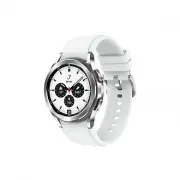 Samsung Galaxy Watch4 Classic
User Manual
Samsung Galaxy Watch4 Classic
User Manual
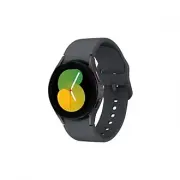 Samsung Galaxy Watch5
User Manual
Samsung Galaxy Watch5
User Manual
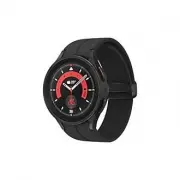 Samsung Galaxy Watch5 Pro
User Manual
Samsung Galaxy Watch5 Pro
User Manual
 Samsung Galaxy Watch6
User Manual
Samsung Galaxy Watch6
User Manual
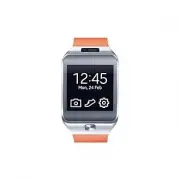 Samsung Gear 2
User Manual
Samsung Gear 2
User Manual
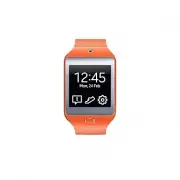 Samsung Gear 2 Neo
User Manual
Samsung Gear 2 Neo
User Manual
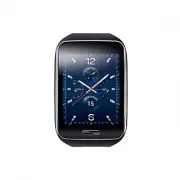 Samsung Gear S
User Manual
Samsung Gear S
User Manual
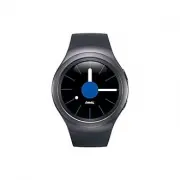 Samsung Gear S2
User Manual
Samsung Gear S2
User Manual
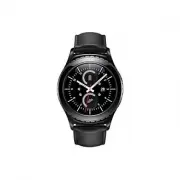 Samsung Gear S2 classic
User Manual
Samsung Gear S2 classic
User Manual
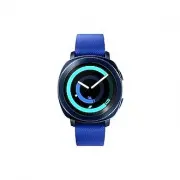 Samsung Gear Sport
User Manual
Samsung Gear Sport
User Manual
 Samsung SM-R500
User Manual
Samsung SM-R500
User Manual
 Samsung SM-R600
User Manual
Samsung SM-R600
User Manual
 Samsung SM-R750
User Manual
Samsung SM-R750
User Manual
 Samsung SM-R760
User Manual
Samsung SM-R760
User Manual
 Samsung SM-R800
User Manual
Samsung SM-R800
User Manual