Page 2 - Table of contents
2 Getting started 3 About this manual 7 Layout 14 Turning the computer on and off Basics 17 Keyboard 19 Touchpad 21 SIM or USIM card (nano-SIM card) tray (LTE models only) 22 Mobile data (LTE models only) 23 Memory card slot 25 Wireless LAN 26 Security slot Chrome OS 27 Using applications 27 All abo...
Page 3 - Getting started; About this manual; Instructional icons and expressions
3 Getting started About this manual • This user manual is specially designed to detail the computer’s functions and features. • The user manual supplied with the computer may vary depending on the model. • Please read this manual before using the computer to ensure safe and proper use. • Optional ac...
Page 4 - Copyright
Getting started 4 Copyright Copyright © 2021 Samsung Electronics Co., Ltd.This manual is protected under international copyright laws.No part of this manual may be reproduced, distributed, translated, or transmitted in any form or by any means, electronic or mechanical, including photocopying, recor...
Page 5 - Chrome OS Software License; Trademarks
Getting started 5 Chrome OS Software License The software included in this product contains copyrighted software that is licensed under the GPL/LGPL.You may obtain the complete Corresponding Source code from website: http://git.chromium.org/gitweb/This offer is valid to anyone in receipt of this inf...
Page 6 - Product capacity representation; Memory Capacity Representation; Operating system and software support
Getting started 6 Product capacity representation Memory Capacity Representation The memory capacity reported in the Chrome OS is less than the actual capacity of memory. This is because BIOS or a video adapter uses a portion of memory or claims it for further use.(E.g., For 1 GB (=1,024 MB) memory ...
Page 7 - Front view; For 14 inch models; Layout
Getting started 7 Front view ► For 14 inch models 1 4 2 5 7 6 8 3 3 Layout Leaving the screen idle for extended periods may result in afterimages (screen burn-in) or ghosting. Turn off the screen when you are not using the computer. • Features or options may differ depending on the model. • The item...
Page 8 - For 11 inch models
Getting started 8 Number/Name Description Front camera indicator light • This indicates the front camera operating status. Microphone • You can use the built-in microphone. LTE antenna (LTE models only) • Transmits and receives radio waves. Front camera • Using this camera, you can take still pictur...
Page 9 - Right view
Getting started 9 Number/Name Description SIM card tray (LTE models only) • Insert the SIM or USIM card. USB Type-C port • Connect the adapter to charge the computer. You can also use or charge USB Type-C devices. Also, you can connect external display devices. USB 3.2 port • Connect various periphe...
Page 11 - Left view
Getting started 11 Number/Name Description USB Type-C port • Connect the adapter to charge the computer. You can also use or charge USB Type-C devices. Also, you can connect external display devices. Operating status LED • Shows the operating status of the computer. Earpiece/Headset jack • Connect a...
Page 12 - The charging feature of the USB Type-C port
Getting started 12 The charging feature of the USB Type-C port • It may take longer to charge the battery when charging a connected device. • The battery power level may be reduced when charging a connected device while the computer is powered by the battery. • The charging status of the connected d...
Page 13 - Bottom view
Getting started 13 Number/Name Description Internal battery • Provides power to the computer when not connected to an adapter. • To remove or replace the internal battery, take it to a Samsung Service Center. You will be charged for this service. Speaker • Sound is emitted from the speakers. If the ...
Page 14 - Turning the computer on and off; Turning the computer on
Getting started 14 3 The computer turns on automatically when the display panel is opened.If the computer does not turn on automatically, press the Power button. Turning the computer on and off Fully charge the battery using the adapter before using the computer for the first time . Turning the comp...
Page 15 - Using the Power button; Turning the computer off; Using screen buttons
Getting started 15 Using the Power button Press and hold the Power button for about 2 seconds and select Power off to shut down the device. To shut down the device when the system has frozen unexpectedly, press and hold the Power button for at least 8 seconds. Turning the computer off Using screen b...
Page 16 - Controlling the power of the device
Getting started 16 Controlling the power of the device You can adjust the settings for the selected power options.Tap the status area on the shelf, tap to open the Settings window, and then tap Device → Power to select the power options. If the display panel is closed If there is no input for a pred...
Page 17 - Hot key functions; Basics; Keyboard
17 Hot key functions Here is an overview of the hot keys on the top row of the keyboard. Keys Description • Go to the previous page in your browser history. • Go to the next page in your browser history. • Reload your current page. • Hide the tabs and switch to full-screen mode. • Enter overview mod...
Page 18 - Search key; Shift key; Search for keyboard shortcuts
Basics 18 Search key The Search key is located where the Caps Lock key is originally placed on a traditional keyboard. Press the Search key to launch the Launcher.To change the Search key to the Caps Lock key, select the status area on the shelf, select → Device → Keyboard , and switch the function ...
Page 19 - Touchpad; Basic touchpad functions; Moving; Clicking
Basics 19 Touchpad Use the touchpad to move the cursor or select an item. • Use the touchpad only with fingers. The touchpad will not recognize actions of other objects. • Images and the touchpad layout may differ depending on the model. Basic touchpad functions Moving To move the cursor, move a fin...
Page 20 - Adjusting the touchpad settings; Dragging
Basics 20 Adjusting the touchpad settings If the touchpad is too sensitive, adjust its reaction speed. 1 Select the status area on the shelf. 2 Select to open the Settings window. 3 Tap Device → Mouse and touchpad and adjust the Touchpad speed adjustment bar. Right-clicking This function enables rig...
Page 21 - Installing the SIM or USIM card
Basics 21 2 Pull out the tray gently from the tray slot. Be careful to not hurt your fingertip while pulling out the tray. 3 Place the SIM or USIM card on the tray with the gold-coloured contacts facing downwards. 4 Gently press the SIM or USIM card into the tray to secure it and insert the tray bac...
Page 22 - Turning the mobile data on; Turning the mobile data off
Basics 22 Mobile data (LTE models only) You can insert the SIM or USIM card so you can access the Internet using your mobile data connection. You may incur additional charges when using a mobile network. Turning the mobile data on 1 Select the status area on the shelf. 2 Select the network. 3 Tap th...
Page 23 - Memory card slot
Basics 23 Memory card slot Use a memory card to transfer data to other devices. You can use data stored on your device, such as digital cameras, smartphones, or tablets, on your computer, or you can take your saved data to another device.Memory cards are sold separately.This computer supports the fo...
Page 24 - Inserting a memory card; Removing a memory card
Basics 24 Inserting a memory card 1 If a dummy card or a memory card adapter is inserted in the memory card slot, remove it. 2 Insert a memory card into the memory card slot in the indicated direction until it clicks. 3 A new tab opens and the list of files on the card appears. 4 Select a file to re...
Page 25 - Wireless LAN; Connecting to a Wi-Fi network
Basics 25 2 Select to activate the Wi-Fi network feature.The available Wi-Fi list will appear. Wi-Fi List 3 Select a network from the list of detected wireless networks. 4 Enter a password, if necessary, and select Connect . Once the computer has been connected to a wireless network, it will attempt...
Page 27 - Chrome OS; Using applications
27 Chrome OS Using applications • Images and features may differ depending on the model and the application version. • Some applications may not be supported depending on the model. • Third-party software related services For descriptions about and service requests for third-party applications, plea...
Page 28 - Usage Precautions
Chrome OS 28 • You may experience limitations using the product under the following circumstances. Please refer to the link. – When reading from or writing to external storage devices with the filing system (https://support.google.com/chromebook/answer/ 183093) – When playing certain local video or ...
Page 29 - Desktop; Get on the web; Setting up your Chromebook
Chrome OS 29 1-5. Follow the on-screen instructions to proceed with the initial setup. 2 Get started with your Chromebook.When your Chromebook starts for the first time, updates may be performed for a few minutes during the activation step. Desktop When you have completed the login, the desktop appe...
Page 30 - The browsing interface
Chrome OS 30 The browsing interface Once you’re signed in, you’re instantly on the web. Here’s a quick overview of the interface you’ll see: Number/Name Description Resizing button • Minimize or maximize the window. New tab button • Open the new tab. Select to see your favorite applications and most...
Page 31 - Using the Web Store
Chrome OS 31 • To use the Web Store, you must have the latest version of the Chrome browser installed. • Some items purchased from the Chrome Web Store may not work depending on your computer specifications. • The Chrome Web Store items may or may not be free-of-charge. Confirm that an item is free-...
Page 32 - Using the Google Play Store; Installing apps
Chrome OS 32 4 Select Install to download free applications. To purchase and download applications where charges apply, select the price and follow the instructions. • Some applications may not be compatible with your Chromebook. • If you want to use applications that you have previously purchased t...
Page 33 - Recovery; Restoring with a USB device or memory card; FAQ; Printing on a Chromebook
Chrome OS 33 Recovery Using the Recovery function, you can restore your Chromebook when a problem occurs with your Chromebook. You can restore your Chromebook after creating a restore image and using a USB device or memory card. For more information, refer to https://support.google.com/chromebook/an...
Page 35 - Display brightness; Controlling brightness using the keyboard
35 Settings & Upgrade Display brightness Adjust the display brightness to reduce eye strain and save power. Controlling brightness using the keyboard • Adjust the display brightness by pressing the key to decrease brightness or the key to increase brightness. • Whenever you press the or key, the...
Page 36 - Controlling volume using the shelf; Volume; Controlling volume using the keyboard
Settings & Upgrade 36 Controlling volume using the shelf 1 Select the status area on the shelf. 2 Drag the adjustment bar to the desired volume. Volume adjustment bar Volume Adjust the system volume or sound volume when playing music or video. Controlling volume using the keyboard • Adjust the v...
Page 37 - Charging the battery; Battery
Settings & Upgrade 37 Charging the battery Fully charge the battery using the adapter before using the computer for the first time, or when the computer is completely discharged. 1 Connect the adapter to the USB Type-C port of the computer. You can use the USB Type-C ports on either side of the ...
Page 38 - Battery status
Settings & Upgrade 38 Power LED Status • Blinks red : Pre-charging • Red : Charging • Green : Fully charged • Blue : Turned on 4 Unplug the adapter from the electric socket. Do not allow the adapter to make contact with your skin for a long time. A low-temperature burn may result. Battery status...
Page 39 - Battery usage time
Settings & Upgrade 39 Battery usage time Batteries are replaceable items and over time the battery’s capacity to hold a charge and its power level is reduced. If a battery can only hold its charge for half of the time that it could when new, it is recommended to purchase a new, replacement batte...
Page 40 - Appendix; Product specifications
40 Appendix Product specifications The system specifications may differ depending on the derived model. For detailed system specifications, refer to the product catalog. Item Specification Operating environment • Temperature: -5–40 °C for storage, 10–35 °C when operating • Humidity: 5–90 % for stora...
Page 41 - Ergonomic tips; Back and neck
Appendix 41 • Use an adjustable chair with firm, comfortable support. • Adjust the height of your chair so that thighs are horizontal to the floor and feet are flat on the floor. • The back of the chair should support the lower back. Adjust the backrest to fit your body properly. • Sit back fully in...
Page 42 - Arms and hands
Appendix 42 • When using the keyboard and touchpad, the shoulders should be relaxed. The upper arm and forearm should form an angle that is slightly greater than a right angle, with the wrist and hand in almost a straight line. • Use a light touch when typing or using the touchpad and keep the hands...
Page 43 - Hearing and volume control; Eye position and display illumination
Appendix 43 Hearing and volume control VOLUME Check your volume! • Ensure that the volume is not too loud before using a headset or earphones. Excessive exposure to loud sounds can cause hearing damage. • Always turn the volume down before plugging the earphones into an audio source and use only the...
Page 44 - Operating conditions
Appendix 44 • If anyone related to you has experienced seizures or blackouts while using a similar product, consult a physician before using the computer. • If you feel discomfort, such as a muscle spasm, or disoriented, stop using the computer immediately and consult a physician. • To prevent eye s...
Page 45 - Power related; Safety precautions; Warning
Appendix 45 Power related Handle the power cord with care. • Do not touch with wet hands. • Do not use a damaged power cord. • Do not overload a multi-outlet or an extension cord beyond the specified voltage/current capacity. • Firmly insert the power cable into the adapter. • Do not unplug the powe...
Page 46 - Battery usage related
Appendix 46 Battery usage related Use manufacturer-approved batteries, chargers, accessories, and supplies. • Using generic batteries or chargers may shorten the life of your product or cause the computer to malfunction. They may also cause a fire or cause the battery to explode. • Use only Samsung-...
Page 47 - Usage related
Appendix 47 Usage related Do not use the computer on heated floors or electric pads, or on beds, blankets, or cushions that block the ventilation of the computer. A blocked vent causes the computer to overheat, resulting in an explosion, fire, burns, or computer malfunction. Do not use the computer ...
Page 48 - Caution; Installation related
Appendix 48 Caution Failure to follow instructions marked with this symbol may result in minor physical injury or damage to the computer. Installation related Do not block the ports (holes), vents, etc., of the product and do not insert objects. Damage to a component within the computer may cause el...
Page 51 - Upgrade Related
Appendix 51 • When in a hospital, turn off your computer and follow all hospital regulations. Radio frequencies emitted from the computer may affect medical equipment. Upgrade Related Do not attempt to upgrade the computer, unless you are qualified. Otherwise, contact a Samsung Service Center or an ...
Page 52 - Storage and movement related
Appendix 52 Storage and movement related Do not store the computer in an enclosed space, such as a computer bag, while it is running. Failure to do so may result in fire. Completely shut down the computer before putting the computer into an enclosed space. When carrying the notebook computer with ot...
Page 53 - Cautions on preventing data loss (storage device
Appendix 53 Clean the display screen with a soft cloth dampened with computer cleansing detergent. Do not use excessive force. Doing so may damage the display screen. Cautions on preventing data loss (storage device (e.g., HDD, SSD, eMMC) management) Take care not to damage the data on a storage dev...
Page 54 - Important safety information; Safety instructions; Setting up the system
Appendix 54 • Ensure that the electrical outlet to power the equipment is easily accessible in case of fire or short circuit. • If the computer has a voltage selector switch, make sure that the switch is in the proper position for your area. • Openings in the computer case are provided for ventilati...
Page 55 - Operating instructions
Appendix 55 – The computer was dropped or the casing is damaged. – The computer performance changes. Operating instructions 1 When installing and operating devices please refer to safety requirements in the user manual. 2 Devices can be used only with the equipment specified in the technical specifi...
Page 56 - Battery disposal; Replacement parts and
Appendix 56 Battery disposal Do not put rechargeable batteries or products powered by non-removable rechargeable batteries in the garbage. Contact the Samsung Service Center for information on how to dispose of batteries that you cannot use or recharge any longer. Follow all local regulations when d...
Page 57 - Connecting and disconnecting the adapter; Laser safety
Appendix 57 • Laser Safety Note : Use of controls or adjustments or performance of procedures other than those specified in this manual may result in hazardous radiation exposure. To prevent exposure to laser beams, do not try to open the enclosure of a CD or DVD drive. • Class 1M laser radiation wh...
Page 58 - General requirements; Power cord requirements; India only
Appendix 58 General requirements The requirements listed below are applicable to all countries: • All power cord sets must be approved by an acceptable accredited agency responsible for evaluation in the country where the power cord set will be used. • The power cord set must have a minimum current ...
Page 59 - Regulatory compliance; Wireless guidance
Appendix 59 The RF field strength of the wireless device or devices that may be embedded in the notebook are well below all international RF exposure limits as known at this time. Because the wireless devices (which may be embedded into the notebook) emit less energy than is allowed in radio frequen...
Page 61 - Other wireless devices; United States of America and Canada; USA and Canada Safety Requirements and Notices; Use in specific environments:
Appendix 61 Explosive Device Proximity Warning Do not operate a portable transmitter (such as a wireless network device) near unshielded blasting caps or in an explosive environment unless the device has been modified to be qualified for such use. Use On Aircraft Caution FCC, FAA, and TCCA regulatio...
Page 62 - Unintentional emitter per FCC Part 15; Responsible Party – U.S. Contact Information
Appendix 62 This equipment has been tested and found to comply with the limits for a Class B digital device pursuant to Part 15 of the FCC Rules. These limits are designed to provide reasonable protection against harmful interference in a residential installation. This equipment generates, uses, and...
Page 63 - Intentional emitter per FCC Part 15
Appendix 63 Intentional emitter per FCC Part 15 (If fitted with 2.4 G band or 5 G band)Low power, Radio LAN type devices (radio frequency (RF) wireless communication devices), operating in the 2.4 GHz/5 GHz Band, may be present (embedded) in the notebook system. This section is only applicable if th...
Page 64 - Health and safety information; Exposure to Radio Frequency (RF) Signals
Appendix 64 Health and safety information Exposure to Radio Frequency (RF) Signals Certification Information This product can contain an embedded radio transmitter and receiver. It is designed and manufactured not to exceed the exposure limits for radio frequency (RF) energy set by the Federal Commu...
Page 66 - RTC caution
Appendix 66 RTC caution CAUTION: Danger of explosion if battery is incorrectly replaced. Replace only with the same or equivalent type recommended by the manufacturer. Discard used batteries according to the Manufacturer’s instruction. Manufacturer information Samsung Electronics Co., Ltd. 129, Sams...
Page 67 - Innovation, Sciences et Développement; Canada; Innovation, Science and Economic Development; Industry Canada Caution
Appendix 67 Innovation, Sciences et Développement économique Canada L’émetteur/récepteur exempt de licence contenu dans le présent appareil est conforme aux CNR d’Innovation, Sciences et Développement économique Canada applicables aux appareils radio exempts de licence. L’exploitation est autorisée ...
Page 68 - WEEE symbol information
Appendix 68 Household users should contact either the retailer where they purchased this product, or their local government office, for details of where and how they can take these items for environmentally safe recycling.Business users should contact their supplier and check the terms and condition...
Page 70 - Samsung package Take-Back; USA only
Appendix 70 Samsung package Take-Back program (USA only) In partnering with select recyclers, Samsung offers packaging take-back at no cost to you.Simply call the following number for the locations nearest you.CRT Processing, LLC(877) 278-0799Kathy Severson – Logistics contactFor more recycling info...


 Samsung Book2 Go
User Manual
Samsung Book2 Go
User Manual
 Samsung Chromebook 4
User Manual
Samsung Chromebook 4
User Manual
 Samsung Chromebook 4+
User Manual
Samsung Chromebook 4+
User Manual
 Samsung Chromebook Go
User Manual
Samsung Chromebook Go
User Manual
 Samsung Galaxy Book Flex
User Manual
Samsung Galaxy Book Flex
User Manual
 Samsung Galaxy Book Flex2
User Manual
Samsung Galaxy Book Flex2
User Manual
 Samsung Galaxy Book Go
User Manual
Samsung Galaxy Book Go
User Manual
 Samsung Galaxy Book Go (NP345XLAA-EXP)
User Manual
Samsung Galaxy Book Go (NP345XLAA-EXP)
User Manual
 Samsung Galaxy Book Pro 360
User Manual
Samsung Galaxy Book Pro 360
User Manual
 Samsung Galaxy Book2 360
User Manual
Samsung Galaxy Book2 360
User Manual
 Samsung Galaxy Book2 Business (NP641BED)
User Manual
Samsung Galaxy Book2 Business (NP641BED)
User Manual
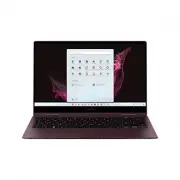 Samsung Galaxy Book2 Pro 360
User Manual
Samsung Galaxy Book2 Pro 360
User Manual
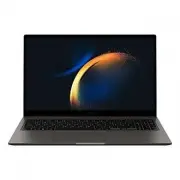 Samsung Galaxy Book3
User Manual
Samsung Galaxy Book3
User Manual
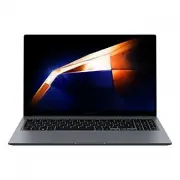 Samsung Galaxy Book4
User Manual
Samsung Galaxy Book4
User Manual
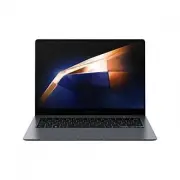 Samsung Galaxy Book4 Pro
User Manual
Samsung Galaxy Book4 Pro
User Manual
 Samsung Galaxy Chromebook 2 360
User Manual
Samsung Galaxy Chromebook 2 360
User Manual
 Samsung KEYBOARD DOCK_PC
User Manual
Samsung KEYBOARD DOCK_PC
User Manual
 Samsung NP270E5E-EXP
User Manual
Samsung NP270E5E-EXP
User Manual