Page 2 - Table of Contents; Getting started
2 Table of Contents Getting started 3 About the Galaxy Buds FE4 Device layout and functions6 Preparing the earbuds for use8 Charging the battery12 Battery indicator lights identification Using the earbuds 14 Connecting the earbuds to a mobile device 18 Wearing the earbuds20 Using the earbud by touch...
Page 3 - About the Galaxy Buds FE
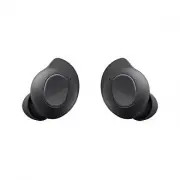
3 Getting started About the Galaxy Buds FE Galaxy Buds FE are wireless earbuds which allow you to listen to music or answer incoming calls after connecting them to your mobile device even while doing other activities, such as working out. Do not wear the earbuds in high-traffic areas, such as roads ...
Page 4 - Device layout and functions; Earbud
Getting started 4 Device layout and functions Earbud Touch-sensitive sensor Speaker Charging contacts Microphone Microphone Wing tip Ear tip Antenna / Touch area Wing tip Direction indicator M/L Direction indicator S/M
Page 5 - Charging case
Getting started 5 Charging case Charging contacts (right) Charging contacts (left) Earbud battery indicator light Charger port (USB Type-C) Charging case battery indicator light • Use the device in a place without magnetic interference for the device to operate normally. • Your device and some acces...
Page 6 - Preparing the earbuds for use; Attaching an ear tip to the earbud
Getting started 6 • If foreign materials are placed on the touch-sensitive sensor, they may cause the sensor to malfunction. Before wearing the earbuds, clean the sensor first. • If there is sweat or liquid on the charging contacts, corrosion may occur on the Galaxy Buds FE. When there is sweat or l...
Page 7 - Attaching a wing tip to the earbud
Getting started 7 Attaching a wing tip to the earbud 1 Select the wing tip that fits your ear. 2 Select the wing tip for the left or right ear. 3 Hook the wing tip’s groove to earbud’s fixation hook and cover the earbud with the wing tip. • Do not put the earbuds in your ears without wing tips. Doin...
Page 8 - Charging the battery
Getting started 8 M/L S/M 4 Follow the same procedure for the opposite earbud. Charging the battery Fully charge the battery before using the earbuds for the first time or when they have been unused for extended periods. The earbuds will start to work while charging. When you charge the battery for ...
Page 10 - Checking the battery level; Reducing the battery consumption
Getting started 10 4 Connect the USB cable to the charger and then plug the USB cable into the charger port. 5 Plug the charger into an electric socket.The batteries of the earbuds and the charging case are charged simultaneously. 6 After fully charging, disconnect the charging case from the charger...
Page 11 - Battery charging tips and precautions
Getting started 11 Battery charging tips and precautions Use only Samsung-approved charger and cable specifically designed for your Galaxy Buds FE. Incompatible charger and cable can cause serious injuries or damage to your device. • Connecting the charger improperly may cause serious damage to the ...
Page 12 - Battery indicator lights identification; Earbud battery indicator light
Getting started 12 • Using a power source other than the charger, such as a computer, may result in a slower charging speed because of a lower electric current. • While charging, the Galaxy Buds FE and the charger may heat up. This is normal and should not affect the Galaxy Buds FE lifespan or perfo...
Page 13 - Charging case battery indicator light
Getting started 13 Charging case battery indicator light Charging case battery indicator light Colour Status Continuously red • Charging Continuously green • Fully charged Flashes red • Charging blocked because of abnormal temperatures Flashes red (flashes after closing the charging case) • Battery ...
Page 14 - Using the earbuds; Before the connection; Connecting the earbuds to a Samsung mobile device for the
14 Using the earbuds Connecting the earbuds to a mobile device Before the connection • Charge the charging case sufficiently. • The Galaxy Wearable app must be installed on your mobile device. If the app is not installed on your mobile device, download the app from Galaxy Store or Play Store . • You...
Page 17 - Connecting the earbuds to a non-Samsung mobile device; Precautions for using Bluetooth
Using the earbuds 17 Connecting the earbuds to a non-Samsung mobile device that also uses the Android OS (or, the connection pop-up window does not appear) If you connect to a non-Samsung mobile device that also uses the Android OS, some of the features of the earbuds may not be available and the ea...
Page 18 - Wearing the earbuds
Using the earbuds 18 Wearing the earbuds Insert the wing tips into your ears and adjust them accordingly to fit your ears. • If the touch-sensitive sensor does not make contact with your ear, the earbud may not work. Use the ear tips that fit your ears if you do not hear a sound informing you that t...
Page 20 - Using the earbud by touch; Introduction
Using the earbuds 20 Using the earbud by touch Introduction Touch the earbud to play or stop music or answer or decline calls. You can also set the earbuds to perform other actions by touch. Touch areas • To avoid hurting your ears, do not apply excessive pressure to the earbuds. • To avoid damaging...
Page 21 - Understanding touch actions
Using the earbuds 21 Understanding touch actions Single touch • Play or pause track. • Stop using the Read notifications aloud feature. Double touch • Play next track. • Answer or end a call. Triple touch • Play previous track. ‒ If you touch the earbud three times 3 seconds after a track begins pla...
Page 22 - Locking the earbuds’ touch feature; Activating from the Galaxy Wearable app
Using the earbuds 22 Locking the earbuds’ touch feature You can prevent unintended actions by locking the earbuds’ touch feature. Activating from the Galaxy Wearable app Open the Galaxy Wearable app on your mobile device and tap the Touch controls switch to turn it off. Activating from Settings This...
Page 23 - Using the noise controls mode; Activating from the earbuds
Using the earbuds 23 • If you select the volume adjustment feature as one side’s touch-and-hold feature, the other side’s touch-and-hold feature is also automatically set to the volume adjustment feature. • When the volume adjustment feature has been already selected and you try to change the one si...
Page 24 - Listening to music; Playing or pausing the track
Using the earbuds 24 Activating from the Galaxy Wearable app Open the Galaxy Wearable app on your mobile device and tap Active noise cancelling or Ambient sound . Activating from Settings This feature is available only on mobile devices running the Android 11 One UI version 3.1 and later. 1 Open Set...
Page 25 - Playing the previous track; Using the equaliser
Using the earbuds 25 Playing the previous track Touch the earbud three times to play the previous track. If you touch the earbud three times 3 seconds after a track begins playing, it will start the track from beginning. Touch the earbud three times within 3 seconds of when a track begins playing to...
Page 26 - Using call features; Answering or declining a call
Using the earbuds 26 Using call features When wearing the earbuds while they are connected to a mobile device, you can answer and control calls from the connected mobile device. • If you are not notified of the incoming call’s phone number or the name saved in your contacts through voice notificatio...
Page 27 - Bixby; Waking up Bixby using your voice
Using the earbuds 27 Bixby Introduction Bixby is a user interface that helps you use your device more conveniently.You can talk to Bixby or type text. Bixby will launch a feature you request or show the information you want on the connected mobile device. Visit www.samsung.com/bixby for more informa...
Page 28 - Communicating by typing text
Using the earbuds 28 Communicating by typing text If your voice is not recognised because of noisy environments or if you are in a situation where speaking is difficult, you can communicate with Bixby through text.Touch and hold the earbud, tap , and then type what you want.During the communication,...
Page 29 - Galaxy Wearable app
29 Galaxy Wearable app Introduction To connect the earbuds to a mobile device, you must install the Galaxy Wearable app on your mobile device. You can check the Galaxy Buds FE’s remaining battery and configure the settings with the Galaxy Wearable app.Open the Galaxy Wearable app on your mobile devi...
Page 30 - Disconnecting mobile devices from the earbuds
Galaxy Wearable app 30 • Manage devices : Manage connected devices when more than two devices are connected with your phone. To disconnect a device from your phone, select a device and tap Remove . Connecting and disconnecting the earbuds Disconnecting mobile devices from the earbuds Insert the earb...
Page 31 - mobile device; Configuring settings for the Galaxy Buds FE
Galaxy Wearable app 31 Connecting with other devices after disconnecting from the previous mobile device 1 Disconnect the earbuds from the previous mobile device. Open Settings on your mobile device, tap Connections → Bluetooth , and then unpair the earbuds from your mobile device under Paired devic...
Page 32 - Setting the noise controls mode; Earbuds settings; Equaliser
Galaxy Wearable app 32 Setting the noise controls mode Turn on or off the active noise cancelling or ambient sound mode based on your situation or surroundings. Also, you can set the ambient sound mode to turn on automatically.On the Galaxy Wearable screen of your mobile device, select a feature and...
Page 33 - Earbud fit test
Galaxy Wearable app 33 Earbud fit test Check the earbuds’ fit to ensure better sound and active noise cancelling. 1 On the Galaxy Wearable screen of your mobile device, tap Earbuds settings → Earbud fit test . 2 Wear the both earbuds in your ears and tap Start . The earbuds will emit a sound and the...
Page 34 - Use Ambient sound during calls; Seamless earbud connection
Galaxy Wearable app 34 Use Ambient sound during calls Ambient sound can set up so that you can still hear your own voice clearly while speaking at a normal level, and it will enable you to listen more comfortably during long calls.On the Galaxy Wearable screen of your mobile device, tap Earbuds sett...
Page 35 - Reset
Galaxy Wearable app 35 Reset You can reset all your earbuds settings.On the Galaxy Wearable screen of your mobile device, and tap Earbuds settings → Reset . Accessibility Configure various settings to improve the accessibility of the earbuds.On the Galaxy Wearable screen of your mobile device, tap E...
Page 36 - About earbuds; Find My Earbuds
Galaxy Wearable app 36 About earbuds Access the information of the Galaxy Buds FE.On the Galaxy Wearable screen of your mobile device, tap Earbuds settings → About earbuds . To change your Galaxy Buds FE’s name, tap Edit . • Legal information : Check the legal information for the Galaxy Buds FE. • S...
Page 37 - Usage notices; Precautions for using the device
37 Usage notices Precautions for using the device Please read this manual when using the device to ensure safe and proper use. • Descriptions are based on the device’s default settings. • Some content may differ from your device depending on the region, service provider, model specifications, or dev...
Page 38 - Instructional icons; Notes on package contents and accessories
Usage notices 38 Instructional icons Warning : situations that could cause injury to yourself or others Caution : situations that could cause damage to your device or other equipment Notice : notes, usage tips, or additional information Notes on package contents and accessories Refer to the quick st...
Page 39 - Precautions for using the earbuds
Usage notices 39 Precautions for using the earbuds • Excessive exposure to loud sounds can cause hearing damage. • Using the earbuds while walking may distract your attention and cause an accident. • Always turn the volume down before using the earbuds and use only the minimum volume setting necessa...
Page 40 - Cleaning and managing the Galaxy Buds FE; Basic maintenance; Cleaning the microphone hole, speaker, and air duct
Usage notices 40 Cleaning and managing the Galaxy Buds FE Basic maintenance • Use a soft, dry cloth to clean the earbuds after use. • Keep the earbuds dry. Prevent liquid from contacting or entering the earbuds. • Clean the earbuds regularly to prevent earwax or debris from building up in the microp...
Page 41 - Cleaning the charging contacts; Cleaning the earbuds and charging case; Restarting the earbuds
Usage notices 41 Cleaning the charging contacts If the battery does not charge properly, wipe the charging contacts with a dry cloth. Charging contacts Cleaning the earbuds and charging case When the earbuds and charging case are exposed to foreign materials, such as dust, sand, or metal shavings, t...
Page 42 - Coupling the earbuds
Usage notices 42 Coupling the earbuds When you lose one of the earbuds, you do not have to purchase a new set of earbuds because you can make a new set of earbuds with a newly purchased earbud and the other earbud that you already have. 1 Check the direction of each earbud, the newly purchased earbu...
Page 43 - Appendix; Troubleshooting; Your earbuds do not work; Bluetooth device cannot locate your earbuds
43 Appendix Troubleshooting Before contacting a Samsung Service Centre or an authorised service centre, please attempt the following solutions. Some situations may not apply to your Galaxy Buds FE.You can also use Samsung Members to solve any problems you might encounter while using your device. You...
Page 44 - A Bluetooth connection is not established or your earbuds and the; The battery does not charge properly (For Samsung-approved
Appendix 44 A Bluetooth connection is not established or your earbuds and the mobile device are disconnected • Ensure there are no obstacles, such as walls or electrical equipment, between the devices. • Ensure that the latest version of the Galaxy Wearable app is installed on the mobile device. If ...
Page 47 - Removing the battery
Appendix 47 Removing the battery • To remove the battery, contact an authorised service centre. To obtain battery removal instructions, please visit www.samsung.com/global/ecodesign_energy . • For your safety, you must not attempt to remove the battery. If the battery is not properly removed, it may...
Page 48 - Copyright; Trademarks
Copyright Copyright © 2023 Samsung Electronics Co., Ltd.This manual is protected under international copyright laws.No part of this manual may be reproduced, distributed, translated, or transmitted in any form or by any means, electronic or mechanical, including photocopying, recording, or storing i...


 Samsung EO-IC500 Black (EO-IC500BBEGRU)
User Manual
Samsung EO-IC500 Black (EO-IC500BBEGRU)
User Manual
 Samsung EO-BG920
User Manual
Samsung EO-BG920
User Manual
 Samsung EO-BG950
User Manual
Samsung EO-BG950
User Manual
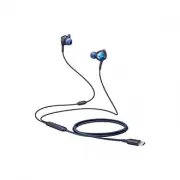 Samsung EO-IC500
User Manual
Samsung EO-IC500
User Manual
 Samsung Galaxy Buds
User Manual
Samsung Galaxy Buds
User Manual
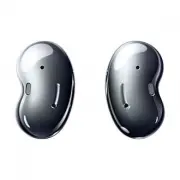 Samsung Galaxy Buds Live
User Manual
Samsung Galaxy Buds Live
User Manual
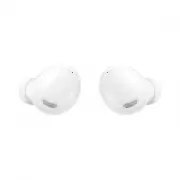 Samsung Galaxy Buds Pro
User Manual
Samsung Galaxy Buds Pro
User Manual
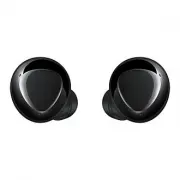 Samsung Galaxy Buds+
User Manual
Samsung Galaxy Buds+
User Manual
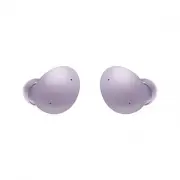 Samsung Galaxy Buds2
User Manual
Samsung Galaxy Buds2
User Manual
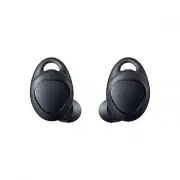 Samsung Gear IconX (2018)
User Manual
Samsung Gear IconX (2018)
User Manual
 Samsung SM-R130
User Manual
Samsung SM-R130
User Manual
 Samsung SM-R140
User Manual
Samsung SM-R140
User Manual
 Samsung SM-R150
User Manual
Samsung SM-R150
User Manual
 Samsung SM-R170
User Manual
Samsung SM-R170
User Manual
 Samsung SM-R175
User Manual
Samsung SM-R175
User Manual
 Samsung SM-R177
User Manual
Samsung SM-R177
User Manual
 Samsung SM-R180
User Manual
Samsung SM-R180
User Manual
 Samsung SM-R190
User Manual
Samsung SM-R190
User Manual
 Samsung SM-R210
User Manual
Samsung SM-R210
User Manual