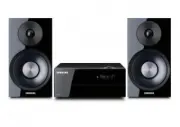
Page 2 - features; License
2 features AllShare Play Play music saved on your devices (such as your PC, Smart phone, or NAS) through the Wireless Audio with Dock via a network connection. AirPlay Play music saved on your Apple devices on the Wireless Audio with Dock. Dual Docking Audio Speaker System Using the system's dual do...
Page 3 - EnG; safety information; safety Warnings; CAUTION
3 EnG safety information safety Warnings TO REDUCE THE RISK OF ELECTRIC SHOCK, DO NOT REMOVE THE COVER(OR BACK).NO USER-SERVICEABLE PARTS ARE INSIDE. REFER SERVICING TO QUALIFIED SERVICE PERSONNEL. CAUTION risK Of eLectric sHOcK DO nOt OPen This symbol indicates “dangerous voltage” inside the produc...
Page 4 - PrecaUtiOns
4 PrecaUtiOns Ensure that the AC power supply in your house complies with the power requirements listed on the identification sticker located on the back of your product. Install your product horizontally, on a suitable base (furniture), with enough space around it for ventilation (70~100 mm). Make ...
Page 5 - contents
5 EnG contents FeAtUreS 2 2 Features2 License SAFety inFOrMAtiOn 3 3 Safety warnings 4 Precautions getting StArteD 6 6 Before reading the user’s manual 6 What’s included DeScriPtiOnS 7 7 Top/Front/Rear Panel reMOte cOntrOl 9 9 Tour of the remote control POWer On AnD vOlUMe cOntrOl 10 10 Turning the ...
Page 6 - BefOre reaDing tHe User’s ManUaL; icons used in this manual; getting started; WHat’s incLUDeD
6 BefOre reaDing tHe User’s ManUaL Note the following terms before reading the user manual. icons used in this manual icon term Definition caution Indicates a situation where a function does not operate or settings may be canceled. note Indicates tips or instructions on the page that help a function...
Page 7 - descriptions
7 EnG ● D E scriptions descriptions tOP/frOnt/rear PaneL DOCK PUSH AUX IN WPS/ RESET ONLY FOR SERVICE LAN USB 5V 500mA DC 14V 4A AUX IN WPS/ RESET ONLY FOR SERVICE LAN USB 5V 500mA DC 14V 4A PUSH DOCK PUSH AUX IN WPS/ RESET ONLY FOR SERVICE LAN USB 5V 500mA DC 14V 4A AUX IN WPS/ RESET ONLY FOR SERVI...
Page 9 - remote control; tOUr Of tHe reMOte cOntrOL
9 EnG ● r E mot E control remote control tOUr Of tHe reMOte cOntrOL Operation range of the remote control You can use the remote control up to 7 meters (23 feet) in a straight line from the unit. You can also operate the remote at a horizontal angle of up to 30° from the remote control sensor. MUTE ...
Page 10 - power on and volume control; tUrning tHe POWer On/Off; aDJUsting tHe VOLUMe
10 power on and volume control tUrning tHe POWer On/Off MUTE VOL BASS FUNCTION MUTE VOL BASS FUNCTION DOCK DOCK DOCK DOCK DOCK DOCK DOCK DOCK or 1 . To turn on this unit, press any button on the unit's top panel when the unit is in Standby mode.or,Press POWer on the remote control. 2 . To turn off t...
Page 11 - connections; instaLLing tHe tOrOiDaL ferrite On tHe POWer caBLe
11 EnG ● connEctions connections instaLLing tHe tOrOiDaL ferrite On tHe POWer caBLe Wind Power cable around the core three times. (Start winding at 5-10cm away from the plugs) Lift up to release the lock and open the core. Close the lock back.
Page 12 - Using tHe sPacer cOVer
12 Using tHe sPacer cOVer Attach the space cover if you want to dock a Samsung Galaxy or Apple device having no protective case onto the Dual Dock. - Use it for stable installation of your device considering the shape of the device. The Dual Dock also comes with a protective cover for the 30-pin App...
Page 13 - cOnnecting a DeVice tO tHe DUaL DOcK
13 EnG ● connEctions cOnnecting a DeVice tO tHe DUaL DOcK How to connect a device to the Dual Dock. 1 . The DUAl DOcK is located on the back of the product. To open, push it in gently. 2 . Press the button on the top panel of the Wireless Audio with Dock repeatedly until the icon appears in the disp...
Page 14 - cOnnecting an aUDiO DeVice Using aUX in
14 AUX in 1 . Connect AUX IN (Audio) on the back of the unit to the earphone jack of the external device or audio device. 2 . Press the button repeatedly until the function LEDs are off. • The AUX mode is active when no function LED is lit. ▪ Before moving or installing this product, be sure to turn...
Page 15 - cOnnecting tO yOUr netWOrK; to connect the Wireless Audio with Dock to a Wired network
15 EnG ● conn E ctions cOnnecting tO yOUr netWOrK You can connect your Wireless Audio with Dock to your network router using one of the methods illustrated on the next few pages. to connect the Wireless Audio with Dock to a Wired network DOCK PUSH AUX IN WPS/ RESET ONLY FOR SERVICE LAN USB 5V 500mA ...
Page 16 - to connect the Wireless Audio with Dock to a Wireless network
16 to connect the Wireless Audio with Dock to a Wireless network This section describes 4 methods of connecting the Wireless Audio with Dock to a wireless network. ▪ Some of network related operations may be different than explained depending on performance and supported functions of used AP. ▪ To c...
Page 17 - to connect the Wireless Audio with Dock using WPS (PBc)
17 EnG ● conn E ctions to connect the Wireless Audio with Dock using WPS (PBc) 1. Press the button on the top panel of the Wireless Audio with Dock repeatedly until the or icon appears in the display. • Each time you press the button, the selection changes as follows : ; ; ; ; ; ; aUX (LeD Off) The ...
Page 19 - to connect the Wireless Audio with Dock using a WPS Pin
19 EnG ● conn E ctions to connect the Wireless Audio with Dock using a WPS Pin 1. Press the button on the top panel of the Wireless Audio with Dock repeatedly until the or icon appears in the display.• Each time you press the button, the selection changes as follows : ; ; ; ; ; ; aUX (LeD Off) The i...
Page 20 - BLUetOOtH
20 BLUetOOtH You can connect the Wireless Audio with Dock to Bluetooth devices and enjoy music with high quality stereo sound, all without wires! What is Bluetooth? Bluetooth technology lets Bluetooth-compliant devices interconnect easily with each other using a short wireless connection.• A Bluetoo...
Page 21 - cOnnecting tO BLUetOOtH DeVices
21 EnG ● conn E ctions cOnnecting tO BLUetOOtH DeVices This section explains how to connect the Wireless Audio with Dock to Bluetooth compatible TVs and other Bluetooth devices. to connect the Wireless Audio with Dock to a Bluetooth compatible 2012 Samsung tv (SoundShare) connect DOCK <to pair to...
Page 22 - to connect the Wireless Audio with Dock to a Bluetooth device
22 to connect the Wireless Audio with Dock to a Bluetooth device Before you begin, confirm that your Bluetooth device supports the Bluetooth compliant stereo headset function. DOCK DOCK DOCK connect external device 1 . Press the button on the top panel of the Wireless Audio with Dock repeatedly unti...
Page 23 - playing
23 EnG ● playinG playing Using tHe tV MODe (soundshare) Press the button to select the mode, and then connect the TV to the Wireless Audio with Dock. (See page 21) • The unit will play the TV's audio when it is connected to the TV.• If you change the Wireless Audio with Dock's Bluetooth input source...
Page 25 - Using tHe BLUetOOtH MODe
25 EnG ● playinG Using tHe BLUetOOtH MODe Press the button to select the mode, and then connect the Bluetooth device to the Wireless Audio with Dock. (See page 22) To connect your Bluetooth device when the Wireless Audio with Dock is in Bluetooth mode, search for the Wireless Audio with Dock on the ...
Page 26 - Using tHe UsB MODe; Before you connect a USB device
26 Using tHe UsB MODe 1 . Connect the USB device to the USB port on the back of the unit. 2 . Press the button on the top panel of the Wireless Audio with Dock repeatedly until the icon appears in the display. • Each time you press the button, the selection changes as follows : ; ; ; ; ; ; aUX (LeD ...
Page 27 - Using airPLay anD aLLsHare PLay MODe
27 EnG ● playinG Using airPLay anD aLLsHare PLay MODe to use the or function, the Wireless Audio with Dock and the device which you are trying to connect must be connected to the same AP. <airPlay mode_ > 1 . Play the desired music in the < Music > menu on main screen of the Apple device...
Page 28 - functions; Basic fUnctiOns; Using the input mode
28 MUTE VOL BASS FUNCTION MUTE VOL BASS FUNCTION DOCK DOCK DOCK DOCK DOCK DOCK DOCK DOCK functions Basic fUnctiOns Using the input mode You can select the following inputs: ; ; ; ; ; ; aUX (LeD Off) . Press an appropriate button on the remote control to select a desired mode, or press to select from...
Page 29 - aDVanceD fUnctiOns; Muting the sound; Using the BASS function
29 EnG ● functions aDVanceD fUnctiOns MUTE VOL BASS FUNCTION POWER VOL MUTE VOL BASS FUNCTION MUTE VOL BASS FUNCTION POWER VOL MUTE VOL BASS FUNCTION MUTE VOL BASS FUNCTION MUTE VOL BASS FUNCTION MUTE VOL BASS FUNCTION MUTE VOL BASS FUNCTION Play/Pause During playback, press the +# button. • Press t...
Page 31 - troubleshooting
31 EnG ● troubl E shootin G Before requesting service, please check the following. symptom check remedy the unit will not turn on. • Is the power cord plugged into the outlet? • Connect the power plug to the outlet. a function does not work when the button is pressed. • Has the Wireless Audio with D...
Page 32 - appendix; sPecificatiOns
32 appendix sPecificatiOns Model name DA-E670 generaL Weight 4,2 kg Dimensions (W x D x H) 400 x 200 x 142 mm Operating temperature range +5°C~+35°C Operating humidity range 10 % to 75 % aMPLifier Rated output power 40W, 4O HM, THD = 10%, 1kHz Input sensitivity/Impedance 800mV/56K ohm S/N ratio (ana...
Page 33 - Open Source Announcement
Open Source Announcement To send inquiries and requests for questions regarding open sources, contact Samsung via Email ([email protected]). • This product uses some software programs which are distributed under the Independent JPEG Group. fLac decoder, copyright (c) 2001,2002,2003,2004,2005,2...