Page 2 - English; Custom installation; Custom Installation
2 English Custom installation Beside the Quickinstallation there are alsoCustom installationmenus for setting upmore complexconfigurations. – Integration of MC W770 into anexisting network – Add an additional audio system – Add an additional PC server Manual installation of the driver for the wirele...
Page 3 - Add additional Audio System; Install; Next; Wireless PC link
3 English Installation of an additional audio system or recovery if audio system PC linksettings are lost If you want to add an additional MC W770 or an equivalent audio system into your existingMC W770 network, you can connect them to the same PC ser ver without changing thesettings of the current ...
Page 7 - Do not
7 English 3 ➜ The PC checks thePC link configurationand, depending onthe PC configuration,the following windowwill appear : Following theprocedure will notchange your PC linksettings. Click on Next . 4 ➜ The followingwindow appears: Tick the option Do not perform automaticsetup and then click on Nex...
Page 8 - STANDARD
8 English 5 ➜ The installationprocedure configuresyour networksettings. Afterwardsthe following windowappears: 6 Press PC LINK A on your MC W770 for at least 5 seconds until INSTALLING is scrolled on the set. ➜ The set searches for a connection to the PC . This can require up to about a minute. When...
Page 9 - edit; Exit
9 English 8 ➜ If you have selected edit , the following window appears. Enter your wirelesssettings and click on OK . Then click on Save in the previous window. It is recommended touse WEP keysencr yption for networksecurity reasons. Note: The active networkyou have to select fromthe MCW770 (refer t...
Page 10 - Network utilities
10 English Network utilities Check connection Perform a quick check of your wireless PC link connection. Change of USB port using the MC W770 The installation of the MC W770 is optimised for the USB por t used during installation.Therefore the supplied wireless USB adapter should be connected only t...
Page 12 - Network Utilities; Start
12 English Change of the wireless channel The wireless PC link uses the worldwide standardised so-called 2.4GHz ISM band. The wirelessPC link can use different transmission channels and it might be necessar y to change to anotherchannel in order to optimise link quality. 1 Enter Network Utilities , ...
Page 14 - Using a different wireless network adapter; Custom
14 English Using a different wireless network adapter The following steps describe how you can use a wireless network adapter different to the onebypacked with the MC W770 to set up the MC W770 with that adapter. Your network adaptershould be installed already, connected to the PC and ready for wire...
Page 19 - How to select another network
19 English 16 ➜ The new networksettings are stored inthe MC W770 andready for using innormal operation ofthe set. The followingwindow appears: Click on Exit to close the network setupprogramme on the PC . 17 The MC W770 will automatically exit the Exper t Install mode and will go into normaloperatio...
Page 20 - Wireless PC Link Micro; THANK YOU FOR CHOOSING PHILIPS!; User manual
MCW770 Wireless PC Link Micro THANK YOU FOR CHOOSING PHILIPS! NEED HELP FAST? Read your Quick-Use guide and/or owner's manual first for quick tips that make using your Philips product more enjoyable. If you have read your instructions and still need assistance, you may access our online help at www....
Page 21 - To prevent electric; For Customer Use; Know these; safety; symbols; C A U T I O N
Registering your model with PHILIPS makes you eligible for all of the valuable benefitslisted below, so don't miss out. Complete and return your Product Registration Card atonce to ensure Return your Product Registration Card today to get the very most from your purchase. *Proof of Purchase Returnin...
Page 22 - Dear PHILIPS product owner:
Congratulations on your purchase,and welcome to the “family!” Dear PHILIPS product owner: Thank you for your confidence in PHILIPS. You’ve selected one of the best-built, best-backed products available today. We’ll do everything in ourpower to keep you happy with your purchase for many years to come...
Page 23 - Canada; See page 19 / Voir page 57 / Véase la página 95
4 Canada English: (Canadian ICES-003) This digital apparatus does not exceed the Class B limits for radio noise emissions from digital apparatus as set out in the Radio Interference Regulations of the Canadian Depar tment of Communications. Français: (La norme NMB-003 du Canada) Cet appareil numériq...
Page 24 - Index; CAUTION; Class II equipment symbol; This symbol indicates that the unit has a double
Index English F rançais 5 English ___________________________________ 8 França i s ________________________________ 41 Español Español _________________________________ 79 CAUTION Use of controls or adjustments or performance of procedures other thanherein may result in hazardous radiation exposure ...
Page 25 - FOR HOME OR OFFICE USE
6 The set complies with the FCC- Rules, Part 15 and with 21 CFR1040.10. Operation is subject to thefollowing two conditions: 1.This device may not cause harmful interference, and 2.This device must accept any interference received, includinginterference that may causeundesired operation. This equipm...
Page 26 - IMPORTANT SAFETY INSTRUCTIONS
1. Read these instructions. 2. Keep these instructions. 3. Heed all warnings. 4. Follow all instructions. 5. Do not use this apparatus nearwater. 6. Clean only with dry cloth. 7. Do not block any ventilationopenings. Install in accordance withthe manufacturer´s instructions. 8. Do not install near a...
Page 27 - Contents
Technical data _________________ 10 General information Supplied accessories _______________ 10Environmental information __________ 11Maintenance _____________________ 11Disc handling ____________________ 11Setup __________________________ 11 Remote control Remote control usage _____________ 12Remot...
Page 29 - Technical data / General information
Technical data Subject to modification without notice. General AC Power ______________ 120V / 60 HzPower consumption Active ______________________ 55 WStandby ___________________ < 10 WEco Power Standby _________ < 0.5 W Dimensions,w × h × d ________ 175 × 285 × 340 mm 6.9 × 11.2 × 13.4 inches...
Page 30 - General information
Environmental information All redundant packing material has beenomitted. We have done our utmost tomake the packaging easily separable intothree mono materials: cardboard (box),polystyrene foam (buffer) and polyethylene(bags, protective foam sheet). Your unit consists of materials which can berecyc...
Page 31 - Remote control usage; AA; Remote control keys; Remote control
Remote control usage 1 Open the batter y compar tment of theremote control and inser t 2 alkalinebatteries, type AA (R06, UM-3). 2 Close the batter y compar tment. Do not use old and new or different typesof batteries in combination. Remove batteries if they are empty or if theremote control will no...
Page 33 - On the back; SPEAKERS 6; On the front; Controls and connections
On the back 1 SPEAKERS 6 Ω L/R connect to the supplied speakers 2 AC MAINS ~ After all other connections have beenmade, connect the power cord to the wall outlet. 3 AUX/CDR IN R/L connect to the analog audio output of anadditional appliance 4 AM ANTENNA connect the supplied loop antenna here 5 FM AN...
Page 35 - Speaker connections; AM antenna; Installation
Warning: Never make or change connections with the power supply switched on. Speaker connections Use the supplied speakers only. Usingother speakers can damage the unit orthe sound quality will be negativelyaffected. ● Connect the cable of the left speaker to L(red and black), and the cable of the r...
Page 36 - Installing a PC server; or; Power
Installing a PC server See chapter Wireless PC Link “Quick installation”. Connecting an additionalappliance It is possible to use an additional appliance,e.g. TV, VCR or CD recorder with the unit.You can choose between high level inputsensitivity (e.g. for a connected TV or VCR)and low level input s...
Page 37 - PC LINK function; neither; Wireless PC link playback
18 English IMPORTANT ! For preparation, please refer tothe “Wireless PC Link QuickInstallation” andwww.philips.com/support. PC LINK function PC LINK enables you to playback yourmusic collection from the PC via the set.Before playback can be star ted theconnection to an installed network/ser vermust ...
Page 38 - Track navigation and playback; During playback
19 English Track navigation and playback (See illustration on page 4, Usermanual) For easier finding of a desired track you cannavigate as follows:BROWSE - : goes down one level BROWSE + : goes up one level 4 : skips to the previous item on the same level ¢ : skips to the next item on the same level...
Page 39 - To switch the unit to standby; Demonstration mode; To activate the demonstration mode; Basic functions
20 English Switching on, switching tostandby ● To switch the unit to an active mode press one of the source keys on the remotecontrol (CD, TUNER, AUX, PC LINK)orselect a source by pressing SOURCE on theunit repeatedly until CD , TUNER or AUX is displayed,orselect the PC as source by pressingPC LINK ...
Page 40 - Setting the clock; Displaying the clock; In standby mode
21 English Setting the clock 1 Press and hold CLOCK on the remotecontrol for more than 2 seconds. ➜ SET CLOCK is displayed, the hours and minutes digits star t blinking. 2 Press ALBUM 5 or ALBUM ∞ on the remote control repeatedly to set the hour. 3 Press 4 or ¢ on the remote control repeatedly to se...
Page 41 - Volume control; Volume adjustment; Sound control
22 English Volume control Volume adjustment ● Adjust the volume by using the VOLUMErotar y on the unit or by pressingVOLUME+ or VOLUME- on the remotecontrol. ➜ VOLUME and the actual value (between 1 and 39) are displayed. ➜ VOLUME MIN is the minimum volume level. VOLUME MAX is the maximum volume lev...
Page 42 - Playable discs; Loading discs; Playback
23 English Playable discs For playback on this unit you can use thefollowing discs (logos shown below): – All pre-recorded audio CDs – All finalised audio CDR and CDRW discs – MP3-CDs (CD-ROMs with MP3 tracks) Supported MP3 disc formats The following formats are suppor ted onthis unit:– Disc format ...
Page 43 - Playing discs; Playback of all loaded discs; To stop playback
24 English Playing discs Direct selection and playback of oneparticular disc ● Press one of the disc keys DISC 1, DISC 2,DISC 3, DISC 4, or DISC 5 on the unit orCD 1, CD 2, CD 3, CD 4, or CD 5 on theremote control to star t playback of thedesired disc in the selected tray. ➜ CD 1 (or 2 , 3 , 4 , 5 )...
Page 44 - Selecting and searching; Selecting a track during playback; Selecting an album during playback; Playback features
25 English Selecting and searching Selecting a track when playback isstopped 1 Press 4 or ¢ repeatedly to skip to the desired track number. 2 Press É Å to star t playback. ➜ Playback star ts with the selected track. Selecting a track during playback ✐ Press 4 or ¢ to skip to the beginning of the pre...
Page 45 - SHUFFLE and REPEAT
26 English Album and track namedisplay (on MP3-CDs only) ● During playback press DISPLAY on theremote control to see the followinginformation, which will be scrolled once (ifavailable): ➜ Album name ➜ Track name SHUFFLE and REPEAT Repeating a track, a disc or aprogram 1 During playback press REPEAT ...
Page 46 - Programming track numbers; once; Clearing the program
27 English Programming track numbers Programming tracks is possible whenplayback is stopped. You can select up to 99tracks (also MP3 tracks) and store them inthe memor y. Programming is possible fromthe current selected disc only. Thereforeyou cannot combine MP3 tracks and audiotracks or tracks from...
Page 47 - Tuning to radio stations; Storing by using “Plug and Play”; Tuner
28 English Tuning to radio stations 1 Press SOURCE on the unit repeatedly orpress TUNER on the remote controlrepeatedly until the desired waveband( TUNER FM or TUNER AM ) is displayed. 2 Press and hold 4 or ¢ for more than a half second, then release. ➜ The unit automatically tunes to the nextstatio...
Page 48 - Storing by manual programming
29 English Storing by automatic programming You can star t the automatic programmingfrom a selected preset number. If no presetnumber is selected, automatic programmingwill star t at preset number 1 and all yourformer presets will be overridden. 1 Press SOURCE on the unit repeatedly orpress TUNER on...
Page 49 - If; If; Timer
30 English You can select different timer functionswhich will be activated at a chosen time. Make sure the clock is set beforeusing one of these features. Wake-up timer The unit can be used as an alarm clock,whereby the selected source (TUNER, CDor PC LINK) star ts playback at a presettime. Timer se...
Page 50 - Sleep timer
31 English Activating or deactivating the timer ● Press TIMER ON/OFF on the remotecontrol repeatedly to activate or deactivatethe timer. ➜ TIMER ON , the last set source and star t time are displayed and the timer isactivated. ➜ TIMER OFF is displayed and the timer is deactivated. Checking the timer...
Page 51 - WARNING; Laser safety; Problem; Troubleshooting
32 English WARNING Under no circumstances should you try to repair the unityourself as this will invalidate the warranty. Do not openthe unit as there is a risk of electric shock. If a fault occurs, first check the points listed before takingthe unit for repair. If you are unable to solve a problem ...
Page 52 - Poor radio reception; indication or; and; indication
33 English Problem Solution Poor radio reception – Direct the antenna for optimum reception.– Make sure the antenna is not positioned near a radiation source such as a TV, VCR, etc. NO DISC indication or – Make sure the disc is not scratched or dir ty. Replace or clean disc cannot be played the disc...
Page 53 - Important; Answer; Frequently asked questions
Important Do not plug in the wireless USB adapter into a USB portof your computer, but start with the software installationfirst from the CD-ROM. After the necessary driver softwarehas been installed you will be asked by the installationsoftware to plug in the wireless USB adapter.This order ofinsta...
Page 58 - Shutdown Philips Media Manager
When I press the PC LINK A button, If you receive this message you might need to the display shows NO CONNECTION . restar t your Philips Media Manager. To do this, What can I do? click on on the taskbar and select ‘ Shutdown Philips Media Manager ’. Restar t the application from the Windows Star t m...
Page 59 - PHILIPS LIMITED WARRANTY
40 Philips, P.O. Box 671539, Marietta, GA. 30006-0026 One (1) Year Labor and Parts Repair PHILIPS LIMITED WARRANTY PHILIPS CONSUMER ELECTRONICS warrants this product against defect in material or workmanship, subject toany conditions set forth as follows: PROOF OF PURCHASE: You must have proof of th...
Page 61 - Meet Philips at the Internet; CLASS 1; Need more help or information on installation? Visit:; rançais
PDCC-LC/JW-43 5 English Meet Philips at the Internet http://www. philips.com W MC W770 CLASS 1 LASER PRODUCT 3141 075 20451 Need more help or information on installation? Visit: Ayez besoin de plus d'aide ou d'information sur l'installation? Merci de visiter notre site internet: ¿ Problemas de Insta...


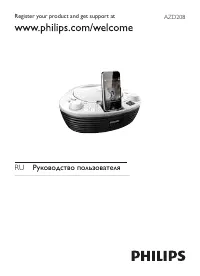 Philips AZD208
Manual
Philips AZD208
Manual
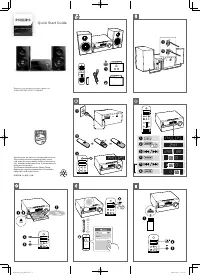 Philips BTB2570
User Manual
Philips BTB2570
User Manual
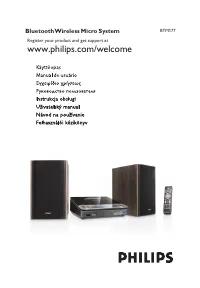 Philips BTM177
User Manual
Philips BTM177
User Manual
 Philips BTM2310/12
User Manual
Philips BTM2310/12
User Manual
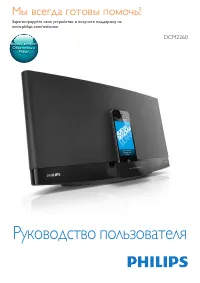 Philips DCM2260
Manual
Philips DCM2260
Manual
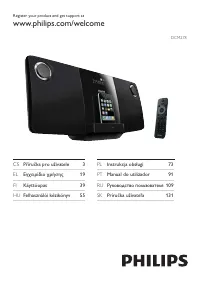 Philips DCM278
Manual
Philips DCM278
Manual
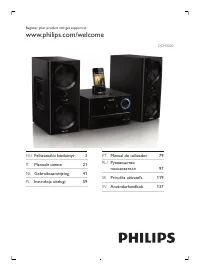 Philips DCM3020
Manual
Philips DCM3020
Manual
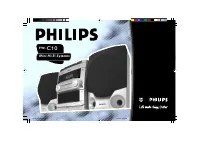 Philips FW-C10
User Manual
Philips FW-C10
User Manual
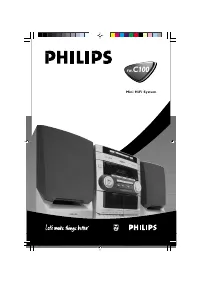 Philips FW-C100
User Manual
Philips FW-C100
User Manual
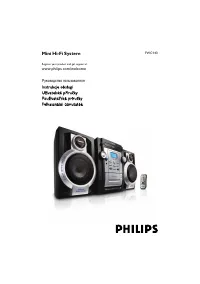 Philips FWC143
User Manual
Philips FWC143
User Manual
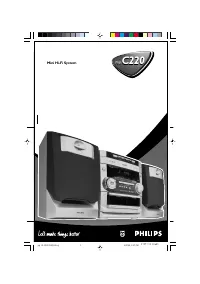 Philips FW-C220
User Manual
Philips FW-C220
User Manual
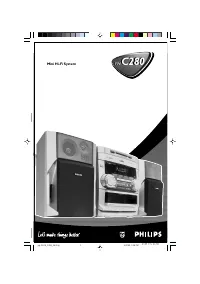 Philips FW-C280
User Manual
Philips FW-C280
User Manual
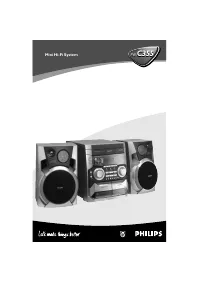 Philips FW-C355
Manual
Philips FW-C355
Manual
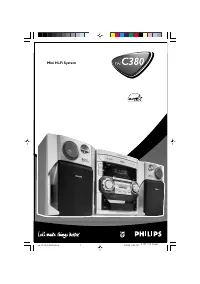 Philips FW-C380
User Manual
Philips FW-C380
User Manual
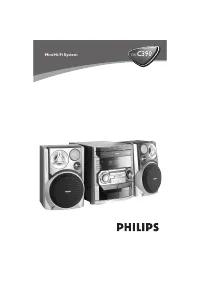 Philips FW-C390
Manual
Philips FW-C390
Manual