Page 2 - Norge; DICHIARAZIONE DI CONFORMITA’; CAUTION
2 Important notes for users in theU.K. Mains plug This apparatus is fitted with an approved 13Amp plug. To change a fuse in this type of plugproceed as follows: 1 Remove fuse cover and fuse. 2 Fix new fuse which should be a BS1362 5 Amp,A.S.T.A. or BSI approved type. 3 Refit the fuse cover. If the f...
Page 3 - SF
3 DK Advarsel: Usynlig laserstråling ved åbningnår sikkerhedsafbrydere er ude af funktion.Undgå utsættelse for stråling. Bemærk: Netafbryderen er sekundærtindkoblet og ofbryder ikke strømmen franettet. Den indbyggede netdel er derfortilsluttet til lysnettet så længe netstikketsidder i stikkontakten....
Page 4 - Language Code
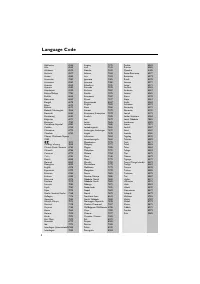
4 Abkhazian 6566 Afar 6565 Afrikaans 6570 Amharic 6577 Arabic 6582 Armenian 7289 Assamese 6583 Avestan 6569 Aymara 6589 Azerhaijani 6590 Bahasa Melayu 7783 Bashkir 6665 Belarusian 6669 Bengali 6678 Bihari 6672 Bislama 6673 Bokmål, Norwegian 7866 Bosanski 6683 Brezhoneg 6682 Bulgarian 6671 Burmese 77...
Page 5 - rançais; Index
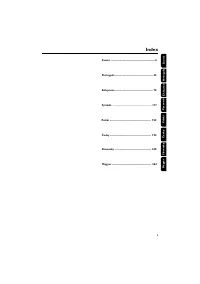
5 English F rançais Español Deutsch Nederlands Italiano Sv enska Dansk Index English ------------------------------------------------ 6 Français -------------------------------------------- 43 Español --------------------------------------------- 79 Deutsch ------------------------------------------...
Page 6 - English; Contents
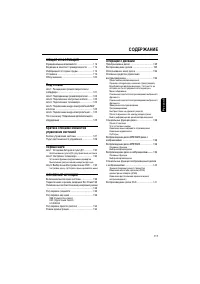
6 English General Information Features .................................................................. 8Supplied accessories ............................................ 8Environment information ................................... 8Installation .......................................................
Page 7 - System Menu Options
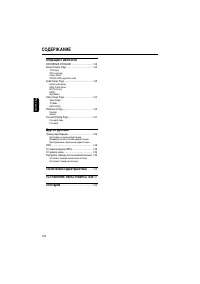
English 7 Contents System Menu Options Basic Operations ................................................ 30General Setup Page ..................................... 30~31 TV DisplayOSD LanguageScreen SaverDIVX(R) VOD registration code Audio Setup Page ........................................ 31~33 Di...
Page 8 - Features; Other features include:; Supplied accessories; General Information
8 English Features Your DVD Micro Theatre with 2.1 channel full digital amplifier creates the same dynamic soundqualities that you find in full-fledged cinemas andincorporates some of the best features in hometheater technology. Other features include: Built-in Dolby Digital decoder, suppor ting DSC...
Page 9 - Maintenance; Disposal of your old product
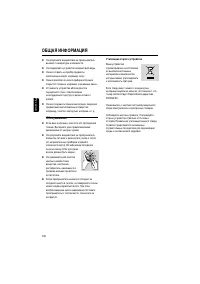
English 9 General Information ● Do not expose your player to extremetemperatures or humidity. ● The apparatus shall not be exposed to drippingor splashing. ● No objects filled with liquids, such as vases, shallbe placed on the apparatus. ● No naked flame sources, such as lighted candles,shall be pla...
Page 10 - Step 1: Placing the speakers; Connections
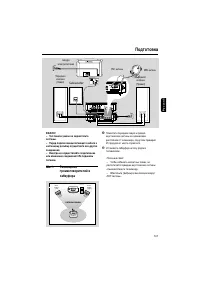
10 English IMPORTANT!– The type plate is located at thebottom of the system.– Before connecting the AC power cordto the wall outlet, ensure that allother connections have been made.– Never make or change anyconnections with the power switched on. Step 1: Placing the speakers and subwoofer Front spea...
Page 11 - Step 4: Connecting TV; Using SCART jack; Step 2: Connecting speakers
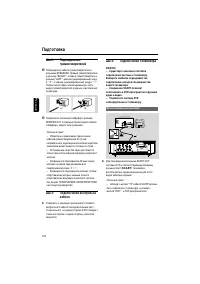
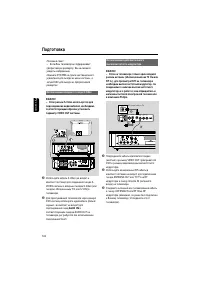
English 11 Step 4: Connecting TV IMPORTANT!– You only need to make one videoconnection from the following options,depending on the capabilities of your TV.– Connect the DVD system directly tothe TV.– A SCART connection will let you usefeatures both Audio and Video on theDVD Player. Using SCART jack ...
Page 12 - Using Composite Video jack
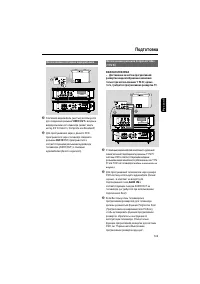
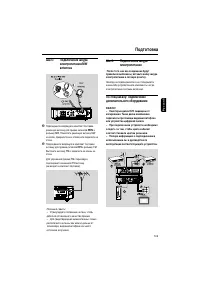
12 English Connections Using Composite Video jack 1 Use the composite video cable (yellow) toconnect the system's VIDEO OUT jack to the video input jack (or labelled as A/V In, Video In,Composite or Baseband) on the TV set. 2 To hear the TV channels through this DVDsystem, use the audio cables (whit...
Page 13 - Using an accessor y RF modulator
English 13 Connections Using S-Video jack IMPORTANT!– If S-Video is used for DVD playbackconnection, the system’s VIDEO OUTsetting will need to be changedaccordingly. 1 2 1 Use an S-Video cable (not supplied) to connectthe DVD system’s S-VIDEO jack to the S-Videoinput jack (or labeled as Y/C or S-VH...
Page 14 - antennas; Step 6: Connecting the power
14 English Connections Step 5: Connecting FM/MW antennas MW 1 Connect the supplied MW loop antenna to theMW jack. Place the MW loop antenna on a shelfor attach to a stand or wall. 2 Connect the supplied FM antenna to the FM (75 Ω ) jack. Extend the FM antenna and fix its end to the wall. For better ...
Page 16 - Functional Overview; DVD player and power amplifier; Display; OPEN•CLOSE
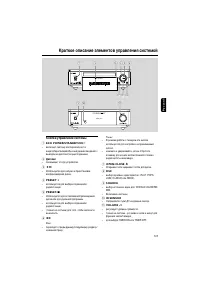
16 English Functional Overview DVD player and power amplifier 1 ECO POWER/STANDBY-ON y – to switch the system on or to standby mode. 2 Display – shows the current status of the DVD player. 3 ÉÅ – star ts or inter rupts disc playback. 4 PRESET + – in tuner mode, selects a preset radio stationforward....
Page 17 - Remote control; PROG
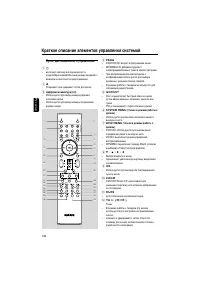
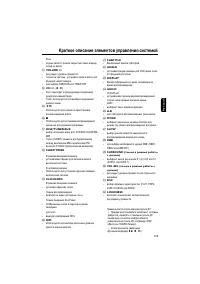
English 17 Remote control 1 B – to switch the system on or to standby mode. 2 0 – opens or closes the disc compar tment 3 Numeric Keypad (0-9) – inputs a track/title/chapter number of the disc. Functional Overview 4 PROG – DVD/VCD/CD: enters the program menu. – MP3/WMA-CD: adds/deletes a programmedt...
Page 19 - Step 1: Inserting batteries into; Getting Started
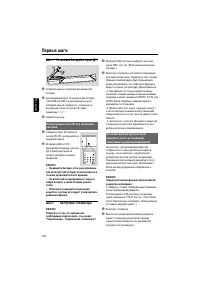
English 19 Step 1: Inserting batteries into the Remote Control 1 3 2 1 Open the batter y compar tment. 2 Inser t two AAA batteries following theindications (+/-) inside the compar tment. 3 Close the cover. Using the Remote Control to operatethe Player 1 Aim the Remote Controldirectly at the remote s...
Page 20 - To deactivate Progressive manually
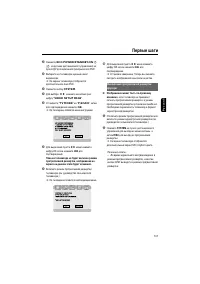
20 English Getting Started 6 Press 1 2 repeatedly to select " VIDEO SETUP PAGE ". 7 Select " TV MODE " to " P-SCAN ", then OK to confirm. ➜ The instruction menu appears on the TV. 8 Press 1 2 to highlight OK in the menu and press OK to confirm. There will be a distorted pictu...
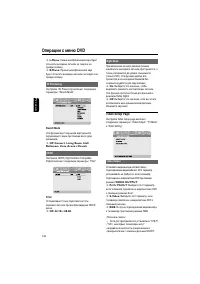
Page 21 - Step 3: Setting language; Setting the OSD Language
English 21 Step 3: Setting language preference You can select your own preferred language settings. This DVD system will automaticallyswitch to the selected language whenever youload a disc. If the language selected is notavailable on the disc, the disc’s default languagewill be used instead. The OS...
Page 22 - LOUDNESS; Basic Operations
22 English Switching the system on/off ● Press ECO POWER/STANDBY-ON B ( B on the remote). ➜ “ HELLO ” is displayed briefly. The system will switch to the last selected source. ● Press DISC , TUNER or AUX on the remote. ➜ The system will switch to the selected source. To switch the system to standby ...
Page 23 - Dimming the display screen; DIM; Demonstration mode; To activate the demonstration; To deactivate the demonstration
English 23 Basic Operations Dimming the display screen ● Press DIM repeatedly to select different levels of brightness for the display screen. Demonstration mode The system has a demonstr ation mode that shows the various features offered by the system. To activate the demonstration ● In standby mod...
Page 24 - Playable Discs; Disc Operations; Region Codes; Setting up the TV; ALL
24 English IMPORTANT!– Depending on the DVD or VIDEO CD,some operations may be different orrestricted.– Do not push on the disc tray or putany objects other than disc on the disctray. Doing so may cause the disc playermalfunction.– If the inhibit icon (ø) appears on theTV screen when a button is pre...
Page 25 - Using the Disc Menu
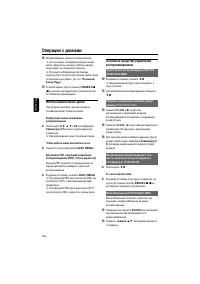
English 25 Disc Operations Using the Disc Menu Depending on the disc, a menu may appear on the TV screen once you load the disc. To select a playback feature or item ● Use 1 2 3 4 and OK or Numeric Keypad (0-9) on the remote . ➜ Playback will star t automatically. To access or exit from the menu ● P...
Page 27 - Special disc features; General operation
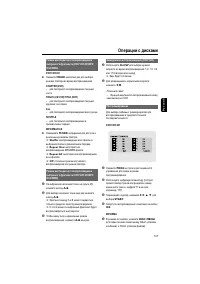
English 27 Disc Operations For Super VCD/VCD/DivX/CD ➜ Single/Total Elapsed : displays the elapsed time of the current single/total track. ➜ Single/Total Remain : displays the remaining time of the current single/total track. ➜ Display Off : switches time display off. Special disc features Playing a...
Page 28 - Playing JPEG Picture CD; Special JPEG features
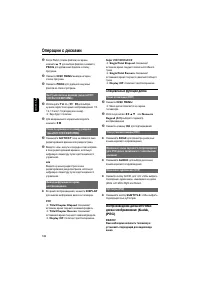
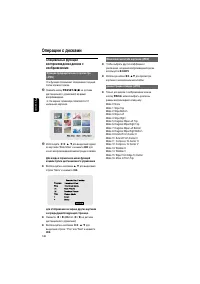
28 English Disc Operations Playing JPEG Picture CD General operation 1 Load a JPEG Picture CD. ➜ The data disc menu appear s on the TV screen. 2 Use 3 4 to select a folder and press OK to open the folder. 3 Press 3 4 or use the Numeric Keypad (0-9) to highlight a picture file. 4 Press OK to confirm....
Page 29 - Playing a DivX disc; SUBTITLE
English 29 Disc Operations Playback with multi-angles (JPEG) ● During playback, press 1 2 3 4 to rotate the picture on the TV screen. 3 : flip the picture ver tically. 4 : flip the picture horizontally. 1 : rotate the picture anti-clockwise . 2 : rotate the picture clockwise. Playing a DivX disc Thi...
Page 30 - Basic operations; TV Display
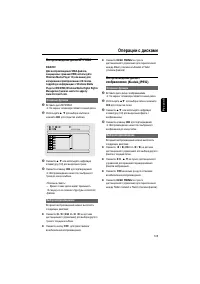
30 English System Menu Options Basic operations 1 Press SYSTEM to enter the Setup Menu. 2 Press 1 2 to select a page to be set. 3 Press 3 4 to highlight an option. 4 Enter its submenu by pressing 2 or OK . 5 Move the cursor by pressing 3 4 to highlight the selected item. ➜ In cases of value setting,...
Page 31 - Screen Saver; Audio Setup Page
English 31 System Menu Options Screen Saver This function is used to turn the screen saver on or off. ➜ On : In STOP, PAUSE or No DISC mode, if no actions are performed about 3 minutes, thescreen saver will be activated. ➜ Off : Screen saver is disabled. DIVX(R) VOD registration code Philips provide...
Page 32 - Digital Audio Setup
32 English System Menu Options Digital Audio Setup The options included in Digital Audio Setup are:“SPDIF OFF”, “SPDIF/RAW” and “SPDIF/PCM”. SPDIF/RAWSPDIF/PCM ➜ SPDIF OFF : Turns off the SPDIF output. ➜ SPDIF/RAW : If you have connected your DIGITAL OUT (COAXIAL or OPTICAL) to amulti-channel decode...
Page 33 - Night Mode; Video Setup Page; Video Output
English 33 System Menu Options Night Mode In this mode, the high volume outputs are softened and low volume outputs are broughtupward to an audible level. It is useful forwatching your favourite action movie withoutdisturbing others at night. ➜ On : Select this to level out the volume. This feature ...
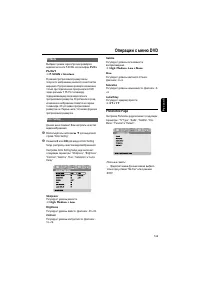
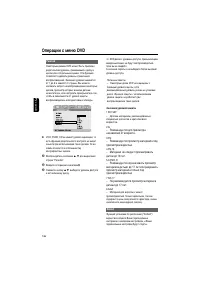
Page 34 - Preference Page; Parental
34 English System Menu Options Preference Page The options included in Preference page are: “Audio”, “Subtitle”, “Disc Menu”, “Parental” and“Default”. Note:– Preference features can be selected only during“No Disc” condition or full STOP mode. Parental Some DVDs may have a parental level assigned to...
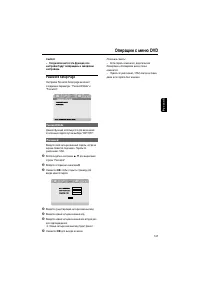
Page 35 - Password Setup Page; Password Mode
English 35 System Menu Options Password Setup Page The options included in Password Setup pageare: “Password Mode” and “Password”. Password Mode This feature is used to enable/disable passwordby selecting “ON”/”OFF”. Password Enter your four digit password when a hint isdisplayed on the screen. The ...
Page 36 - Radio Reception; Tuning to radio stations; Other Functions; Listening to preset radio stations; RDS
36 English Radio Reception Tuning to radio stations 1 Press ECO POWER/STANDBY-ON B ( B on the remote) to switch on the last selectedsource. 2 Press SOURCE ( TUNER on the remote) to select TUNER mode. 3 Press TUNER on the remote again to select the desired band: FM or MW. 4 Press and hold ¡ / ™ ( TU ...
Page 37 - Setting the clock; Sleep timer setting; To deactivate the sleep timer; To deactivate the timer
English 37 Other Functions Setting the clock 1 In Standby mode, press and hold CLOCK/RDS on the remote until the time flashes on thedisplay. ➜ ” CLOCK SET ” is displayed briefly. Then, the hour digits flash on the display screen. 2 Turn VOLUME -/+ clockwise or anticlockwise or press VOLUME +/- on th...
Page 38 - Specifications
38 English SYSTEM Power supply ............................ 220 – 240 V / 50 HzRated wor king power consumption (1/8 ratedoutput power) ........................................................ ≤ 55W AUX input sensitivity ..................................... ≤ 350mV Channel Separation .................
Page 39 - Troubleshooting; Problem
English 39 WARNINGUnder no circumstances should you try to repair the system yourself, as this willinvalidate the warranty. Do not open the system as there is a risk of electric shock. If a fault occurs, first check the points listed below before taking the system for repair. If youare unable to rem...
Page 42 - Glossary; Component Video Out Jacks:
42 English Glossary Analog: Sound that has not been turned into numbers. Analog sound varies, while digital soundhas specific numerical values. These jacks sendaudio through two channels, the left and right. Aspect ratio: The ratio of ver tical and horizontal sizes of a displayed image. Thehorizonta...