Page 2 - Contents
3 English EN 7 Adjust sound 19 Adjust volume level 19 Select a preset sound effect 19 Enhance bass 19 Mute sound 19 8 Adjust settings 19 System settings 19 Playback settings 20 Video settings 21 Audio settings 22 9 Other features 23 Set the alarm timer 23 Set the sleep timer 23 Listen to an external...
Page 3 - Important; Safety
4 g Do not block any ventilation openings. Install in accordance with the manufacturer’s instructions. h Do not install near any heat sources such as radiators, heat registers, stoves, RURWKHUDSSDUDWXVLQFOXGLQJDPSOLÀHUV that produce heat . i Protect the power cord from being walked on or pinched, pa...
Page 4 - Hearing safety
5 Hearing safety Listen at a moderate volume. Using headphones at a high volume can impair your hearing. This product can produce sounds in decibel ranges that may cause hearing loss for a normal person, even for exposure less than a minute. The higher decibel ranges are offered for those that may...
Page 5 - Notice
6 Environmental information All unnecessar y packaging has been omit ted. We have tried to make the packaging easy to separate into three materials: cardboard (box), polystyrene foam (buffer) and polyethylene (bags, protective foam sheet.) Your system consists of materials which can be recycled and ...
Page 6 - What’s in the box; Your DVD; Introduction
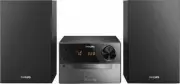
7 What’s in the box Check and identify the contents of your package: Main unit Loudspeaker boxes x 2 Power cord Audio/video cable MP3 link cable x 1 Remote control Quick star t guide User manual 2 Your DVD Micro Theater Congratulations on your purchase, and ZHOFRPHWR3KLOLSV7RIXOO\EHQ...
Page 7 - Overview of the main unit
8 j VOLUME +/- Adjust volume. k Stop play or erase a program. l Star t or pause play. m / Search fast for ward or fast back ward.Tune to a radio station. Adjust time. n Turn on the unit, or switch to standby mode, or switch to Eco Power standby. o Open/close the disc compar tment. Ov...
Page 10 - Connect TV; Option 1: Connect through AV cable; TV; Connect; Preparations; Connect speakers
11 Connect TV You can watch video from this unit on the TV screen. Option 1: Connect through AV cable Option 1: Connect through S -Video socket Option 1: Connect through AV cable AV out provides basic analogue connectivity. 1 Connect AV cable (red/white/yellow) to: AV OUT ( VIDEO , L , R ) soc...
Page 11 - Connect power
12 1 Switch the voltage selector to the local power line voltage. 2 Connect the power cord to the wall outlet. Option 2: Connect through S-Video socket S -video provides bet ter picture quality than AV out connections. 1 Connect an S -video cable (not supplied) to: the S -VIDEO socket on this unit...
Page 12 - Auto install radio stations; Set clock; Get started; Prepare the remote control
13 Note Before pressing any func tion but ton on the UHPRWHFRQWUROÀUVWVHOHFWWKHFRUUHFWVRXUFH with the remote control instead of the main unit.If you are not going to use the remote control for a long time, remove the bat ter y. Auto install radio stations When you connect the unit to the power V...
Page 13 - Set up the TV; Turn on; Switch to standby
14 Set up the TV 1 Turn on the unit. 2 Press DISC to select DISC source. 3 Turn on the T V and then select the correct video-in channel. You should see the blue Philips DVD » background screen. Tip See the T V user manual for details of how to selec t the cor rec t video-in channel. 4 Press / to s...
Page 14 - Play from USB devices; Play DivX video; Play discs
15 During play, press SUBTITLE repeatedly to select a subtitle language. Play from USB devices Note Ensure that the USB device contains playable content. (see “ USB playability infor mation”) 1 Inser t the USB plug of a USB device into the socket. 2 Press USB . Play star ts automatically. If not...
Page 15 - View pictures; Slide show play modes; Play control; Repeat and random play
16 For VCD/MP3/CD/DivX [REP 1] (repeat 1): repeat the current track [REP DIR] (repeat director y) (for MP3 disc only): repeat the current folder [REP ALL] (repeat all): repeat the disc [SHUF] VKXIÁHSOD\WKHGLVFLQ random order [OFF] (off ): switch off the repeat mode 2 To return to normal ...
Page 16 - Play options; Display play information
17 Change camera angle Some DVDs contain alternate scenes, such as scenes recorded from different camera angles. For such DVDs, you can select from the available alternate scenes. 1 Press PROG/ANGLE repeatedly to switch between camera angles. Select an audio language You can select an audio language...
Page 17 - Select a preset radio station; Listen to radio; Tune to a radio station
18 Program radio stations manually Note You can progr am a maximum of 20 preset r adio stations. 1 Tune to a radio station. 2 Press PROG/ANGLE to activate program mode. [PROG] blinks on the display. » 3 Press / to allocate a number (1 to 20) to this radio station, then press PROG/ ANGLE WRFRQÀUP T...
Page 18 - Adjust settings; System settings; Set screen saver; Adjust sound; Adjust volume level
19 8 Adjust settings System settings Set screen saver The screen saver protects the T V screen damage due to prolonged exposure to a static image. 1 Press SYSTEM MENU . The system menu is displayed. » 2 Select [SYSTEM SETUP] (system setup) > [SCREEN SAVER] (screen saver), then press . 3 Select an...
Page 19 - Playback settings; Select preferred language; Select TV type
20 Select TV system Select the color system that matches the conneted T V. 1 Press SYSTEM MENU . 2 Select [SYSTEM SETUP] (system setup) > [TV SYSTEM] (TV system), then press . 3 Select an option, then press OK . [NTSC] : For T V with NTSC color system. [PAL] : For T V with PAL color system. ...
Page 20 - View DivX VOD registration code; Video settings; Adjust picture quality
21 View DivX VOD registration code DivX is a popular media technology created E\'LY; ,QF'LY;PHGLDÀOHVFRQWDLQKLJKO\ compressed video with high visual quality WKDWPDLQWDLQVDUHODWLYHO\VPDOOÀOHVL]H'LY;ÀOHVFDQDOVRLQFOXGHDGYDQFHGPHGLDIHDWXUHV like menus, subtitles, and alternate audio WUDFNV0DQ\'LY;PHGLDÀ...
Page 21 - Audio settings; Select audio downmix
22 Select sampling rate You can select the Linear Pulse Code Modulation (LPCM) output sampling rate. The higher the sampling rate, the bet ter the sound quality. 1 Press SYSTEM MENU . 2 Select [AUDIO SETUP] (audio setup) > [DOWN SAMPLE] (down sample), then press . 3 Select an option, then press O...
Page 22 - Other features; Set the alarm timer; Activate and deactivate alarm timer
23 Set the sleep timer This unit can switch to standby automatically after a set period of time. 1 When the unit is turned on, press SLEEP repeatedly to select a set period of time (in minutes). When sleep timer is activated, the » display shows . To deactivate sleep timer 1 Press SLEEP repeatedly u...
Page 23 - information; Disc
24 FM Tuning range 87. 5 - 108 MHz Tuning grid 50 kHz Sensitivity - Mono, 26 dB S/N ratio <22 dBf Total harmonic distor tion <3% Signal to noise ratio >55 dB Speakers Speaker Impedance 4ohm Speaker Driver 3. 5”woofer Sensitivity >82dB/m/ W General information AC power 110 - 127/220 -240 ...
Page 24 - 1 Troubleshooting; USB playability information; Supported MP3 disc formats
25 11 Troubleshooting Warning Never remove the casing of this appar atus. To keep the warranty valid, never tr y to repair the system yourself. If you encounter problems when using this apparatus, check the following points before requesting ser vice. If the problem remains unsolved, go to the Phi...