Page 3 - Table of contents
Table of contents 1 1 Safety information 2 1.1 Equipment Approval Information 2 1.2 Interference Information 3 1.3 Hearing Aid Compatibility (HAC) 4 1.4 FCC RF Radiation Exposure Statement 4 2 Important 5 2.1 Power requirements 5 2.2 Conformity 6 2.3 Electric, Magnetic and Electromagnetic Fields (...
Page 4 - Safety information
2 Safety information 1 Safety information 1.1 Equipment Approval Information Your telephone equipment is approved for connection to the Public Switched Telephone Network and is in compliance with parts 15 and 68, FCC Rules and Regulations and the Technical Requirements for Telephone Terminal Equipme...
Page 7 - Important
Important 5 2 Important Take time to read this user manual before you use your phone. It contains important information and notes regarding your phone. NOTICE: This product meets the applicable Industry Canada technical specifications.The equipment must be installed using an acceptable method of con...
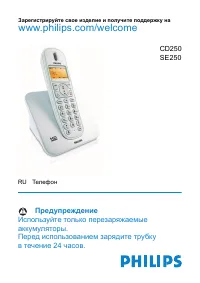
Page 10 - Your phone
8 Your phone 3 Your phone Congratulations on your purchase and welcome to Philips! To fully benefit from the support that Philips offers, register your product at www.philips.com/welcome. 3.1 What’s in the box Handset Charger Battery door 2 AAA rechargeable NiMH batteries Power supply User manual Gu...
Page 14 - Getting started
12 Getting started 4 Getting started 4.1 Connect the charger Place the charger in a central location near the electricity socket. Connect the power cable to their corresponding connectors at the back of the charger. 4.2 Install your phone Before using the handset, the batteries have to be installed ...
Page 16 - Using your phone
14 Using your phone 5 Using your phone 5.1 Make a call 5.1.1 Predialing Dial the number (maximum 24 digits).Press r key. • The call is initiated. 5.1.2 Direct dialing Press r or v key to take the line.Dial the number. • The call is initiated. 5.2 Answer a call Danger When the handset rings during an...
Page 17 - Use more of your
Use more of your phone 15 6 Use more of your phone 6.1 Using the intercom Warning Intercom and call transfer is only possible with handsets registered to the same base station. This feature is only available when there are at least 2 registered handsets. It allows you to make free internal calls, tr...
Page 19 - Personal settings
Personal settings 17 7 Personal settings 7.1 Change the handset name You can name the handset and display the handset name in idle mode. The default handset name of your handset is PHILIPS . Press m key in idle mode, scroll : to PERSONAL SET and press < OK , scroll : to HANDSET NAME and press <...
Page 21 - Advanced settings
Advanced settings 19 8 Advanced settings 8.1 Registering handset See chapter 4.3 8.2 Unregister Press m key in idle mode, scroll : to ADVANCED SET and press < OK , scroll : to UNREGISTER and press < OK . Scroll : to select the handset number to unregister and press < OK . • A validation ton...
Page 22 - Technical data
20 Technical data 9 Technical data Display • Progressive LCD backlight• The backlight remains on for 15 seconds after each activation such as an incoming call, key presses, lifting the handset off the base station, etc. • The colour of the LCD backlight is Amber. Battery • 2 x HR AAA NiMh 550 mAh ba...
Page 23 - 0 Frequently asked
Frequently asked questions 21 10 Frequently asked questions www.philips.com/support In this chapter, you will find the most frequently asked questions and answers about your phone. Connection The handset does not switch on! • Charge the batteries: Put the handset on the charger to charge. After a fe...