Philips 55PUL7472/F7 - Manuals
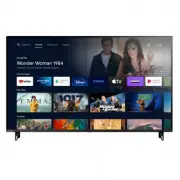
Quick Guide Philips 55PUL7472/F7


Summary
1 Using the remote How to install the batteries in the remote Open the battery cover by firmly sliding down. Insert 2 AAA (1.5 V) batteries matching the polarity indicated inside battery compartment of the remote. a c AAA (1.5 V) x 2 b 1 (POWER) Turn the TV on/off into Quick Start Standby. Holding t...
2 Best Experience Google account Unleash your television's true potential. With a Google® account you can effortlessly expand your entertainment library via the Google Play Store and Google Play app and also keep apps up-to-date.While you can enjoy this Philips Android TV™ without a Google Account v...
3 Explore your television From the Android TV home screen, you can easily access movies, TV shows, music, apps, input devices, settings, and more. To go back to the home screen at any time, press a (HOME) on your remote. 1 2 3 4 5 6 7 8 9 1 Google Assistant With Google Assistant, quickly access ente...
Philips Manuals
-
 Philips 50PFL5907/F7
User Manual
Philips 50PFL5907/F7
User Manual
-
Philips 50PFL5907/F7
Quick Guide
-
 Philips 39PFL2908/F7
User Manual
Philips 39PFL2908/F7
User Manual
-
Philips 39PFL2908/F7
Quick Guide
-
 Philips 55PFL5907/F7
Quick Guide
Philips 55PFL5907/F7
Quick Guide
-
Philips 40PFL4908/F7
User Manual
-
Philips 40PFL4908/F7
Quick Guide
-
 Philips 29PFL4908/F7
User Manual
Philips 29PFL4908/F7
User Manual
-
Philips 29PFL4908/F7
Quick Guide
-
Philips 42PFL5907/F7
Quick Guide
-
 Philips 32PFL5708/F7
Manual
Philips 32PFL5708/F7
Manual
-
Philips 39PFL5708/F7
Manual
-
 Philips 50PFL5708/F7
User Manual
Philips 50PFL5708/F7
User Manual
-
Philips 50PFL5708/F7
Manual
-
 Philips 20PT643R
User Manual
Philips 20PT643R
User Manual
-
 Philips 30PW862H
Manual
Philips 30PW862H
Manual
-
 Philips 30PW850H
Manual
Philips 30PW850H
Manual
-
 Philips HTS6500
User Manual
Philips HTS6500
User Manual
-
Philips HTS6500
Manual
-
 Philips 37PF9631D/37
User Manual
Philips 37PF9631D/37
User Manual