Page 2 - Know these; safety; symbols; RISK OF ELECTRIC SHOCK; CAUTION; to get the most benefits from your purchase.; *Product safety notification; PROPER TELEVISION PLACEMENT MATTERS
Know these safety symbols The lightning flash with arrowhead symbol, within an equilateral triangle, is intended to alert the user to the presence of uninsulated “dangerous voltage” within the apparatus’s enclosure that may be of sufficient magnitude to constitute a risk of electric shock to persons...
Page 3 - Important safety instructions; Note to the CATV system installer:
Important safety instructions Read these instructions. Keep these instructions. Heed all warnings. Follow all instructions. Do not use this apparatus near water. Clean only with dry cloth. Do not block any ventilation openings. Install in accordance with the manufacturer’s instructions. Do not insta...
Page 4 - Notice
Notice Trademarks are the property of Koninklijke Philips N.V. or their respective owners. Funai Corporation reserves the right to change products at any time with- out being obliged to adjust earlier supplies accordingly. The material in this Owner’s manual is believed adequate for the intended use...
Page 8 - Contents
iii Contents Welcome ...................................................................................................................................................1 The new standard in Smart TVs .......................................................................................................
Page 14 - Welcome; The new standard in Smart TVs
1 Welcome Congratulations on the purchase of your new Roku TV! Discover the joy of endless entertainment. After it’s set up, you’ll be able to access a world of streaming content channels that may include paid subscription channels and thousands of free channels. Important : Your TV receives automat...
Page 15 - Get the most out of your new TV
2 Get the most out of your new TV Follow these steps to get the most out of your new TV. • Connect to the Internet • It’s easy, and it will unlock a world of entertainment. All you need is a network connection. There are hundreds of free streaming channels, paid subscription services, and convenient...
Page 21 - Connections and setup; Connecting an antenna, cable, or satellite box
8 Connections and setup Refer to your TV’s Quick Start Guide or other provided documentation for model-specific information about attaching the base or a wall mount and making connections to AC power and to your other audio/video devices. Connecting an antenna, cable, or satellite box If you are usi...
Page 23 - Connecting headphones or analog soundbar
10 Connecting headphones or analog soundbar You can connect headphones or an analog soundbar (not provided) to the TV’s headphone jack. Tip : Inserting a plug in the headphone jack disables the sound from the TV’s built-in speakers. Warning : Loud noise can damage your hearing. When using headphones...
Page 24 - Connecting an AV receiver or digital soundbar; Preparing for Internet connectivity
11 Connecting an AV receiver or digital soundbar You can enjoy Dolby Audio™ multichannel sound from your TV if you connect a digital amplifier or soundbar (not provided) in any of the following ways: • Digital optical audio out (S/PDIF) – Connect a TOSLINK optical cable (not provided) from the TV to...
Page 25 - AC power; Roku remote batteries
12 AC power Plug your TV into a power outlet. You can tell that the TV has power because the status indicator lights up when the TV is off. The topic Status indicator explains how the status indicator shows what is happening with the TV. Roku remote batteries Open the back of your Roku remote and in...
Page 26 - Roku TV remote
13 Roku TV remote Use the following information to identify the buttons on your Roku remote. Note : Remote buttons and features vary somewhat by model. Your remote might not have all buttons or features listed. • If your remote has a VOICE just below the purple pad, you have a Roku Voice Remote. • I...
Page 30 - Panel buttons; Single button
17 Panel buttons Your TV has buttons on its side, bottom, or back panel that perform simple control functions. The TV panel buttons are not a substitute for the remote, as they do not give you access to all TV functions. Depending on model, your TV model has one of several different panel button des...
Page 32 - Seven buttons
19 Five buttons (with mute) If your TV has this style of panel buttons, you can perform the following functions. Note that the order of the buttons might vary from model to model. Examine the panel button labels to determine your TV model’s layout. • Power : Turns the power on and off. • Input : Sel...
Page 34 - Guided Setup; Starting Guided Setup
21 Guided Setup With the preliminaries out of the way, it’s time to turn on your TV. As the TV starts for the first time, it leads you through Guided Setup, which configures the TV before you start to use it. During Guided Setup, you’ll: • Answer a few questions • Provide network connection informat...
Page 37 - Network connection
24 4. Press OK to select Set up for home use . This is the right choice for enjoying your TV at home. It provides energy saving options as well as access to all features of the TV. Note : Set up for store use configures the TV for retail display and is not recommended for any other use. In store mod...
Page 39 - Other options
26 range and displays them in order, with the strongest signals first. In addition to your own wireless signal, the TV might pick up signals from your neighbors. Press UP or DOWN to highlight the name of your wireless network, and then press OK to select it. Note : Some networks, such as those often...
Page 42 - Activation; Why do I need a Roku account?
29 you might notice that some options have moved, and that there are new options or features. This User Guide describes version 11.0. But note also that certain features of the TV might change from time to time independently of Roku TV updates. To determine your current Roku TV software version, go ...
Page 43 - Connect your devices
30 devices on the same account. This process is automatic and takes a few moments—a little longer if you have added a lot of streaming channels. Tip : Streaming channels from all of the Roku streaming devices associated with your account are synchronized periodically. All of your Roku streaming devi...
Page 46 - The Home screen
33 The Home screen The following illustrations show typical Home screens, which vary depending on location, connected mode, selected theme, number of TV inputs enabled, and streaming channels and apps added. Note : A paid subscription or other payments may be required for some channel content. Chann...
Page 47 - Personalize your Home screen
34 Typical non-connected Home screen 1. Home screen menu—shows options available to you when you are on the Home screen. 2. Highlighted option—press OK to select. 3. TV input tiles—select an input and press OK to watch the connected device. 4. Direct access tiles – shortcuts to often used features. ...
Page 49 - Connecting brings out your TV’s full potential!; Make any night a movie night; Check out The Roku Channel
36 Benefits of connecting Connecting brings out your TV’s full potential! Make any night a movie night Thousands of movies to choose from, across all major streaming movie channels 1 . You’ll never run out of something new to watch. Check out The Roku Channel Use The Roku Channel as your new home pa...
Page 50 - Take advantage of awesome features
37 Take advantage of awesome features Powerful, voice-enabled search lets you use voice commands to find movies and TV programs by title, actor, director, or genre across multiple streaming channels 1 . Additionally, your search commands can include popular movie quotes, and words like “free” and “4...
Page 53 - What if I didn’t connect my TV?
40 What if I didn’t connect my TV? What if you went through Guided Setup and chose Connect to the Internet later ? No worries. Your Roku TV makes it easy to connect whenever you want. As you move around the Home screen, you’ll see several places where you can start the connection process. For exampl...
Page 54 - Setting up live TV; Why do I have to set up the TV tuner?
41 Setting up live TV In addition to the other entertainment possibilities of your Roku TV, you might want to watch broadcast channels from an antenna or cable TV provider connected to the ANT/CABLE input. On your Roku TV, you can watch broadcast TV in much the same way you watch other entertainment...
Page 55 - How do I set up the TV tuner?
42 How do I set up the TV tuner? 1. Make sure your antenna or TV cable (not provided) is connected to the TV’s ANT/CABLE input. 2. On the Home screen, select the Live TV tile. If it is not on your Home screen, go to Settings > TV Inputs to add it. 3. Read the simple on-screen instructions, and th...
Page 56 - Why does the TV need my time zone?
43 Why does the TV need my time zone? The TV needs to know your time zone so that it can correctly display time information about the program you are currently watching. In most cases, it can get the time zone automatically and skips this step. 5. When prompted, select whether to add analog channels...
Page 59 - Using your TV; Status indicator
46 Using your TV This section provides information on using the day-to-day features of your TV. Status indicator Your TV has a single status indicator. It goes on and off and blinks in different ways depending on the status of the TV, as shown in the following table: TV CONDITION STATUS INDICATOR ME...
Page 60 - Standby mode energy savings; Getting help
47 Standby mode energy savings When you turn off your TV, it remains in a higher power mode for a few minutes, after which it goes into a very low power standby mode. If you turn on the TV again before it has entered the very low power mode, it turns on immediately. After the TV goes into the lower ...
Page 61 - Disable Smart TV experience
48 Opting in to Smart TV experience (U.S. only) Only in connected mode in the United States , the first time you select live TV, an HDMI input, or AV input, your TV offers to enable the Smart TV experience. If you decide to enable it at this time, you’re all set to enjoy its recommendations and feat...
Page 62 - Disable Auto Notifications; Watching live TV channels; Changing channels
49 Disable Auto Notifications If you want to keep the Smart TV experience enabled, but you do not want to see notifications while you are watching programs, you can disable notifications. To do so, follow these steps: 1. From the Home screen menu, go to Settings > Privacy > Smart TV experience...
Page 68 - Adjusting settings while watching a program; Requirements
55 • Only in connected mode in the United States , view program information for any program listed in the Live TV Channel Guide. Press LEFT while watching live TV to see the Live TV Channel Guide. For more information, see Using the Live TV Channel Guide . Adjusting settings while watching a program...
Page 69 - Enabling Live TV Pause; Using Live TV Pause
56 Important : Some TV models have more than one USB port. You can connect your Live TV Pause USB drive to any port, but make sure that nothing is connected to other USB ports while enabling Live TV Pause. Reconnect other USB devices after you have finished enabling Live TV Pause. 4. Enable Live TV ...
Page 71 - Notes about Live TV Pause
58 Notes about Live TV Pause • You can use Live TV Pause only with digital broadcast and cable channels received through the TV’s ANT input (ATSC and Clear QAM channels). • Changing channels erases and restarts the Live TV Pause buffer. • Returning to the Home screen, selecting another input, or tur...
Page 72 - Using More Ways to Watch
59 Using More Ways to Watch Not every program provides recommendations. As you use More Ways to Watch, be aware that you’ll only see suggestions on your TV when all of the following conditions are met: • Your TV is operating in connected mode in the United States. • You have enabled Smart TV experie...
Page 74 - Getting the most from More Ways to Watch; Automatic network recommendation
61 run programs, because streaming content typically is not available until some time after the program is first broadcast. • See more episodes – Streaming channels where you can find other episodes of the TV program you are watching. Does not apply to movies. • More like this –TV programs or movies...
Page 75 - Switching TV inputs; Auto-detecting devices
62 When this happens, you can select the appropriate button to accept or reject the recommendation, or you can select Don’t show again if you do not want to use this feature. Switching TV inputs Switch TV inputs to access the device connected to that input, for example, a Blu-ray™ player. Switching ...
Page 76 - Setting preferred audio language for streaming channels; Automatic game console configuration
63 Setting preferred audio language for streaming channels You can select the preferred language for the audio played by streaming channels. If the selected language is available in the streaming content, the TV plays that language. To set the preferred audio language: 1. From the Home screen menu, ...
Page 77 - Using Roku Voice commands
64 Various combinations of these features are available only on select Roku TV models, and if present, can be disabled by navigating to Settings > TV inputs and then selecting the appropriate HDMI input. When you start playing a game, your TV displays a message at the bottom of the screen to make...
Page 78 - Using Roku Voice remotes (select models only); Re-pairing your Roku Voice remote
65 Using Roku Voice remotes (select models only) Only on TVs with the Roku Voice remotes: The following topics explain how to get the most out of your TV when it includes a Roku Voice Remote, Roku Enhanced Voice Remote, or Roku Voice Remote Pro. Re-pairing your Roku Voice remote The Roku Voice remot...
Page 79 - Finding your Roku Enhanced Voice Remote or Roku Voice Remote Pro; Activate Find Remote
66 Finding your Roku Enhanced Voice Remote or Roku Voice Remote Pro Only on TVs with the Roku Enhanced Voice Remote or Voice Remote Pro , when your remote has found its way down into the sofa cushions or your dog has hidden it in the corner, you can use the Find Remote feature to find out where it’s...
Page 80 - Changing and previewing the remote finder sound; Playing content from USB storage devices
67 Changing and previewing the remote finder sound Only on TVs with the Roku Enhanced Voice Remote or Voice Remote Pro , you can customize the sound your remote makes when you use the Find Remote feature. To customize the sound, navigate to Settings > Remotes & devices > Remote settings &g...
Page 81 - Auto player launch; Playing content from local network media servers
68 Auto player launch Only in connected mode , you can set your TV to automatically open the Roku Media Player when you connect a USB drive with a recognizable file system (such as FAT16/32, NTFS, HFS+ or EXT2/3). To configure this setting, from the Home screen menu, navigate to Settings > System...
Page 82 - Setting up a payment method; Using your TV in a hotel or dorm room
69 Setting up a payment method For Movie Store, TV Store, and other channels that allow you to pay through your linked Roku account, you can enter a payment method directly on your TV. Entering a payment method on your TV means that you don’t need to go to a computer or mobile device to set up a pay...
Page 83 - About using your TV on a restricted public network; Getting your Roku TV on line on a restricted public network
70 About using your TV on a restricted public network Here are some points to keep in mind when using your TV on a restricted public network: • Using your Roku TV on a hotel or dorm room network requires wireless availability and a network-connected smartphone, tablet, or computer to authenticate ac...
Page 86 - Apple AirPlay; Other AirPlay things to try; Apple Home app
73 Using Apple AirPlay and the Apple Home app Apple AirPlay AirPlay lets you share videos, photos, music, and more from your iPhone, iPad, or Mac. To use AirPlay, your Roku TV must be on the same wireless network as your Apple device 1 . To configure your preferred AirPlay security settings, navigat...
Page 87 - Some Apple HomeKit things to try
74 1. From your TV’s Home screen, navigate to Settings > Apple AirPlay and HomeKit . 2. Under HomeKit , select Set Up . Your TV will display a unique QR code. 3. From your Apple device, open the Apple Home app and select Add Accessory . 4. Use the Apple Home app to scan the QR code displayed on y...
Page 88 - Adjusting TV settings; Main Settings menu
75 Adjusting TV settings You can adjust most picture and sound settings while you are watching a program by pressing STAR to open the TV settings menu. There are some additional picture and sound settings in the main Settings menu. In most cases, the changes you make apply only to the input you ar...
Page 89 - TV settings menu
76 Note : This setting does not affect the HDR or Dolby Vision™ notification that always appears in the program information banner. Press OK while watching a program to open the program information banner. • Settings per input – Lists each enabled TV input. Select an input, and then press STAR to ...
Page 90 - Sleep timer; Picture settings
77 Press UP or DOWN to highlight a setting, and then press OK or RIGHT to see the options for the setting. You’ll see the changes you make right away in picture appearance or audio quality. • Sleep timer • Picture settings • Sound settings • Manage channels (U.S., connected mode) • Manage channels (...
Page 93 - Fine tune picture menu options
80 • Auto low latency mode (ALLM) – Only on select models: Auto Low Latency Mode (ALLM) detects when certain game consoles are connected to an HDMI input, and then automatically configures the best settings for action games when that input is selected. When ALLM is active, the manual Game mode setti...
Page 94 - Expert Picture Settings (4K models only)
81 • Color – Adjusts the saturation of colors in the picture. A setting of 0 removes all color and displays a black and white picture. • Tint – Adjusts the color balance from green to red to obtain accurate colors in the picture. Variable refresh rate (VRR) Only on select models: Variable refresh ra...
Page 95 - Roku premium audio devices
82 Sound settings Your TV model might have any one of the following premium sound settings available in the TV settings menu: • No Sound settings • Roku premium audio devices • Volume mode • Dolby® Audio Processing • DTS® TruSurround • DTS® Studio Sound • Sonic Emotion™ Premium Roku premium audio de...
Page 96 - Sound settings menu – Roku premium audio
83 Sound settings menu – Roku premium audio • Sound mode – Select from among various preset sound modes to make shows and music sound their best. This setting applies across the entire TV; that is, to all TV inputs. • Volume mode – Select from among modes for normal listening, volume leveling, and n...
Page 97 - Sound settings menu - Volume mode
84 Volume mode (select models only) To access Volume mode, first press STAR to display the TV settings menu, then select Sound settings . Sound settings menu for models with Volume mode Tip : Some streaming channels assign STAR to a different function, meaning it will not open the TV settings me...
Page 98 - Sound settings – Dolby; Sound settings menu– Dolby
85 Sound settings – Dolby ® Audio Processing (select models only) Each TV input has separate settings for fine tuning sound quality. All of the settings in this menu apply only to the currently-selected input. To access the DAP settings, first press STAR to display the TV settings menu, then selec...
Page 99 - Sound settings – DTS
86 • Volume leveling - Smooths out the high and low sounds. • Dolby AC-4 Dialog Enhancement – Only on select models: Select On for AC-4 to enhance the dialog in content that supports the AC-4 audio format. • Reset sound settings – Returns Virtual surround , Dialog enhancer , and Volume leveling sett...
Page 100 - Sound settings – Sonic Emotion
87 Sound settings menu– DTS ® TruSurround / DTS ® Studio Sound • Sound mode – Select from among various preset sound modes to improve speech, make music sound its best, boost bass or treble, or simulate a theater. Use Reset audio settings , described below, to return the input’s current settings to ...
Page 101 - Sound settings menu– Sonic Emotion
88 Sound settings menu for models with Sonic Emotion™ Premium Tip : Some streaming channels assign STAR to a different function, meaning it will not open the TV settings menu. In these cases, use a different channel, such as The Roku Channel, to configure Sonic Emotion™. The selected settings rema...
Page 109 - Accessibility & captions menu settings
96 Accessibility & captions menu settings • Closed captioning – Controls when you see captions. This setting is only offered for the ANT and AV inputs, and streaming/media player videos. Any set value remains in effect across only these inputs. • Live TV – Set captions to off, always on, on only...
Page 110 - Video description through Secondary Audio Program (SAP)
97 user interface and on-screen menus. When enabled, it reads out text, menus, and other on-screen items. Accessibility : If Screen reader shortcut is enabled, you can enable or disable the screen reader by pressing the STAR four times in quick succession. ( STAR is located directly below the pu...
Page 111 - Picture off
98 Picture off Select Picture off to turn off the screen while continuing to play the sound. You might want to use this feature when listening to music or podcasts, or at any other time that you do not want to see the TV screen. When you want to turn the picture back on, press OK . Or, if you turn o...
Page 113 - My Feed
100 My Feed Only in connected mode, use My Feed to find out when you can watch movies coming soon, and to get updates on movies, TV programs, and actors that you are following. Movies Coming Soon (U.S. only) Only in the United States , My Feed gives you updates on your list of movies that are coming...
Page 117 - Searching from the Roku mobile app; Searching with Google Assistant
104 Searching from the Roku mobile app Use the free Roku mobile app on your compatible smartphone or tablet to make searching even faster. Use your mobile device’s keypad to type more quickly and easily than with the on-screen keyboard on your TV. Or, search by touching the Voice Search icon and say...
Page 118 - Searching with Amazon Alexa
105 Searching with Amazon Alexa Use your Amazon Echo Dot, Echo Plus, Echo Show, or the Amazon Alexa mobile app to search for programs: 1. Link your Roku account to your Amazon account using the Amazon Alexa app on your iOS or Android device. 2. Start your command with “Alexa,” and follow the command...
Page 119 - Searching for free content
106 Searching for free content You’ll discover an almost endless list of content through your Roku TV, and much of it is free. You can easily find free content by including the word “free” in your search. For example: • Roku Voice remote or Roku mobile app —Say, “Show me free comedies” or “Show me f...
Page 120 - Follow on Roku; Recent Searches
107 If your search result was a game or a streaming channel, you will see detailed information, images, and available actions, such as a list of results and the cost, if any, of using the item or channel. Note : Some channels may require a paid subscription. Follow on Roku Rather than watch the prog...
Page 123 - Automatic Account Link
110 You need only complete the authorization or activation step one time, when you initially add the streaming channel. After that, you just select the streaming channel tile from the Home screen to start watching. (Channel and content availability are subject to change. Charges may apply to your se...
Page 124 - Add TV inputs; Add streaming channels
111 Customizing your TV There are several things you can do to personalize your TV. Add TV inputs As you use your TV, you might find that you need to add a TV input tile that you did not add during Guided Setup. To add a TV input: 1. From the Home screen menu, navigate to Settings > TV inputs . N...
Page 125 - Rename inputs
112 New streaming channels are added to the bottom of the Home screen. If you want to move the channel tile to a different position in the grid, see Rearrange tiles . Hint : If you have multiple Roku devices, they all show the same set of streaming channels after their next daily update, unless the ...
Page 126 - Remove unwanted tiles
113 Remove unwanted tiles It’s easy to remove unused TV inputs and unwanted channel or app tiles. For example, if you never use the HDMI 3 input, or if you don’t like the weather app you added from the Roku Channel Store, you can remove them from your Home screen. Note : You also can remove the Live...
Page 128 - Change the look and feel with themes
115 Change the look and feel with themes Only in connected mode , another way to customize your TV is to change its theme. The theme establishes the look and feel of the TV through colors, designs, fonts, wallpaper (background), screensaver and, only in the United States , menu navigation sounds. To...
Page 129 - Change menu volume; Configure power settings; Power on settings
116 Change menu volume Menu sounds are the noises the TV makes to let you know it received your command. You can change the volume of these menu sounds or turn them off. To adjust the menu volume, from the Home screen menu, navigate to Settings > Audio > Menu volume . Navigate to the right and...
Page 131 - Configure accessibility; Captions mode; Captions preferred language
118 Configure accessibility Accessibility settings enable users with vision or hearing impairment to use the TV more effectively. Accessibility settings are located under Settings > Accessibility . (In Canada, captions settings are located under Settings > Captions .) Captions mode The Caption...
Page 132 - Captions style
119 Captions style Use these settings to control how closed captions look when displayed on your TV. At this point, you can choose among the following options: • Text style – Choose from a list of fonts. As you move the highlight to each font, you can see a sample of the result in an adjacent panel....
Page 134 - Customize the Home screen
121 Customize the Home screen If you prefer to not see certain features on the Home screen, you can hide them. From the Home screen menu, navigate to Settings > Home screen , and then press RIGHT . Select either Hide or Show for each of the following Home screen items: • Featured Free (U.S. conne...
Page 135 - Parental controls; Creating a parental control PIN
122 Parental controls Parental controls enable you to control whether the members of your household can view certain kinds of broadcast TV programs. When a program or feature is blocked, you can unblock it by entering a parental control PIN that only you know. Note : Parental controls block content ...
Page 136 - Blocking broadcast TV programs; Enabling parental control of TV programs
123 Blocking broadcast TV programs For broadcast TV, parental controls use information embedded in the broadcast signal to determine whether to allow a program to be displayed. Parents can configure parental controls to block broadcast TV programs that meet or exceed a specific rating, so they canno...
Page 137 - Blocking based on US TV ratings
124 Blocking based on US TV ratings Most broadcast US TV programs—other than movies—contain rating data that enables parental controls to block programs that parents don’t want others to view. The ratings are divided into two groups that function independently: • Youth group – TV-Y, TV-Y7 • Main gro...
Page 138 - Blocking based on US movie ratings; Blocking based on Other ratings
125 Blocking based on US movie ratings Most movies in the US are rated by the Motion Picture Association of America, or MPAA, so the ratings are known as MPAA ratings. TV broadcast signals carry movie rating data that enables parental controls to block programs that parents don’t want others to see....
Page 139 - Blocking based on Canadian English ratings
126 rating table has been downloaded to the TV, it remains in the TV until it is factory reset, and you can configure blocking based on the new ratings. New Region Rating Tables can have independent rating levels, or rating levels that interact in the same ways as the built-in US TV and MPAA Movie r...
Page 140 - Blocking based on Canadian French ratings
127 Blocking based on Canadian French ratings Canadian-French language programs that are broadcast in Canada are rated by Québec’s Ministry of Culture and Communications. TV broadcast signals carry rating data that enables parental controls to block programs that parents don’t want others to view ba...
Page 141 - Blocking unrated programs
128 Blocking unrated programs Some broadcast TV programs and movies do not have an assigned rating, and are considered to be “Unrated”. Whether or not such programs contain content that is objectionable to you cannot be determined. However, you can choose to block such programs. To block all unrated...
Page 142 - What happens when a TV program is blocked?
129 What happens when a TV program is blocked? After you’ve set up parental controls, TV programs and movies are blocked: • When you change channels and the new channel is playing a program whose rating exceeds your settings. • When a new program comes on the channel you are watching and its rating ...
Page 145 - More settings; Guest Mode
132 More settings This section describes the features and settings of the TV that were not covered in the other parts of this guide. Guest Mode Only in connected mode , when you enable Guest Mode, your guests can sign in to subscription channels using their own account credentials instead of using y...
Page 147 - Network settings
134 Network settings If needed, you can change your network settings at any time. For example, if you change the name of your wireless network (its SSID) or its password, you will need to change your TV’s settings so that it can continue to connect. Also, if you decided not to connect to the Interne...
Page 148 - ZIP Code or postal code; Time settings
135 ZIP Code or postal code Your TV needs to know your ZIP Code ( United States ) or postal code ( Canada ) so that it can display the correct channels and program guide information. It attempts to determine your location by using information from your Internet connection; however, the information a...
Page 149 - Scan again for live TV channels
136 Scan again for live TV channels There will be times when you need to create a new channel list. For example, you: • Change cable providers • Reorient your TV antenna • Move to a different city with different channels Whenever you need to update your TV channel list, you can repeat the channel sc...
Page 151 - Changing privacy settings; Advertising; Reset the advertising identifier
138 3. Select one of the following settings: • Default – Devices can connect only through a private network address, and accept commands only from other private network addresses on your home network. This setting is suitable for most cases, including use of the Roku mobile app on your smartphone. •...
Page 152 - Limit ad tracking; Microphone; Channel microphone access
139 3. Press OK to reset the advertising identifier, and then press OK again to dismiss the verification message. Limit ad tracking You can limit Roku’s tracking of your usage behavior by limiting ad tracking. When you do, your TV will display ads that are not personalized based on your TV’s adverti...
Page 153 - Channel permissions
140 To change microphone access settings: 1. From the Home screen menu, navigate to Settings > Privacy > Microphone . 2. Select Channel microphone access . 3. Select one of the following settings: • Prompt – Display a notification the first time a streaming channel requests the use of the micr...
Page 154 - Smart TV experience; Roku TV premium audio
141 Smart TV experience Only in the United States, if you have connected your TV to the Internet, your TV prompts you to opt in to the Smart TV experience when you first start watching TV programs. Regardless of your decision at that time, you can change your decision later. To change your Smart TV ...
Page 155 - Home theater configuration; Controlling audio output
142 If you have connected a Roku Streambar™ to your Roku TV, you can use the TV’s Sound settings menu to control sound options, including sound mode, volume mode, speech clarity and virtual surround sound. See Roku Premium Audio for details. Home theater configuration Your TV has several features th...
Page 156 - Setting up a digital audio connection
143 Setting up a digital audio connection To take advantage of your TV’s advanced audio capabilities, connect it to an external amplifier, receiver, or soundbar by using either of these two digital audio connections: • HDMI ARC or HDMI eARC – The HDMI ® Audio Return Channel (ARC) or on select TVs on...
Page 158 - Turning off the TV screen while listening to music; Controlling other devices through CEC; Discover connected CEC devices
145 Turning off the TV screen while listening to music Certain music channels enable you to turn off the TV screen while streaming music. To turn off the TV screen on supported channels: 1. Press STAR to display the TV settings menu. 2. Press DOWN to highlight Turn off display . 3. Press OK . Tip ...
Page 159 - Enable system standby; Restart the TV
146 3. On the TV’s Home screen menu, navigate to Settings > System > Control other devices (CEC) and then select Search for CEC devices . Press OK to repeat the discovery process, if necessary. When finished, the TV displays a list of CEC devices that are connected to each HDMI input, as well ...
Page 160 - Reset the TV; Reset audio/picture settings
147 Reset the TV You can choose to reset only the TV picture and audio settings to their original values, or perform a full factory reset to return the TV to the state it was in when you first unpacked and turned it on. Reset audio/picture settings To reset only the TV picture and audio settings to ...
Page 161 - What if I can’t access the Factory Reset option?; Models with a RESET button; Models without a RESET button; Network connection reset
148 What if I can’t access the Factory Reset option? It is possible for your TV to get into a state where you cannot access the various menus, including the menu option that lets you perform a factory reset operation. If that happens, you can force the TV to reset by following these steps. Models wi...
Page 162 - Roku account PIN
149 Roku account PIN When you created your Roku account, you were given the opportunity to create a PIN code and to specify when it must be used. Roku lets you optionally require that users enter your PIN as an additional verification method when making purchases through the TV or adding items from ...
Page 163 - Update the TV; Checking for updates on a connected TV
150 Update the TV If your TV is operating in connected mode, it will automatically get updates from time to time. You don’t need to do anything. But if you are aware that an update is available and you don’t want to wait until the TV updates itself, you can manually check for updates. If your TV is ...
Page 164 - Getting updates on a non-connected TV
151 Getting updates on a non-connected TV If your TV is not connected to the Internet, you can still get system updates by using a USB flash drive and a computer with an Internet connection. To get a system update, navigate to Settings > System > System update : The System update screen on a n...
Page 165 - USB flash drive
152 USB flash drive Any normal USB flash drive will work, provided it has a FAT-16 or FAT-32 file system format. (This is the default for most flash drives.) The size of the download is small—usually less than 100 MB—and so will fit on most any size flash drive you might have. 4. When the download f...
Page 166 - Other devices; Mirror your phone or tablet
153 Other devices Mirror your phone or tablet Only in connected mode , your TV has a feature called screen mirroring that lets you mirror your compatible smartphone or tablet on your TV. Share videos, photos, web pages, and more from compatible devices. By default, your TV’s screen mirroring mode is...
Page 167 - Roku mobile app; Private Listening on the Roku mobile app
154 For information on which devices may work with screen mirroring and instructions on how to use it, go to the following link on the Roku web site: go.roku.com/screenmirroring Roku mobile app Roku makes the Roku mobile app free for compatible iOS ® and Android™ mobile devices. The Roku mobile app ...
Page 168 - Universal remotes
155 Universal remotes In many cases, you can program your cable or satellite universal remote to also control your TV. You will need to have instructions for programming the remote handy. Check with your cable or satellite provider for instructions. For details on how to set up the TV to work with u...
Page 169 - FAQ
156 FAQ For the latest answers to Frequently Asked Questions, visit the Roku support website: go.roku.com/support
Page 171 - Warranty; LIMITED WARRANTY
Warranty This warranty gives you speci�c legal rights. You may have other rights which vary from state/province to state/province. LIMITED WARRANTY ONE (1) YEAR Funai Service Corporation, 2425 Spiegel Drive, Groveport, OH 43125, USA WARRANTY COVERAGE: This warranty obligation is limited to the terms...
Page 172 - License
License Funai Corporation, Inc. hereby offers to deliver, upon request, a copy of the complete corresponding source code for the copyrighted open source code packages, on an “AS IS” basis, used in this product for which such offer is requested by the respective licenses. This offer is valid up to th...
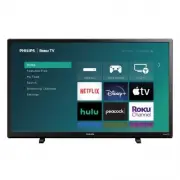


 Philips 50PFL5907/F7
User Manual
Philips 50PFL5907/F7
User Manual
 Philips 39PFL2908/F7
User Manual
Philips 39PFL2908/F7
User Manual
 Philips 55PFL5907/F7
Quick Guide
Philips 55PFL5907/F7
Quick Guide
 Philips 29PFL4908/F7
User Manual
Philips 29PFL4908/F7
User Manual
 Philips 32PFL5708/F7
Manual
Philips 32PFL5708/F7
Manual
 Philips 50PFL5708/F7
User Manual
Philips 50PFL5708/F7
User Manual
 Philips 20PT643R
User Manual
Philips 20PT643R
User Manual
 Philips 30PW862H
Manual
Philips 30PW862H
Manual
 Philips 30PW850H
Manual
Philips 30PW850H
Manual
 Philips HTS6500
User Manual
Philips HTS6500
User Manual
 Philips 37PF9631D/37
User Manual
Philips 37PF9631D/37
User Manual