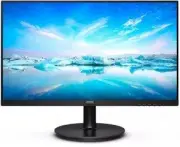
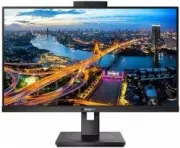
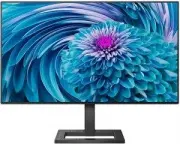
Page 2 - Table of Contents; Safety precautions and; Technical Specifications; Philips’ Flat Panel Monitors Pixel
Table of Contents 1. Important 1 1.1 Safety precautions and maintenance ..................................1 1.2 Notational Descriptions ..............3 1.3 Disposal of product and packing material ............................................4 2 Setting up the monitor 5 2.1 Installation ................
Page 3 - Important; Warnings
1 1 Important This electronic user’s guide is intended for anyone who uses the Philips monitor. Take time to read this user manual before you use your monitor. It contains important information and notes regarding operating your monitor.The Philips guarantee applies provided the product is handled p...
Page 5 - Notational Descriptions
3 known as “after-imaging” or “ghost imaging”, on your screen. • “Burn-in”, “after-imaging”, or “ghost imaging” is a well-known phenomenon in LCD panel technology. In most cases, the “burn- in” or “after-imaging” or “ghost imaging” will disappear gradually over a period of time after the power has b...
Page 6 - locations for dropping off such waste
4 1.3 Disposal of product and packing material Waste Electrical and Electronic Equipment-WEEE This marking on the product or on its packaging illustrates that, under European Directive 2012/19/EU governing used electrical and electronic appliances, this product may not be disposed of with normal hou...
Page 7 - Package contents; *Different according to region
5 2 Setting up the monitor 2.1 Installation 1 Package contents *HDMI AC/DC Adapter *USB C-C *USB C-C/A *USB C-A 24E1N3300A 3000 Series Monitor Quick start Register your product and get support at www.philips.com/welcome *Different according to region Note Use only AC/DC adapter model: Philips ADPC20...
Page 9 - efficiency of the radio transmission.; Operating the monitor; Confirm the OSD adjustment.
7 Warning USB 2.4Ghz wireless devices, such as, wireless mouse, keyboard, and headphones, maybe have interference by the high-speed signal of USB3.2 devices, which may result in a decreased efficiency of the radio transmission. Should this happen, please try the following methods to help reduce the ...
Page 10 - work your way around the different
8 2 Description of the On Screen Display What is On-Screen Display (OSD)?On-Screen Display (OSD) is a feature in all Philips LCD monitors. It allows an end user to adjust screen performance or select functions of the monitors directly through an on-screen instruction window. A user friendly on scree...
Page 11 - Physical Function
9 • MPRT is to adjust brightness for blur reduction, so cannot adjust bright- ness while MPRT is turned on. • MPRT is gaming-optimized mode. Turn on MPRT may cause noticeable screen flickering. It is recommended to turn off when you are not using the gaming function. • This Philips monitor is certif...
Page 12 - * Display design may differ from those
10 2.3 Remove the Base Assembly for VESA Mounting Before you start disassembling the monitor base, please follow the instructions below to avoid any possible damage or injury.1. Place the monitor face down on a smooth surface. Pay attention not to scratch or damage the screen. Then lift the monitor ...
Page 13 - Image Optimization; optimize display for different types
11 3 Image Optimization 3.1 SmartImage 1 What is it? SmartImage provides presets that optimize display for different types of content, dynamically adjusting brightness, contrast, color and sharpness in real time. Whether you're working with text applications, displaying images or watching a video, P...
Page 15 - AMD FreeSyncTM; update at different rates. Sometimes
13 4 AMD FreeSync™ PC gaming has long been an imperfect experience because GPUs and monitors update at different rates. Sometimes a GPU can render many new pictures during a single update of the monitor, and the monitor will show pieces of each picture as a single image. This is called “tearing.” Ga...
Page 16 - technology that provides flexible power
14 5 Power Delivery and Smart Power You can power your compatible device with up to 65 Watts of power from this monitor. 1 What is it? Smart Power is an exclusive Philips technology that provides flexible power delivery options for various devices. This is useful for recharging high performance lapt...
Page 17 - Technical Specifications; Connectivity
15 6 Technical Specifications Picture/Display Monitor Panel Type IPS Technology Backlight W-LED Panel Size 23.8" W (60.5 cm) Aspect Ratio 16:9 Pixel Pitch 0.2745 (H) mm x 0.2745 (V) mm Contrast Ratio(typ.) 1000:1 Optimum Resolution 1920 x 1080 @ 60 Hz Viewing Angle 178° (H) / 178° (V) @ C/R >...
Page 21 - Power Management; Power Management Definition; Note
19 7 Power Management If you have VESA DPM compliance display card or software installed in your PC, the monitor can automatically reduce its power consumption when not in use. If an input from a keyboard, mouse or other input device is detected, the monitor will 'wake up' automatically. The followi...
Page 22 - Philips’ Flat Panel Monitors; in flat panel m; Pixels and Sub pixels
20 8 Customer care and warranty 8.1 Philips’ Flat Panel Monitors Pixel Defect Policy Philips strives to deliver the highest quality products. We use some of the industry's most advanced manufacturing processes and practice stringent quality control. However, pixel or sub pixel defects on the TFT Mon...
Page 26 - FAQs; Common Problems
24 9 Troubleshooting & FAQs 9.1 Troubleshooting This page deals with problems that can be corrected by a user. If the problem still persists after you have tried these solutions, contact Philips customer service representative. 1 Common Problems No Picture (Power LED not lit) • Make sure the pow...